How to use your domain for Discord invite links

If you create a Discord link, it mostly consists of a random combination of characters. Invitation links are more memorable if you link your Discord server with your own domain. We’ll show you how it’s done.
How to link a Discord server to your domain quick guide
- Log in to the domain provider, select the domain, and create a subdomain if necessary.
- Set the usage type to “forwarding” and specify the desired Discord invite link as the forwarding target (you can create the Discord link in Discord under “Invite People”).
- Test the linked domain in the browser – it should now point to your Discord invitation link.
Requirements
Discord is one of the most popular online services for instant messaging and audio- and videoconferencing. In addition, Discord servers also offer many integrations and personalization options. If you want to invite friends to your Discord server, Discord will automatically generate a link. The only thing is that these links aren’t always easy to remember. Usually, they consist of the URL discord.gg/ and a random combination of characters.
To customize your Discord invitation link, you can use “Vanity URLs” to personalize the string at the end of a Discord link. However, the link will still begin with discord.gg. It is possible to use your own domain for your Discord server. If you do not have a domain yet, you can easily register one with IONOS.
If you already own a domain, you are welcome to use it. You simply need to configure your domain to redirect requests to the existing Discord invitation link. We explain this step by step in the following guide.


Step-by-step guide
Now that you have a Discord server and a matching domain, you just need to link the two.
The following steps are based on domains purchased from IONOS. If your domain is hosted by another provider, you’ll need to adjust the steps accordingly.
Step 1: Choose domain
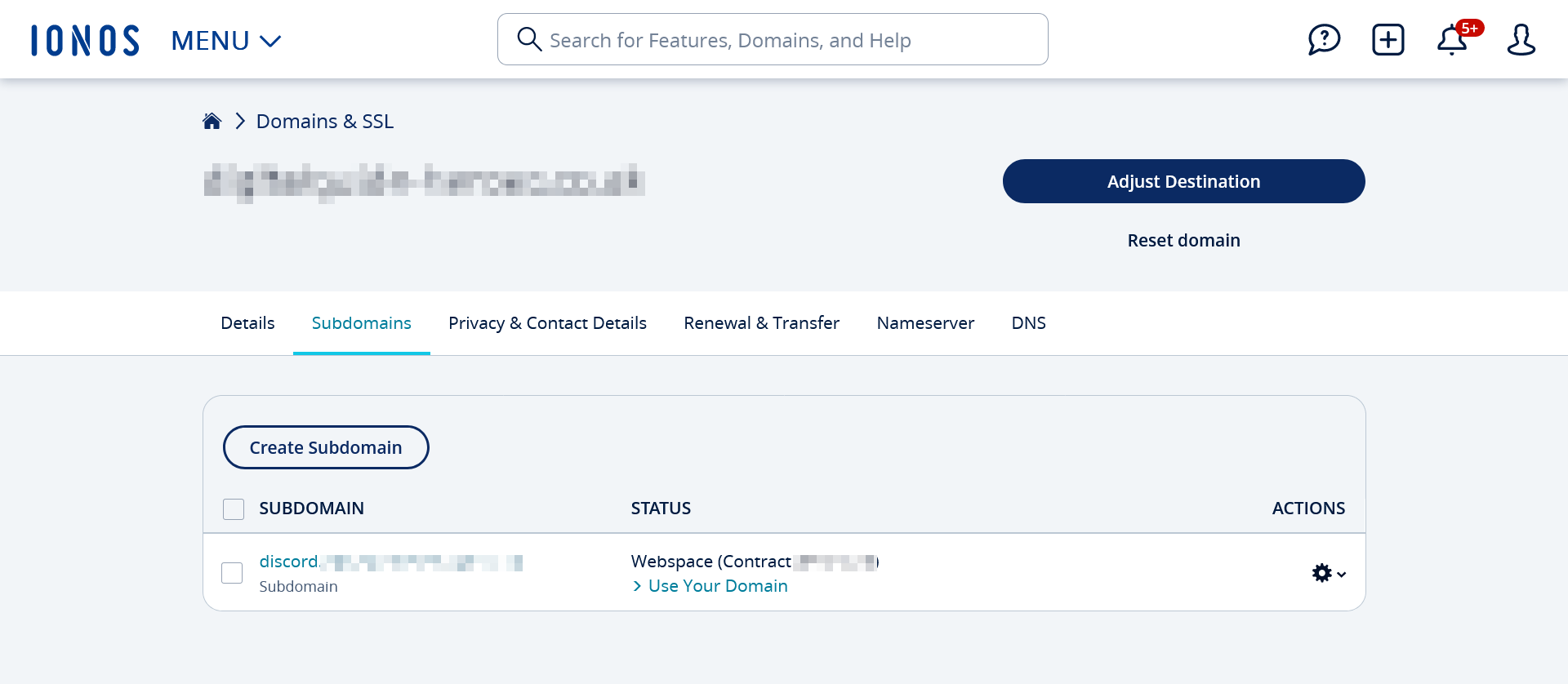
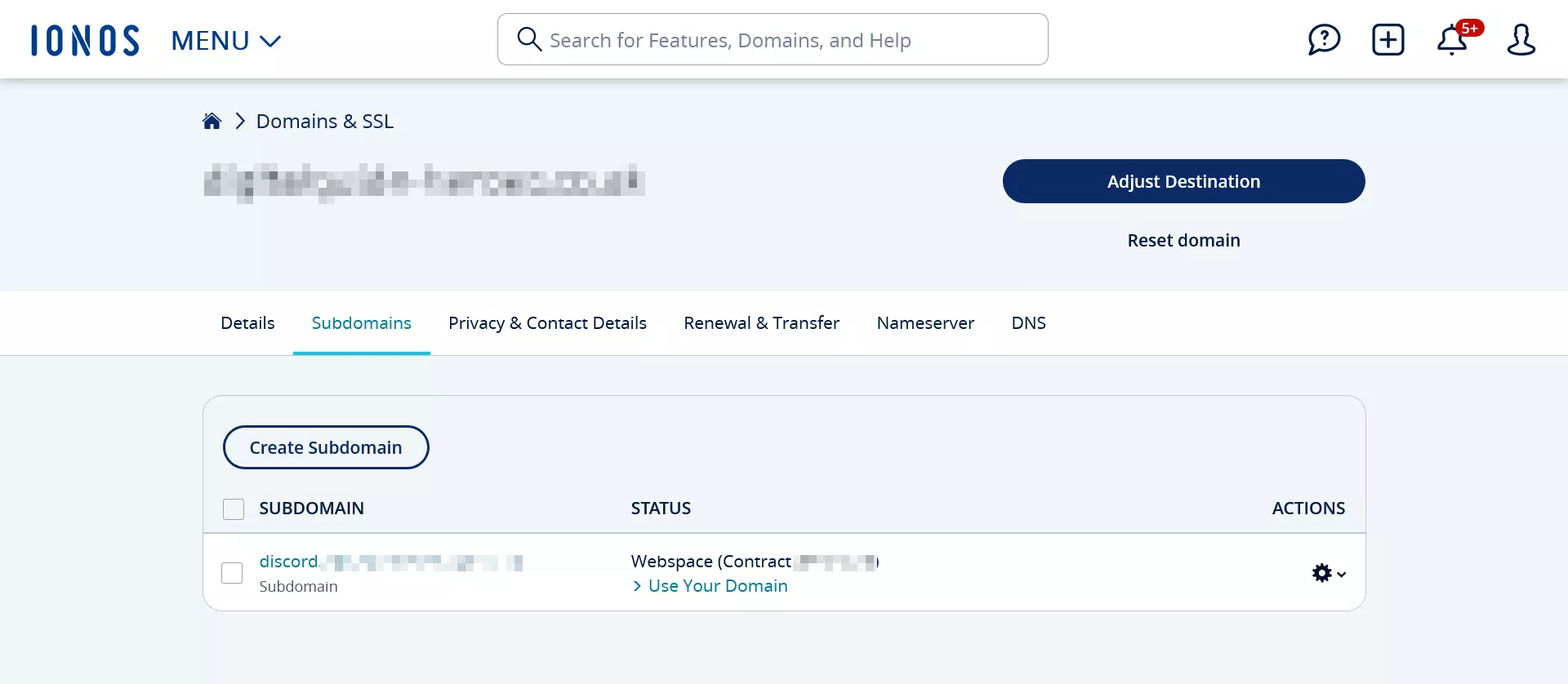
First, log in to your IONOS customer account. Then navigate to “Domains & SSL”. There, you’ll see all the domains hosted for you at IONOS. You can either use the entire domain or create a subdomain for forwarding to your Discord invite link.
In this example, we will create a subdomain. Navigate to the “Subdomains” tab and create a subdomain with the desired name. It may take some time for the subdomain to become available.
Step 2: Adjust your domain
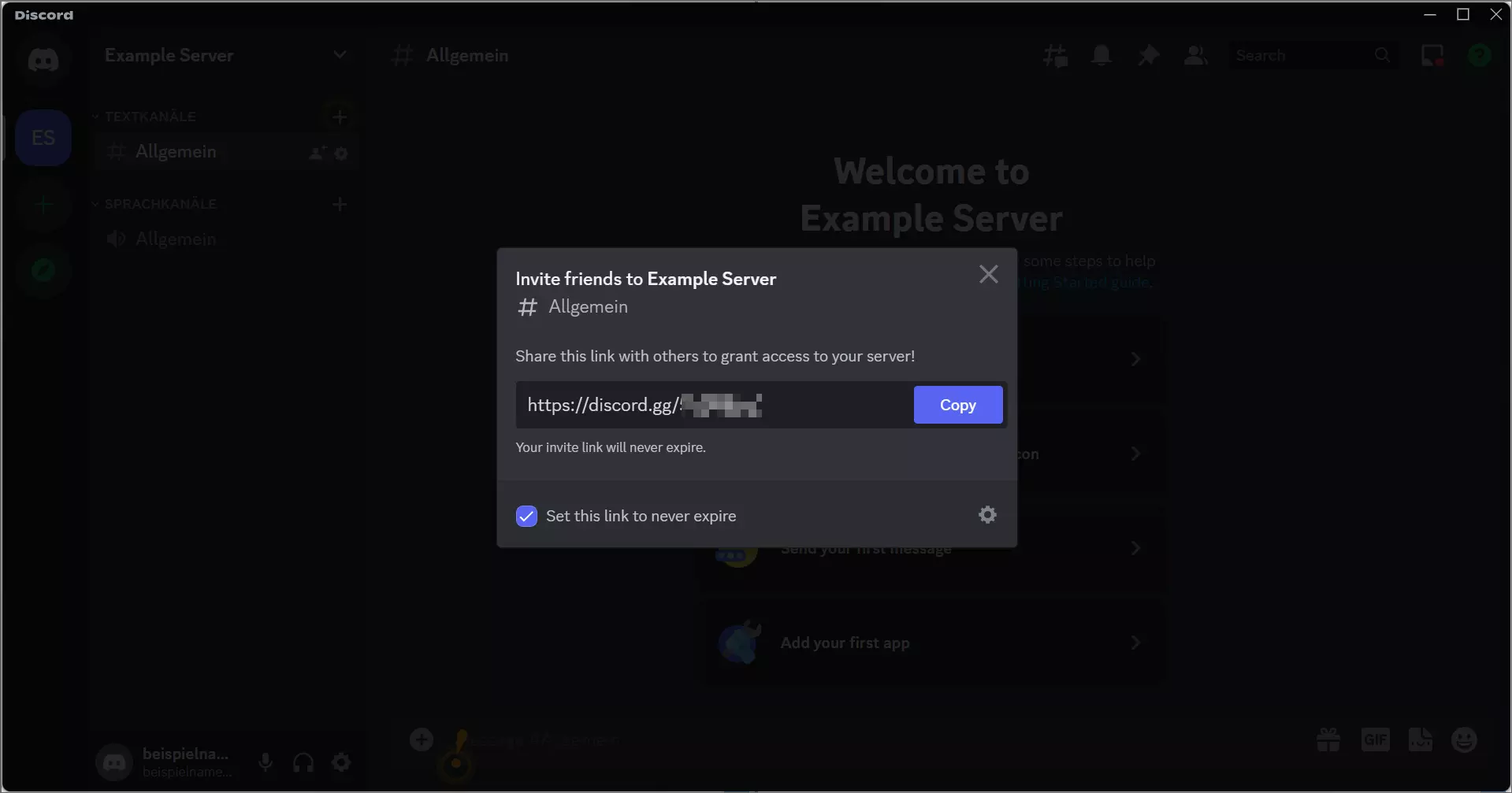
Click on the name of the subdomain (or your domain, if you want to use it), and then on “Customize Usage”. Choose “Domain Forwarding” here, and enter your Discord invite link in the “Forwarding Target” field. You can create your own invitation link in Discord by selecting the “Invite friends” option in your Discord server.
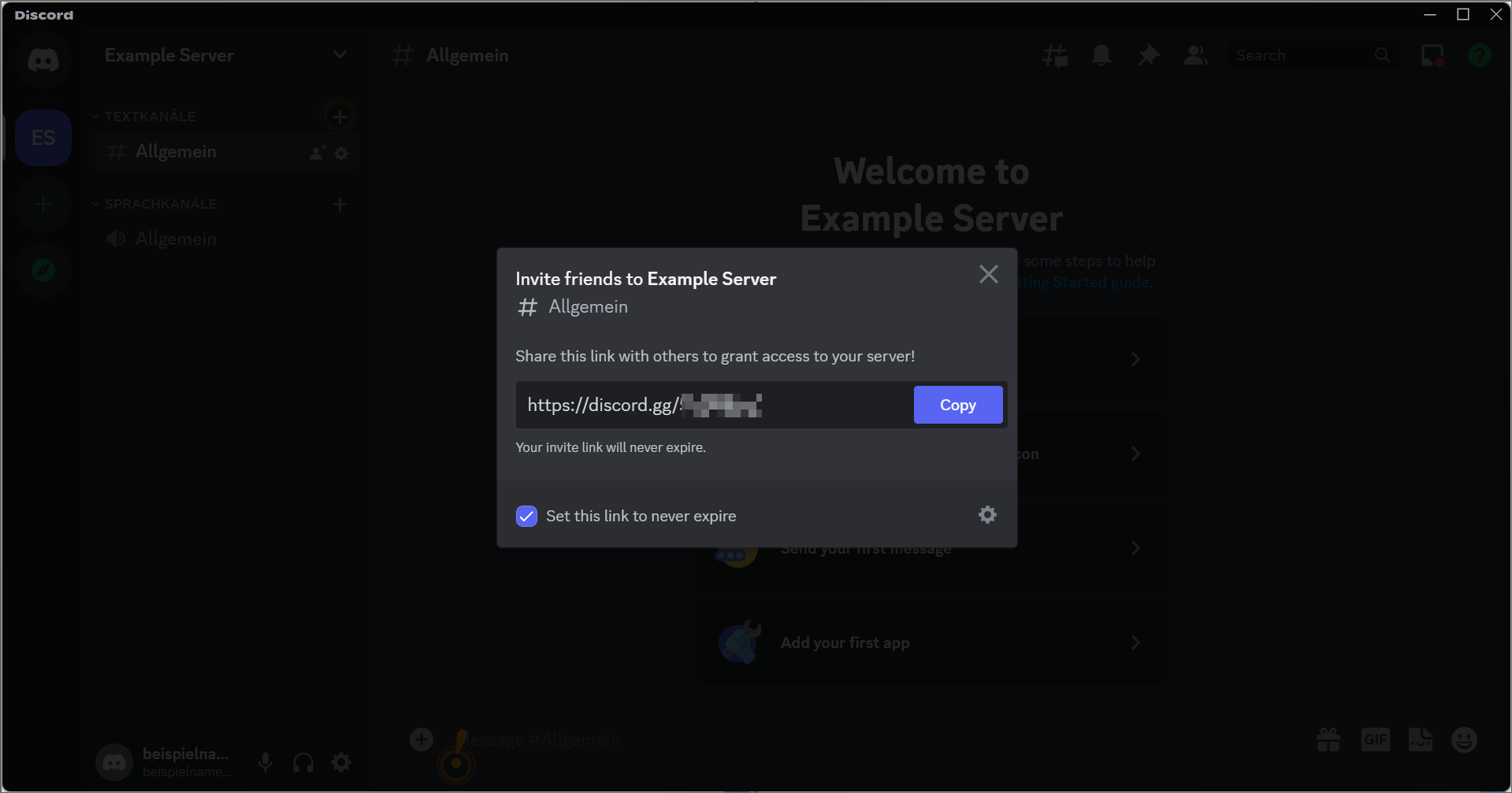
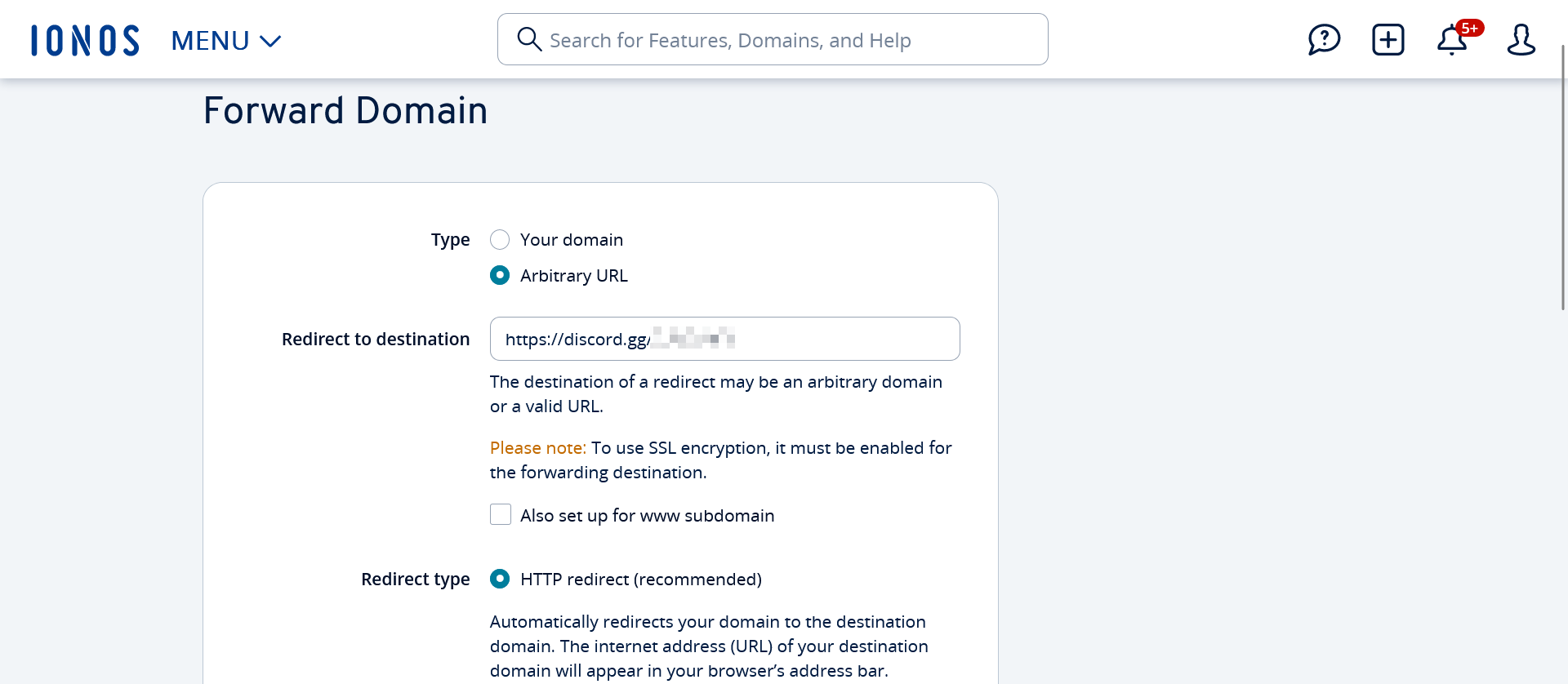
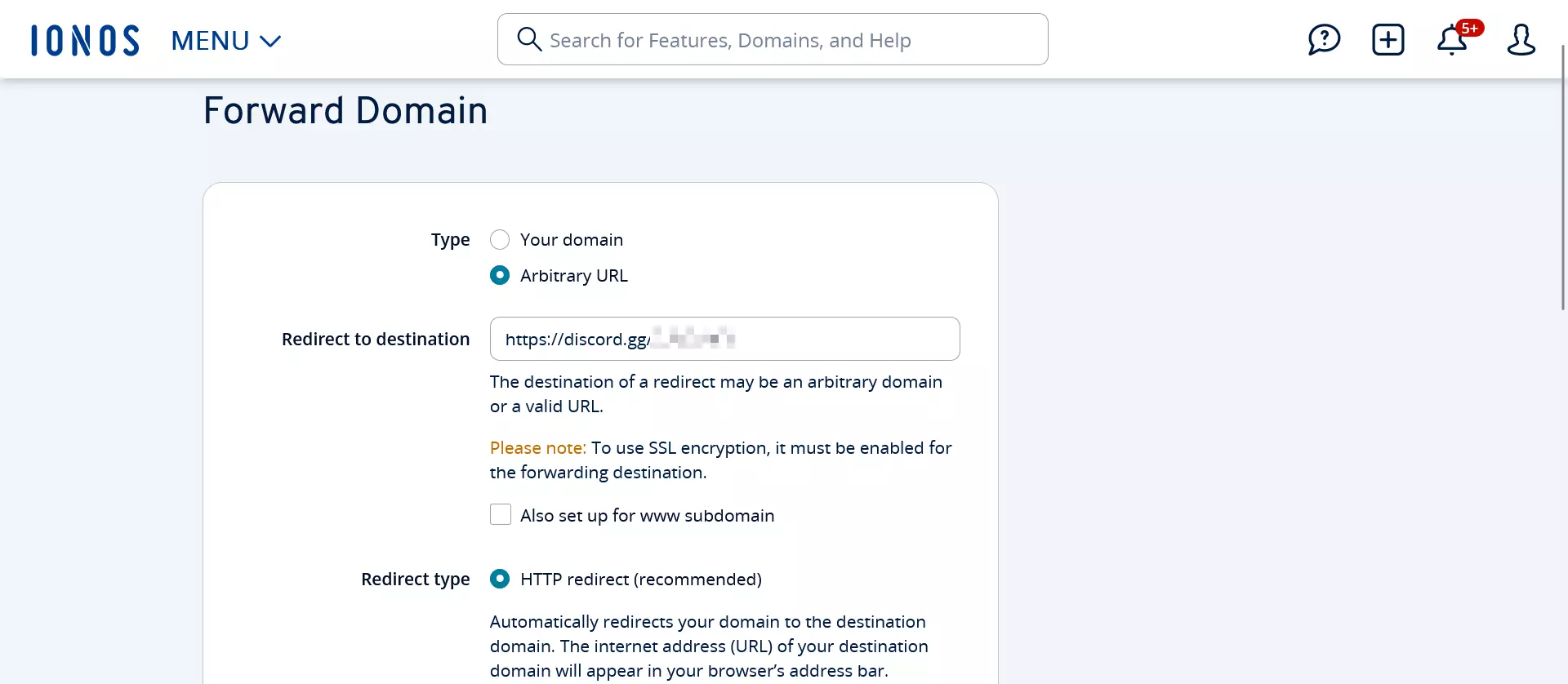
Click the three dots next to the desired subdomain in your IONOS customer account to open the menu, then select “Adjust usage type”. Now you can open the “Forward Domain” menu. For “Type” and “Redirect type”, enter “Arbitrary URL” and “HTTP redirect (recommended)”. Save these changes.
Step 3: Test domain redirect
Now enter the address of your domain (including subdomain, if applicable) in a browser. You should be redirected to your Discord server’s invite page.