

File systems
File systems have been around for centuries, with punching cards and magnet tape being among the earliest variations. However, these devices only allowed for linear access, for example, a coiling mechanism of the magnet tape to find the storage location of data. Modern file systems enable direct and fast access to data. But what are file systems? And which types of file systems exist?
- Simple registration
- Premium TLDs at great prices
- 24/7 personal consultant included
- Free privacy protection for eligible domains
What is a file system?
A file system is a repository on a storage medium which allows for data to be written, searched for, read, stored, modified, and deleted in a specific organizational structure. Importantly, it aims to structure data in an error-free manner so that users gain quick access to their data. File systems are also defined by the following attributes:
- Data naming conventions
- Data attributes
- Access control
File systems are an important operative component and act as an interface between the operating system and all connected hard drives (internal and external, for example, a USB stick). They can be added to external storage media via formatting but many storage solutions available today come pre-formatted. In the past, users had to manually initialize data media for the storage and management of their data.
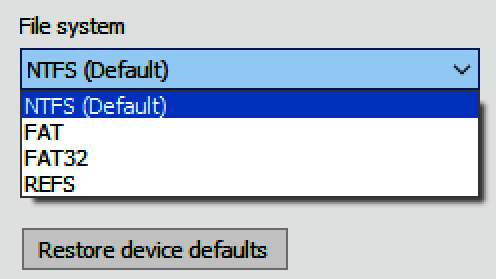
An overview of the most important file systems
Different standard file systems are available for Windows, macOS, Linux, Unix, and co. Due to technical advances in the past few years, these systems are now differentiated even more as custom-built file systems have been developed for popular flash storage media (USB sticks, SSD drives). Among the features that all file systems share is their tree-like structure, starting at the root from where the system branches out into different folders, sub-folders, and directories.
Despite some similarities, file systems are generally not cross-compatible. For example, if you want to connect a mobile hard drive with APFS (Apple File System from 2017) to a Windows computer, you won’t have much luck. Similarly, Linux file systems aren’t directly supported by many other operating systems. Generally, solutions are available from third-party service providers to bridge the gap and provide read and write access to various data media.
Nowadays, there are many different file systems but not many of them are widely spread. The most common systems include FAT16, FAT32, exFAT, and NTFS (Windows), as well as HFS+ and APFS (macOS/Mac OS X). Linux currently uses ext4 (a successor of ext3 and ext2). Below, we’ll present these file systems in brief:
FAT (File Allocation Table)
The FAT file system has been around since 1980. Updated editions are known as “FAT12,” “FAT16,” and “FAT32.” FAT formatting is ideal for the management and exchange of smaller data volumes. The FAT file system is now seen as somewhat outdated because even the latest version (FAT32, launched in 1997) only allows for the exchange of data files up to 4 GB in size. Additionally, maximum partition sizes are restricted to 8 terabytes (TB) with FAT32.
Despite these restrictions, FAT formatting is still in regular use. For example, it is used with mobile data carriers (external hard drives, USB sticks) and specialist hardware (digital cameras, smartphones, routers, TVs, car radio, etc.), allowing for maximum compatibility.
exFAT (Extended File Allocation Table)
The 2006 format is an extension of the classic FAT formatting. exFAT was originally created for external data carriers and is well-suited for USB sticks, storage cards, and external hard drives like solid state drives (SSDs) with individual storage capacities. exFAT works efficiently with smaller data storage media. However, it can handle large data and extend beyond the FAT32 limit of 4 GB. As of Windows 7, exFAT is supported natively, requiring no additional driver installation or special service packs.
NTFS (New Technology File System)
The NFTS file system was introduced in 1993 as part of Windows NT. As of Windows Vista, it has become a standard file system for Windows PCs. It provides a few significant advantages compared to FAT, including the option to compress data carriers and increased data security (through encryption, for example). A special feature of NTFS is that access rights and clearing of data and files can be defined in great detail. Users can share rights for local and remote access via a network.
HFS+ (Hierarchical File System)
The file system was launched in 1998 as an extension of HFS by Apple. To distinguish between the two, they are referred to as Mac OS Extended (HFS+) and Mac OS Standard (HFS). Compared to HFS, HFS+ is faster and more efficient when it comes to managing, reading, and writing data. In addition, it can manage multiple data at the same time, with up to four million blocks of data or folders possible. Linux is able to read and write data carriers with HFS+ directly, but you may need to install special packages (hfsutils, hfsplus, hfsprogs). When using Windows, you need to install additional software to support HFS+.
APFS (Apple File System)
APFS, the file system launched by Apple in 2017, caters to the demands of modern solid state drives (SSD). APFS is a 64-bit system enabling the encryption of data and files. If the operating system is on a SSD, HFS+ automatically converts the file system to APFS. This “auto-formatting” was introduced with the High Sierra operating system. As of macOS 10.14 Mojave, fusion drives (logical drives consisting of SSDs and mechanical hard drives) are automatically migrated to APFS. When converting from HFS+ to APFS, problems can arise.
ext4
ext4 was introduced in 2008 as a successor to ext3. The file system is currently a standard among many Linux systems (e.g. Ubuntu). Its latest addition is the Extents feature, which optimizes the management of larger data and efficiently prevents fragmentation compared to its predecessor. As part of ext4, partitions can be maximized or minimized while the system is running. The maximum data system size is 32 TB in ext3; for ext4, this has been extended to 1 exabyte (around 1 million TBs).
Brief overview of most important data systems
| Name | Area of use | Operating system (support) | Special features |
| FAT32 | Mobile data carrier | - Windows - Mac OS X/macOS - Linux (may require additional driver installation) | - High compatibility - Broad hardware support - Lack of encryption and compression functions - Lack of data security - Ideal for smaller partitions - Maximum data size: 4 GB |
| exFAT | Mobile data carrier | - Windows - Mac OS X/macOS (compatibility as of 10.6.4) - Linux (may require additional driver installation) | - No standard available - Lack of rights administration - Lack of data compression - Ideal for smaller flash storage from 32 GB (USB sticks, SD cards) - Unrestricted sizes and partitions (according to current standard of technology) - Maximum data size: 512 TB |
| NTFS | Internal, external hard drives | - Windows - Mac OS X/macOS (extensive support only with added tools) - Linux (requires installation of driver) | - Rights administration - Improved data security: secures against data loss and changes, data encryption possible - Data compression possible - Good performance with large data carriers - Specialized for large data and high storage capacities - Not for smaller drives and partitions below 400 MB (greater administrative effort) - Maximum data size: 256 TB |
| APFS | SSD-Drives | - macOS (Standard from 10.13, High Sierra) - Additional software to use on older Mac OS or Windows systems | - Optimized for SSDs and other all-flash storage devices - Works on mechanical and hybrid hard drives - Data encryption possible - Optimized storage management (space-share function) - Crash protection function secures data system from damage (e.g. system crash) - Fusion drive support as of macOS 10.14 Mojave - Maximum data size: 8 exbibytes |
| HFS+ | Internal and external hard drives | Mac OS X/macOS | - Mature and proven data system - Particularly suitable for mechanical drives - Not optimized for modern storage technologies (SSD, flash) - Better downward compatibility than APFS - Restricted life span, likely won’t be supported by Apple long-term - Will likely lose significance because of part-automated forced conversion in APFS - Maximum data size: 8 exbibytes |
| ext4 | Linux | - Linux - Windows (only with added tool) - Mac OS X/macOS (only with added tool) | Compared to previous ext versions: - Improved performance - Improved data security - Integrated encryption (as of Linux kernel 4.1) - New “Extents” feature provides speed advantages when managing large data and prevent fragmentation - Rights management possible - Maximum data size: 16 TB |
Changing file systems – is it possible?
When choosing how to format a system (for example, to use an external hard drive across different computers and devices), compatibility is of the utmost importance. For increased flexibility while transferring data between Apple and Windows devices, formatting using the exFAT data system is recommended. The right choice of formatting of the data carrier is important and can prevent problems and restrictions during data exchange.
Once the core requirements are met (for example, latest hardware), you can change the system any time, for example, from an older to a more modern file system. However, you should check whether the change may lead to a loss of data and ensure that important data are backed up and can be copied back onto a data drive later. Various programs are available for these transfers (including freeware), which offer a secure and easy conversion. However, in some instances you may be able to use your operating system instead. Find out more about formatting the file system of a USB stick in Windows in our dedicated article.