

How to install and host a No One Survived server

The developer Cat Play Studio released dedicated server software for the early access version of No One Survived early on. With this software, players can set off on their own multiplayer adventures. Equipped with the right hosting setup, you can quickly install and set up the server via SteamCMD.
What are the requirements for a No One Survived server?
Similar to a Dayz server or a Sons of the Forest server, you can also host a No One Survived server on your own PC. However, there are several reasons why it’s better to go with a professional web hosting provider. For one, a self-hosted server will only run when your device is turned on. With a hosting provider, you can make the game world available around the clock. Secondly, data centers have high-performance broadband connections that are superior to ordinary household connections.
The specific requirements of the No One Survived server depend on your playing habits. One crucial factor, however, is the number of players who will be active on the server at the same time. Below, you’ll find the minimum requirements for a simple server with up to four players:
- Computing power (CPU): min 3 GHz
- Memory (RAM): min 4 GB
- Hard drive space: min 10 GB
The requirements of the underlying server operating system also need to be considered. The No One Survived server software is currently designed for Windows Server. If you’re using Windows Server 2022, the requirements are as follows:
| Windows Server 2022 without GUI | Windows Server 2022 with GUI | |
|---|---|---|
| Processor | 1.4 GHz processor (64 bit) | 1.4 GHz processor (64 bit) |
| Memory | 512 MB RAM | 2 GB RAM |
| Hard drive space | 32 GB | 36 GB |
Get started today with a cloud server from IONOS and set up your own No One Survived server on powerful hardware. The infrastructure is ideally suited for a variety of uses. For example, you can also enhance your gaming experience by adding a specially hosted TeamSpeak server so you have a voice solution at hand for your multiplayer adventures.
Which IONOS server should I use for a No One Survived server?
IONOS offers everything you need in a reliable hosting partner. When looking for a suitable hardware plan for your No One Survived server, you can choose from three different models, which each come with different plans:
- Cloud server: A cloud server from IONOS is the perfect way to get into game server hosting. You rent virtualized hardware resources that can be scaled flexibly and billed by the minute.
- VPS (vServer): IONOS vServers are also based on virtualized hardware (shared host systems and can be rented at a fixed monthly price.
- Dedicated server: Get dedicated enterprise hardware with state-of-the-art processors and per-minute billing when you rent a dedicated server from IONOS. If you choose the “Configurable Hardware” option, you can adjust the performance at any time.
- KVM based dev servers for developers
- Scalable to enterprise cloud level
- Pay-as-you-go, per-minute billing
3 No One Survived server scenarios and suitable IONOS plans
Below you will find three different scenarios for hosting a No One Survived server and a suitable IONOS plan for each one. You can use these examples to help you decide which server is best suited for your gaming needs.
| No One Survived server scenario | Suitable IONOS server plan |
|---|---|
| 2 players; server permanently online | VPS Windows M |
| 3–8 players; server permanently online | VPS Windows L |
| More than 8 players; server permanently online | Dedicated Server AR6-32 SSD |
If you want to run your own server around the clock and prefer a fixed monthly price right from the beginning, a IONOS vServer is the right choice for you!
Step-by-step instructions for setting up a No One Survived server
Below we have summarized the most important steps for setting up a No One Survived server with an IONOS (Cloud Server, vServer, Dedicated Server) server plan. The operating system used here is Windows Server 2022.
Step 1: Connect to the hosting server
In order to install No One Survived dedicated server software on the rented hardware, an active remote desktop connection to the server is required. This is easy to do in your IONOS customer account:
- Log in to your IONOS customer account.
- Click on Server & Cloud.
- Select your IONOS server.
- Click on the server and scroll to the login data. Download the file for theRemote Desktop connection by pressing the download button.
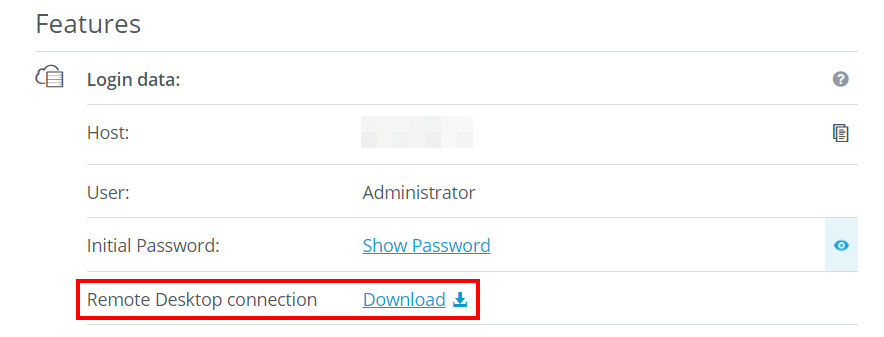
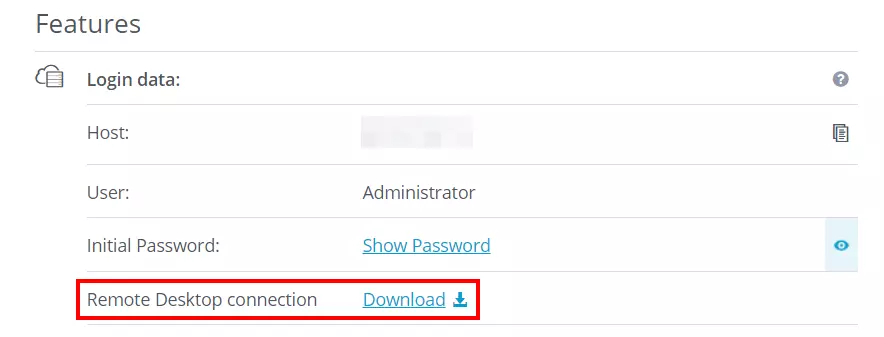
Execute the downloaded .rdp file by double-clicking on it and then confirm the connection setup in the first dialog via Connect. Log in to the server with your individual login data (User and Initial Password).
The first time you connect to your rented server, you will be asked to trust the security certificate. To do this, click on Yes in the window that pops up.
Step 2: Install SteamCMD
The most convenient way to obtain the server application for hosting your own No One Survived server is via SteamCMD. The command line client offers you the possibility to connect to the Steam servers and download the files.
Download the handy tool by clicking on the following download link. Then unzip the ZIP file and save the steamcmd.exe in a new directory named C:\SteamCMD. Once you run the installation file, SteamCMD will automatically be installed in this directory and run directly.
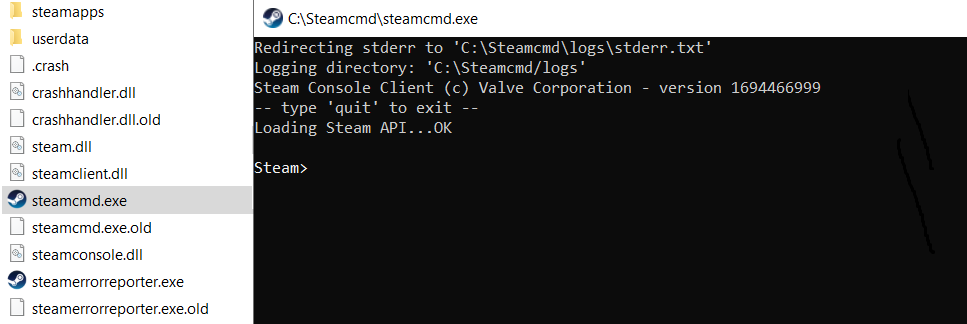
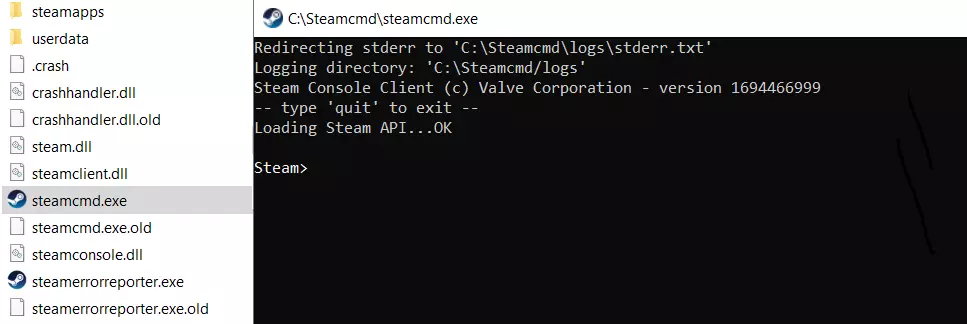
Detailed instructions for installing the command line client (Windows and Linux) can be found in our separate article “Install SteamCMD”.
Step 3: Download and install the No One Survived server
Using the command line tool, you can now connect to the public Steam servers to download the No One Survived server files. First, create a suitable installation directory for the server files, such as C:\no-one-survived-server:
force_install_dir C:\no-one-survived-serverThe next step is to log in anonymously to the public Steam servers:
login anonymousAfter logging in, you can download and install the No One Survived dedicated server application by entering the app ID 2329680:
app_update 2329680 validateAfter the installation has been completed, use the command quit to log off from the servers and SteamCMD.
Step 4: Install Microsoft Visual C++ Runtime
In order to run the application, you also need to install a current version of the Microsoft Visual C++ Runtime. You can find the appropriate installation files in the Microsoft Help Center. Be sure to choose the version that corresponds to the architecture of the server hardware you are renting. For example, if you have a 64-bit system, choose the download file vc_redist.x64.exe.
Restart your server after installing the runtime environment.
Step 5: Open server ports
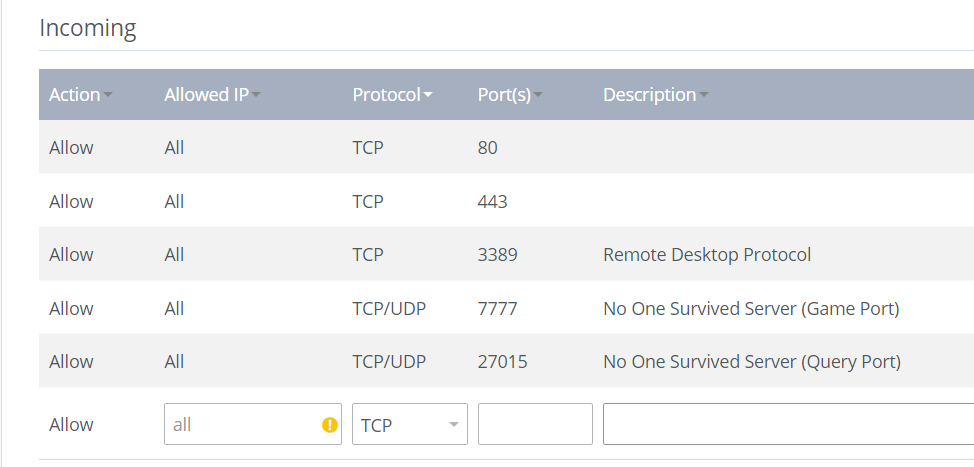
To enable client connections to your server and make the server available later via the server listing, you need to enable certain TCP/UDP ports in the server’s firewall settings. The recommended ports for the No One Survived server are TCP/UDP 7777 (game port) and TCP/UDP 27015 (query port). For IONOS servers, you can do this directly in the customer account:
- Go to the Servers & Cloud section again.
- Select the server that the No One Survived server software is installed on.
- In the left side menu, open the Network section and then select the Firewall Policies menu item.
- Create the rules for TCP/UDP ports 7777 and 27015 under Inbound. If you select TCP/UDP directly in the Protocol field, you’ll only need to create one rule for each of them.
Want to make your server available via an individual domain name instead of a cryptic IP address? At IONOS, you can register your own domain. Start using your own domain today!
Step 5: Configure the No One Survived server
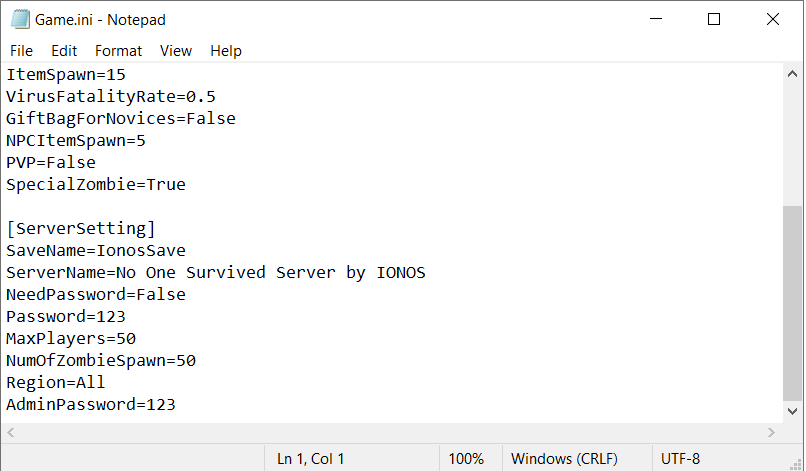
In the configuration file Game.ini, you can define the basic settings for your No One Survived server. You can find the file under the path .\WRSH\Saved\Config\WindowsServer\Game.ini in the server directory that was created.
The configuration file is divided into the following two categories:
GameSettings: Here you can specify the basic game properties. Are the zombie attacks activated and if so, on which day should these enemies start to appear on the screen? How many days should a game year have and is PvP allowed?ServerSetting: Under this category, you can define all important server properties like the name, an optional password and the maximum number of players.
Step 6: Start the server
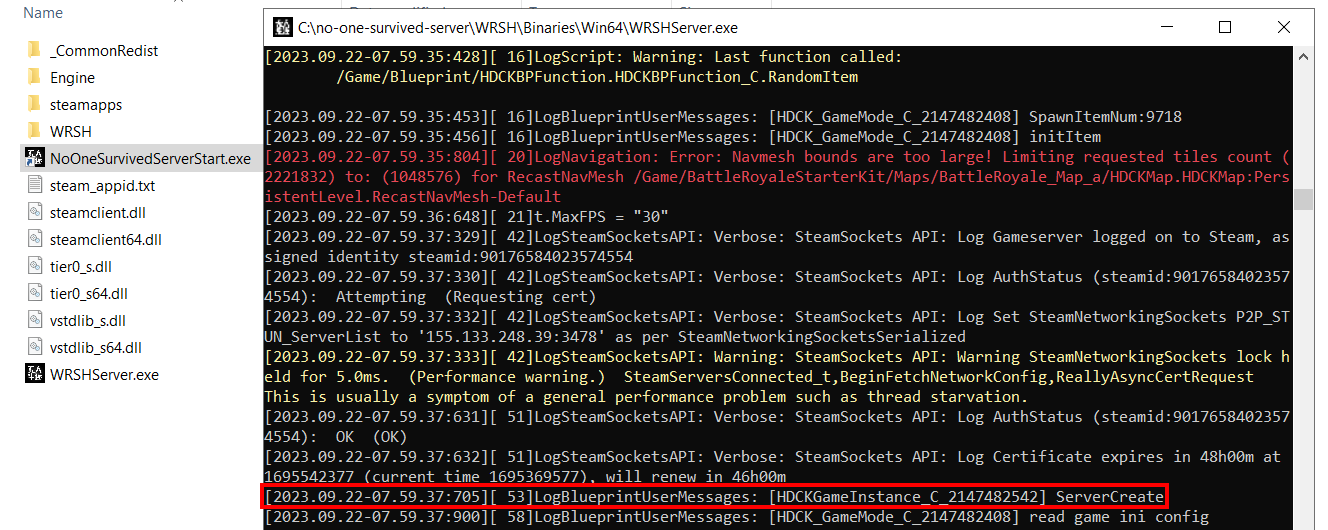
Once you have opened the ports and saved your settings, you can start your No One Survived server. All you have to do is run NoOneSurvivedServerStart.exe. The server application will then start automatically in a new CMD window. The initialization of the game world will take a little bit of time. If ServerCreate is displayed, it means the server start was successful.
 Zheka6120shutterstock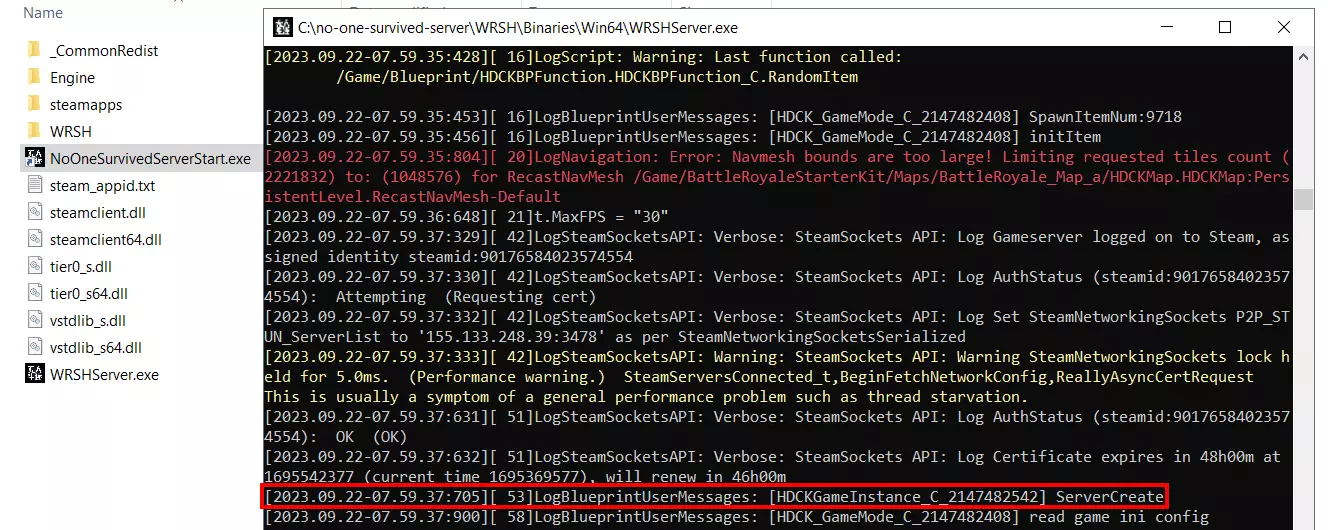
Step 7: Connect to your newly created No One Survived server
Once the server is up and running, you can share your IP address or server name (and password, if set up) with your fellow players. Using this information, you and others can now search for your No One Survived server and connect to the game world by carrying out the following steps:
- Start the No One Survived game as you normally would.
- Click on the Multiplayer menu item.
- Press Private server and restart the game.
- Navigate to the item Private server via Multiplayer once more and you will get to the menu with the same name.
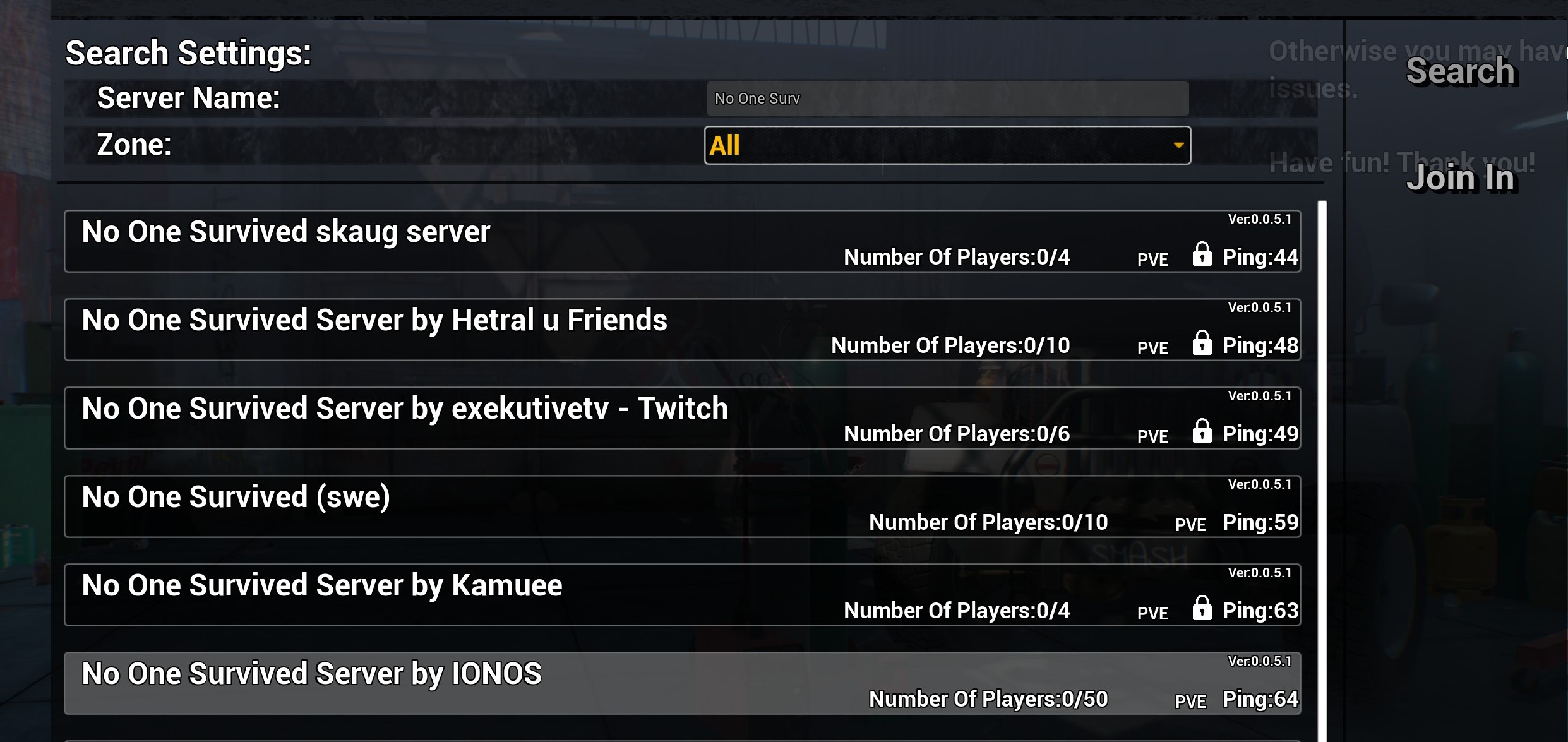
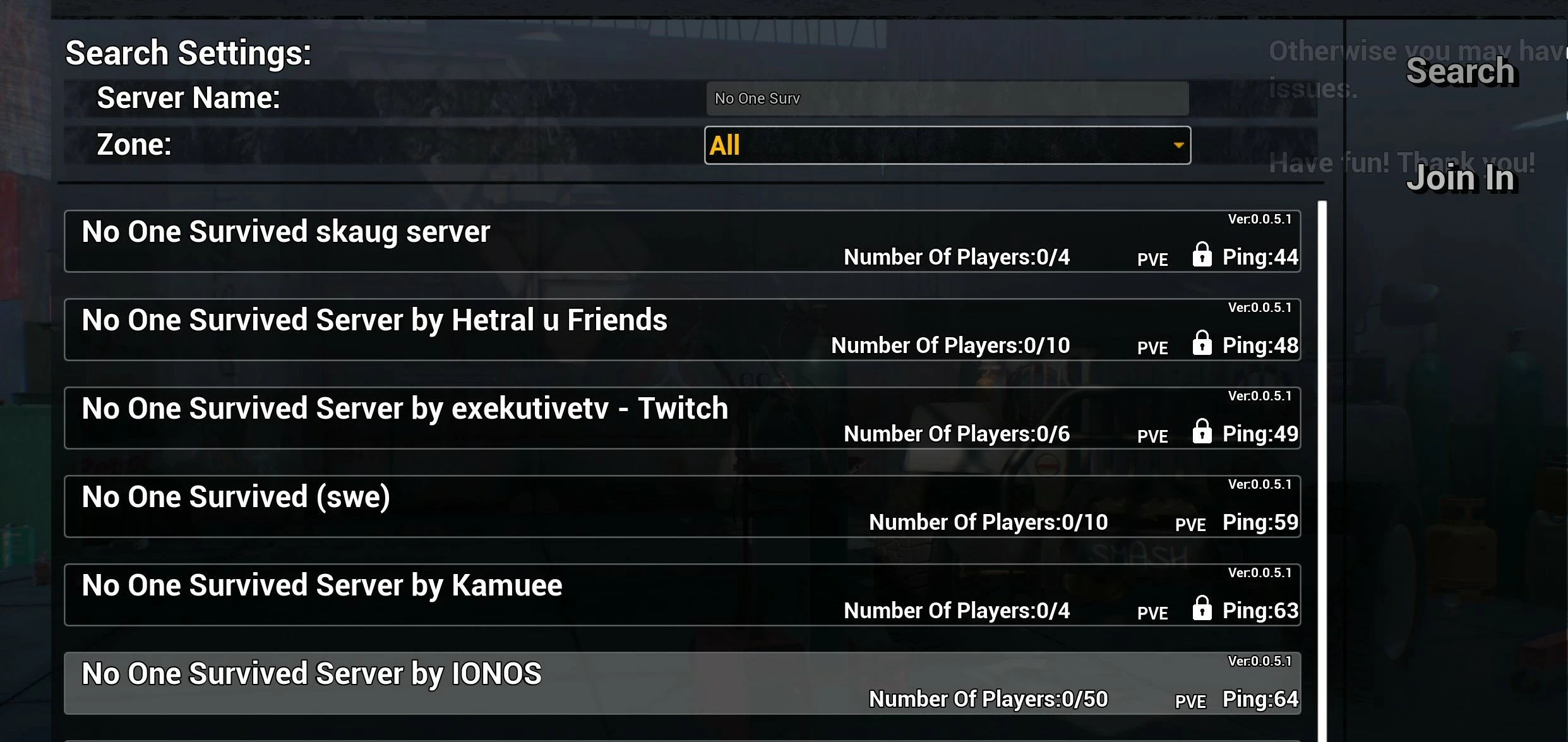
- Use the search function to look for your server. It’s not possible to search for the server using part of the name so make sure to use the full name that you defined in
Game.ini. - Click on the search result with the name of your server and then press Join in.
After successfully logging in to the server, you can start the dedicated multiplayer adventure on your newly created No One Survived server!
 Chinnapongshutterstock
Try out your VPS for 30 days. If you're not satisfied, you get your money back.