

What is DDNS and how does Dynamic DNS work?

DynDNS is a service that allows you to access your home network under a consistent internet address—even when your IP address changes regularly. The service automatically updates the IP address associated with the name, ensuring that your PC or router remains reachable from outside your network.
- Faster domain resolution to keep you online longer
- Added protection against outages and downtime
- No domain transfer needed
What is DynDNS and DDNS?
“Dynamic DNS” (DynDNS) stands for Dynamic Domain Name System, also known by its abbreviation DDNS. This service helps you map the constantly changing IP address of your home network to a fixed domain name. You register with a DDNS provider using a free subdomain (for example, example.example.com). Your computer is then always reachable under this address—even if you don’t know its current IP address.
An increasingly important aspect of using DynDNS is support for IPv6. Many modern internet connections—especially fiber and mobile networks—use IPv6 addresses, which change less frequently or not at all. In such cases, the need for DDNS may be reduced. Still, it is often useful to use a DDNS service even with IPv6, as many routers and devices continue to rely on dual-stack connections (IPv4 and IPv6). Some DDNS providers now fully support IPv6, allowing flexible access to home devices via both protocols.


What’s the difference between DDNS and DNS?
DDNS, or DynDNS, is essentially an extension of the DNS (Domain Name System). DNS is a global directory system that maps registered domains to IP addresses (converting names into addresses) and enables access to websites, emails, or FTP.
Think of it as a phone directory that provides up-to-date contact information upon request. DNS “looks up” the IP address associated with a hostname (if it’s not already in the local DNS cache) and constantly communicates with the DNS database of the internet service provider. Ideally, the query returns the matching IP address. Reverse translation—converting IP addresses to domain names—is also possible, but harder to implement since Reverse DNS is not a universal internet standard and DNS is not optimized for this function.
In contrast, DDNS services explicitly support the mapping of dynamic IP addresses to a specific domain. These services automatically synchronize changes with DNS databases. DynDNS ensures that any change in IP address is detected and the corresponding DNS record is updated. To connect to your computer, you only need the domain name you registered with the DDNS provider.
Because of IP address shortages and for administrative and security reasons, most internet providers assign a new IP address every 24 hours. This helps protect data transfers over the internet from hacker attacks.
How does Dynamic DNS (DynDNS) work?
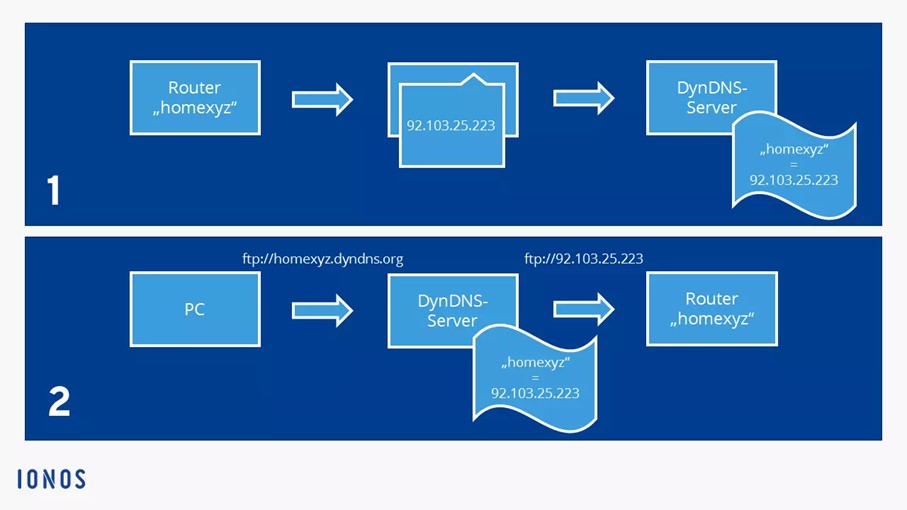
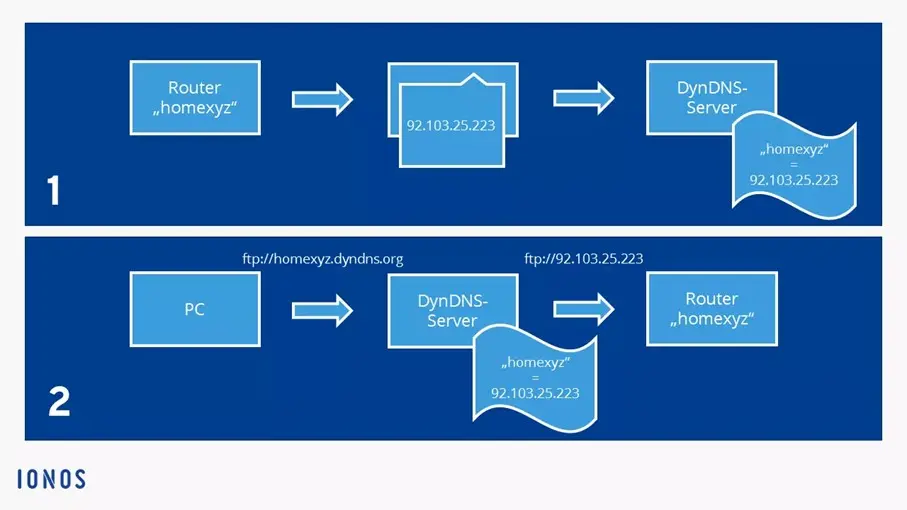
Since network addressing generally uses domain names rather than IP addresses, a dynamic DNS is needed to keep the domain name up to date with your changing IP address. Each time the router’s IP address changes, it reports the new IP to the DDNS service, which then updates the DNS record for the domain and responds to queries with the new IP address. Here’s how the process works:
- The router shares the new IP address (assigned by your ISP) with the DDNS service. The service then links the IP address to your predefined domain name, making your local server consistently reachable.
- If the IP address changes again (usually every 24 hours), the DDNS provider is automatically notified. The server then updates the DNS record for the domain with the new IP address.
- When you want to connect to your system remotely (e.g., via Remote Desktop), you send a DNS request to your registered domain. The DDNS server returns the current IP address associated with the name.
With the IP address provided, a client-server connection can now be established. Ideally, this connection should use encryption protocols like HTTPS or a VPN to protect your data. Many modern DDNS services also offer two-factor authentication (2FA) to enhance network access security. These features are especially important when sensitive data or devices are involved.
You’ll first need to configure your router to support the DynDNS function. This is usually easy: on the popular FRITZ!Box, for example, just go to the “Internet” menu → “Permit Access” tab → “DynDNS” section, check “Use DynDNS,” and enter your DynDNS address and login credentials provided by the DDNS service. Save and you’re done.
Use cases for DynDNS
There are many practical uses for DynDNS. You can:
- Access your personal computer remotely (e.g., via Remote Desktop)
- Manage multiple operating systems on a single device and transfer files over the internet
- Stream media content from your home server
- Access your mail server or files from your office remotely
- Control smart home systems like heating or IP cameras
- Manage IoT devices remotely
And much more. The Dynamic Domain Name System (DynDNS) significantly simplifies remote computer access in both home and work environments.