
What are the best Android cloud apps 2025 for storage?

When backing up your Android device, it makes sense to use cloud apps from trustworthy external providers. With Android cloud storage solutions, you can create a document in the office, continue working on it on the go and then share it with your colleagues at any time, wherever they are. Here are the best Android cloud apps.
The best storage apps for Android compared
| Storage location | Free cloud storage | Biggest selling point | Price | |
|---|---|---|---|---|
| IONOS HiDrive | Local, in-house cloud | ✗ | High level of data security | 100 GB: $1.50 / month 2 TB: $20 / month |
| Google Drive | Local, in-house Google Cloud | ✓ 15 GB | Largest amount of free storage | 100 GB: $1.99 / month 2 TB: from $9.99 / month |
| Dropbox | Local, proprietary cloud | ✓ 2 GB+ | Widely used | 3 TB: $16.58 per month / month 9 TB+: from $18 / month |
| Microsoft OneDrive | Local, in-house cloud | ✓ 5 GB | Windows integration | 100 GB: $1.99 / month 1 TB: $9.99 / month |
| Super Backup | Local, Google Cloud, Dropbox, Gmail | ✗ | Best price | One-time: $1.99 (removes advertising) |
| Box | Local, in-house cloud | ✓ 10 GB | Ideal for companies | 100 GB: €12.00 (around $14) / month |
Updated: June 2025
- Store, share, and edit data easily
- Backed up and highly secure
- Sync with all devices
What makes cloud apps for Android special?
Android cloud apps are smartphone programs that allow you to back up data to the cloud instead of local storage. You can then retrieve your data from any device that you have authenticated (e.g., by using a password-protected sharing link). Users can manually back up their system, selected files or data categories at any time. Alternatively, you can create an automatic storage plan. Some Android cloud apps also allow you to back up all applications you have installed including the configuration, personal and access data of the applications – provided your device is “rooted”.
Keep in mind that when backing up app data, you are also transferring personal information like contacts, messages, pictures and stored wireless passwords to your Android cloud.
Good cloud storage should generally have the following features:
- As large a memory as possible (at least 1 GB for infrequent backups)
- A free version for private and occasional users
- A wide range of storable data categories (not just calendar entries and photos, but also app data)
- A high synchronization speed so that uploaded files can also be retrieved immediately on other devices
- Optimum user-friendliness and smooth functionality
- Additional features such as file sharing, folder structures, software integrations, and offline functionality that allow users to edit data without internet access and sync later
- High data protection and cloud security (factors include: connection encryption, server locations, and privacy policies, GDPR)
- Advanced security features like end-to-end encryption, zero-knowledge architecture, and two-factor authentication (2FA) to protect against unauthorized access
- Good value for money for Pro versions
What are the best Android cloud storage apps?
Some Android cloud apps in the Play Store are generally more popular than others, but the number of downloads shouldn’t be the only criteria you follow when selecting one. Cloud apps for Android work on the same principle but offer different amounts of storage space, different pricing models and different features. In this article, we’ll provide you with information to help narrow down your choices.
IONOS HiDrive
HiDrive from IONOS has impressive data security. All stored data needs to be secured with a PIN code. If you opt for a IONOS server located in Europe, data protection is secured in accordance with the GDPR.
This makes IONOS’s online storage a good choice for businesses: With 2 TB, teams can also use HiDrive for collaboration. The data is synchronized across all devices at all times. Thanks to various protocols, data exchange and backup work quickly and securely: WebDAV, (S)FTP/FTPS, rsync, SMB/CIFS, SCP, and Git are available—though except for WebDAV, only in the Pro version.
IONOS HiDrive has a user-friendly interface, and customers can choose from 100 GB, 250 GB, 1 TB, or 2 TB of storage space. With the Pro edition, users benefit from device backup and end-to-end encryption.
| Advantages | Disadvantages |
|---|---|
| ✓ High data security | ✗ No free version |
| ✓ Option for European servers (adherence to strong EU data protection law) | |
| ✓ Business plans can be fully integrated into your own system landscape |
- Store, share, and edit data easily
- Backed up and highly secure
- Sync with all devices
Google Drive
For Android users with a Google account, Google Drive is the most convenient solution because the app comes preinstalled on the system, so no additional setup is required. With 15GB for backups, it offers the most free storage of any Android cloud app on our list. If you need more Android cloud storage, you can upgrade from Google Drive to Google One. Depending on your subscription, you can get up to 2 TB of storage space. Additionally, users of the AI Premium plan can access Gemini Advanced, a powerful AI functionality that makes handling data and using Google Drive more efficient and smarter.
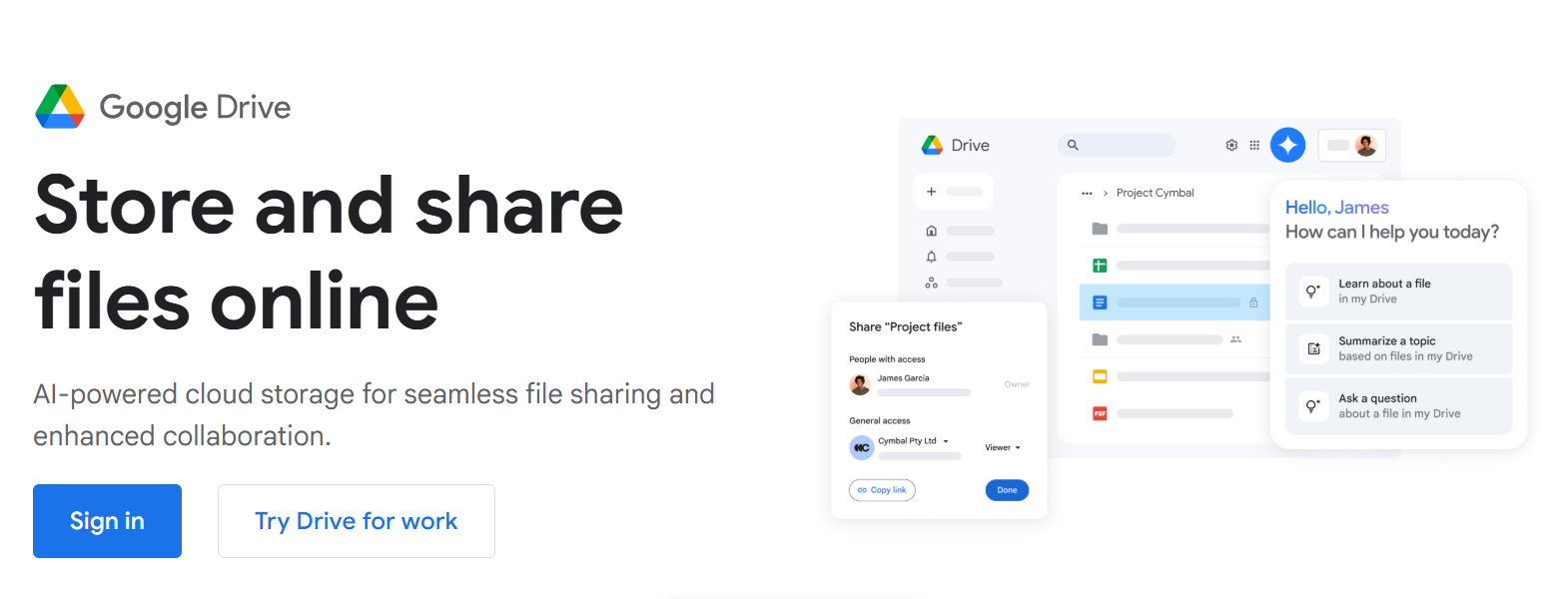
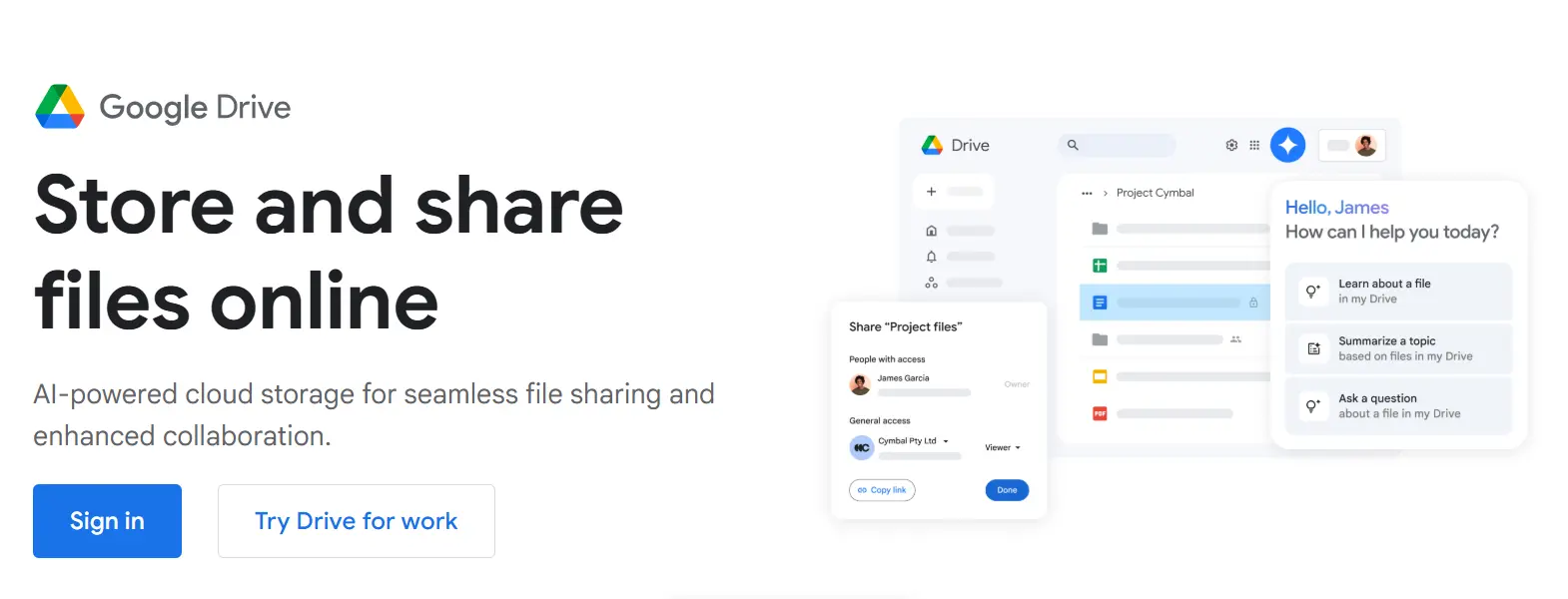
Folder management, data synchronization with Google Cloud, and file sharing (with other Google users or through an external link) can be easily done with the “+” button on the start page. Photos can also be stored in the cloud through Google Photos. This can be done automatically right when they’re taken.
Another advantage of the app is the ability to integrate popular Google Workspace applications such as Google Docs, Google Spreadsheets, and Google Presentations. However, you need to first convert documents into an Office format before you can download them and use them offline. Furthermore, Google Drive impresses with its resource-saving functionality and high synchronization speed. Two-factor authentication and encrypted connections offer sufficient security. However, many Android users will not want their sensitive data placed in the IT company’s hands.
| Advantages | Disadvantages |
|---|---|
| ✓ 15 GB of free disk space | ✗ Google Workspace files need to be converted to Office formats to use them offline |
| ✓ Preinstalled on Android devices | ✗ Widespread security concerns about Google |
| ✓ Perfect functionality and simple to use |
- All your favorite Google productivity tools
- Business Gmail for your domain
- Using Gmail with your domain from IONOS
Dropbox
Dropbox belongs to the pioneers of the industry and was even considered synonymous with the cloud for a while. Both the desktop application and the Android cloud app have remained virtually unchanged since then. The easy-to-use interface ensures a consistent experience across all platforms, which is probably why no major changes have been made to the design.
The app owes its high synchronization speeds that have become characteristic of Dropbox to its special technology. Instead of constantly synchronizing entire files, only changes to the files are transferred. This enables record time synchronization between devices.
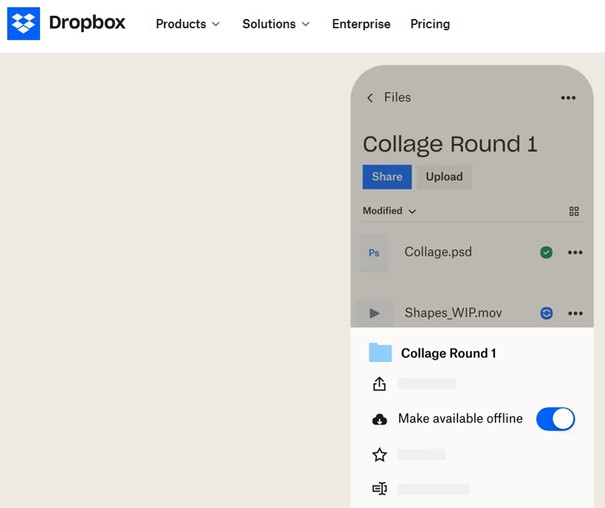
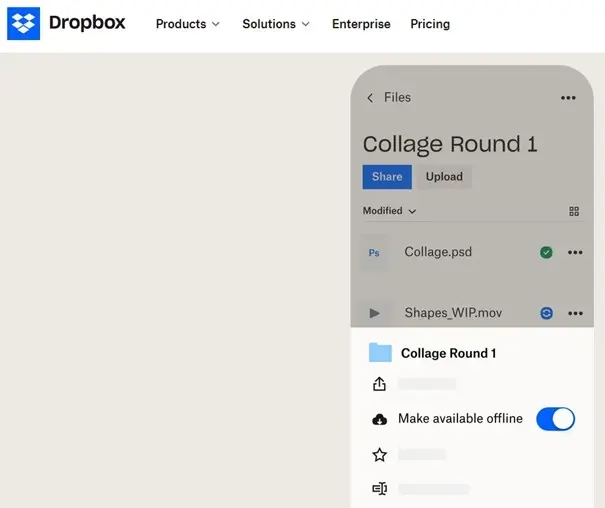
With the majority of Dropbox servers located in the U.S., some users may be concerned about data privacy. The free storage space is also nothing special: 2 GB (expandable) is far behind the 15 GB offered by Google Drive. With paid subscriptions, you can expand the storage space to up to 3 TB. Dropbox even offers unlimited cloud storage for companies.
Similar to its competitor Google, Dropbox also offers its own word processing tool called Dropbox Paper, which you have to download and link to the app. Although it isn’t as extensive as a Microsoft Office program, it can be linked directly to Dropbox and Adobe Acrobat products.
| Advantages | Disadvantages |
|---|---|
| ✓ Widely used | ✗ Relatively little free storage space |
| ✓ Proven functionality and easy to use | |
| ✓ High synchronization speed |
Microsoft OneDrive
The biggest advantage of OneDrive is obvious. As an Android cloud app from Microsoft, it is integrated into a wealth of Windows applications. For example, it’s possible to load Word docs, Excel sheets and PowerPoint presentations directly from the respective application into the cloud.
The OneDrive Android app also offers offline storage, allowing you to access your files without an internet connection. Additionally, photos and videos can be automatically uploaded to securely store them in the cloud.
You give and receive approvals using links with expiration dates that guarantee extra security. There has been some backlash internationally since their servers are based in the USA, however, there have been no major complications with hacking and breaches so far, thanks, in part, to modern TLS data connection encryption.
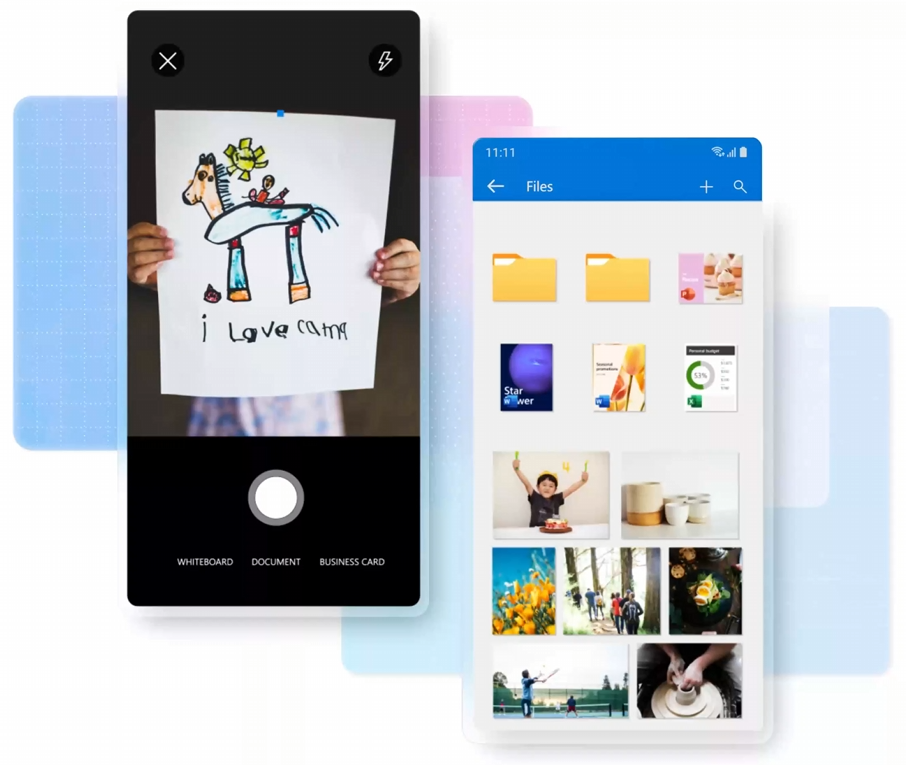
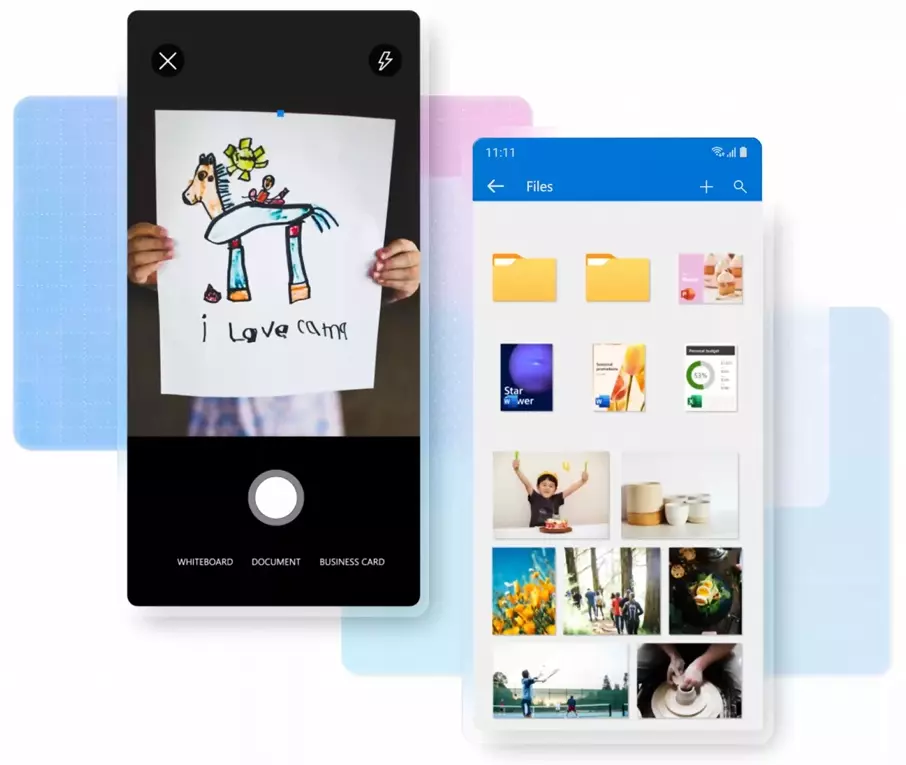
New customers receive 5 GB of free storage and don’t have to worry about any functional limitations compared to the more expensive versions. Even with the best previous price-performance ratio, Microsoft had to make a few concessions due to high data spikes. You can also purchase OneDrive as part of a Microsoft 365 subscription: The single version offers 1 TB of storage for one user, while the family version provides 6 TB of storage for up to six people and includes special premium features. Additionally, there are attractive business plans available.
Two-factor authentication (2FA) provides additional protection for your account. Additionally, OneDrive offers AI-powered features, such as an enhanced image search and automatic photo recognition, making usage even more intuitive and convenient.
| Advantages | Disadvantages |
|---|---|
| ✓ Microsoft integration | ✗ Server location not selectable |
| ✓ Available as a plan with Office 365 | |
| ✓ Attractive business plans |
Powerful Exchange email and the latest versions of your favorite Office apps on any device — get started with our free setup assistance.
Super Backup
Don’t be put off by the advertising banners in the free version, the external Android cloud app Super Backup: SMS & Contact can certainly hold its own among the big providers. Its strength lies in its storage of SMS and contacts. Call lists, calendar entries and pictures can also be stored locally in the internal memory or on an SD card. Super Backup does not operate their own cloud but instead supports Google Cloud and Dropbox. You can also send copies of files to your Gmail account.
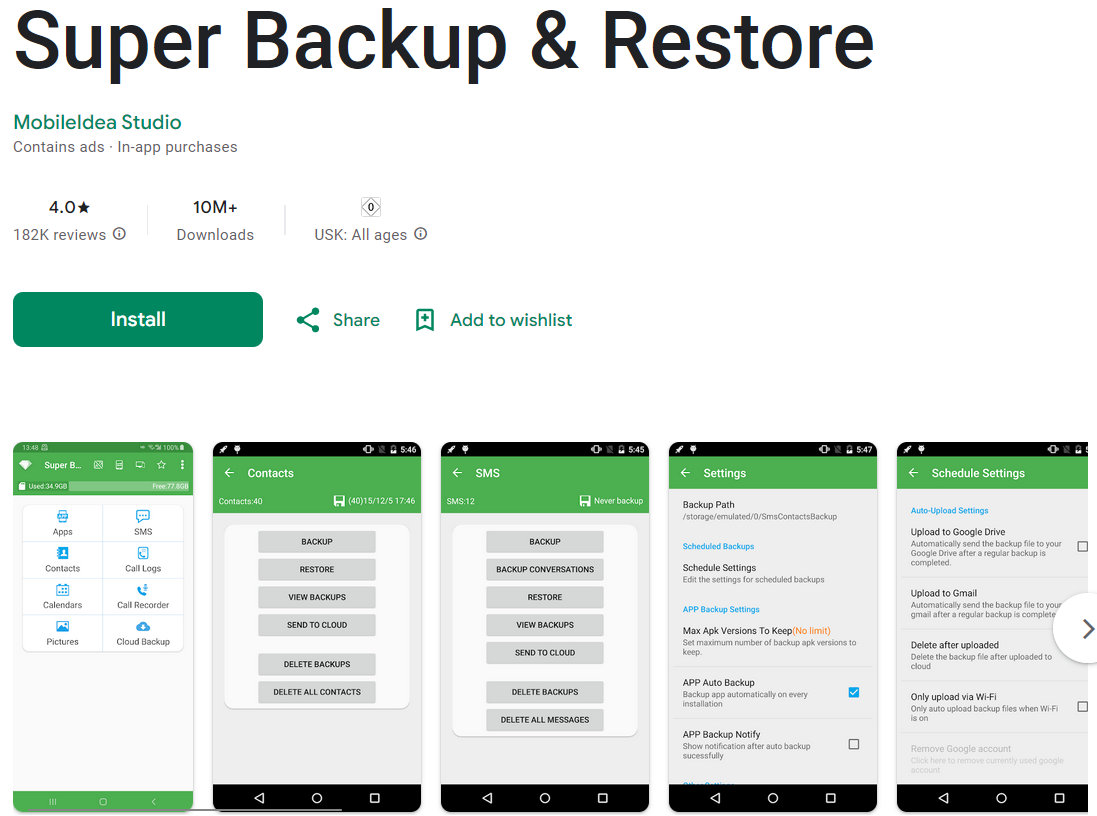
Unfortunately, videos and music are not storable file categories. Backing up apps and data is only possible on a rooted device. Another small bonus is that users have the option to use the minimalist but functional design of the app in dark mode.
Despite all its possibilities, Super Backup offers rather little in terms of ease of use. Each category needs to be saved and restored manually. In addition, the time settings for the automatic backup can only be personalized to a limited extent. Premium users only need to pay a small, one-time fee to get rid of advertisements permanently.
| Advantages | Disadvantages |
|---|---|
| ✓ SMS backup | ✗ Advertisements and inconvenient to use |
| ✓ Supports Google Drive, Dropbox and Gmail | ✗ Does not store videos or music |
| ✓ Lowest price |
Box
The Android cloud app Box is quite similar to the much better-known Dropbox in many ways. For instance, the user interface feels very familiar, and it includes an integrated document feature called Box Notes. However, Box offers significantly more free storage space: the standard 10 GB is already heading towards Google Drive’s realm. The Personal Pro plan provides 100 GB. For businesses, business plans are available, offering unlimited storage and additional features like advanced administrative rights and detailed version histories of all file changes. Therefore, Box is particularly suitable for companies and workgroups.
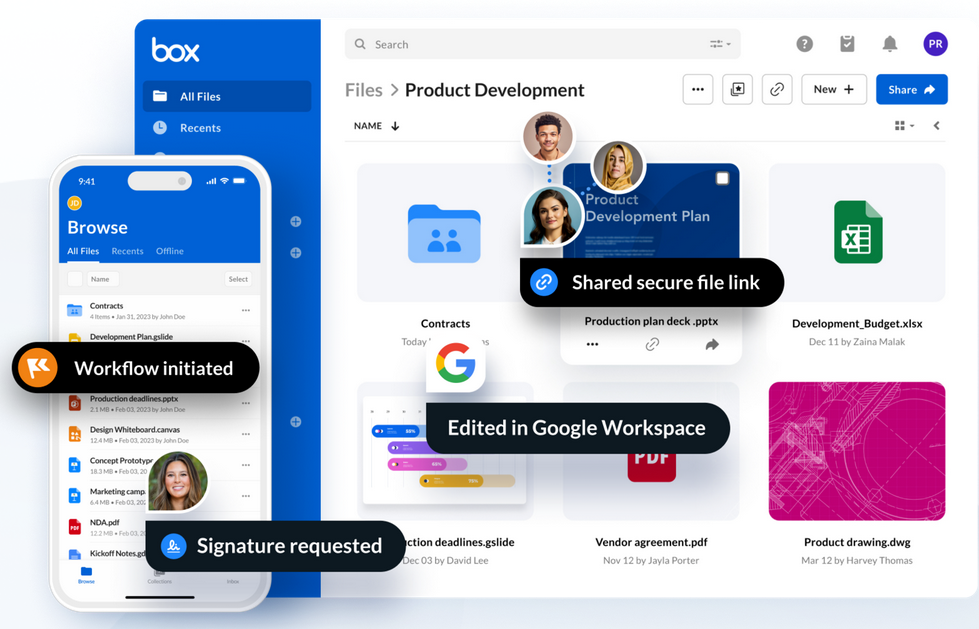
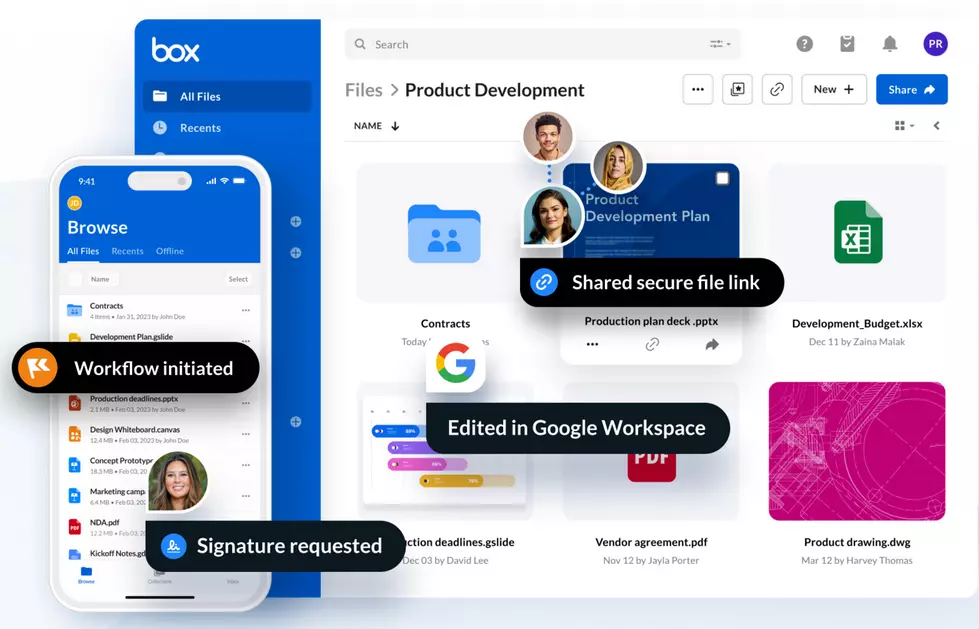
This cloud app for Android easily keeps up with its more well-known competition in terms of functionality. Box is also already integrated into many file management programs. Only when uploading larger files does Box sometimes falter. This is due to the comparatively low maximum file capacity, which is only 250 MB in the free version. This is why it’s best to upload your data in a well-organized manner and in several small blocks.
| Advantages | Disadvantages |
|---|---|
| ✓ Integrated document function Box Notes | ✗ Weaknesses in upload file capacity |
| ✓ Unlimited storage in business plans | |
| ✓ Integrated into many file management programs |
How to ensure cloud storage security with online backup
If you want to always have important files at hand, cloud storage is the right choice. You can access your data from a variety of devices and collaborate with others on documents, spreadsheets and presentations. But online storage isn’t meant to protect your data. If you want to secure sensitive data in the long run, you should look into an online backup solution.
Cloud backup services store professional backup copies for you automatically and at short, regular intervals. Should your PC, laptop or smartphone be infected by malware, get lost or stop functioning, you can still access your data, which is safely stored online. You can decide how extensive backups should be and how often they should be created. Below are two options that may be suitable for your backup strategy.
IONOS MyDefender
HiDrive is primarily aimed at saving individual files in the cloud. Photos, videos or important documents can be stored there and easily shared with others. But if you want to back up larger amounts of data regularly, MyDefender from IONOS is a good solution. This cloud service is designed to automatically create a backup. With your Android device, you can use the software to back up your contacts, photos, videos, calendar and text messages. If you lose or break your smartphone, your data will still be accessible. This is also useful when you purchase a new device and need to transfer your old data.
MyDefender is available in four plans: 100 GB, 250 GB, 500 GB and 1 TB. While you can only connect one, three or five end devices per device type with the first three options, the largest plan allows you to back up an unlimited number of devices. MyDefender is available for iOS, Windows, and macOS. All data is 256-bit AES encrypted and stored in ISO-certified data centers.
Special features of the cloud app include automatic detection of new devices. To set up the app, all you need to do is download and install the software on your smartphone and log in. The connection will be established automatically.
| Advantages | Disadvantages |
|---|---|
| ✓ High data security | ✗ No free version |
| ✓ Backup cleanup to restore storage space | ✗ Basic version limited to a single device |
| ✓ Backups continue if interrupted | |
| ✓ Anti-ransomware |
- Regular virus and malware scans
- Automatic backups and simple file recovery
IONOS Cloud Backup
Professional users and businesses can benefit from using the Cloud Backup from IONOS. This solution also stores backups in the cloud automatically and regularly, but at a higher level than MyDefender. In addition to devices like PCs and smartphones, servers, virtual machines, databases and cloud environments can also be backed up.
With MyDefender you get a comparatively large amount of storage space, which can be used for different needs. Cloud Backup offers a total of eight different capacity categories between 100 GB and 2 TB. This means that the solution is scalable. The Cloud Backup Flex plan is fully adaptable. This lets you pay per gigabyte used. The backup system provides different options for versioning, incremental backups and log files. All data is encrypted with 256-bit AES.
| Advantages | Disadvantages |
|---|---|
| ✓ High data security | ✗ No free version |
| ✓ Versioning | |
| ✓ Compression of backups | |
| ✓ Preconfigured backup strategies available |
When looking for the best cloud app for your Android device, you should ask yourself the following questions: How much disk space do I need?, What is my budget?, How important is data security to me? and How much do I know about software and hardware? There is a wide choice of free and fee-based Android cloud solutions that cater to the needs of IT teams in large companies and private individuals alike.
- Automatic backup & easy recovery
- Intuitive scheduling and management
- AI-based threat protection