

How to use Google Drive offline

Is it possible to access Google Drive offline? If you’re a regular traveler or are dealing with a temperamental Internet connection, offline access to stored data in Google is often the last resort. With Google’s offline feature, you won’t have to rely on online access to edit your data. Learn how to make Google Drive available offline on Windows and Mac.
- Simple registration
- Premium TLDs at great prices
- 24/7 personal consultant included
- Free privacy protection for eligible domains
How to use Google Drive offline: the advantages
As one of the most useful collaboration tools in Google Workspace, Google Drive allows you to store, share, and edit files in the cloud.
Google Workspace or Microsoft 365? Increasingly, users are turning to Google’s powerful alternative to the Microsoft office suite.
When you enable Google Drive access offline, you can open and edit all or select data without an Internet connection. This way, you can make changes to presentations, edit documents, or even auto-translate Google spreadsheets on the go or in locations where Internet access may not be available. Best of all, the next time you log into Drive, all your offline changes will be automatically synchronized.
Stay connected outside of the office! With Google Workspace from IONOS, you can access all your Google apps and manage projects professionally, including your personal email domain, cloud storage, and real-time synchronization.
Access Google Drive offline: prerequisites
To make files available offline in Google Drive, the following preparations are necessary:
- Use the Google Chrome browser to enable offline mode.
- Disable incognito mode.
- Make sure you have a stable Internet connection while synchronizing your Drive data.
- Install and active the Chrome extension Google Docs Offline.
- Ensure you have enough local storage space to download larger data from your Drive.
Access Google Drive offline in Windows: tutorial
To enable offline access for Google Drive, you must use the Google Chrome browser and have a stable Internet connection.
Step 1: Launch Google Chrome and install the Chrome extension Google Docs Offline.
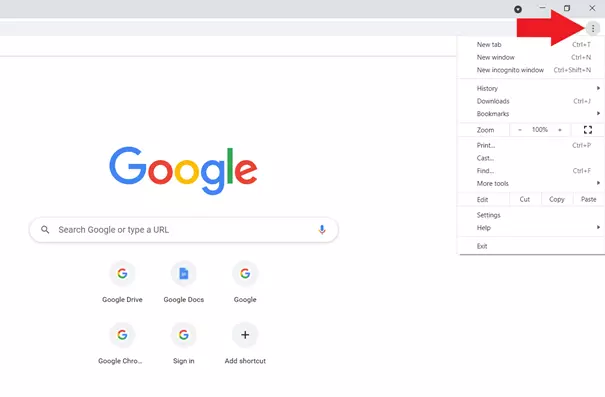
Step 2: To check if the extension is pre-installed in Chrome, click on the Chrome settings (three-dot icon).
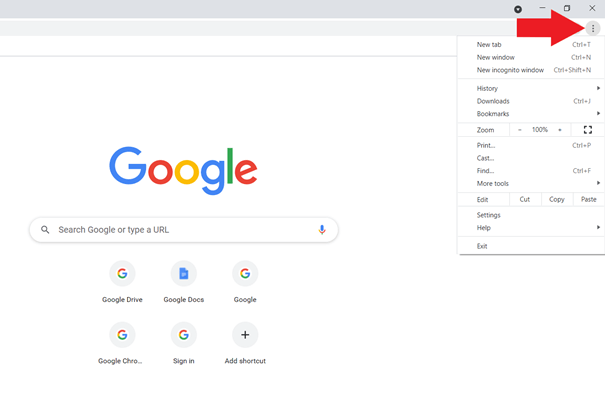
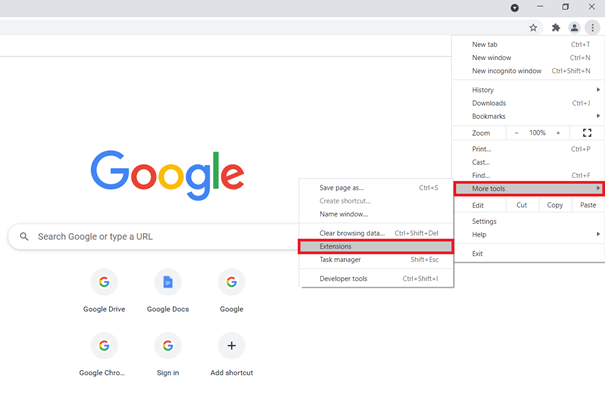
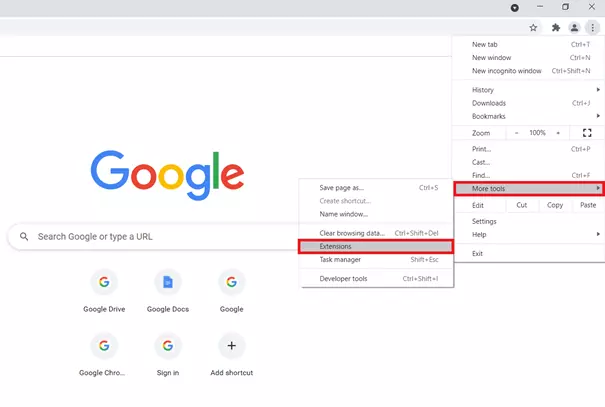
Select “More tools” and check whether “Google Docs Offline” is installed and activated in “Extensions”. If the extension is not installed, install it using the link in Step 1.
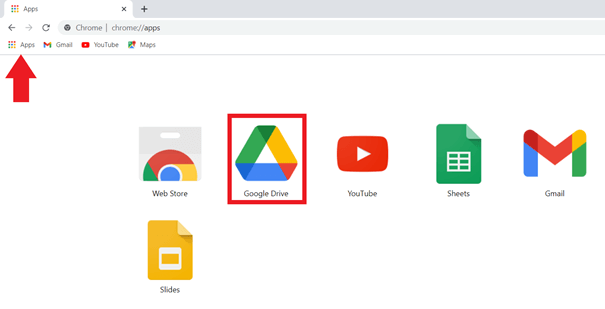
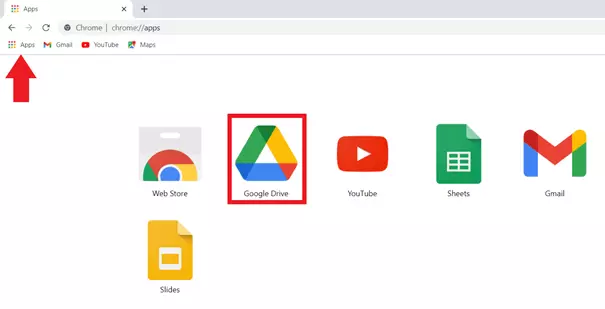
Step 3: Click the “Apps” button, select the “Google Drive” cloud storage, and log in with your Google username and password.
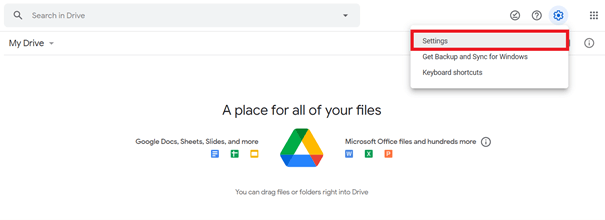
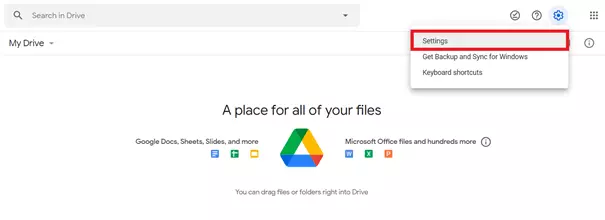
Step 4: In Google Drive, click the gear icon at the top right and select “Settings” from the drop-down menu.
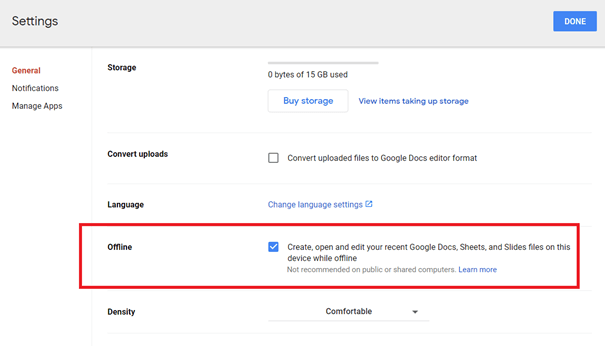
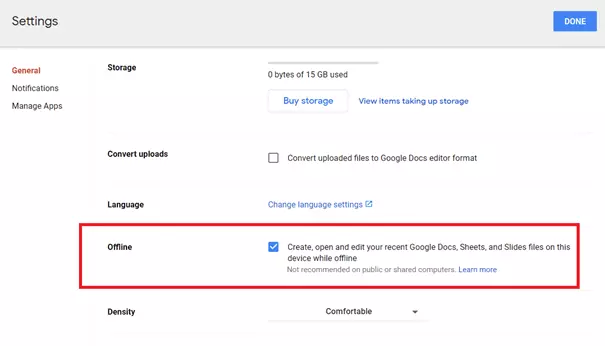
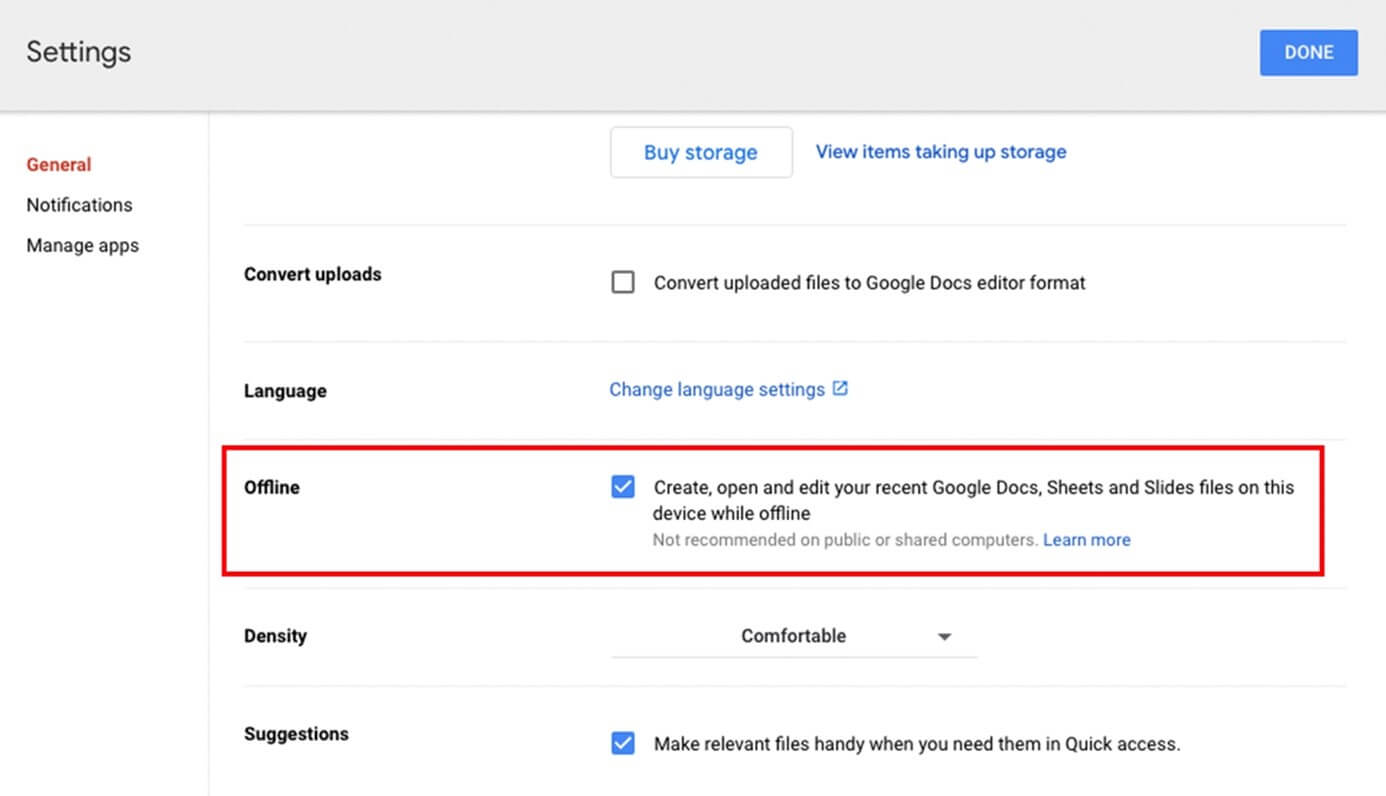
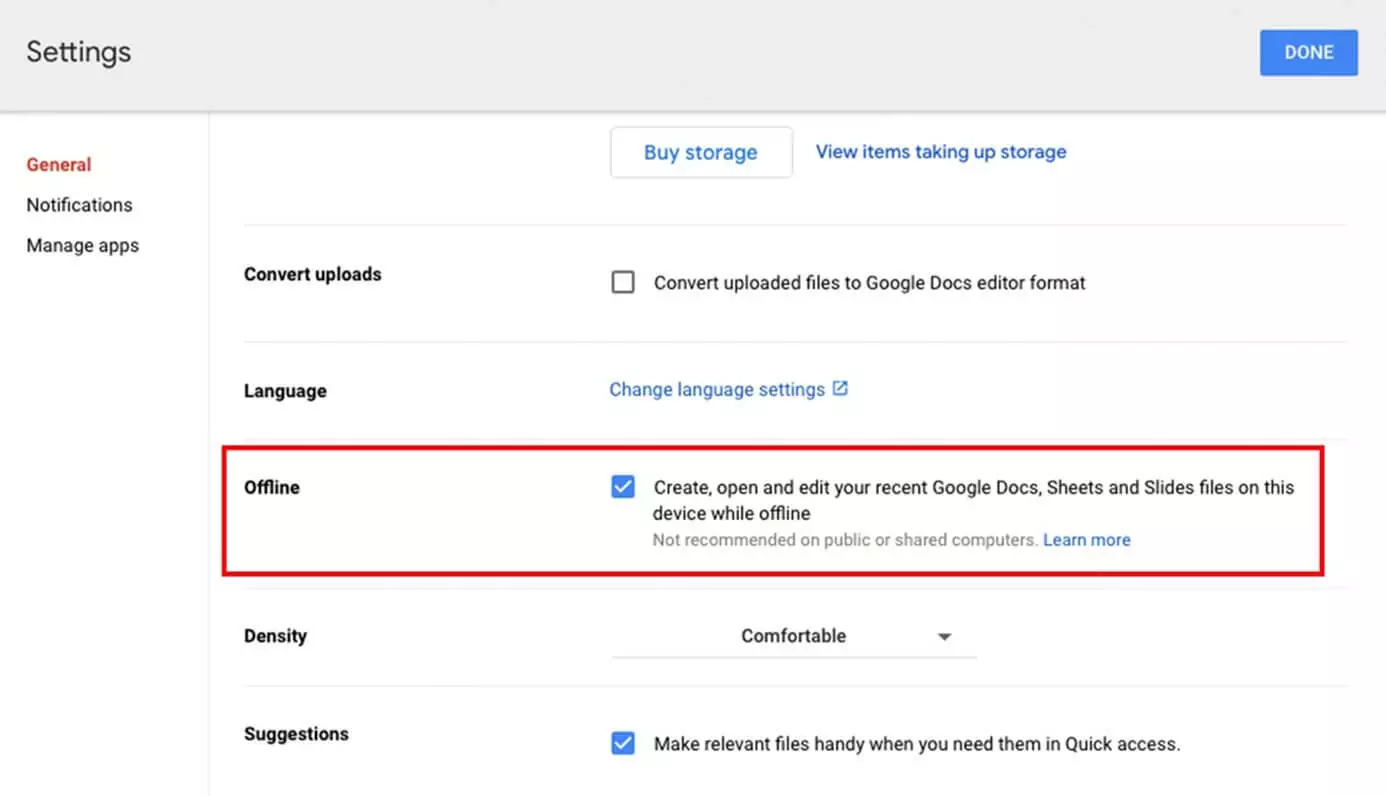
Step 5: Under “General”, activate Drive's offline mode by placing a check mark next to “Offline”. Your most recently used Google Drive files are now available without requiring an Internet connection. Offline changes to the files are automatically synchronized the next time you log in.
Google Docs Offline is automatically installed if it’s not already available.
Want to protect your company data in the best possible way? Use Cloud Backup from IONOS for fast, secure data storage, personal consulting, and automated backups.
Use Google Drive offline in Mac
As a Mac user, you can make Google Drive available offline just as easily. The prerequisite, once again, is the Chrome browser.
Step 1: Download Chrome and install the browser. Launch the Google application and set Chrome as the default browser via “Settings”.
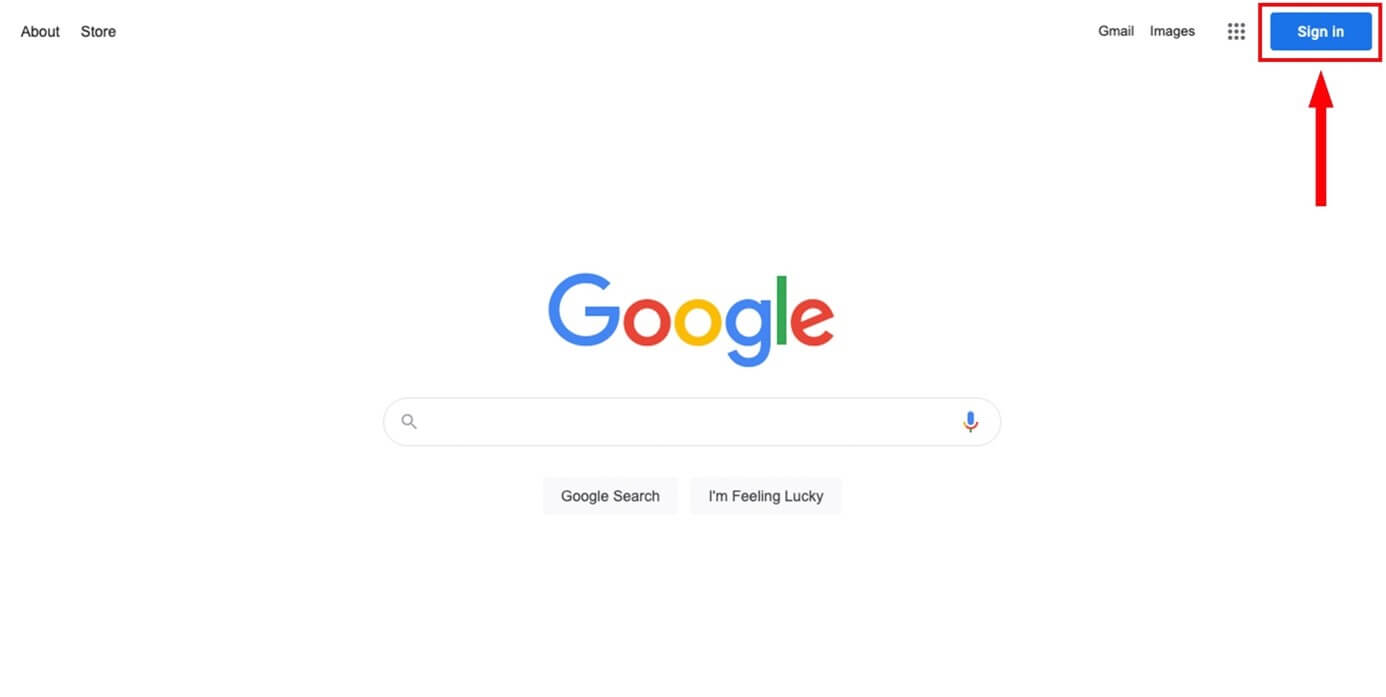
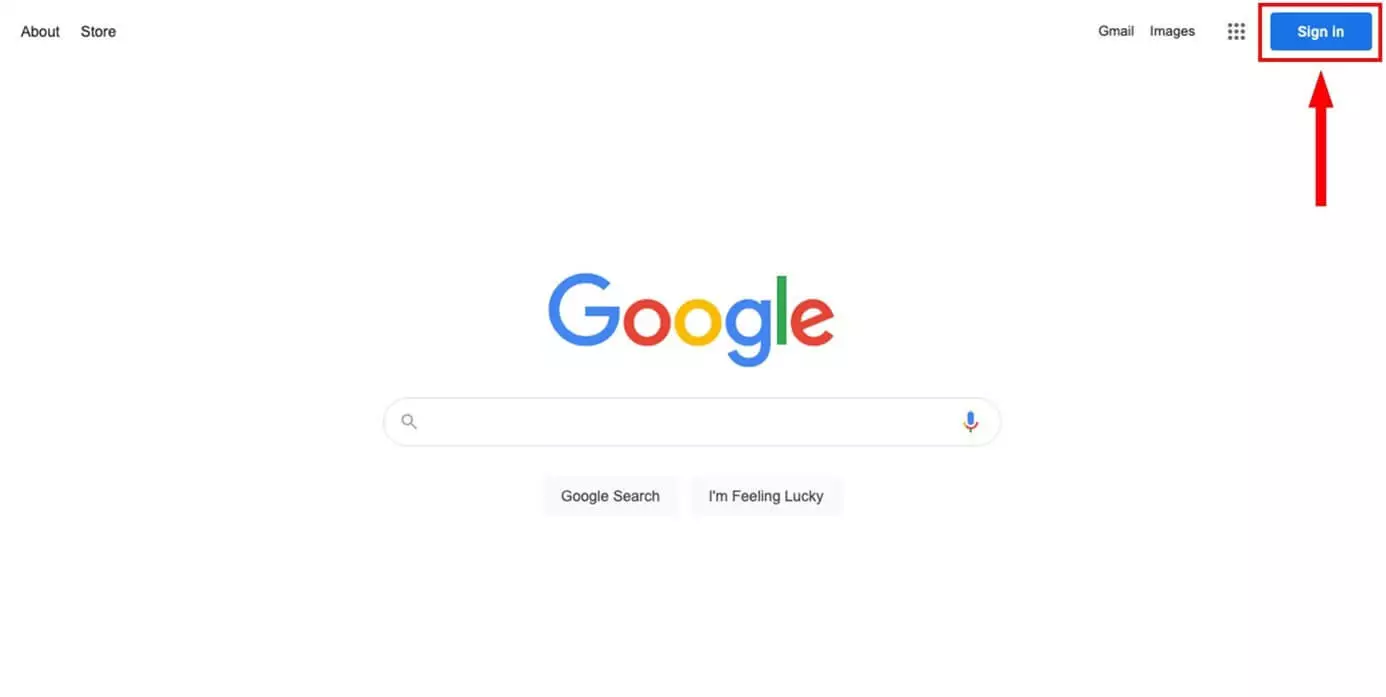
Step 2: Sign in with your Google account.
Step 3: Install the “Google Docs Offline” extension to sync Drive data with your Mac and edit it offline.
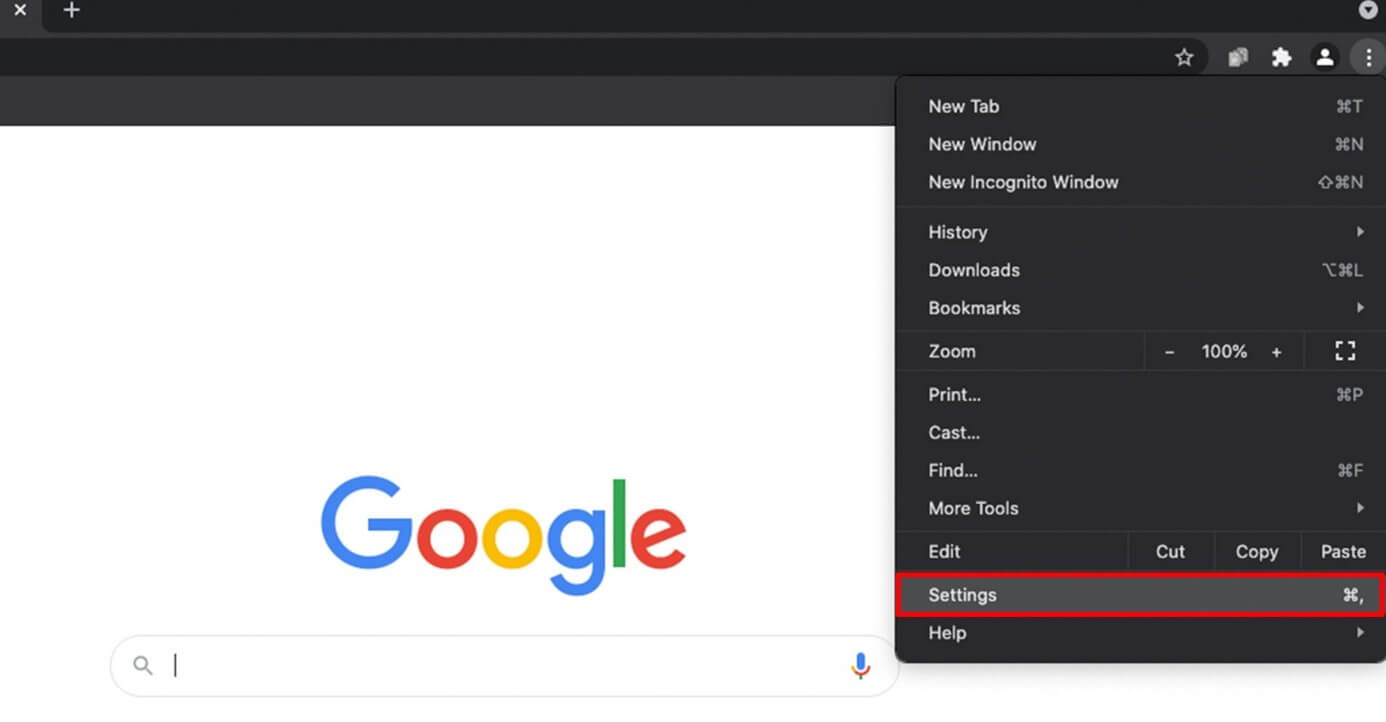
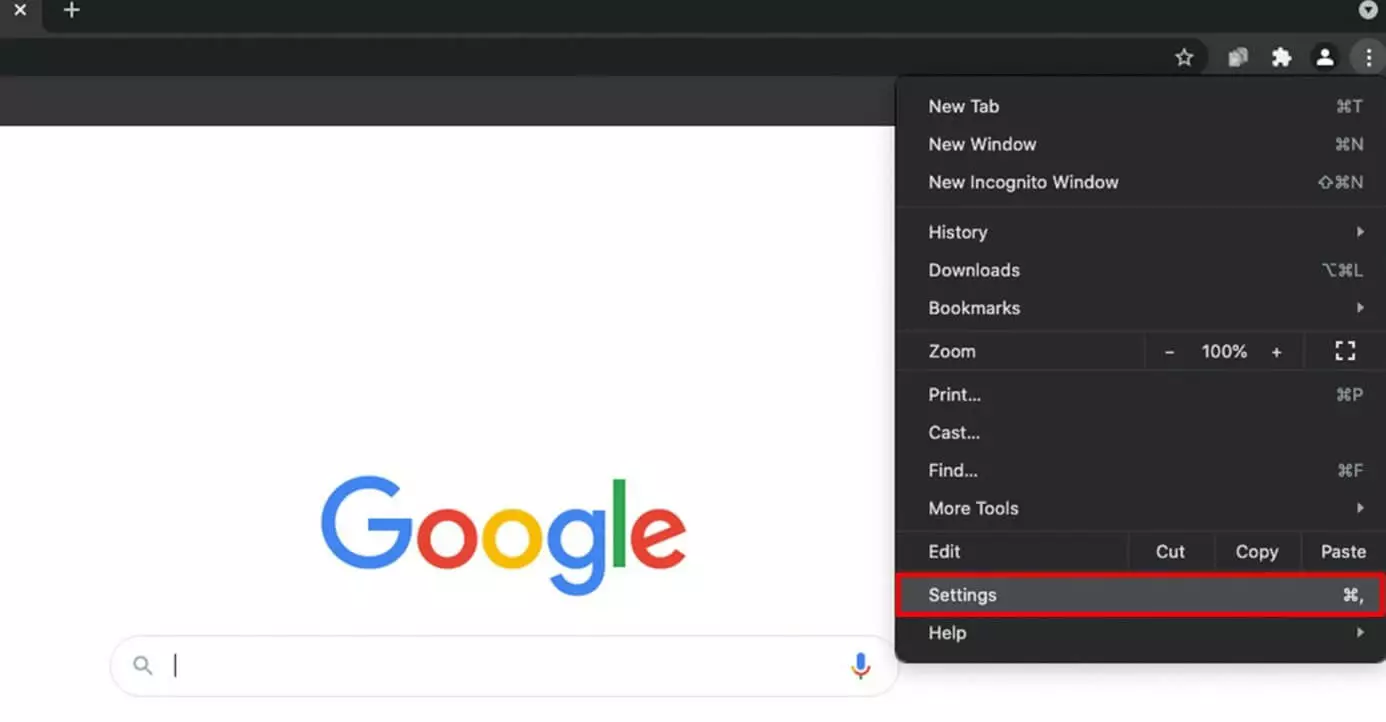
Step 4: Click the hamburger icon (three bars stacked on top of each other) at the top left of Chrome. Click on “Settings” and enable the “Offline” feature. You can now edit files you saved in Drive without an Internet connection.
Need a professional email address to make a strong impression with partners and customers? Get your personalized email address from IONOS – with your desired domain and customer service support.
Make select files available offline in Google Drive
By default, Google makes the most recently edited files available offline in Google Drive. However, you can also access select files offline in Windows or Mac.
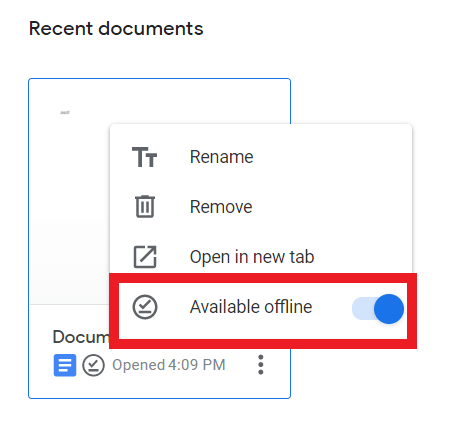
To do this, select the files you want to edit or make available offline. Simply click on the desired document and then on the three-dot icon. Place a check mark next to “Available offline” to activate permanent offline access for the file.
Use the HiDrive Cloud Storage from IONOS to store your files and backups.