

The best screenshot tools at a glance

A screenshot is a copy of your screen, snapped at a particular moment and converted into an image file. This image can be one of the whole screen, a cropped extract of the display, or an individual display element on its own. Just like using a camera to shoot a photo, most screenshots are created by clicking a single button or by pressing a single key. Both Mac and Windows computers can do this with the operating system’s own tools, but if you’re looking for more features, you’re better off using an external tool. With more possibilities and more extensive functions, screenshot software can be used by both beginners and professionals.
- Simple registration
- Premium TLDs at great prices
- 24/7 personal consultant included
- Free privacy protection for eligible domains
Screenshot programs: apps, freeware, and fee-based tools
You can take an exact image of your monitor with the possibilities provided by your operating system. It starts to become a bit more difficult when you want to save certain sections as image files using another program. With free and fee-based screenshot tools, and plugins from third-party providers, you have more freedom to create screenshots.
These programs often offer numerous features that are very convenient, but aren’t available in in-house applications. Depending on the tool you use, for example, you can edit images extensively, take screenshots of movies or games, take pictures of computer systems equipped with multiple monitors, or directly display areas of a website that you would normally have to scroll down to make visible. Some applications also have direct upload options for file hosts such as Google Drive or Dropbox.
Apowersoft
Apowersoft Free Screen Capture is available for both Windows and Mac. With this tool, the image sections can be freely selected (even non-rectangular image sections are possible), screenshots can be edited directly and in a lot of detail, saved locally, printed, sent, saved in a free cloud, or shared via social media.
| Operating system | Windows, Mac |
| Price | Free |
| Screenshots | Screen, selected area, window |
| Saving options | File, FTP, e-mail, cloud services, social media |
| Editor | Graphic elements, blur filter, text, dimension change |
 To display this video, third-party cookies are required. You can access and change your cookie settings here.
 DuckCapture
The screenshot tool, DuckCapture, is especially impressive due to its auto scrolling feature: the software allows you to save the entire screen or a selected area as an image. The actual highlight is that the tool can also capture the area that would only become visible by scrolling down, meaning that you can make screenshots of longer websites. With multi-captures being possible, it means that image processing is also somewhat ahead of the competition: you can combine several screenshot sections into one image. You can also comment on the screenshots in the form of arrows, boxes, and text.
| Operating system | Windows |
| Price | Free |
| Screenshots | Screen, selected area, window, auto scroll |
| Saving options | File, own server |
| Editor | Graphic elements, blur filter, text, dimension change |
 To display this video, third-party cookies are required. You can access and change your cookie settings here.
 Greenshot
Greenshot is free of charge and is distributed under the open source license. To create a screenshot with this screenshot tool, you can either use the icon in the taskbar or simply press the print key on your keyboard. Scrollable web pages can also be fully captured in the same way as with DuckCapture. Simple image editing is able possible: in addition to the standard repertoire (comments, arrows, or speech bubbles), you can also use the highlighter tool to highlight places and make certain areas unrecognizable by using a blur filter.
| Operating system | Windows, Mac |
| Price | Free |
| Screenshots | Screen, selected area, window, auto scroll |
| Saving options | File, forwarding to image processing programs, e-mail, cloud services |
| Editor | Graphic elements, blur filter, text, dimensional change |
 To display this video, third-party cookies are required. You can access and change your cookie settings here.
 Icecream
The Icecream Screen Recorder enables its users to make video recordings and screenshots of any image section. The screenshot tool is available in a free and premium version. With the free version, you can enhance your screenshots with your own annotations and extend your screencasts with a simultaneous recording from your webcam. If you choose the paid version, you also have the option of zooming during recording, which records only a specific area around your cursor or displays your personal watermark. The premium version lets you cut unwanted parts from your video, and lets you display shortcuts that you can use during your screencast e.g. to create tutorials.
| Operating system | Windows, Mac |
| Price | Free / $35.00 |
| Screenshots | Screen, selected area, window, screencast |
| Saving options | File |
| Editor | Graphic elements, text, watermark, dimensional change |
 To display this video, third-party cookies are required. You can access and change your cookie settings here.
 LightShot
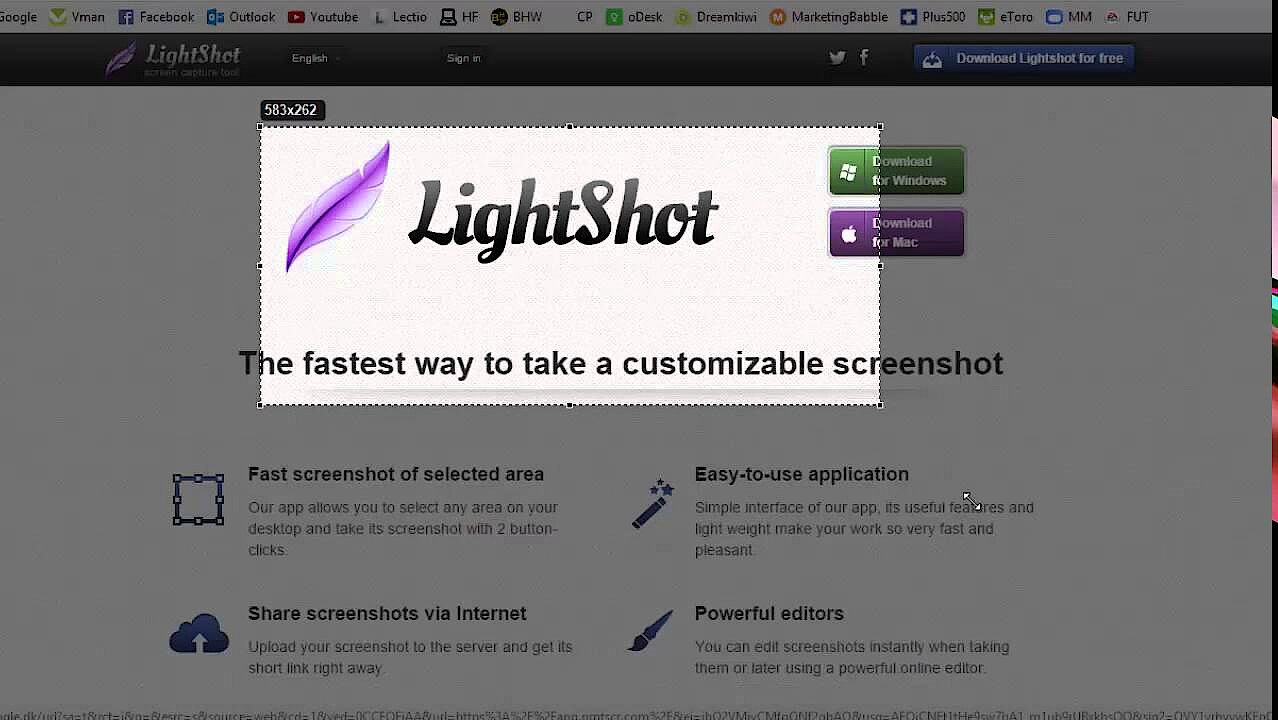
LightShot is a light-weight tool for many platforms. The image sections can be freely selected and small edits can be carried out directly in the program. To edit the image files more extensively, LightShot offers online image editing: with one click, you can upload the file and then change it in your browser. Another interesting feature is that you can use Google Image Search to find similar images.
| Operating system | Windows, Mac, plugins for Chrome, Firefox, IE & Opera |
| Price | Free |
| Screenshots | Selected area |
| Saving options | File, social media, own server |
| Editor | Graphic elements, text, dimensional change |
 To display this video, third-party cookies are required. You can access and change your cookie settings here.
 Monosnap
Screenshot program Monosnap is quick and easy to use. You can freely select the image you want to copy, with simple image editing and a comment function also included. The screencast feature enables you to record videos of your screen, which can be enhanced with a picture from your webcam and audio commentary via microphone.
| Operating system | Windows, Mac |
| Price | Free |
| Screenshots | Selected area, window, screen |
| Saving options | File, FTP/SFTP/WebDAV, cloud services, own server |
| Editor | Graphic elements, text, blur filter, dimensional change |
 To display this video, third-party cookies are required. You can access and change your cookie settings here.
 Screenshot Captor
The inconspicuous Screenshot Captor for Windows has it all: With this screenshot freeware, you can photograph complete websites thanks to the auto scroll function. You can also use this tool to save a freely selectable area or the entire screen as a snapshot. There is also a feature than enables you to capture multiple screens independently of each other. The main aim of the image editing functions is to mark certain areas or places on the image i.e. with ClipArt. It’s also possible to enhance your screenshots using the different frames available. An add-on allows you to record videos. The program is rounded off by built-in file management.
| Operating system | Windows |
| Price | Free |
| Screenshots | Selected area, window, screen, auto scroll, screencast |
| Saving options | File, image hosting services |
| Editor | Graphic elements, text, frames, dimensional change |
ShareX
The open source software ShareX offers everything you need when creating screenshots. You can take pictures of different sections: the entire screen (or different monitors, if you have several connected), a freely selected area, entire web pages through auto scrolling, or certain windows. Screencasts are possible in this screenshot program as well as GIF-file generation to display processes better. Once you’ve made your screenshot, you can add labels and watermarks to it. ShareX also provides text recognition (OCR). The upload options are also impressive: Simply save your snapshots as a file on your hard drive or upload them to a cloud service, social networks, an image or text hosting server, or upload them to your own server via FTP. Alternatively, you can send the file as an e-mail.
| Operating system | Windows |
| Price | Free |
| Screenshots | Selected area, window, screen, auto scroll, screencast, GIF |
| Saving options | File, image hosting services, FTP, e-mail, cloud services, social media |
| Editor | Graphic elements, text, blur filter, dimensional change |
 To display this video, third-party cookies are required. You can access and change your cookie settings here.
 Skitch
If you want to make screenshots on your iPhone and not just have to rely on Apple’s limited possibilities, you should try Skitch from Evernote. Originally, the screenshot app was also available for many other platforms, but now it’s only available for iOS. The app allows you to create custom screens, which you can then insert markers into, such as arrows. Other photos can also be edited later using the app. You can either save the images directly on your phone, send them by e-mail, or upload the screenshots to Evernote’s server and then share the link.
| Operating system | iOS |
| Price | Free (+ in-app purchase) |
| Screenshots | Selected area, screen |
| Saving options | File, e-mail, own server |
| Editor | Graphic elements, text, blur filter, dimensional change |
Snagit
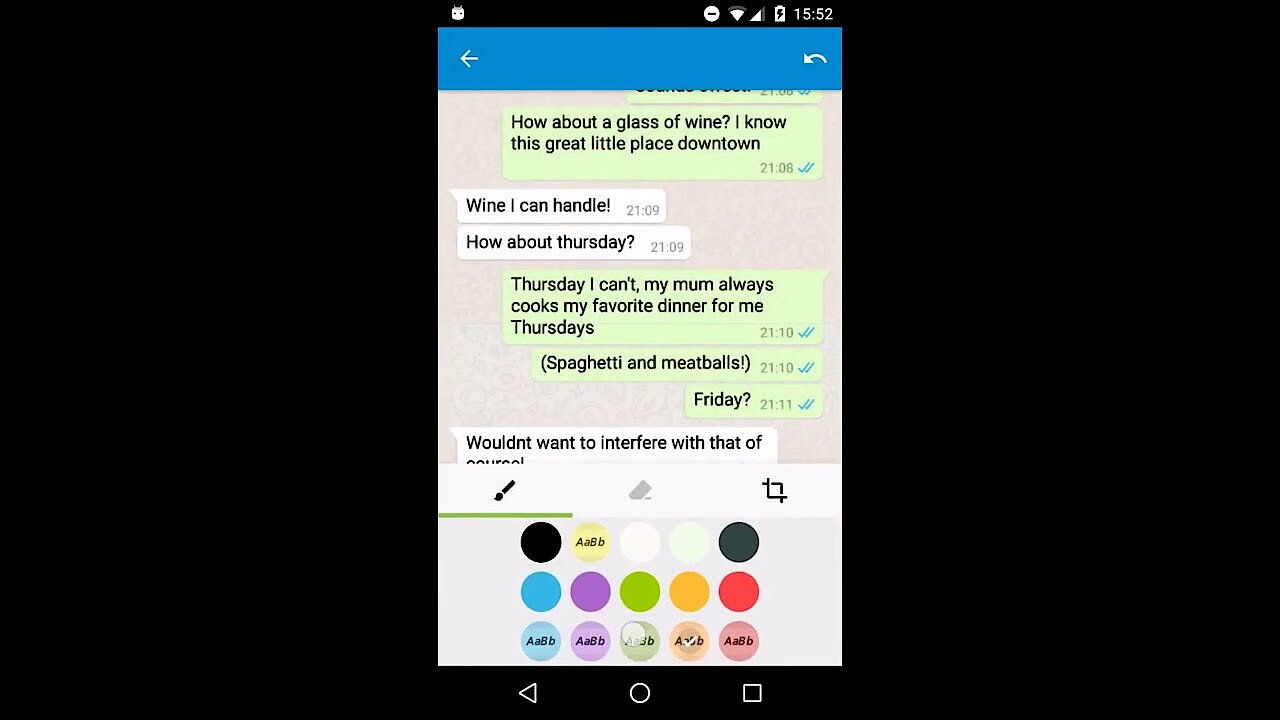
Snagit combines the ability to take screenshots and screencasts in one single application. When you create a screenshot, you can crop and customize it, add graphic elements such as stamps, arrows, and speech bubbles, or blur certain sections. If you want to capture a web page, you can save it as a PDF file with all links included. With the panorama function, you can create a large image by scrolling (e.g. in a large online map). Recording a video file is quite simple and you can additionally record your commentary for the video by microphone. When you’re done, crop the file as you like. You must purchase a license for the screenshot software. Before that, you have the possibility to test the program for 15 days free of charge.
| Operating system | Windows, Mac |
| Price | $60.00 |
| Screenshots | Screen, selected area, window, screencast, GIF |
| Saving options | File, FTP, cloud services, social media, forwarding to other programs |
| Editor | Graphic elements, text, watermark, video editing, dimensional change |
 To display this video, third-party cookies are required. You can access and change your cookie settings here.
 Stitch & Share: big screenshot
The screenshot app Stitch & Share: big screenshot from the developer company Glitch is available to all users of Android smartphones. The app not only makes it possible to create simple screenshots, but also enables you to capture longer Messenger conversations or web pages in one image using the scrolling function. Afterwards, you can use the image editing function to select specific areas or adjust the format of the image. You can save or forward the screenshot – either by sending the file directly via different Messenger apps or by sending a link to the image. To do this, the app loads the image onto a web space and provides the URL.
| Operating system | Android |
| Price | Free |
| Screenshots | Screen, scrolling |
| Saving options | File, forwarding to other programs |
| Editor | Graphic elements, dimensional change |
To display this video, third-party cookies are required. You can access and change your cookie settings here. Overview: All screenshot tools at a glance
| Operating system | Price | Saving possibilities | Special features | |
| Apowersoft | Windows, Mac | Free | File, FTP, e-mail, cloud services, social media | Blur filter |
| DuckCapture | Windows | Free | File, own server | Blur filter, auto scroll |
| Greenshot | Windows, Mac | Free | File, forwarding to image-processing programs, e-mail, cloud services | Blur filter, auto scroll |
| Icecream | Windows, Mac | Free / $35.00 | File | Watermark, screencast |
| LightShot | Windows, Mac, plugins for Chrome, Firefox, IE & Opera | Free | File, social media, own server | - |
| Monosnap | Windows, Mac | Free | File, FTP/SFTP/WebDAV, cloud services, own server | Blur filter |
| Screenshot Captor | Windows | Free | File, image-hosting services | Auto scroll, screencast |
| ShareX | Windows | Free | File, image-hosting services, FTP, e-mail, cloud services, social media | Blur filter, auto scroll, GIF, screencast |
| Skitch | iOS | Free (+ in-app purchase) | File, e-mail, own server | Blur filter |
| Snagit | Windows, Mac | $60.00 | File, FTP, cloud services, social media, forwarding to other programs | Watermark, video editing, screencast, GIF |
| Stitch & Share | Android | Free | File, forwarding to other programs | Scrolling |