

How to create a Ruby on Rails Application

Learn the basics of creating a simple Ruby on Rails application with step-by-step instructions for making a simple "Hello world" application. This tutorial is a beginner's guide for Ruby on Rails, and is designed for users with no prior Ruby on Rails experience.
Requirements
- A Cloud Server running Linux (Ubuntu 16.04 or CentOS 7)
- Ruby on Rails installed and running.
- If you have a firewall, you will need to allow access to port 3000.
- KVM based dev servers for developers
- Scalable to enterprise cloud level
- Pay-as-you-go, per-minute billing
Install a JavaScript Runtime
You will need to install a JavaScript runtime. Begin by installing the ExecJS gem, which allows you to run JavaScript code with Ruby:
gem install execjsIf you have a preferred runtime, feel free to install it next. Otherwise, we will install Node.JS for this project.
Ubuntu 16.04
Update your server's packages and install curl with the following commands:
sudo apt-get update
sudo apt-get install curl
Download the Node.js PPA:
curl -sL https://deb.nodesource.com/setup_6.x -o nodesource_setup.shRun the nodesource_setup.sh command to add the PPA to your server's package cache:
sudo bash nodesource_setup.shThis script will update the server automatically. There is no need to run apt-get update a second time.
Install Node.js:
sudo apt-get install nodejsThis will automatically install npm as well.
Finally, install the build-essential package for npm:
sudo apt-get install build-essentialCentOS 7
Add the EPEL repository:
sudo yum install epel-releaseThen install Node.JS:
sudo yum install nodejsFinally, install the Node Package Manager (npm):
sudo yum install npm- Free Wildcard SSL for safer data transfers
- Free private registration for more privacy
- Free Domain Connect for easy DNS setup
The MVC Design
Ruby on Rails uses MVC-based design. MVC stands for Model/View/Controller, and describes the three basic components of a Ruby on Rails app.
Model
The model refers to the database. All of the application's data is stored in the model. Rails uses SQLite by default, but it also supports MySQL and PostgreSQL.
Controllers
The controllers are a set of files which specify which actions to take. The controllers store and retrieve data from the model (database) as needed, and uses this data (as defined by actions) to create the view.
Controllers are directed by routes. These are the rules that define which controllers will perform which actions. Routes are defined in the routes.rb file.
View
The view is the end result, what a visitor sees in a browser. It is the response to the actions that are defined by the controllers - the product of all of your hard work on the back-end.
Create and Test the Application Structure
The rails new command will create a file structure for your app. Go to the directory where you want to store Ruby on Rails projects and use the command:
rails new hello-worldRemember to be logged in as the Ruby user.
At this point you can do a quick test to make sure that Ruby on Rails is set up and running correctly. Go to the new hello-world directory which was created by the previous command:
cd hello-worldStart the web server with the command:
bin/rails s --binding=0.0.0.0It should say:
[user@localhost blog]$ bin/rails server
=> Booting Puma
=> Rails 5.0.0.1 application starting in development on http://localhost:3000
=> Run `rails server -h` for more startup options
Puma starting in single mode...
* Version 3.6.0 (ruby 2.3.1-p112), codename: Sleepy Sunday Serenity
* Min threads: 5, max threads: 5
* Environment: development
* Listening on tcp://localhost:3000
Use Ctrl-C to stop
Test it by going to http://your-ip:3000 you should see the default rails welcome page.
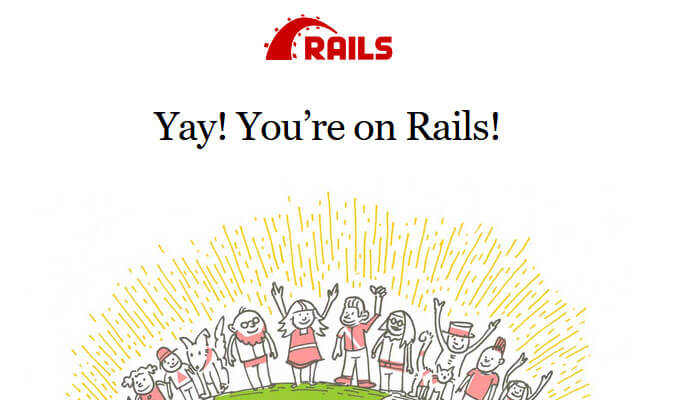
When you are done testing the Rails installation, hit Ctrl+C to stop the application and return to the command line.
Create the Application
Create the Controller and Action
We will begin by generating a controller called mainpage:
rails generate controller mainpageThis will create a number of files:
[user@localhost hello-world]$ rails generate controller mainpage
Running via Spring preloader in process 24461
     create  app/controllers/mainpage_controller.rb
     invoke  erb
     create    app/views/mainpage
     invoke  test_unit
     create    test/controllers/mainpage_controller_test.rb
     invoke  helper
     create    app/helpers/mainpage_helper.rb
     invoke    test_unit
     invoke  assets
     invoke    coffee
     create     app/assets/javascripts/mainpage.coffee
     invoke    scss
    create     app/assets/stylesheets/mainpage.scss
The first one listed in the command output (app/controllers/mainpage_controller.rb) is the one we will use. Open this file for editing:
nano app/controllers/mainpage_controller.rbWe will add an action named hello. Add the following content to this file:
class MainpageController < ApplicationController
    def hello
    end
end
Save and exit the file.
Create the View
Next, we will create a matching view, also named hello:
nano app/views/mainpage/hello.html.erbAdd the HTML message to this file:
<h1>Hello, world!</h1>Save and exit the file.
Create the Route
The route is a rule that will tell Rails which controller to use for this request. Edit the routes.rb file:
nano config/routes.rbAdd the line root to: 'mainpage#hello' below the first line, so that the file reads as follows:
Rails.application.routes.draw do
    root to: 'mainpage#hello'
    # For details on the DSL available within this file, see http://guides.rubyonrails.org/routing.html
end
This line tells Rails that the root directory / will serve up our controller's action.
Test the Application
Start the Rails server again with the command:
bin/rails s --binding=0.0.0.0Then test the application by going to http://your-ip:3000. You will see the "Hello, World!" message.