

Regedit: The built-in editor for the Windows registry

Microsoft equipped the very first version of the terminal operating system Windows NT with a central, hierarchically structured database, which is still known today as the Windows registry or just the registry. Its symbol is a cube made up of many smaller cubes, with three free-floating sections. While earlier system versions particularly saved file extensions in this database, Windows maintains all system administration settings there as well as the administration of all integrated system services and processes. Moreover, some application programs save their settings in the registry. With Regedit or regedit.exe, the Windows registry even has its own editor. We explain how it works and what it’s used for.
Why do you need an editor for the Windows registry?
The Windows registry database stores many important operating system settings. For example, it contains entries with information about what should happen when double-clicking a particular file type or how wide the taskbar should be. Built-in and inserted hardware also stores information in the registry when the driver is installed; this driver is called up every time the system is booted up. As a result, the graphics card knows the approximate resolution it should have on the screen or what color depth is desired. Finally, various third-party programs still use the Windows registry as a reminder to save user settings or set up automatic startup during the booting process.
An entry in the Windows registry is always a name/value pair, where the value can contain different types of data, such as binary code, numbers, or text (maximum size: 1,024 KB). However, some registration database entries can be untitled - in this case, they are default values. In order to ensure that the individual entries in the registry are not arranged arbitrarily, they are subordinated to so-called keys, which are similar to a file-level folder. In addition to a number of main keys, there are a variety of subkeys, giving the Windows registry a hierarchical structure.
In principal, the storage and administration of system and program settings in the central system database is a practical situation, but it can sometimes prove problematic when entries or keys are faulty or when they have configurations that go against the user’s wishes (such as automatic program startup). This is where the registry editor Regedit comes into play. You can use it to display or edit the Windows registry. This is because, unlike ordinary configuration files, you cannot open the registry database with standard text editors.
Before you make any changes to the Windows registry, you should always back up the database. Regedit has the perfect solution for this with the “Export” function.
What exactly is behind Regedit (regedit.exe)?
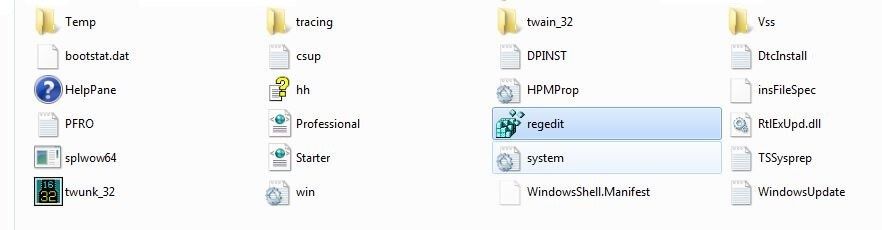
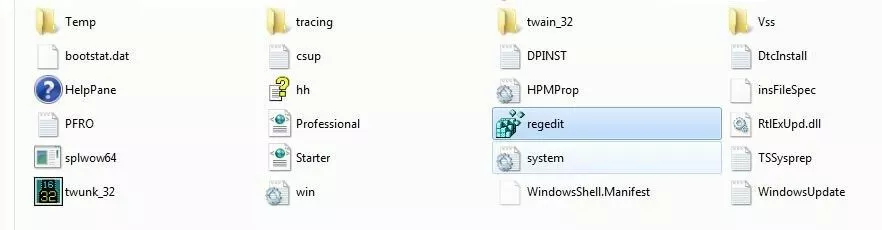
Regedit or regedit.exe is a standard Windows executable file that opens the built-in registry editor. This allows you to view and edit keys and entries in the Windows registry database. The file is located in the Windows directory (typically C:\Windows), you can double-click it to launch the program. Alternatively, you can open the registry editor by entering “regedit” in the search field of the start menu or in the “Run” dialog, which can be called up using the key combination [Windows] + [R].
Visually, the registry editor is similar to Windows Explorer, and it is extremely similar to the Microsoft File Manager in terms of operation. The keys are listed in the left-hand side window – analogous to the directories and folders in Explorer. The respective subkeys can be called up using small triangle symbols on the various main keys. Click one of the keys to see the associated entries in the right-hand window.
Examples of using Regedit in Windows 10
Manually customizing the Windows registry usually requires a great deal of system and system configuration knowledge. Finding and repairing faulty keys or entries should not be done by inexperienced users, nor should deleting unknown entries. However, anyone who is familiar with the software used and, for example, anyone who has problems with obsolete entries in Windows Registry when reinstalling a program, can (after a security back-up) remove the relevant key from the database themselves. Even minor cosmetic adjustments to the desktop interface can be implemented in the shortest possible time risk-free, thanks to the corresponding instructions.
Regedit example 1: Deleting obsolete keys or entries from third-party software
In the first example, using the Windows 10 registry, you’ll learn, step by step, how to find registry entries for a particular application program and how to delete outdated information or settings from the registry database.
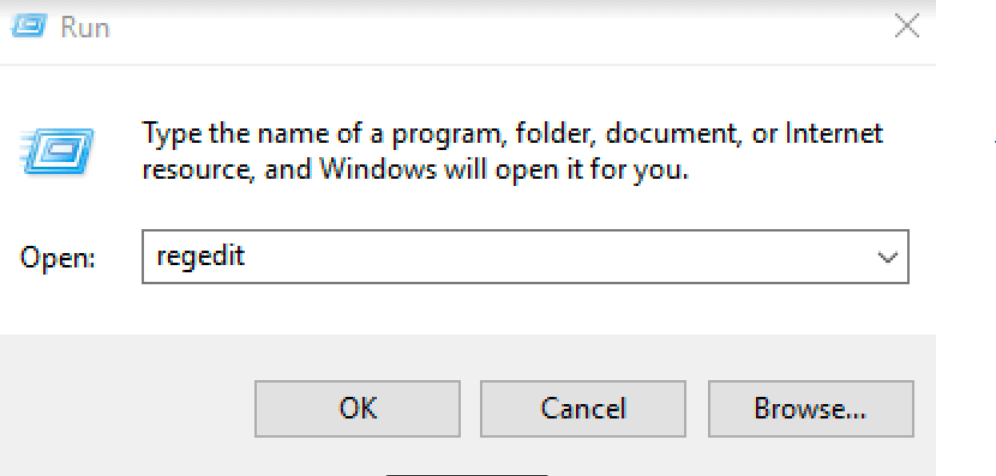
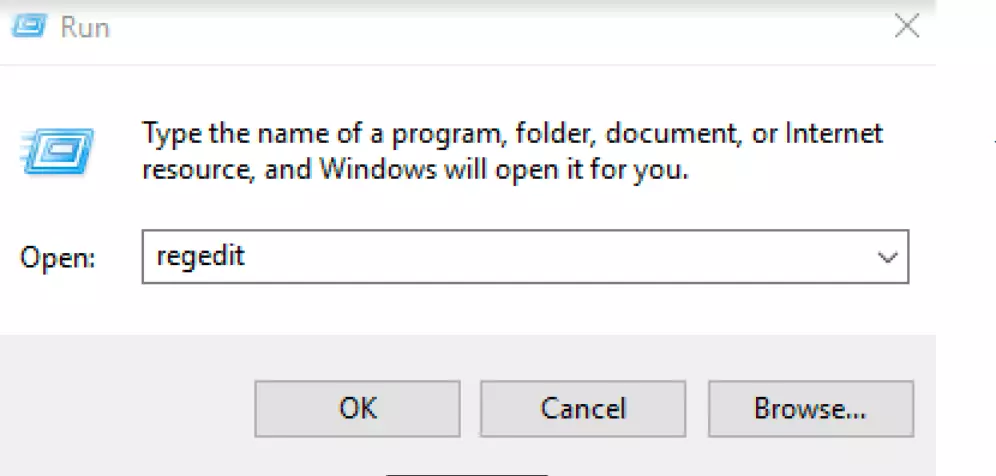
To do so, open the Windows registry by entering “regedit” in the search bar or in the Run dialog ([Windows] + [R]), then click “OK".
You’ll end up in the registry editor main menu, where the five main keys are listed. For example, all data that applies system-wide is subordinated to the HKEY_LOCAL_MACHINE key, while HKEY_CURRENT_USER only finds those that affect the currently in-use user account. In order to find the entries for a specific piece of software, you don’t have to manually go through all the keys in the sequence – for this purpose, Regedit has a search function which you can open via the menu items “Edit” -> “Search ...":
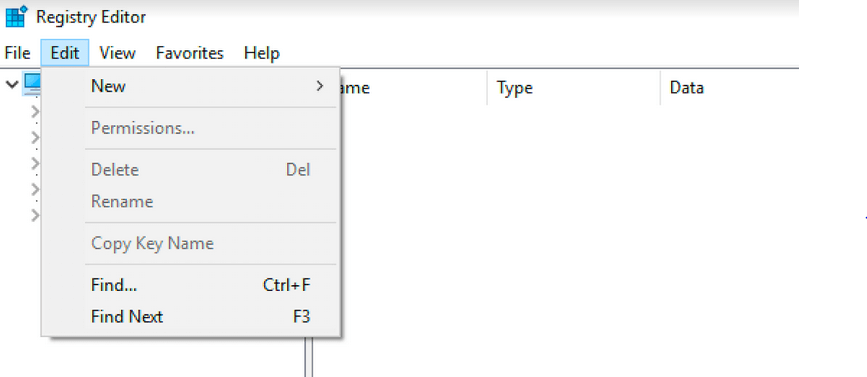
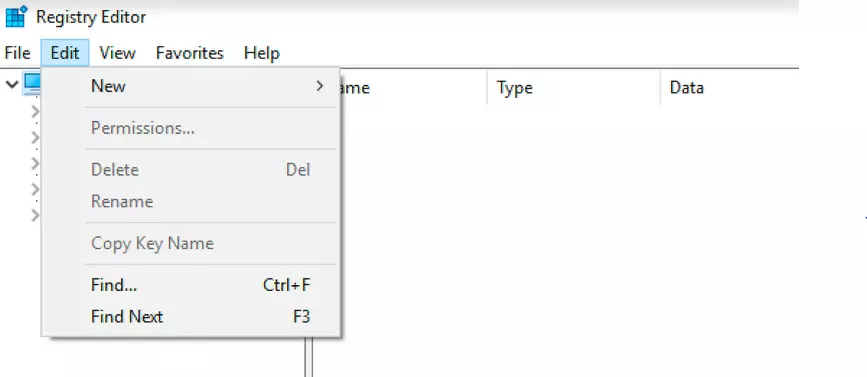
Now you can conduct a targeted search for specific database entries by entering a suitable search term, like the name of the software or the manufacturer, and clicking “Find Next”. In the search options, you can also specify whether Regedit should perform a complete scan or only search for the desired term only in keys, data, or values. To do so, simply click to check or uncheck the appropriate box. To get a more accurate search result, you can also select the Compare entire character sequence option. This means that the only results displayed are those whose designation is identical to the search term. For example, in these instructions, we’ll search all the keys for “VideoLAN» (VLC Media Player developer):
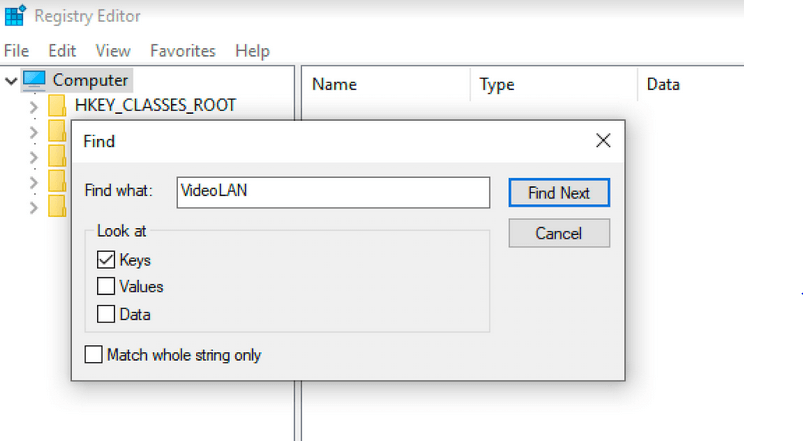
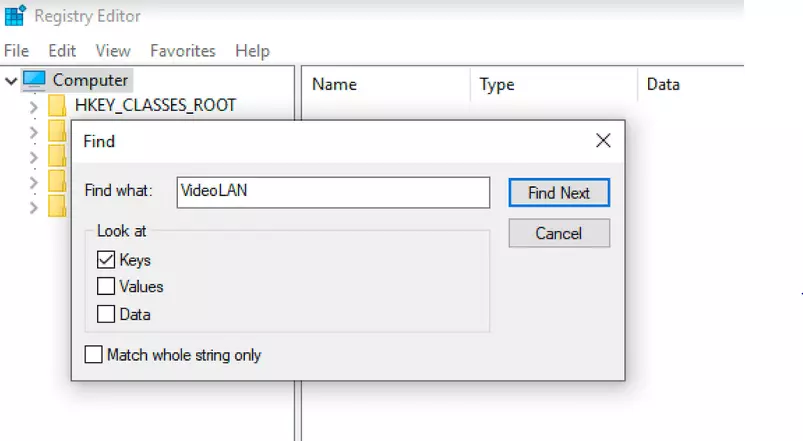
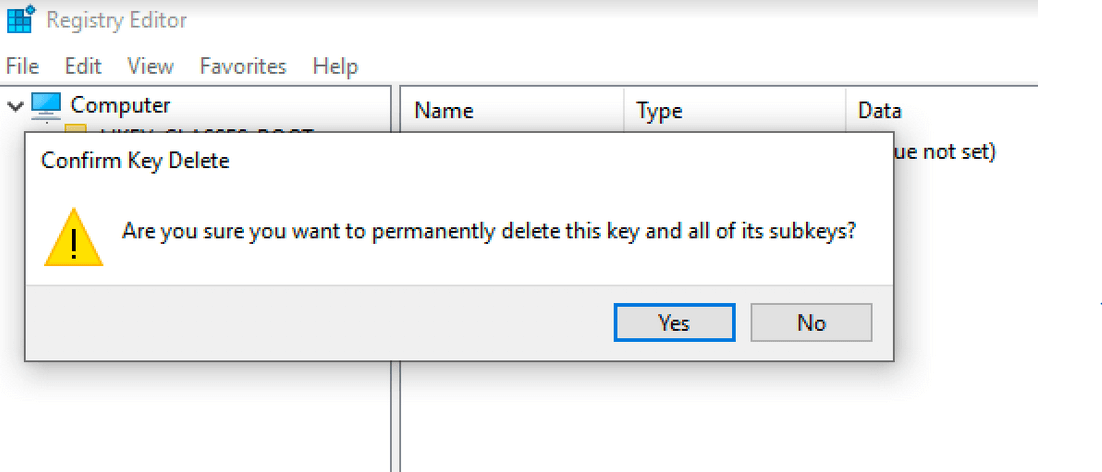
If the registry editor finds a hit, it jumps to the appropriate location in the registration database. If this is the key or entry you’re looking for, delete it by right-clicking, then clicking “Delete”. Regedit will then prompt you to confirm the deletion of the key (including any existing subkeys).
If there are several hits for the selected term in Windows Registry, you can jump directly to the next search result by pressing the [F3] key.
Regedit example 2: Adjusting symbol spacing for desktop icons
User tastes vary widely in terms of desktop organization. For example, many can’t have enough icons on the user desktop, meaning that, in some cases, they don’t even have room for new shortcuts. By default, Windows allows you to adjust the size of the icon and therefore, for example, create more space by using smaller icons – but changing the spacing between icons is not possible through the regular menu. However, you can adjust the default values for horizontal and vertical spacing by modifying the corresponding entries in the Windows registry:
- Start Regedit.
- Search for the term “WindowMetrics” using the search function.
- In the right-hand window, you’ll find the two entries IconSpacing (horizontal icon spacing) and IconVerticalSpacing (vertical icon spacing), whose values you can now customize to suit your preferences.
- To apply the changes, restart the system or log out of your user account and log back in.


By default, both entries in newer system versions such as the Windows 10 registry have a value of -1125. The available limit values are as follows:
- Minimum value (minimum possible distance): -480
- Maximum value (maximum possible distance): -2730
Typical problems with Regedit
Windows registry keys contain security information, just like files and folders in the file system. This information determines whether a user only has read-only access to the entries or can also change or delete them. By default, Windows users only have write access to the HKEY_CURRENT_USER subkeys, which is the data belonging to their own user profile. Unless you gain access to the Windows registry as an administrator or have been granted the appropriate access rights, you may not be able to change or delete certain values. Regedit lets you know with an error message.
Even administrators cannot view or edit the entire contents of the registration database. The HKEY_LOCAL_MACHINE\SAM subkeys are as inaccessible to them as they are to all other users. This is because, among other things, all user account password hashes are stored here.