

What is an RSS feed?

Many website operators use RSS to enhance their online offers with content from professional providers. But what about the feed technology? We look at the issue in the context of content syndication and give you an overview of the functions and usage possibilities of RSS.
What is an RSS feed?
RSS is web feed technology that allows online content providers to publish new content on their website in a standardized form. Web feeds can be found on news portals, blogs, forums, or wikis – essentially any dynamic web offerings that are often subject to constant updates. The goal is to keep internet users informed of new content continuously, as with a news ticker. The flow of information starts as a pull medium from the recipient, who subscribes to the web feeds that they’re interested in. Feed reader software (usually an app or a web app) is used. Users subscribe to channels to automatically receive content and up-to-date news from providers. The URLs for these feeds can be obtained from the web browser.
You can use RSS feeds for content syndication methods, or for the multiple use of content. The RSS content of a website, once it’s structured, can easily be integrated into other pages. Operators of online platforms sometimes use this option to supplement their own page with foreign content, to give their homepage the character of a portal, or to establish themselves as news aggregators.
But the use of foreign web content for content syndication is subject to copyright risks. In addition, syndicated content often provides duplicate content, which may lead to loss of search engine ranking.
How does an RSS feed work?
RSS was developed in 1999 by Netscape Communications. At that time, it was the abbreviation for RDF Site Summary, a technology used as part of the individualized messages that could be sent on the My Netscape network. One year later, the Resource Description Framework (RDF) was replaced by the simpler XML format, resulting in the reinterpretation of the abbreviation from RSS (Rich Site Summary) to then mean Really Simple Syndication. The successor to RSS is the Atom format, which is based on RSS.
Currently, RSS represents a collection of XML file formats with which structured web feeds are offered under specially designed URLs. The different RSS channels are often subdivided thematically. For example, the New York Times provides separate feeds for different topics of news, such as business, arts, or real estate.
All RSS file formats have the fact that they are pure content elements in common. The technology uses the Extensible Markup Language (XML) to mark information semantically. Information on the presentation of the content isn’t included in RSS documents. This allows web feeds based on RSS to be combined with a wide range of technologies, and present content over the internet across all types of media. Before presentation, though, RSS documents have to first be converted to HTML. The RSS parsers contained in feed readers are able to interpret the XML markup and process the information as an HTML document.
Representation of RSS feeds
The display of web feeds can take place via special feed readers. For a detailed list of software appropriate for Windows, Mac, and Linux operating systems, visit the rss-readers.org website. Today, though, most web browsers have an integrated RSS parser, so fewer and fewer internet users still need to rely on separate reading software. In addition, RSS feeds are supported by email client programs such as Microsoft Outlook or Mozilla Thunderbird.
The presentation of content depends on which information is provided by the content provider and varies according to the presentation medium. Usually, there are short information blocks in the style of a news ticker that contain, in addition to the article heading, a text annotation with a link to the source and partly enhanced by images.
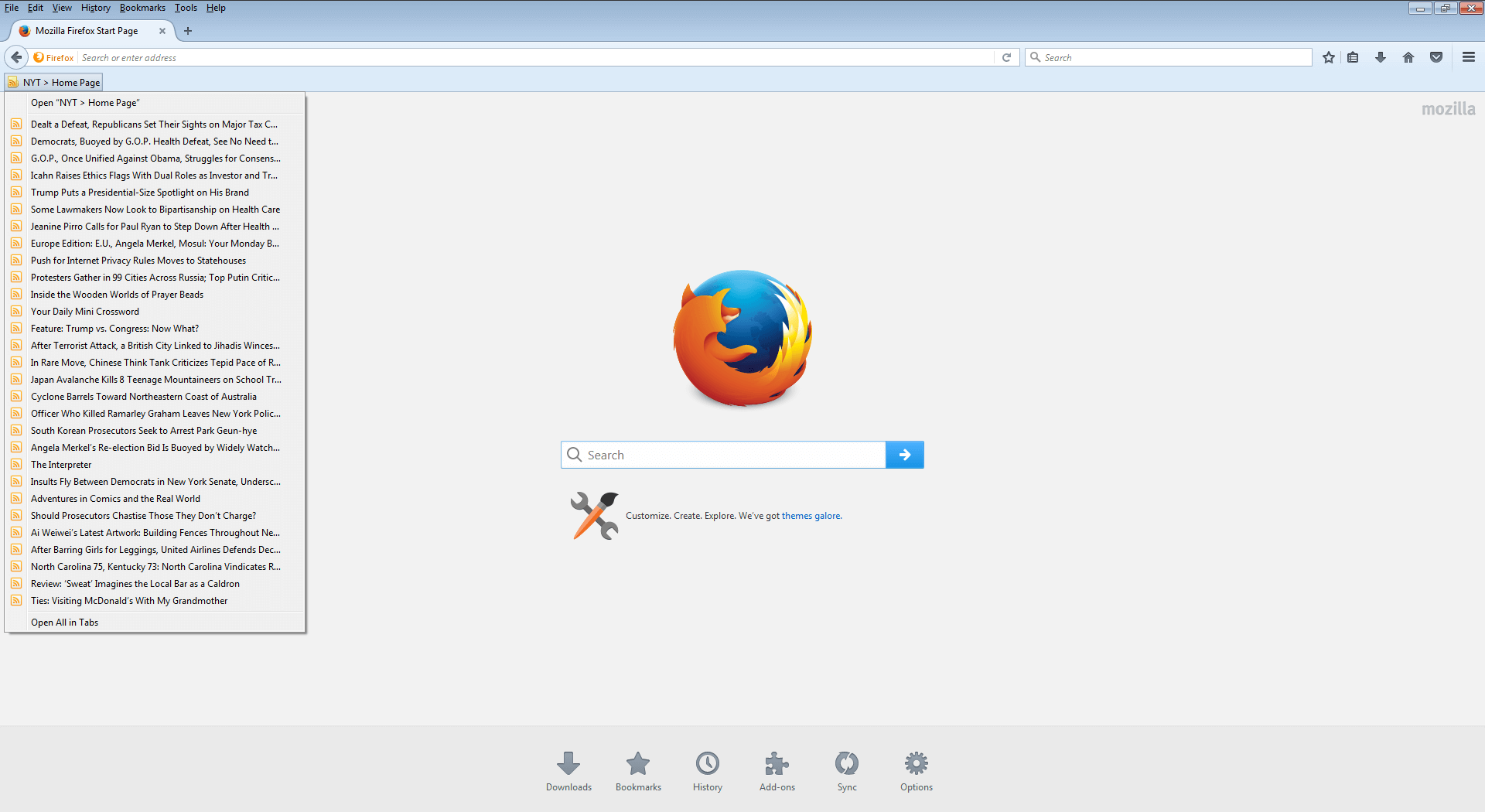
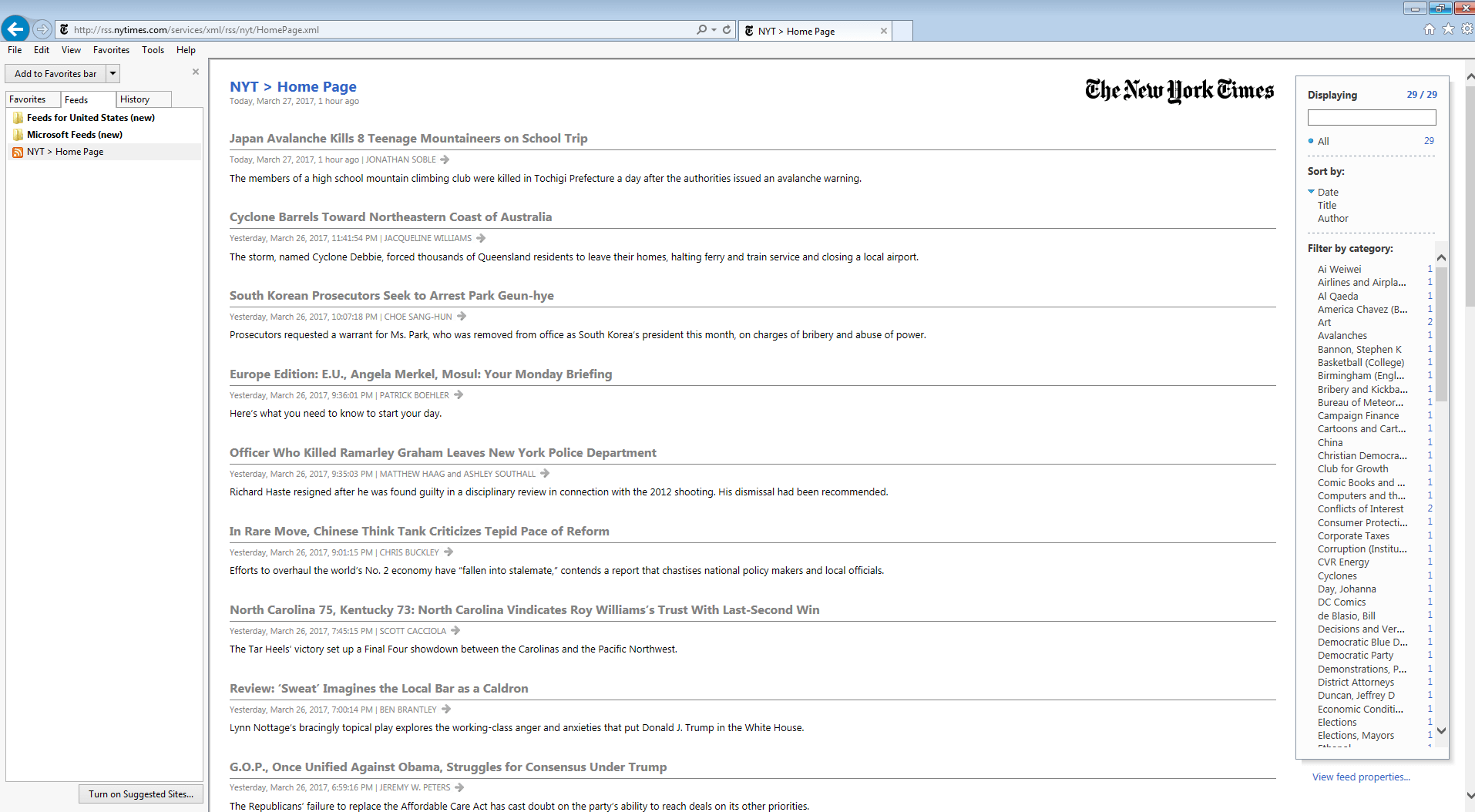
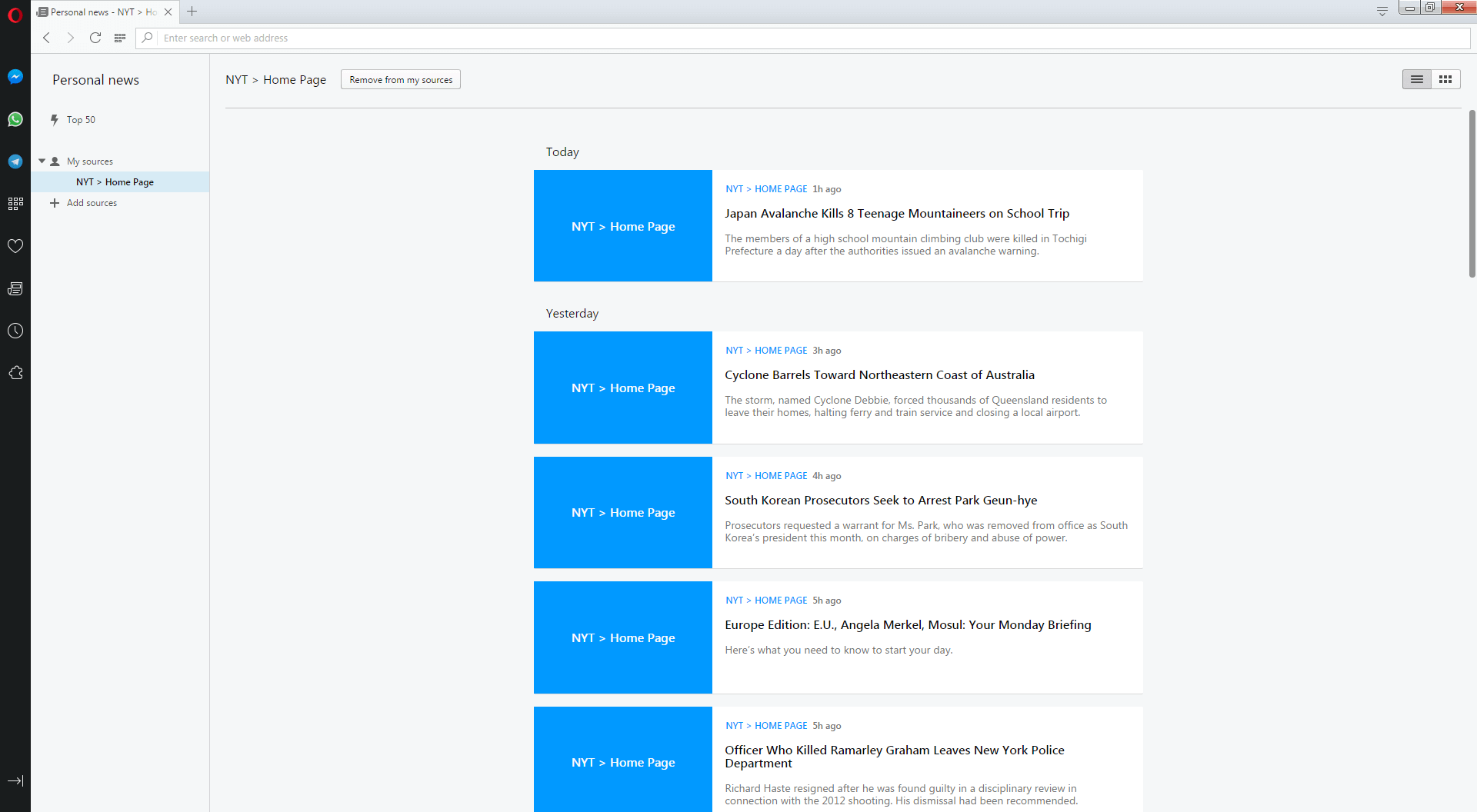
The following screenshots show the representation of RSS feeds from the New York Times in Mozilla Firefox, Microsoft Internet Explorer, and Opera.
In Mozilla Firefox, RSS feeds are displayed in the form of dynamic bookmarks. The information presented is limited to the article title and its included teaser. One click on an entry with a hyperlink takes you to the source website that contains the respective article in its full form.
In Microsoft Internet Explorer (IE), RSS feeds are managed via the Explorer bar. The entries contain headlines, article images, and a short teaser text, as well as the publishing date of the referenced article. A hyperlink to the source website is displayed under the title.
If you use Opera, you have the option to save a news feed as part of the personalized messages feature. Unlike Firefox and IE, Opera provides users with preselected sources.
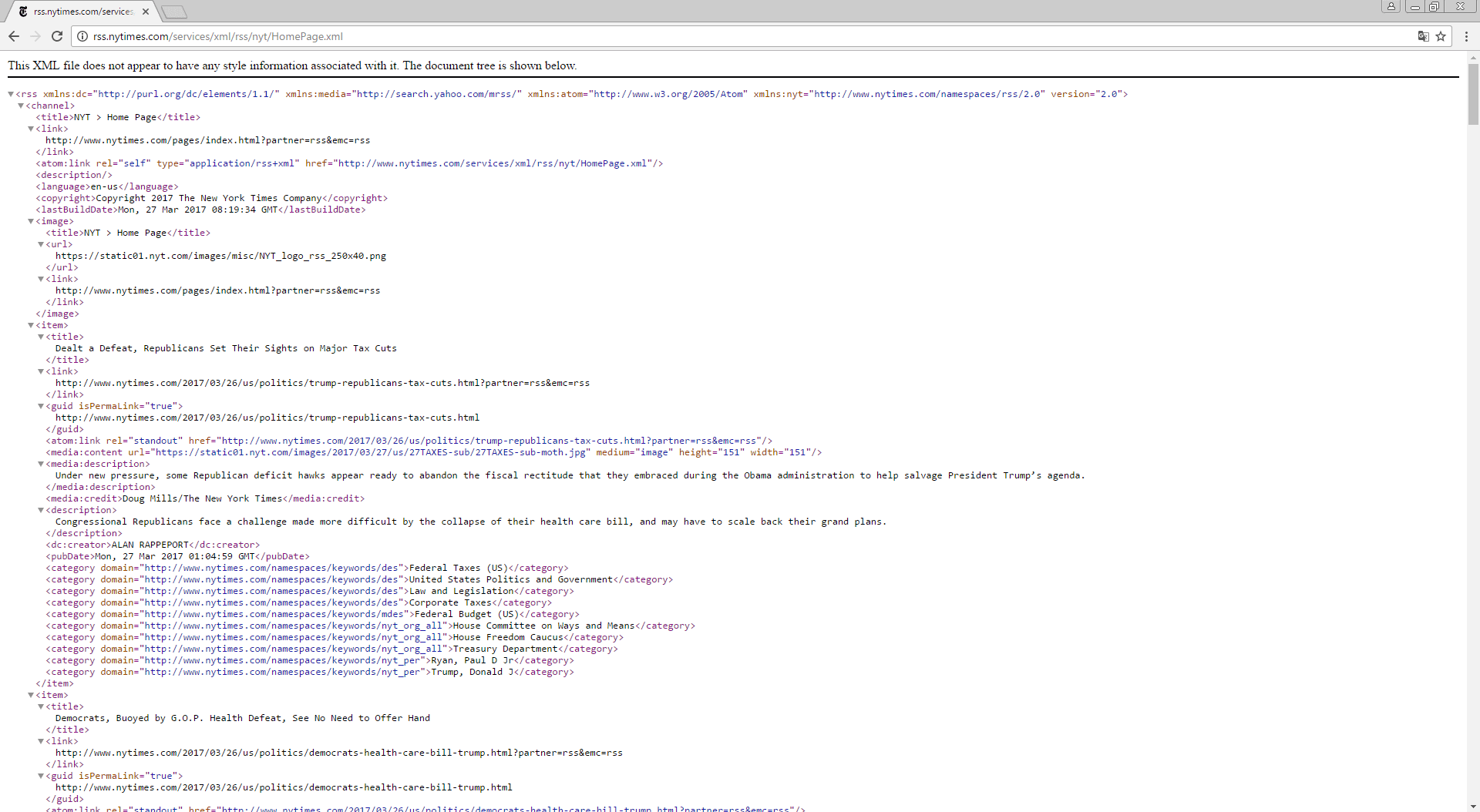
As opposed to Firefox, IE and Opera, Chrome doesn't natively support RSS feeds from Google Chrome. Instead of parsing the XML document behind the RSS URL and translating it into an HTML page, Chrome provides the source code of the feed in raw form – a good example of the syntax of the markup language XML.
If you want to manage RSS feeds with Chrome, the browser needs to be upgraded with optional extensions. Free add-ons can be found in the Chrome Web Store.
Structure of an RSS document
RSS documents feature a very manageable structure. The basic elements are the XML tags <rss>, <channel>, and <item>.
| Tag | Function |
|---|---|
| rss | The rss element is the top-level element of an RSS feed. It defines the RSS version in use and must be contained in every RSS document. |
| channel | The channel element describes the RSS channel and contains relevant metadata. |
| item | The item element serves as a marker for article blocks. |
Every XML document starts with a tag that declares the correspondent XML version as well as the character set in use – in this example, XML 1.0 and UTF-8.
<? xml version='1.0' encoding='UTF-8'?>After the initial XML declaration comes the rss tag. This indicates the respective RSS version and, in the current example, contains references to additional specifications that can be included in the form of XML namespaces. In the following example, the semantic characters are Dublin Core (dc) and Atom (atom).
<rss xmlns:dc="http://purl.org/dc/elements/1.1/" xmlns:atom="http://www.w3.org/2005/Atom" version="2.0">The actual content of the RSS document is nested in the channel tag. This contains the overall description of the newsfeed (title, description), included metadata (language, copyright, docs, generator, managingEditor, webMaster), logos, and links.
<channel>
<title>NYT > Home Page</title>
<link>
http://www.nytimes.com/pages/index.html?partner=rss&emc=rss
</link>
<atom:link rel="self" type="application/rss+xml" href="http://www.nytimes.com/services/xml/rss/nyt/HomePage.xml"/>
<description/>
<language>en-us</language>
<copyright>Copyright 2017 The New York Times Company</copyright>
<lastBuildDate>Mon, 27 Mar 2017 08:19:34 GMT</lastBuildDate>
<image>
<title>NYT > Home Page</title>
<url>
https://static01.nyt.com/images/misc/NYT_logo_rss_250x40.png
</url>
<link>
http://www.nytimes.com/pages/index.html?partner=rss&emc=rss
</link>
</image>
[…]
</channel>
The child elements used with the channel tag are divided into mandatory and optional elements.
| Mandatory elements | Function |
|---|---|
| title | The title element contains the title of the RSS channel. |
| link | The link element contains the link to the website. |
| description | The description element contains a description of the RSS channel. |
| Optional Tags | Function |
|---|---|
| language | The language element specifies the language of the RSS channel. |
| copyright | The copyright element contains copyright information for the channel. |
| atom:link | The link element inherited from the atom specification allows the relationship to the linked element to be defined. The default value is rel=”alternate”, which is an alternative representation of the current resource. In this case: The URL of the newsfeed itself. |
| docs | The docs element contains a URL for documentation of the RSS format in use. |
| generator | The generator element contains a string that indicates which program the channel was created with. |
| managingEditor | The managingEditor element contains the e-mail address of the person who is responsible for the content of the channel. |
| webMaster | The webMaster element contains the e-mail address of the person who is responsible for technical problems associated with the channel. In the current example, this isn’t specified. |
The channel tag also contains the individual item blocks that serve to display the article preview. Every item block represents an article and, in the current example, contains the tags <title>, <link>, <description>, <category>, <dc:creator>, <pubDate>, and <guid>.
<item>
<title>
Dealt a Defeat, Republicans Set Their Sights on Major Tax Cuts
</title>
<link>
http://www.nytimes.com/2017/03/26/us/politics/trump-republicans-tax-cuts.html?partner=rss&emc=rss
</link>
<guid isPermaLink="true">
http://www.nytimes.com/2017/03/26/us/politics/trump-republicans-tax-cuts.html
</guid>
<atom:link rel="standout" href="http://www.nytimes.com/2017/03/26/us/politics/trump-republicans-tax-cuts.html?partner=rss&emc=rss"/>
<media:content url="https://static01.nyt.com/images/2017/03/27/us/27TAXES-sub/27TAXES-sub-moth.jpg" medium="image" height="151" width="151"/>
<media:description>
Under new pressure, some Republican deficit hawks appear ready to abandon the fiscal rectitude that they embraced during the Obama administration to help salvage President Trump’s agenda.
</media:description>
<media:credit>Doug Mills/The New York Times</media:credit>
<description>
Congressional Republicans face a challenge made more difficult by the collapse of their health care bill, and may have to scale back their grand plans.
</description>
<dc:creator>ALAN RAPPEPORT</dc:creator>
<pubDate>Mon, 27 Mar 2017 01:04:59 GMT</pubDate>
<category domain="http://www.nytimes.com/namespaces/keywords/des">Federal Taxes (US)</category>
<category domain="http://www.nytimes.com/namespaces/keywords/des">United States Politics and Government</category>
<category domain="http://www.nytimes.com/namespaces/keywords/des">Law and Legislation</category>
<category domain="http://www.nytimes.com/namespaces/keywords/des">Corporate Taxes</category>
<category domain="http://www.nytimes.com/namespaces/keywords/mdes">Federal Budget (US)</category>
<category domain="http://www.nytimes.com/namespaces/keywords/nyt_org_all">House Committee on Ways and Means</category>
<category domain="http://www.nytimes.com/namespaces/keywords/nyt_org_all">House Freedom Caucus</category>
<category domain="http://www.nytimes.com/namespaces/keywords/nyt_org_all">Treasury Department</category>
<category domain="http://www.nytimes.com/namespaces/keywords/nyt_per">Ryan, Paul D Jr</category>
<category domain="http://www.nytimes.com/namespaces/keywords/nyt_per">Trump, Donald J</category>
</item>
Other than the category tag, each child element can only be used once per item.
| Tag | Function |
|---|---|
| title | The title element contains the title of the article. |
| link | The link element contains the link to the article. |
| description | The description element contains a text blurb or teaser. |
| category | The category element files the article into a category. It can be used as the only element within an item tag. |
| dc:creator | The dc:creator element indicates the person or organization responsible for the creation of the documents. |
| pubDate | The pubDate element indicates the point in time when the respective article was published. |
| guid | The guid element contains a Globally Unique Identifier, with which an entry can be uniquely identified. Typically, a feed reader uses this guid to distinguish between new and previously read elements. |
Subscribing to RSS feeds
Website operators generally make RSS feeds available under specially created URLs. The link to the feed URL is usually attached to the website using a button or RSS logo (also called a feed icon). Modern feed readers can also make do using the URL of the website. In this case, the program determines the feed URL itself.


In the IONOS blog, the link to the RSS feed is presented like this:
The button “Subscribe RSS-Feed” is linked to the RSS URL blog.ionos.com/feed/. Other websites place their RSS links either in the footer or in the navigation list. If an internet user accesses a feed URL, such as blog.ionos.com/feed/, in their browser, most programs identify the stored XML document as a news feed using the rss tag and other corresponding actions. The following screenshot demonstrates this with an example using Mozilla Firefox. The browser interprets the semantically excellent XML text document as an HTML page and offers different subscription functions in the header area of the website.
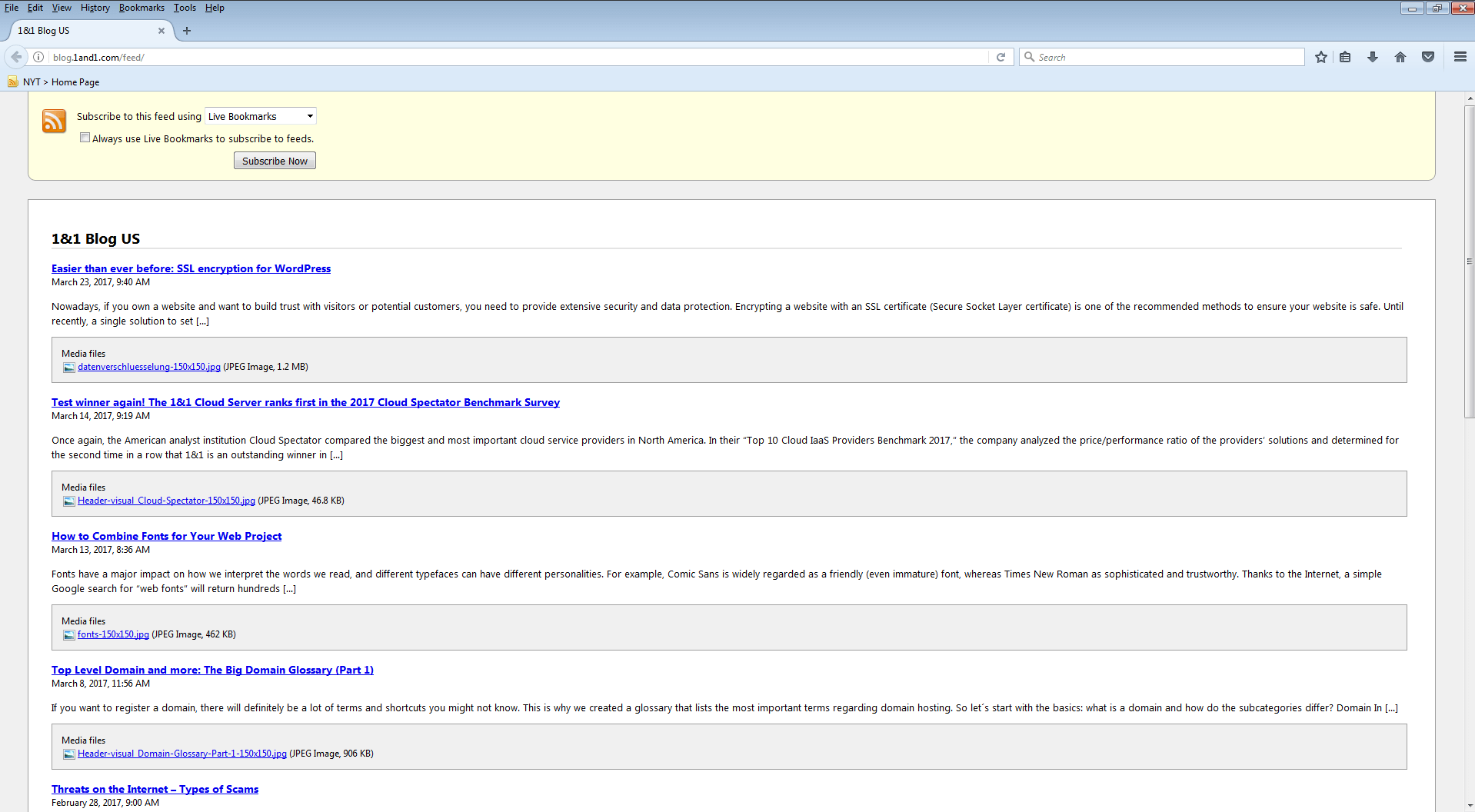
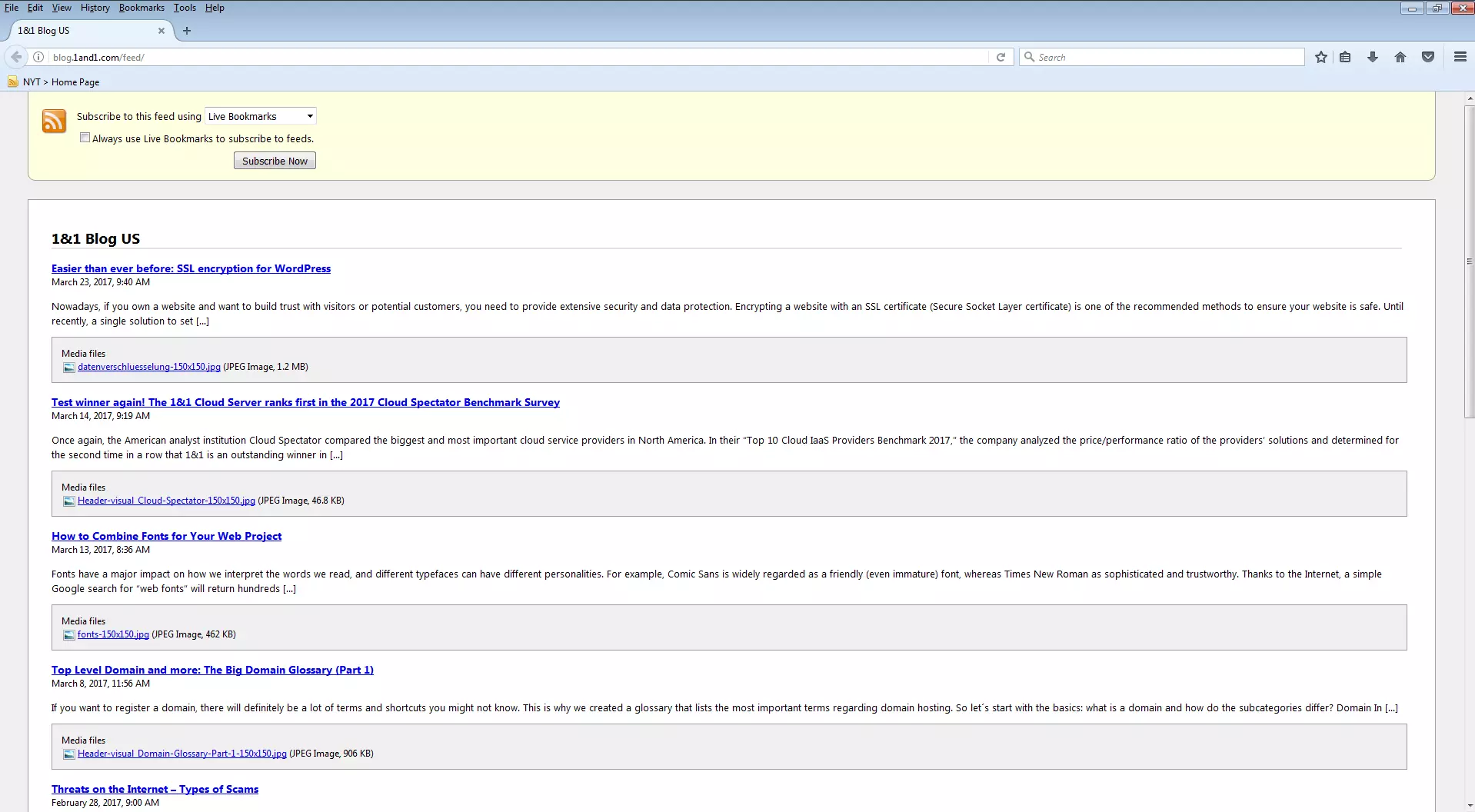
In addition to the function that allows you to save an RSS feed as a dynamic bookmark, Firefox also offers the option of managing the subscription using an external application.
Providing RSS feeds
For website operators, RSS feeds are a good way to inform subscribers of new features at regular intervals and to encourage them to visit the website again. When it comes to online marketing, RSS feeds are discussed as a tool for customer loyalty.
To process the contents of a website as a feed, operators have three options available to them.
- Manual creation of an RSS document by means of XML
- File integration through external programs and web services
- Automated output of RSS documents using a content management system (CMS)
Manually creating RSS feeds
In principle, RSS feeds can be created without too much effort. The underlying XML file is created in a classic text editor and the basic RSS schema discussed earlier serves as a template.
1. Create text files: In the first step, the RSS basic schema is filled with the contents of the respective website. Generally, these RSS feeds contain anywhere from 10 to 15 items.
<?xml version="1.0" encoding="utf-8"?>
<rss version="2.0">
        <channel>
            <title>Channel name</title>
            <link>http://www.example.com/</link>
            <description>Description of channel</description>
            <item>
                <title>Article 1</title>
                <link>example.com/1</link>
                <guid>example.com/1</guid>
                <pubDate>Mo, 02. Nov. 2016, 13:20:00 GMT</pubDate>
                <description>Description of the first article</description>
            </item>
            <item>
                <title>Article 2</title>
                <link>example.com/2</link>
                <guid>example.com/2</guid>
                <pubDate>Tu, 01. Nov. 2016, 12:15:12 GMT</pubDate>
                <description>Description of the second article</description>
            </item>
    </channel>
</rss>
1. Save text files in XML format: The second step involves saving the just-created text document as a XML file.
2. Publish the RSS document: For website visitors to subscribe to the created feed, the underlying XML file is loaded onto the server and linked to from within the website.
A manually created RSS feed has the advantage that website operators can choose exactly which articles are to be syndicated via this medium. The drawback is that updates on the feed also have to happen manually. Bloggers and other website operators who want to regularly inform their readers about new content have to create a corresponding entry in the XML document for each new article on the website. To prevent the document from getting out of hand, it’s recommendable that you delete the oldest entry as each new entry is added.
Due to the high workload required for updating RSS feeds, they’re rarely created manually in practice.
File integration through external programs and web services
If you don’t want to write XML documents yourself, then you can rely on programs and web services that help web site operators create, publish, and maintain RSS feeds.
- RSS Builder: The freeware RSS Builder offers you the possibility to insert RSS entries via a well-structured user interface and get a XML document in return. In addition, the software provides an integrated FTP client so that the file can be uploaded using the tool as well. Previously created XML documents can be opened and updated with RSS Builder, too. The disadvantage: The program is only available for Windows 7, and requires the .NET framework 1.1. RSS Builder is, furthermore, not currently being developed.
- Feedity Feed Builder: The web app Feedity Feed Builder provides functions for reading and automatically structuring dynamic websites. To automatically create RSS feeds, users just need to have one web page of their project as an example. The semantic markup is done with the help of the visual selector in the frontend view. The auto-selection function automatically transfers markups to similar items. RSS feeds created with Feedity are automatically updated when new content is added. The disadvantage: The tool can only be used effectively if all functions have been activated by subscribing to a paid upgrade.
Creating an RSS feed with CMS or blog software
As a rule, dynamic websites are created with a CMS or blog software. These systems offer the benefit that all content is already semantically structured in the databases, ready to be separated from the presentation layer, and is generated dynamically only at the moment of access. To publish an RSS feed instead of a website, you just need a different template that contains the appropriate presentation specifications. RSS functions are included in all popular content management systems. If the content on the website is revised, then the XML document will also be automatically updated. Depending on the software you use, third-party software such as Google FeedBurner can be helpful for expanding a CMS or blog software to include RSS functionalities, as well as analytics and advertising.
Integrating outside content as an RSS feed
Content that’s semantically structured in the form of a standardized XML document is ideal for automatic processing. This can include processing for various devices – mostly mobile – and gives content providers the possibility of making their content available on various media channels. Website operators sometimes use RSS to integrate external content into their website. Integrating the already prepared content of one website into another is called syndication. You can find multiple sites online, such as blogs or forums that use RSS feeds from news portals as well as relevant industry sites that provide their visitors with the latest news from representative content providers. Such multiple uses may be within a commercial framework, but large news portals allow non-commercial use of their RSS feed as well. As a rule, it’s free of charge, but they do reserve the right to prohibit the transfer of content without giving an appropriate reason. One simple software solution for integrating RSS feeds is FeedWind from Mikle. The free tool can be found on https://feed.mikle.com/ as a web app. It offers all of the functions that website operators need to prepare freely available RSS documents for their own projects. The integration of an RSS feed with FeedWind is easily accomplished with six simple steps: 1. Search for the appropriate RSS feed: Usually, content providers make available RSS channels clearly visible on the site. If such a feed is to be used for another project, the URL for the XML document needs to be determined first. 2. Import XML data over the feed URL: Before you can process an RSS feed for presentation on your own website, you need to import the URL of the XML document into the web app. FeedWind offers the following input box:
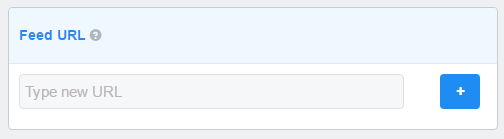
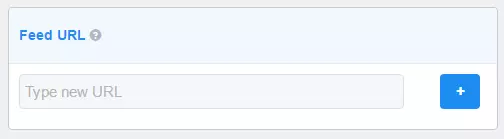
After the URL is entered, complete the import by clicking on the button marked with a plus sign (+).
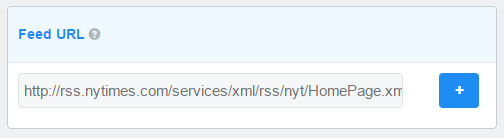
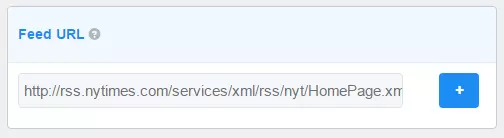
After importing, FeedWind shows you a preview of the RSS widget according to standard settings.
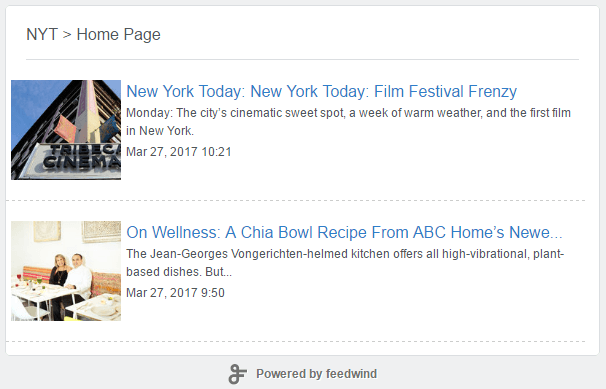
Afterward, website operators have access to a wide range of settings that can be used to individually adapt the RSS widget to the target website.
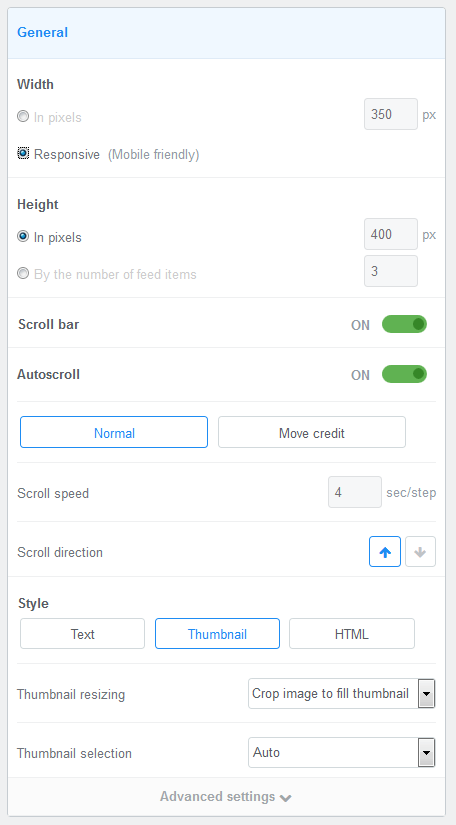
3. General settings: Under general settings, the website operator has the option to define the height and width of the RSS widget. If the field is meant to be automatically adapted to the display of the device in use, then this field can also be defined as responsive.
 NDAB Creativityshutterstock
The FeedWind widget automatically scrolls through the different items in the underlying XML document. Alternatively, website visitors have the choice to search for interesting entries via a scroll bar. Both functions can be deactivated in the general settings. In addition, the speed and direction of the auto-scroll function’s animation can be defined.
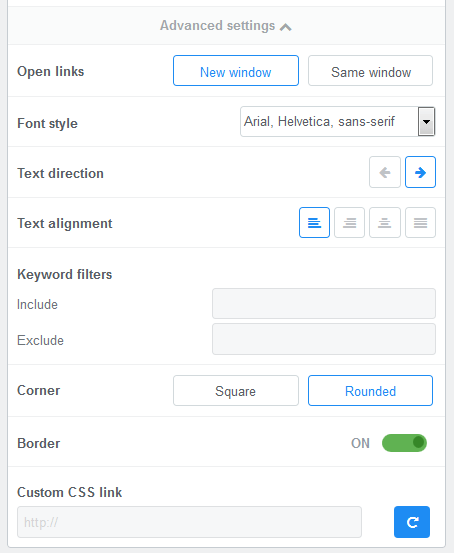
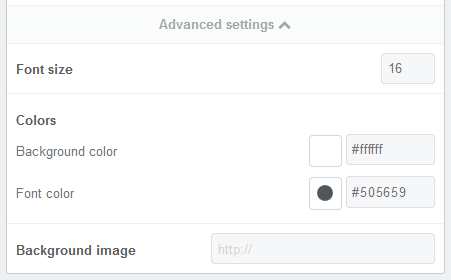
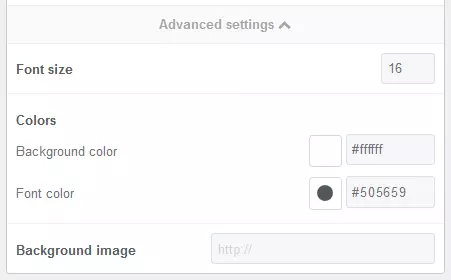
In the “style” category, website operators can configure how the content of the RSS widget should be displayed and choose between the text, thumbnail, and HTML options. By clicking on “Advanced settings” you can display the extended settings.
 KorArkaRShutterstock
Website operators can define here whether links will be opened in a new window or not and which font is used for the presentation of content. Text alignment can also be defined in the advanced settings.
The FeedWind widget also has options for being displayed either with normal or rounded corners as well as with or without border lines. If you want to implement a customized design concept, then you also have the option to import your own CSS.
4. Title formatting: FeedWind automatically takes the title of the RSS channel from the XML document. If you want to, you can also enter an individual title or provide a link to any website.
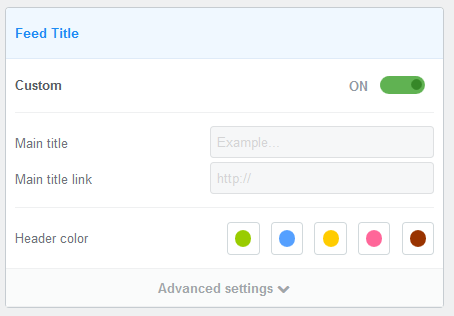
Extended color settings for the display of the header are available under “Advanced settings”. You can also import a background image.
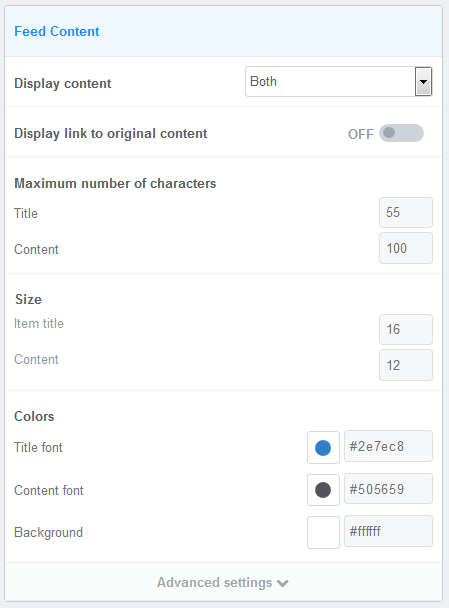
5. Content formatting: Content can be displayed in three formats with FeedWind: As a list of article headlines, as a combination of headlines and teasers, or simply as a list of teasers. Each item can also be linked to the source.
Individual configuration options can be found for the font sizes of titles and teasers as well as for the number of characters displayed. You can also customize the colors of titles, teaser text, and backgrounds.
 Zastolskiy VictorShutterstock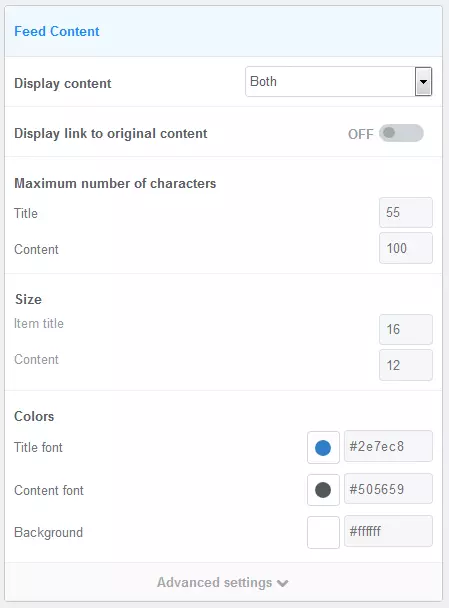
The “Advanced settings” button provides additional display options. There, users can define how many items should be displayed in the widget at one time and in which order. The possible options are: newest entries first, oldest entries first, or random order.
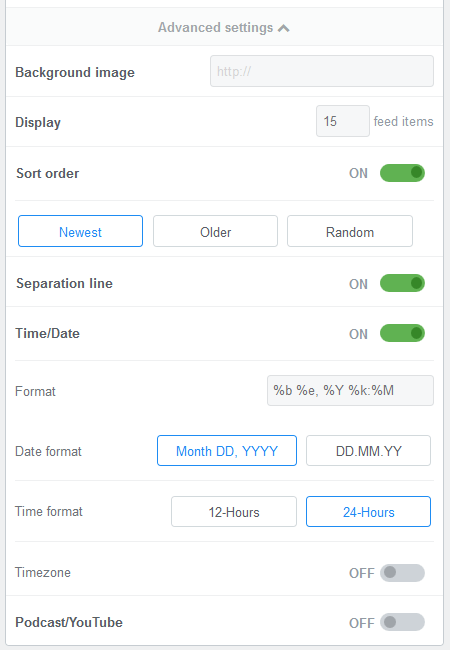
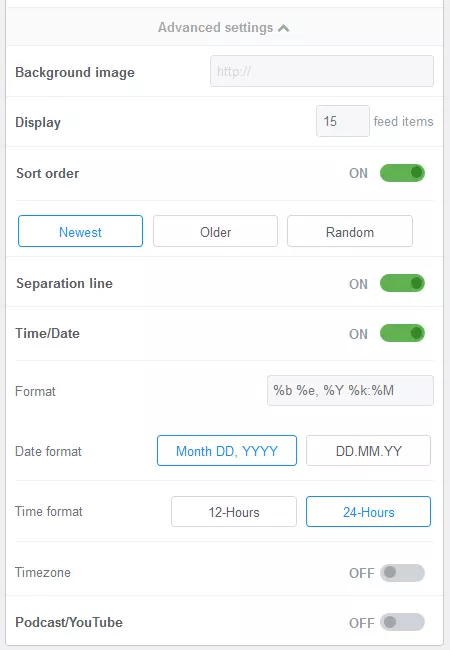
Separation lines, as well as a publishing date, can be added in the desired format if you so choose.
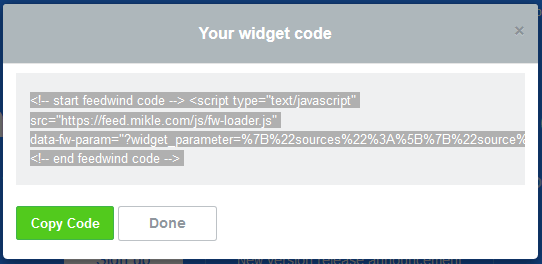
6. Generate HTML code: Once the desired settings have been entered, just click the “Get Code” button to generate an HTML code block that incorporates JavaScript with the widget code.
 PhongphanShutterstock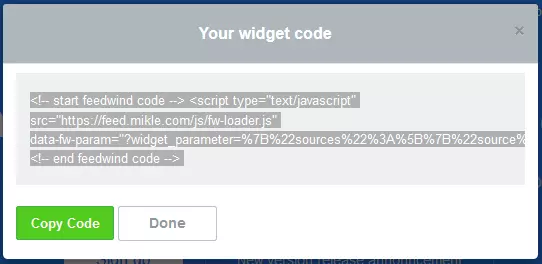
7. Integrate the website source HTML code: To publish the RSS widget created via FeedWind, website operators need simply to paste the widget code into the HTML source of their website.
Instead of including external RSS feeds, FeedWind can also be used to provide an overview of a website’s own content on the home page.
RSS feeds and SEO
In the past, RSS feeds were sometimes misused as a backlink source for search engine optimization (SEO). For this, website operators would contribute the feeds of their own page to a variety of different RSS directories. This approach is not recommended anymore from today’s perspective, however. Similar to extra entries in web directories, search engines can correctly recognize and identify this practice as a form of spam. Because of this, RSS feeds are no longer regarded as a tool for link building. The potential for a positive influence on SEO is there, however, due to the opportunity to generate traffic via feeds.
News aggregators like Yahoo News, Google News, and Feedly play a central role: They are all based on RSS feeds. Website operators who are able to insert their own feed into these services can expect continuous traffic streams.
Caution is advised if you want to integrate almost exclusively foreign content into your website via RSS. While it’s a great asset in moderation, it can be harmful to your search engine rankings if it’s too large. Google and other search engines sometimes classify the short descriptions contained in the feed as duplicate content. This applies in particular to websites that provide little or none of their own content. You should always ask yourself whether or not the feed really represents an enrichment for your website’s visitors.