

How to cancel Google Workspace

Google Workspace can be canceled or deleted in just a few steps. When deleting a Google account, keep in mind that all connected data will be lost. Administrators can cancel the subscription in their Workspace account.
Google Workspace was known as G Suite until 2022. At the end of June 2022, Google switched G Suite to Google Workspace“). For private users, Google Workspace now includes common tools like Gmail, Docs, Calendar, Sheets, Slides, YouTube and Meet free of charge.
Companies previously using a paid G Suite subscription for individual or multiple users were switched to the paid Workspace version. Solo entrepreneurs, on the other hand, use Google Workspace Individual. Google currently offers four paid plans as part of Workspace: Business Starter, Business Standard, Business Plus and Enterprise. These differ in terms of their price, range of functions and storage space, conference tools and security and management functions. (As of November 2022)
Step-by-step instructions for canceling Google Workspace
Canceling your Workspace subscription or deleting your entire Google account, which also deletes your Gmail account, can be done in a few easy steps. However, keep in mind that when you delete a Google account, all data related to your contacts, chats, saved documents, files and connected YouTube accounts will be lost. Cancellation, on the other hand, removes only the user accounts and data associated with Google Workspace, as well as associated groups and organizational units.
If you accidentally delete the wrong Google Workspace account or change your mind, you can restore your Google account and administrator accounts. However, this option is only available for up to 20 days after deletion.
To cancel your Workspace subscription or delete your Google Workspace account, do the following:
How to cancel your Google Workspace subscription
As a one-person company or a company with multiple Workspace users, you can cancel the subscription directly through Google Workspace Admin.
Step 1: Log in to Google Workspace Admin with your user credentials.
Step 2: Navigate to Billing and select Subscriptions.
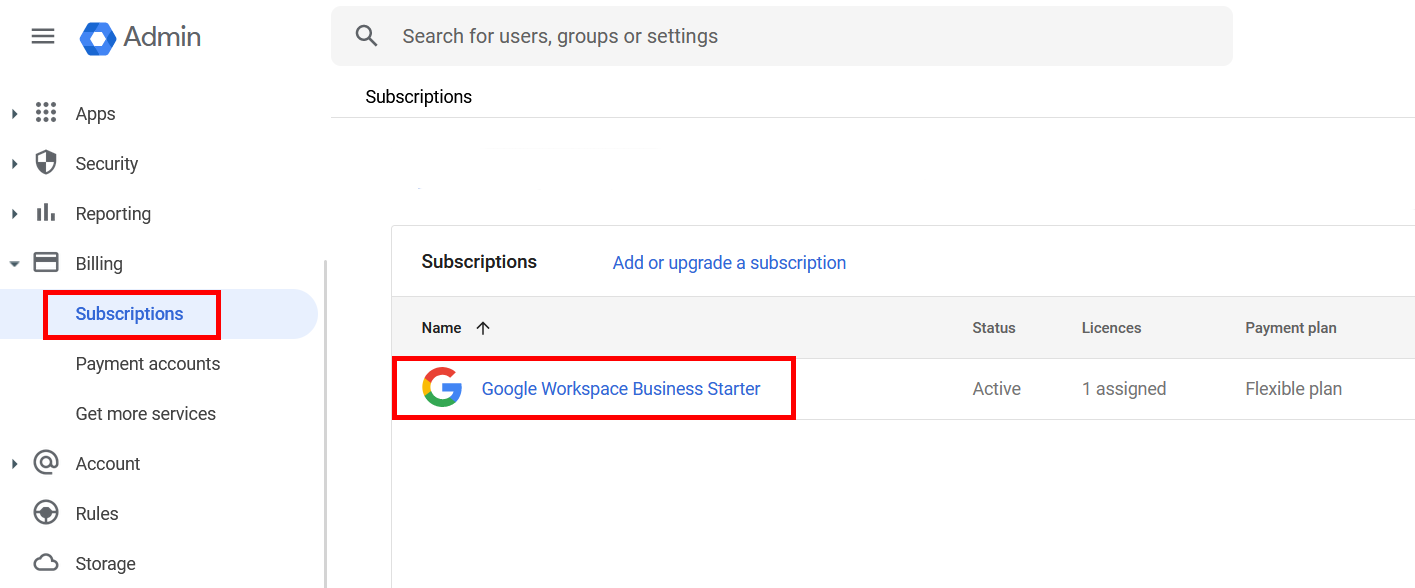
Step 3: Select the relevant workspace subscription (if there is more than one) and go to More. Now click on Cancel subscriptions. Select a reason for cancellation and confirm the selection with Next.
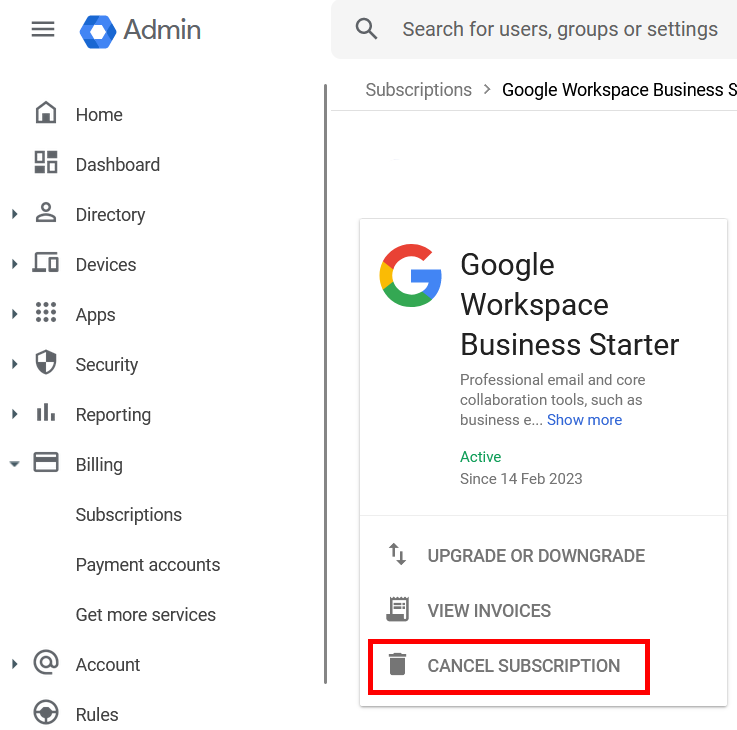
Step 4: To proceed, confirm your selection with Cancel subscription and enter your Google address again.
Step 5: You should now receive an automatic cancellation confirmation via email. The cancellation should be completed in 84 days at the latest.
How to delete Google Workspace and your Google account
If you no longer wish to use Google services and/or prefer to switch to a Workspace alternative, you need to cancel your account, not just the subscription. You will also need to delete your entire Google account. As a private user, you’ll perform the same action if you no longer want to use the services included in the free Workspace plan, such as Gmail, Docs or Meet.
If you want to remove data associated with your account, delete Google records, clear Google search history or delete negative Google reviews, you should refrain from deleting the entire account. Doing so will cause you to lose access to all associated content, data and contacts.
Follow these quick instructions to delete your Google account:
Step 1: Log in to your Google account using your credentials.
Step 2: Go to Data and privacy.
Step 3: Scroll to Data and privacy options and under More options go to Delete Google account.
Step 4: Now, follow the steps to delete the account. Accept the terms and confirm deletion by clicking Delete account.
Is there a cancellation period with Google Workspace?
You can cancel a Google Workspace subscription at any time. When it goes into effect depends on the selected billing period. With a flexible payment plan, billing ends after the current month and in the case of annual/fixed-term payment plans after the deduction of any outstanding fees.
Google Workspace offers a 14-day trial period. At the end of this period, the subscription is not automatically converted into a paid subscription. The transition to a paid Workspace subscription will only happen if you confirm your domain for Workspace or set up billing for Google Workspace within the 14 days.
Already using Google services for business? Google Workspace plans from IONOS let you get the most out of Google Cloud and Groupware and include popular Google services, business email and team features.
Does it impact other Google services?
Deleting or canceling your Workspace account affects the data and applications you use and store in Google. For example, when you delete your Workspace account, you lose access to services such as Gmail, Calendar, Meet and Docs. Likewise, files, attachments and user permissions stored in Drive or Gmail will also be lost.
When you cancel (but don’t delete) your Google services subscription, features such as YouTube or Photos will still be available. User accounts, organizational units, and groups belonging to your Workspace account will be lost but can be reactivated within a period of 51 days after cancellation.
Redefine location-independent working with Microsoft 365 plans from IONOS. Plans include central data storage, office package and ultimate data protection.
What are some alternatives to Google Workspace?
When it comes to teamwork and collaboration, Google Workspace is one of the most practical cloud service solutions. However, not everyone has a need for Google Workspace. In this case, you can opt for alternative providers of collaboration tools or groupware such as Microsoft’s Exchange Server. You can also set up your own Docker mail server.
Microsoft 365 and Microsoft 365 alternatives are also useful solutions for email, office and collaboration tools. You can read a comparison of Google Workspace and Microsoft 365 in our dedicated guide. Other powerful Workspace competitors include Microsoft’s OneDrive, Microsoft Teams, or Dropbox Business.