

How to change the font in Outlook – Step-by-step instructions

If you want to use a certain font repeatedly or as part of a uniform company communications strategy, you can designate it as the default font for your Outlook emails. Find out how to set a default font in Outlook in different versions of Microsoft’s email client here.
How to change the font in Outlook quick guide
- File > Options > Mail > Stationery and Fonts…
- Select which font you want to change
- Composing a message
- Replying to or forwarding a message
- Creating and reading unformatted text messages
- Select the options you want and click OK.
- Write perfect emails with optional AI features
- Add credibility to your brand
- Includes domain, spam filter and email forwarding
How to change the font in Outlook step by step
These instructions apply to the Outlook version of Microsoft 365 as well as for the 2021, 2019 and 2016 versions. The procedure for changing the default font in Outlook is slightly different in the web version and is explained separately below.
Changing the default font in Outlook
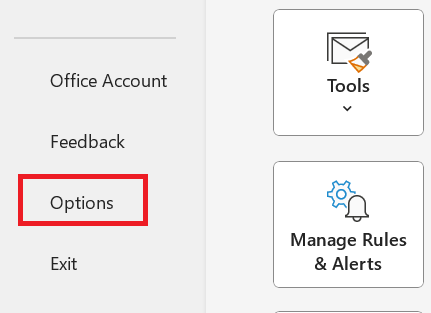
Step 1: Go to the Info tab and select the Options menu.
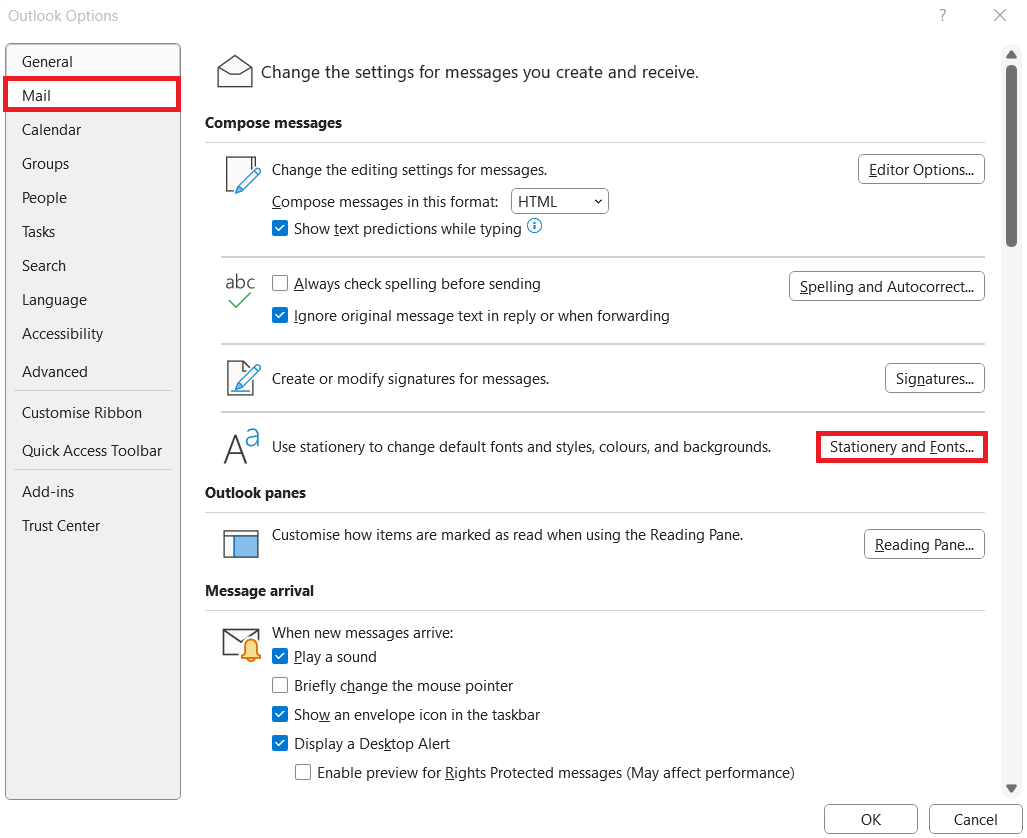
Step 2: In Outlook Options, click on Mail and select Stationery and Fonts….
Step 3: The Signatures and Stationery window will now pop up, where you can choose from three different font types for your emails:
- New mail messages: Compose a message in HTML format. The font applies as long as you don’t use any special formatting. You can still format individual words or entire paragraphs.
- Replying or forwarding messages: Corresponds to the formatting of the original text of the email that you’re replying to or forwarding. Outlook uses a dark blue color to contrast the black font of the original text. Many users tend to use a slightly smaller font.
- Composing and reading plain text messages: Display unformatted, plain text emails. The font only appears on your screen, with the emails themselves remaining unformatted. In the case of plain text emails, no font information is transmitted to the recipient. Individual text areas cannot be formatted differently.
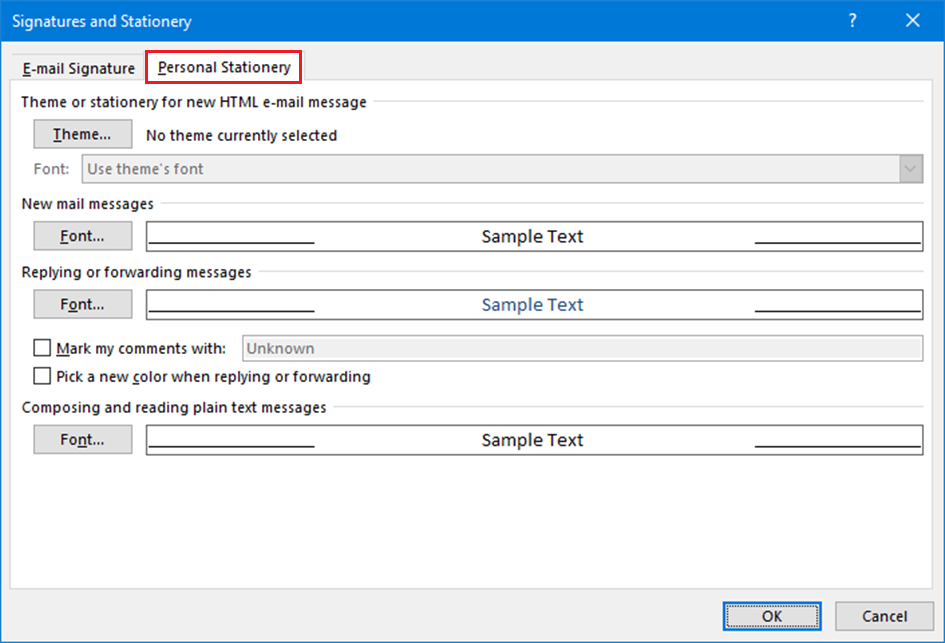
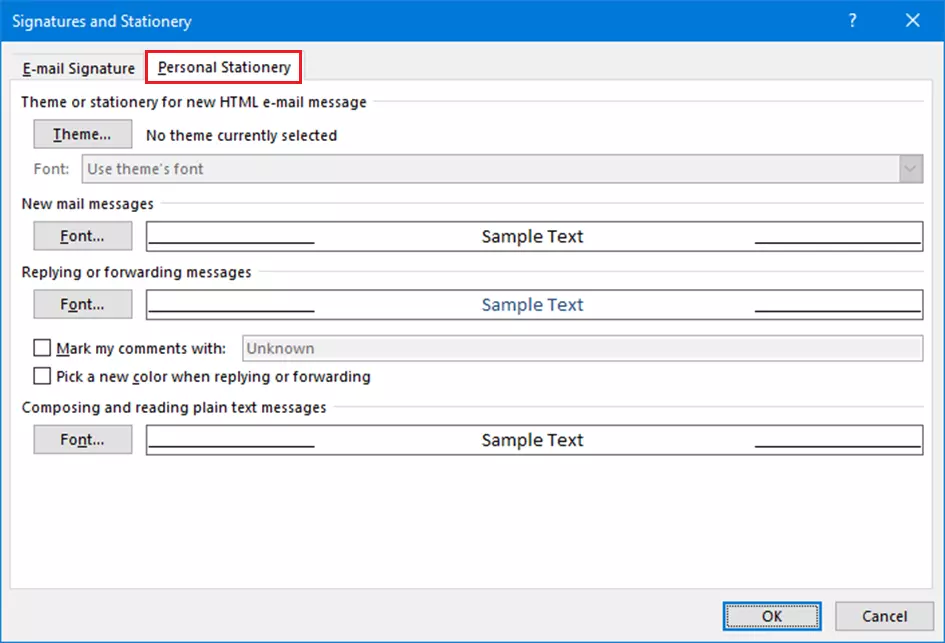
In addition to the font, you can also select the font size, font style (italic, bold, etc.). and color for all three profiles. A formatted sample text will be displayed to help you with making a decision.
In the same menu, it’s also possible to create an automatic email signature (see Mail signature).
Step 4: After you’ve changed the Outlook default font, press “OK” to apply the changes.
Powerful Exchange email and the latest versions of your favorite Office apps on any device — get started with our free setup assistance.
How to change the default font for Outlook on the web
The web version of Outlook (OWA or Outlook.com), which you can use directly in your browser, also allows you to set fonts.
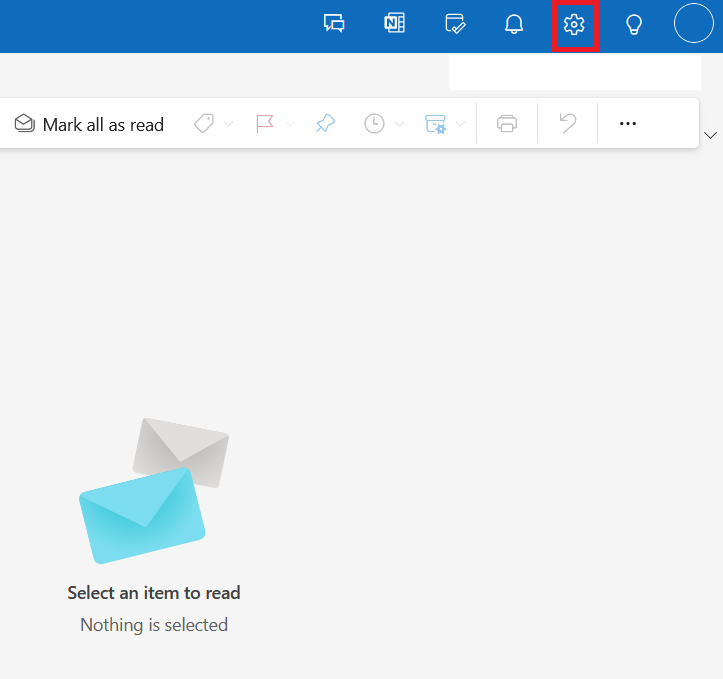
Step 1: Click on the gear icon in the top menu bar.
Step 2: Select Mail and then the option Compose and reply.
Step 3: In the Message format section, define whether you want HTML or plain text to be the default format for your emails in the Message format section.
In the line below, select the font, size, layout and color of the email text. It’s not possible to select different fonts for new emails, forwarded emails and email responses.
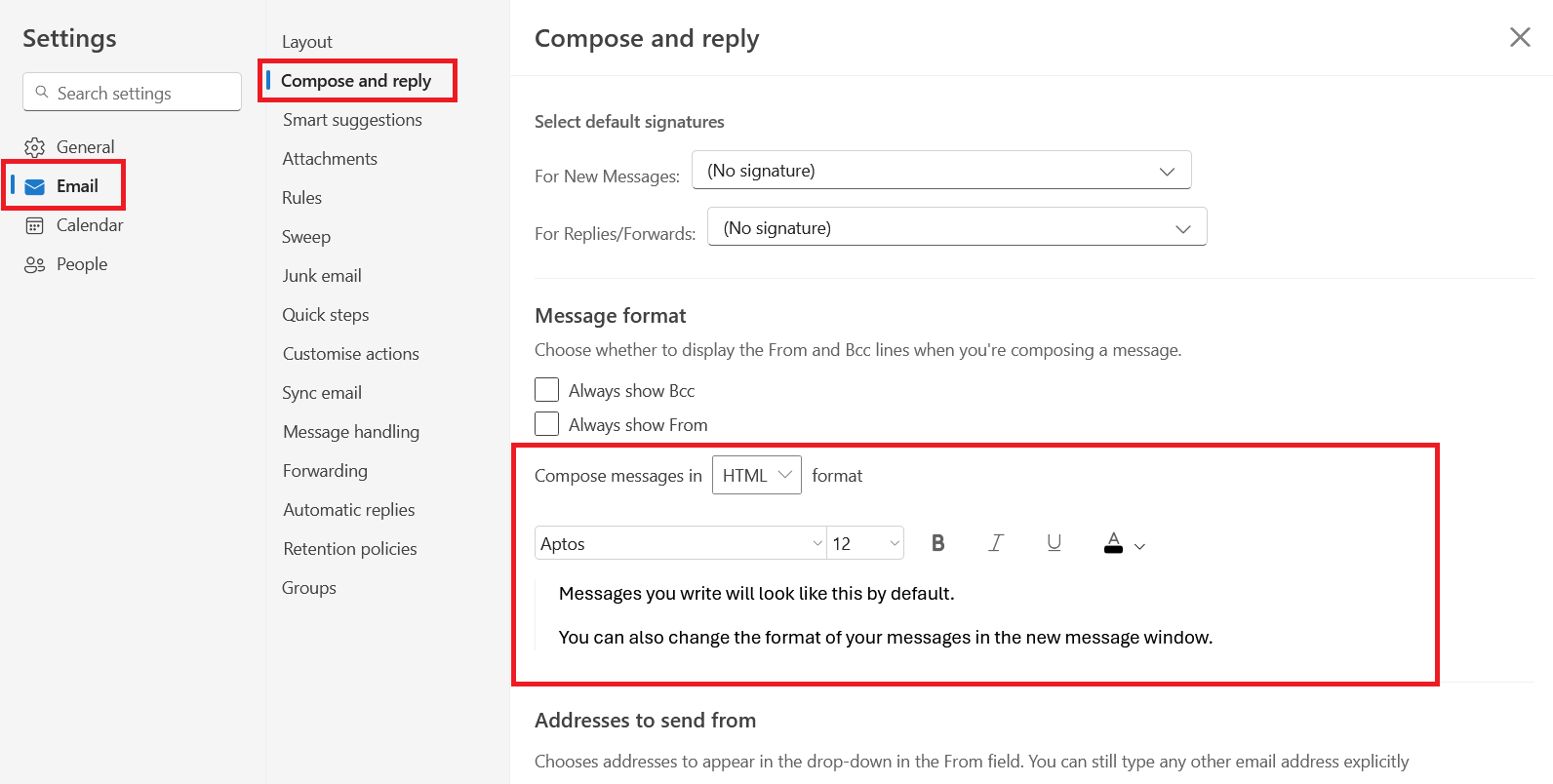
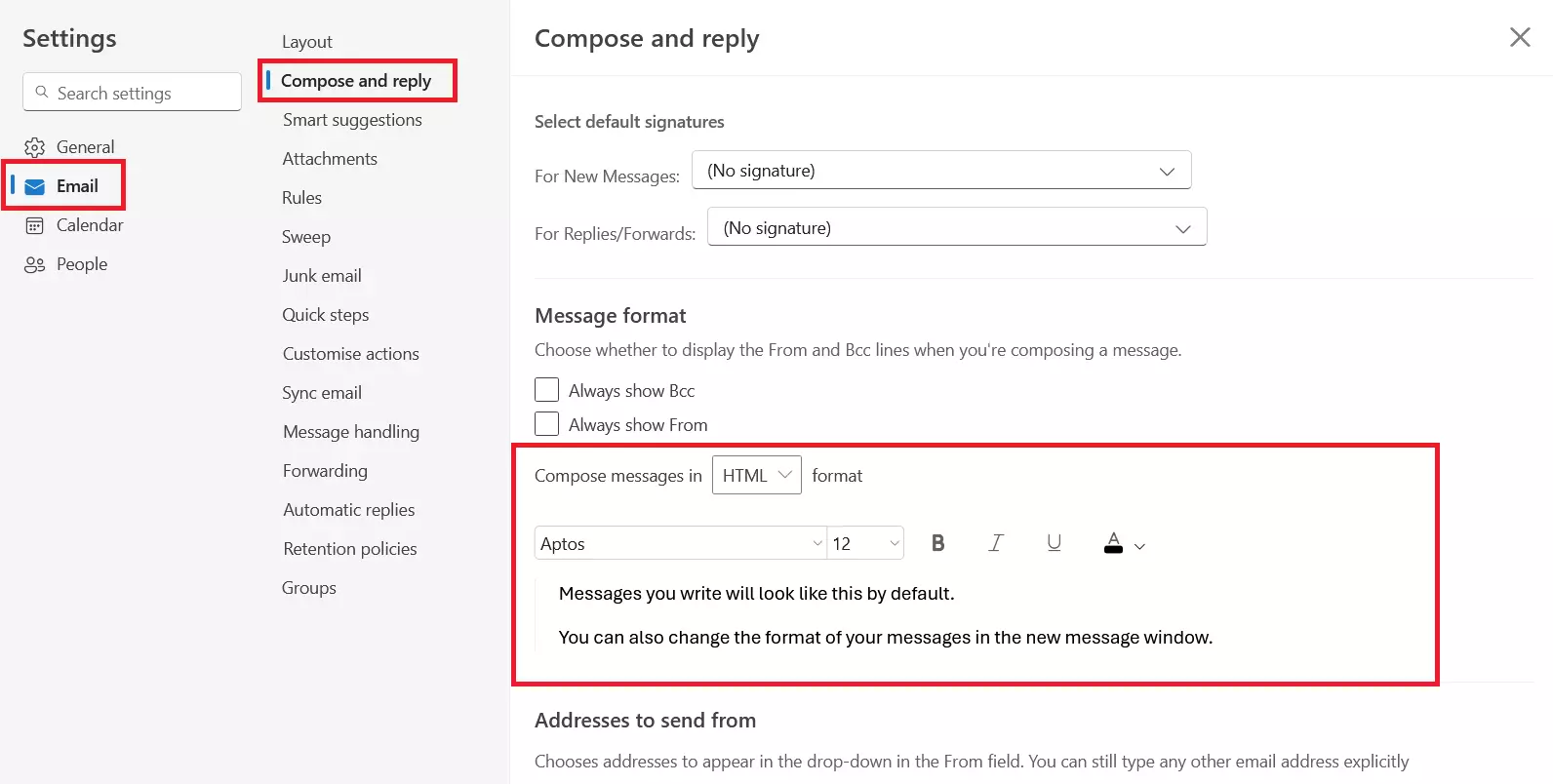
Step 4: Confirm your selection by clicking on Save and then close the window.
Microsoft Exchange is one of the most popular email and groupware solutions for companies of all sizes worldwide. The hosted exchange service from IONOS combines the tried and tested Microsoft software with a modern hosting infrastructure.
Best practices for font formatting
Large fonts and conspicuous colors are typical email beginner mistakes. Most people will associate emails formatted this way with spam and won’t take them seriously. It’s also best to avoid decorative fonts, as they’re difficult to read on smartphones.
The same applies to using smileys in Outlook. Use them to express feelings and irony in private emails but avoid them in business communications.
Outlook auto-creates hyperlinks and formats them in blue. You can also hyperlink words or sentences manually in an email. Simply highlight the word, right-click and select Link in the menu and enter the URL address.
To remove a hyperlink, right-click and choose Remove link. The same applies to auto-generated hyperlinks.
As with any popular software, numerous alternatives to Outlook are also available. Many are free, and some even offer additional features.
- Intuitive drag and drop editing
- AI-powered text generation
- Multiple templates to choose from