

9 Gmail add-ons: the best Gmail extensions for Chrome

With Gmail add-ons for the Chrome browser, you can customize standard Gmail features to your liking. Additional features of Gmail extensions let you optimize the performance and functionality of your mailbox. Below, we present the most practical add-ons.
- Write perfect emails with optional AI features
- Add credibility to your brand
- Includes domain, spam filter and email forwarding
What are Gmail extensions?
It’s likely you’ve encountered “extensions” online before. But what is an add-on exactly? Add-ons are extensions that are specially developed for programs to optimize functionality and layout. In everyday life, add-ons are mainly used in connection with browsers such as Microsoft Edge, Internet Explorer, Mozilla Firefox or Google Chrome. Many add-ons are available as free extensions, while others require a fee. Apart from anti-tracking and ad-blocker add-ons, Gmail add-ons are among the most popular Chrome extensions because they allow home users and businesses to adjust the features of their Gmail inbox.
How to add a Gmail extension to Chrome?
If you’ve never used an add-on before, fear not! Installing add-ons is easy as 1-2-3 and can be done in just a few clicks.
Step 1: Launch the Chrome Web Store in the Chrome browser. You can view all available Chrome add-ons here, including Gmail extensions.
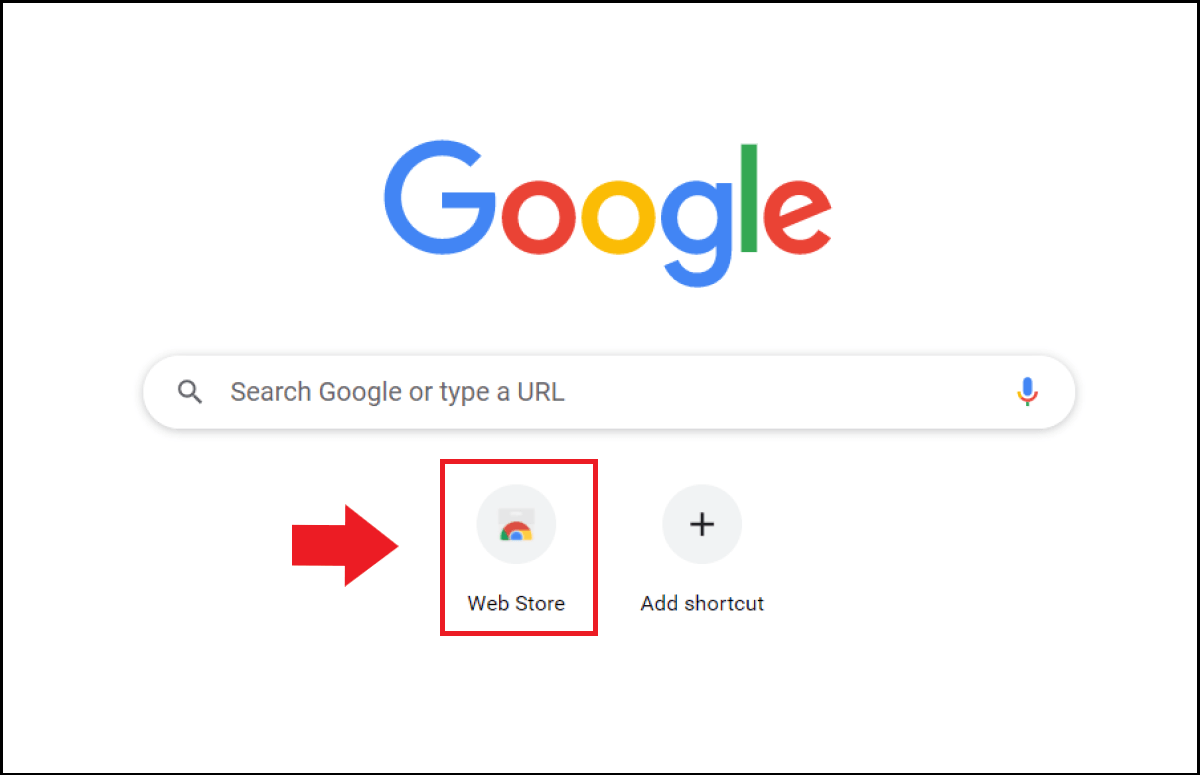
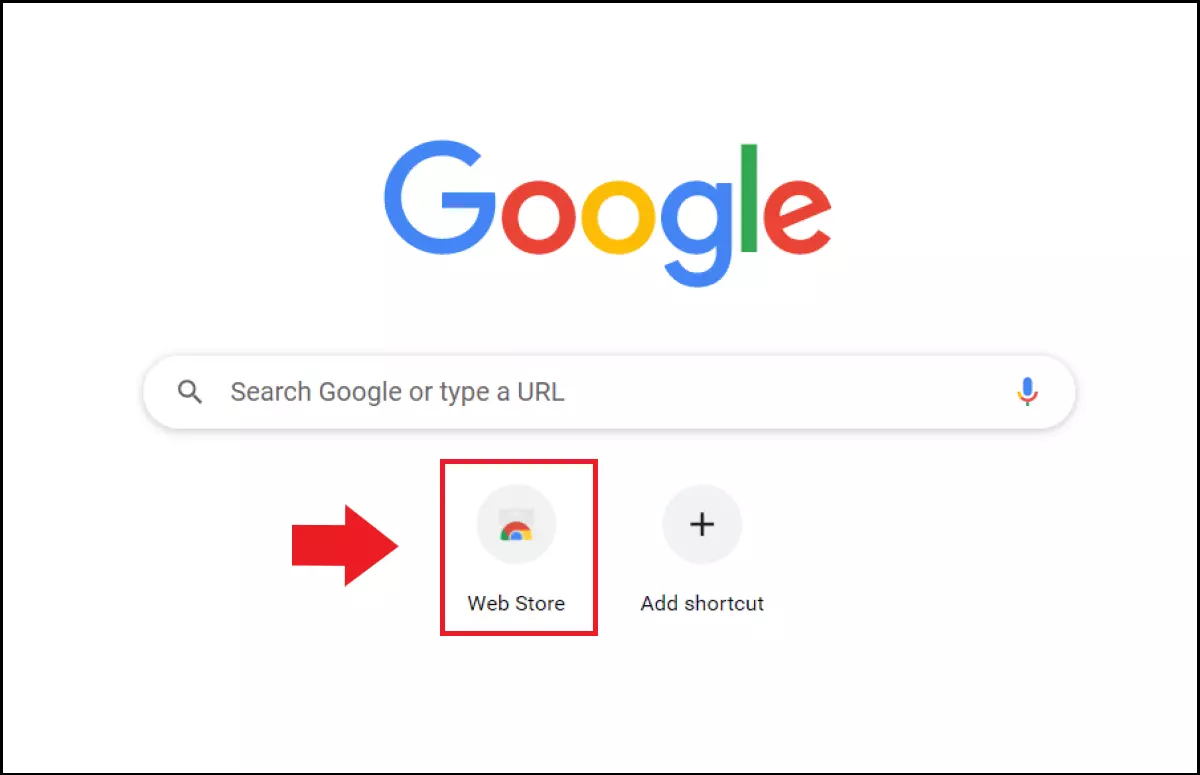
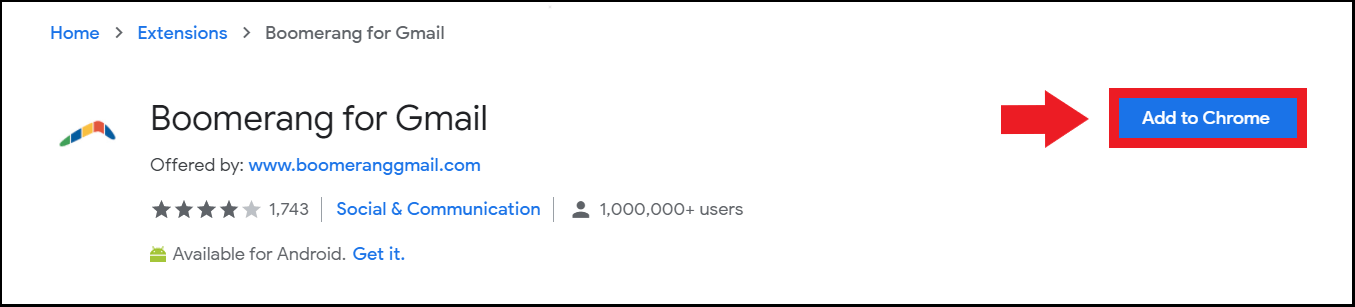
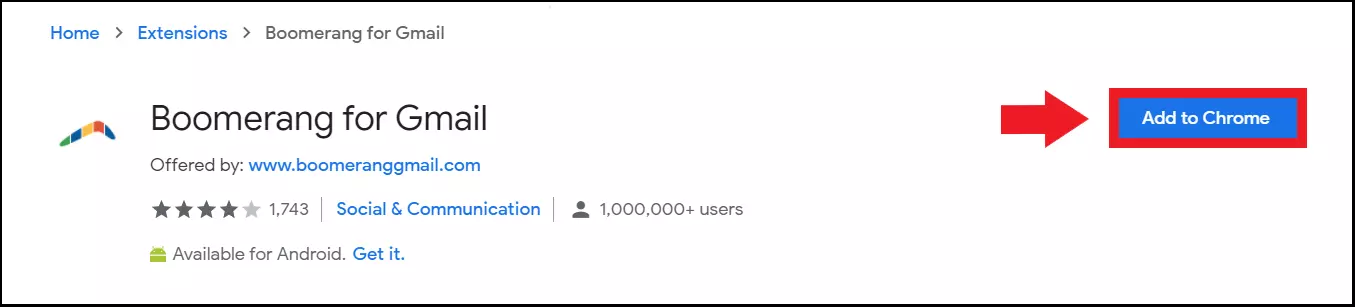
Step 2: Pick a desired Gmail add-on, click on the corresponding extension and then on “Add to Chrome” to the right.
Step 3: Confirm your selection by clicking on “Add extension”.
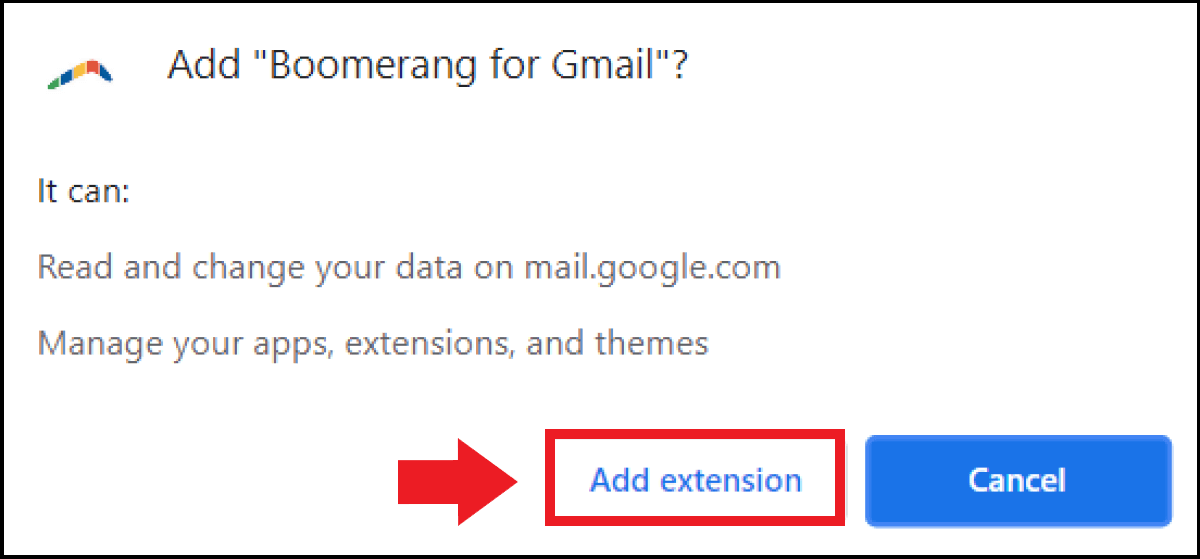
Step 4: Depending on your chosen Gmail extension you may need to restart the browser. Alternatively, you may be able to continue browsing as normal after installation.
Step 5: If you want to view your add-ons, click on the three dots at the top right (“Customize and manage Google Chrome”) > “Settings” and then “Extensions” to the left. You’ll be able to view the list of your current add-ons here.
If you want to benefit from Gmail extensions privately or professionally, you need an email address that is as unique as you are. IONOS helps you to create your own secure email address that matches your personal domain.
Useful Gmail add-ons in Chrome
The following Gmail extensions are useful for private or professional use to customize and optimize your Gmail inbox just the way you want.
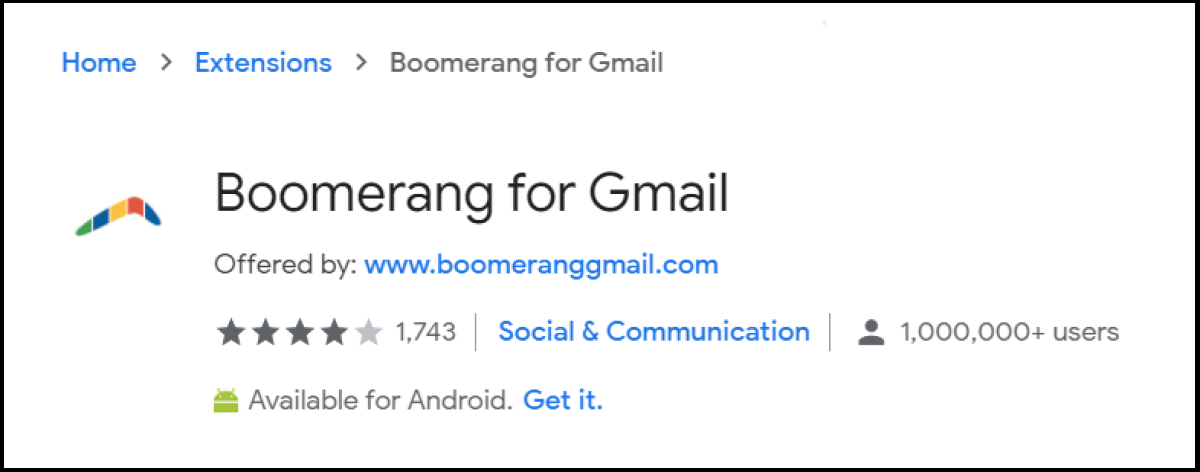
Boomerang
Functions:
- Provides time-shifted, automated sending of emails.
- Messages to colleagues, clients or friends are not sent immediately, but at a specified time, facilitating forward task planning
- Handy for sending group/mass emails
- Sends reminders of unanswered mails and archives received emails
- Offers various templates, AI-assisted writing, and read receipts
Useful for:
- Customer service operations to provide customers with quality and timely messages
- For HR management to send and schedule recruiting emails on time
- Forward-thinking users who may need to schedule their emails
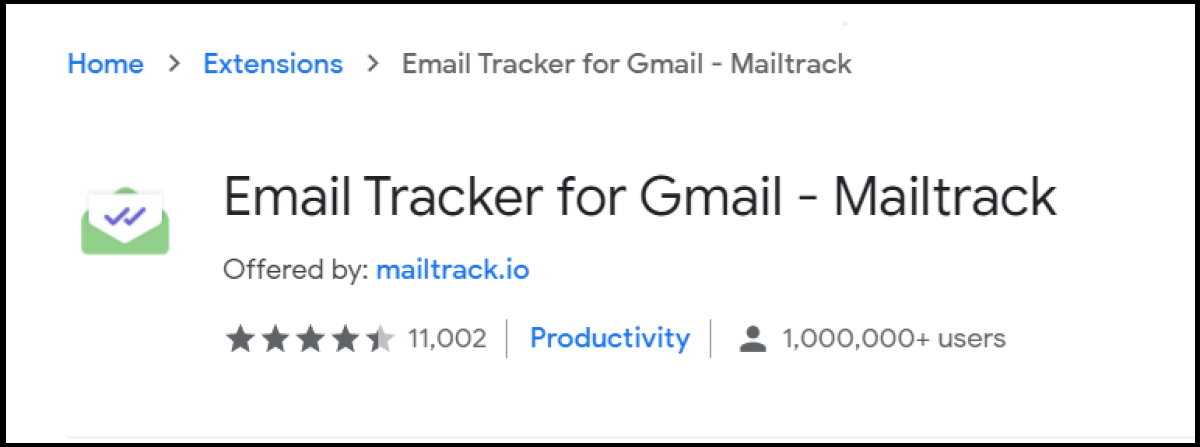
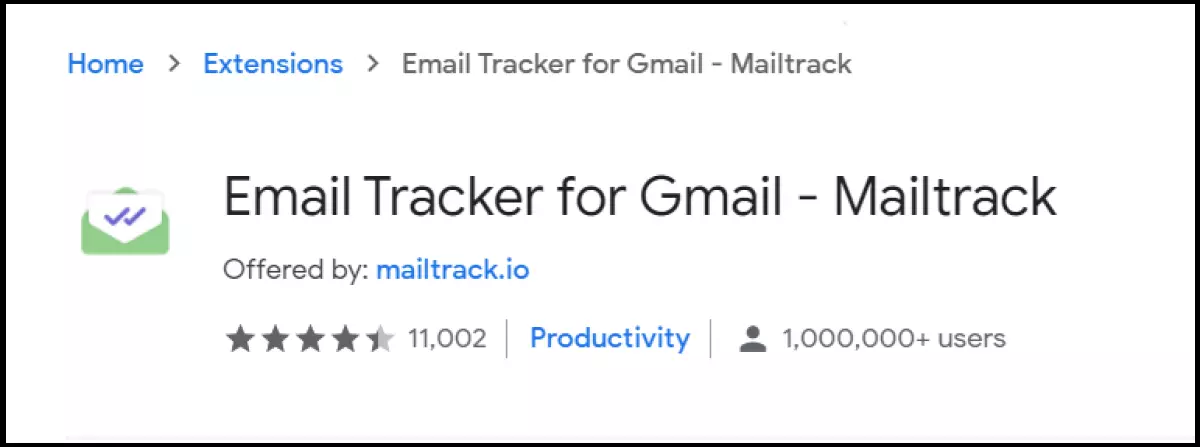
Mailtrack
Functions:
- Script-based tracking of all email activities
- Read/open receipt for sent emails
- Real-time notifications if an email was read
- Analysis of email activities in clear dashboard
Useful for:
- Users sharing newsletters
- HR managers monitoring recruiting activities
- Boards of directors and B2B marketers
Inbox When Ready
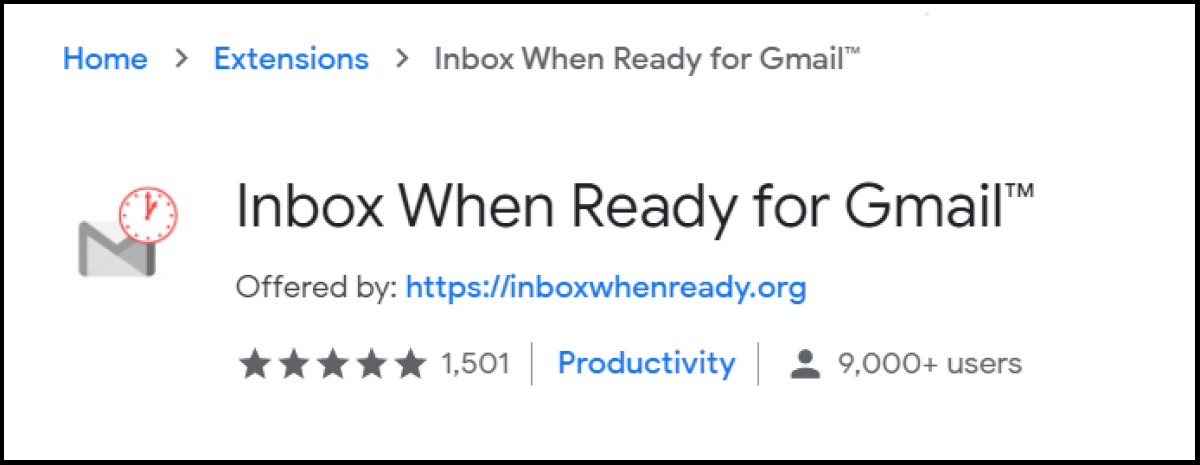
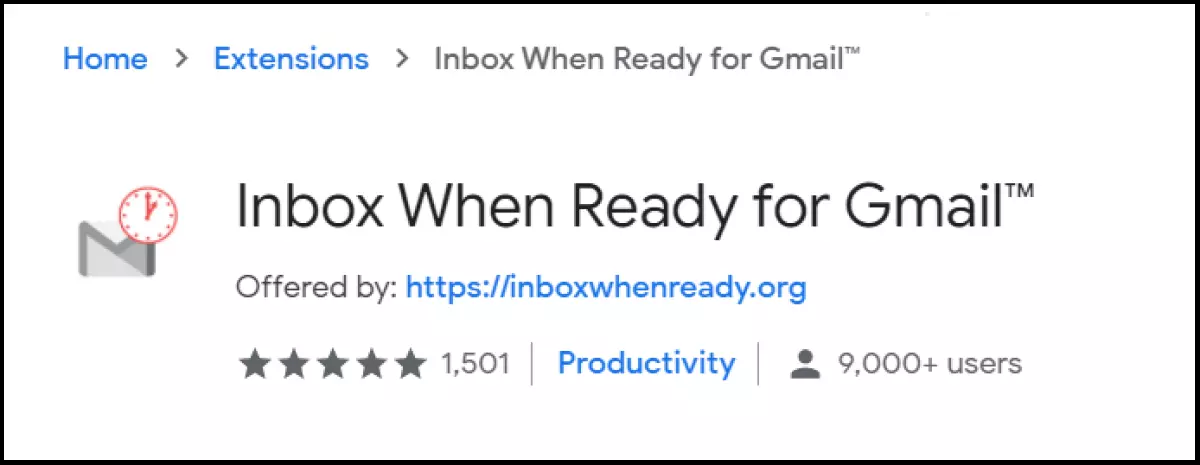
Functions:
- Locks the Gmail inbox for a specified period of time until existing mails are processed
- Hides inbox after specified period of time
- Inbox remains active, but doesn’t alert user with inbox notifications
- Limits the number or duration of inbox visits if desired
Useful for:
- Users with high mail volume
- Users who prefer to work through emails in a disciplined manner within fixed time frames without being distracted by notifications
Simplify Gmail
Functions:
- Provides a clean, simplified Gmail layout and interface
- Attractive, minimalist design that highlights the most important screen elements in the inbox
Useful for:
- Users who want to focus on the essentials of email without getting distracted or losing track of what’s going on
Simple Gmail Notes
Functions:
- Provides note and comment functions to annotate emails
- Optimizes inbox clarity and shortens reacquaintance with current or past conversations
Useful for:
- Customer service, marketing, or operations staff
- Users who communicate intensively with many people and need to swap between topics or discussions quickly
WiseStamp
Functions:
- Customized and personalized email signatures
- Add photos, comments, notes, contact information, social media profiles, and more to personal or business email signatures.
Useful for:
- Corporate/business emails
- Recruiting, application, marketing, and sales
- Suitable for creatives who want to draw attention to current or past projects and platforms as part of their email signature
Trocker
Functions:
- Marks and blocks mail trackers in incoming messages.
- Alerts of hidden tracking pixels in emails.
Useful for:
- Users who value privacy and do not want to be tracked and monitored by hidden mail trackers
FollowUp.cc
Functions:
- Users can set a time period after which a reminder is sent for mails that have been sent but are still unanswered.
- Follow-up functions enable keeping an eye on outstanding replies even when high volumes of emails are sent, so that users can follow up again.
Useful for:
- Marketing and sales staff
- B2B customer acquisition
- Customer service and accounting
Streak CRM
Functions:
- Combines Gmail with practical CRM extensions
- Filter function for customer information and automated overview
- Pipelining of business processes
- Creation of subfolders (e.g. for business deals, sales, or presentations)
- Time-controlled sending of mails
- An alternative CRM system for small businesses
- Personalized summary of mail traffic
Useful for:
- Customer service and customer management
- Marketing, sales, and distribution
- Start-ups and freelancers
![Image: Streak CRM provides integrated Gmail capabilities for sales, customer mail, tracking, and pipelining]](https://www.ionos.com/digitalguide/fileadmin/DigitalGuide/Screenshots_2022/streak-crm-provides-integrated-gmail-capabilities-for-sales-customer-mail-tracking-and.png "Streak CRM provides integrated Gmail capabilities for sales, customer mail, tracking, and pipelining]")
![Image: Streak CRM provides integrated Gmail capabilities for sales, customer mail, tracking, and pipelining]](https://www.ionos.com/digitalguide/fileadmin/_processed_/5/c/csm_streak-crm-provides-integrated-gmail-capabilities-for-sales-customer-mail-tracking-and_001c62d973.webp "Streak CRM provides integrated Gmail capabilities for sales, customer mail, tracking, and pipelining]")
Note that there’s a difference between browser add-ons from the Chrome Web Store and add-ons from the Google Workspace Marketplace. The Marketplace also offers Gmail add-ons that can be installed for backend apps. Use Google Workspace by Google Cloud at a rate to suit your needs with IONOS – for a professional appearance across all Google apps.