

How to print an Outlook email

There are multiple ways to print emails with Microsoft Outlook. We’ll show you two different ways to print emails and explain how to set up quick print icons in Outlook 365 so you can print important emails quickly and easily. Additionally, you’ll also learn how to print emails using Outlook on the web.
How to print an Outlook email quick guide
- Open your Outlook email and press [Ctrl] + [P].
- Select the printer in the Print window.
- If necessary, adjust the settings under Print Options.
- Click on the rectangular Print button to start printing.
Microsoft 365 Business plans from IONOS come with Outlook included.
How to print emails with the Outlook desktop app
These instructions apply to the Outlook versions of Microsoft 365, as well as Outlook 2021, Outlook 2019 and Outlook 2016. The appearance of the user interface and Outlook’s view settings may differ from version to version, however, the process for printing Outlook emails is essentially the same.
Below we’ll show you two ways to print your emails if you have Outlook installed on your computer. Follow these steps:
First method: Print Outlook emails using File and Print
This is the most common way to print emails if you have Outlook installed on your computer.
Step 1: Open your inbox and click on the email you want to print. The email will be displayed on the right half of your Outlook window. Click on the File tab at the top left. Alternatively, you can also open the email you want to print in a separate window. We’ve included instructions for printing from a separate window below.
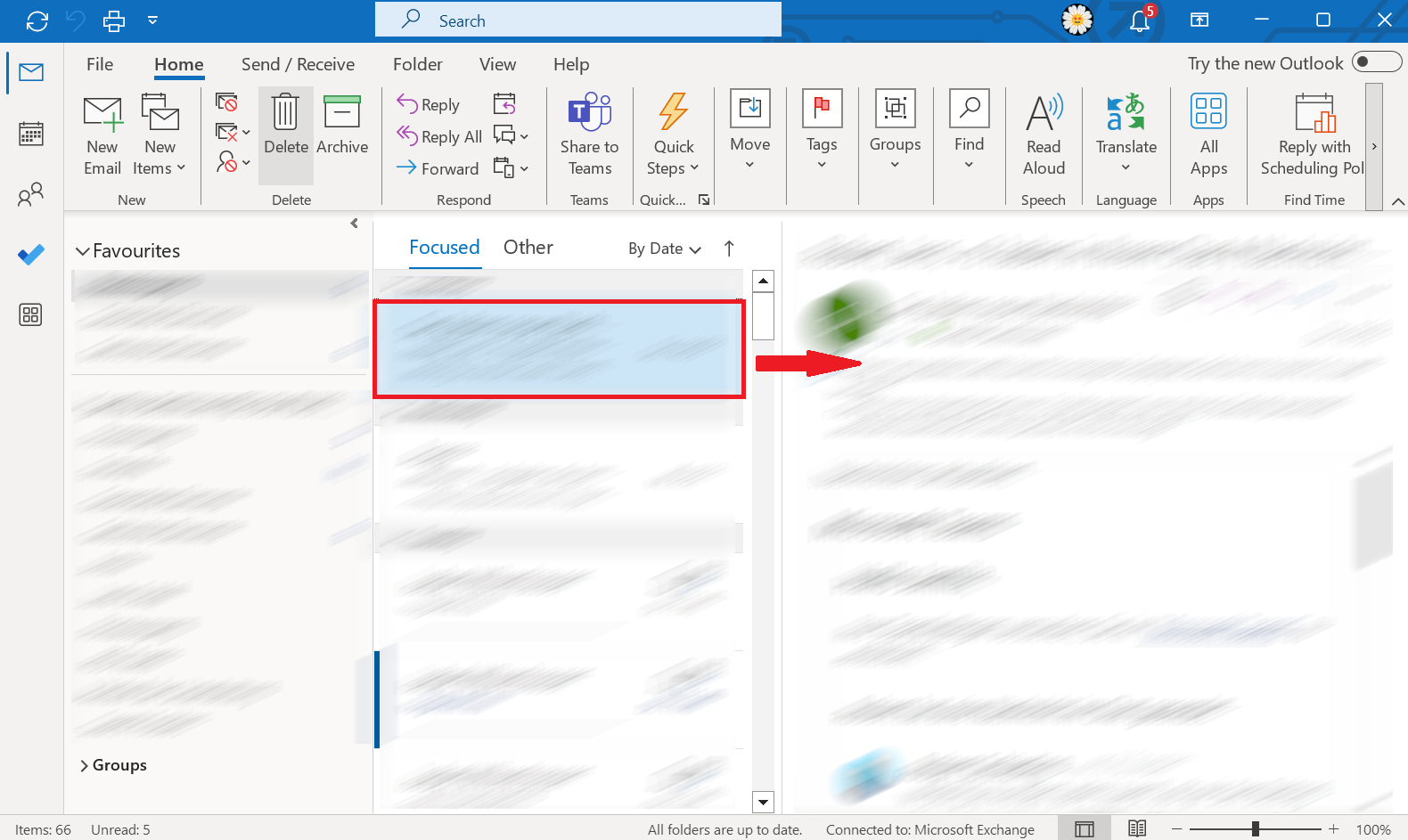
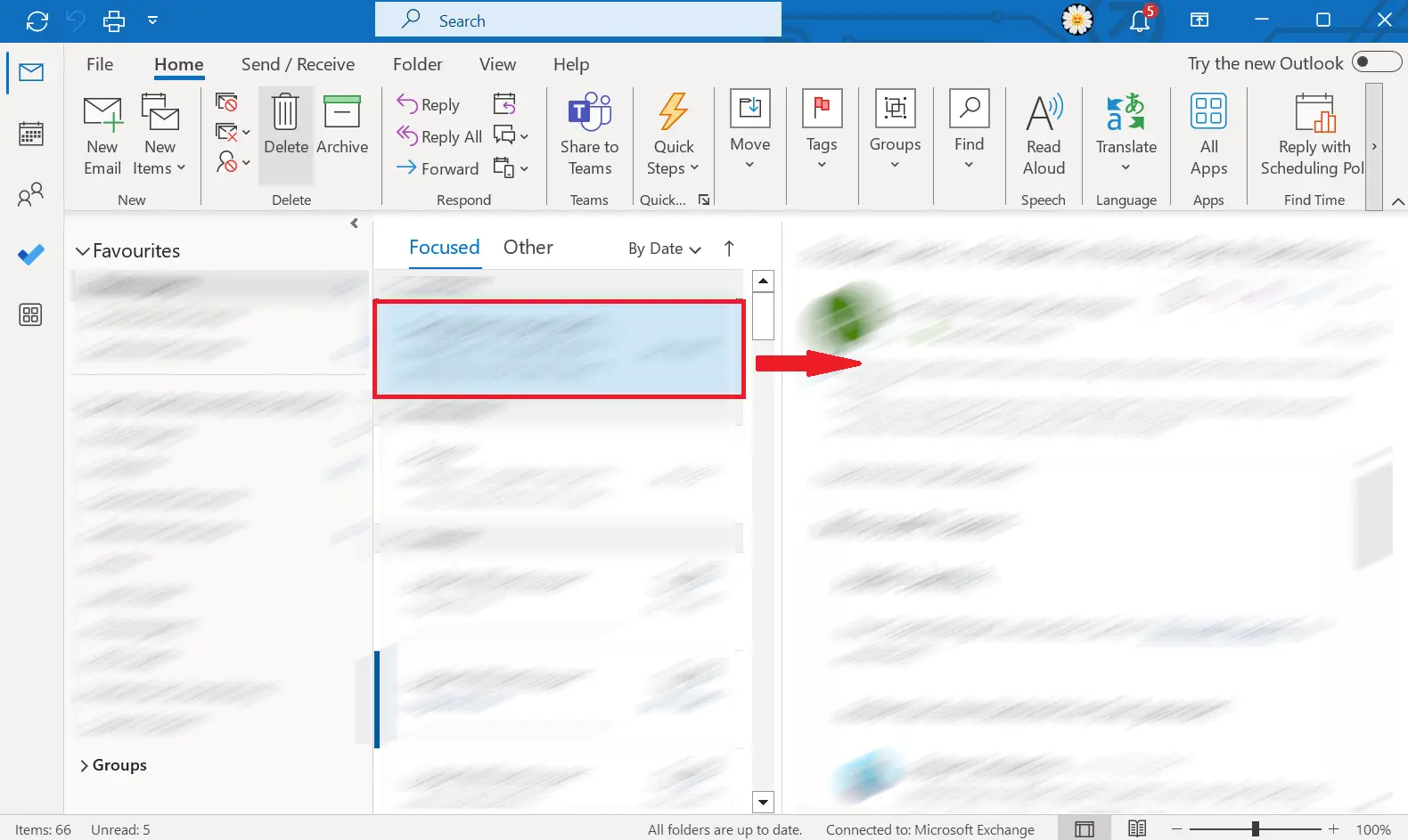
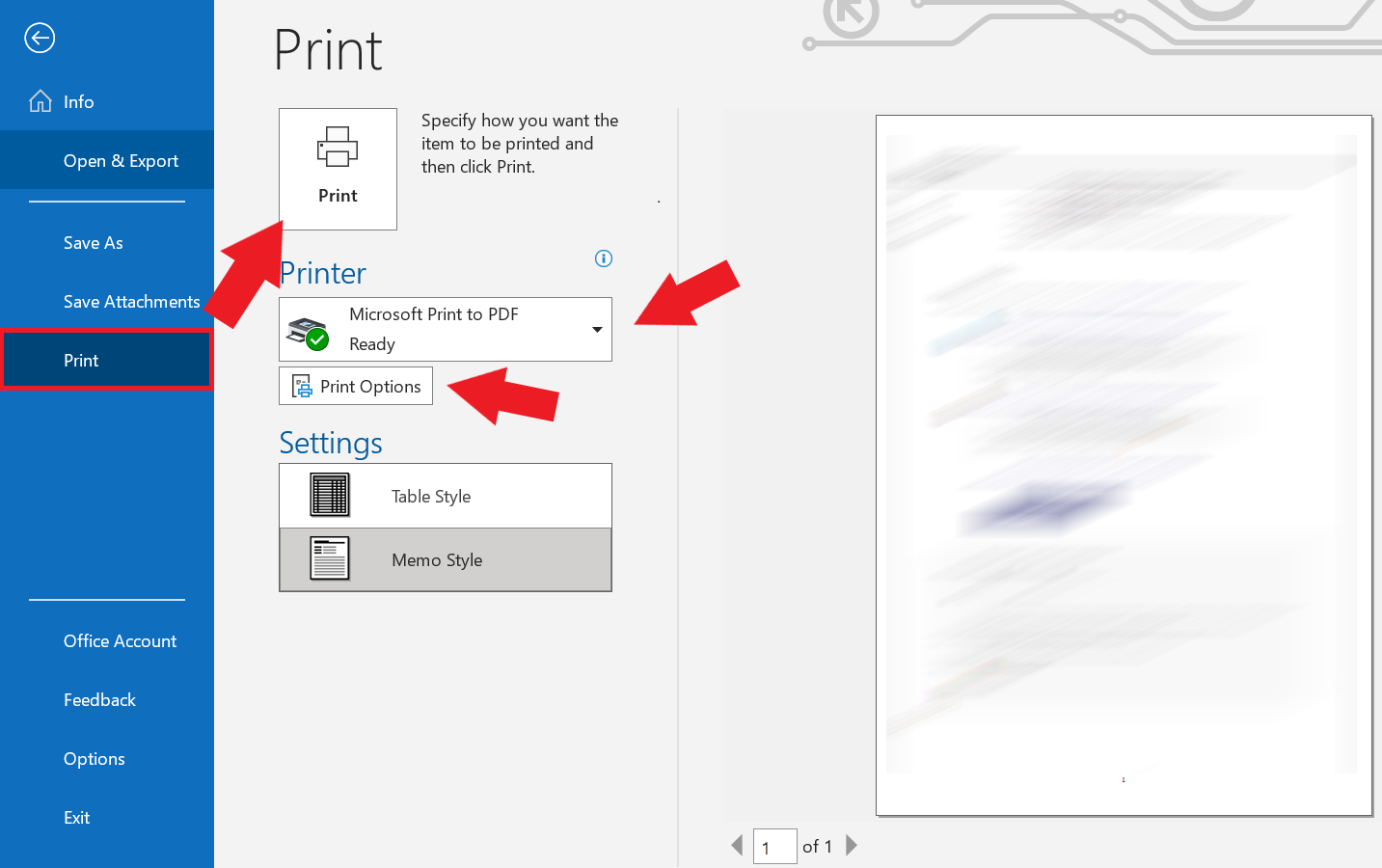
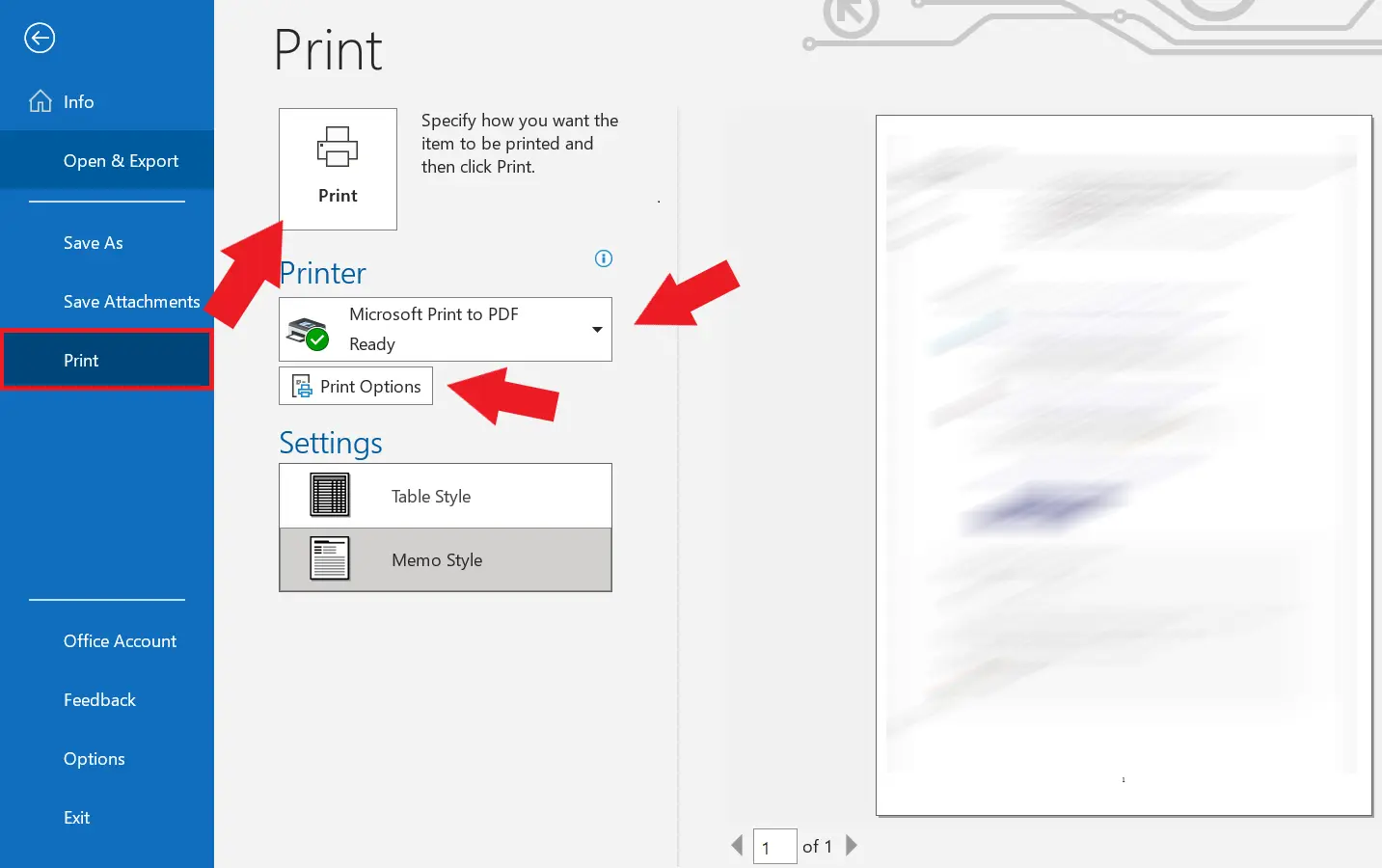
Step 2: When you click on File in the top left-hand corner, you’ll be taken to the Account Information window for the current Outlook account. Click on Print in the left sidebar. A new window will now open, and a print preview will be displayed on the right side of the screen.
To print the email, click on the rectangular Print button. Below this symbol, you can select which printer you want to use in advance. In the Print Options and Settings areas located below, you can configure further printing settings for your Outlook emails.
After you click on Print, your printer should respond and start printing the email. If this doesn’t happen, make sure the device is installed, switched on and correctly connected. Also, check that you have selected the correct printer.
If you’ve opened the email that you want to print in a separate window, the steps for printing are similar:
Step 1: Click on File in the top left corner. Instead of the Account Information window, a window containing specific information about the email will open.
Step 2: In this window, there’s also a left sidebar with the field Print, which will take you to the Print window, where you can change the settings and start the printing process.
Step 3: All you need to do is click on the rectangular Print box and your email will be printed.
In Outlook, you can not only print emails but also any attachments included with the messages. To do this, you need to activate the Print attachments checkbox under Print Options in the dialog box. If you only want to print certain attachments from the email, click on the attachment you want to print and select Quick Print from the menu.
Second method: Print Outlook emails using [Ctrl] + [P]
Printing an Outlook email is even quicker when you use the key combination [Ctrl] + [P]. Here’s how to use the key combination to print:
Step 1: Select the email you want to print or open it in a separate window.
Step 2: Press the [Ctrl] key and [P] simultaneously. This key combination opens the Print window.
Step 3: You can use the selection fields to configure the printing settings. Click on the rectangular Print box to start the printing process.
In the new version of Microsoft Outlook, printing emails is easier than ever. Once you’ve selected the email you would like to print, click on the printer icon in the top right corner of the ribbon. The print preview will now open in a new window. Clicking on Print takes you to the print settings where you can print your email as you normally would.
How to set up print icons for fast printing in Outlook
If you frequently print emails in Outlook, you should consider customizing the blue toolbar or the ribbon at the top of Outlook.
How to add the Print icon to the toolbar
The easiest way to add a Print icon to Outlook is by adding Print to the Quick Access Toolbar.
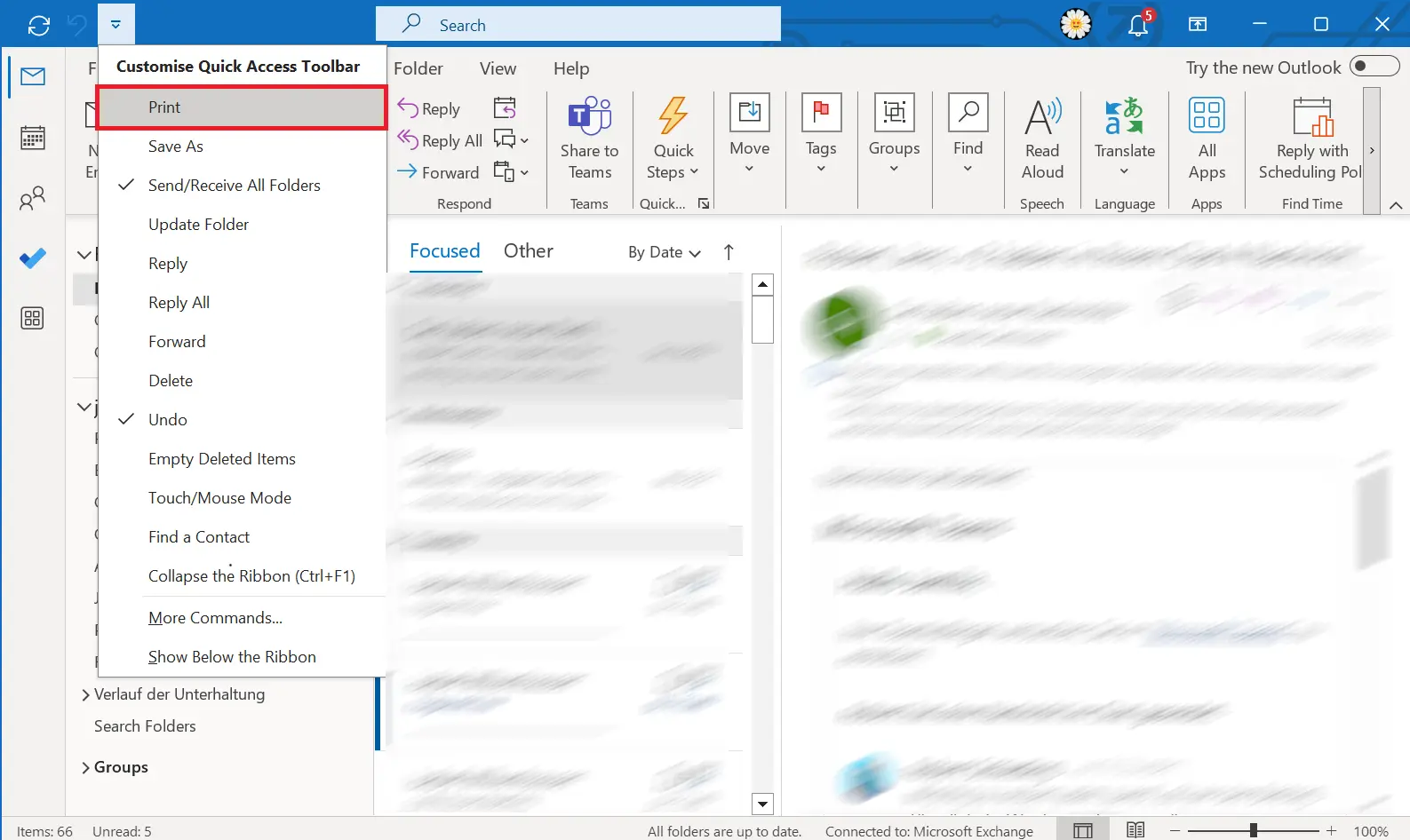
Step 1: Click on the Customize Quick Access Toolbar icon at the top of the blue toolbar in Outlook’s basic settings. This will open a menu where you can select Print.
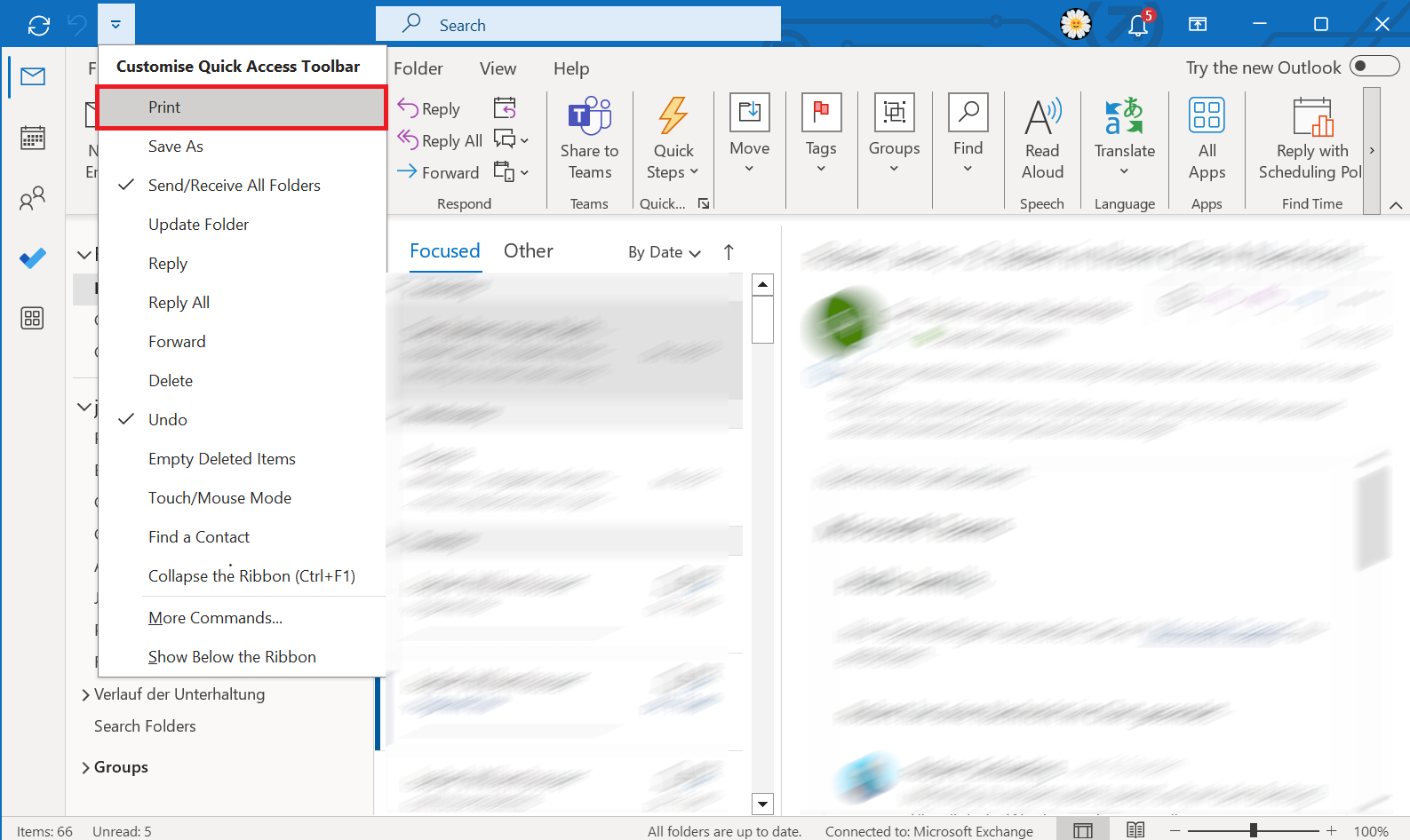
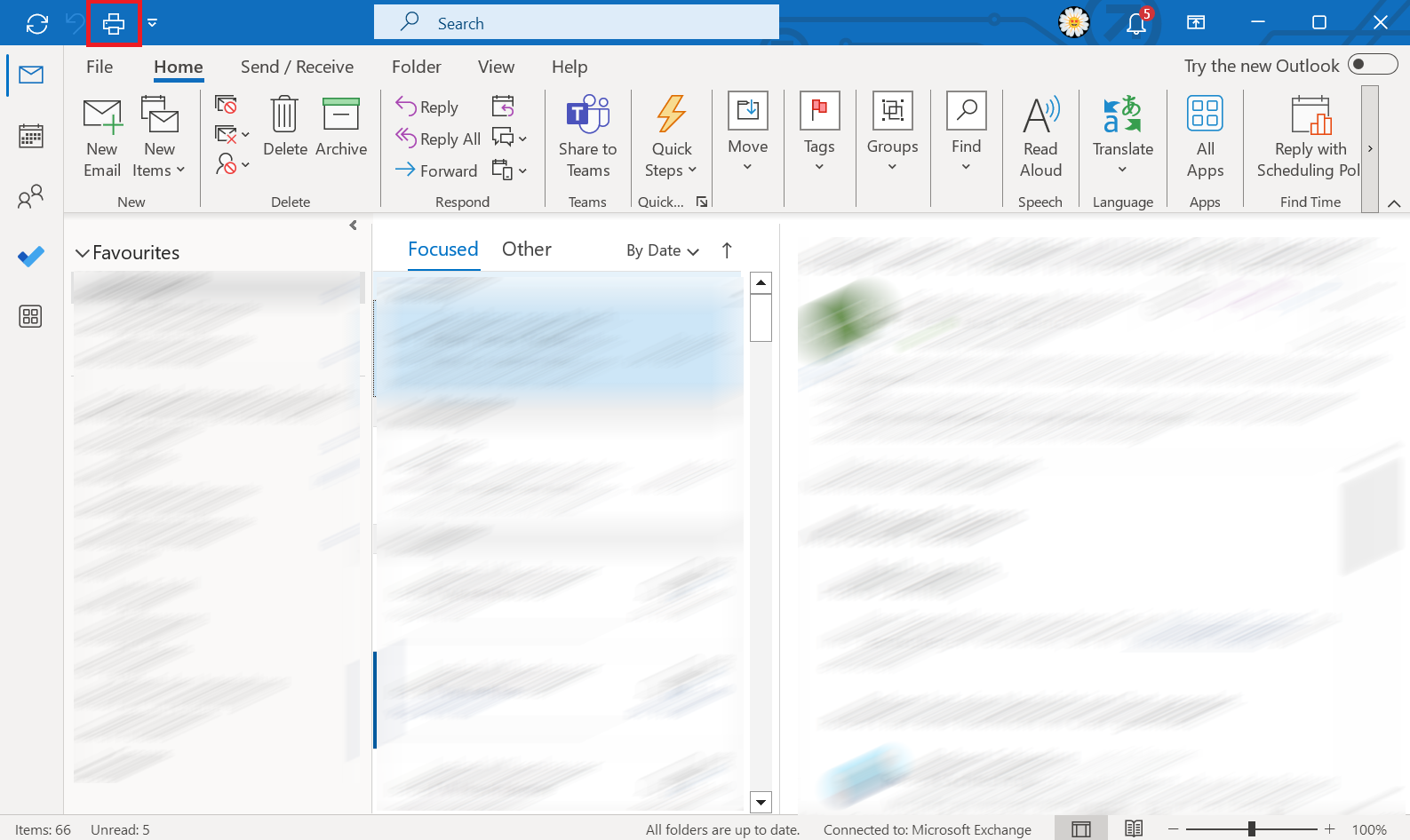
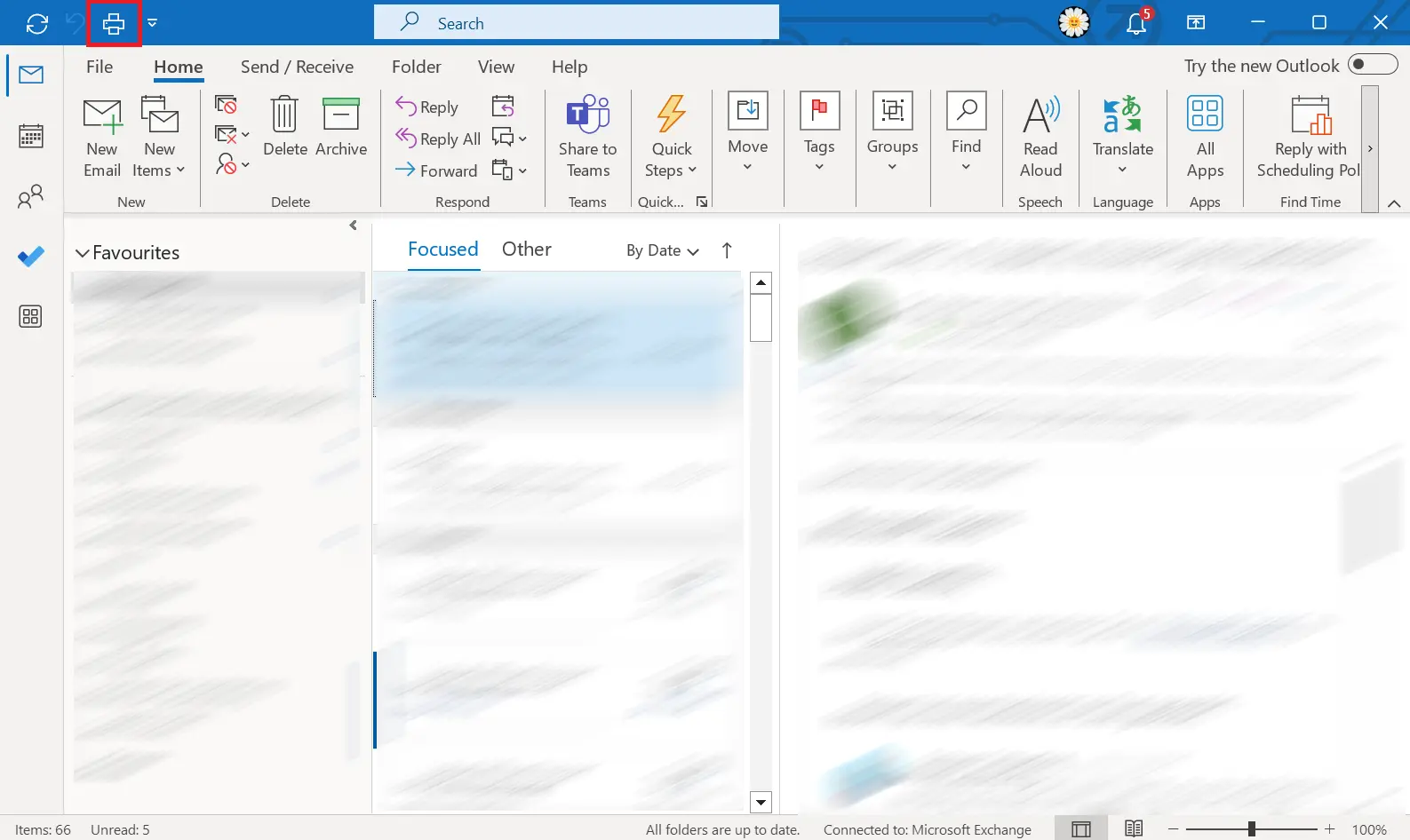
Step 2: After clicking on Print, the corresponding icon will be added to the blue toolbar. When you click on the icon, you’ll be taken directly to the Print window, where you can make changes to the settings and start the printing process.
To ensure that the Print icon appears for emails opened in a separate window, you need to repeat the process outlined above in a separate email window. You can open an email in a separate window by double-clicking on the email. Once you’ve added the icon, the Print icon should appear in the blue toolbar for all other emails you open in separate windows.
How to add the Print button to the Outlook ribbon
If you prefer to have your Print button a bit bigger in the ribbon below the blue toolbar, you can add it there as well. However, the ribbon can get a bit crowded if there are too many features. To add a Print button to the ribbon, follow these steps:
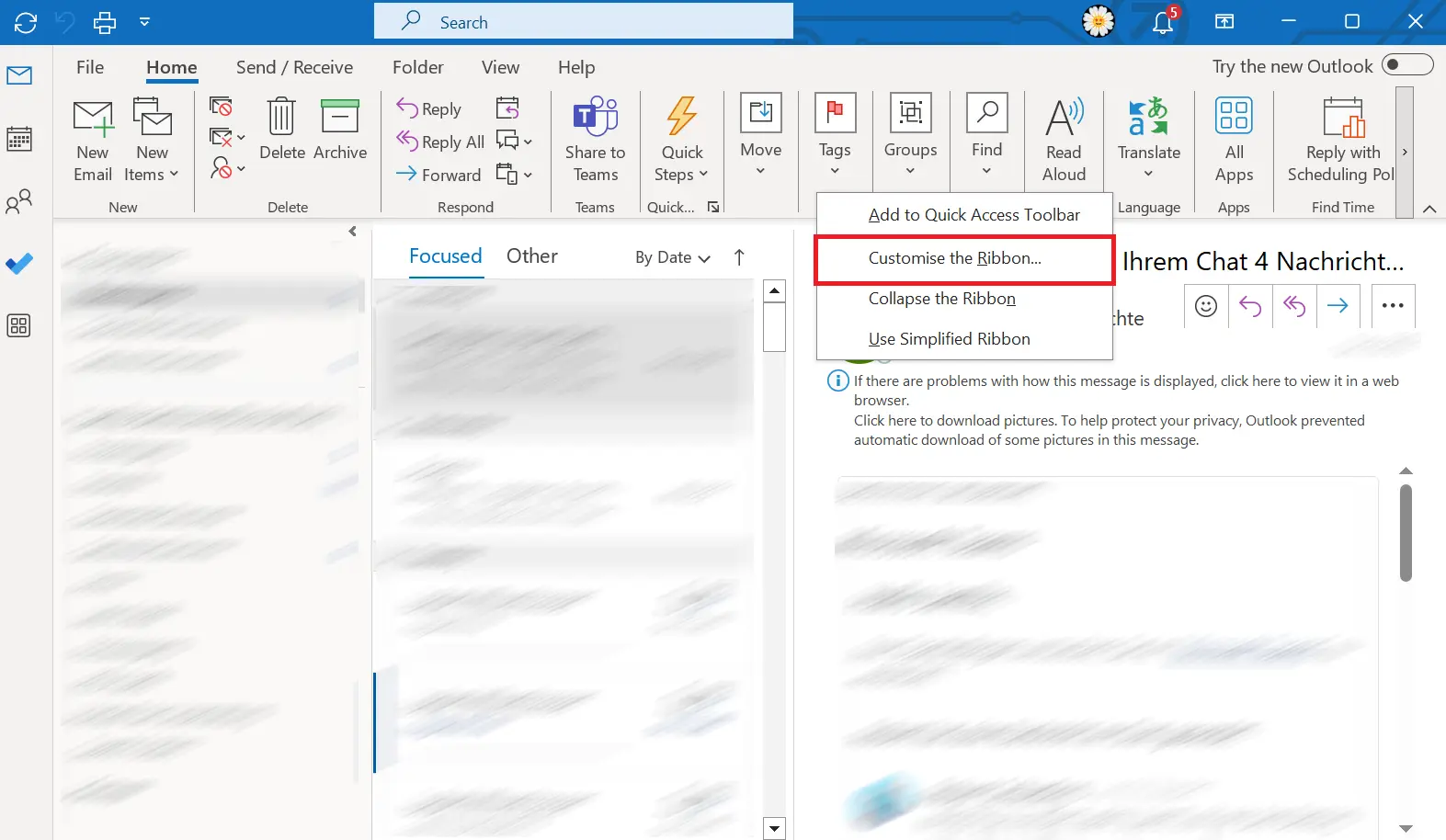
Step 1: Click on the ribbon with the right side of your mouse. A selection menu will appear with the option Customize the Ribbon…. Click on this option.
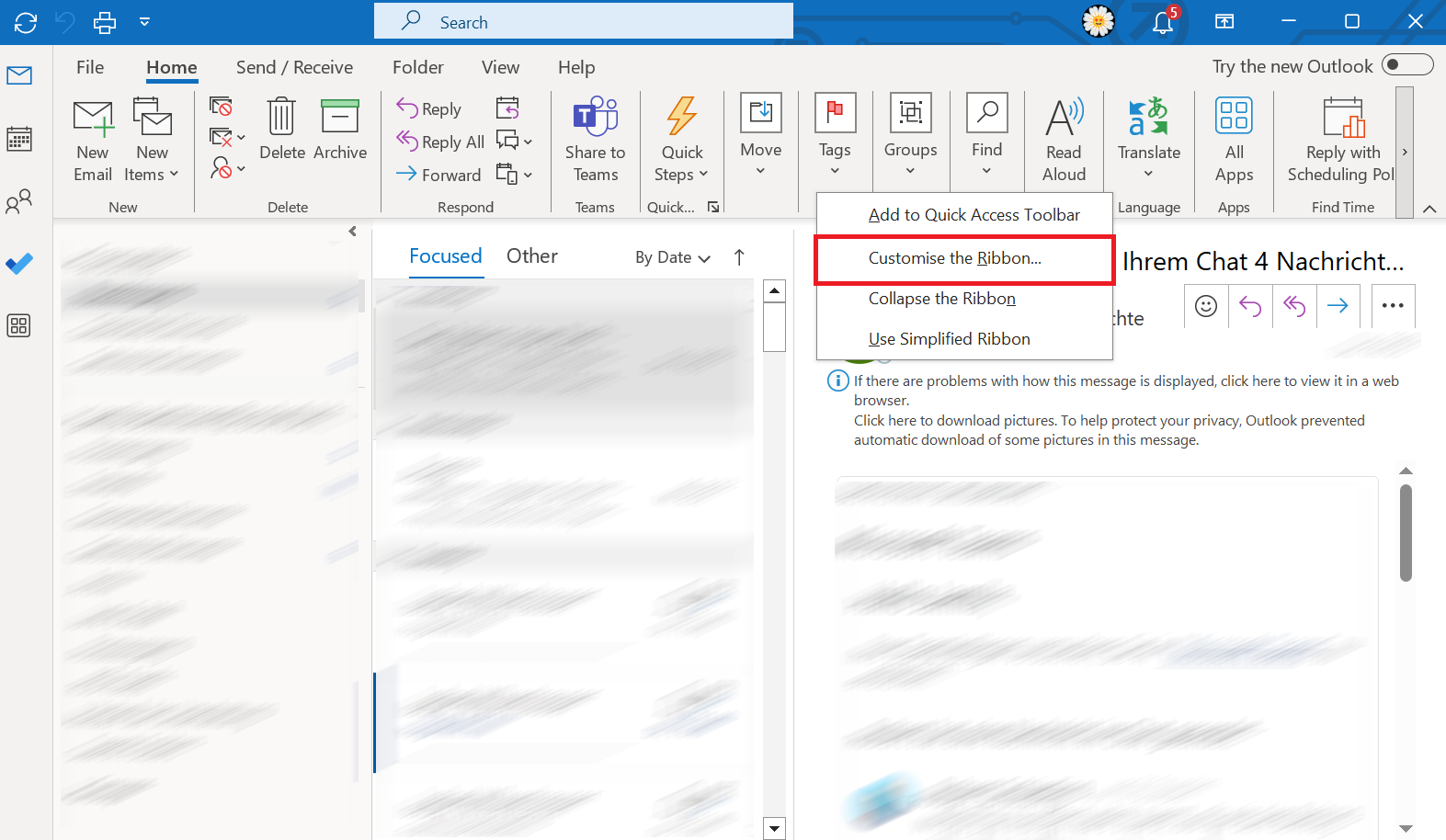
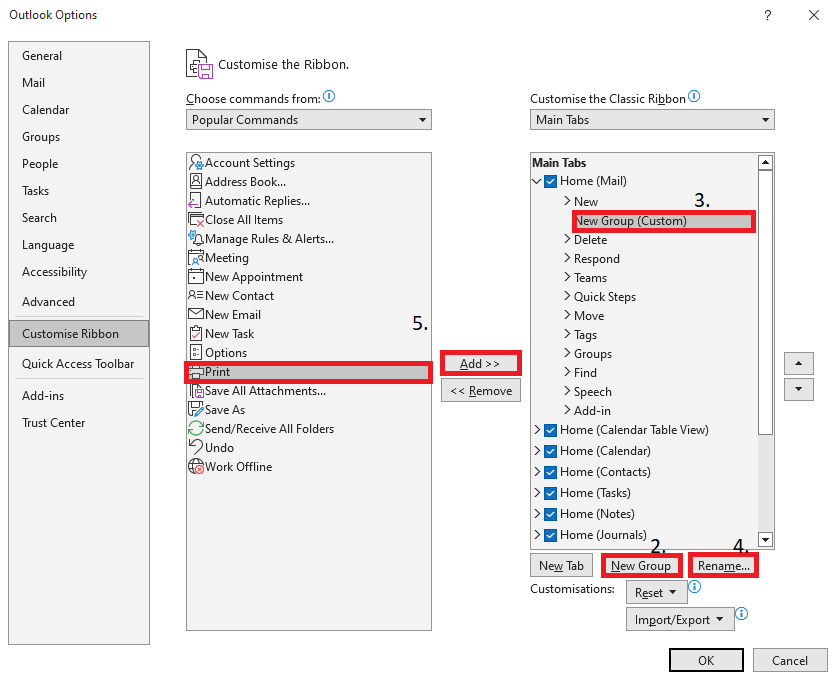
Step 2: After clicking Customize the Ribbon…, the Outlook Options window will open with a submenu that contains two columns. At the bottom right, click New Group to create a new group.
Step 3: You’ll now see New Group (Custom) appear in the right column. You can use the mouse to determine where the new item will be displayed in the ribbon. Simply hold down the mouse button to move the group up or down.
Step 4: If you want to change the group name, you can use the Rename button at the bottom right. To keep things simple, we’ve decided to keep the name New Group (Custom). You can also name the group Print.
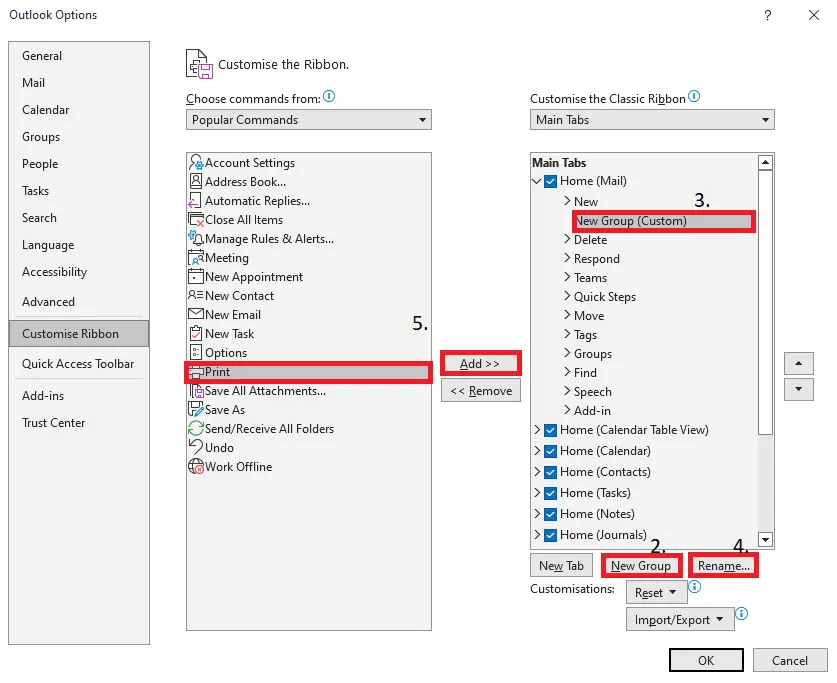
Step 5: Click on the group and select Print from the left column. The new group and the Print command should be highlighted in blue and gray. Now, click on the Add box between the two columns. Then click on OK at the bottom right.
The Print command should now appear in the ribbon where you placed the new ribbon group. Clicking on the Print icon takes you directly to the Print window, where you can start the printing process.
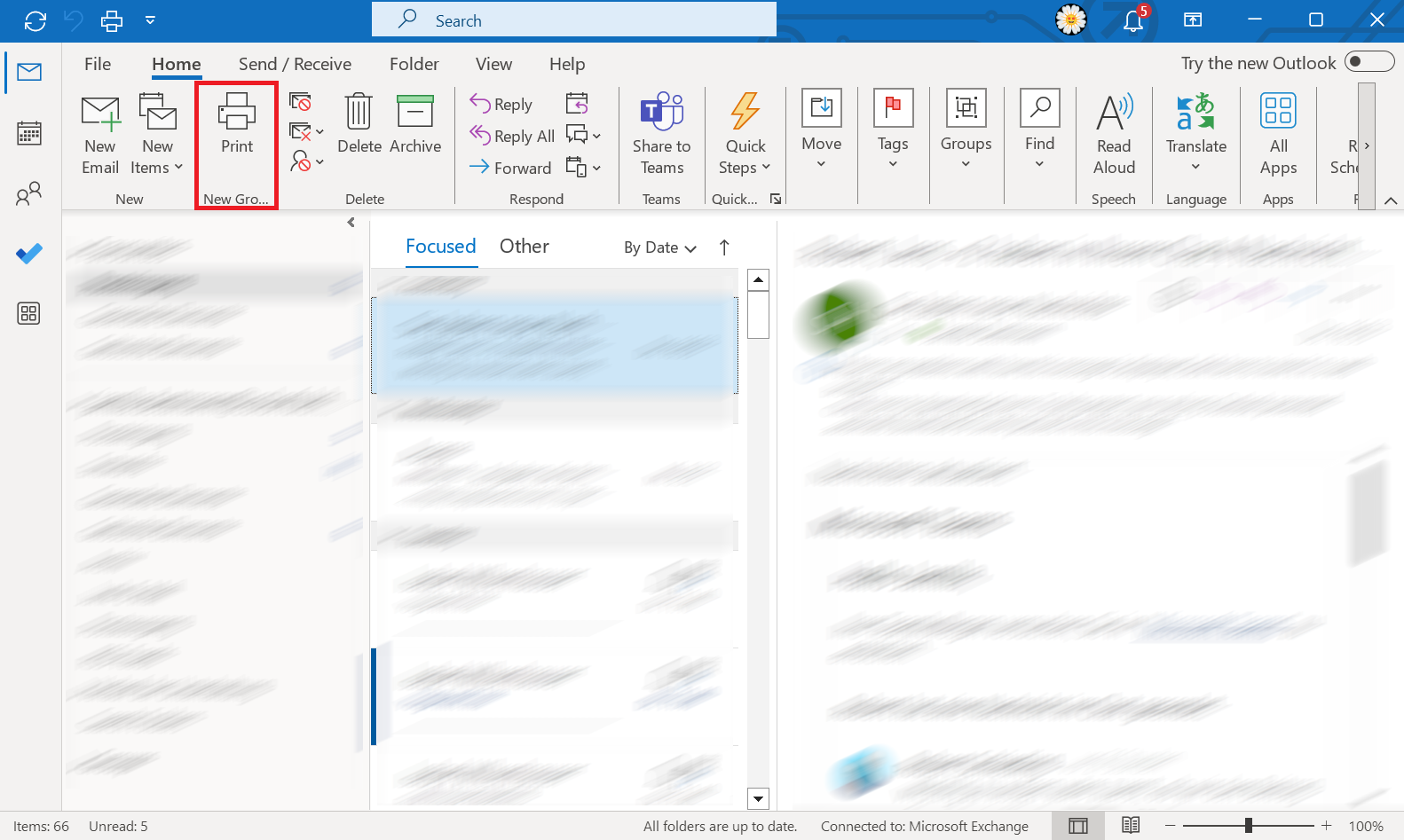
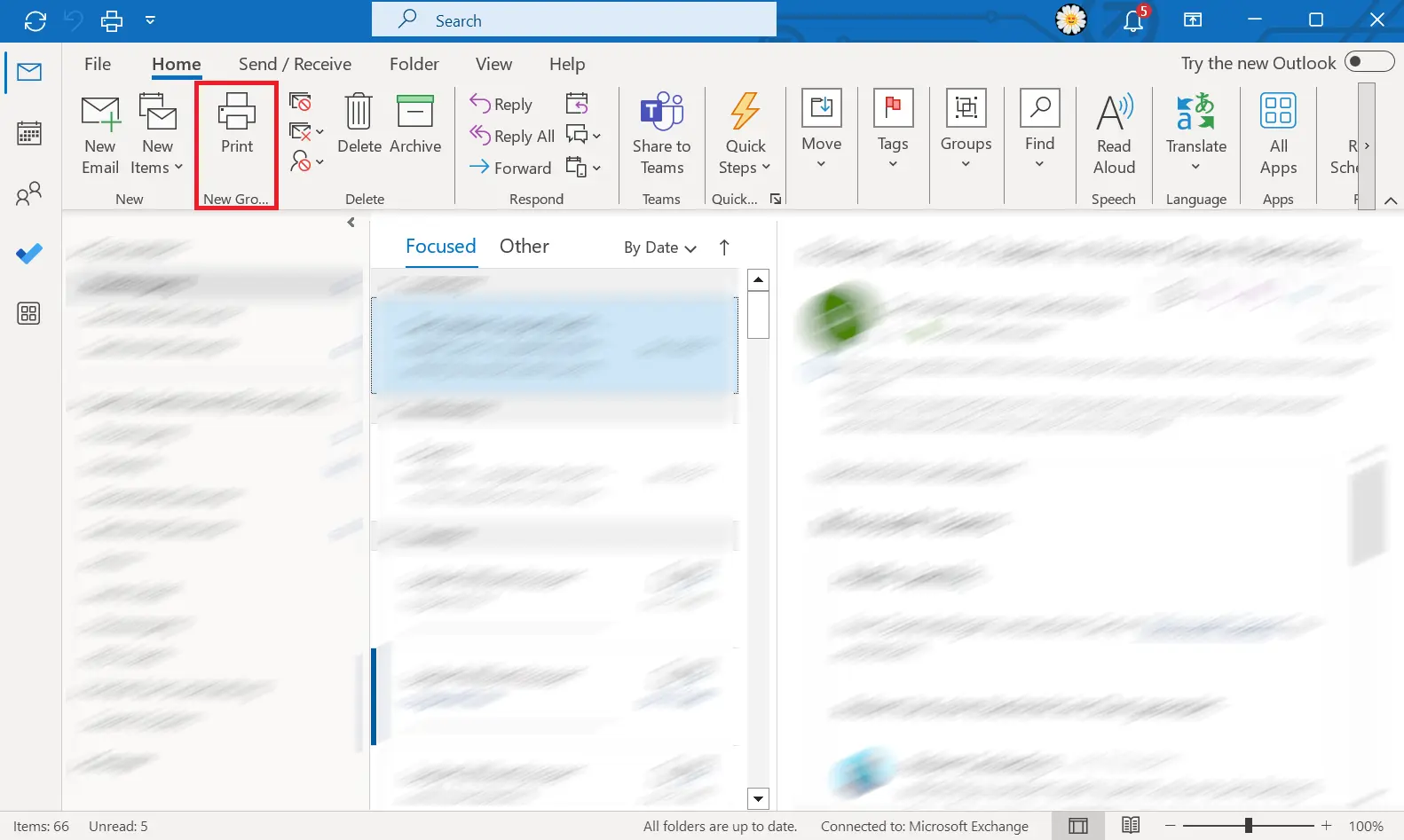
In order for the Print command to appear when you open an email in a separate window, you need to repeat this process in an email that’s been opened in separate window.
- Write perfect emails with optional AI features
- Add credibility to your brand
- Includes domain, spam filter and email forwarding
How to print Outlook emails online
If you have your own Microsoft account, you should also have access to the web version of Outlook. You can access it by going to outlook.com and logging in or registering a new account.
To print an email in the web version of Outlook, open the email you want to print and then click on the printer icon in the top right corner.
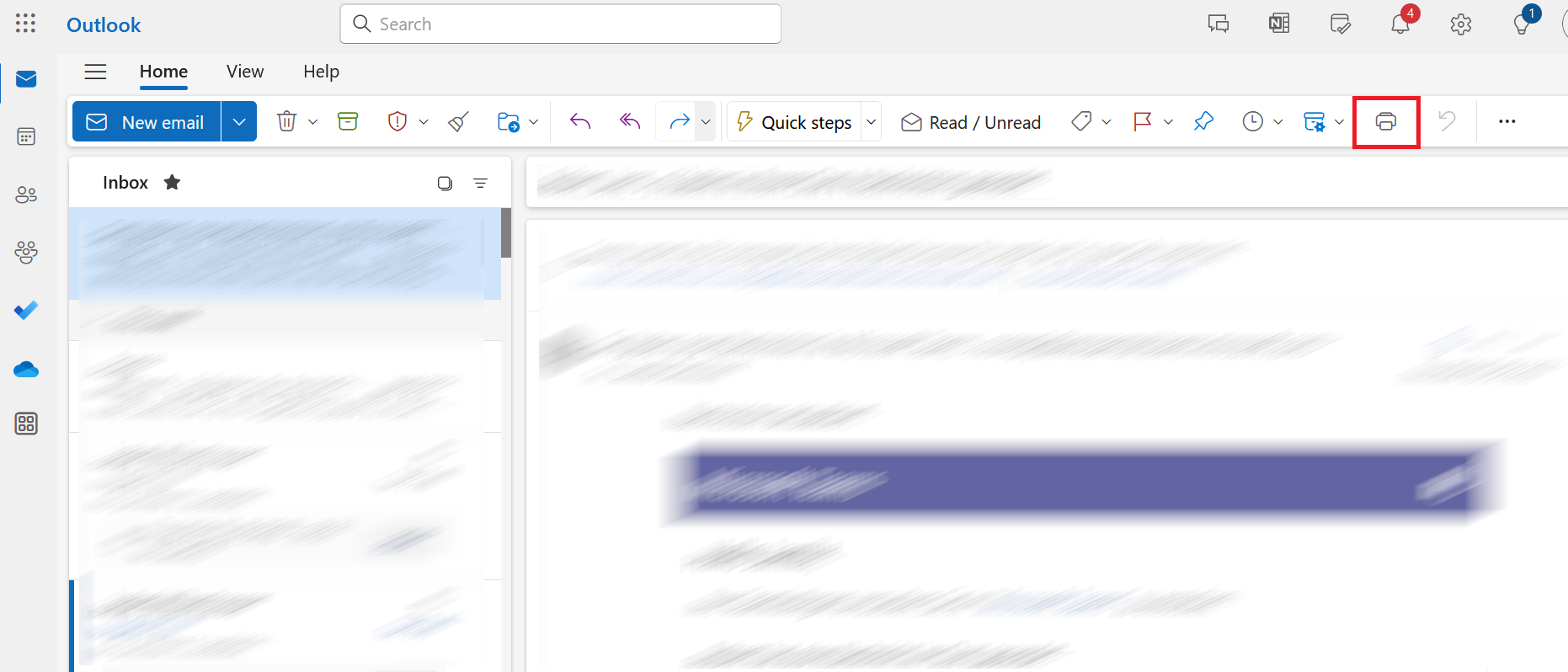
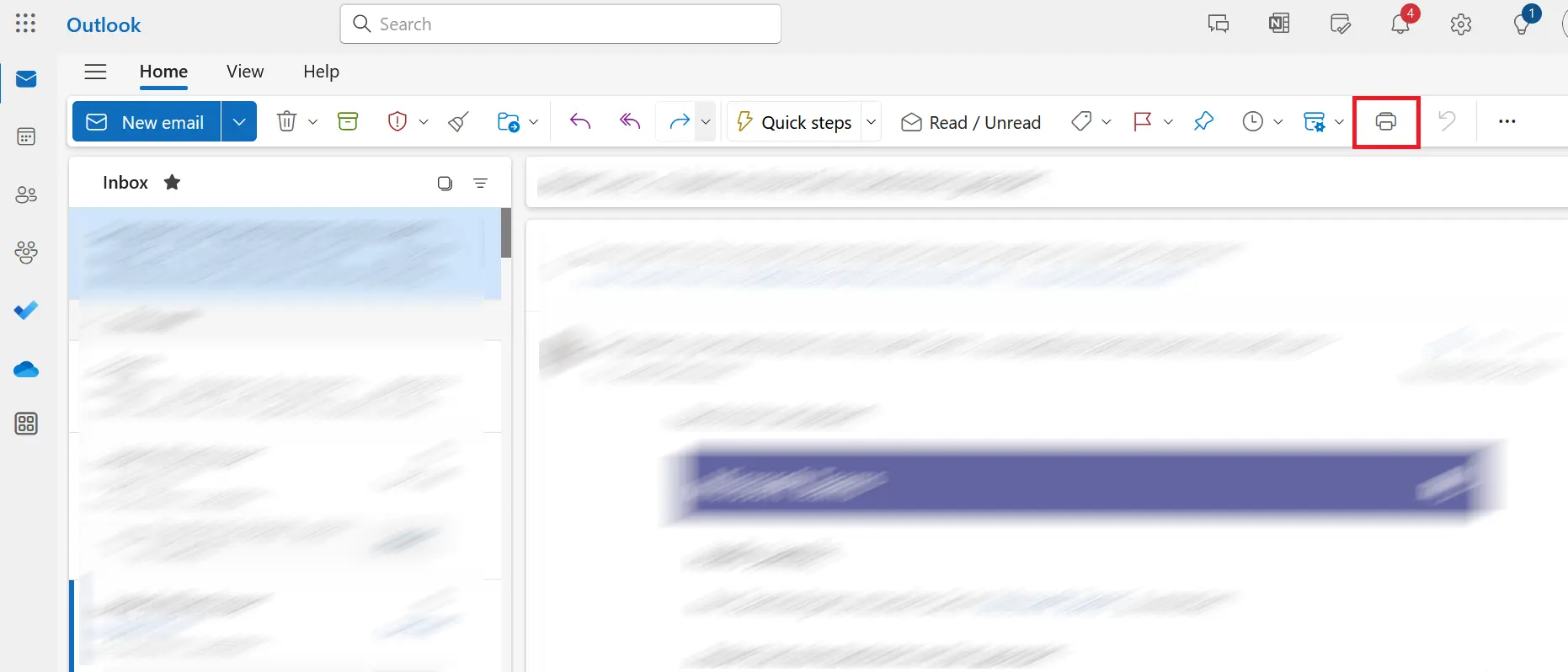
Once you’ve done this, the window will be divided into two sections, with the email you want to print displayed on the right. Now, click on Print at the top of the window.
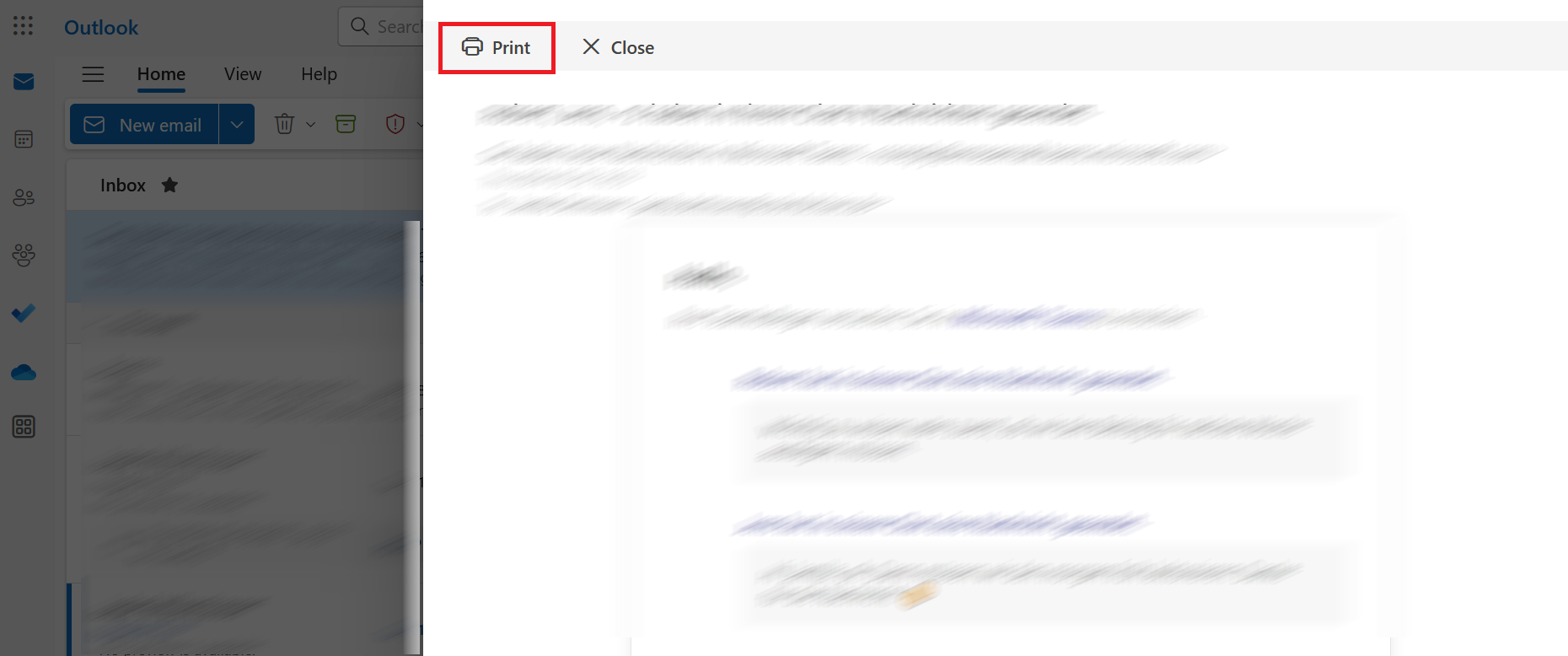
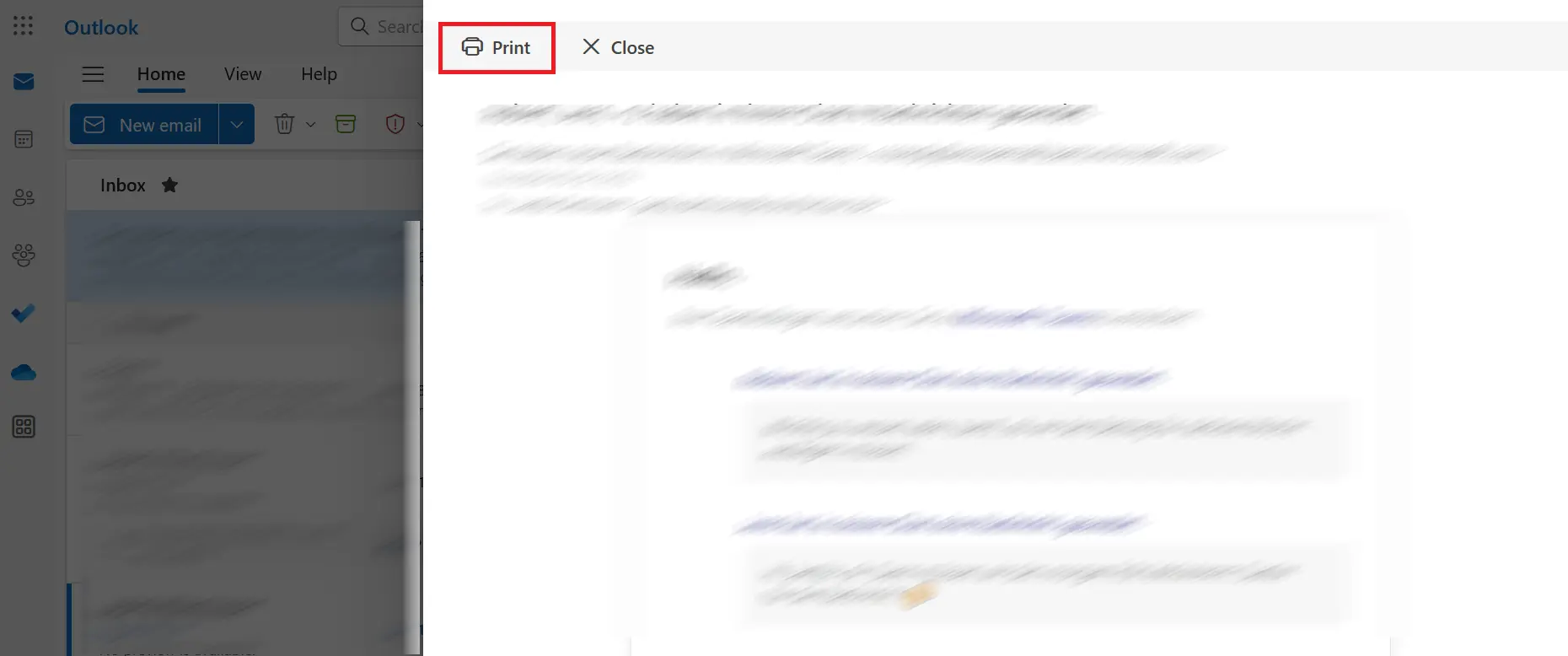
Next, a separate window titled Print will open. Similar to the desktop versions of Outlook, you can also modify settings in the web version before clicking on the Print at the bottom.
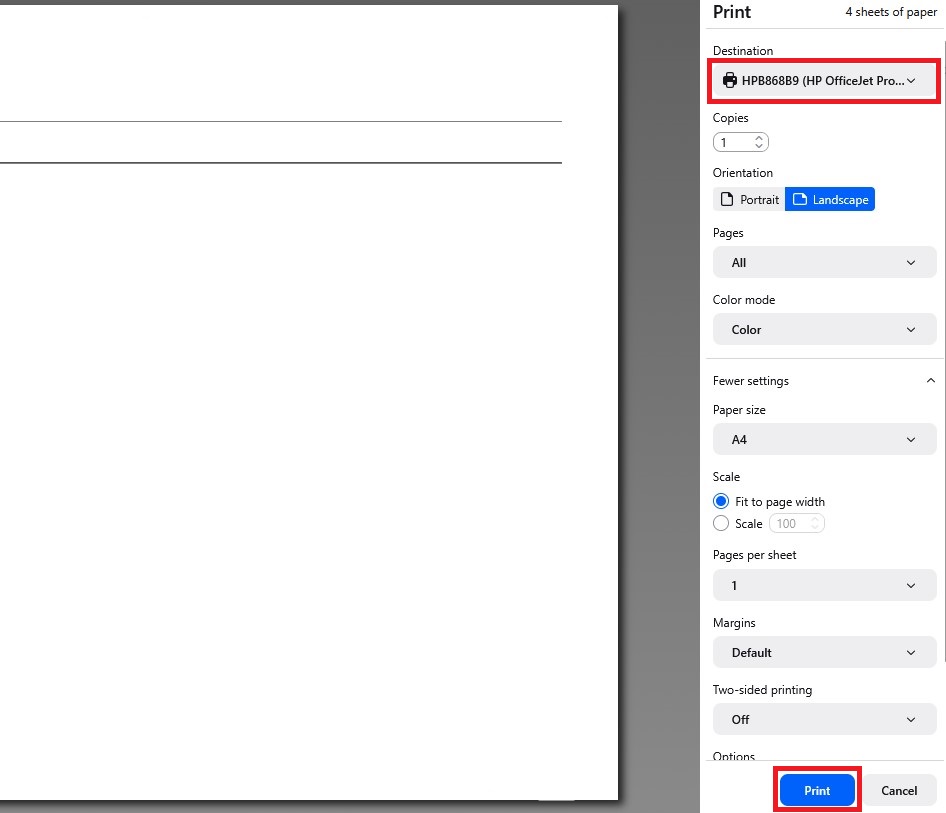
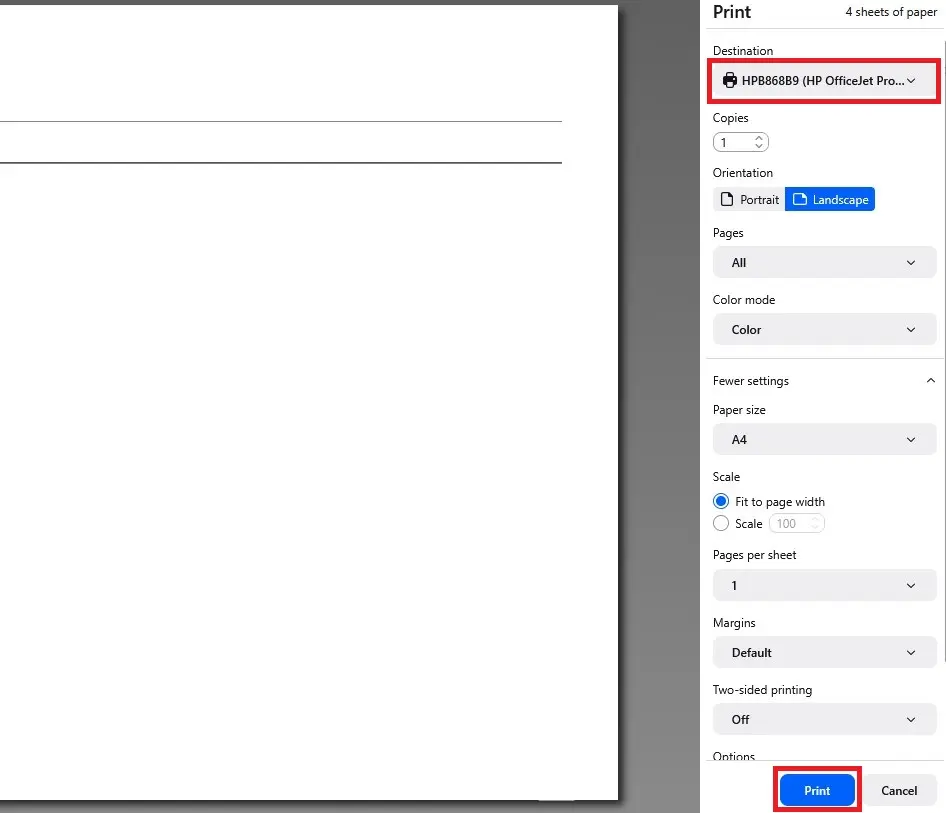
There are also other ways to get to the Print window in the web version of Outlook. For example, you can use the key combination [Ctrl] + [P] or right-click on the email. However, when you opt to do it one of these ways, the email may not be displayed in its entirety and certain elements like Outlook emojis won’t show up. So, before starting the printing process, make sure to check the print preview of your email.
The instructions for Outlook on the web also apply to the new Outlook.
Is the desktop or web version of Outlook better?
In general, the web version of Outlook should be seen as a slimmed-down version of Outlook that can be used to check your emails on the go or from a different computer. However, if you work with Outlook on a regular basis, the desktop version is essential.
Nowadays, there are numerous options for customizing the management of your emails. For example, you can create Outlook rules, set up Outlook read receipts and archive Outlook emails.
Our email and calendar solution Hosted Microsoft Exchange is a great option for businesses. If you’re looking to flexibly store your files online, consider HiDrive cloud storage from IONOS.
Working with a limited budget? Why not test a free Outlook alternative?