

How to send large files for free

Free email services typically allow file attachments up to a limit of 20 to 25 MB. To send larger files for free, alternatives such as cloud providers and file hosting services are the way to go, offering cloud storage and download links. Below, we present the best options for large file transfer with and without an account.
Attachment sizes for free email services are limited for security reasons. The maximum Gmail attachment size is 25 MB, while Outlook’s maximum file size is capped at 20 MB.
How to send large files for free (no account required)
HiDrive Share
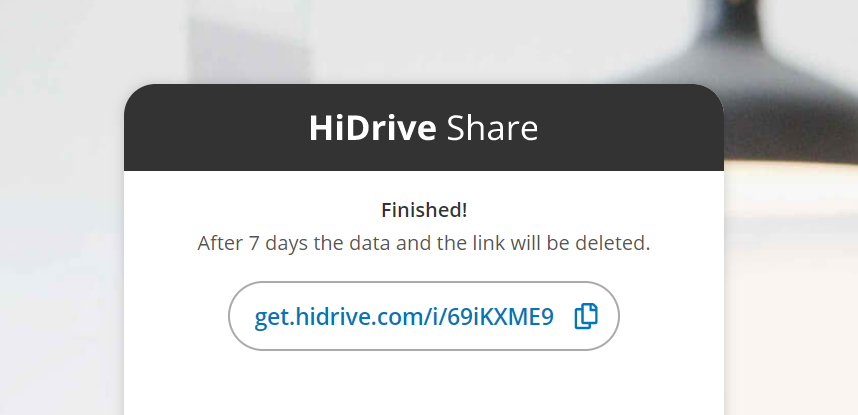
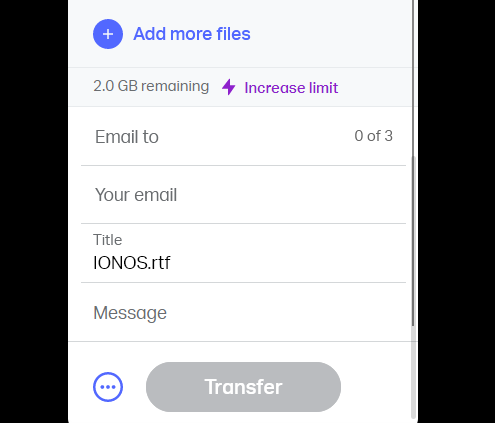
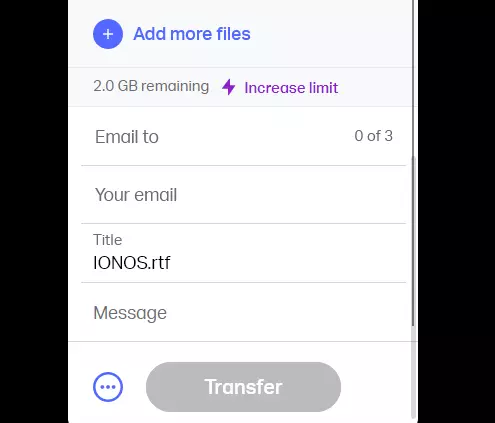
HiDrive Share is the free solution for sending big files from IONOS. You can upload files of up to 2 GB on the service’s website without an account. Once you’ve uploaded the files, you’ll receive a download link that you can share with any number of people via email or chat for 7 days. At the end of this period, the uploaded files will automatically and irreversibly be deleted.
SwissTransfer
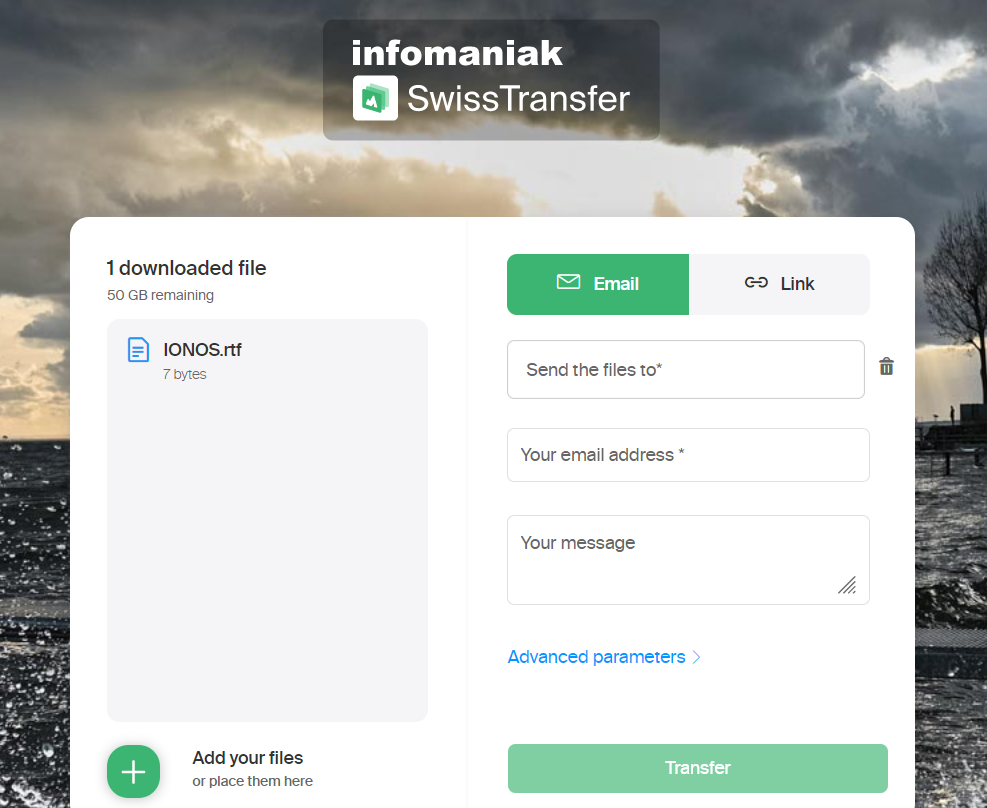
With the free file hosting provider SwissTransfer, you can use up to 50 GB of password-protected storage space. You don’t need to sign up or create an account to get access to the storage space. Your data will be stored on certified servers that are located in Switzerland, and is retrievable for up to 30 days. SwissTransfer also uses end-to-end encryption to protect users’ data. You can share files of up to 2 GB in size via a dedicated download link.
WeTransfer
The file hosting service WeTransfer offers 2GB of free storage space, which is significantly less storage space than SwissTransfer. Uploaded files remain available for seven days and can be shared with others via an access link. With WeTransfer, you enter the recipient’s address and your own email address and then send the recipient a download link. With a paid plan, you can send even larger files.
TransferXL
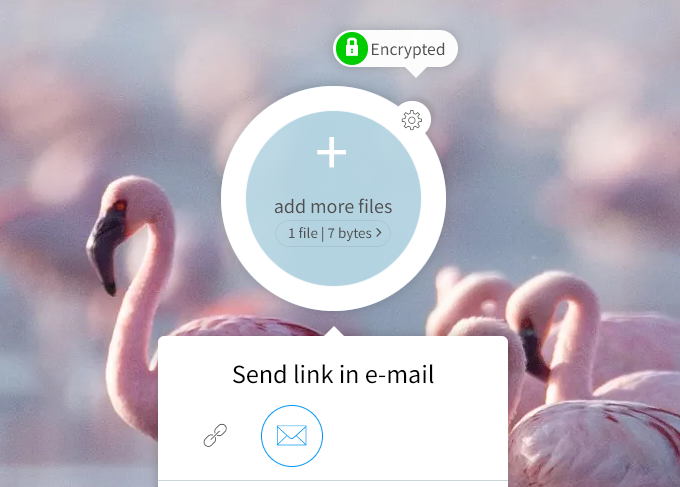
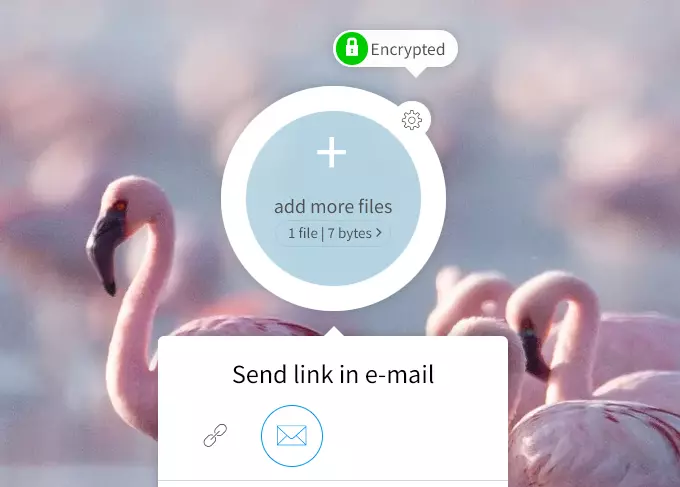
With 10 GB of free storage space available per day, TransferXL offers lots of online storage space, not to mention end-to-end encryption, and a maximum of 5 GB for sending download links to other users. Uploaded files are stored for up to one week and you can select the server location before uploading.
To send large attachments, you can also reduce the file size by creating a ZIP file.
How to send large files for free (account required)
Dropbox
Dropbox lets users share large files up to 100 MB via Dropbox servers for free. You can directly copy a link for files or folders and send it via email or send an email invitation via your Dropbox account. You can also specify whether the recipient of the link should have editing rights or read-only rights. At least one free Dropbox account is required for both sending and receiving links.
OneDrive
With Microsoft’s cloud storage OneDrive, you can use up to 5 GB for free to store files on secure Microsoft servers. To share files, first set read or edit permissions, then copy the OneDrive link into your email and send it to the person or people you want to share the file with.
iCloud
Apple’s cloud storage iCloud lets you store up to 5GB of files of all kinds. All you need is a valid Apple ID. You can use iCloud to send links to others via email so they can access the files. Alternatively, you can share folders with other users via the sharing options.
Google Drive
With a Google account, you can use Google’s cloud storage Google Drive and get 15 GB of storage space for free. There, you can store your files and determine who you share them with and who has read and/or edit access. Simply copy the link into an email to give someone access to your files. You can also easily include files as Google Drive links or attachments when writing an email with your Gmail account.
IONOS HiDrive cloud storage stores your files centrally, safely and flexibly. With HiDrive, you benefit from automatic synchronization and certified data centers.