

How to make WordPress faster and improve performance

Fast and functional pages are not only a plus in terms of usability and user experience – speed naturally also influences search engine rankings. To optimize WordPress performance, there are practical extensions, tools, and simple tricks.
How fast is my website?
Before optimizing, you should know the current state. These tools help you analyze the load time and technical performance of your WordPress website:
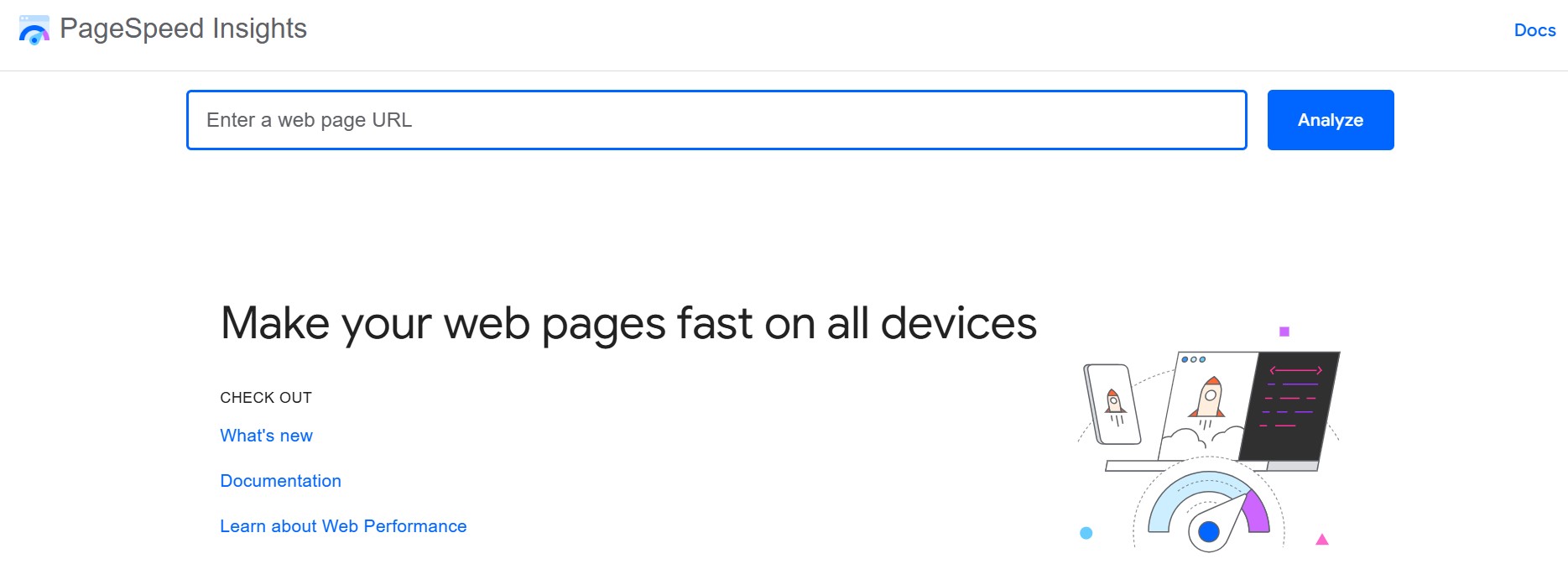
Google PageSpeed Insights
The tool Google PageSpeed Insights analyzes both the mobile and desktop versions of your website and provides specific suggestions for improvement. The report includes values for user experience and technical performance. Rating categories: “Passed”, “Improvement Recommended”, “Improvement Needed”.
Advantage: direct recommendations from Google
Disadvantage: no absolute load times
GTmetrix
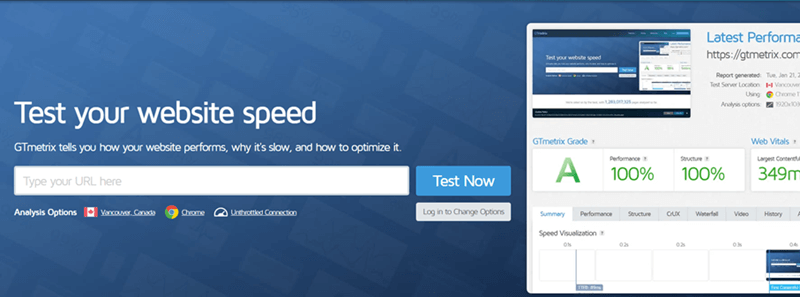
GTmetrix provides a technical analysis with prioritization of problem areas. This tool is ideal for quickly identifying bottlenecks and addressing them.
Advantage: very clear, suitable for beginners
Disadvantage: less in-depth metrics than WebPageTest
WebPageTest
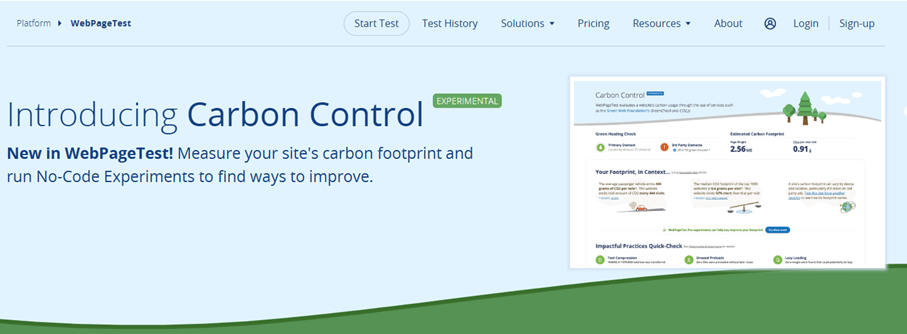
WebPageTest is a professional tool with in-depth analysis for First Contentful Paint (FCP), Time to Interactive (TTI), and more.
Advantage: very detailed
Disadvantage: more complex user interface
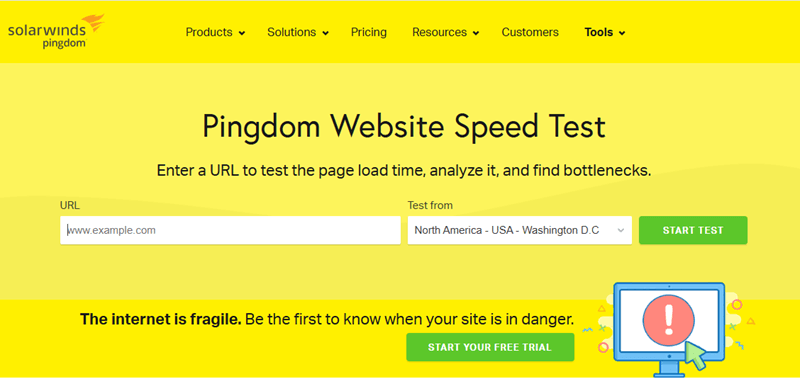
Pingdom Website Speed Test
Beginner-friendly and visually understandable, Pingdom shows you information about your WordPress site such as load time, page size, and number of HTTP requests.
Advantage: quick results, easy to use
Disadvantage: less technical depth
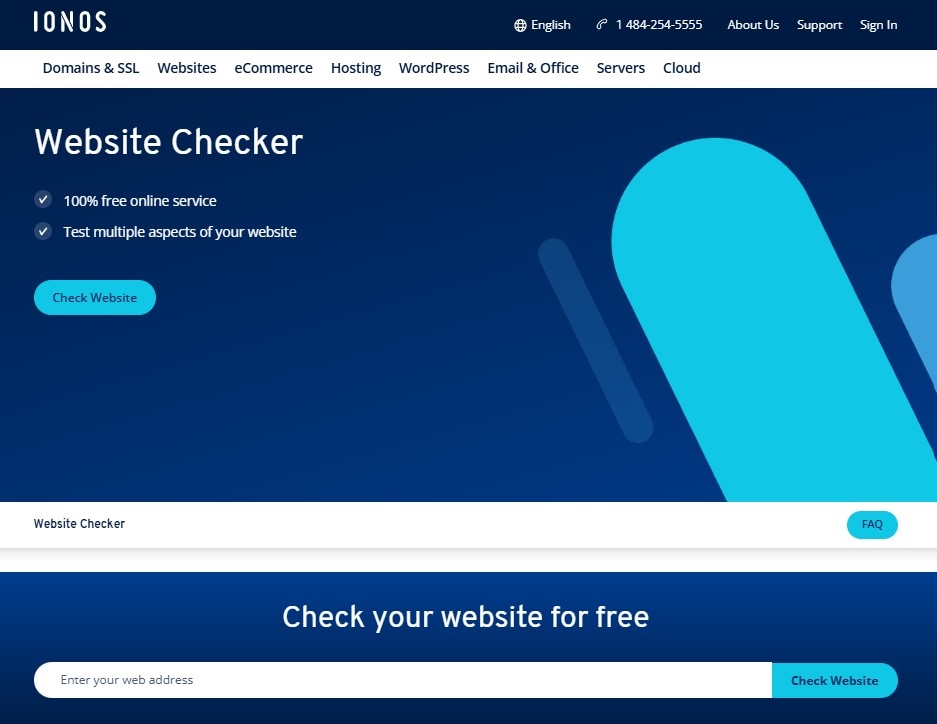
IONOS Website Checker
The Website Checker from IONOS is a free tool that analyzes your site’s speed, search engine friendliness, and security.
Advantage: easy to use, with actionable recommendations. Ideal for IONOS customers.

Mobile optimization is essential as Google evaluates your site based on the mobile version (“Mobile First” indexing).
5 Tips to Improve WordPress Performance
Tip 1: Optimize and compress images
Large image files are one of the most common performance killers. Use tools and WordPress plugins like:
- TinyPNG: Online tool for lossless compression of PNG and JPG files
- Smush: Automatically optimizes images when uploading
- EWWW Image Optimizer: Offers additional options like WebP conversion
- a3 Lazy Load: Delays image loading until scrolling; ideal for image-heavy pages

Tip 2: Minimize CSS and JavaScript files
Unnecessary code slows down page loading. To prevent this, use the following WordPress performance plug-ins:
- CSS Minifier: Reduces CSS files to the essentials
- JavaScript Minifier: Minimizes JavaScript files for faster load times
- Asset CleanUp: Disables unnecessary scripts on pages where they’re not needed
Tip 3: Use caching
WordPress caching plugins save pages statically and drastically reduce load time. Popular options for optimizing WordPress performance:
- LiteSpeed Cache: Comprehensive solution including CDN integration and image optimization
- W3 Total Cache: Highly configurable, suitable for experienced users
- WP Super Cache: Simple, stable caching plugin for beginners
Tip 4: Clean up the database
Over time, unnecessary clutter builds up in the database: revisions, spam comments, deleted posts. Popular tools for cleanup include:
- WP-Optimize: Combines database optimization, image compression, and caching
- WP-Sweep: Safely and thoroughly deletes unnecessary database entries
- Optimize Database after Deleting Revisions: Specializes in removing revisions
Tip 5: Avoid unnecessary plugins
Too many plugins slow down your site. Use the following tools to find out which extensions are the biggest bottlenecks:
- Query Monitor: Shows database queries, PHP errors, and plugin impacts in real time
- Plugin Organizer: Allows you to selectively enable/disable plugins depending on the page
Advanced WordPress Optimization
Hosting & Technology
Good WordPress hosting is the foundation for performance and primarily means fast, secure, and stable server technology tailored specifically to WordPress requirements. Key criteria:
- Up-to-date PHP version (at least PHP 8.1)
- HTTP/2 or HTTP/3
- SSDs & caching support
- Server location close to the target audience
IONOS Hosting for WordPress offers an integrated online store based on WordPress.
- Stress-free, no matter your skill level with easy AI tools
- Fully customizable with themes and plugins
- Hassle-free updating and less admin
Use a CDN
A Content Delivery Network distributes content globally and significantly reduces load times. Cloudflare is a free CDN with performance and security features.
Use the Block Editor instead of a Page Builder
The WordPress Gutenberg block editor has been the default editor since WordPress 5 and is a modern, native solution for content creation. Compared to traditional page builders like Elementor or WPBakery, the block editor offers several advantages:
| Block Editor (Gutenberg) | Classic Page Builders |
|---|---|
| ✓ Faster & leaner code | ✘ Often bloated HTML code |
| ✓ Directly in WordPress core | ✘ Additional dependency on plugins |
| ✓ Better performance & SEO | ✘ Slower load times |
| ✓ More compatible with modern themes | ✘ Often custom layout engines |
| ✓ No lock-in effect | ✘ Uninstalling often causes chaos |
For a sustainable, high-performance, and future-proof website, the block editor is usually the better choice – especially when you want to optimize WordPress performance.
Optimizing your WordPress performance pays off multiple times: faster load times, better rankings, and happier users. Many of the tools presented can be used even without programming knowledge. With just a few measures, you can achieve noticeable improvements. Use targeted WordPress tuning measures and rely on the right WordPress performance plugin to succeed in the long run.
Was the right WordPress plugin not covered in this article? No problem. Check out our other specific plugin articles for insights into the best plugins across various categories: