

Word: How to merge Word documents really easily!
Word can make life difficult, especially when teamwork is involved! You work on one version of the document and a colleague works on another. Combining these extra sections, changed passages and adapted phrases into an understandable text is a task that requires a great deal of time—that is, if you don’t know the practical function for merging two or more files together in Word.
When do you have to merge several Word documents?
When multiple people work on the same task using Microsoft Word, they each work on a separate document—i.e. separate files. This is because, unlike other programs, Microsoft Word has problems with multiple people working on one file at the same time. Even if everyone tries to open the same file, they still end up working in different versions.
Collaborative word processing programs work with cloud technology. That's why you can work on the same file with your colleagues in Office 365, unlike other Office versions.
The different versions must then be joined together. You can solve this problem with copy and paste, but this can be very cumbersome with many individual files. If changes overlap, the manual merger quickly becomes confusing and very time-consuming. In such situations, errors regularly occur, which are sometimes recognized too late. However, if you use a function in Word that allows you to merge documents, you have all the changes in view. Passages won’t be able to appear twice and mistakes won’t slip through.
Merging multiple files in Word
Do you have a document that has been divided into several files and now needs to be merged back together? If the individual documents do not overlap, i.e. no identical content is contained in any of the files, you can merge everything together in just a few steps. This is much faster than copying and pasting each passage by hand.
However, the function still needs some preparation. First, place all of the files together in one folder. Now assign uniform file names, so that Word can ultimately recognize a clear order. For example, each file could have the same document name, to which different numbers are then added. The order of the numbers should reflect how the passages will eventually be merged in the final document.
Now open a new Word file and go to the tab “Insert” and the option “Object”. In the drop-down menu, choose “Text from File...”. In the window that opens, navigate to the corresponding folder and select the files. If you hold down the Ctrl key during selection, you can directly mark several files at once.
If you now click on “Insert”, Word merges all the individual texts into one document in the right order, if you have previously selected the correct numbering. Now probably only a few final adjustments are necessary like formatting paragraphs properly, and there you have it: you have made one document from several files.
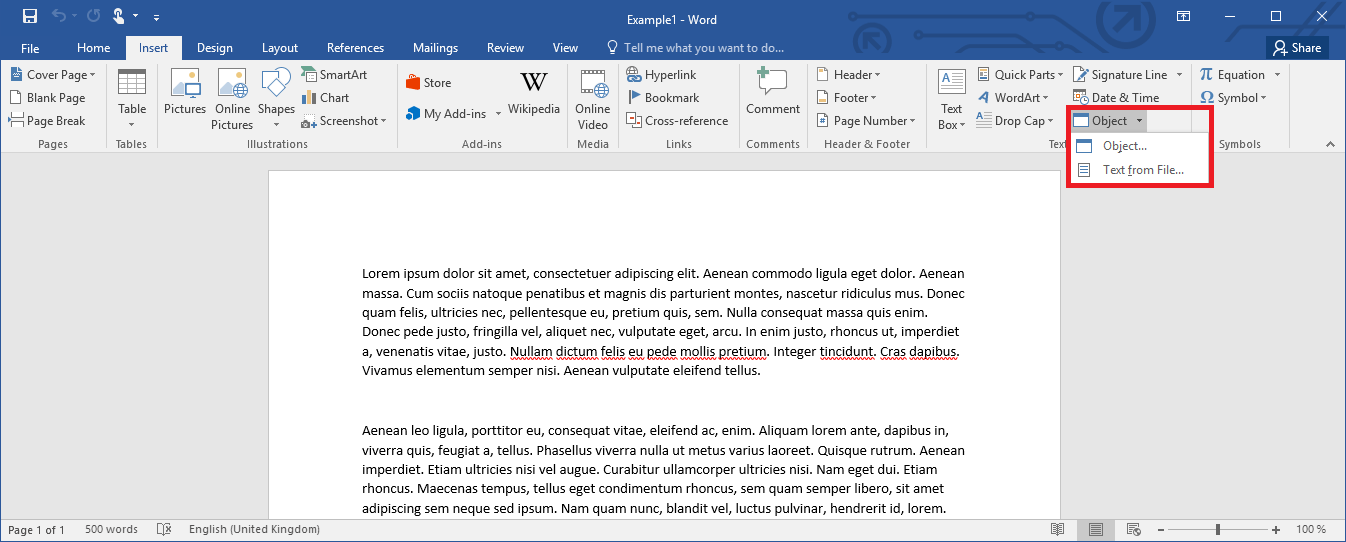
With this method, you can merge several files in Word. You do not even have to open every document. The program automatically extracts the content from the individual files.
Compare and merge documents
The previously explained technique is mostly helpful if you need to bring sections from many files into one document. If two people are working in two different files but on the same text, this method might not be useful. If you just merge the files together in this situation, you would have both variants one after the other within a document. To get a coherent document with changes from both files, you first have to compare the different versions.
To do this, open one of the files (or a new document), go to the tab "Review", click on the button "Compare" and then choose the function "Combine". In the settings window that appears, now select the two files. To get a better overview of who has made which changes, you can specify who the author was for each version. After confirming the settings, Word will open a new window. There you can see both versions as well as a combined version. In the area where Word has merged the documents, you can now decide which changes should be applied.
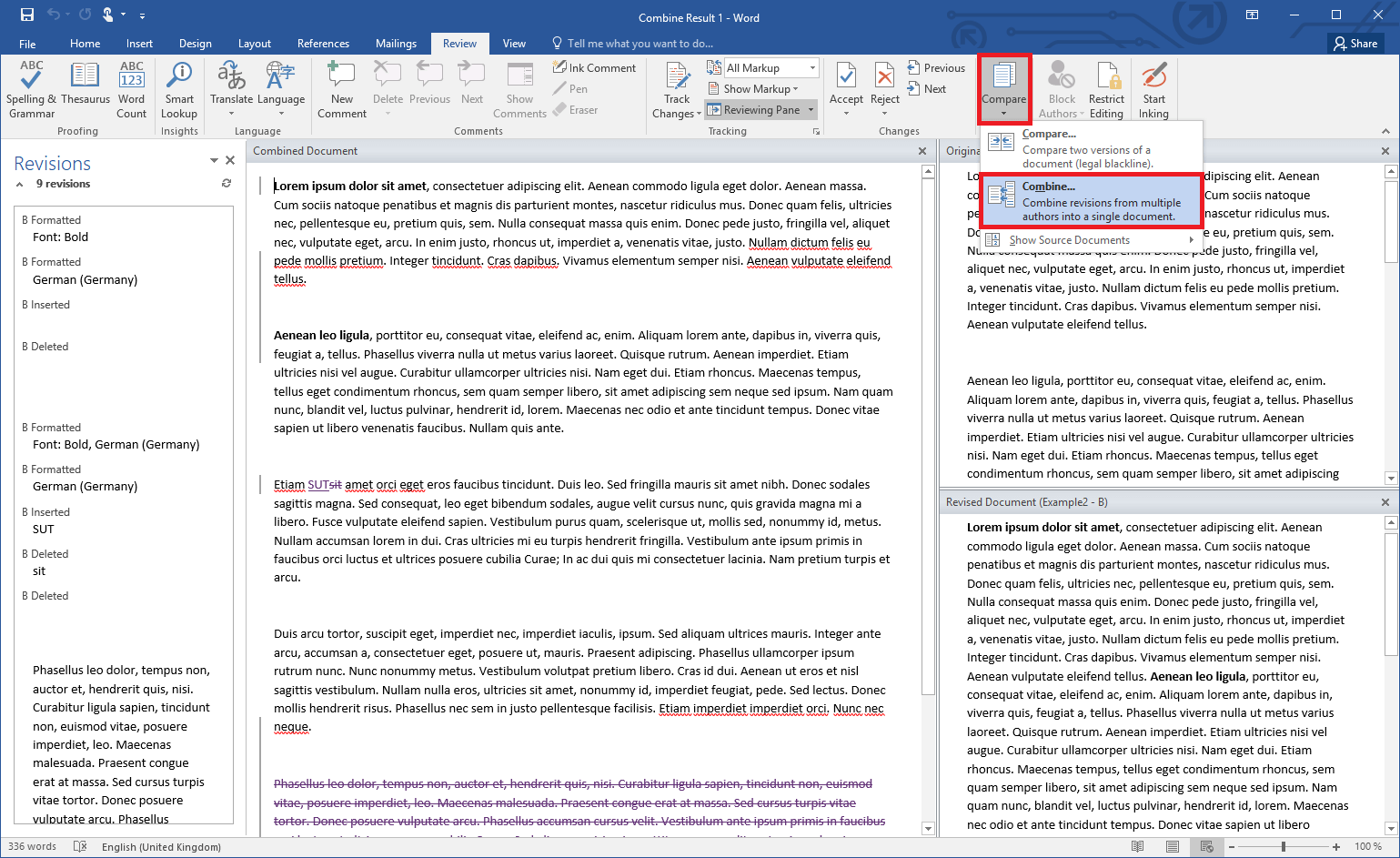
This second option is especially useful if you are only working with two documents. Use it to have full control over the text. However, if you would like to merge more Word documents together, you would have to include several intermediate steps to this technique.