

Social media for businesses: creating a Facebook page

When it comes to social networking platforms, Facebook still rules the roost. As well as providing private profiles, the far-reaching medium fulfils all kinds of purposes in social media marketing. The social network presents itself as a user-friendly and cost-effective tool for businesses as well as for artists, bands, and freelancers who want to attract more attention and stay in contact with potential customers and fans. Facebook fan pages are not only a great advantage for large companies; they can also be quite profitable for smaller firms and freelancers.
Who can set up a Facebook page?
In principle, any Facebook user can create a Facebook page, but you must either be an official representative or have explicit authorization to do this on the behalf of a business, brand, or comparable organization. Even if you only want to set up a fan page for a public figure, you must first be able to produce that person’s permission. Those with no official authorization can still set up fan clubs using a Facebook group, though.
How do they differ from private profiles?
Personal Facebook profiles are intended for private persons who want to communicate and share information with each other as individuals, rather than as a commercial entity. In their basic structure, Facebook pages are very similar to these private profiles. Much like a personal profile, they consist of a public timeline (on which updates, images, and links are shared) that can be liked and commented upon. The profile picture, cover image, and basic information also make pages look very similar to profiles at a first glance. There are, however, nuanced differences between fan pages and standard profiles. As well as special functions for business, brands, and organizations (such as advertising opportunities or additional fields of text), the management settings and access rights differ from personal profiles. A Facebook fan page can have several administrators, as long as they all have a private profile.
How to create a Facebook page
Those wishing to use Facebook to expand their business first need to set up a Facebook page. The following step-by-step guide provides an overview of how to create and design a Facebook page for your business.
1. Registration
It’s only possible to create a Facebook page if you already have a registered account, so page administrators should all ensure that they have a personal account registered under their own name. Fake accounts are not permitted and are penalized by Facebook. You can go to the Facebook Business Manager to set up a business account.
2. Set up the page
Now that you are a registered Facebook user, you can go to the navigation menu (under the small arrow) and select ‘Create a page’. You can also find this option on Facebook’s business page. Here, businesses have access to extensive information and explanations on the diverse advertising opportunities the network has to offer.
3. Choose your page category
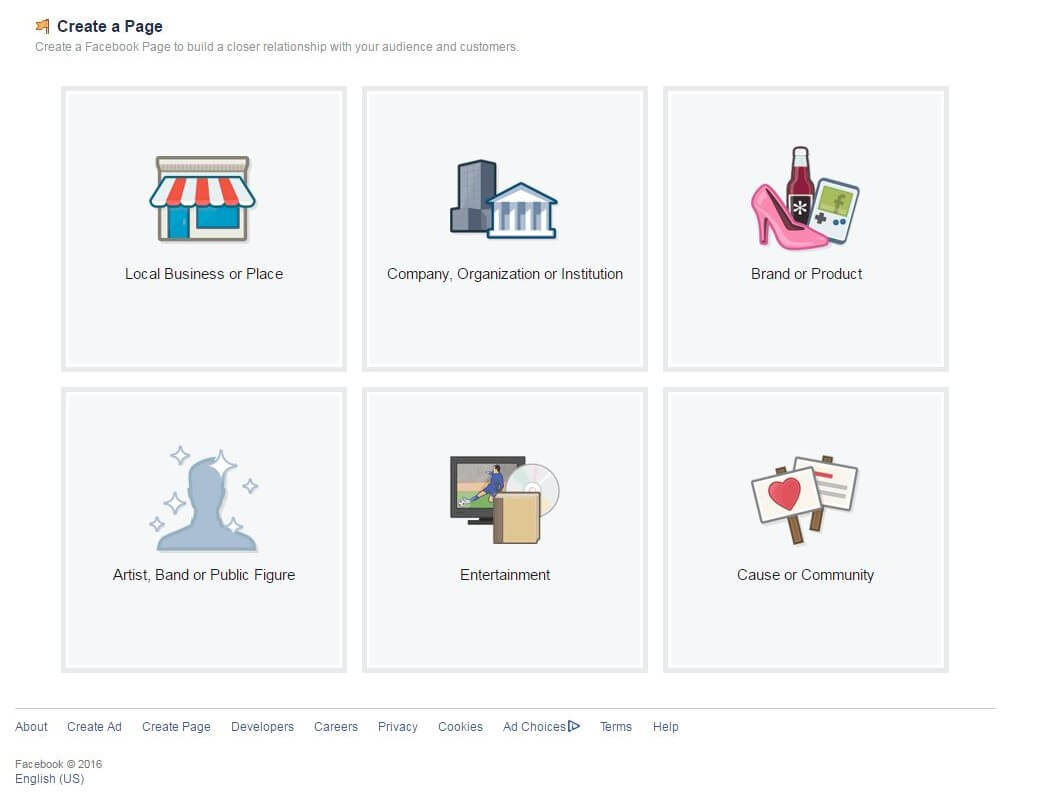
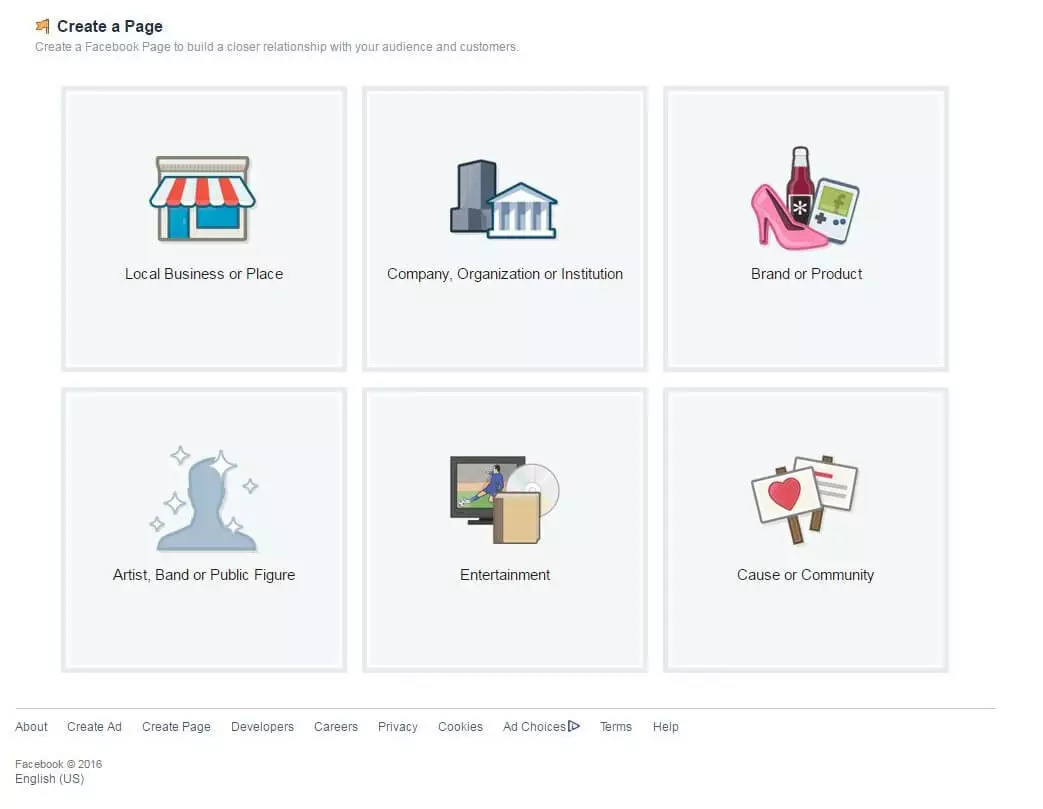
There are many kinds of Facebook pages. To make yours easier to find, you have to choose from the following options:
- Local business or location
- Company, organization, or institution
- Brand or product
- Artist, band, or public figure
- Entertainment
- Cause or community
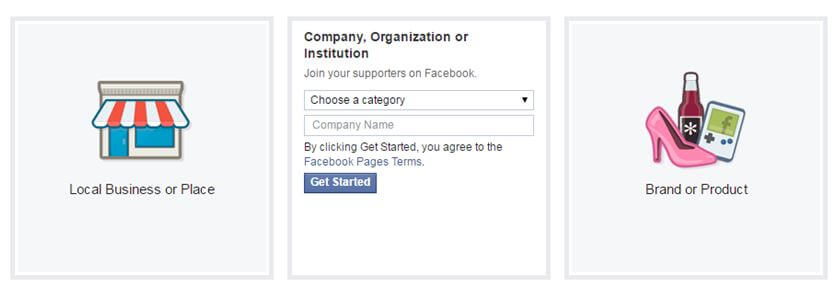
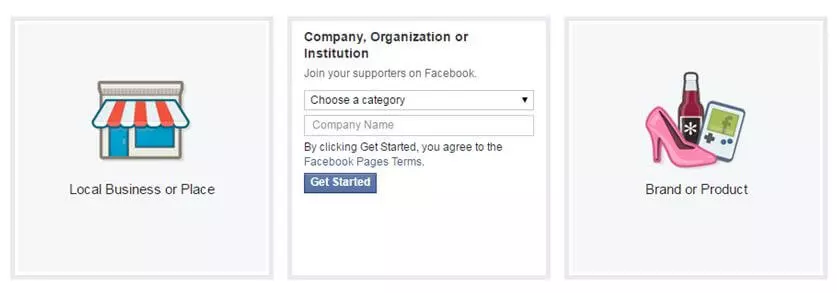
Once you’ve made your selection, a small form appears. This gives you a pool of various suggestions, allowing you to pick a more specific category. For example, under ‘Local business’, you’ll find categories such as book store, hotel, or restaurant. While under ‘Company, organization’ or institution’, you’ll find options for the industrial sector, small businesses, and organizations, etc. Depending on the kind of page you choose, the form will prompt you to provide further information, such as addresses or telephone numbers. By clicking ‘Get started’, you automatically accept Facebook’s page terms and you will be taken on to the next step.
4. Setting up a page
You can now add a short description of your company or brand to let visitors know a little bit more about the business. The description (max. 155 characters) should establish the essence of the company, ideally with relevant keywords (this can be changed later). You also have space to enter the official company website and a unique Facebook address.
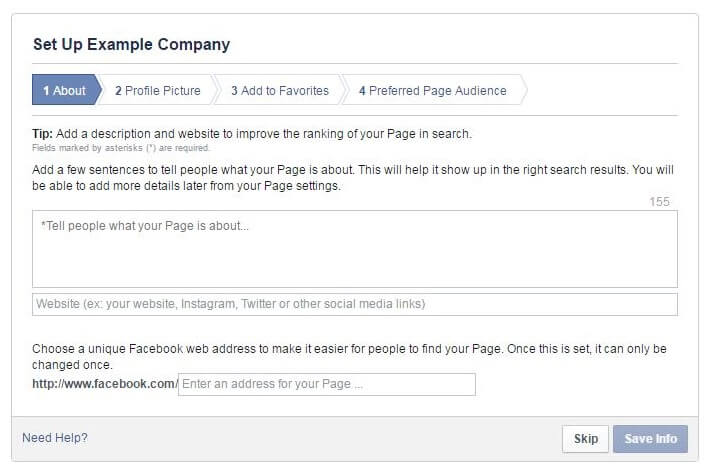
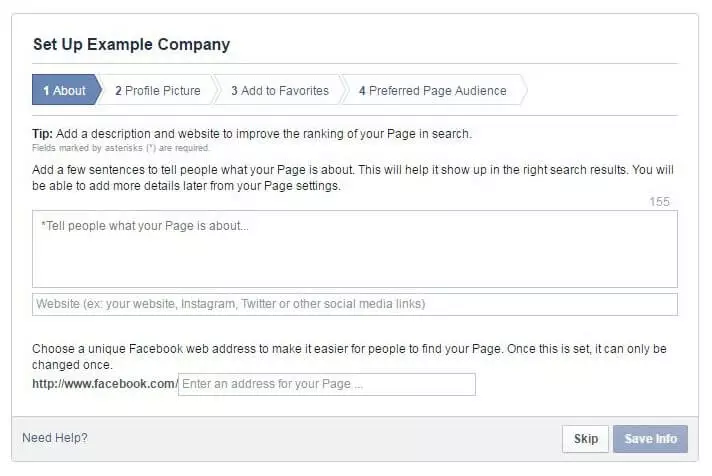
Click ‘Save info’ to save these new settings and move on to the following step, which allows you to develop your Facebook page’s image.
5. Upload images
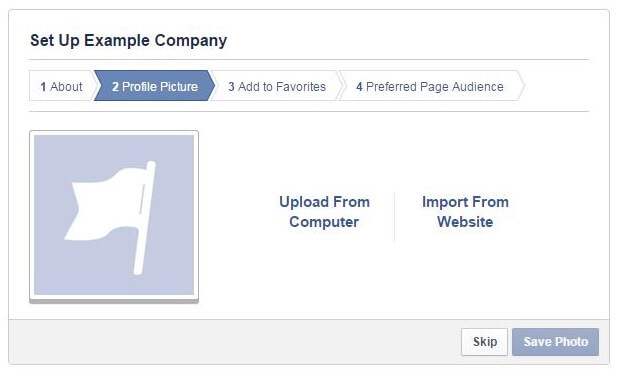
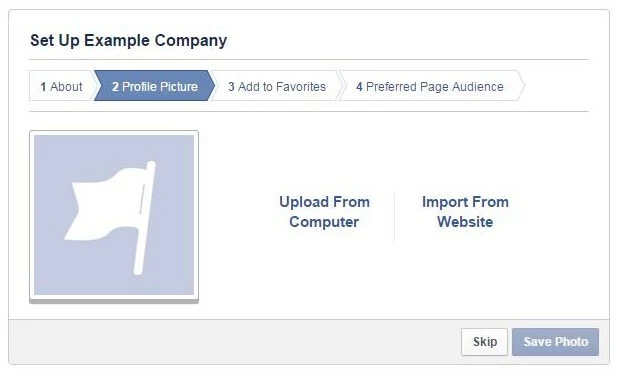
Uploading a profile picture will make your Facebook fan page look more complete and professional. Businesses particularly benefit by using striking images that immediately communicate their brand or product. Images are automatically cropped into a square, and according to Facebook’s Help Center the uploaded image must be at least 180 pixels wide so that it can be correctly displayed on all devices. The cover photo must be at least 399 x 150 pixels.
6. Add to favorites & defining your target group
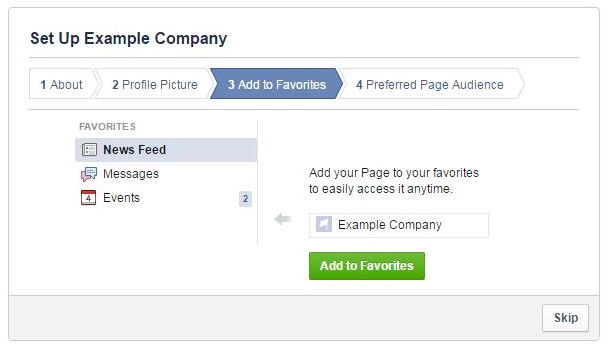
Adding your Facebook page to your favorites allows you as a page administrator to gain faster access to your business’s Facebook page. Your page will appear in the navigation bar on the left-hand side.
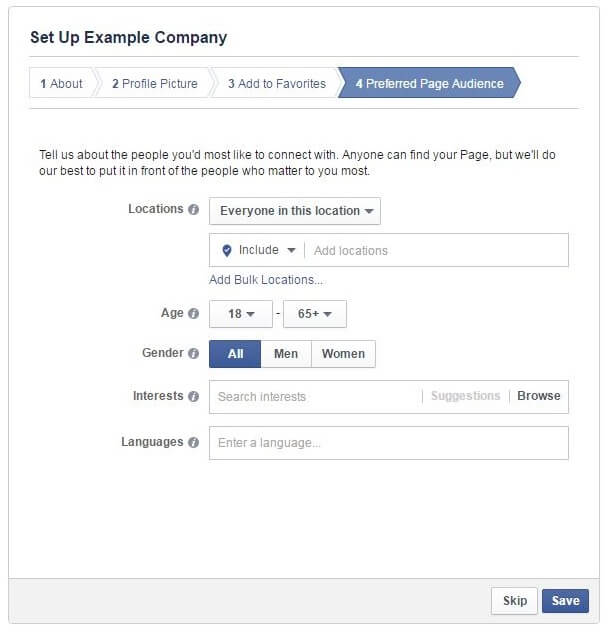
The final step of the set-up allows you to define a specific target group. Entering information about your chosen target group here increases the probability that the Facebook page will be suggested to those exact people. You can define this target group by choosing their location, age, gender, interests, and languages.
7. Polishing your Facebook page
You have now successfully set up a Facebook page, but your profile is far from complete. It’s therefore recommended to select ‘Unpublish page’ under ‘Settings/General/Page Visibility’. Only once all the information is written and the company website is finished and ready for the ‘fans’ should the page be published.
When creating your Facebook page, you can add further information under ‘Page info’:
- Topics: here you can enter three Keywords to describe the page’s content
- Impressum: Some countries require an ‘impressum’ to be set up. Look into this before creating your business page.
- Facebook web address: here you can choose your unique Facebook web address (e.g. ‘www.facebook.com/examplecompany’).
- Background information: this section is for additional information like the founding year, awards, or details about specific products. This is optional, but it is especially valuable for visitors using social media to learn about your business.
Finding success on Facebook: the next steps
A Facebook page is the cornerstone of a successful social media presence. They may be easy to set up, but the real work begins afterwards. Gaining fans and recognition for your page is no easy task, but with the right combination of planning and targeted content strategy, the far-reaching platform can be an excellent marketing tool. Facebook also offers different possibilities to communicate with potential customers through targeted advertising. Find out more about the best ways to integrate Facebook into your marketing mix in our Digital Guide article on Facebook marketing.