

How to delete an Instagram account step by step

Instagram accounts can be deleted in seconds, removing all photos and videos from the platform. Users who only wish to hide their content from public view temporarily can also deactivate their Instagram account.
- Store, share, and edit data easily
- Backed up and highly secure
- Sync with all devices
Be aware that any content you publish on the internet can be viewed, saved, and copied by anyone. Even if you delete your social media profile, including all your information, there is no guarantee that your images and videos will disappear completely from the net. Providers like Instagram only delete data from their own servers, but have no influence on servers belonging to other platforms. When images reappear elsewhere, users are often powerless to delete them. The internet never forgets! You can find further information on how to use social media safely in our article on social networks and the dangers they pose.
How to disable your Instagram account in the browser
Instagram allows users to temporarily disable their accounts. This means that if you want to remove your content from the net for a short while, you don’t have to go as far as to delete your account, which would make it irretrievable.
- Log in: Open Instagram in the browser and log in with the account you want to temporarily disable.
- Access the “Account ownership and control” menu: Click on the “More” button > “Settings” > “Accounts Center” > “Personal details” > “Account ownership and control” to access your Instagram profile’s account settings.
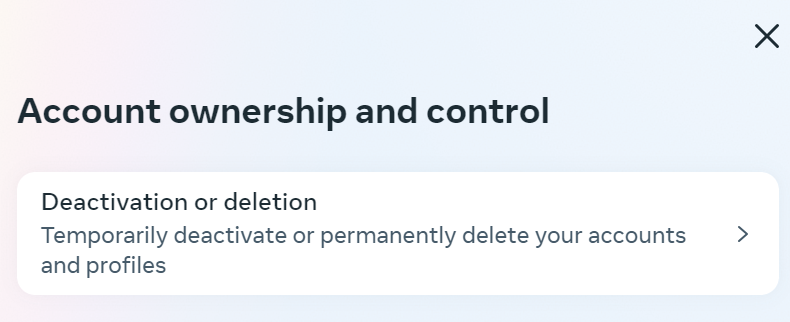
- Select “Deactivate Account”: In your Instagram account settings, you will find the option to deactivate or delete. Click on the deactivate option and choose the account you want to deactivate. Then click on “Deactivate account.”
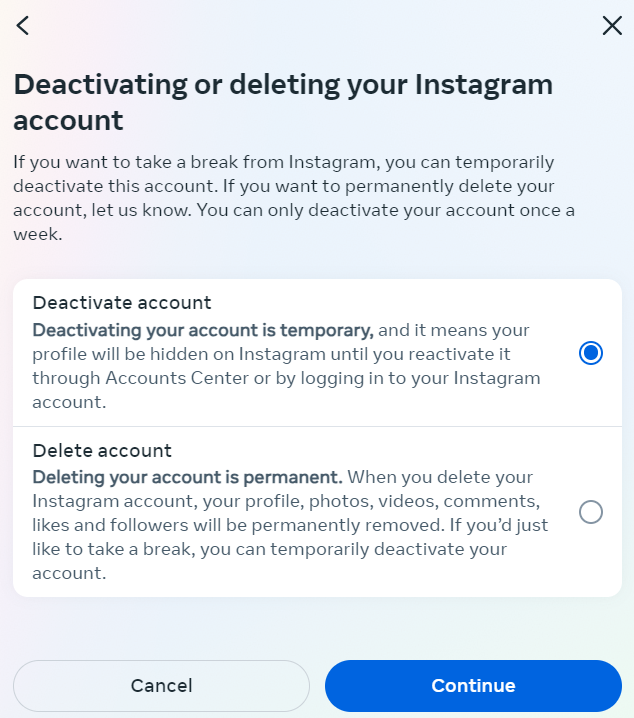
- Provide a reason for deactivation: You will be prompted to enter your password. To disable your Instagram account, you must first provide a reason.
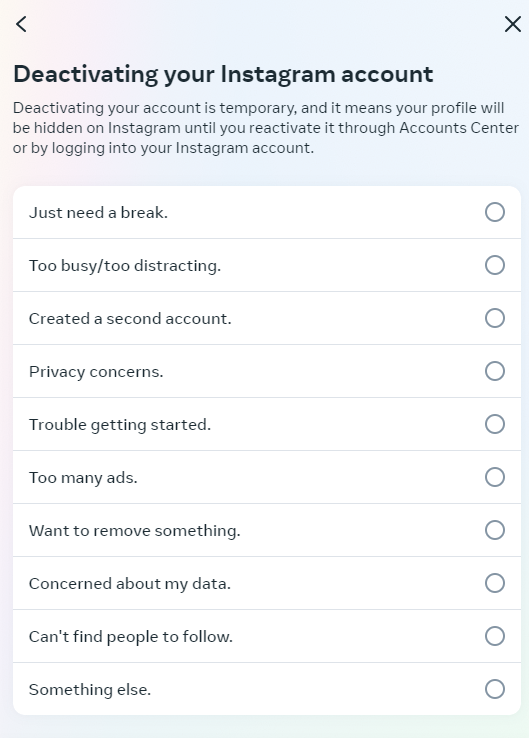
While deactivating your Instagram account requires justification, approval from the provider is not necessary.
Depending on the reason you specify for wanting to disable your account, Instagram will suggest suitable articles in the help section of the social media platform. These may contain solutions to your problem.
- Complete the deactivation process: If you still wish to deactivate your account despite the suggested troubleshooting strategies, complete the deactivation by clicking the “Deactivate account“ button.
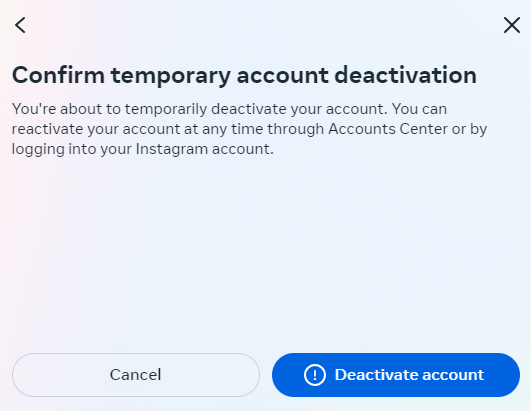
After disabling your account, your Instagram page will be temporarily taken offline, including all photos, comments, and likes. Content will remain hidden until you reactivate your account by logging in again.
If your Instagram account has been successfully disabled, it may take a few hours to be reactivated again due to technical reasons.
How to permanently delete your Instagram account in the browser
If you want the Instagram account to permanently disappear from the web, the process is similar. However, please bear in mind that a deleted Instagram account cannot be restored.
Are you considering deleting your Instagram profile because you haven’t connected with as many people as planned on the social network? In this case, we recommend our “Instagram for businesses” guide series. With more than 800 million users, the photo network is one of the best-known and most frequently used communication channels worldwide. More than 25 million companies use Instagram to raise awareness of products and services, increase brand awareness, or enhance their corporate image.
-
Access settings: First, go to the “Account ownership and control” menu, just as you would when deactivating your account.
-
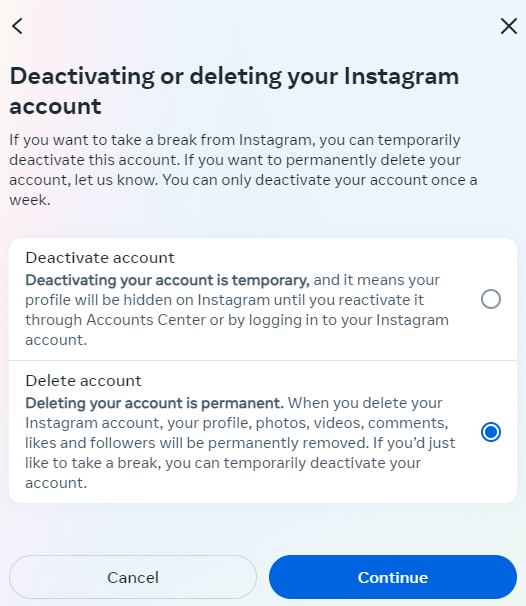
Select the delete option: Once there, choose the “Delete account” option.
-
Provide a reason: After entering your password, you will be asked for the reason for deleting your Instagram account, just like when deactivating it.
-
Confirm deletion: Confirm you want to delete your account by clicking the “Delete account” button.
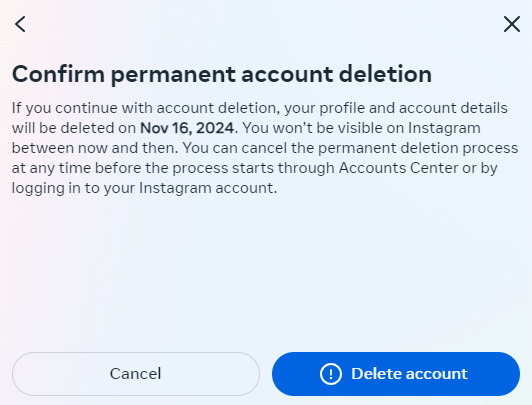
Just like when deleting a TikTok account, deleting an Instagram account has permanent consequences.
Permanently deleting your Instagram account means that:
- All your images stored on the social media platform will be deleted.
- All your followers as well as social signs and image comments will be lost.
- Once your account has been deleted, your login name will be available to others.
Before you take this drastic step, be 100% sure that it’s what you want.
For users who want to back up a copy of their data, the provider offers a download function. You can find it under “Settings”, “Privacy and Security”, “Data Download.” The download file contains all your images, videos, and stories, as well as comments, profile information, connections, search queries, and chat messages in JSON format.
- Write perfect emails with optional AI features
- Add credibility to your brand
- Includes domain, spam filter and email forwarding
How to delete or deactivate Instagram account in the app
Similar to the process in the browser, you can also delete or deactivate your account in the Instagram app. Only a few steps are required for this as well.
- Open Settings: Navigate to “Settings and activity” > “Account Center” > “Personal details” > “Account ownership and control.”
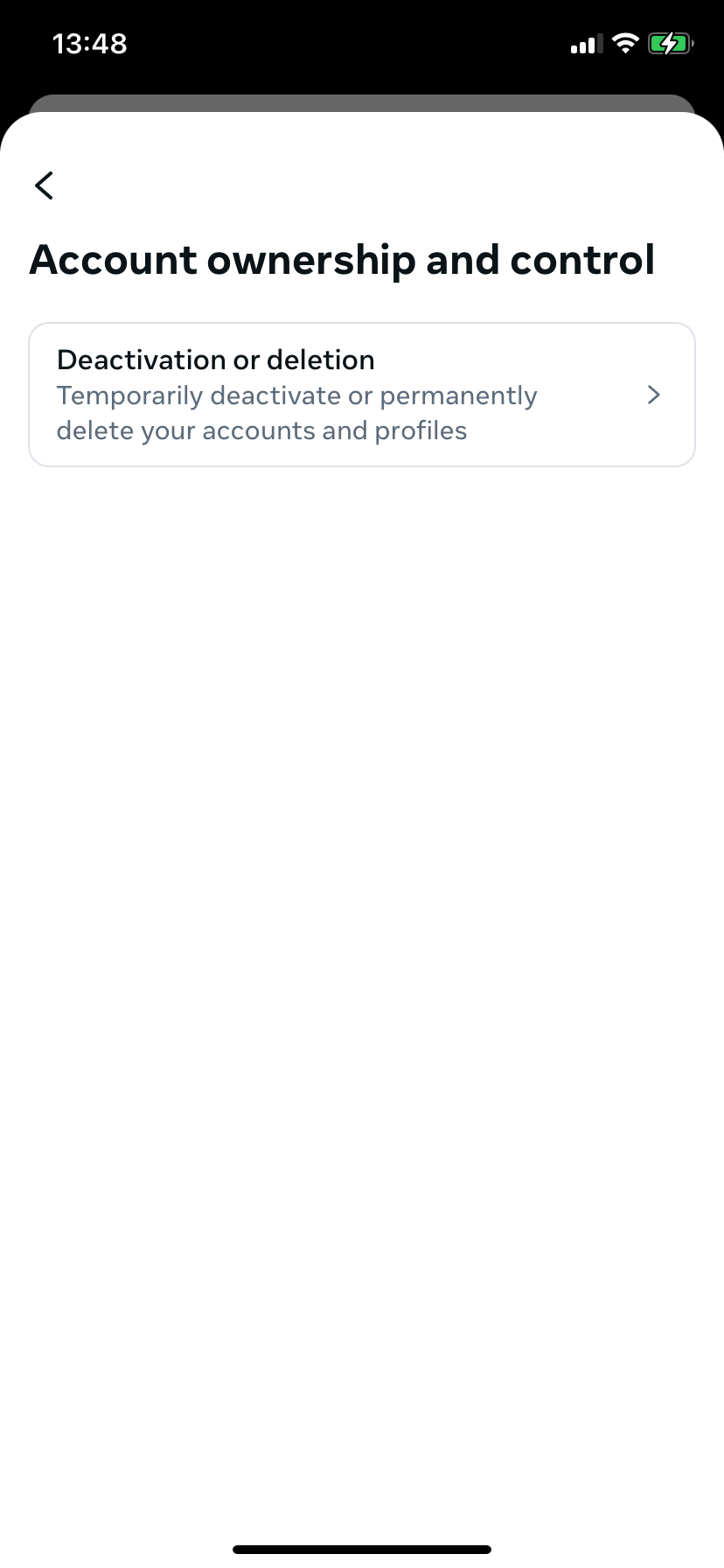
- Select Process: Tap the “Deactivation or deletion” button and then select the appropriate account. Now, just like in the browser, decide whether you want to deactivate your account or delete it permanently.
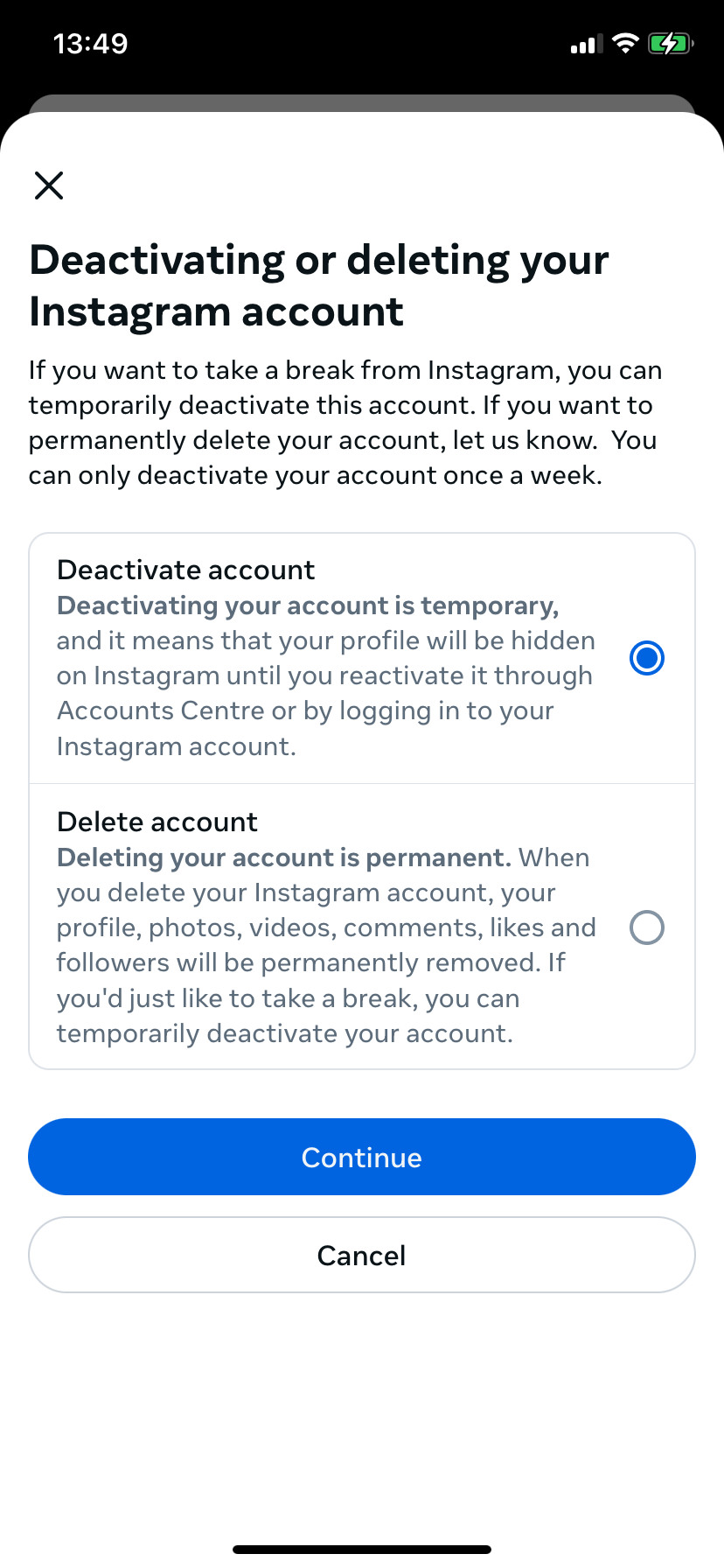
- Provide a reason: Enter your password to proceed, then select the reason for deletion or deactivation.
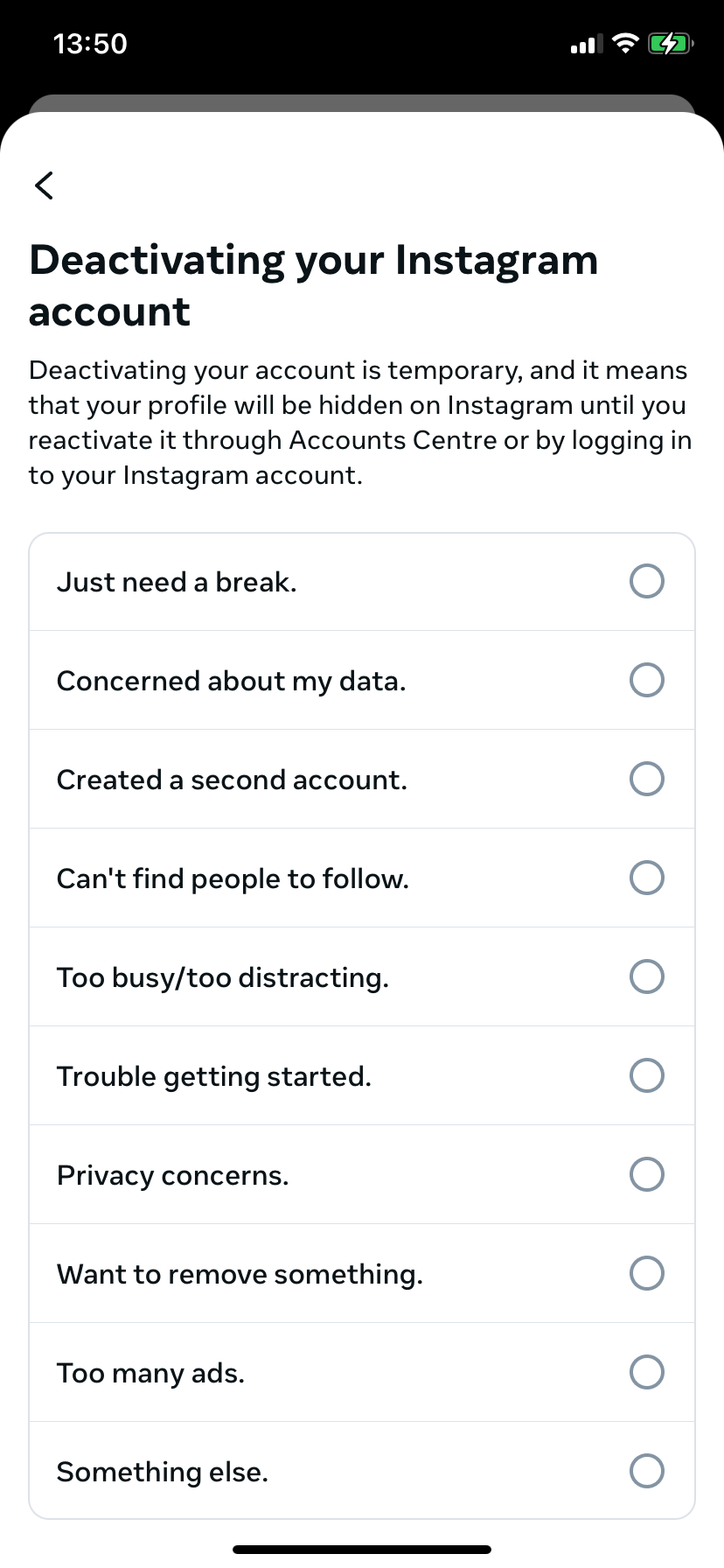
- Confirm process: Confirm the deletion/deactivation by clicking the corresponding button.