

Using a PS4 controller on PC – all options

Gaming on your PC with a controller might provide a better gaming experience and you often don’t have to buy a new controller at all. If you already own a PlayStation 4, you can connect its controller to a PC or laptop in different ways. We’ll show how you can get started.
Make a statement with your own .gg domain and let the games begin. Register your own .gg domain now with IONOS.
Why would I use a controller on PC?
Most games can be played well on the PC with keyboard and mouse — especially first-person shooters and build-up strategies work well on traditional PC setups for gamers. The situation is different for action games, for example jump ’n’ runs or fighting games. These games are usually easier to play with a suitable controller.
Connect PS4 controller to PC via USB cable
Probably the simplest possibility for a connection is obvious:
- The PS4 connection cable, used to charge the DualShock 4 controller, can be connected to the computer via USB port.
- Starting with Windows 10, the controller is usually recognized and the necessary configuration is carried out automatically and quickly.
- Afterwards, the controller is ready for use and you can jump right in.
Depending on how old the game is, however, it might be that the button configuration should be sorted out beforehand. This can be done, for example, with a free tool like the DS4 controller, which we’ll present at the end of the article.
Use PS4 controller with PC via Bluetooth
Sony’s PlayStation 4 controller is wireless. To keep cables out of the way, the controller can be connected to a PC via the built-in Bluetooth function.
- Bluetooth must be activated on the computer so that the connection between the PC and the hardware can be established.
- To do this, first open the “Settings” and select “Devices” there. The Bluetooth function appears at the top of the menu and is activated by clicking on it.
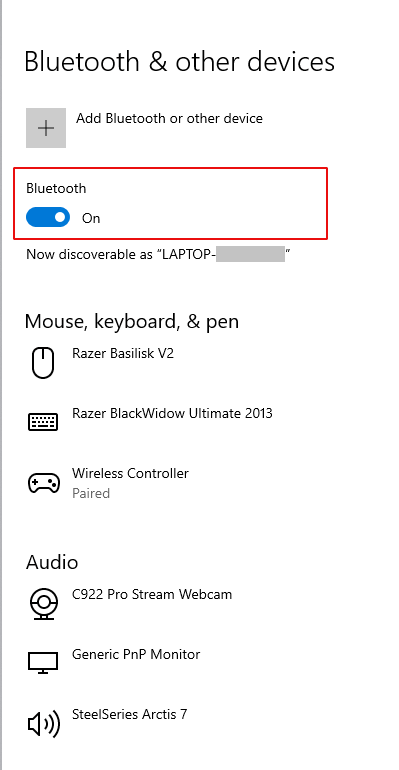
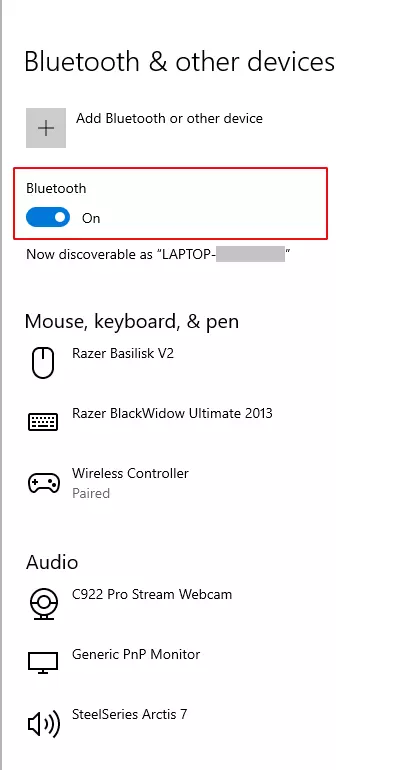
- In the next step, select “Add Bluetooth or other device” and click on the first item “Bluetooth” (even though the third item seems more logical at first glance due to it mentioning “Xbox controller”).
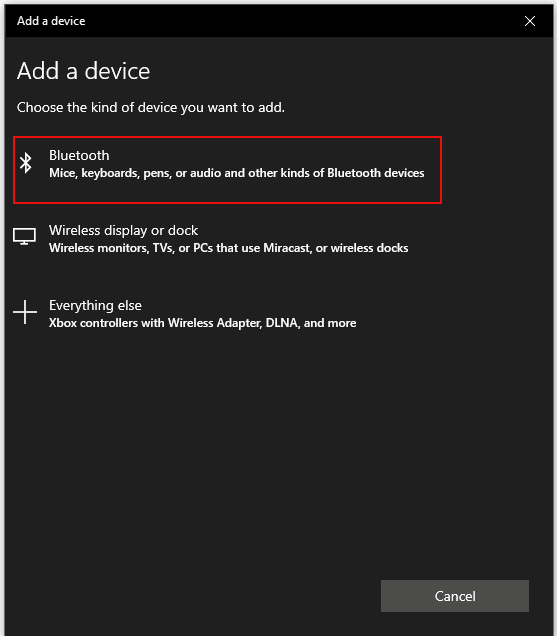
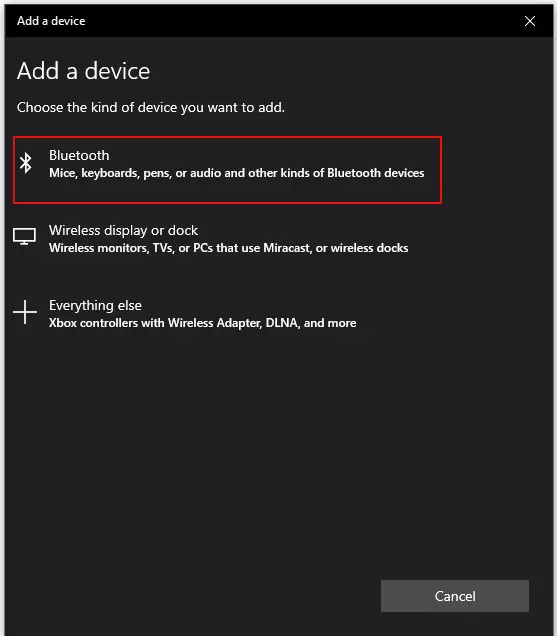
- The PC will now search for Bluetooth devices close by. The PS4 controller must also be activated so that it can be connected to the PC. This is called pairing mode.
- To activate this mode, press and hold the PS button and the Share button (see the label on the controller) at the same time.
- The PC will recognize the controller as a wireless controller, which you finish by clicking on the selection (in our test, the pairing between PC and console did not work automatically in some runs, but we had to actively confirm the pairing attempt). From this point on, the computer is connected to the PS4 device.
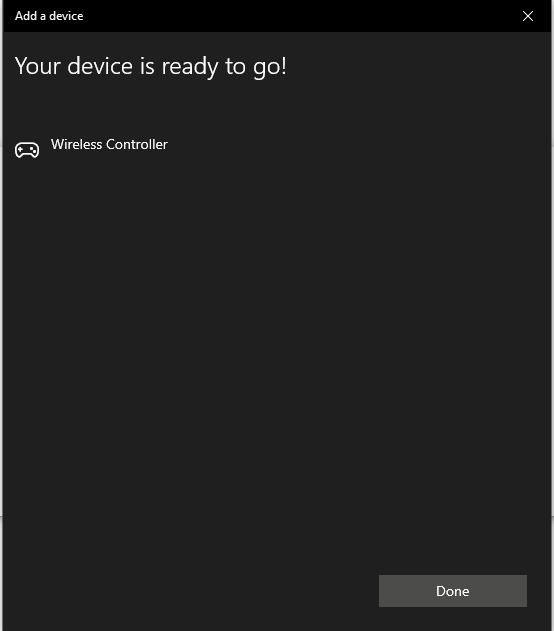
Even with this connection method, some games require a separate configuration of the controller. Next, we’ll show how to customize the PS4 controller and change the button assignment for a game.
We explain how to use a PS5 controller on PC in an extra article.
DS4 for Windows: How to configure a PS4 controller
Unlike controllers from the Xbox series, which are tailored for use with Windows, some games do not recognize the PS4 controller on PC. In other cases, the pre-set assignment of the buttons is not ideal, so they might need to be adjusted. In both cases, programs like DS4 Controller help to recognize a PlayStation controller and assign buttons individually.
This software converts controllers so that they are considered Xbox controllers for Windows. This is necessary because Windows uses the Xinput interface to link controllers to a computer. The Xinput interface is limited to linking Xbox components to Windows, both of which are made by Microsoft.
With the use of programs like DS4 for Windows, it is suggested to the PC that the connected controller is an Xbox controller. It does not matter whether you connected the PS4 controller to the PC via USB or Bluetooth.
If you are using Windows 7, the appropriate driver must be downloaded beforehand; Windows 8.1 and higher have the driver pre-installed.
When you start the program, it should directly find and display the controller previously connected via USB or Bluetooth. In the menu of DS4Windows you can see in the “Controller” area under “ID” whether the controller has been connected and recognized. The individual assignment of the buttons you make in the menu item “Profile”. The DS4 controller shows the translation of the PS4 buttons to a virtual Xbox controller there (see screenshot).
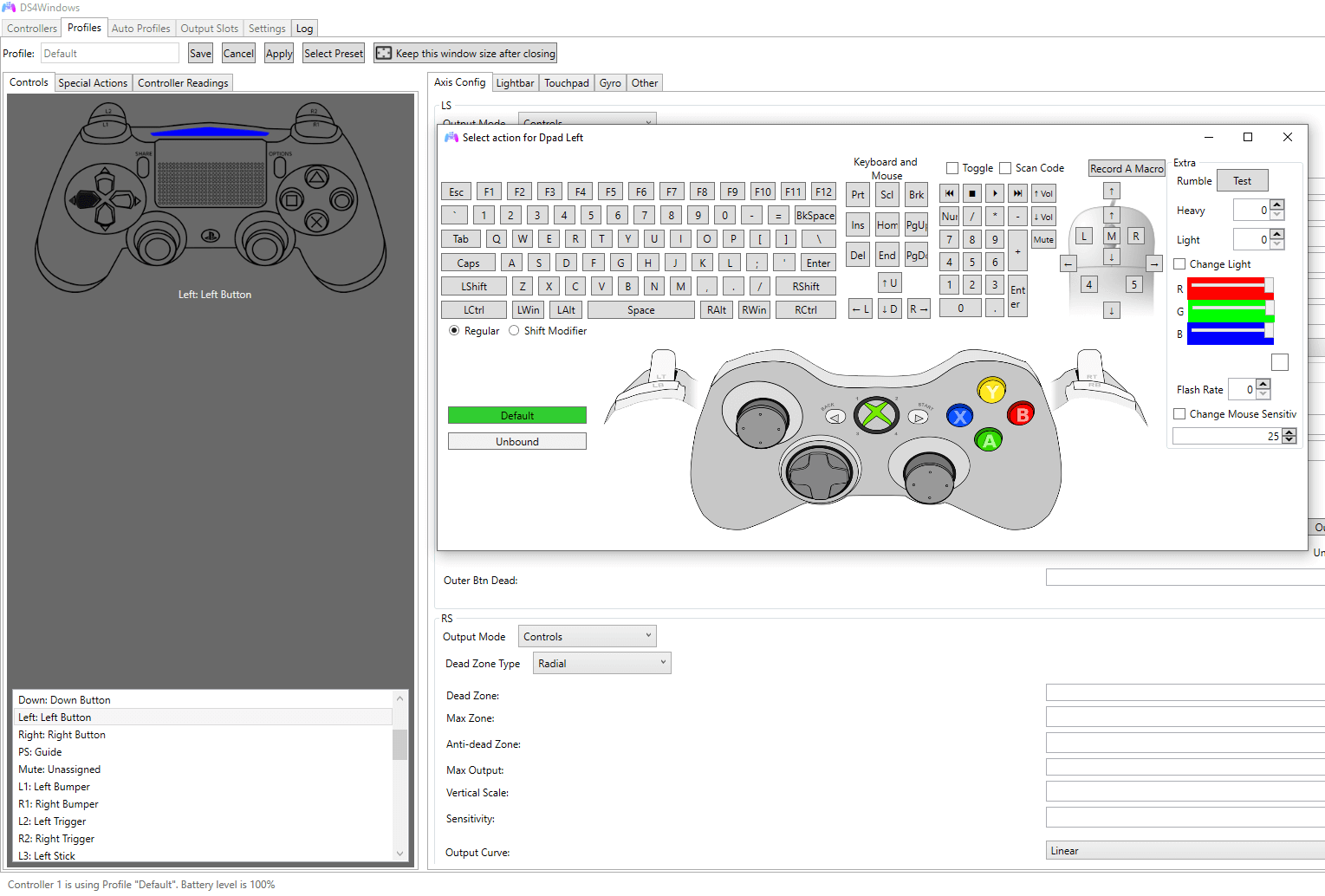
Since the controllers have the same buttons (only with different names), orientation is easy. For example, the [X] on the Xbox controller is the [square] on the PS4 controller, the [circle] corresponds to the [B] button, and the two joysticks and the directional pad are also used by both manufacturers.
In this way, you can also directly find out via customization whether the logic of the PlayStation assignment in the game corresponds to your preferred control options: Many PlayStation games like the “Witcher” series, “Uncharted” or “The Last of Us” follow a very similar button assignment, so that, for example, racing is triggered via [L3] or ducking with the [Square] button. You can adjust this to your preferences — if not automatically recognized correctly — with the DS4Windows controller.
In the menus of the games on the PC, the Xbox designation is mostly used, so you will have to rethink a bit at this point. With a bit of practice within the games, however, the system becomes clear quite quickly, and nothing should stand in the way of hours of fun with the controller on the PC.
DS4 for Windows must continue to run in the background so that you can use the PS4 controller on the PC. Therefore, the program has to be started again after a restart — or you can allow an autostart when the computer is booted.
In this separate article we explain how to set up an Xbox controller on PC.