

How to recover WhatsApp contacts on iPhone and Android

WhatsApp contacts can disappear, get deleted or get accidentally blocked. Blocked WhatsApp contacts can easily be unblocked again. Deleted contacts can be recovered by syncing WhatsApp, creating new numbers or checking access to your phone contacts.
There are several reasons why a name or number might no longer appear in your WhatsApp contact list. It could have been accidentally deleted, a sync issue may have occurred, contacts might be blocked, or your contact list could be outdated. In this article, we’ll guide you through recovering your WhatsApp contacts.
How to recover a deleted WhatsApp contact quick guide
iPhone
- Check access: Check whether WhatsApp has access to contacts by going to Settings > Privacy & Security > Contacts.
- Create a new contact: Add the contact in the Phone app. WhatsApp will automatically sync the contact.
- Restore a backup: Uninstall WhatsApp. Then reinstall it and choose Restore backup from iCloud.
Android
- Update contact list: Open WhatsApp, tap the three dots and then select Update.
- Activate syncing: Go to Settings > Accounts > WhatsApp and activate synchronization.
- Restore a backup:
Choose a local backup file (
msgstore.db.crypt14) or a Google Drive backup. Now uninstall WhatsApp, reinstall it and restore the backup.
How does the WhatsApp contact list work?
Anyone who has already changed language settings in WhatsApp knows that the app gets a lot of data from the device it’s installed on. That includes the contacts you communicate with on WhatsApp. WhatsApp takes contacts directly from your phone address book and uses them to make a WhatsApp contact list. That’s why it’s important to add new contacts to your phone, give WhatsApp access and allow syncing.
Back up your WhatsApp contacts, chats and media with IONOS HiDrive Cloud Storage.
How to recover WhatsApp contacts in different situations
Below we’ll present various situations and scenarios for recovering a WhatsApp contact.
Restoring a WhatsApp contact you deleted yourself
You can only restore a contact you deleted yourself if the contact list was backed up or if the contact in question is still saved in your phone. You might have made a WhatsApp backup with Google Drive or iCloud. Alternatively, you can restore WhatsApp chats by using WhatsApp’s automatic local backups.
Follow these steps to recover a deleted contact:
- Restore from local backup: WhatsApp creates daily local backups and saves them under Internal Storage\Android\Media\com.whatsapp\WhatsApp\Databases. If you deleted a contact, you can restore it by selecting the local backup file for a day when the contact still existed. Rename the file from the original format to
msgstore.db.crypt14– that’s the name of the most recent backup file. Uninstall and reinstall WhatsApp. WhatsApp will recognize the backup file when installing and ask if you want to restore it.
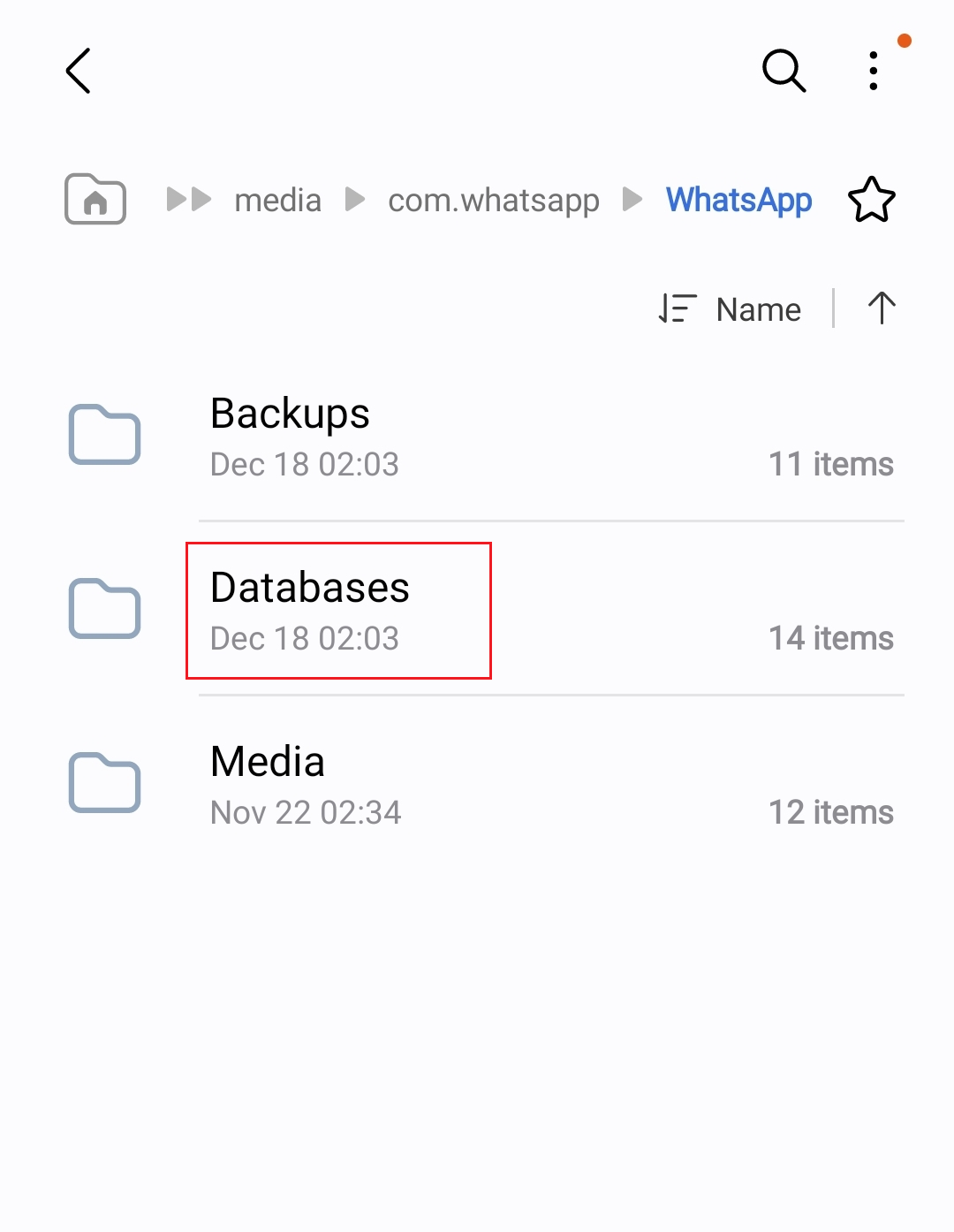
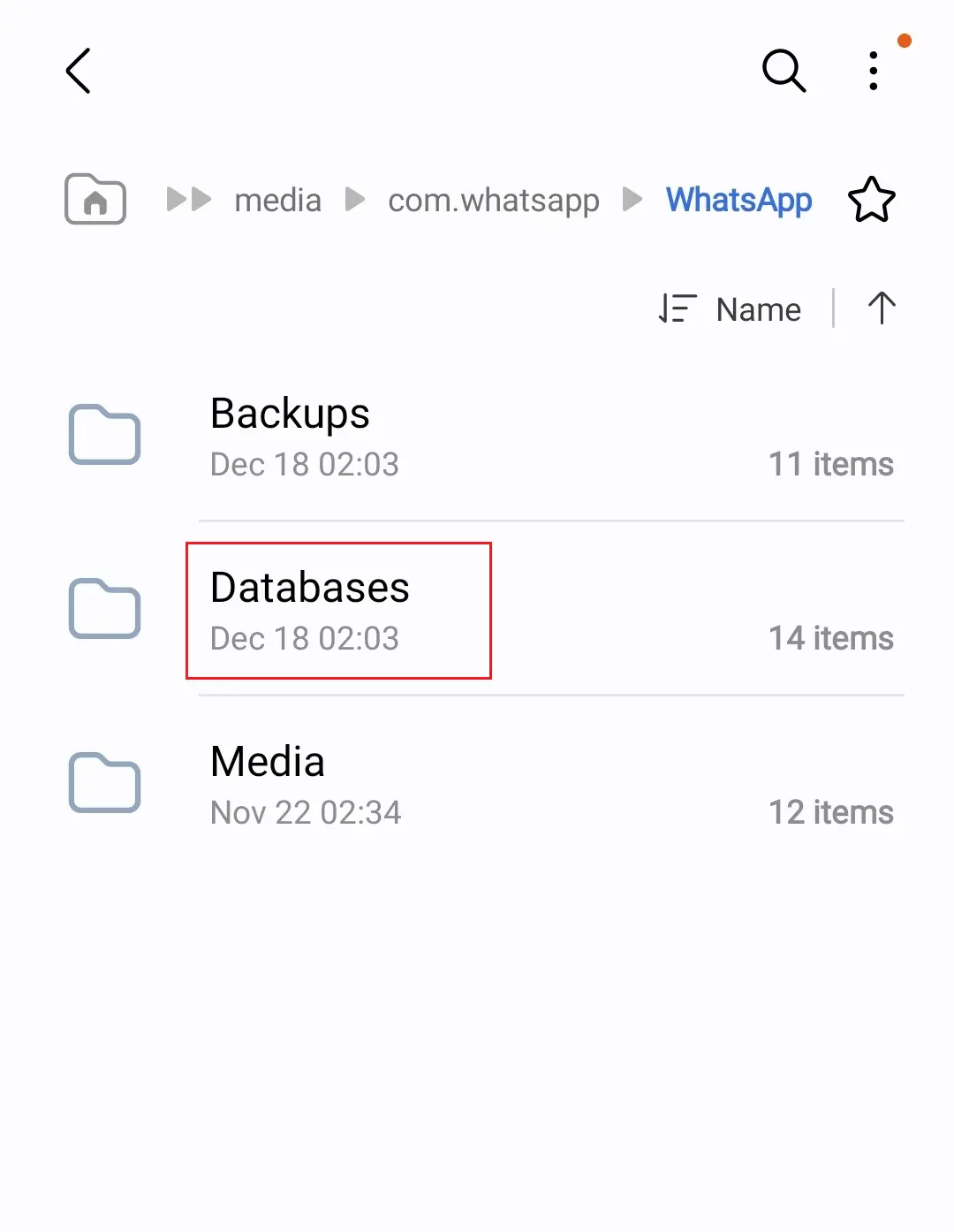
- Restore from cloud backup: You can also restore contacts from a cloud backup using Google Drive or iCloud. In this case, you’ll need to reinstall WhatsApp and select the cloud backup under Restore. If you are syncing your Google Drive, you can log in to Google Contacts with the linked account and go to More and then Restore contacts. Google saves deleted contacts for 30 days. If you’re using iCloud, log into your account, go to Advanced at the bottom and then to Restore Contacts. You can then restore older versions of your contact list, in case you accidentally deleted it.
Recovering blocked WhatsApp contacts
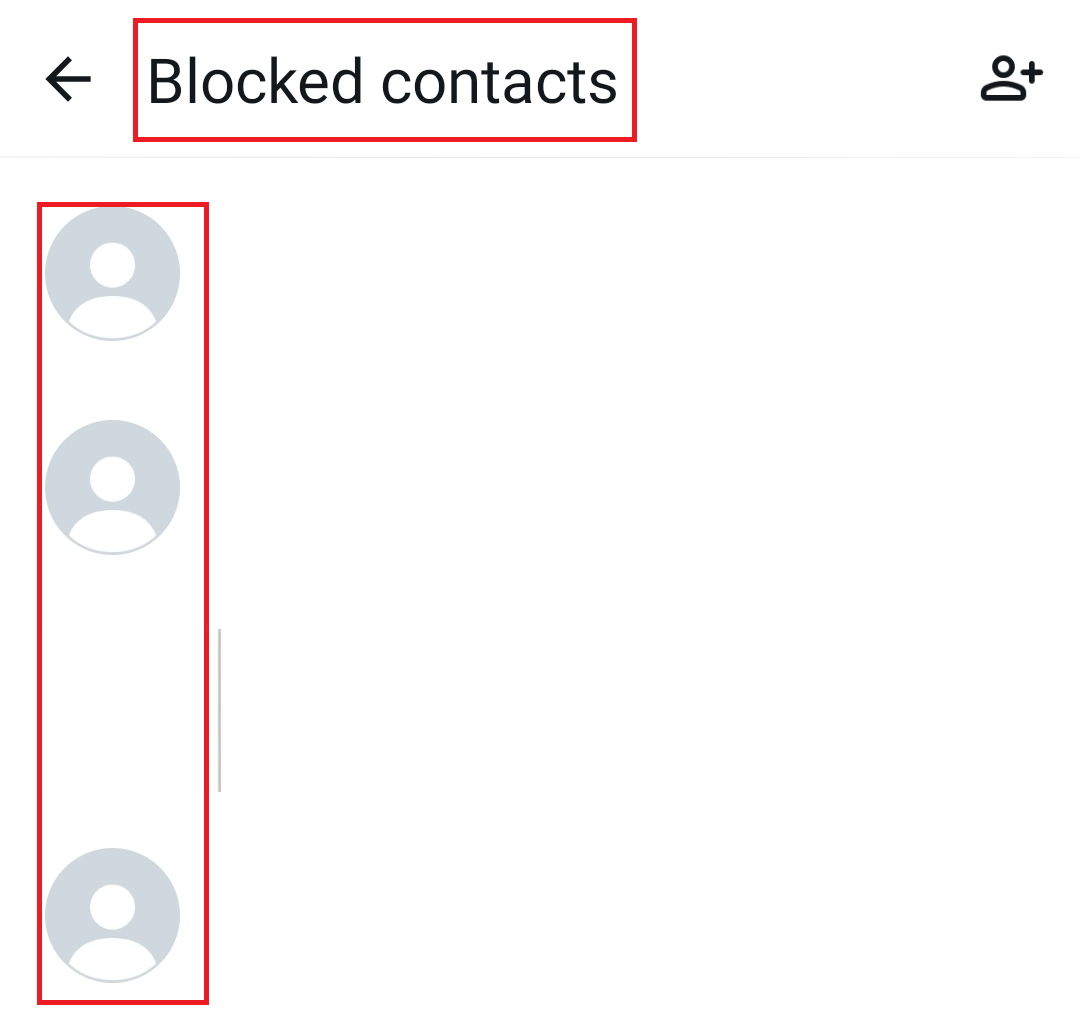
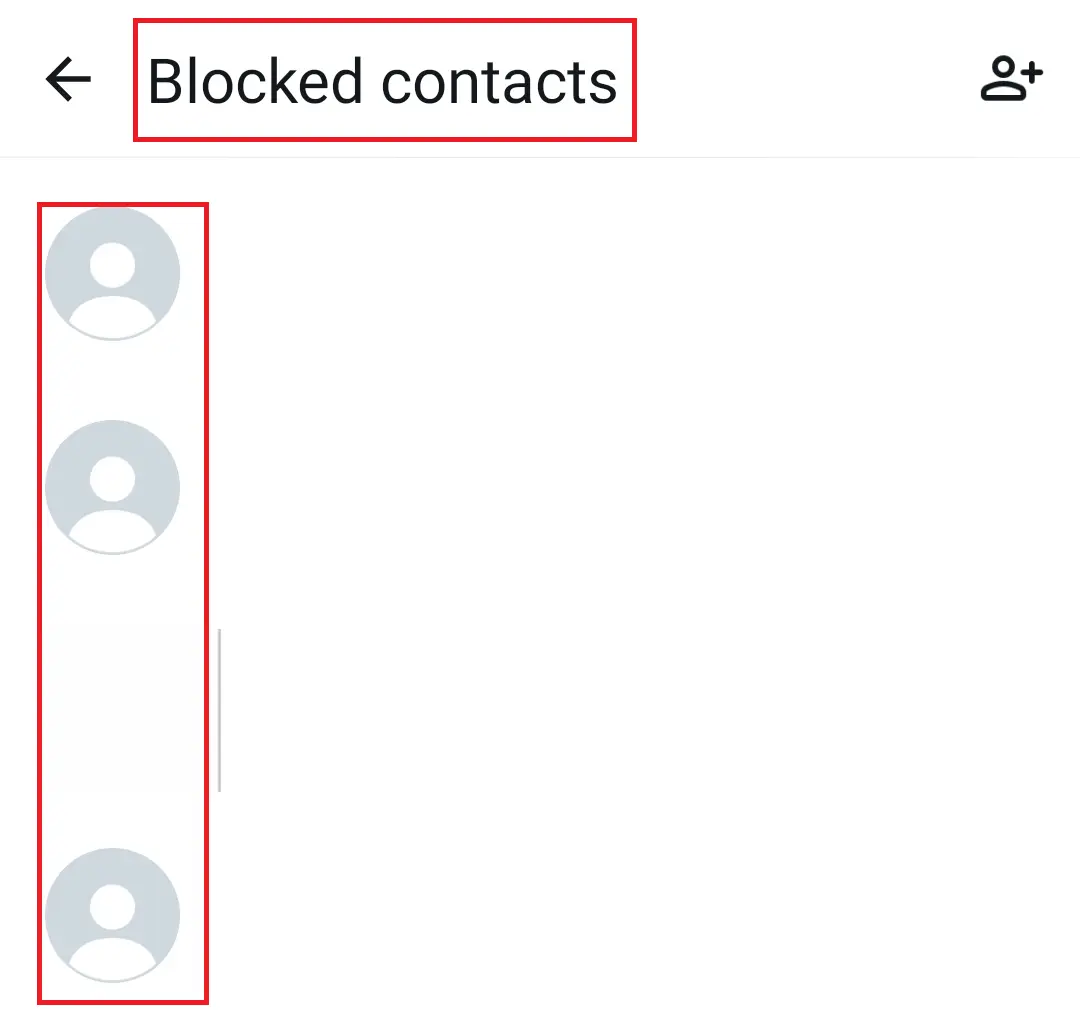
It’s very easy to restore contacts that you have blocked. Simply tap on the three dots, go to Settings, then to Account and then to Privacy. You’ll see the item Blocked contacts. To unblock a contact, tap on that user.
You want to restore a deleted WhatsApp phone number? No problem! If the chat with that contact is still there, tap on it. You can find their phone number there and add it to your contacts again.
Updating/syncing WhatsApp contacts
As mentioned above, the WhatsApp contact list is based on the contact list of your phone. If a contact disappears, you might be able to get it back by manually syncing your phone with WhatsApp. There are three ways to do that.
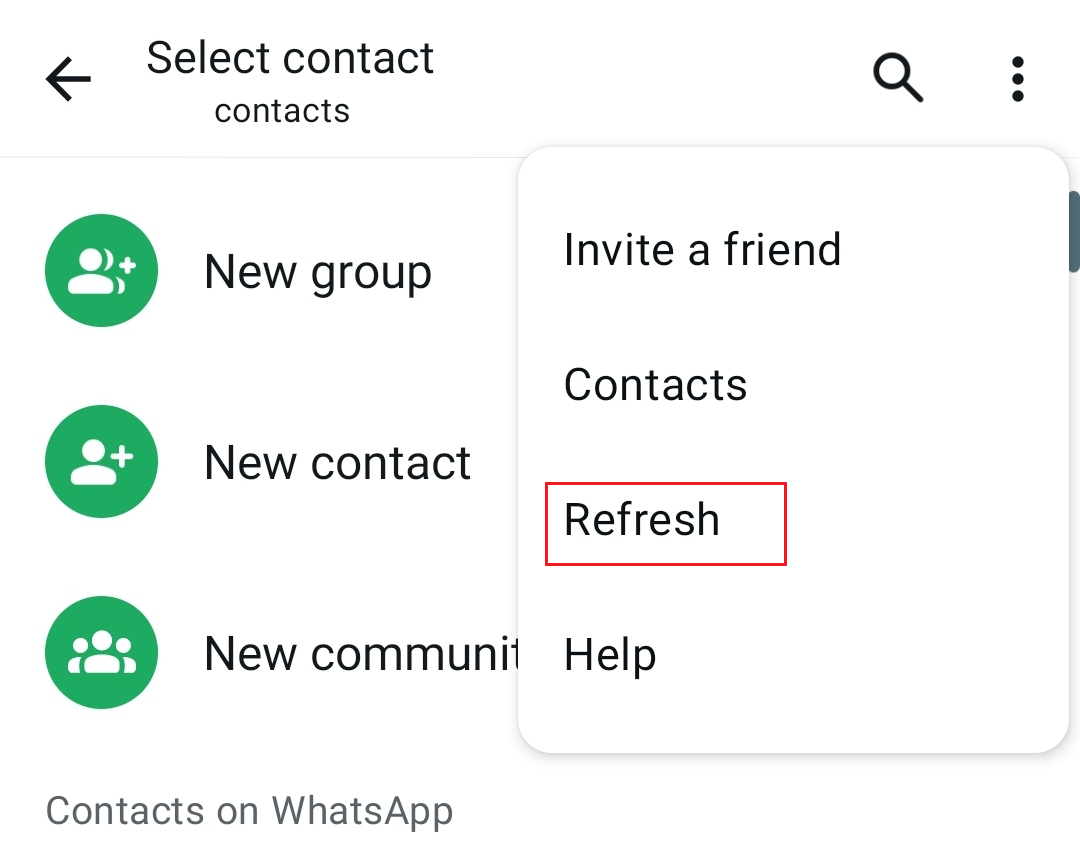
Updating contact list (Android):
- Open WhatsApp and tap on the green speech bubble icon at the bottom right.
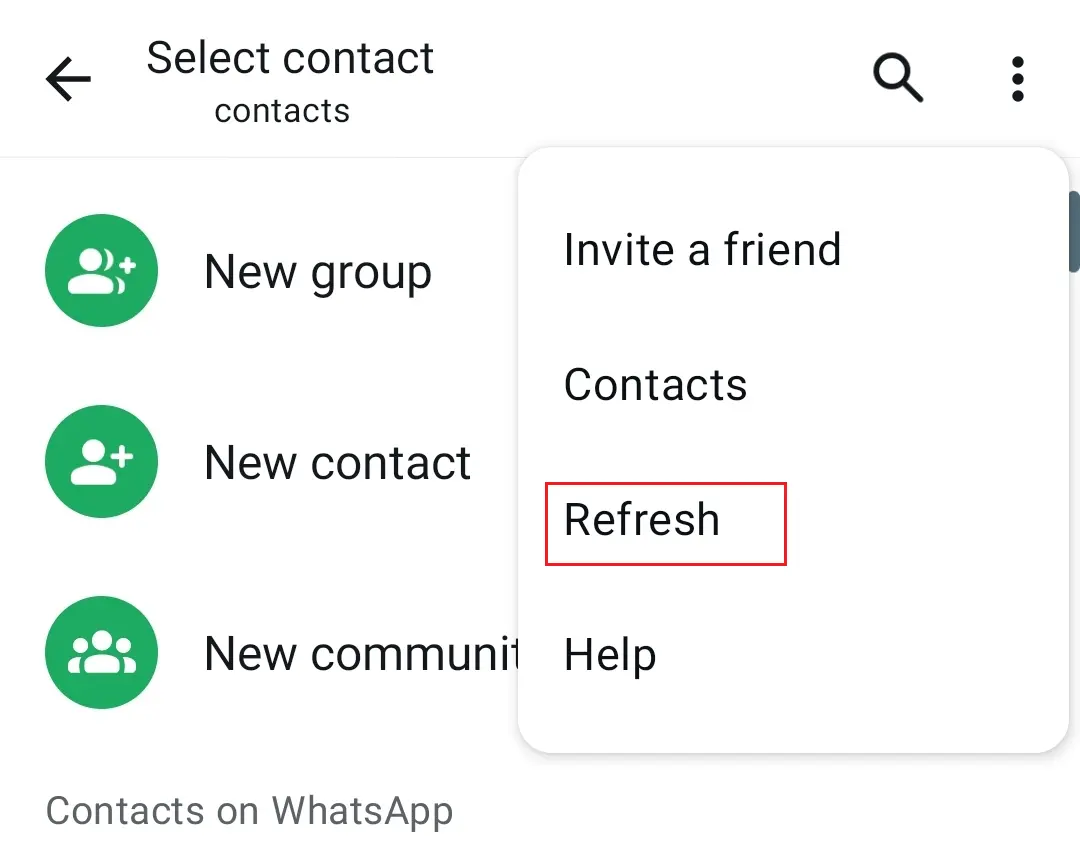
- Tap on the three dots at the top right and then on Refresh.
- Your WhatsApp contact list will be updated.
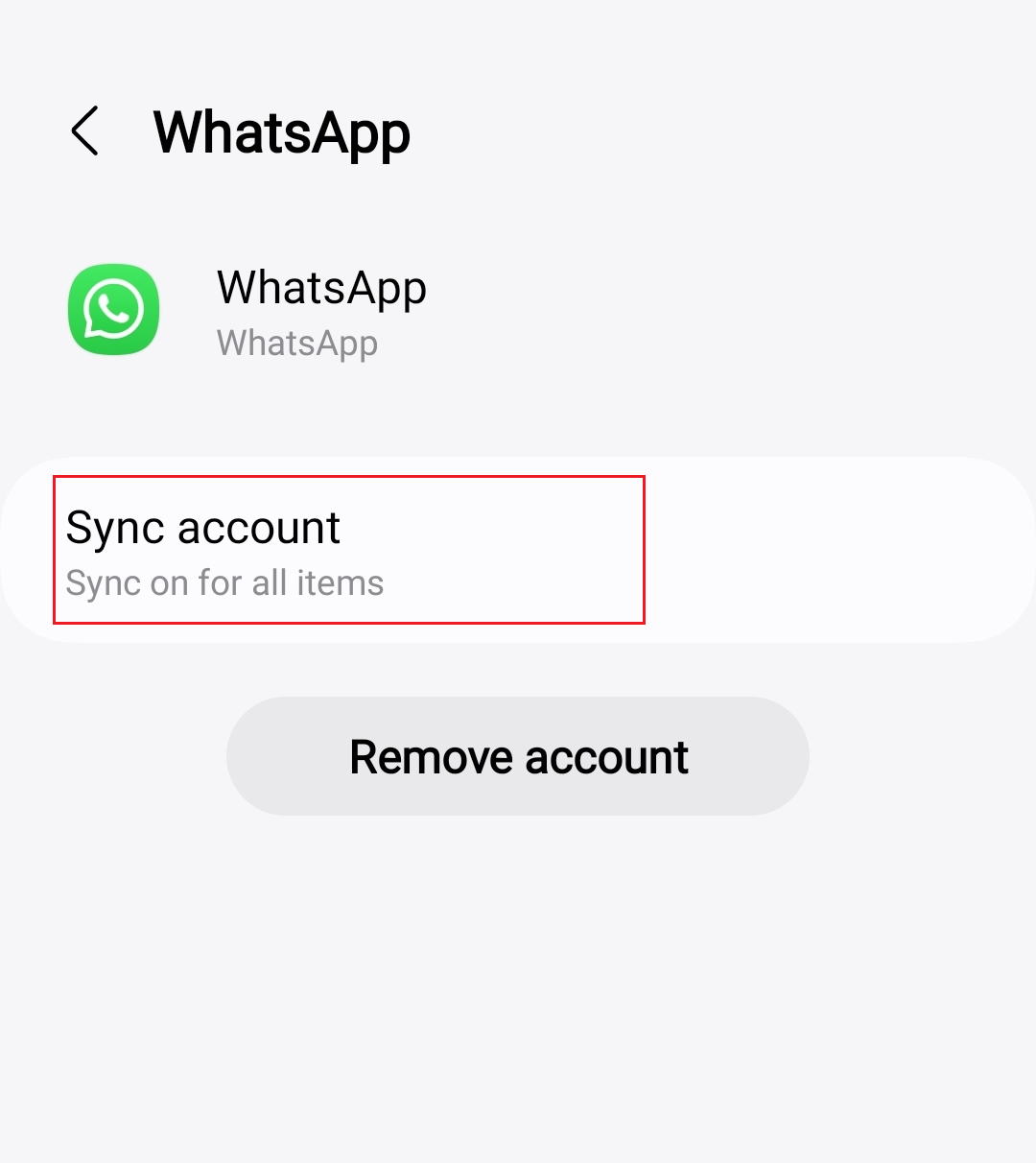
Syncing your WhatsApp account (Android):
- Open your phone’s Settings.
- Tap on Accounts.
- Click WhatsApp.
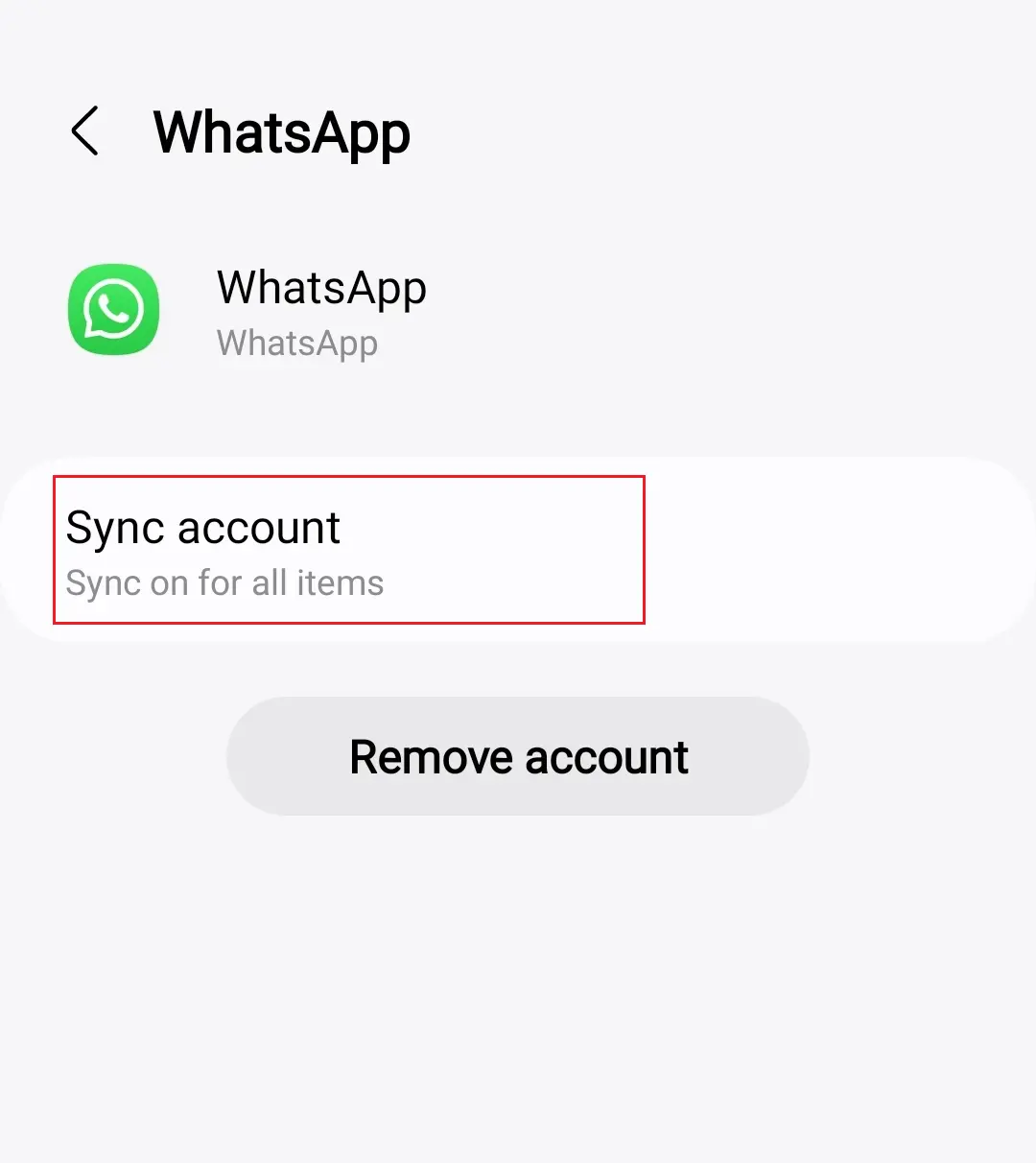
- Select Account syncing.
- Your WhatsApp contacts will now be synced with the contacts saved on your device.
Menu names and locations may vary depending on your Android version or device manufacturer (e.g., Samsung, Xiaomi). If you can’t find the exact options mentioned above, try searching for “Sync accounts” or “Manage accounts” in your device’s settings.
On iOS, WhatsApp doesn’t offer a simple feature for updating contacts in the app. If you’re using iOS, you can open your phone contacts and tap on the contact you couldn’t find in WhatsApp. You should see an option for starting a WhatsApp chat with that user.
Resetting your WhatsApp account
If you’re still missing contacts or if WhatsApp isn’t working, remove the WhatsApp account from your device:
- On an Android device, go to Settings and tap on Accounts.
- Select WhatsApp and tap on Remove account.
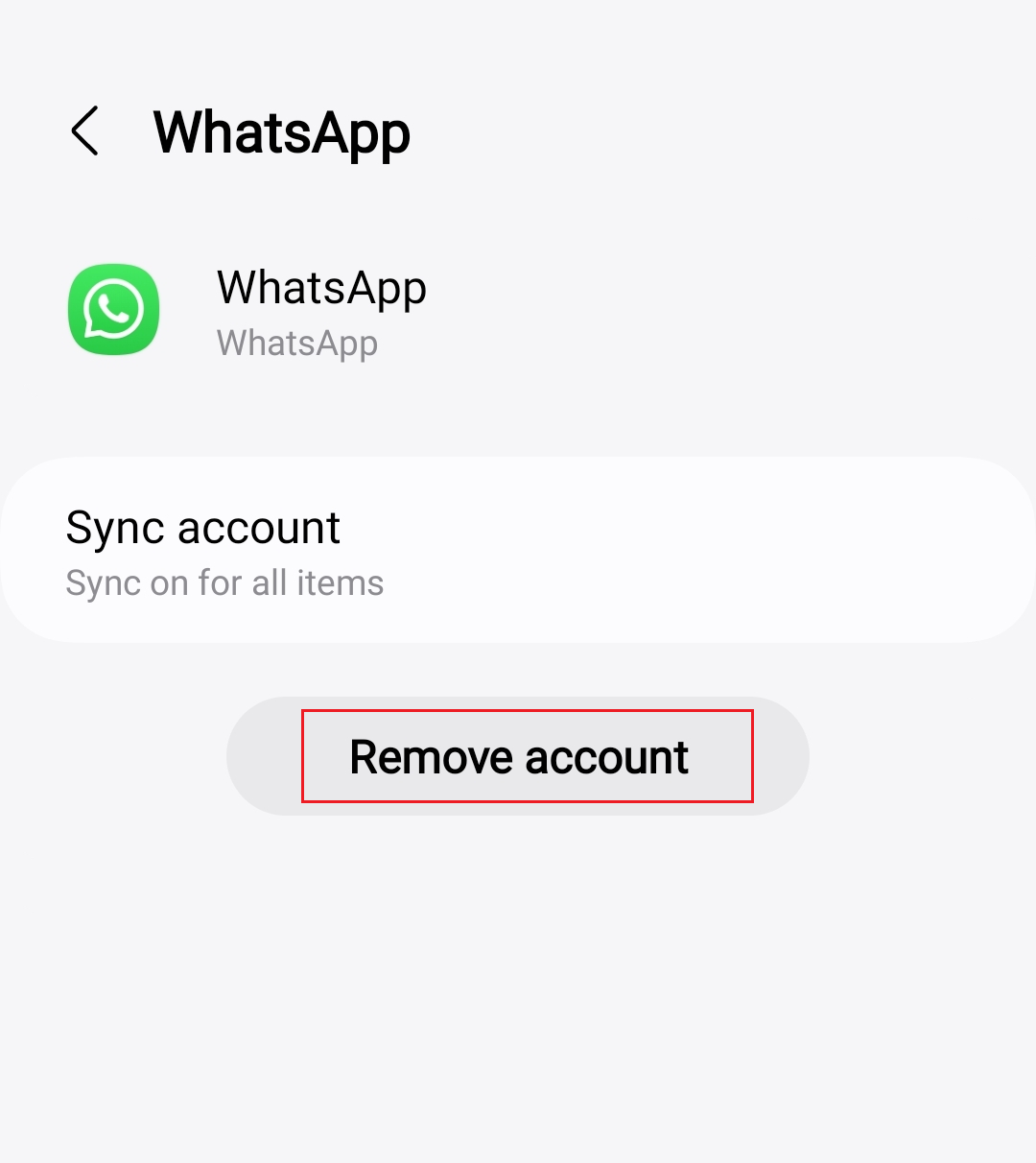
- After restarting the device, you can add your WhatsApp account again under Settings > Accounts > Add account.
- Write perfect emails with optional AI features
- Add credibility to your brand
- Includes domain, spam filter and email forwarding
Checking WhatsApp permissions
Another reason why a contact is missing might be that WhatsApp doesn’t have certain permissions on your device. To access your contacts, the app needs to have the right permissions.
- Open Settings and go to Apps & Notifications.
- Tap on WhatsApp and then select Permissions.
- Go to Contacts and set the permission to Allow.
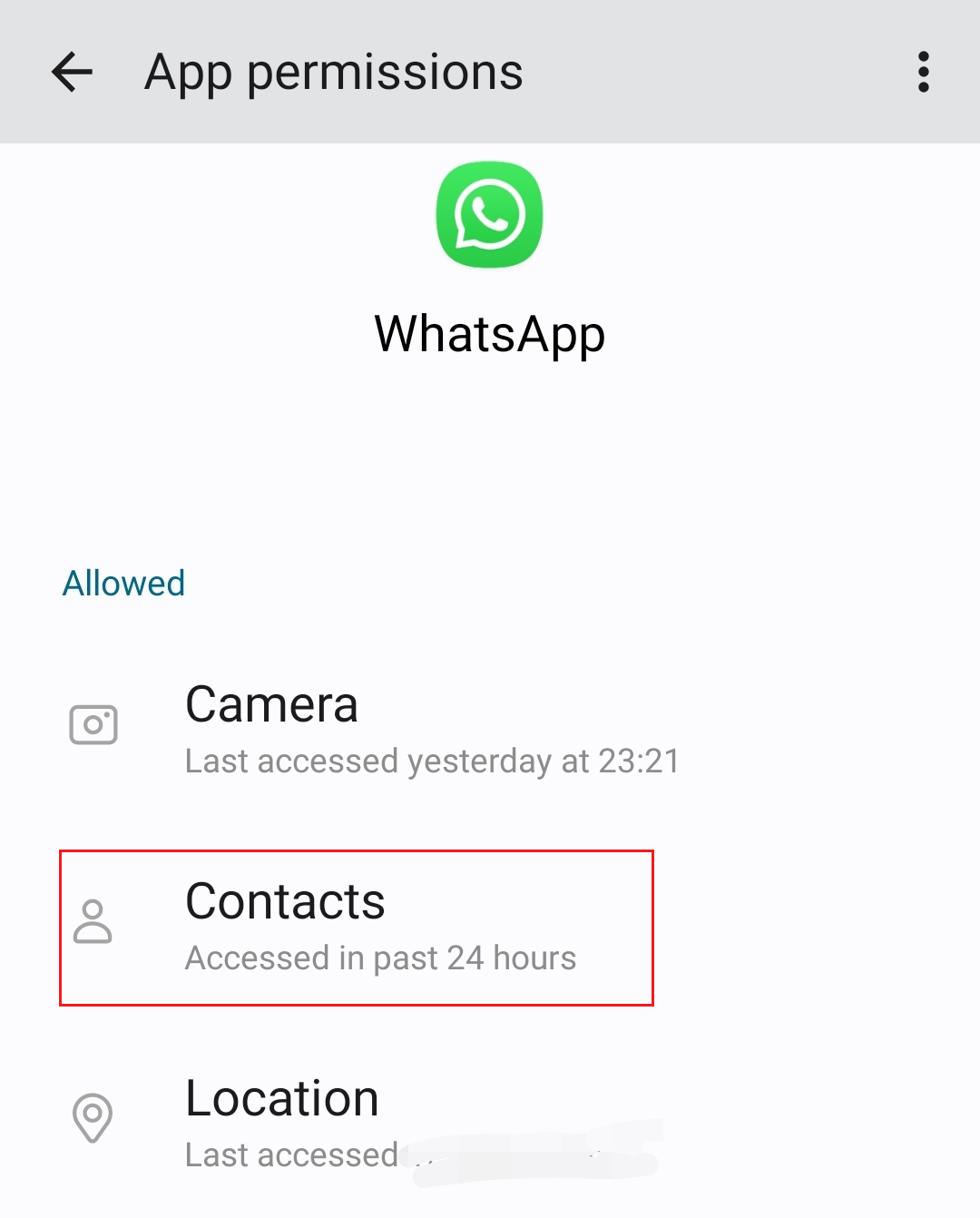
WhatsApp can now access your phone’s contact list and use it to update your contact list in the app.
Last resort: How to recover deleted WhatsApp contacts using your phone
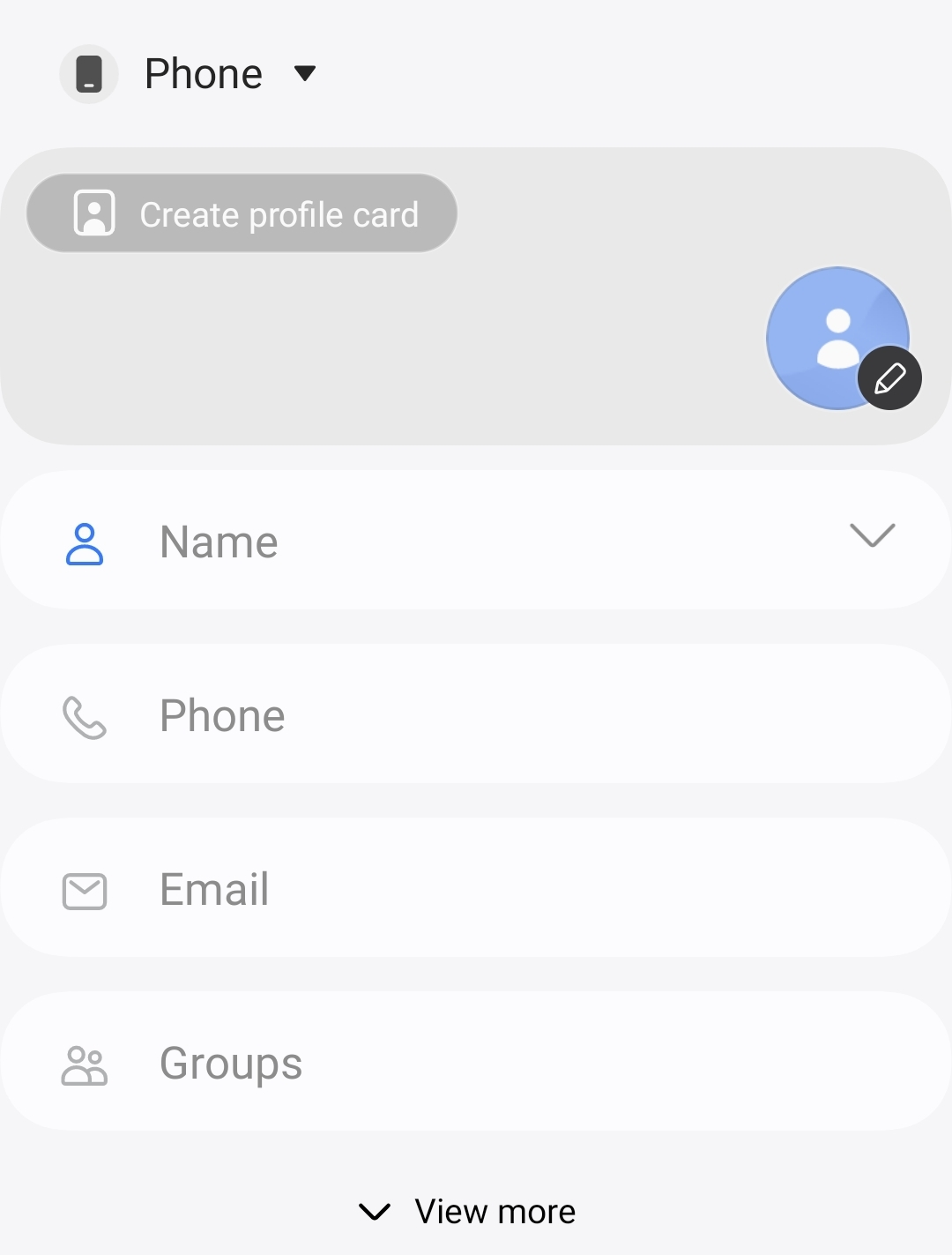
Did you permanently delete a contact that you cannot restore via a backup or sync? The good news is you don’t need to resort to a WhatsApp alternative. You can restore your deleted WhatsApp contacts – both on iPhone and Android. Assuming you still have the name and number of the person in question, create a new contact in the phone app. If you’re using Android you can then update your contacts in WhatsApp. On iOS, you can add the contact from your address book to WhatsApp.
- Regular virus and malware scans
- Automatic backups and simple file recovery