How to uninstall programs on Windows 11

Programs in Windows 11 can be uninstalled through Windows Settings, the Start menu or the Control Panel. You can easily remove unnecessary apps in Windows. However, not all programs can be uninstalled in Windows, as they are essential for the running of the system and your device’s security.
- Simple registration
- Premium TLDs at great prices
- 24/7 personal consultant included
- Free privacy protection for eligible domains
Quick guide: How to uninstall apps on Windows 11
- Use the shortcut [Windows] + [i].
- Open “Apps” > “Apps & features”.
- Select the app or program you wish to uninstall.
- Click on “Uninstall”.
Options to uninstall programs on Windows 11
There are several ways to uninstall apps in Windows 11. The three most common solutions are also suitable for uninstalling programs in Windows 10.
- Apps & features
- Control Panel
- Windows Start menu
“Apps & features” does not list all the system programs on your device. However, you can search for them in Control Panel if you cannot find what you’re looking for. Conversely, you will not find all apps in the Control Panel, so it is a good idea to check in both. Keep in mind that many Windows programs are essential for the operating system. System errors may occur if these programs are uninstalled. If an app or an associated file cannot be deleted, check firstly whether a restart or update can remedy the problem. If uninstalling is not possible, create a Windows 11 backup and reset the system to the previous restore point.
How to uninstall Windows 11 apps
Follow our step-by-step guide to uninstall programs and apps in Windows 11.
About “Apps & Features”
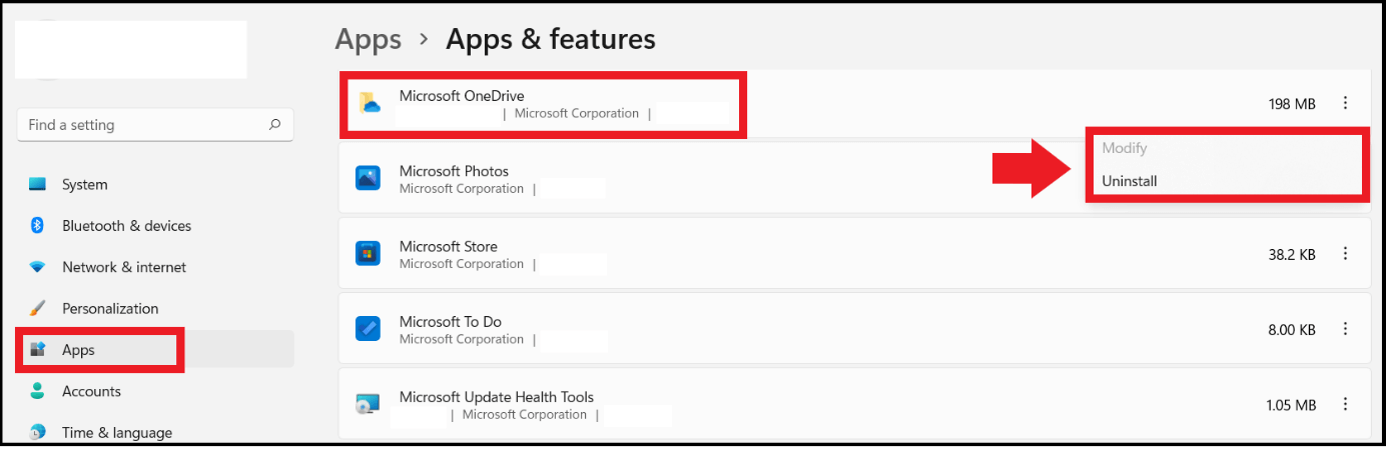
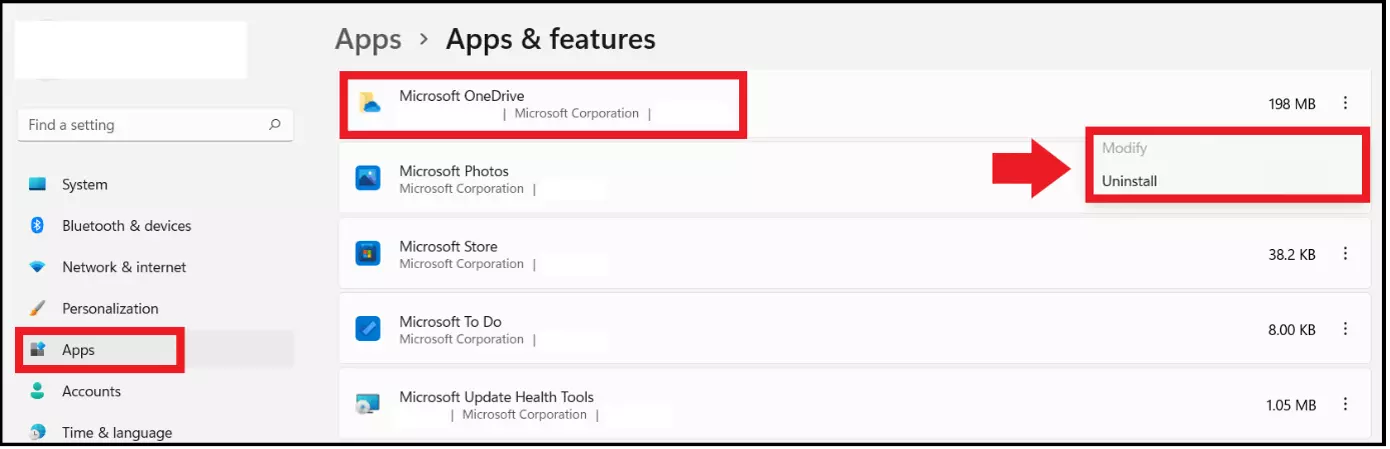
Step 1: Open Windows Settings with the key combination WIN + I. Open “Apps” in the left menu.
Step 2: Click on “Apps & features”.
Step 3: The “App List” with your device’s installed apps and programs is in “Apps & features”. If you do not find the desired system programs in the list, try searching for them in the Control Panel.
Step 4: Click on the three-dot icon next to the app and click on “Uninstall” to carry out the uninstallation. Confirm that you really want to uninstall the app or you may have to log in as an administrator.
About Control Panel
Step 1: The fastest way to access the Control Panel is to use the Windows 11 search function. Click on the magnifying glass icon in the taskbar, type in “Control Panel” into the search box and open the search result.
Step 2: Under “Programs”, click “Uninstall programs”.
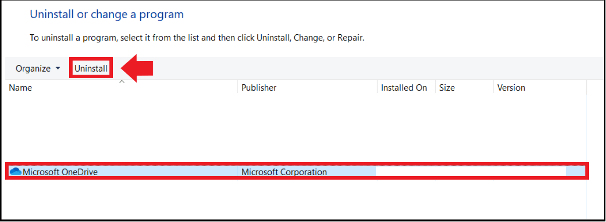
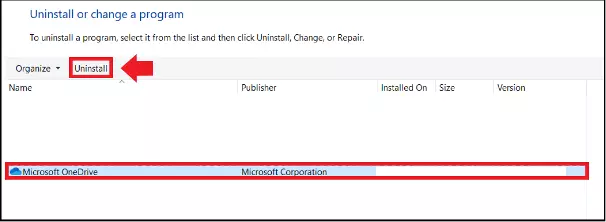
Step 3: An overview of all installed programs on your Windows 11 device will appear. However, remember not all apps will be visible here. Click on the desired program and then on “Uninstall” in the menu bar.
About Windows Start Menu
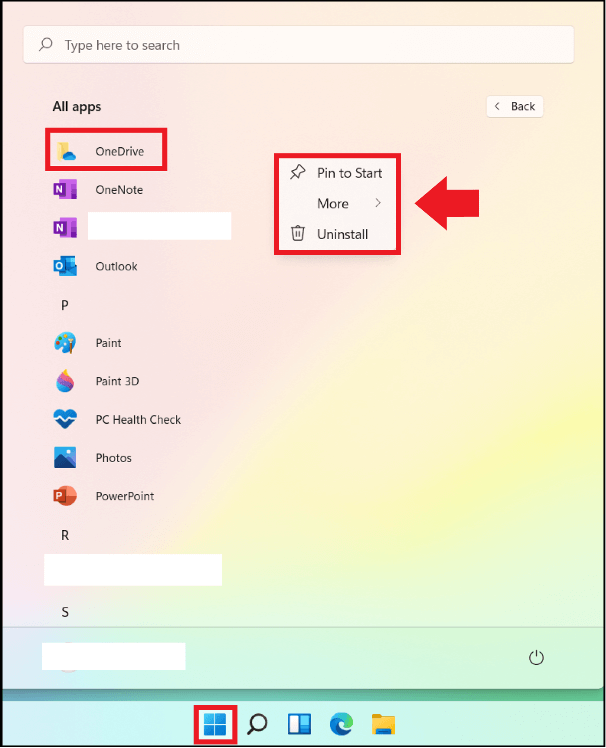
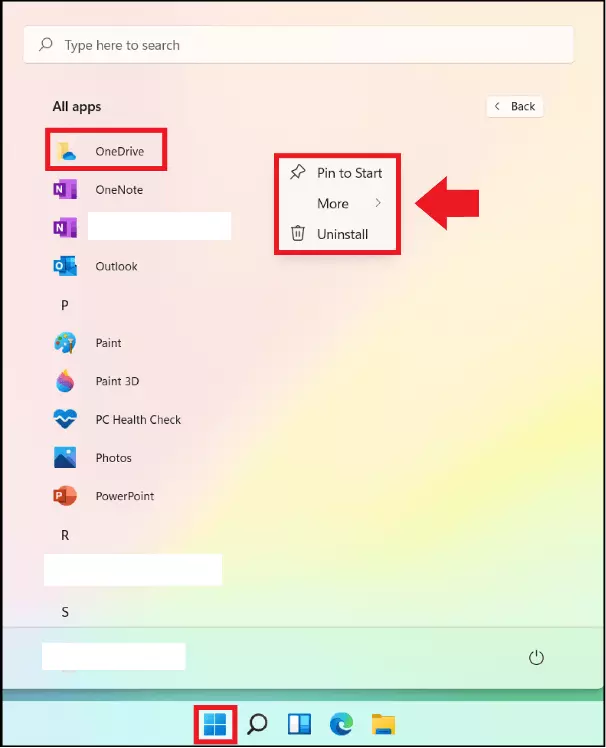
Step 1: You can remove apps quickly using the Windows Start menu. To do so, click the Windows icon at the bottom of the taskbar.
Step 2: Click “All Apps” and find the program in the list of apps or search the app’s name, right-click on the desired app and click “Uninstall”. If you use the search function, you will find the “Uninstall” option under the search result.