

DayZ server: How to host your own DayZ server

Originally released as a mod for the tactical shooter Arma 2, the survival horror game DayZ was officially released in December 2018 after a five-year alpha and beta phase. Since then, players have been able to fight their way through the zombie apocalypse together or fight each other, should the thrill of fighting the zombies lurking everywhere not be enough.
If you want to enjoy the online game with the best possible performance and decide for yourself who can join the game world and which mods can be used in it, you should look into hosting a DayZ server yourself. What are the requirements for this and how exactly does setting up your own DayZ server work?
- KVM based dev servers for developers
- Scalable to enterprise cloud level
- Pay-as-you-go, per-minute billing
DayZ server: Host on your own PC or rent a server?
If you want to explore the game world of DayZ together with your friends, without having your own server you have the choice between the official servers, which are public by default, and the community servers, which are hosted by other users. In both cases, however, you have no influence on which other players can join the server, which mods are used or when the server is online. You can only enjoy these freedoms with your own DayZ server.
If you have a computer with powerful hardware and an excellent Internet connection, you can install and run your own DayZ server on your device. However, as soon as you shut down the PC or the Internet connection is interrupted, the online adventure ends abruptly. Moreover, you cannot run the DayZ client on the same device - so if you want to play along, you need another computer.
If you rent a server from a provider to host a DayZ server instead, you won’t have to worry about aspects such as Internet connection and availability. The functionality of the hardware is guaranteed, and you can focus entirely on setting up and administering the server.
What are the system requirements for a DayZ server?
The system requirements for your own DayZ server depend on how you intend to set up and use the server. Which mods should be allowed and how many players are in the world at the same time? Developer Bohemia basically recommends the following minimum setup for a dedicated server:
- Processor: Intel dual-core 2.4 GHz or AMD dual-core Athlon 2.5 GHz
- RAM: 6 GB RAM
- Storage space: 2.5 gigabytes
For the installation and management of server logs, Bohemia also considers SSD drives as indispensable. As an operating system, you should opt for Windows Server. Native support for Linux systems is not available, which is why you can only set up a DayZ server there by using a workaround (e.g. with Wine).
Since DayZ’s dedicated server software is designed as a single-core application, a CPU setup with high single-core power is also preferable.
When it comes to the topic of power and performance, you will always come across the base comparison shared hosting vs. dedicated hosting when choosing a server. In the linked article, we highlight the advantages and disadvantages of the two hosting approaches.
One aspect that the development team does not address is the broadband requirements of a DayZ server, but this is at least as important to the subsequent gaming experience as the underlying server hardware. Steam publisher Valve has formulated a basic upload guideline of 53.4 Kbit/s per player for other dedicated applications such as the CS:GO server or Rust server, which you can also take as a guide for a DayZ instance without mods, etc.
DayZ server at IONOS: What options do you have?
Particularly when it comes to the latter point of broadband connection, having a provider behind you gives you the confidence of running your DayZ server at the highest level. If you rent your resources from IONOS, for example, a broadband connection of the server with up to 400 Mbit/s is guaranteed - regardless of the server model you choose.
IONOS server models in comparison
IONOS offers the following three categories of servers:
When you choose a cloud server you get access to virtualized resources. How high the performance of this virtual server environment is, depends on the chosen plan, whereby you can increase or decrease the performance at any time. In the cloud server model, you are billed by the minute, so you only pay for the performance that your DayZ server actually uses.
Virtualization is also the underlying concept of IONOS's vServer (also known as Virtual Private Server, or VPS for short). Unlike cloud servers, however, you are dealing with fixed performance setups that are available for a fixed monthly amount. If you want to run the DayZ server continuously, you will make significant savings with this model.
The most suitable, but at the same time the most expensive model for anyone who wants to host a DayZ server is a Dedicated server. With this server variant, you get fixed hardware setups for a fixed monthly price, which are optimal for hosting individual applications like a dedicated server software thanks to strong single-core power.
The server solutions from IONOS are not only of interest for DayZ enthusiasts: The high-quality server hardware also offers the perfect basis to host a free Minecraft server or to run your own LS22 server! The different plans are also suitable for setting up your own Teamspeak server.
Three typical DayZ server scenarios and matching IONOS plans
The three IONOS server models are available in different plans, which differ in price and performance. So, if you want to host a DayZ server with IONOS, you will not only be choosing one of the models, but also a performance package of CPU, memory, and storage.
To ease your decision, we have compiled three possible scenarios for a DayZ server in the following table and assigned the appropriate rates of the three server options.
| Minimum requirements (including operating system) | Recommended vServer | Recommended Cloud Server | Recommended Dedicated server | |
| DayZ server for 2-5 players (standard map without mods) | 2.4 GHz (min. 3 vCores), 8 GB RAM, 40 GB disk space | Virtual Server Cloud XL (VPS XL) | Cloud Server XL | Dedicated server L-16 SSDorDedicated server AR6-32 SSD |
| DayZ server for 6-20 players (individual map/mods) | 2.8 GHz (min. 3 vCores), 12 GB RAM, 60 GB disk space | Virtual Server Cloud RAM L (VPS XL RAM) | Cloud Server RAM XL | Dedicated server L-16 SSDorDedicated server AR6-32 SSD |
| DayZ server for up to 100 players (individual map/mods) | 3.4 GHz (min. 4 vCores), 16 GB RAM, 100 GB disk space | Virtual Server Cloud RAM XXL (VPS XXL RAM) | Cloud Server RAM XL | Dedicated server L-16 SSDorDedicated server AR6-32 SSD |
We have included the resources for the operating system (in this case: Windows Server 2016). Microsoft has formulated the following minimum requirements for this: 1.4 GHz processor (64-bit), 512 MB or 2 GB of RAM (without or with graphical interface, respectively), and 32 GB of hard disk space.
DayZ server hosting: Step-by-step tutorial
Equipped with the appropriate hardware, you can now venture to the server setup and installation of the DayZ server software. In the following tutorial, we’ll walk you through the process step-by-step, using an IONOS server running Windows Server 2016 as a base.
Step 1: Establish a connection to the server
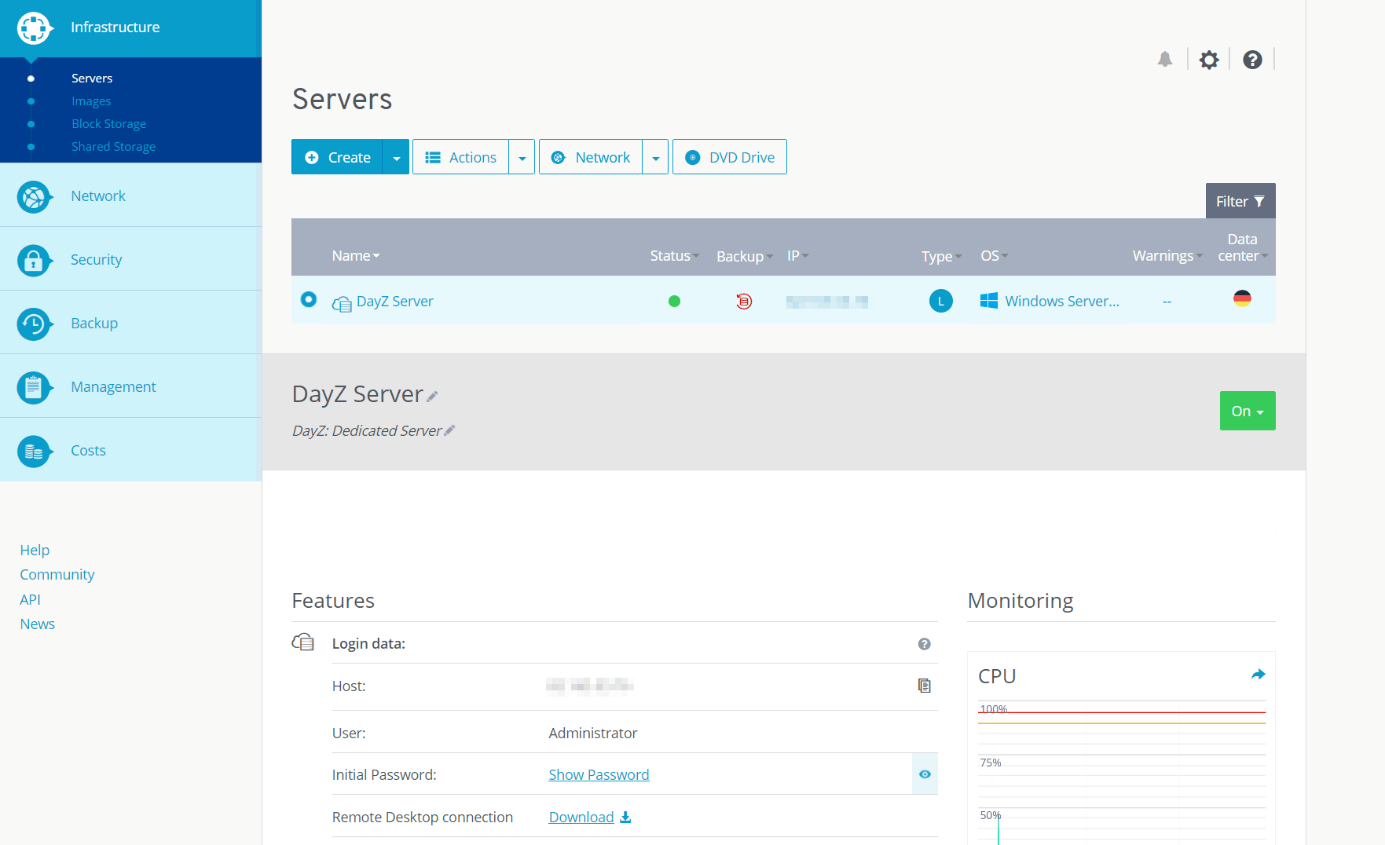
The first step is to establish a remote connection to your server so that you can work with the rented resources. As an IONOS customer, you can set up this connection through the Cloud Panel using the device of your choice. To do this, log in to the Login area with your personal data, call up the “Server & Cloud” section after successful login and select the rented hardware on which you would like to host your DayZ server.
Under “Functions”, the Cloud Panel will show you various information about the server - including login credentials and a download link for setting up the remote connection. Start the configuration by clicking on this link.
 SFIO CRACHOShutterstock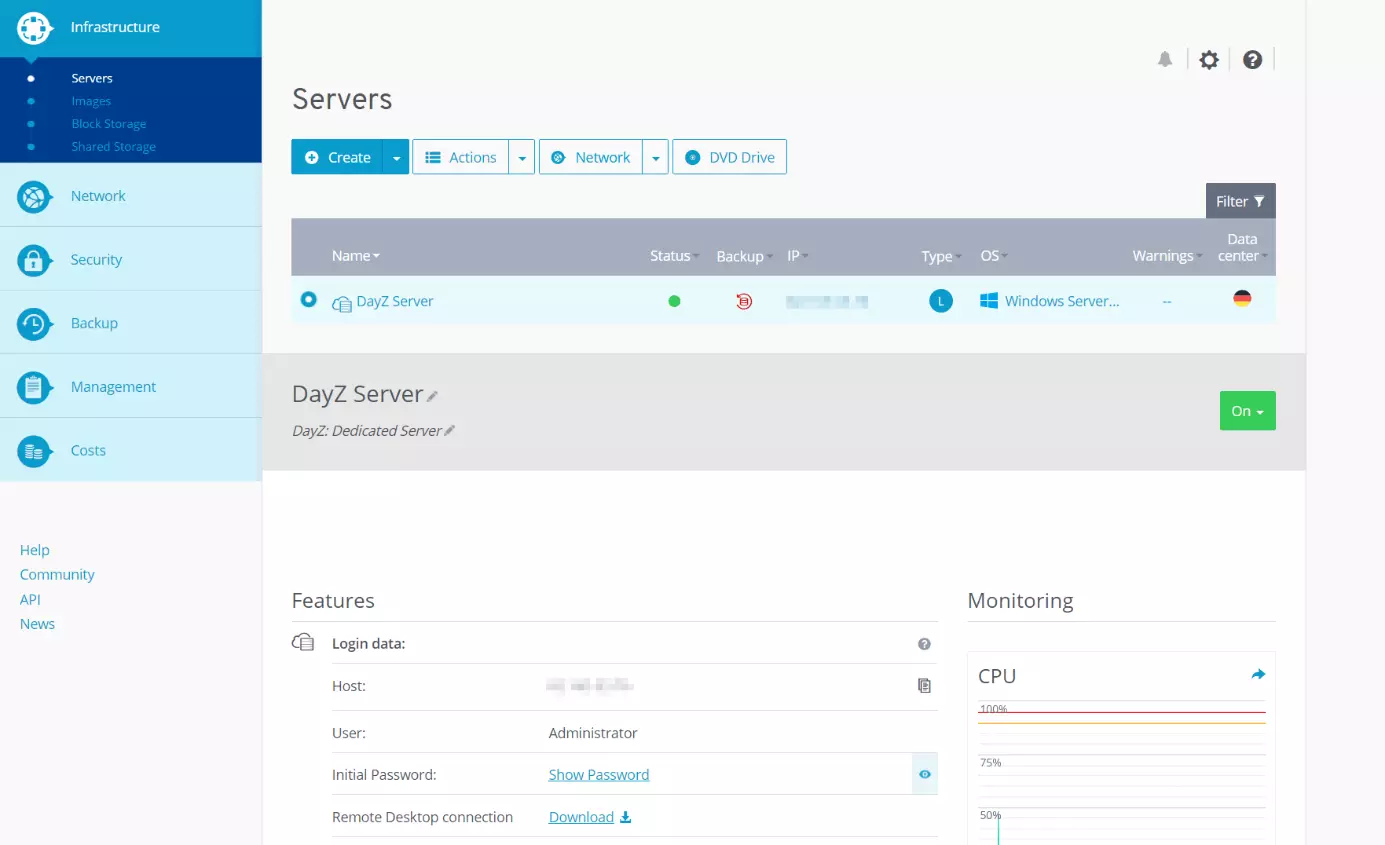
Keep the selected default choice (“Remote desktop connection”) to open the link and confirm it by clicking “OK”. In the following dialog continue with “Connect”.
Enter your credentials for the server by pressing “More options” and “Use another account” and typing in the information. If you have not yet changed your login credentials, you will find your “Initial Password” in the credentials listing in the Cloud Panel.
Since your server’s security certificate is not yet trusted, you will receive a security warning the first time you connect. By clicking on “Yes” you can agree to the remote connection in this case.
Step 2: Install SteamCMD
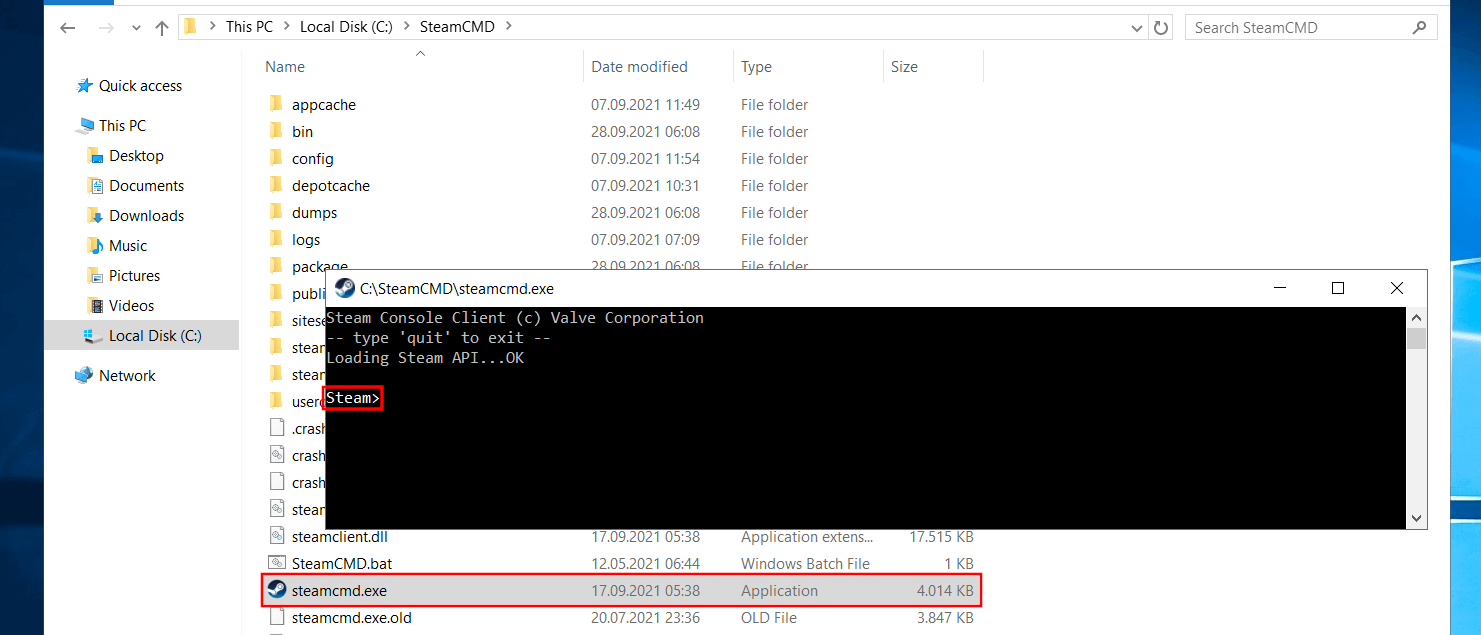
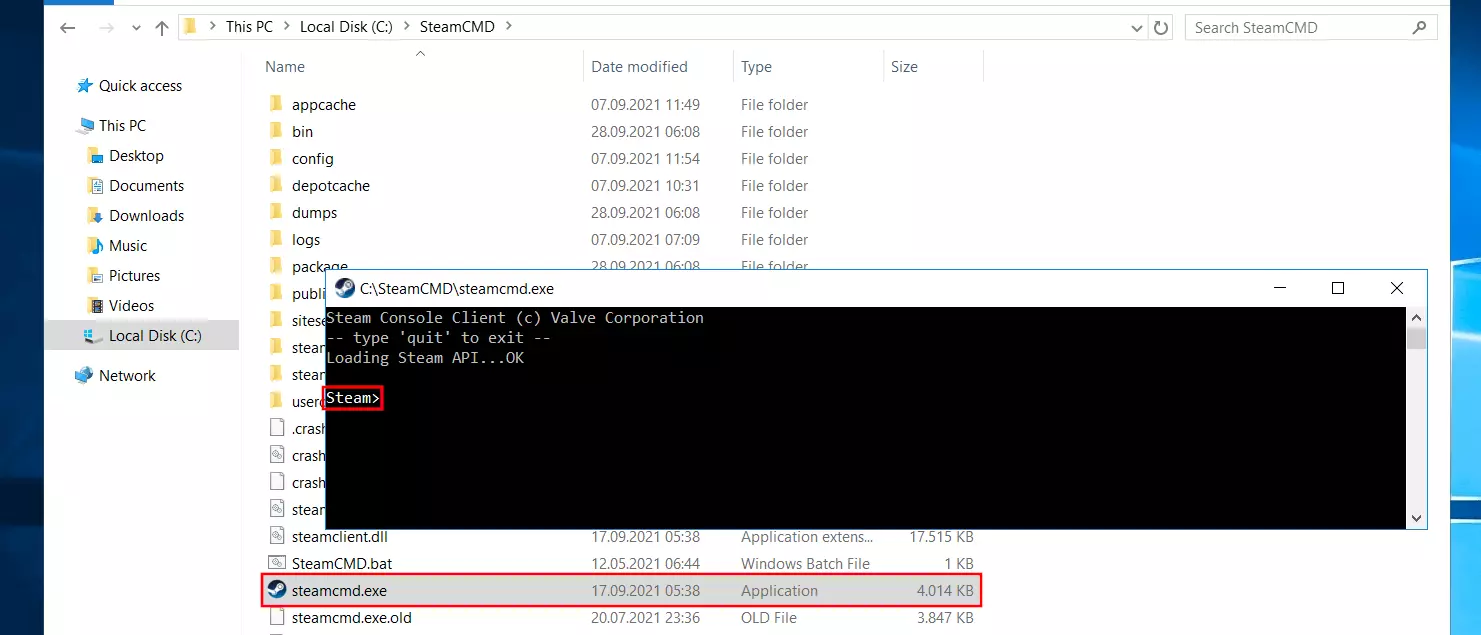
The software for hosting a DayZ server can be obtained and updated via the Steam Console Client or SteamCMD. Installing this tool is therefore next on the agenda. To do this, download the installation files via the following download link and unpack them in any directory on your server - e.g. in C:\SteamCMD.
Double-click on the unzipped steamcmd.exe to run the installation, after which the Windows prompt will present you with the “Steam>” prompt.
Step 3: Install the DayZ Dedicated server
Using the SteamCMD client, you can now obtain and install DayZ’s dedicated server software. For this purpose, first log in to the public Steam servers with your Steam login details:
login usernameIf you have not yet logged in with your Steam account and your device, an authentication check via Steam Guard Code will be performed after logging in to the public Steam servers. You will receive this code by email.
Then create a directory for the server - for example classic C:\dayz-server - by entering and confirming the following command:
force_install_dir C:\dayz-serverUsing the app_update command and the Steam app ID (223350), you will now download the latest version of the DayZ server software:
app_update 223350 validate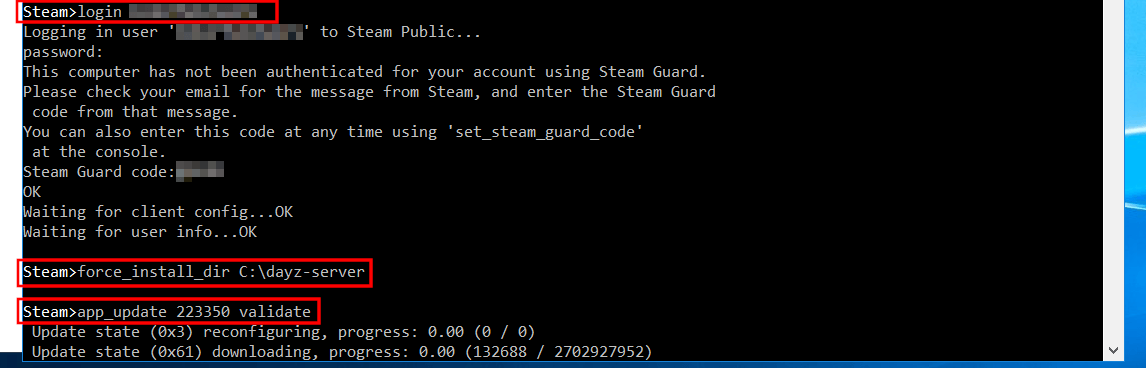
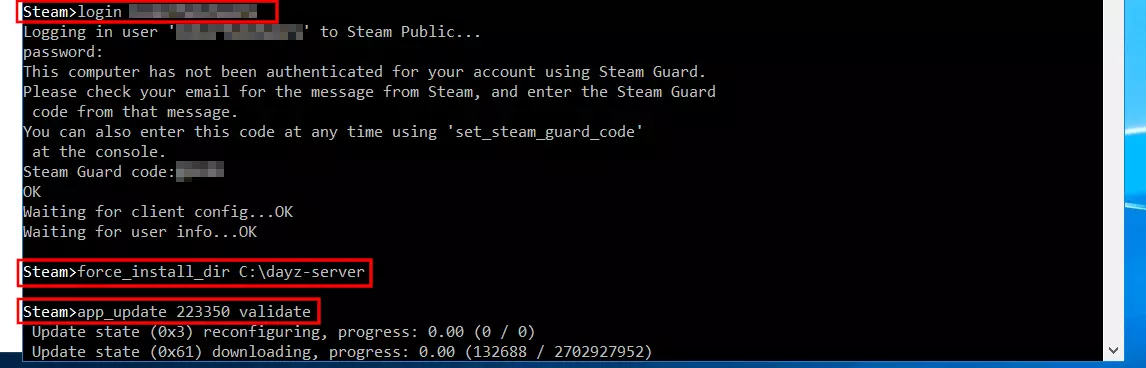
After the installation is complete, log out of the Steam servers by typing “quit”.
If you want to update the DayZ server software at a later time, the command “app_update 223350” will suffice.
Step 4: Enable UDP ports
In order for your DayZ server to be found later by your friends or other users, or to show up in the community server listing, you must also allow communication through the following ports:
- UDP ports 2302-2305 (Game Ports)
- UDP port 27016 (Steam Query Port)
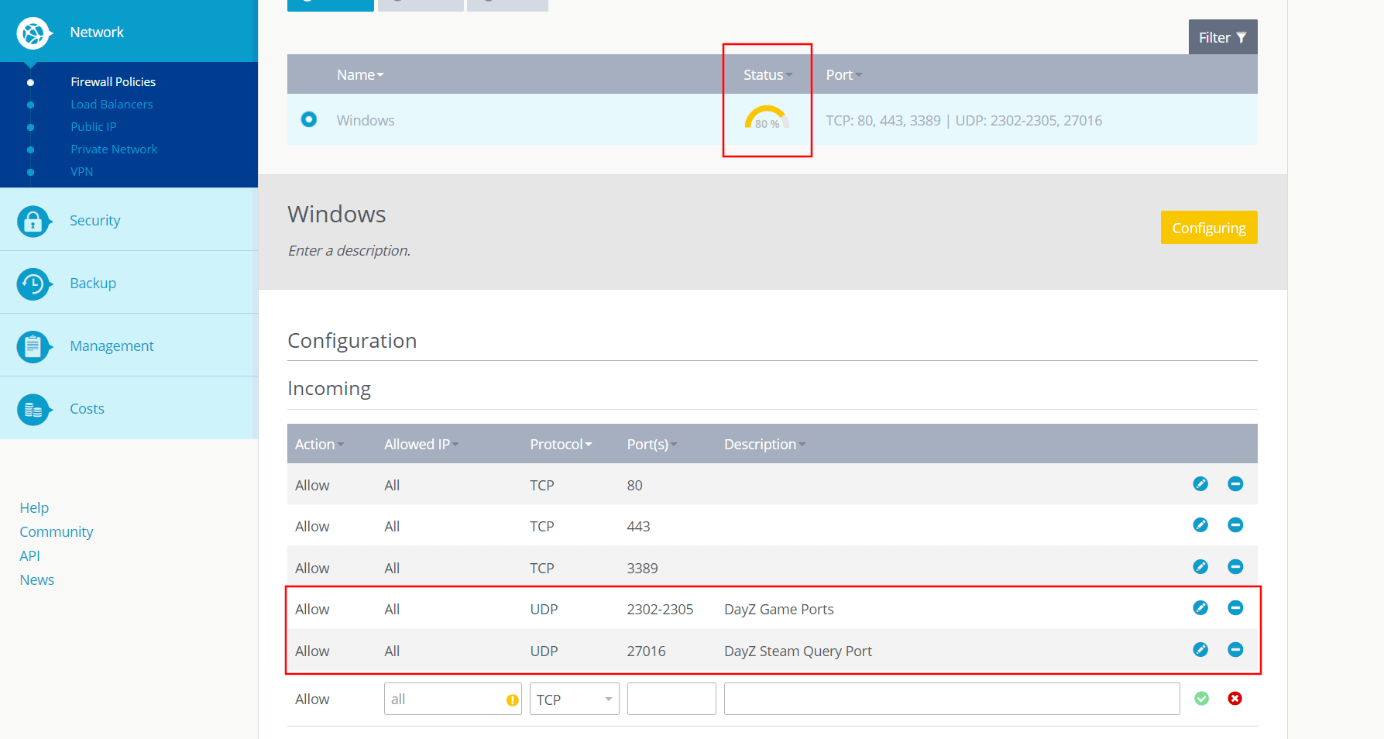
Enabling TCP and UDP ports can be done by IONOS users via the Cloud Panel, just like configuring the remote connection. So log in again and go to the “Server & Cloud” category. Then, in the left side menu, click on “Network” and “Firewall Policies”.
Select your DayZ server or operating system from the list and under “Incoming”, create the rules for the ports mentioned according to the following pattern:
- Allowed IP: all (just leave the field blank for this).
- Protocol: UDP
- Port(s): Port number
- Description: individual description of the port release
After the rules are created, it takes some before the ports are enabled. You can see the progress by the small status graphic at the entry of the operating system.
 Vasin LeeShutterstock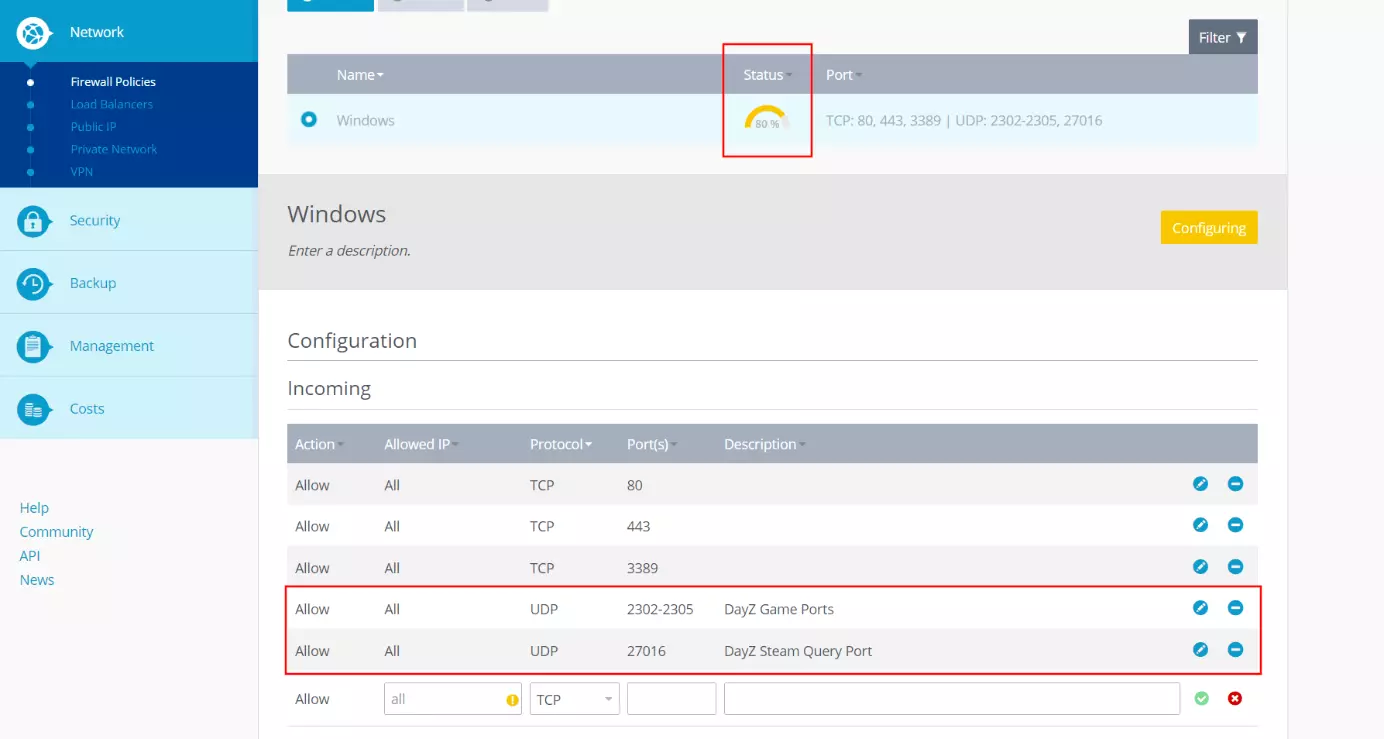
Step 5: Launch the DayZ Server
In the directory of your DayZ server, now create a new batch file for launching the server. For this, choose any editor and paste the following minimal setup for a simple DayZ server:
start DayZServer_x64.exe -config=serverDZ.cfg -port=2302 --dologs -adminlog -netlog -freezecheck -profiles=C:\dayz-server\DayZServerprofilesSave your batch file and double-click it to launch the server. The DayZ Console will open automatically and you will be able to follow the server setup process step by step.
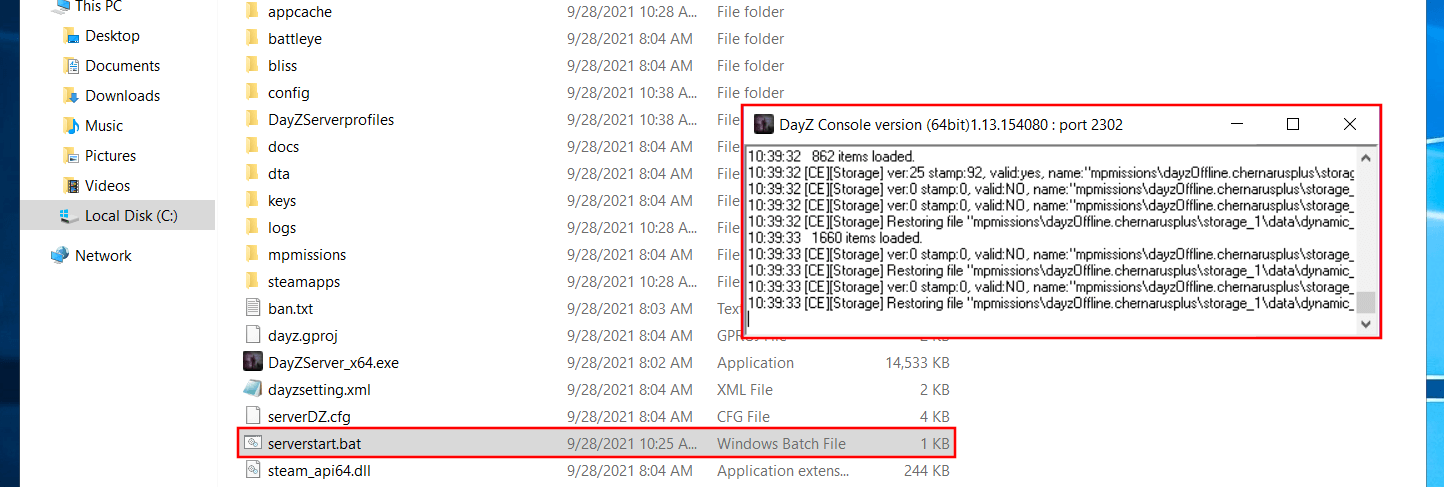
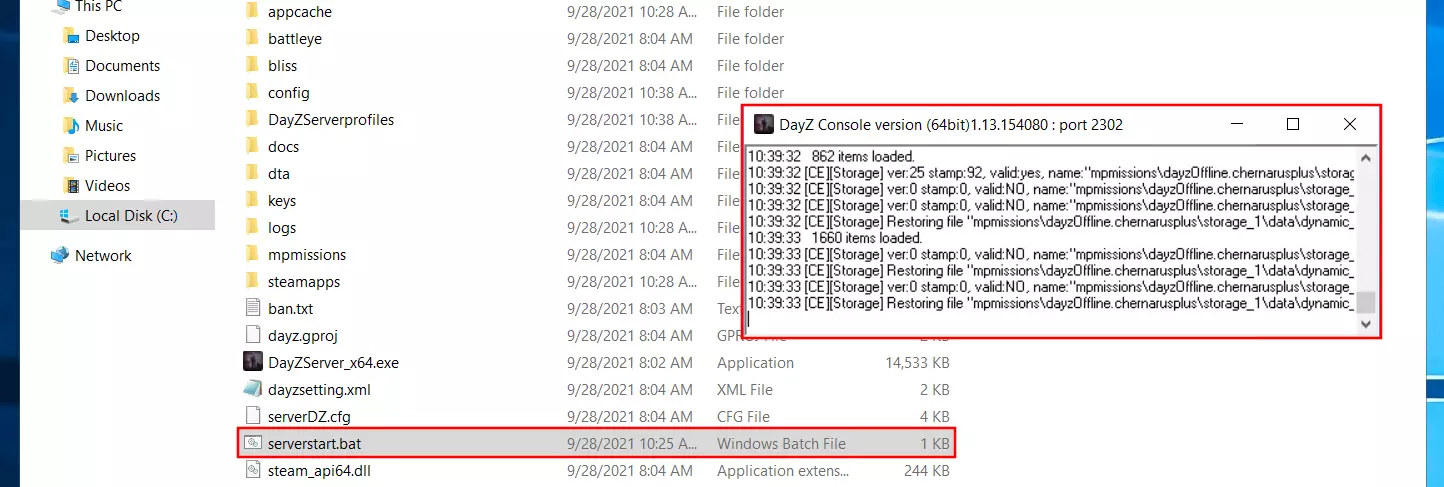
For an exact list of available parameters for the server launch BAT, see the “Launch Parameters” paragraph of the article “DayZ: Server Configuration” in the official community wiki of Bohemia Ineractive. It will also tell you what other configuration options you have for your DayZ server.
Step 6: Join the DayZ server you created.
Once your DayZ server is hosted and running, you and other players can join the world. To do this, you will need to complete the following steps:
- Launch DayZ from your Steam client.
- Go to the “Community” tab.
- Search for the name or IP address of your server.
- Select your DayZ server and press “Play”.
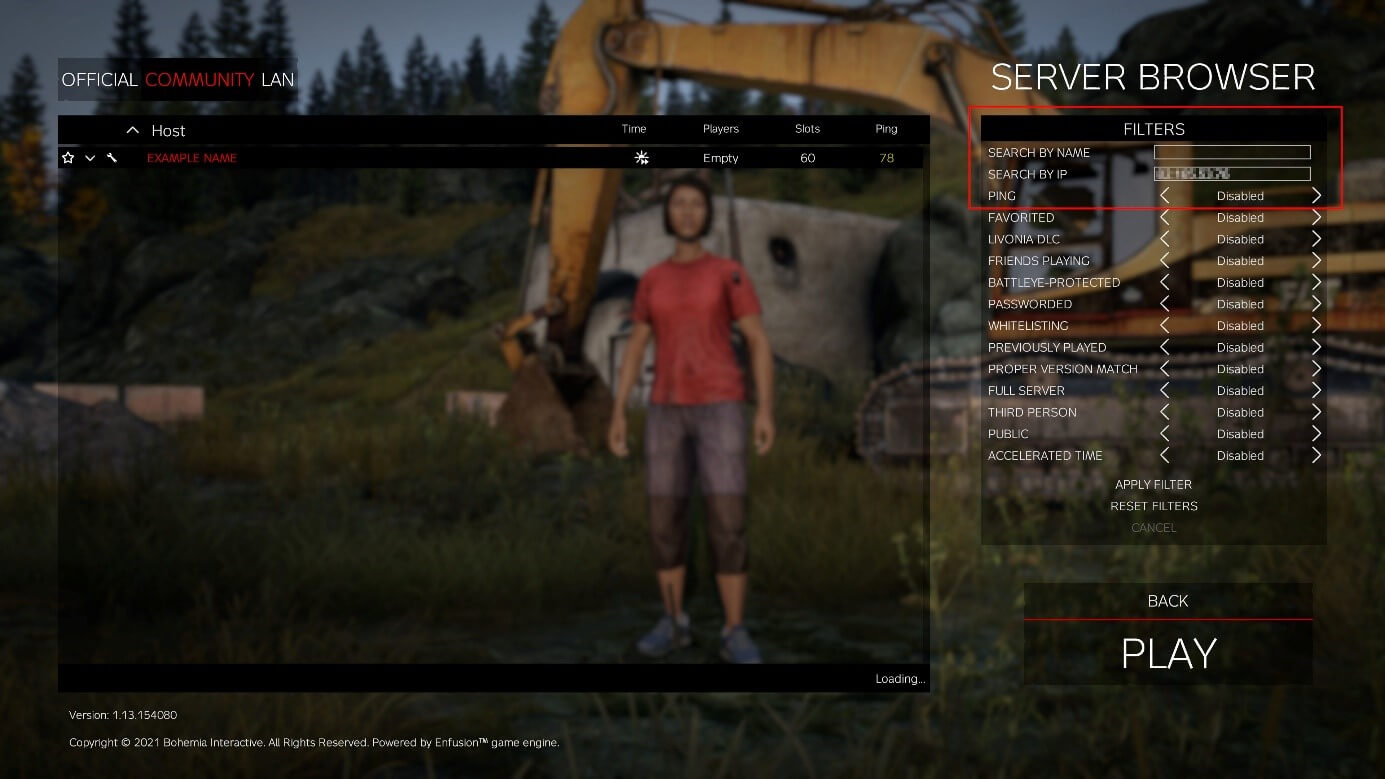
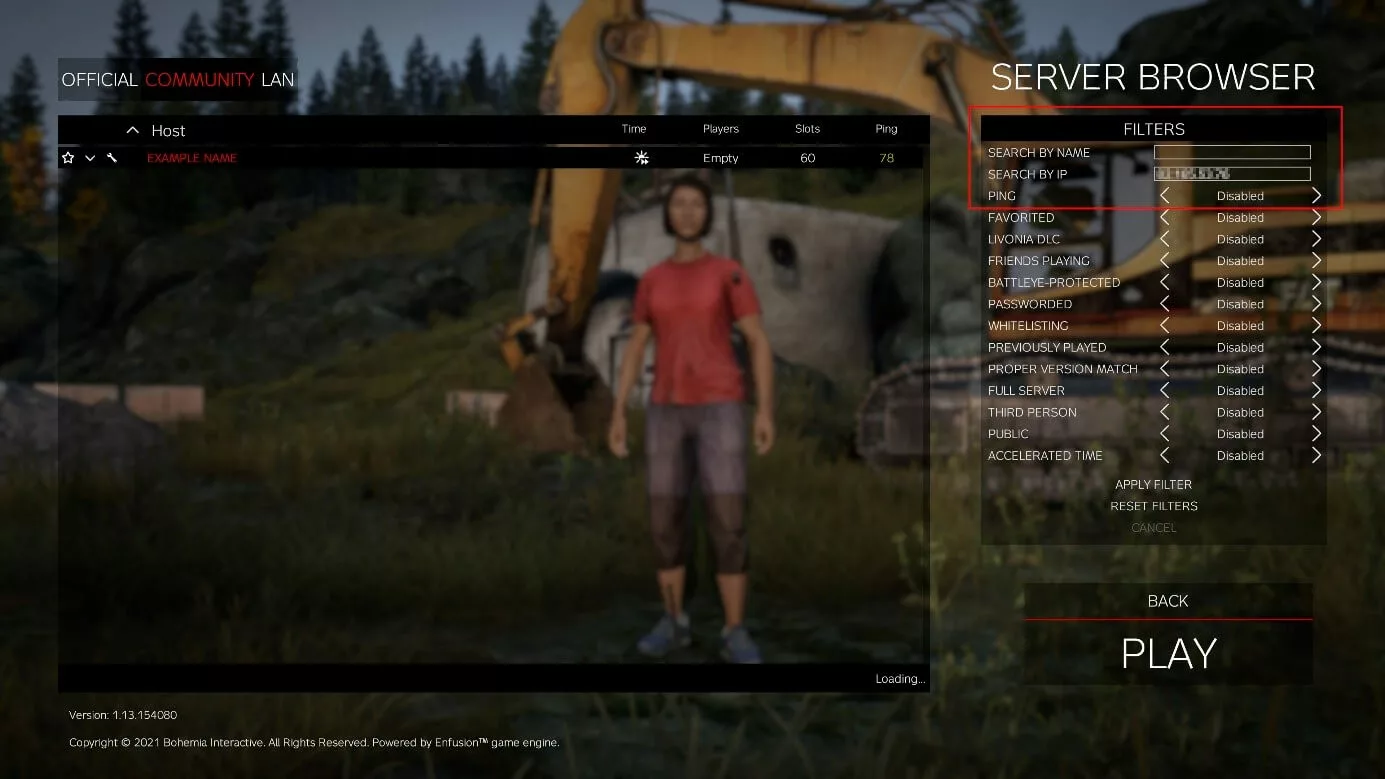
After a short loading time, the adventures on your own DayZ server can finally begin.
Make a statement with your own .gg domain and let the games begin. Register your own .gg domain now with IONOS.