

Understanding and managing Docker container volumes

Docker is open source software for creating and managing containers. With a Docker volume, you can transfer data between containers or back up data from a Docker container.
Requirements
- Docker is installed and running
- You have basic familiarity with Docker’s functionality and Docker commands
The Docker file system
In order to understand Docker volumes, it is important to first understand how the Docker file system works.
A Docker image is a collection of read-only layers. When you launch a container from an image, Docker adds a read-write layer to the top of that stack of read-only layers. Docker calls this the Union File System. Any time a file is changed, Docker makes a copy of the file from the read-only layers up into the top read-write layer. This leaves the original (read-only) file unchanged. When a container is deleted, that top read-write layer is lost. This means that any changes made after the container was launched are now gone.
- Dedicated enterprise hardware
- Configurable hardware equipment
- ISO-certified data centers
How a Docker volume can help
A Docker volume allows data to persist, even when a container is deleted. Volumes are also a convenient way to share data between the host and the container.
Mounting a Docker volume is a good solution if you want to:
- Push data to a Docker container.
- Pull data from a Docker container.
- Share data between Docker containers.
Docker volumes exist outside the Union File System of read-only and read-write layers. The volume is a folder which is shared between the container and the host machine. Volumes can also be shared between containers.
On the IONOS Cloud Server you can choose Docker as a pre-installed cloud app. That way you’ll have access to your applications from anywhere.
The basics of Docker volumes
A Docker volume “lives” outside the container, on the host machine. From the container, the volume acts like a folder which you can use to store and retrieve data. It is simply a mount point to a directory on the host. There are several ways to create and manage Docker volumes. Each method has its own advantages and disadvantages.
Using Docker’s “volume create” command
As of version 1.9.0, which was released 11/3/2015, Docker volumes can now be created and managed using the integrated docker volume command.
The docker volume create command will create a named volume. The name allows you to easily locate and assign Docker volumes to containers.
Step 1: Create and name a volume
To create a Docker volume, use the command:
sudo docker volume create --name [volume name]Step 2: Use volume in Docker container
To launch a container which will use a volume that you have created with docker volume, add the following argument to the docker run command:
-v [volume name]:[container directory]For example, to run a container from the CentOS image named my-volume-test and map the volume data-volume to the container’s /data directory, the command is:
sudo docker run -it --name my-volume-test -v data-volume:/data centos /bin/bashStep 3: List volumes
To list all Docker volumes on the system, use the command:
sudo docker volume lsThis will return a list of all of the Docker volumes which have been created on the host.
Step 4: Inspect a volume
To inspect a named volume, use the command:
sudo docker volume inspect [volume name]This will return information about the volume, including its mount point (the directory where it “lives”) on the host system.
For example, to get more information about data-volume which we created above, the command is:
sudo docker volume inspect data-volumeStep 5: Remove a volume
To remove a named volume, use the command:
sudo docker volume rm [volume name]You will not be able to remove a volume if it is being used by an existing container. Before removing the volume, you will need to stop and delete the container with the commands:
sudo docker stop [container name or ID]
sudo docker rm [container name or ID]
For example, to delete the volume data-volume, we will first need to delete the container my-volume-test, which is using it:
sudo docker stop my-volume-test
sudo docker rm my-volume-test
The volume data-volume can then be deleted with:
sudo docker volume rm data-volumeCreate a Docker volume and specify a host directory
If you want to mount a specific directory on your host machine as a Docker volume on the container, add the following argument to your docker run command:
-v [host directory]:[container directory]For example, to launch a new container and map the /webfiles folder from the host into the /var/www/html folder in the container, the command is:
sudo docker run -it -v /webfiles:/var/www/html centos /bin/bashYou can test this by first creating a directory to use as a Docker volume with the command:
sudo mkdir /hostvolumeAdd a small test file to this directory with the command:
sudo echo "Hello World" >> /hostvolume/host-hello.txtNext, launch a container named my-directory-test and map /hostvolume on the host to /containervolume on the container with the command:
sudo docker run -it --name my-directory-test -v /hostvolume:/containervolume centos /bin/bashOnce you are at the new container's command prompt, list the files in the shared volume with the command:
ls /containervolumeYou will see the host-hello.txt file which we created on the host.
This works in the opposite direction, as well. Files you put into this directory will appear on the host. You can test this from the container by adding another file to the shared volume with the command:
echo "Hello from the container." >> /containervolume/container-hello.txtDetach from the container with [Ctrl] + [P] and [Ctrl] + [Q] and return to the host machine’s command prompt. Once there, list the files in the shared volume on with the command:
sudo ls /hostvolumeYou will see the two test files we created from the host and from the container.
Create a Docker volume using a Dockerfile
Use the following command in a Dockerfile to create a shared storage volume in the container:
VOLUME [volume path]For example, to create a volume /myvolume in the container to be launched from the Dockerfile, the command is:
VOLUME /myvolumeTo test this, begin by creating a file called Dockerfile with the command:
sudo nano DockerfilePut the following content into this file:
# The source image to start with
FROM centos
# Create a volume
VOLUME /dockerfilevolume
Save and exit the file.
Next, build an image named dockerfile-volumetest from this Dockerfile with the command:
sudo docker build -t dockerfile-volumetest .Then launch a container named my-dockerfile-test from this image with the command:
sudo docker run --name my-dockerfile-test -it dockerfile-volumetest /bin/bashOnce you are at the new container's command prompt, create a small test file in the shared volume with the command:
echo "Hello World" >> /dockerfilevolume/dockerfile-container-hello.txtDetach from the container with [Ctrl] + [P] and [Ctrl] + [Q] and return to the host machine’s command prompt.
Next, let’s find the mount point. To do this, use the command:
sudo docker inspect my-dockerfile-testScroll through the output until you find a section titled "Mounts" which will look something like this:
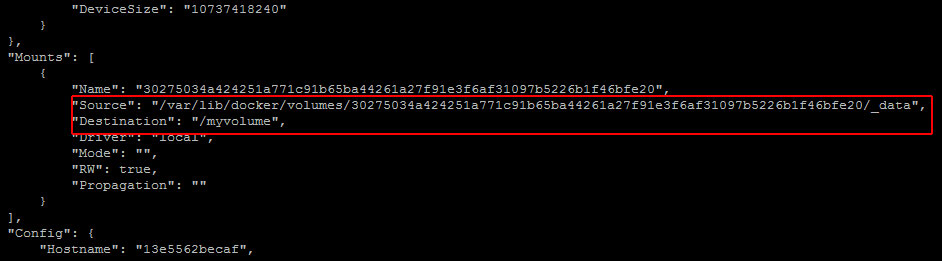
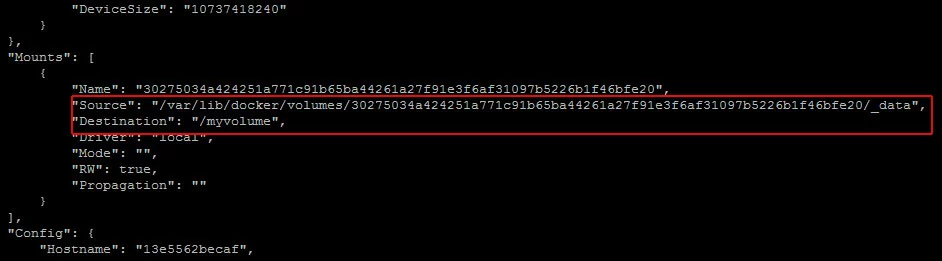
- Source is the directory on the host machine.
- Destination is the folder on the container.
Check the source directory on your host machine. In this example, the command is:
sudo ls /var/lib/docker/volumes/30275034a424251a771c91b65ba44261a27f91e3f6af31097b5226b1f46bfe20/_data/testHere you will find the dockerfile-container-hello.txt file which you created on the container.
Overview of the advantages and disadvantages of the various methods
| Method | Advantages | Disadvantages |
| Command “volume create” | Quick and easy to use | Volume on the host is created automatically by Docker, and can be difficult to locate and use |
| Create Docker volume with directory on the host | Allows you to map a specific host folder to a container | Cannot create a named volume as with docker volume create. Cannot be automated with a Dockerfile |
| Create with Dockerfile | Allows you to automate the process | Cannot create a named volume. Cannot specify a directory on the host |
Sharing Docker volumes between containers
There are many situations where it is useful to share a Docker volume between containers, and several ways to accomplish this goal.
Sharing a Volume on the Host
If you create a volume on the host machine, it can be used by multiple different containers at once. This allows you to share data between containers and the host. For this example we will create a directory on the host, and use that directory as a shared volume between two containers.
Begin by creating a directory to use as a Docker volume with the command:
sudo mkdir /webdataCreate a small test file in this directory with the command:
sudo echo "Hello from the host." >> /webdata/host-hello.txtNext, launch a container named sql-database from the official PostgreSQL image, and map /webdata on the host to /data on the container with the command:
sudo docker run -it --name sql-database -v /webdata:/data postgres /bin/bashOnce you are at the new container’s command prompt, verify that the shared volume is set up correctly with the command:
ls /dataYou will see the host-hello.txt file which we created on the host. Let's add a file to this shared volume with the command:
echo "Hello from the sql-database container." >> /data/sql-hello.txtDetach from the container with [Ctrl] + [P] and [Ctrl] + [Q] and return to the host machine’s command prompt.
Now launch a container named webapp from the official PHP+Apache image, and map /webdata on the host to /var/www/html on the container.
sudo docker run -it --name webapp -v /webdata:/var/www/html php:5.6-apache /bin/bashOnce you are at the new container's command prompt, verify that the shared volume is set up correctly with the command:
ls /var/www/htmlYou will see both the host-hello.txt file which we created on the host, and the sql-hello.txt file we created on the sql-database container.
Let's add a file from this container as well:
echo "Hello from the webapp container." >> /var/www/html/webapp-hello.txtDetach from the container with [Ctrl] + [P] and [Ctrl] + [Q] and return to the host machine’s command prompt. Once on the host machine, you will see all three files listed with the command:
sudo ls /webdataNow that the two containers are sharing a directory which “lives” on the host, data can be transferred instantly between all three locations simply by moving it to that directory.
Using a container as a shared data volume
You can also set up a separate container as a shared data volume. To do this, first create the data container. Then, when you create the container that will be using that data container, add the following argument to the docker run command:
--volumes-from [name or ID of data container]This will work whether or not the target container is running. Docker volumes are never deleted, and persist even after the container has been stopped.
For this example, we will create a data container called data-storage which will serve as the data volume, and two other containers that share it as a storage volume.
First, launch the data-storage container from the official CentOS 7 image:
sudo docker run -it -v /shared-data --name data-storage centos /bin/bashThen add a small file to the /shared-data folder:
echo "Hello from the data-storage container." >> /shared-data/data-storage-hello.txtDetach from the container with [Ctrl] + [P] and [Ctrl] + [Q] and return to the host machine’s command prompt.
Now launch the app container from the official Python image and mount the data-storage container as a volume:
sudo docker run -it --name app --volumes-from data-storage python /bin/bashList the files in the shared volume with the command:
ls /shared-dataAs you can see, the /shared-data folder has been mounted from the /shared-data folder on the data-storage container, and contains the data-storage-hello.txt file.
Let’s add one from this container:
echo "Hello from the app container." >> /shared-data/app-hello.txtDetach from the container with [Ctrl] + [P] and [Ctrl] + [Q] and return to the host machine’s command prompt.
Finally, launch the web container from the official Apache image and mount the data-storage container as a volume:
sudo docker run -it --name web --volumes-from data-storage httpd /bin/bashList the files in the shared volume with the command:
ls /shared-dataYou will see the files we created on the data-storage and app containers listed here.
- Dedicated enterprise hardware
- Configurable hardware equipment
- ISO-certified data centers
Mounting a volume as read-only
Throughout this guide we have been mounting volumes with the default read-write access. If you want to restrict a container to having read-only access to a volume, simply add :ro to the container volume specified in the -v statement:
docker run -v /directory:/path:roThis can be useful for security purposes, or when you want to ensure that the data in a particular volume is safeguarded against being accidentally overwritten or deleted by another container.
For example, begin by creating a volume on the host named limited-access with the command:
sudo docker volume create --name limited-accessThen run a container from the CentOS image named allowed-to-write and map the volume limited-access as a normal (read-write) volume:
sudo docker run -it --name allowed-to-write -v limited-access:/data centos /bin/bashOnce you are at this container's command prompt, create a test file with the command:
echo "Hello from the container that is allowed to write." >> /data/hello.txtDetach from the container with [Ctrl] + [P] and [Ctrl] + [Q] and return to the host machine’s command prompt.
Next, run a container from the CentOS image named not-allowed-to-write and map the volume limited-access as a read-only volume:
sudo docker run -it --name not-allowed-to-write -v limited-access:/data:ro centos /bin/bashIf you attempt to create a test file in the shared volume with a command such as this
echo "Hello from the container that is not allowed to write." >> /data/no-access.txtyou will receive an error which explains that this container does not have write access to that directory:
bash: /data/no-access.txt: Read-only file system