

How to set up your own Path of Titans server

If you want your own adventures with individual settings and mods for new dinosaurs and maps, then hosting your own server is the way to go. If you have access to the right hardware, you can install the server files via Alderon’s handy in-house command line tool.
- KVM based dev servers for developers
- Scalable to enterprise cloud level
- Pay-as-you-go, per-minute billing
What are Path of Titans server hosting requirements?
If you want to host your own Path of Titans (PoT) server, it is recommended that you rent external hardware from a hosting provider to do this. You can also run the server application on your own device if you want, but this is not optimal for a couple of reasons. Firstly, the Path of Titans server is only online when your computer is running, and you have the application open. The other reason is that the broadband connection on most home networks isn’t enough to guarantee smooth and stable gameplay.
The specific hardware requirements depend heavily on how many players you want to play the MMO with and how many mods you want to use. It is also worth keeping in mind the requirements of the OS you are using. The following data is a rough guide:
- Processor (CPU): 2-4 players: min. 3 GHz (2 cores); 4+ players: min. 3.6 GHz (4 cores)
- RAM: 2-4 players: min. 4 gigabytes; 4+ players: min. 6 gigabytes
- Hard disk space: min. 30 gigabytes
Do you want your Path of Titans Server to be accessible via an individual domain instead of the IP address? You can register your own domain through IONOS and pair it with the server. The new address can be used as a TeamSpeak-Server if you want to host the communication tool in parallel on your server
Which server options does IONOS offer?
Server hosting can be found in the portfolio of many different providers. As a rule, there are not only several performance plans, but also different types of servers. At IONOS, you have the choice between the following three variants:
- vServer: With a vServer from IONOS you get access to fully virtualized hardware resources. You pay a fixed monthly price for this.
- Cloud Server: The IONOS Cloud Servers are also based on fully virtualized server resources. However, billing here is on a per-minute basis.
- Dedicated Server: A Dedicated Server from IONOS offers you dedicated and exclusive enterprise hardware.
With both vServers and Cloud Servers, you only rent virtualized server power. However, this has no influence on availability and performance, with an IONOS guarantee of 99.9 percent for all customers of both models. The biggest difference between the two models is the billing method. With a vServer, you pay the agreed fixed costs at the end of the month; with a cloud server, you are only billed for the service that you have actually used.
The dedicated server model offers an alternative that relies entirely on dedicated hardware. However, the particularly powerful setups also have their price.
IONOS server plans and Path of Titans use cases
The right IONOS server model and plan depends on the way you want to shape your multiplayer experience in Path of Titans. Two decisive factors are the number of players as well as how accessible your PoT server should be. We have summarized three possible scenarios below and assigned the appropriate IONOS packages to them.
| Path of Titans: server scenario | Recommended IONOS server |
| 2–4 players, permanently online | VPS L |
| 5–12 players, permanently online | VPS XL |
| > 12 players (up to 200), continually online | Dedicated Server AR6-32 SSD |
Try out your VPS for 30 days. If you're not satisfied, you get your money back.
A step-by-step guide of creating your Path of Titans server
Once you have decided on a server, you can start setting up your PoT server. In the following instructions we show the individual steps as an example for IONOS customers (vServer, Cloud Server, Dedicated). Windows Server is used as the operating system and the server application is installed via Alderon Games Cmd, the command line client of Alderon Game.
Step 1: Establish connection with the server
To install Path of Titans or the game’s server application, you first need to set up and establish a remote connection to the rented server hardware.
As an IONOS customer, you can configure the remote connection to your server via the IONOS Cloud Panel. Login and carry out the following steps.
- Go to the “Server & Cloud” section.
- Click on the rented server entry.
- Press the download link at the “Remote Desktop Connection” entry.
- Start the downloaded file with the suggested option “Open with Remote Desktop Connection”.
- Confirm the security message by clicking “Connect”.
- Select “More options” and “Use another account” and type in the login details for your server.
- If this is the first time you’re connecting, finish by rating the server’s security certificate as trusted.
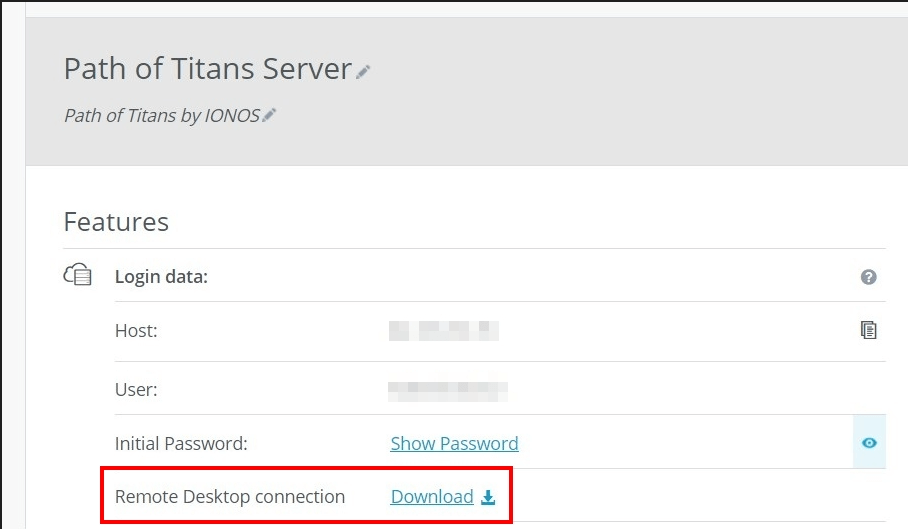
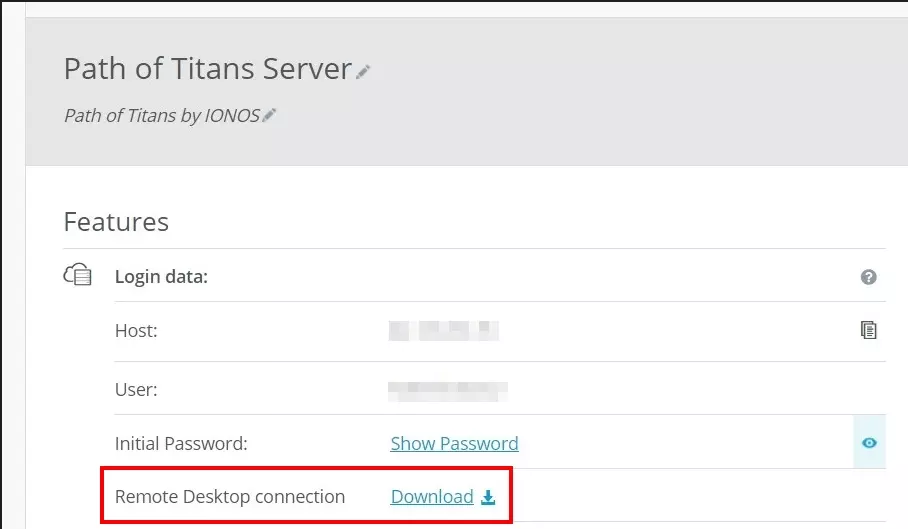
The login data for your server can also be found in the overview of your server in the IONOS Cloud Panel. These are the two entries “User” and “Initial password” (found under “Access data”).
Step 2: Download Alderon Games Cmd
Once you connect to the server, you can download the command line tool Alderon Games Cmd from it. Click on the Download link to get it.
All download links for different platforms can be found on the official GitHubdirectory of Alderon Games.
Create a directory for the Path of Titans server and copy the downloaded .exe-file into this folder.
Step 3: Create authentication token and server GUID
Both Alderon Games Cmd and the Path of Titans server can only be run after user authentication on Alderon Games’ servers. Generate the authentication token as follows:
- Load the PoT hosting token page.
- Login to your user account
- Klick on the “Generate new token” button.
- Save the token by copy and pasting it into a document of your choice.
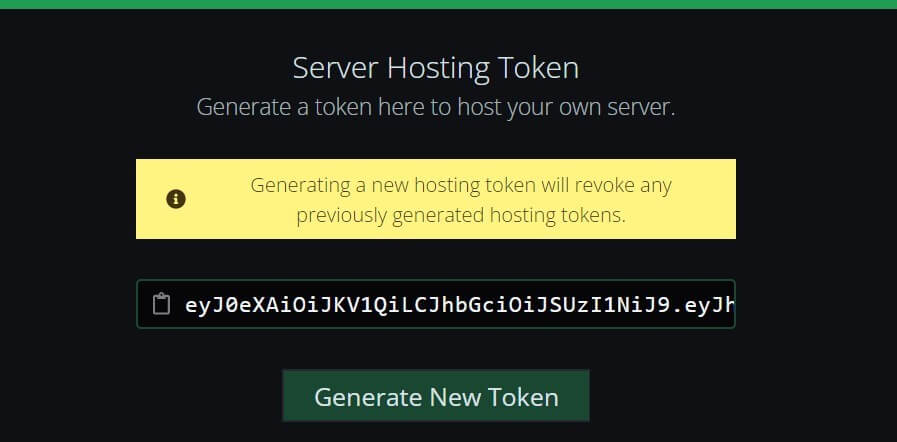
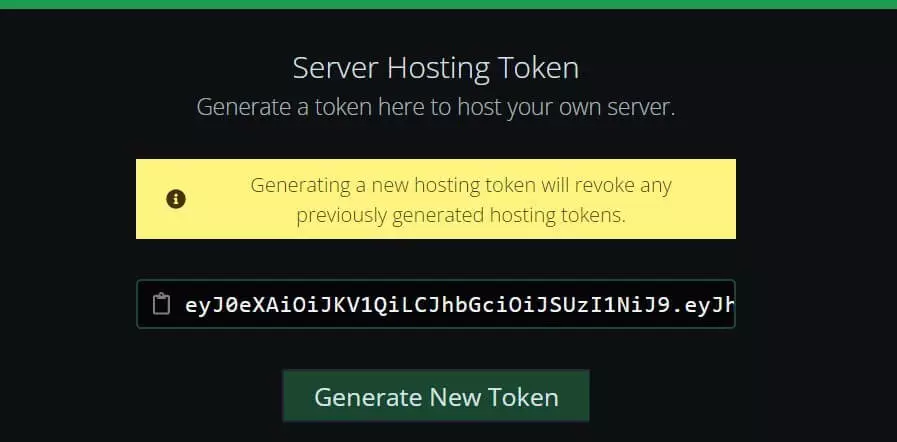
Additionally, you will need a GUID (Globally Unique Identifier) for your Path of Titans server. The “globally unique identifier” is a 128-bit string consisting of digits (0-9), hyphens, and letters (a-f). The PoT developers suggest the following search query on DuckDuckGo. Save the random string somewhere for later use.


Step 4: Install Path of Titans server application
Using the generated codes, you can now download and install the PoT server application. To do this, create a new file named update.bat in the first step and open it (right-click -> “Edit”).
Then copy the following lines into the file, specifying the previously copied token and GUID and the desired installation directory (between the quotes):
SET BETA_BRANCH="production"
SET AG_AUTH_TOKEN="generated authentication token"
SET INSTALL_DIR="installation directory"
SET SERVER_GUID="generated GUID"
SET DATABASE="Local"
SET PORT=7777
:Run
echo (%time%) Updating Server Files
%INSTALL_DIR%\AlderonGamesCmd-Win64.exe --game path-of-titans --server true --beta-branch %BETA_BRANCH% --auth-token %AG_AUTH_TOKEN% --install-dir %INSTALL_DIR%
Save the file and then run it by double-clicking on it. Now the server application is installed via the command prompt.
If you run the created update.bat again later you should automatically check if there are new updates for your Path of Titans server.
Step 5: Share server port 7777
In order for the server to be accessible to you and your fellow players, you need to release port 7777, which has already been marked in the update.bat. You can customize the firewall settings for your server at IONOS in the Cloud Panel:
- After logging in, go to the “Server & Cloud” category.
- Select the server.
- In the left side menu, click “Network” and “Firewall Policies” one by one.
- Add a new rule for TCP port 7777 under “Incoming” and save it by clicking “Add Rule”.
Step 6: Server configuration
Path of Titans offers you numerous options for configuring your own server. All settings have to be done in the game.ini file, which is not included in the download of the server software. To create the configuration file, an initial start of the server is required. To do this, run the PathOfTitansServer-Win64-Shipping.exe file (located at: .\PathOfTitans\Binaries\Win64).
Terminate the server by closing the process if necessary via task manager. Afterwards, you should find the configuration file in the newly generated .\Saved\Config\WindowsServer\ folder. Open the file and insert the following header first:
[/Script/PathOfTitans.IGameSession]Then you can insert parameters such as the server name or the desired password. One line must be used per parameter in the game.ini file. A detailed list of the available configuration options is provided in the GitHub entry “Server Configurations Options”. The page also provides an example startup configuration for you to use as a guide.
Step 7: Start PoT server with command line
Now open the command prompt and change to the directory of the server startup file with the following command (the directory name that comes first must be adjusted accordingly):
cd C:\Path of Titans Server\PathOfTitans\Binaries\Win64In the directory, execute the following command to start your “Path of Titans” server. You also need to replace the placeholder with the codes you created in step 3 in the appropriate places:
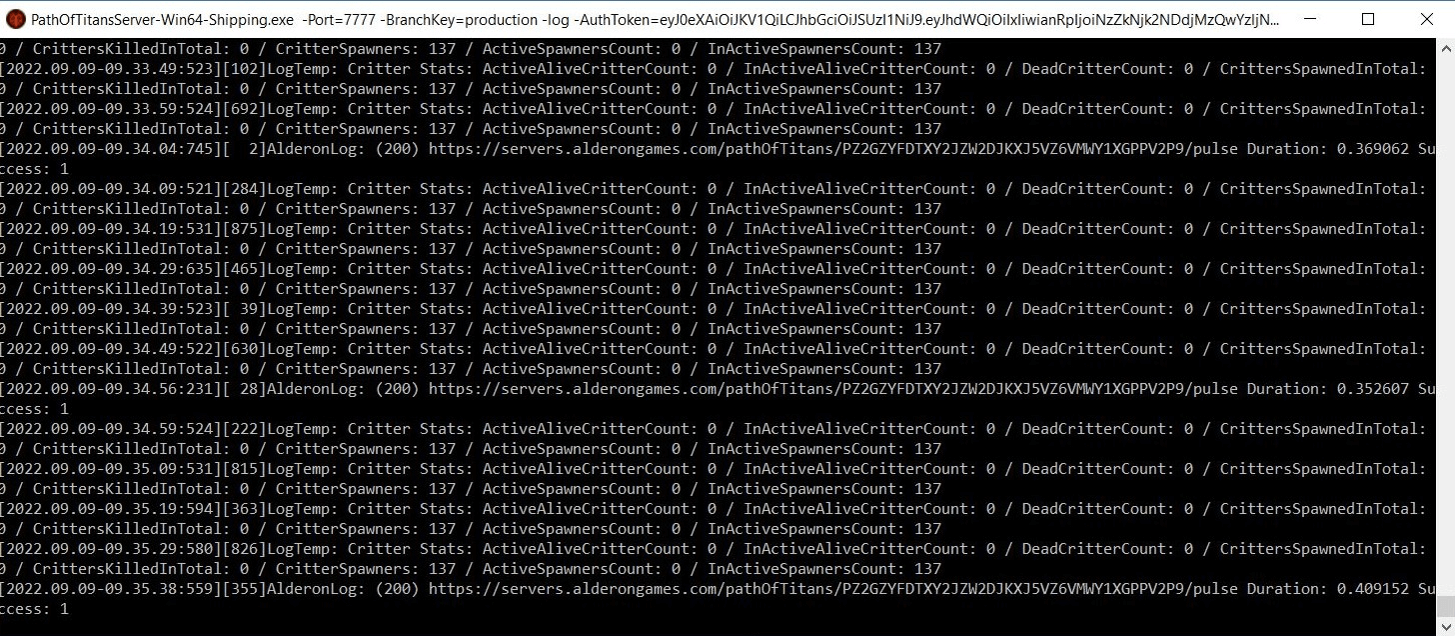
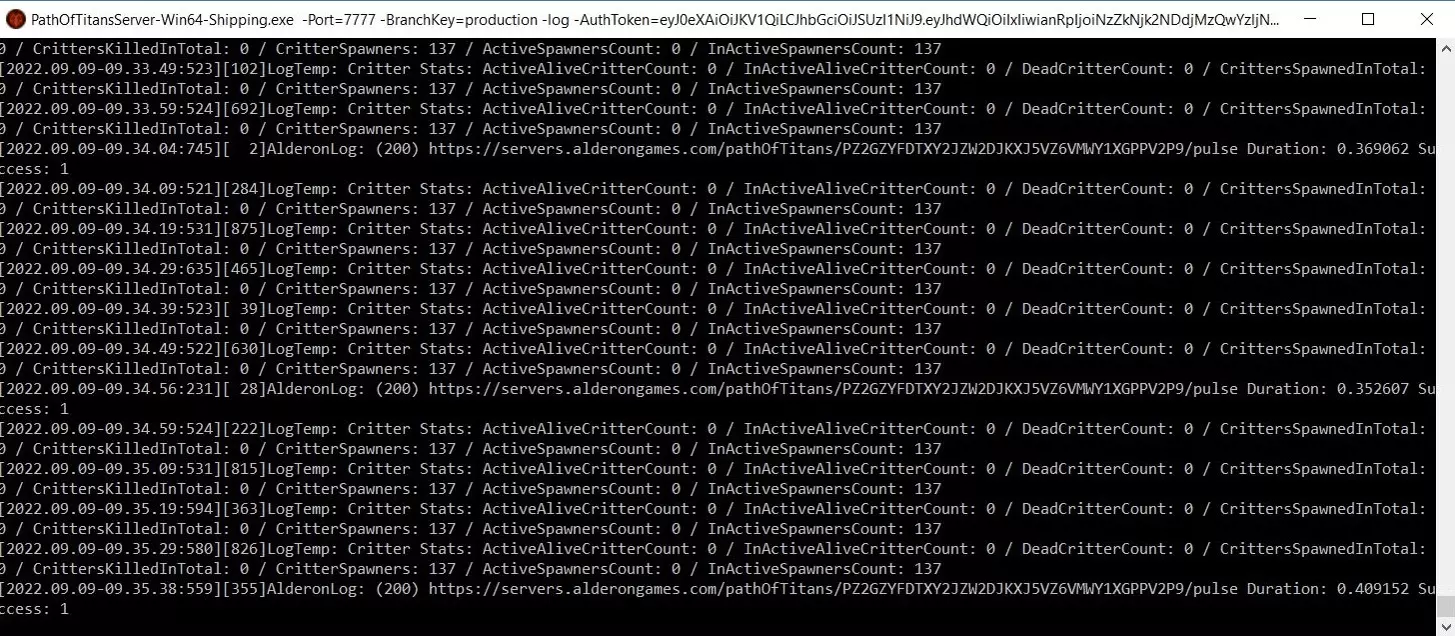
PathOfTitansServer-Win64-Shipping.exe -Port=7777 -BranchKey=production -log -AuthToken=individual authentication token -ServerGUID=individual GUID -Database=LocalAs a result, a new command line window opens where the server is created and started.
Step 8: Create connection to Path of Titans server
If the server is running, you and your fellow players can connect to it at any time. To do this, start Path of Titans as usual via the Alderon Games launcher and then proceed as follows:
- Click on “Community Server”.
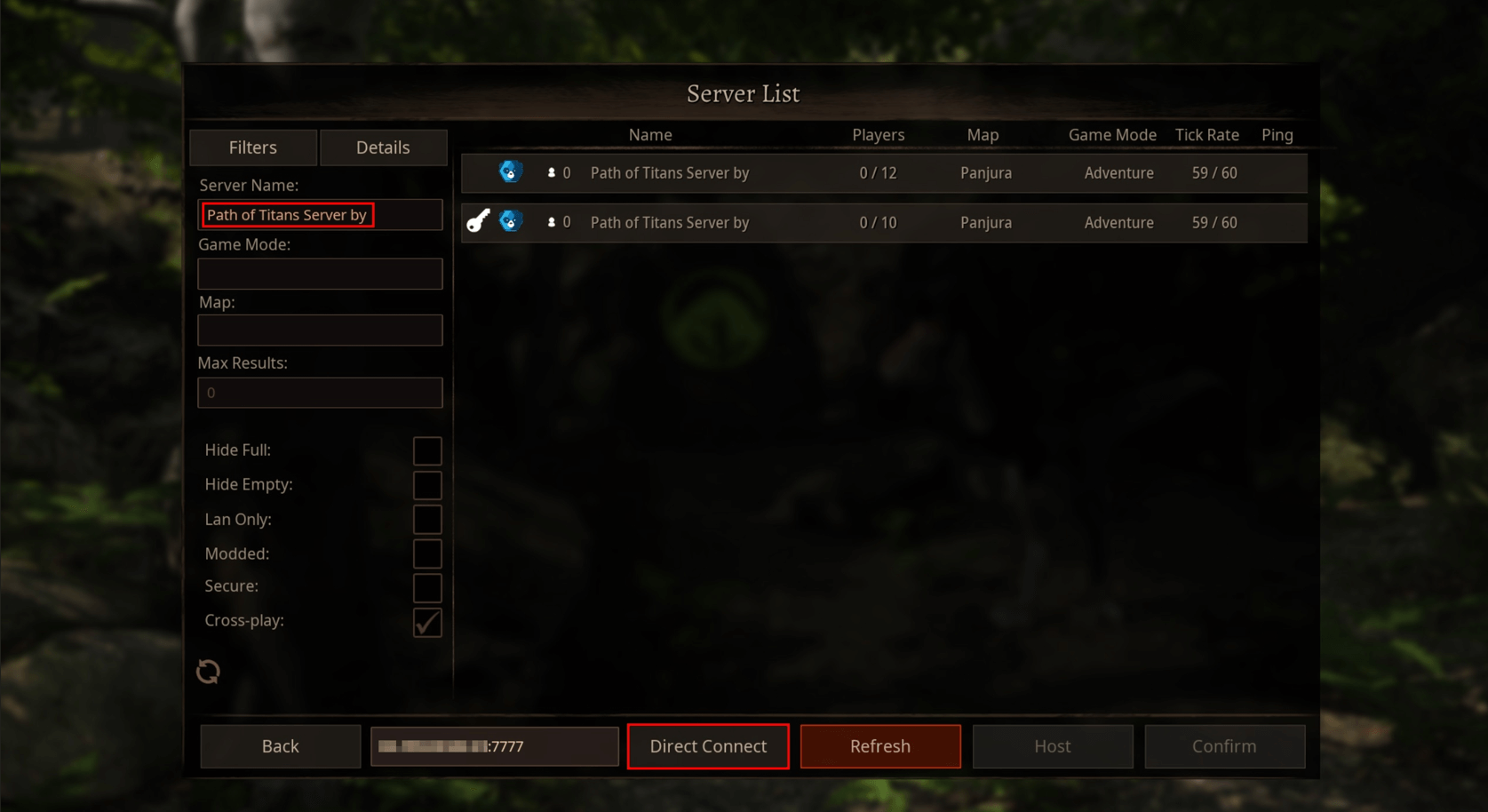
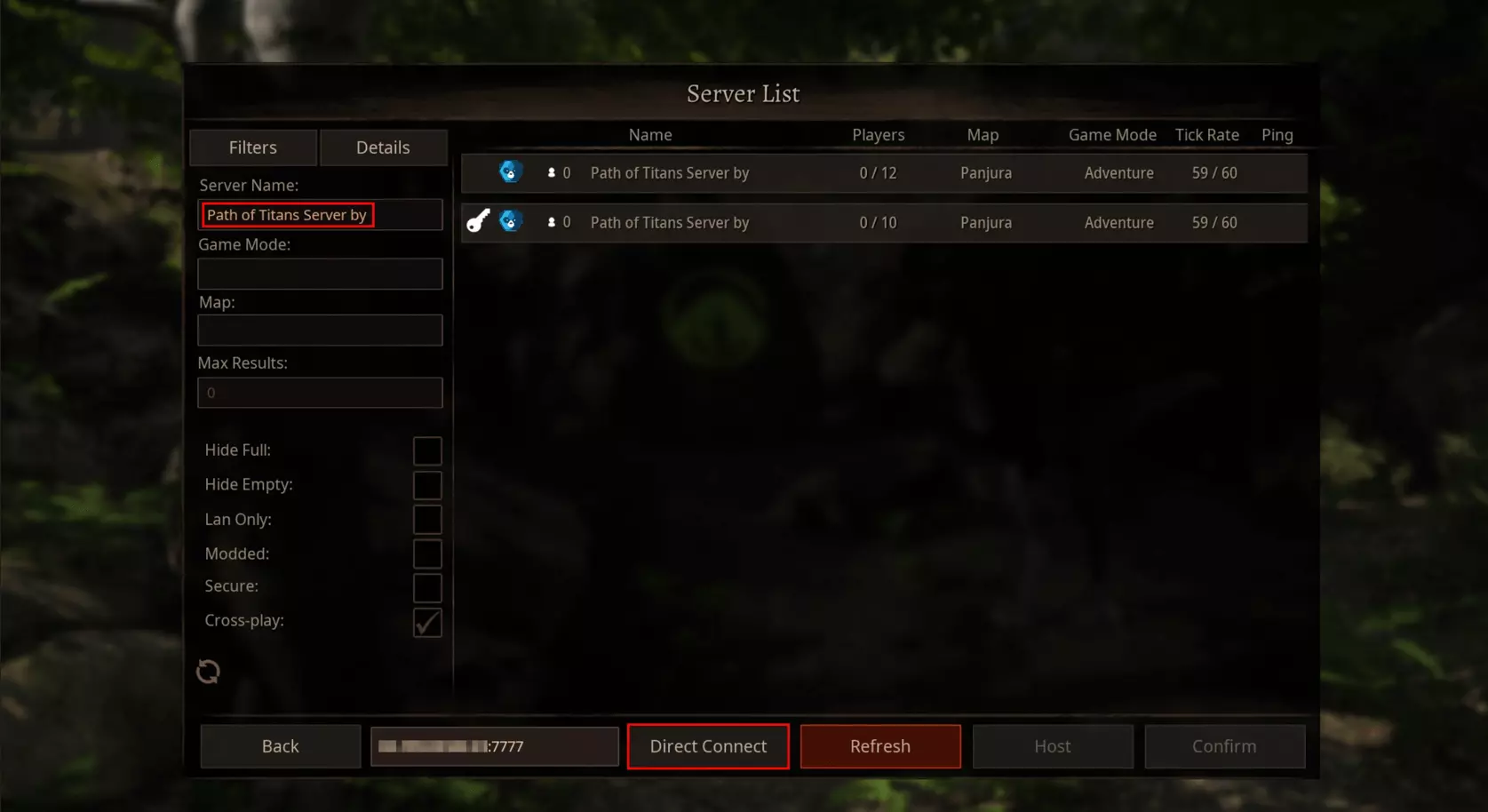
- Type the name of your PoT server under “Server name” and click “Update”.
- Select the appropriate result and then click “Confirm”.
- Alternatively, type the IP address (with port “:7777” appended) under “Server IP for direct connection” and press “Direct connection”.
After registering, you can create your first character and start the online adventure together as a newly hatched dinosaur.


Make a statement with your own .gg domain and let the games begin. Register your own .gg domain now with IONOS.