

How to create and host a Sons of the Forest Ubuntu server

With the dedicated server app, you can host your own Sons of the Forest (SotF) game on an Ubuntu server and freely configure the game settings to your liking. For the installation, you only need the client SteamCMD and the runtime environment Wine, in addition to the appropriate hardware. We show you the individual steps using a Linux server from IONOS.
Which hardware do you need for a Sons of the Forest Ubuntu server?
You can choose to install and host SotF’s dedicated server application on your own computer or on server hardware rented from a professional provider. Hosting from a provider comes with quite a few advantages. On the one hand, you can rely on a powerful and constant broadband connection, which is a lot better than connections in private households. On the other hand, you can leave your rented Sons of the Forest Ubuntu server running around the clock if needed, without having to leave your computer switched on all the time.
How much CPU, RAM and storage you’ll need for your own SotF Ubuntu server depends on various factors. For example, you need to consider how many players will be connected to the game world at the same time and whether you plan to use the server for hosting other applications as well. Below are the minimum requirements for smooth server operation with 2 or 3+ players:
- Computing power (CPU): min. 2.4 GHz (2 cores) / min. 3.0 GHz (4 cores)
- Memory (RAM): min. 3 gigabytes / min. 4 gigabytes
- Hard drive space: min. 10 gigabytes
It also makes sense to add the requirements of the Linux distribution on top of this. For the Ubuntu 22.04 desktop version, for example, you should plan on 2 GHz (2 cores) of processor power, 4 gigabytes of RAM and 25 gigabytes of hard drive space. If you use the Ubuntu 22.04 server edition without graphical user interface, you only need a 1 GHz CPU, 1 gigabyte RAM and 2.5 gigabyte hard drive space for the system.
You can also run an in-game communication app on your Sons of the Forest Ubuntu server. Having a powerful hardware setup gives you the possibility to run a TeamSpeak server or create a Mumble server at the same time.
What hosting options does IONOS offer for a Sons of the Forest Ubuntu server?
When looking for a suitable hosting environment for your SotF Ubuntu server, you will not only notice differences in terms of performance and price, but you may also notice that providers offer different types of servers. IONOS has three variants of server hosting to choose from:
- Cloud servers: Cloud servers from IONOS make use of fully virtualized server resources from various host systems. This means that CPU, RAM and hard drive space can be scaled flexibly at any time, and you only pay for the performance you actually use.
- vServers: The IONOS vServers (VPS) also work with fully virtualized hardware. In this case, several VPSs share a fixed host system, but this doesn’t have any effect on the performance. All VPS plans are available at a fixed monthly price.
- Dedicated servers: IONOS dedicated servers give you access to state-of-the-art enterprise hardware without virtualization, reserved just for you. With this option, you’re billed by the minute.
3 scenarios for your Sons of the Forest Ubuntu server and suitable IONOS plans
To help you choose the right hardware for your SotF Ubuntu server, we have set up three possible scenarios in the following table along with the most suitable IONOS plans for each one.
| Sons of the Forest server scenario | Suitable IONOS server plan |
|---|---|
| 2 people; Server permanently online | VPS M |
| 3–4 people; Server permanently online | VPS L |
| Up to 8 people; Server permanently online | VPS XL |
Try out your VPS for 30 days. If you're not satisfied, you get your money back.
Step-by-step guide to setting up your Sons of the Forest Ubuntu server
The following sections provide detailed instructions for installing and configuring a Sons of the Forest dedicated server application on an Ubuntu server. The individual steps describe the process for customers and clients of IONOS (dedicated server, vServer or cloud server). For the operating system, we are using Ubuntu 22.04 with a graphical user interface.
Prefer to host the server application on Windows? In our article “How to create and host your own Sons of the Forest server” we go into detail about setting up a SotF server on Windows.
Step 1: Establish connection to the server
In order to install applications such as the dedicated server software from Sons of the Forest on your Ubuntu server, an active connection to the server is required. The classic way to do this is using the SSH protocol, which can be used to establish secure connections between two computers at any time. All you need is an SSH client, the address of the server, and the login data for logging in.
At IONOS, we offer you an alternative, namely the KVM console, which makes remote access to the rented server hardware much more intuitive. To use the tool for connections to your planned Sons of the Forest Ubuntu server, do the following:
- Log in to your IONOS account.
- In the product overview, click on Server & Cloud.
- Select the rented Ubuntu server that you want to run Sons of the Forest on.
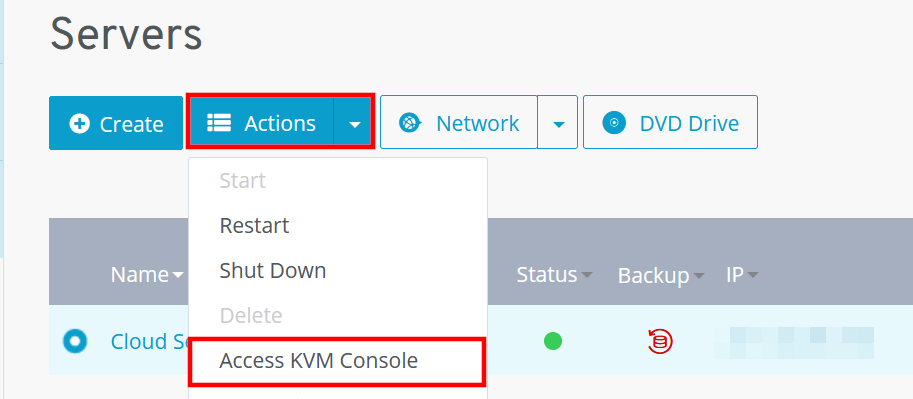
- Click on the correct server entry and then on Actions. Clicking on Access KVM Console starts the tool for the remote connection.
- Log in to the Ubuntu server with your individual server login data, which can be found under Access data.
Step 2: Install SteamCMD
You can get the dedicated server application for your Sons of the Forest Ubuntu server in a few steps using SteamCMD. You can connect to the Steam servers via the command-line client and download the corresponding files there. Since it is recommended not to run the tool as administrator, first create a user named “steam” and think of a password:
sudo useradd -m steam
sudo passwd steamIn the next step, change to the directory of the “steam” user profile you just created:
sudo -u steam -s
cd /home/steamOnce in the directory, install SteamCMD using the following command:
sudo apt install steamcmdIf you get a message that the package cannot be installed this way, you probably need to add the package source “multiverse” first (typical for 64-bit architecture). In this case, the following sequence of commands is required to obtain the installation files:
sudo add-apt-repository multiverse
sudo apt install software-properties-common
sudo dpkg --add-architecture i386
sudo apt update
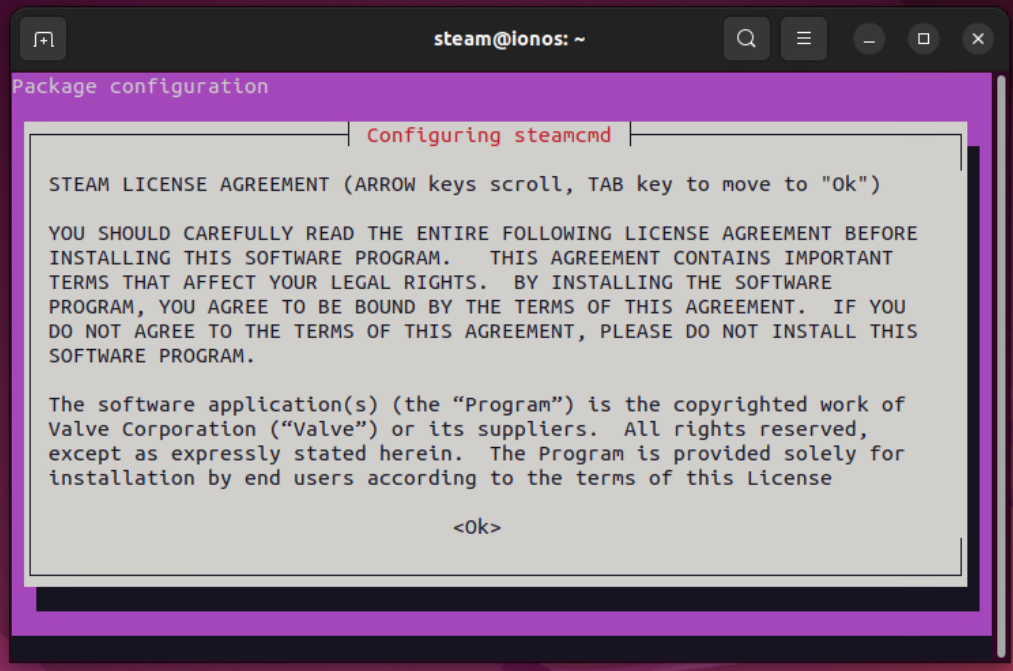
sudo apt install lib32gcc-s1 steamcmdScroll to the end of the license agreements on your screen and confirm you agree to them by clicking [Enter] and I agree.
Link the downloaded file to the created directory:
sudo ln -s /usr/games/steamcmd /home/steam/steamcmdLog in with the user profile you created:
su steamIn the last step, run the steamcmd command to install the client. After a short time, the tool will be ready, and you will see the input line Steam>.
In our article “How to install SteamCMD” we go into more detail about installing the Steam command-line client on Linux and Windows.
Step 3: Download and install SotF dedicated server software
You can now log in anonymously to the public Steam servers via the Steam command line:
login anonymousThen install your Sons of the Forest Ubuntu server using the following command:
app_update 2465200 validate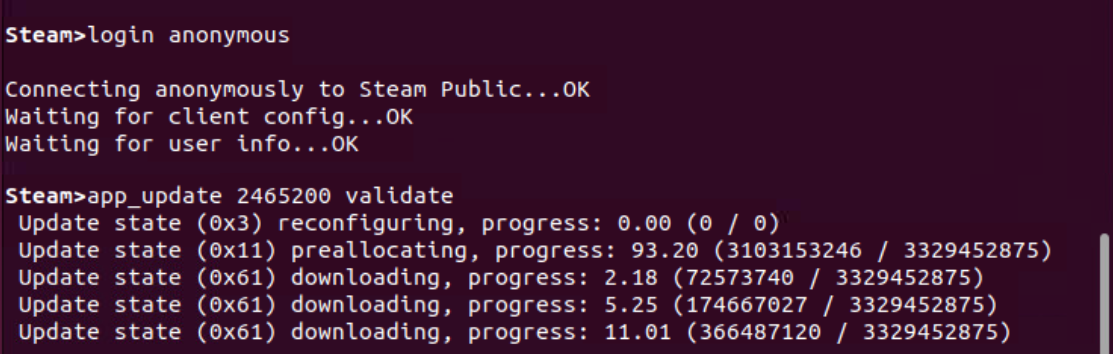
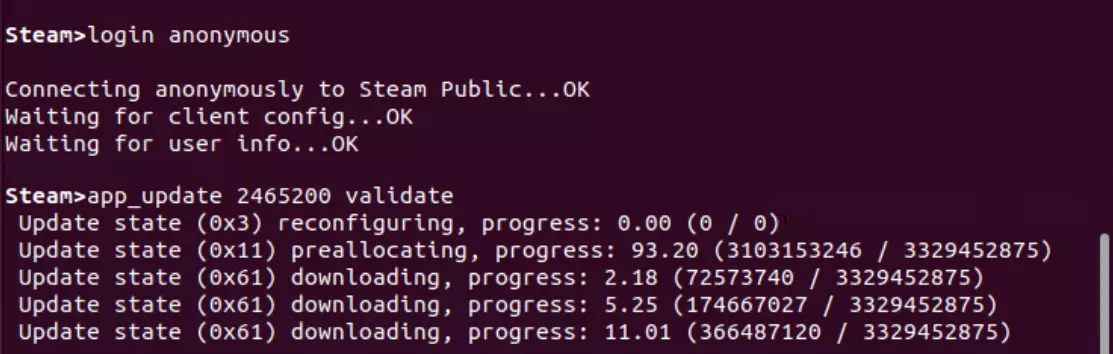
After successfully completing the installation, you will find the server files in the /home/steam/steamapps/common directory.
Step 4: Install Wine
In order to run the Sons of the Forest dedicated software on an Ubuntu server, you need the Windows-compatible Wine runtime environment. You can install this under Ubuntu 22.04 by executing the following three commands:
sudo apt-get install wine
sudo apt-get install wine32
sudo apt-get install libwineStep 5: Configure your Sons of the Forest Ubuntu server
The next step is to configure the SotF server. In order for the two configuration files to be generated, the dedicated server application first needs to be launched. Access the directory in the terminal to do this.
The next step is to run SonsOfTheForestDS.exe using the previously installed Wine. Append the command -userdatapath "config" to the Wine command, so that the two configuration files ownerswhitelist.txt and dedicatedserver.cfg are placed in the new folder of the same name:
wine SonsOfTheForestDS.exe -userdatapath "config"Define administrator rights via ownerswhitelist.txt
With the ownerswhitelist.txt file, you have the possibility of giving people the highest administrative rights for your Sons of the Forest Ubuntu server. The prerequisite, however, is that you have the respective Steam ID, which can be found in the account details of your Steam account. The first entry in the file, for example, looks like this:
# In order to be able to administrate your server from in game directly, you will need to setup server ownership.
# Add below the steam ids of every server owner, one steam id per line.
# To find your SteamID, open Steam and click on your name on the top right, then go to Account Details.
# You can use # to comment out a line. That can be helpful to keep track of SteamIDs, you can include their name in the line above or below, starting with a #.
# IONOS Sons of the Forest Server Owner
1234567891011Configure server via dedicatedserver.cfg
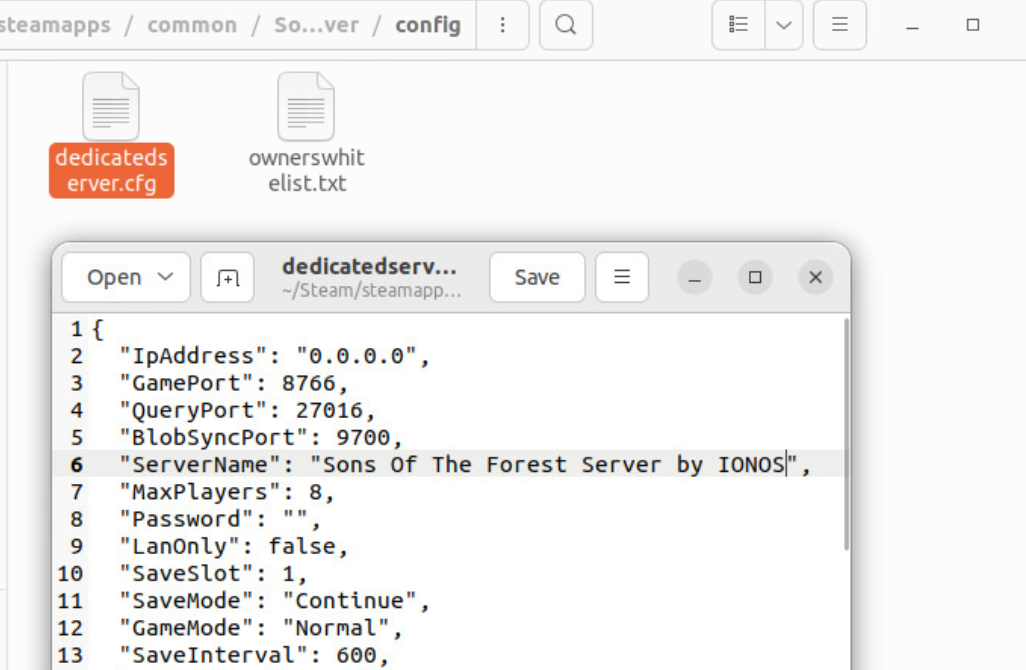
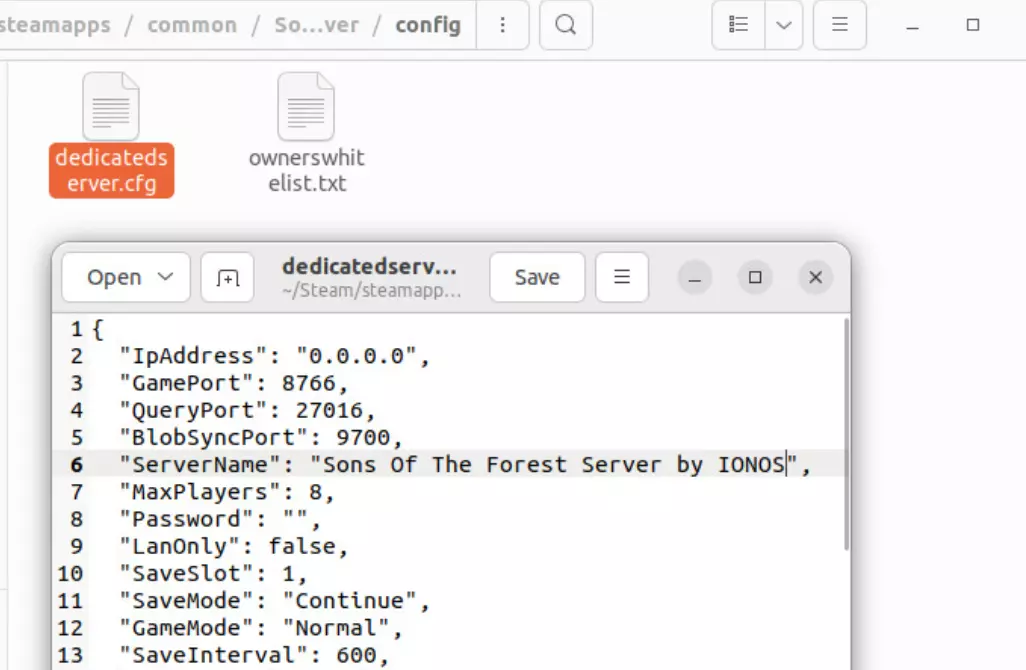
In the second file named dedicatedserver.cfg you configure all the other important settings for your SotF server such as server name, password, difficulty level, number of players, etc.
The following Wiki entry about the SotF server settings summarizes the options available to you.
Step 6: Enable ports
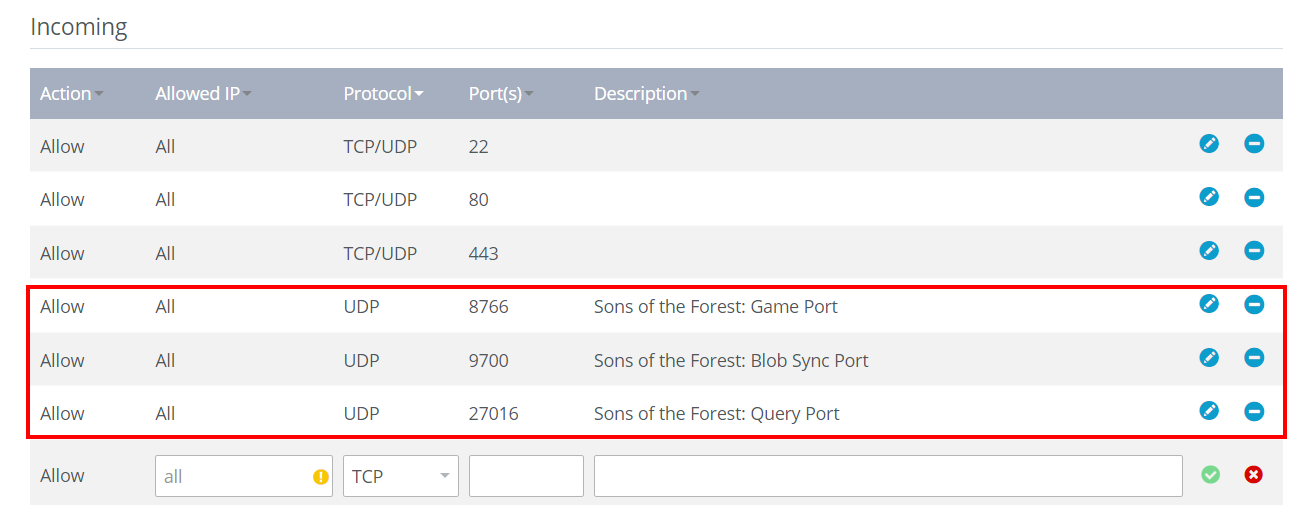
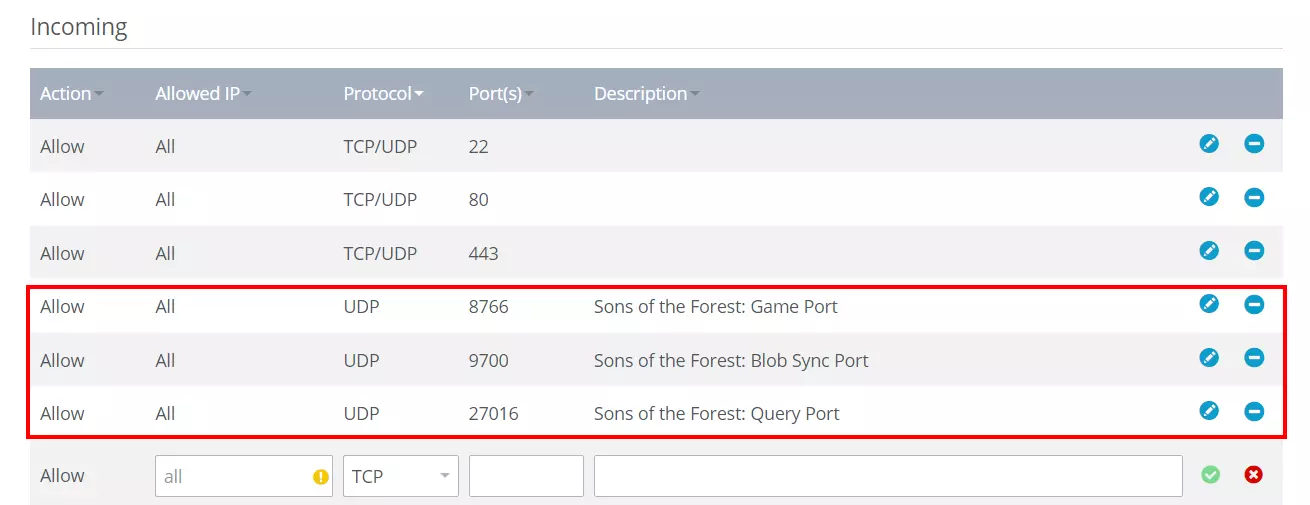
For your Sons of the Forest Ubuntu server to be available online, the following three UDP ports must be open:
- 8766 (Game Port)
- 9700 (Blob Sync Port)
- 27016 (Query Port)
As an IONOS customer you can share ports via the Cloud Panel:
- Log in to your IONOS Customer Account.
- Access Server & Cloud.
- Select the Ubuntu server where Sons of the Forest is installed.
- Click on Network and then Firewall Policies.
- Enter three new rules for the UDP ports 8766, 9700 and 27016 under Incoming. Make sure that UDP is selected as the protocol.
Step 7: Start the server
Now you have the possibility to start your server at any time by running SonsOfTheForestDS.exe again using Wine. This time you don’t need the additional parameter for the configuration files, meaning that the appropriate command is as follows:
wine SonsOfTheForestDS.exeStep 8: Connect Sons of the Forest Ubuntu server
To join the server, perform the following steps:
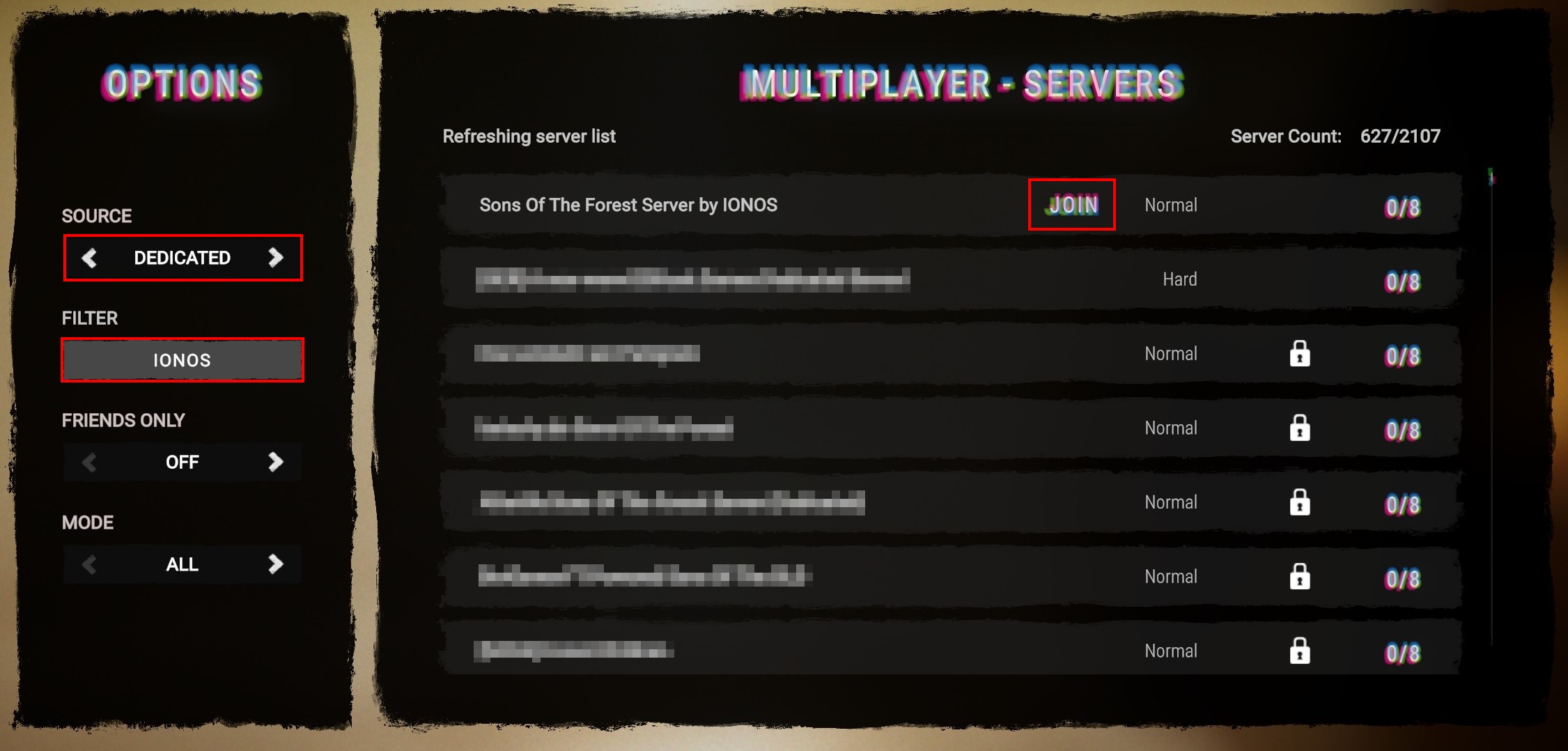
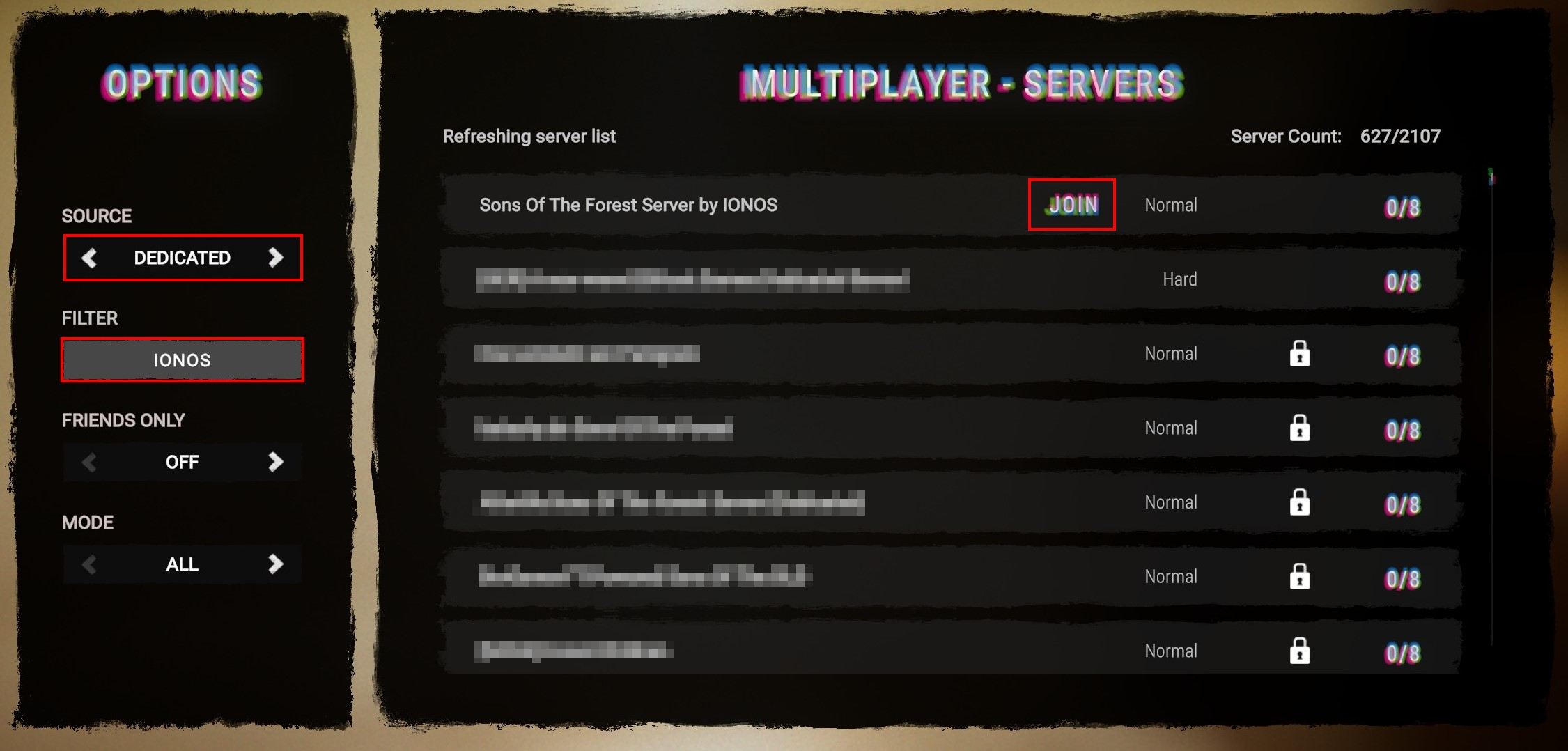
- Click on Multiplayer and then Join.
- Select Dedicated in the source field.
- Use the filter to search for your server.
- Click on Join as soon as you see the correct result.
The joint adventure can now begin. The game starts with you and your fellow players at the helicopter crash site.
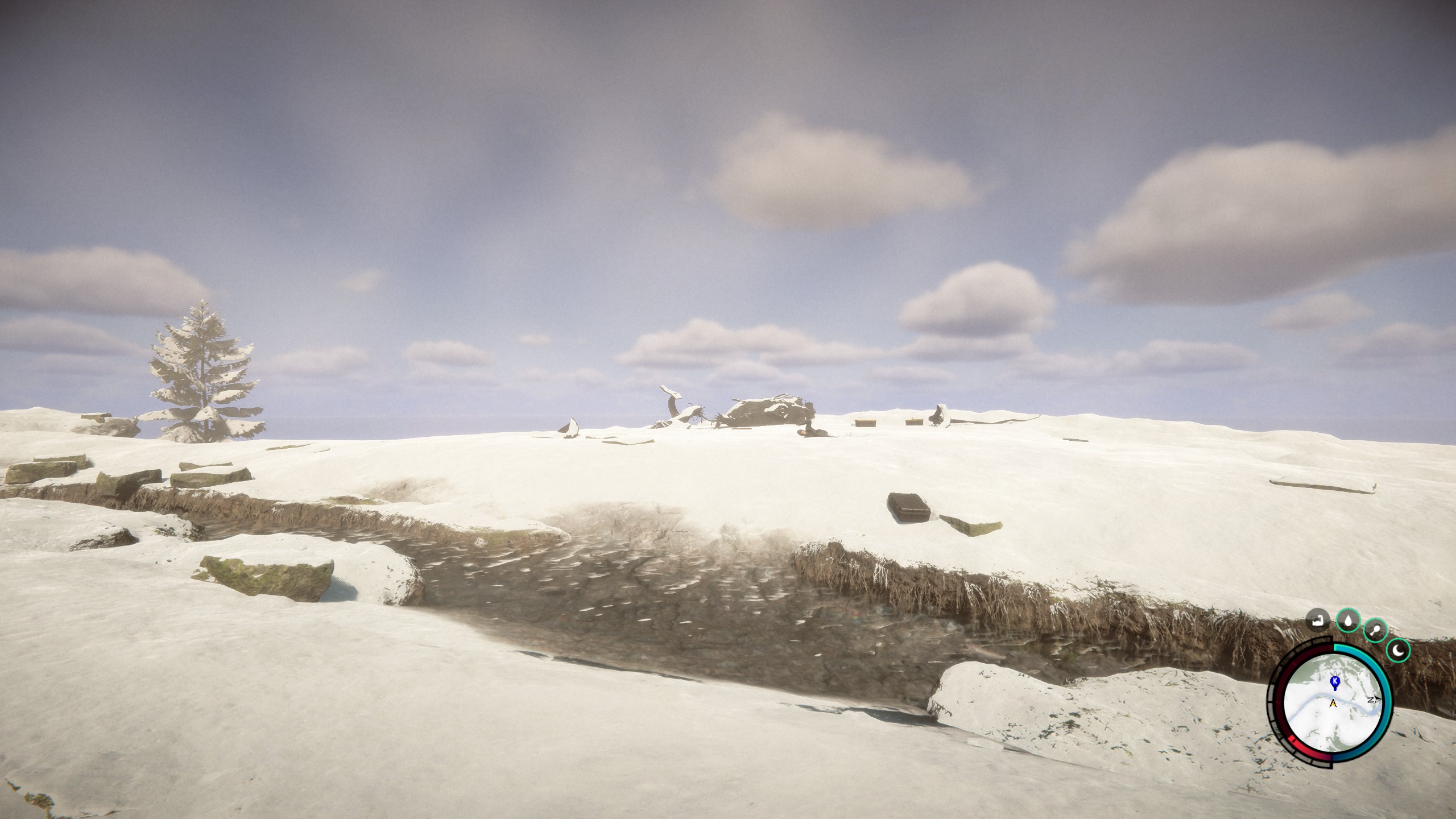
Also a fan of the predecessor of Sons of the Forest? In another one of our Digital Guide articles, we explain how to set up and host a The Forest dedicated server.