

How to create and host a Sunkenland dedicated server

Using the SteamCMD command line client, you can download and install the software for your own Sunkenland server within a few minutes. All you need to do is first create the right basis for hosting.
The requirements for a Sunkenland server
There are two ways to host a Sunkenland dedicated server: you can either use your personal computer or rent the necessary hardware from a professional provider. The advantage of the latter option is the exceptional broadband connectivity provided by data centers, which is crucial for a seamless gaming experience. Moreover, an externally hosted Sunkenland server can operate 24/7 with ease, a task that would be much more challenging on a home device.
How much computing power you actually need to provide for hosting depends on various factors. The number of players who are connected to the Sunkenland server at the same time is the main deciding factor. In any case, you should meet the following minimum requirements:
- Processor (CPU): min. 3.2 GHz (dual-core)
- Working memory (RAM): min. 3-4 GB
- Hard disk storage: 10 GB
Don’t forget the additional requirements of the server operating system you’re using! For the Microsoft system Windows Server 2022, for example, an additional 1.4 GHz processor performance, 2 GB RAM and 36 gigabytes of hard disk space (512 MB and 32 GB without graphical user interface) must be planned for.
How to host a Sunkenland dedicated server with IONOS
Whether you want to host Sunkenland or other games with dedicated server, there are a variety of providers, server types and plans. With IONOS, for example, you can choose from the following three plans:
- VPS (vServer): The vServers from IONOS are based on virtualized hardware from a fixed host system. The service plan is billed at a fixed monthly price.
- Cloud Server: Cloud servers from IONOS use virtualized hardware from various host systems. Unlike VPSs, you can scale the performance flexibly at any time. Only the resources actually used are taken into account for monthly billing.
- Dedicated Server: The highest quality IONOS server model is the dedicated server. This enterprise hardware is available exclusively for you but can be scaled like a cloud server if required. Billing is by the minute.
Try out your VPS for 30 days. If you're not satisfied, you get your money back.
Sunkenland dedicated server scenarios and the right IONOS plan
Are you seeking a way to enjoy a small, intimate group gaming experience with flexible schedules, a lively 24/7 online adventure, or a large-scale server for varied hosting requirements? We’ve identified three potential options for your Sunkenland server, each matched with the ideal server plan from IONOS, as shown in the table below.
| Sunkenland server scenario | Suitable IONOS server with Windows |
|---|---|
| 2-4 people; server permanently online | VPS Windows M |
| 5-8 people; server permanently online | VPS Windows L |
| 9+ people; one or more servers permanently online | AR6-32 SSD |
How to set up your own Sunkenland server for Windows step by step
In the following sections, we’ll guide you through the installation and setup process of a Sunkenland dedicated server step by step. The server runs on Windows Server 2022 (the application is currently tailored for Windows). For hosting purposes, we use a server from IONOS (vServer, Cloud Server, Dedicated Server) as an example.
Step 1: Connect to the server remotely
To be able to install and manage applications, you must connect to the rented server via remote access. The appropriate Windows tool for establishing the connection is called “Remote Desktop Connection”. The login data can be found in the hosting provider’s customer account, in our case in the IONOS customer account. Here’s how to set up the remote connection in a nutshell:
- Go to the IONOS customer account login page and log in.
- Click on Server & Cloud and select your hosting plan.
- Scroll to Features and make a note of the server IP address and your data for the remote login (“User” and “Initial Password”).
- Open the Remote Desktop Connection application on your device and establish a remote connection to the server using IP and login data.
- If you haven’t already done this, classify the server’s certificate as trustworthy.
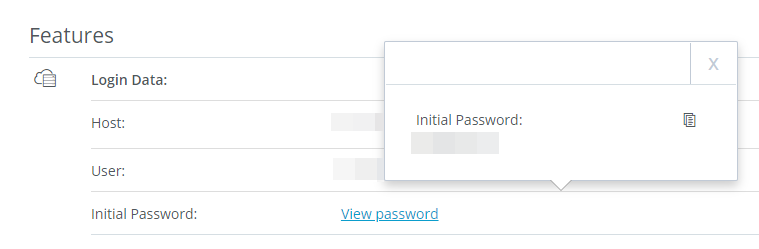
The IONOS Help Center explains in detail how to connect to a Windows server via remote desktop.
Step 2: Install SteamCMD
The initial step involves installing the SteamCMD application on your server. This is the command-line client of the gaming platform, allowing you to download dedicated server applications for games like Sunkenland and others. The installation process for the client consists of three straightforward steps:
- Download the SteamCMD installation package.
- Create a new directory for SteamCMD, for example
C:\SteamCMD, and unpack the ZIP package in this folder. - Run the unzipped file in the command prompt to install the client. Once the installation is complete, the input line
Steam>will appear.
In a separate article, we go into more detail on how to install SteamCMD on Windows and Linux.
Step 3: Install Steam app for Sunkenland dedicated server
You can now download and install the Sunkenland dedicated server application (Steam ID 2667530) via SteamCMD. Follow the instructions below:
First create a directory for the server files. For example, use the following command to specify C:\sunkenland-server as the directory for the installation:
force_install_dir C:\sunkenland-serverThe next step is to log in to the public Steam servers. The Sunkenland development team recommends logging in with the Steam account you used to purchase the game. In the following command, replace the entry username with your Steam account name:
login usernameConfirm the login by entering your individual Steam password. If you have set up Steam Guard, you’ll also need to enter the five-digit security code.
After successful registration, install the Sunkenland dedicated server app using the following command:
app_update 2667530 validateRepeat these steps to update the Sunkenland server at a later time.
Step 4: Prepare game world savegame
In the current version of the Sunkenland dedicated server software, you need to manually transfer a savegame of the game world to the corresponding Sunkenland user folder on your server. You can either use an existing savegame or create a new one for this purpose. Regardless of your choice, the savegame of the game world can be found in the following directory (replace “username” with your Windows username):
C:\Users\Username\AppData\LocalLow\Vector3 Studio\Sunkenland\WorldsCopy the folder of the desired game world into the same directory (also take the individual username into account here) on your rented server.
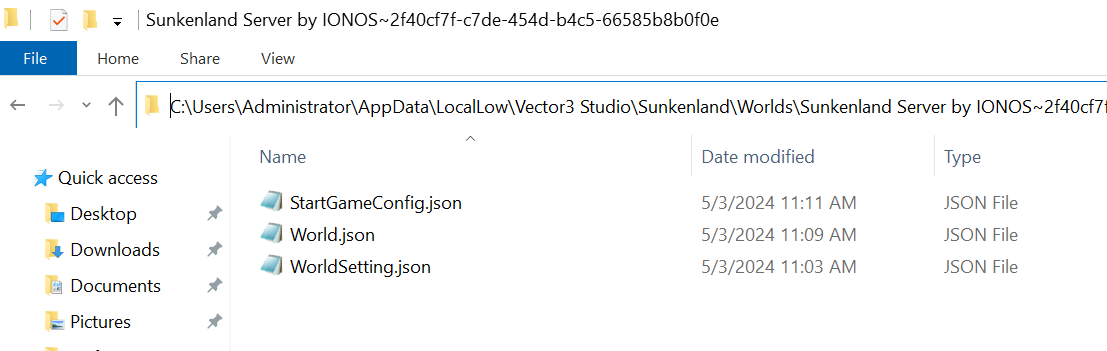
Use the game world savegame to configure your Sunkenland server. Simply specify the desired settings for difficulty level, number of players, friendly fire, respawn and so on. Alternatively, you can also open the files StartGameConfig.json, WorldSetting.json and World.json located in the folder later with a text editor and adjust the configuration.
Step 5: Create Sunkenland server start script
The best way to start the server later is with a start script in which, for example, you use the parameter -nographics to ensure that the game world runs on the rented server even without a graphics processor.
A template for the script already exists in the server directory. Create a copy of this file with the name start_headless_server - Sample.bat and name the copy whatever you’d like (the ending .bat is important). Then open the batch file with a text editor and make the following adjustments:
- Enter the ID of the previously copied savegame under
-worldGuid(part after the~). - In the “region” section, click on the correct server option.
- Add the parameter
-maxPlayerCapacityand enter the desired maximum number of players. - Add entries for the server port
-port(recommended: 29000) and the query port-queryport(recommended: 29002). - Save your changes before closing the script.
The last line of the script file should then look something like this:
Sunkenland-DedicatedServer -nographics -batchmode -worldGuid "YOUR SAVEGAME-ID" -region "us" -maxPlayerCapacity "8" -port 29000 -queryport 29002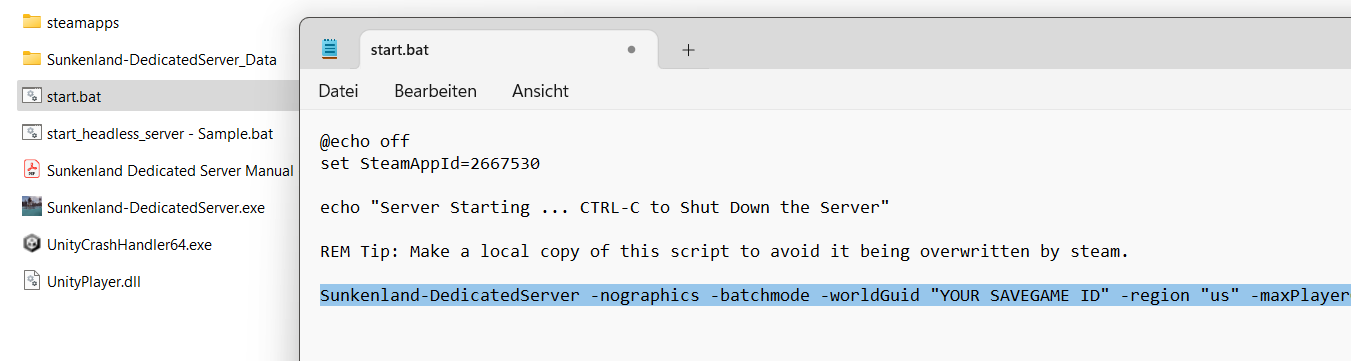
Depending on where you are located, you can enter either “us” (USA, East) or “usw” (USA, West) for the region.
In principle, you can also adapt the script template start_headless_server - Sample.bat and use it for the server start. However, as soon as you update your Sunkenland server, all changes will be overwritten immediately, which is why a separate script is recommended.
Step 6: Open the server ports
To make your hosted Sunkenland game world accessible online, the next step is to open the server port and the query port in the firewall settings of your server. In these instructions, we have selected the TCP/UDP ports 29000 and 29002 and specified them in the start script. If you have opted for other ports, these ports must be enabled instead.
With IONOS, adjust the firewall of your server as follows:
- Log in to your IONOS customer account on the login page.
- Click on Server & Cloud and select the server plan on which you have installed and set up the Sunkenland dedicated server.
- In the menu bar on the right, press Network and Firewall policies one after the other.
- Create the required rules for your Sunkenland server under Input.
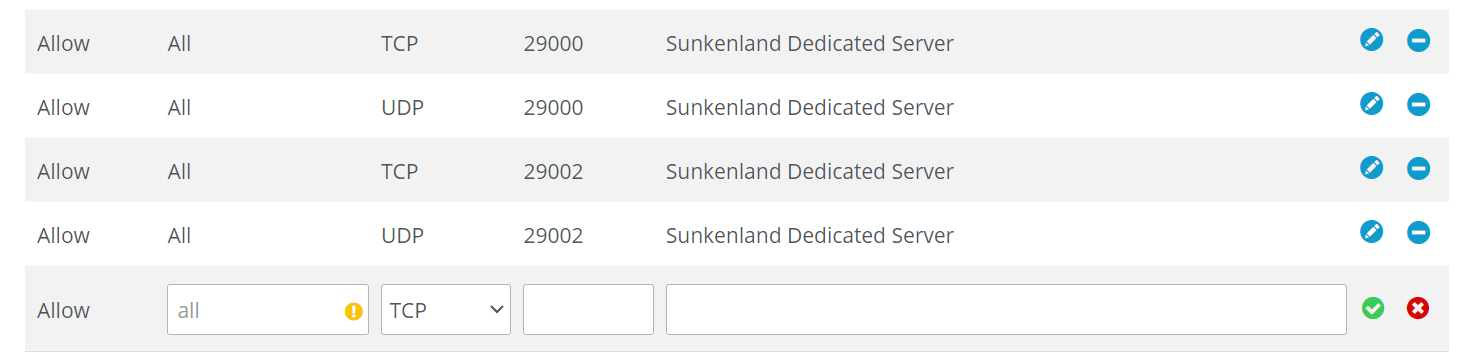
Step 7: Start the Sunkenland server
After you’ve prepared the start script and enabled the necessary ports, you can now start your individual Sunkenland adventure at any time. To do this, simply execute the script by double clicking. You can follow the start process in the command prompt window. The message “Server Start Complete, Ready for Clients to Join” tells you whether it was successful or not.

Step 8: Connect with the Sunkenland dedicated server
If you and your fellow players want to connect to the hosted Sunkenland game session, the following steps must be completed:
- Start Sunkenland via your Steam client.
- Press Start game.
- Select the desired character or create a new character.
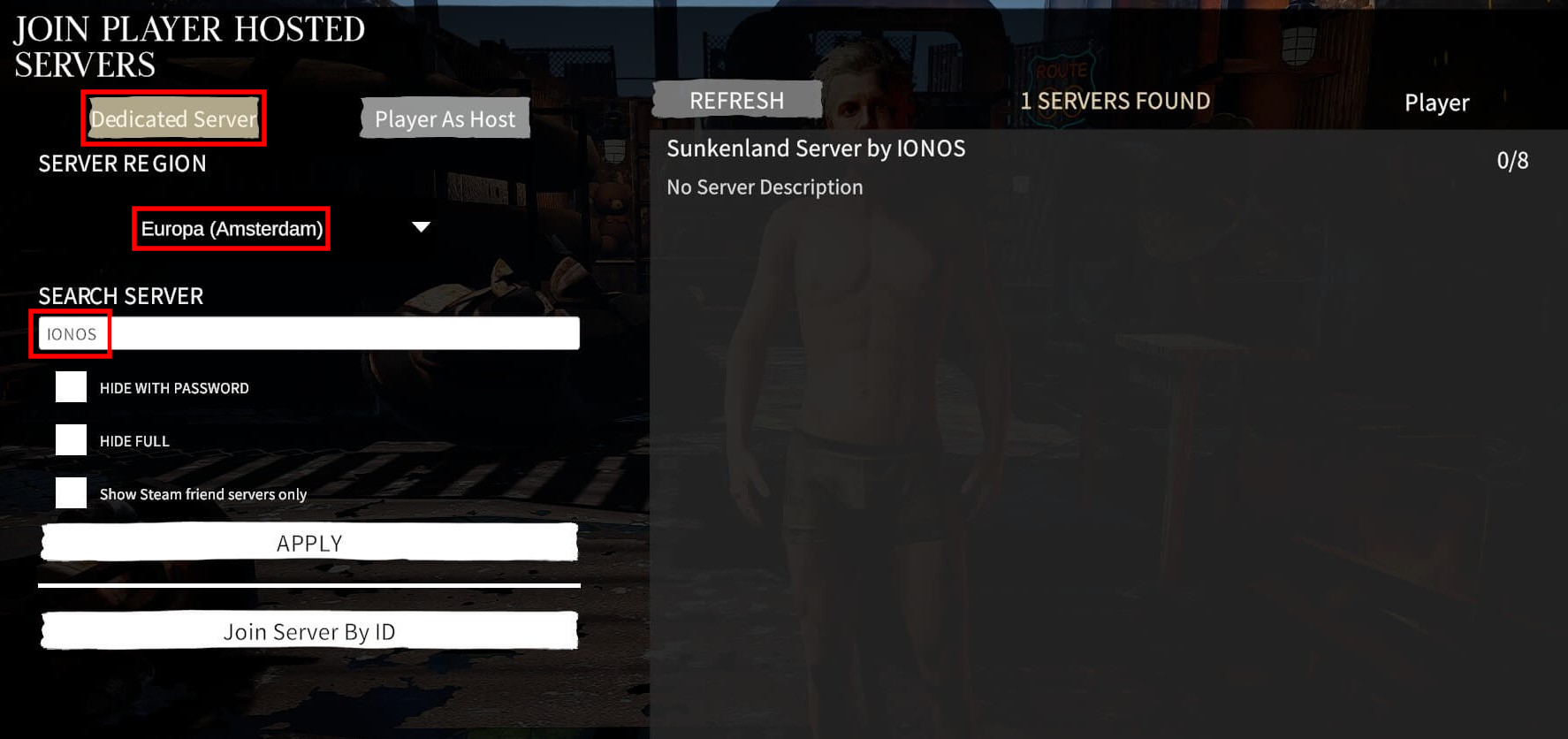
- Click on Join Server.
- Use the filter function to search for your server. Select Dedicated Server and the correct server region. Then enter a suitable keyword and click on APPLY.
- Click on the desired search result and connect to your created Sunkenland server.
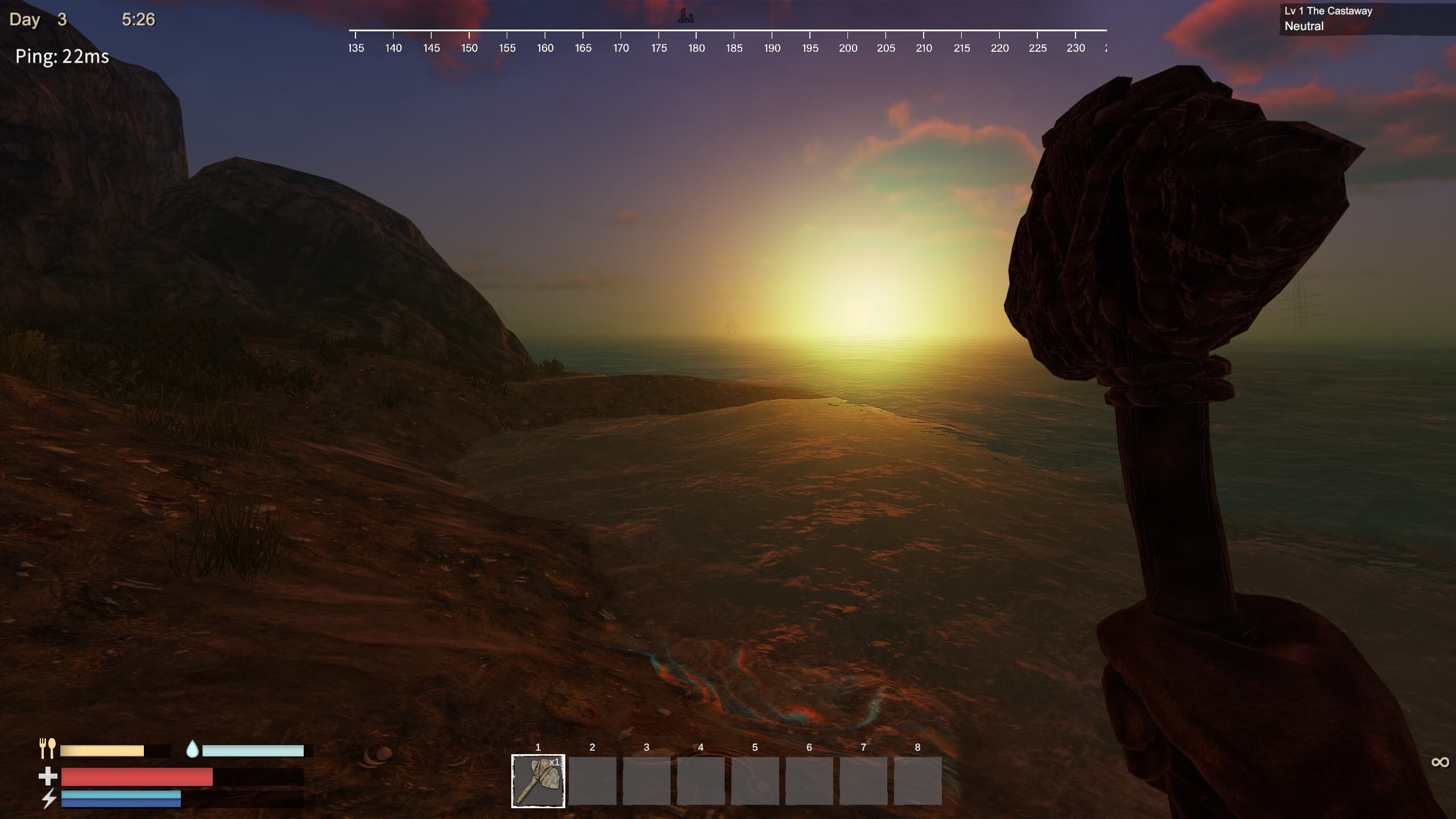
Now, nothing can stop you from embarking on your adventure in the underwater world of Sunkenland!
Put the finishing touches to your own server with a creative name and a suitable extension such as a .gg domain! Simply use the domain checker from IONOS and get started with your individual web address.