

Port tests: Checking open ports with a port check

Open ports are not only communication points between your systems and the Internet or other computers, but also points of attack from malware and hackers. Regularly checking for open ports ensures that only the ports you actually need are open. In this article, we will tell you which methods are available for checking open ports.
What is a port?
Regardless of whether you only deal with networks and computers casually or regularly, sooner or later, you will come across the term “port”. Just like ports and harbors are transit and control points for goods, so-called network ports form the gateways for data that is transmitted between computers and the Internet or other computers.
Port numbers are part of an IP address and enable data packets to be assigned to a specific IP and certain services. In conjunction with an IP address, a port thus gives the complete destination or sender address of an application.
Why are network ports needed, and how many are there?
Since many processes run simultaneously in operating systems, apps, and other services, and data is transferred in parallel, several open ports are required. A core function of ports is to relieve systems, to use different ports at the same time with several connections, and to assign data packets to the correct application. To distinguish ports, they are numbered from 0 to 65,535, meaning that each computer has a total of 65,536 ports.
Certain ports are reserved for specific applications (i.e. mail server or websites), as well as for important transport protocols such as HTTP, FTP, and Telnet. These reserved ports are designated by the IANA (Internet Assigned Numbers Authority) and are called standardized or well-known ports. Others are intended for registered services and dynamic clients. In addition, there is a large number of ports that are dynamically allocated from a pool.
The number of TCP and UDP ports in one computer is enormous and comprises a total of 65,536 ports. The most important are standardized ports with the numbers 0 to 1023 for fixed applications. Ports 1024 to 49151 are assigned both for fixed applications and dynamically, while ports 49152 to 65535 are assigned dynamically.
How ports work
The way ports work is relatively simple. Transport protocols such as UDP (User Datagram Protocol) and TCP (Transmission Control Protocol) transfer data packets by assigning them to a specific address consisting of an IP and port number. The destination address can be an app, a service, a website, or any other program such as a web browser. Open ports of target addresses “listen” for requests that originate via a port from private or public IPs. The target application learns the sender port when the connection is established and sends the desired data packets back to the sender address.
Since unwanted network connections between local computers and the Internet are to be avoided as much as possible, the router IP usually comes between local IPs and destination addresses. The public router IP, which also appears as the sender of data packets, is thus externally visible and addressable. The packet filter and firewall also ensure that packets that cannot be assigned to a local application are rejected. The router forwards correctly addressed packets to the sender service using the IP and port number.
Port check: How to check open ports
Regular port scanning is an important process. System administrators in particular use port scanning to monitor data traffic in small or large networks and to close security gaps. A port check assesses whether data packets are being sent via designated ports, whether firewalls are blocking important ports unintentionally, and whether unused open ports should be closed. Various methods and tools are available for a port check, which we will introduce below.
During a port check, three possible port states can be checked by default: Open, closed, and filtered. Open ports are ready to establish a connection, whereas connection requests to closed or filtered ports, for example, will be rejected by firewalls.
Testing ports with the command prompt
If you would like to test ports on your computer, use the Windows command prompt and the CMD command netstat -ano. Windows will show you all currently existing network connections via open ports or open, listening ports that are currently not establishing a connection. The command also shows you the PID number, i.e., the process ID for the process that is currently using a port or is listening via a port.
How to use netstat -ano to test ports:
Step 1: Open the command prompt as administrator by pressing the Windows shortcut [Windows] + [R], entering “cmd”, and pressing [Ctrl] + [Alt ] + [Enter] to confirm.
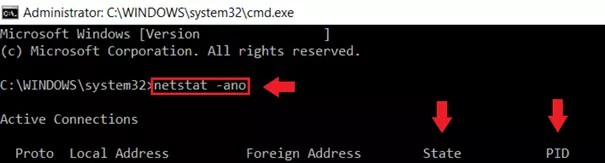
Step 2: Enter the cmd command netstat -ano to view current network connections, IPs, and associated process IDs. Under Status, you will see entries such as “ESTABLISHED” if there is a connection to a service, or “LISTENING” if a port is open, but no connection has been established.
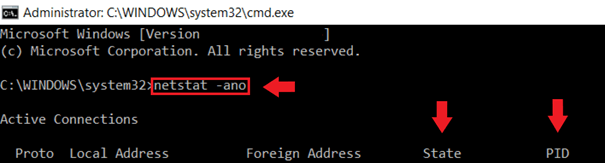
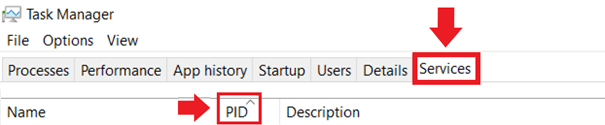
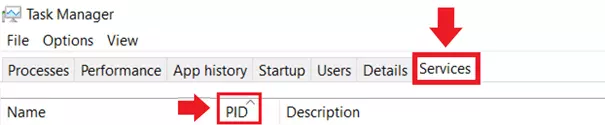
Step 3: To find out which service is using a port and whether you can close the port, look for the task with the corresponding PID in the Task Manager. Attention: netstat -ano shows a number of open ports within the range 49152 to 65535 with the status “Listening”. This is not necessarily malware that often uses ports in this area, but mostly internal Windows applications that are available for queries by default.
Testing ports with port-scanner software
Port scanners work in a similar way to the command prompt. This is software that examines open ports and authorized services. In addition, port scanners are able to examine network security and structure. Port scanners send data packets to a destination address for analysis and evaluate the resulting responses in order to check ports.
However, we advise you to be cautious when using port scanners. These are not only used by system administrators, but also by hackers to identify security gaps for malware and attacks. Analysis data from a port scan is sensitive, because your data is of interest to potential attackers. The use of port scanners helps to close security gaps, but the data collected must be handled responsibly. In addition, a port check must only be carried out on your own system or with the permission of the system owner, as this can legally be considered an attempted attack without consent.
Example 1: Advanced Port Scanner
Advanced Port Scanner is freeware that can be used to test ports and list network devices (i.e. computers, routers, smart devices), including open or closed port ranges. The focus of the analysis is on TCP ports, but can be expanded to include additional ports and protocols. Additional functions of the scan software include remote commands via RDP and Radmin, as well as port and network sharing.
Example 2: Nmap
Nmap is the classic, free port scanner primarily aimed at IT experts. Nmap was originally programmed for Linux, but it is now used as a port scanner for all systems. Experienced users can use Nmap as a command line console, while the clearer, graphical Zenmap interface is available for inexperienced users. Note that Nmap can only be used to scan your own local ports. An Nmap port scan of foreign target addresses without consent can be seen as the preliminary stage of a system attack!
Testing ports with online tools
A third alternative for a port check are free online tools that detect open ports on your computer and thus, potential security gaps. It should be noted that port scanning with the cmd command netstat -ano or with software such as Nmap primarily involves local ports. In order to determine the public port sharing of your router, however, this must be addressed from the outside. Online port scanners use a test website for this purpose and primarily scan standard ports. Analysis data is output as a list of results.
Example 1: DNSTOOLS
The dnstools.ch website scans a whole range of standard ports, such as FTP, DNS, POP3, IMAP, SMTP or RPC, specifically analyzes individual ports, and examines whether the forwarding of the router’s public ports to local applications is working correctly. The online tool shows the analysis results in a clear list that can be exported as a file. Other scanning tools include DNS queries, ping, and traceroute.
Example 2: Nmap Online Port Scanner
Nmap is not only available for download as a powerful port scanner, but also offers an online tool for checking ports. This can be used to examine TCP ports that are open externally and to list the associated services.
Example 3: TCP Open Port Scanner
The TCP Open Port Scanner from Geekflare enables a fast, efficient scan of outwardly open ports in your network. The online tool uses Nmap as the analysis software for the port scan.
Example 4: WhatIsMyIP.com
The WhatIsMyIP.com website is primarily used to display publicly visible IP addresses of users and to check the effectiveness of VPN connections. The website also offers various other tools, including a port scanner. Individual ports can be tested by entering the corresponding port number.