

What is a firewall?

Everyone is familiar with the term firewall. However, when asked “What is a firewall?” or “How does a firewall work?”, few people can provide a satisfactory answer. Most people understand that it is used to fend off viruses and other malware from the internet. However, private users in particular often do not realize that even the best firewall is useless if it has not been configured based on user behavior or, worse yet, if it has not been activated. Here you will find everything you need to know to get the most out of your firewall.
What is a firewall?
The term firewall clearly illustrates that it is meant to provide protection against external damages. When talking about computers, it means providing protection against threats lurking on the internet or other networks. One example of such a threat is malicious software known as malware. Malware is a virus or spyware that infects or infiltrates your computer to collect or modify sensitive data or to disrupt certain system functions. In extreme situations, it can completely cripple the operating system. A firewall can prevent this from happening.
By definition, a firewall acts as a kind of checkpoint positioned between the internet or another network and the local computer. It checks the access rights of programs and remote computers in both directions. The firewall’s configuration thus determines whether programs installed on your computer can access the internet and vice versa. The firewall also controls communication between your computer and other computers within a network.
Do private users need a firewall?
The fact that this question is still being asked is due to firewalls being initially used exclusively for networks with the highest security requirements such as government institutions, banks and large companies. These networks are still protected by powerful hardware firewalls today.
Private users do not require such a high security standard and would not be able to afford it anyway. However, due to the spread of the internet, more and more private computers have been infected by malware. This resulted in the development of desktop solutions which are now an integral part of most operating systems. You should definitely protect your computer with an internal firewall since there is no shortage of viruses and Trojans online which target sensitive data.
How does a firewall work?
By definition, a firewall is designed to protect your computer from attacks. But how is this achieved in practice? How does the software know which programs are malicious and which are not? And how does it learn about newly programmed malware in circulation?
Firstly, it is important to understand that a firewall does not recognize whether something is malicious or harmless. All it does is monitor access between your computer and a network in both directions. The firewall uses a set of previously defined rules to determine whether it is malicious or not.
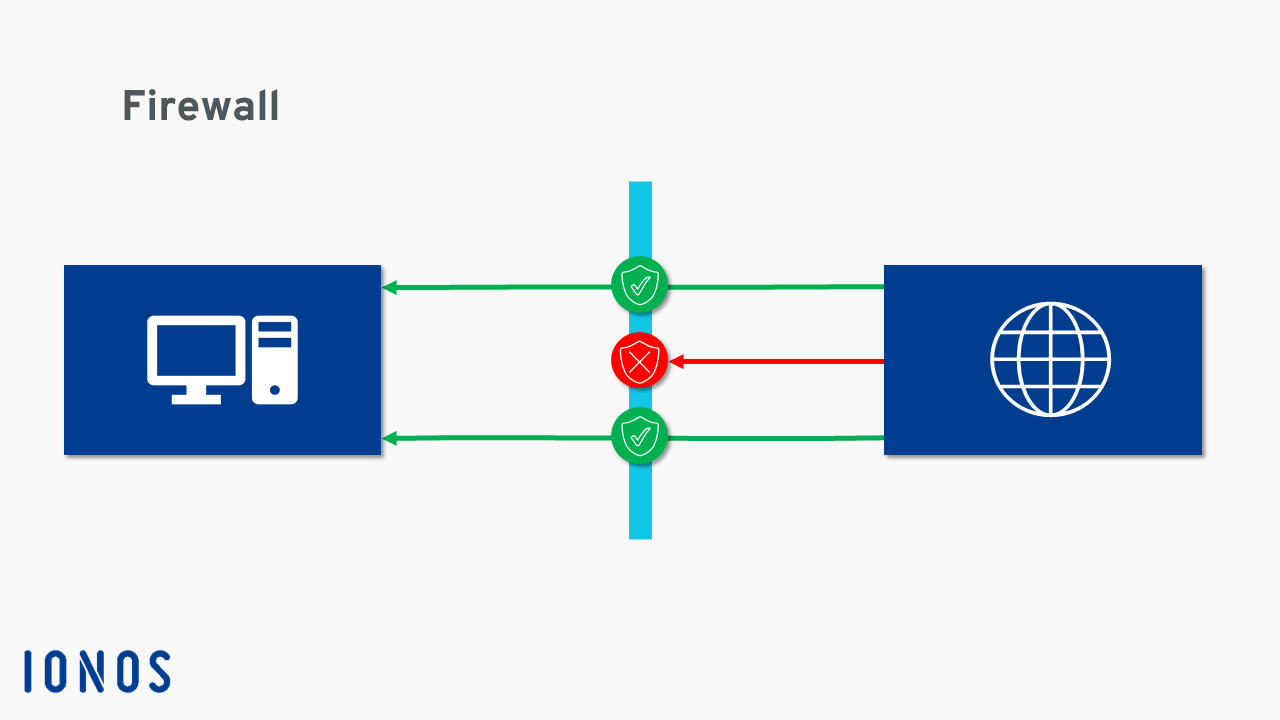
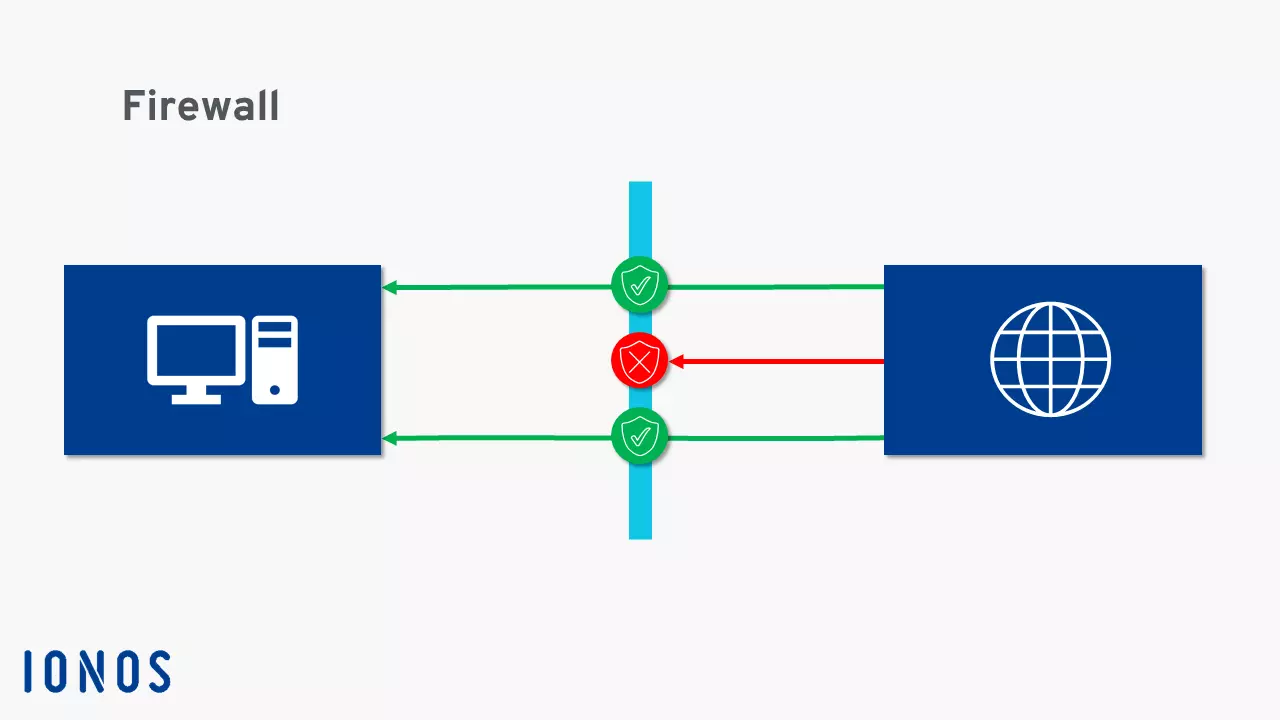
The effectiveness of your firewall thus depends on how you configure it. The following are some of the many different options available:
- Access rights for remote IP addresses: Any access attempts by other computers in the network are identified by an IP address and are initially blocked by default. If the data transfer is desired, you can manually authorize it or add the IP address as an exception so that access will be permitted the next time without being prompted.
- Access requests from online programs: You should have manual confirmation set for installing programs found online. This way you can be sure that you are installing the file you want, and you can immediately detect when an untrusted website is trying to infect your computer with malware.
- Network visibility: You can set the visibility of your computer on networks. We recommend hiding your computer in public networks (e.g. WLAN hotspots in airports or cafés) to provide additional protection from access attempts. While visibility is not the same as having access permissions, it does mean that it is easier for attackers to target your data.
- Blocking active website content: Some technologies (e.g. Microsoft ActiveX and Adobe Flash) used for displaying dynamic website content, such as videos and graphic animations, are frequently exploited to spread malware because the content runs locally on the user’s computer. You can block the execution of this content in advance.
Those are just some of the settings you can define in your firewall’s software configuration. Naturally, in addition to blocking websites, services and IP addresses, you can also define them as trustworthy and thus allow automatic access. This illustrates the limitations of a firewall – to reliably block malware, you need to correctly assess other programs and computers accessing your computer.
For this reason, you should not depend exclusively on a firewall. You should also use a reliable antivirus program that compares both installed programs and dynamic website content with current virus definitions and blocks them or warns you before executing them when necessary.
Many firewalls also work with ports. In order for a data packet from the internet to reach your computer, it must pass through one of these entrances. Each application uses a specific port. A firewall can be configured to ensure that only the required ports can be opened. The firewall will block all other entrances and prevent applications from accepting undesired or unplanned data packets. This regularly results in programs not working due to the firewall. However, if this occurs, you should not disable the firewall. Instead, just open the required port.
What kinds of firewalls are there?
As previously indicated, there are two different types of firewalls: personal firewalls (i.e. internal or desktop firewalls) and external firewalls (i.e. hardware or network firewalls).
A personal firewall is installed directly on your computer and is usually already included in your operating system. It monitors data traffic and prevents unauthorized access to and from a computer’s network services. Since most malware targets security vulnerabilities in network services, most attempts to attack your computer can be effectively blocked. The drawback is that with this system architecture, the firewall only reports the malware when it is already technically accessing your computer. Nevertheless, even if a secretly activated service continues to run despite being immediately uninstalled, the firewall can at least prevent it from spreading malware unimpeded in the network.
An external firewall stands between your home network and another network (e.g. the internet) and monitors all external access. In this case, the firewall, not the computer, is connected to the internet and is then connected with one or more computers. This is the typical setup of a LAN where the external firewall is installed on the router. It analyzes the incoming data traffic before it even reaches the computer making the request and can thus block malware attacks before they have a chance to damage your computer.
If you are still hesitant to use an external firewall, you can still benefit from its high level of security by taking a small detour. IONOS virtual servers are protected by a powerful hardware firewall like all servers in the IONOS cloud infrastructure.
How is a firewall activated?
If your operating system includes a firewall, which is standard in Windows and iOS, it is already activated when you first start up your computer. If it is deactivated, you will receive the corresponding system information. You can then activate it yourself in your operating system’s security settings. There you will find all the settings options to configure the firewall to meet your requirements.