

What is the Outlook attachment size limit?

Outlook attachments are allowed to have a maximum combined file size of 20 MB. But what if you need more MB for your attachments? Here you’ll find everything you need to know about Outlook’s limits on attachment size.
Why does Outlook have limits on attachment size?
You need to send an important mail with a large attachment but when you press send, you get an error message saying the attachment is too large. If this has happened to you, you’ve probably exceeded Outlook’s maximum file size for attachments. If you use an email service like Microsoft Exchange, which allows for a maximum combined file size of 25 MB, being restricted to Outlook’s 20 MB limit can be frustrating.
Outlook has its reasons for placing an attachment size limit on all versions of Outlook though: security. By putting an upper limit on Outlook file size, Microsoft prevents your computer from regularly sending lots of large attachments that exceed the limit of internet services. If, for example, you unknowingly become part of a botnet or your company is targeted by attackers, a flood of emails with large attachments can overload systems, consume storage and cause outages.
Powerful Exchange email and the latest versions of your favorite Office apps on any device — get started with our free setup assistance.
How to configure Outlook’s maximum attachment size
If Outlook’s email file size limit is giving you trouble, you can configure the upper limit or adjust the limit of your Outlook attachment. There are several ways to do this. You can increase the maximum file size using the Registry Editor, or you can upload files to the cloud or compress them that are too large. We’ll take a look at these different approaches in more detail below.
Using Regedit
If you want to manually change Outlook’s max attachment size, you can use the Windows Registry Editor, also called Regedit. In Microsoft’s registry, setting a new Outlook attachment size limit is straightforward. Keep in mind though that many mail servers have a limit of 25 MB. Increasing the size limit only makes sense if the mail server or provider that receives your attachment supports the file size you choose.
Entries and changes in the Windows Registry Editor should only be made by experienced users. Incorrect changes can cause permanent damage to the Windows system.
Follow the steps below:
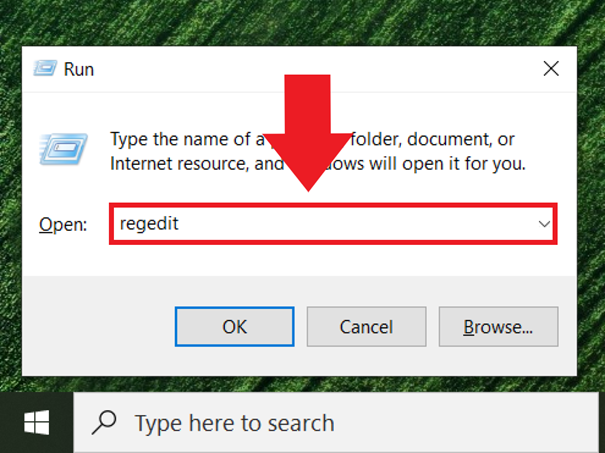
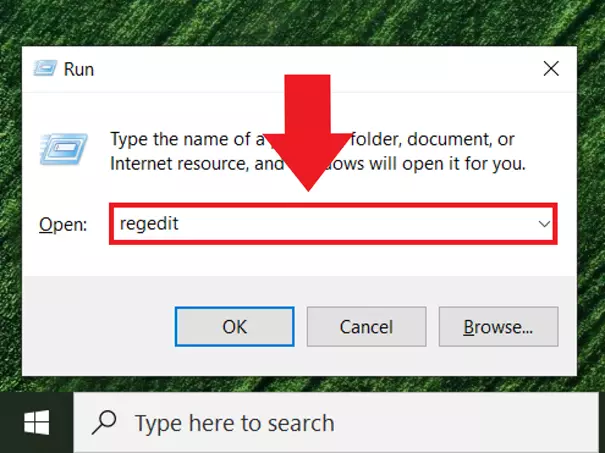
Step 1: Open the Run command line with the shortcut [Windows] + [R]. Enter the command regedit and click OK. This will open the Registry Editor under Windows.
Step 2: Navigate to the path HKEY_CURRENT_USER\Software\Microsoft\Office\(your Outlook version number)\Outlook\Preferences, using the Outlook version number that corresponds to the version of Outlook that you are using.
Step 3: If you don’t see a value called MaximumAttachmentSize here, go to Edit at the top, click New and then DWORD. Now type MaximumAttachmentSize in the field. Keep in mind that this field is case-sensitive. Now, create the value by pressing ENTER and then right-click on the value.
Step 4: Via Change, you can cancel any limit by entering a 0 (zero) under Value. Entering 0 means that there is no longer an Outlook attachment size limit. Alternatively, you can define a new file size by entering your desired limit in KB under Base with the Decimal field activated.
Using cloud storage
Another handy way to bypass Outlook’s limits on attachment size is to use a cloud storage service like IONOS HiDrive, iCloud, Google Drive or OneDrive. Going this route saves storage space and secures data at the same time. Instead of sending a large attachment directly you can simply upload the file to the cloud and share it. Instead of attaching a file to an email, the recipient of your email will use a link to access the file.
Use IONOS’ highly secure HiDrive Cloud Storage to create important backups or make large files available to users.
Using Kutools
The fee-based Kutools add-on for Outlook offers numerous features for efficient communication via Outlook. In addition to automatic forwarding, replying, CC/BCC for different recipients, and storage sharing, Kutools offers the ability to automatically compress incoming attachments, helping you to conserve space for your Outlook file.
Using archiving/compression programs
Another trick to circumvent the upper limit for Outlook attachments is to use free file compression programs like WinZip, WinRAR or 7-Zip. With these, files can be compressed to up to 90 percent of their original storage size. This means you can easily send large files in archive formats such as ZIP, RAR or 7z and still remain within the file size limit. However, it’s important to make sure that recipients can unzip archive files. While Windows can unpack ZIP, a compression program is needed to unpack RAR or 7z files. For macOS, additional software is also required for ZIP, RAR and 7z formats.
- Intuitive drag and drop editing
- AI-powered text generation
- Multiple templates to choose from