

How can a caching plugin make your WordPress site faster? Options compared

Is your website too slow or underperforming? A sluggish site often causes users to leave quickly—potentially costing you customers. But speed optimization is also important for search engine rankings. Google and others reward fast websites with better search positions. A WordPress caching plugin can help you significantly improve your WordPress site’s performance.
- Stress-free, no matter your skill level with easy AI tools
- Fully customizable with themes and plugins
- Hassle-free updating and less admin
What is a cache?
When a user visits your site, their browser sends a request to the server to retrieve all required files. The server processes this request—including a database query—and delivers all necessary files and elements to the browser. This process can be time-consuming for large pages with many and especially large CSS-files, images, or JavaScript elements.
This is where the cache comes into play. Instead of loading dynamic elements every time, a static version of the page is saved in the cache. Users receive a ready-made version that may not show the latest content, but loads much faster. And that’s where a WordPress caching plugin helps.
IONOS Hosting for WordPress stores installations and databases on SSD-based systems, achieving up to 50% faster response times.
Why use a WordPress caching plugin?
Caching has many benefits and is generally essential. Depending on your hosting provider, server-side caching may already be included—meaning you don’t need to do anything. This is particularly useful if you have limited technical knowledge.
One common server-side method is OPcache, which precompiles PHP scripts in memory to speed up processing. Memcached and Redis are powerful in-memory caching systems that store frequently accessed database queries and other data. Many hosts also use page caching, which delivers entire HTML pages from the cache without running PHP or querying the database.
Some providers even offer edge caching, storing content in globally distributed data centers to minimize load times for international visitors. Server-side caching is highly effective since it operates at the host level without relying on plugins.
However, if you’re using shared hosting or managing your own server, a WordPress caching plugin becomes a smart choice.
Benefits of using a WordPress caching plugin
- Faster load times: Cached files load faster in browsers.
- Improved user experience: Faster pages reduce bounce rates and improve engagement.
- Lower server load: Your server handles fewer requests thanks to caching.
- Better SEO: Speed helps boost search rankings.
- Reduced time to first byte (TTFB): A caching plugin decreases the time the server takes to deliver the first byte of data.
Drawbacks of using a WordPress caching plugin
Depending on your content and how frequently it changes, a caching plugin may have the following drawbacks:
- Basic knowledge required: Unlike server-side caching, a WordPress caching plugin requires some basic knowledge. This is necessary to configure the plugin correctly for your site and to avoid display issues.
- Constantly changing information: If you display, for example, the number of active readers on your site, the browser may show an outdated, cached version. The actual number will only be visible after the cache is cleared.
- Outdated prices on affiliate sites: Affiliate sites pull product prices from external online stores. When those prices change, the browser only shows the new prices after the cache is cleared. To avoid displaying outdated prices, it’s best to configure the cache on affiliate pages to refresh automatically every 1 to 2 hours.
After making updates, remember to clear the WordPress cache so browsers display your most recent content.
Key features of a WordPress caching plugin
To improve page load times, the best WordPress caching plugins offer a range of functions, including:
- Combine files: Websites often use multiple CSS and JS files. Each file requires a separate request. To reduce the number of requests, the plugin bundles individual CSS and JS files into one.
- Browser caching: When a user visits a page, the plugin stores copies of resources. On repeat visits, those resources are loaded directly from the cache.
- GZip compression: GZip reduces the size of HTML, CSS, and JS files to speed up loading times.
- CDN (Content Delivery Network): A CDN delivers data faster by distributing it across multiple geographic locations.
- Image optimization: Large or numerous images can slow down page loading. Optimized image file sizes significantly improve performance.
The best WordPress caching plugins compared
The WordPress plugin directory offers a wide selection of caching tools. Below, we present four top-rated plugins. All are highly configurable. We recommend testing two or three and running speed tests with Pingdom to find the best match for your site, your server, and your requirements.
WP Fastest Cache
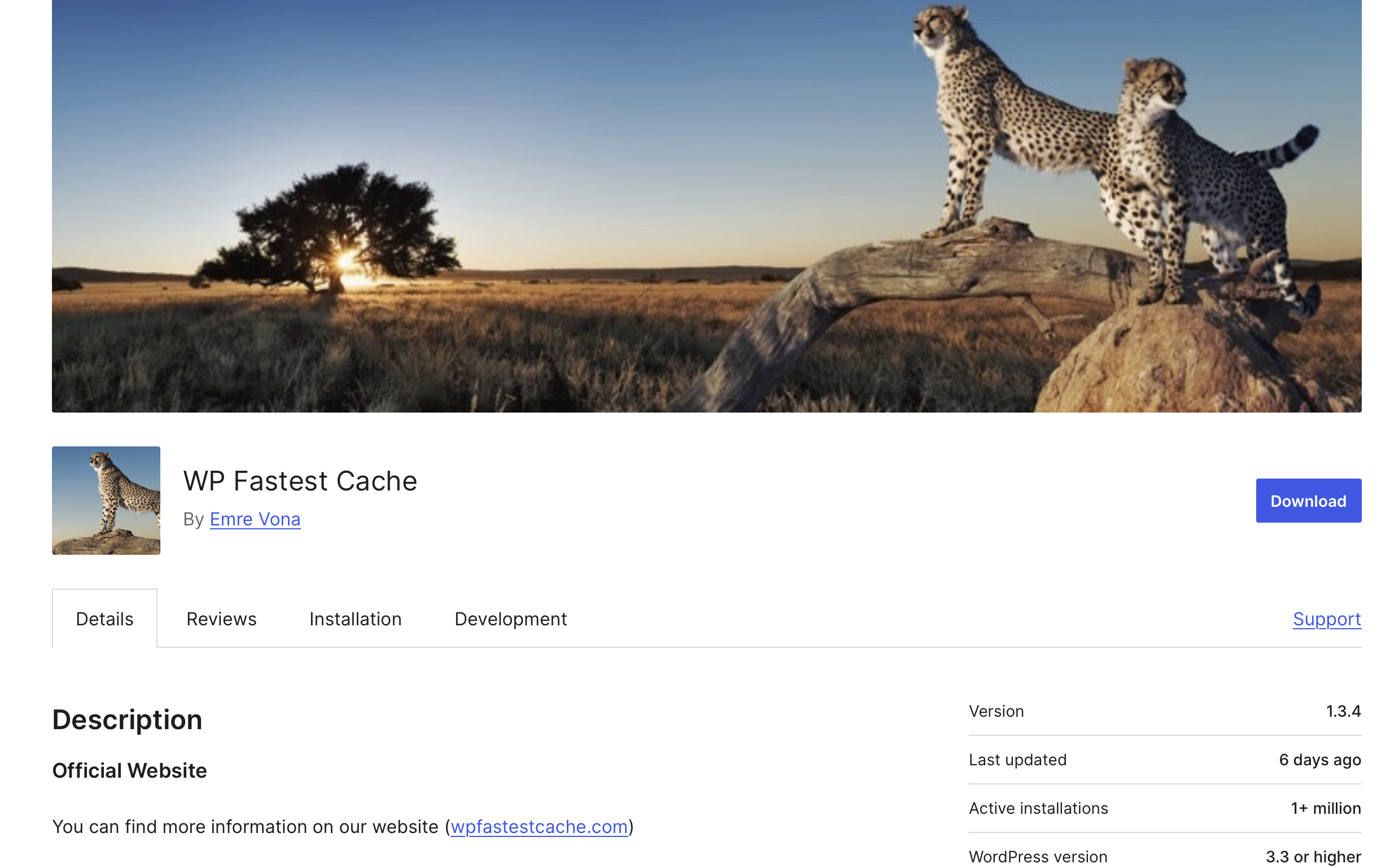
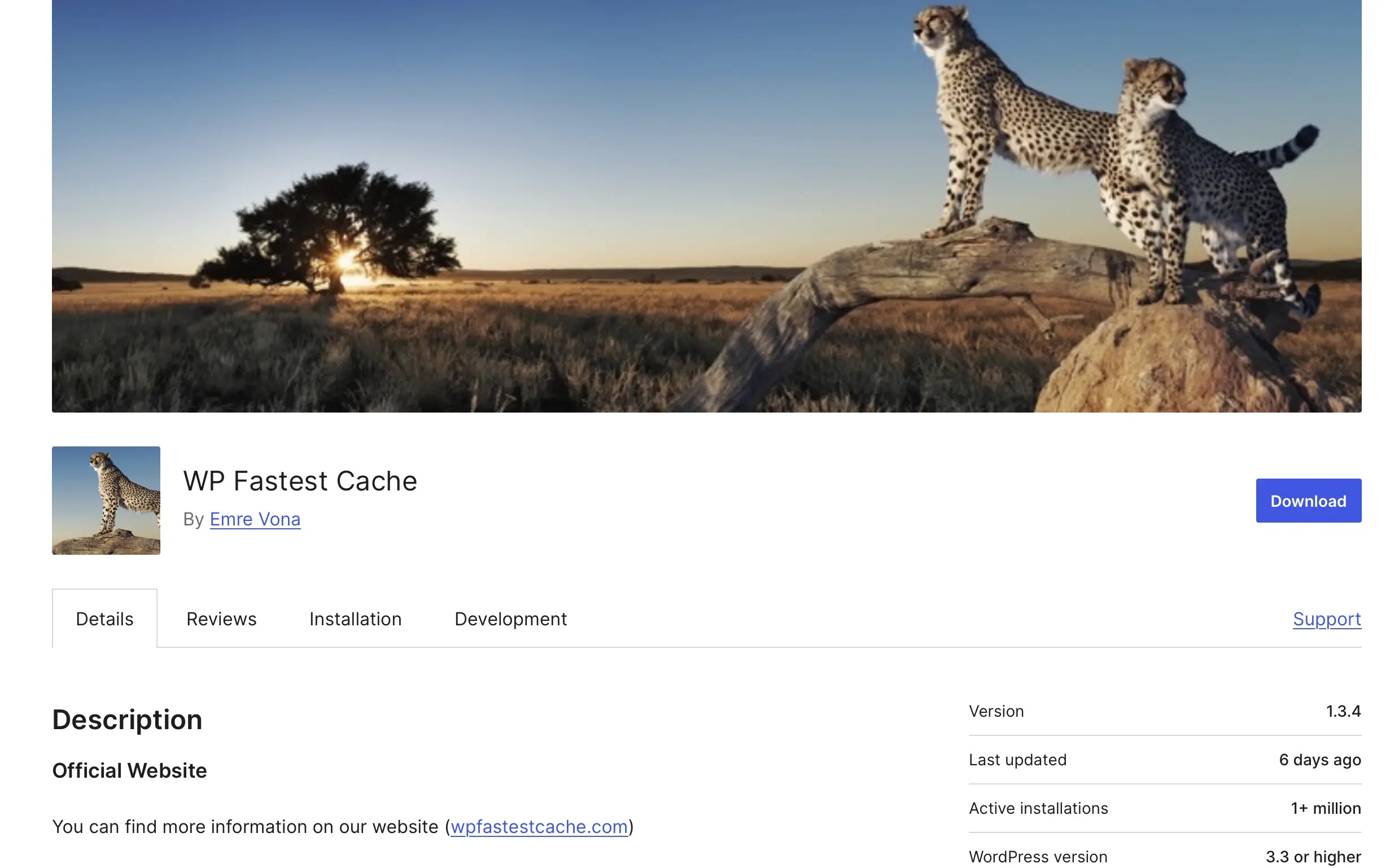
WP Fastest Cache has over one million active installations. It’s easy to use and offers a wide range of settings, all accessible via simple checkboxes.
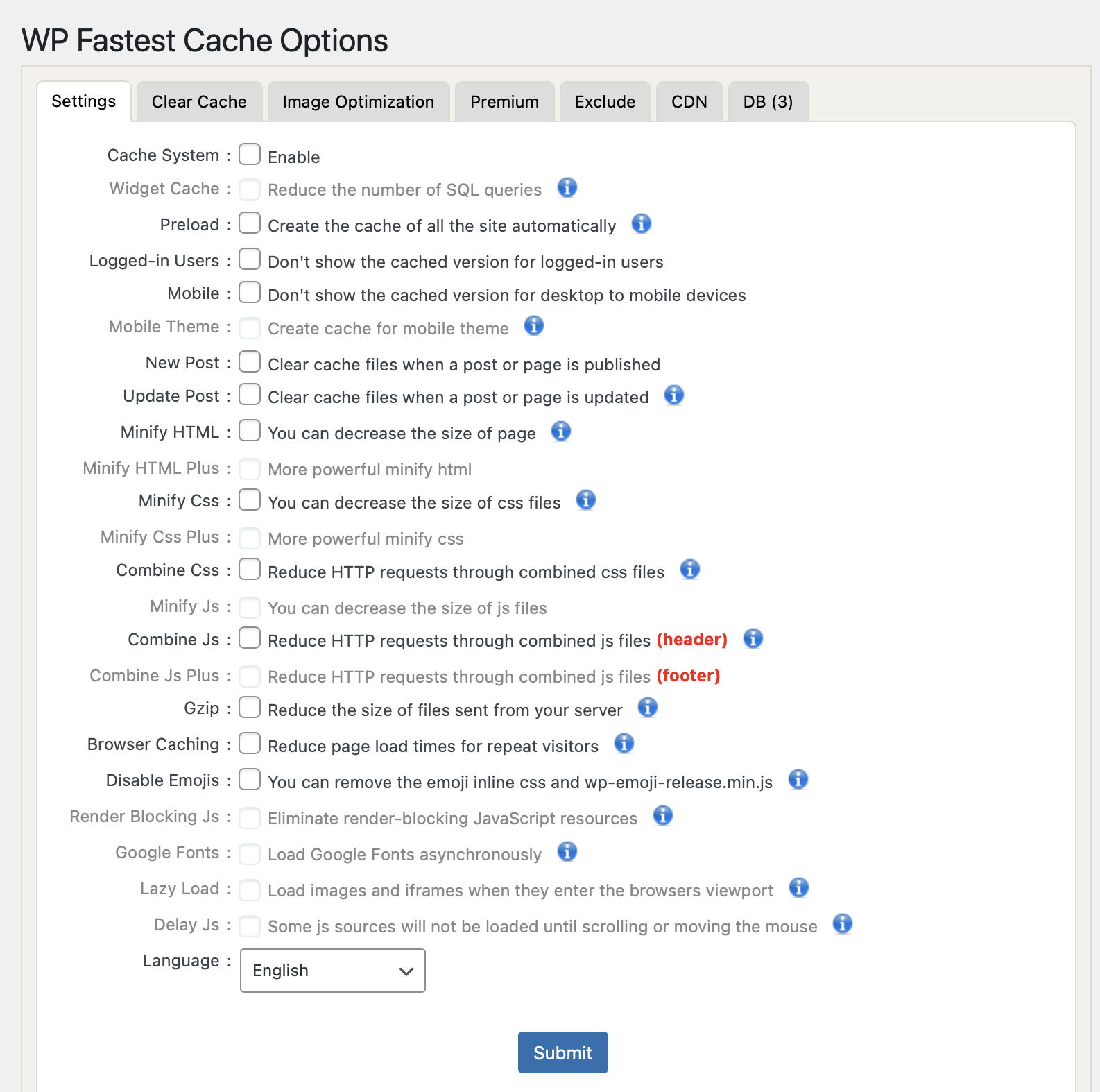
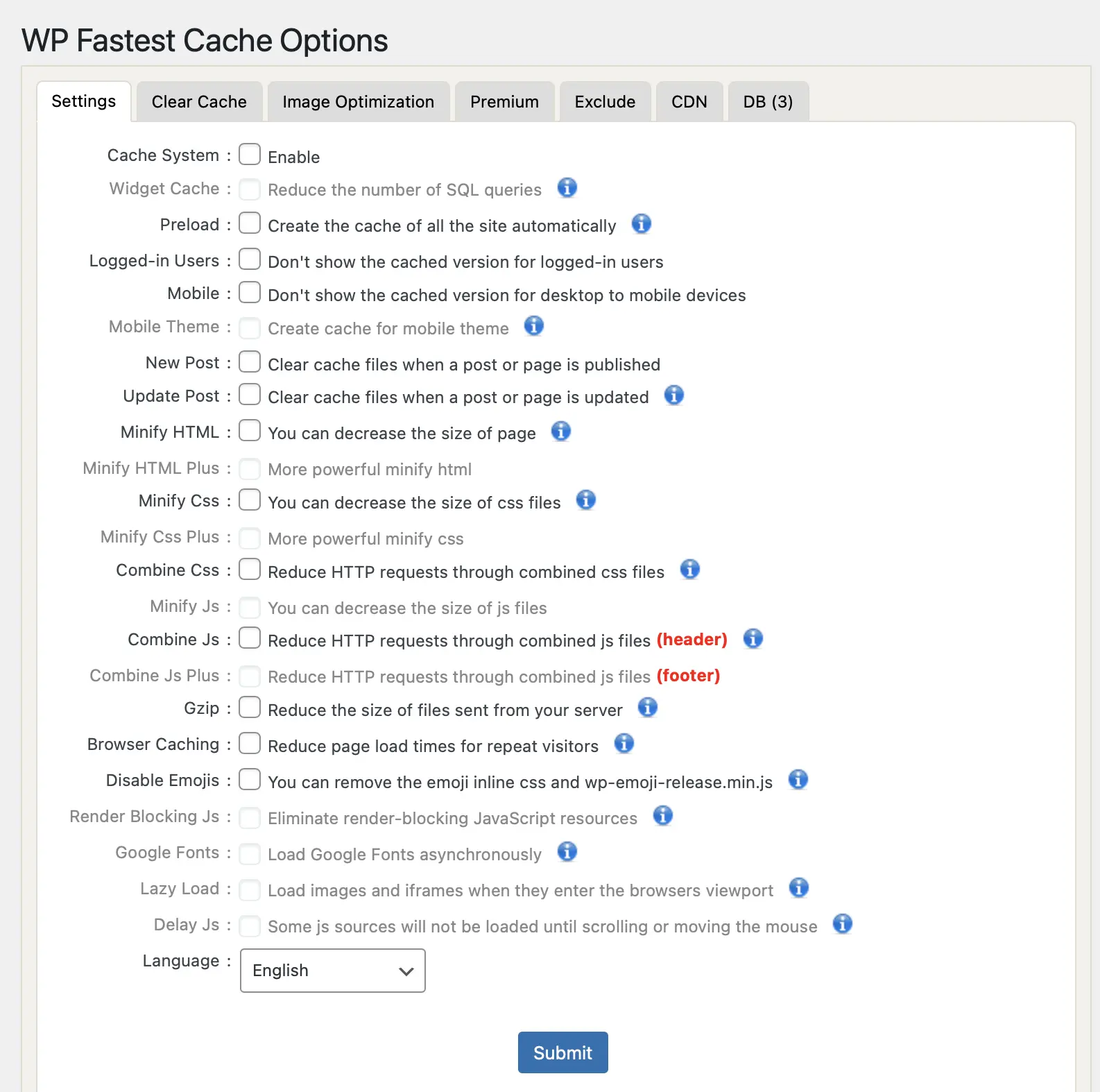
A premium version is available with additional tools to make WordPress faster, but most users find the free version sufficient.
Pros and cons of WP Fastest Cache
| Pros | Cons |
|---|---|
| ✓ Minifies CSS & HTML | ✗ Not compatible with Multisite |
| ✓ Combines JS & CSS | ✗ JS minification in footer only in premium version |
| ✓ SSL & CDN support | ✗ Image optimization only in premium |
| ✓ GZip compression | ✗ Database optimization only in premium |
| ✓ Desktop caching | |
| ✓ Browser caching | |
| ✓ Option to exclude pages, cookies, CSS, JS, users from caching | |
| ✓ Auto-clear cache after publishing or updating posts |
WP Rocket
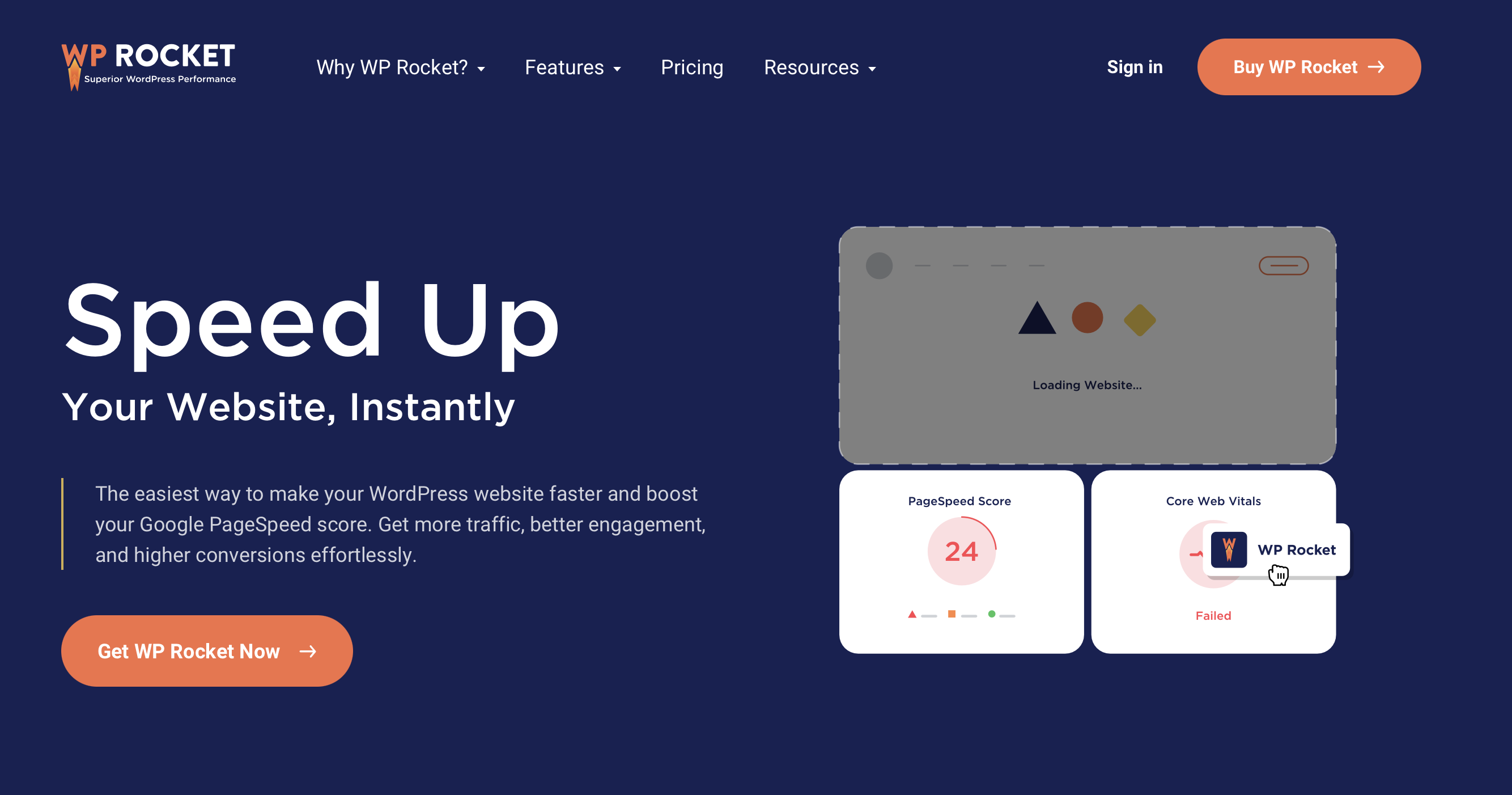
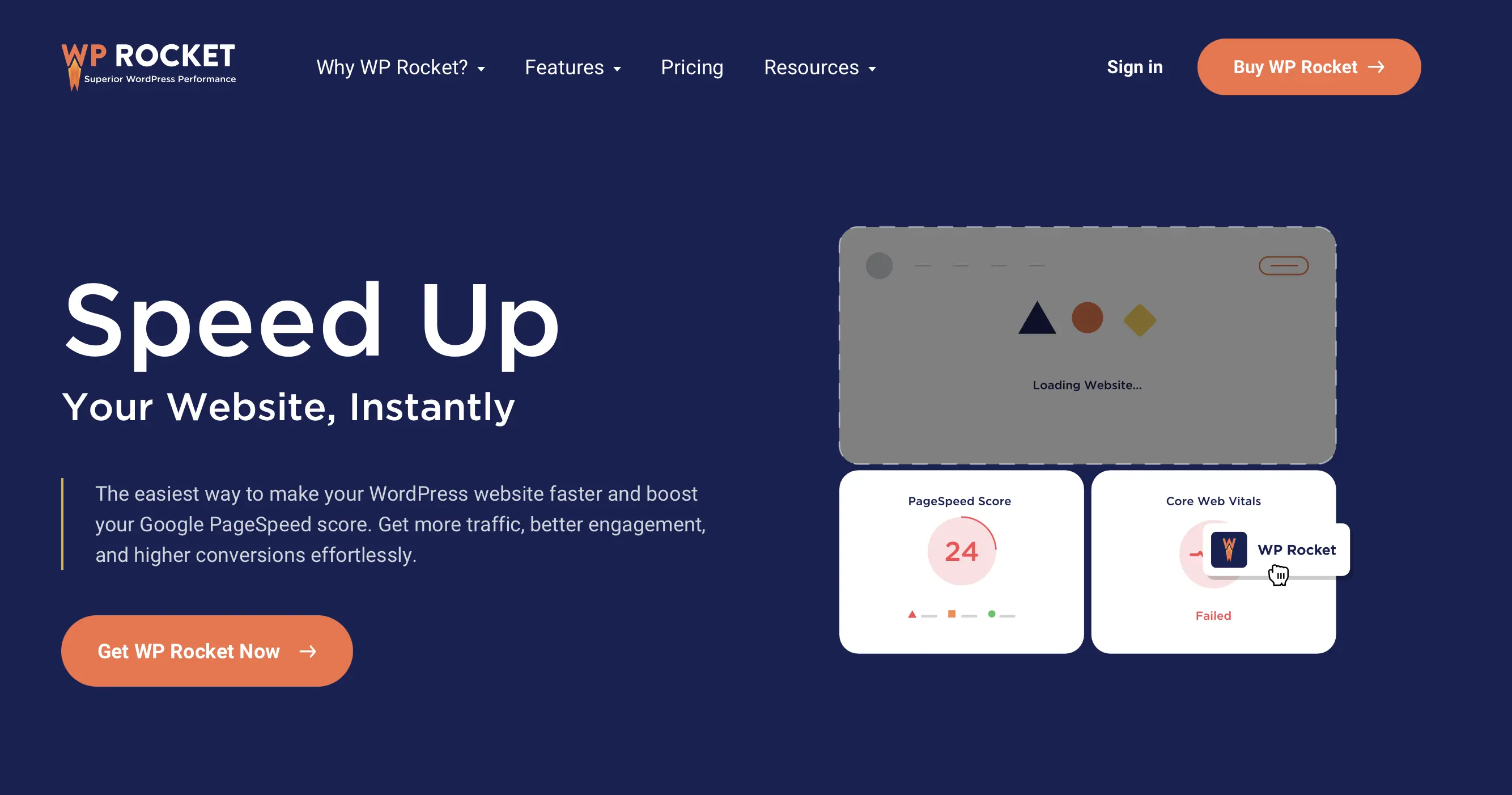
WP Rocket is a comprehensive premium plugin offering everything you need for a faster WordPress site. The developers of the plugin do not offer a free version, but you do get a 14-day money-back guarantee on the paid plans. Depending on the number of websites you want to use the plugin for, prices range from $59 (one website) to $599 (500 websites).
WP Rocket is especially worthwhile for beginners, as its user-friendly interface and quick setup make it very easy to use.
Pros and cons of WP Rocket
| Pros | Cons |
|---|---|
| ✓ Minifies CSS & HTML | ✗ No free version |
| ✓ Combines JS & CSS | |
| ✓ Lazy load for JS files | |
| ✓ GZip compression | |
| ✓ Image optimization | |
| ✓ CDN support | |
| ✓ Desktop caching | |
| ✓ Browser caching | |
| ✓ Database optimization | |
| ✓ Google Fonts optimization |
W3 Total Cache
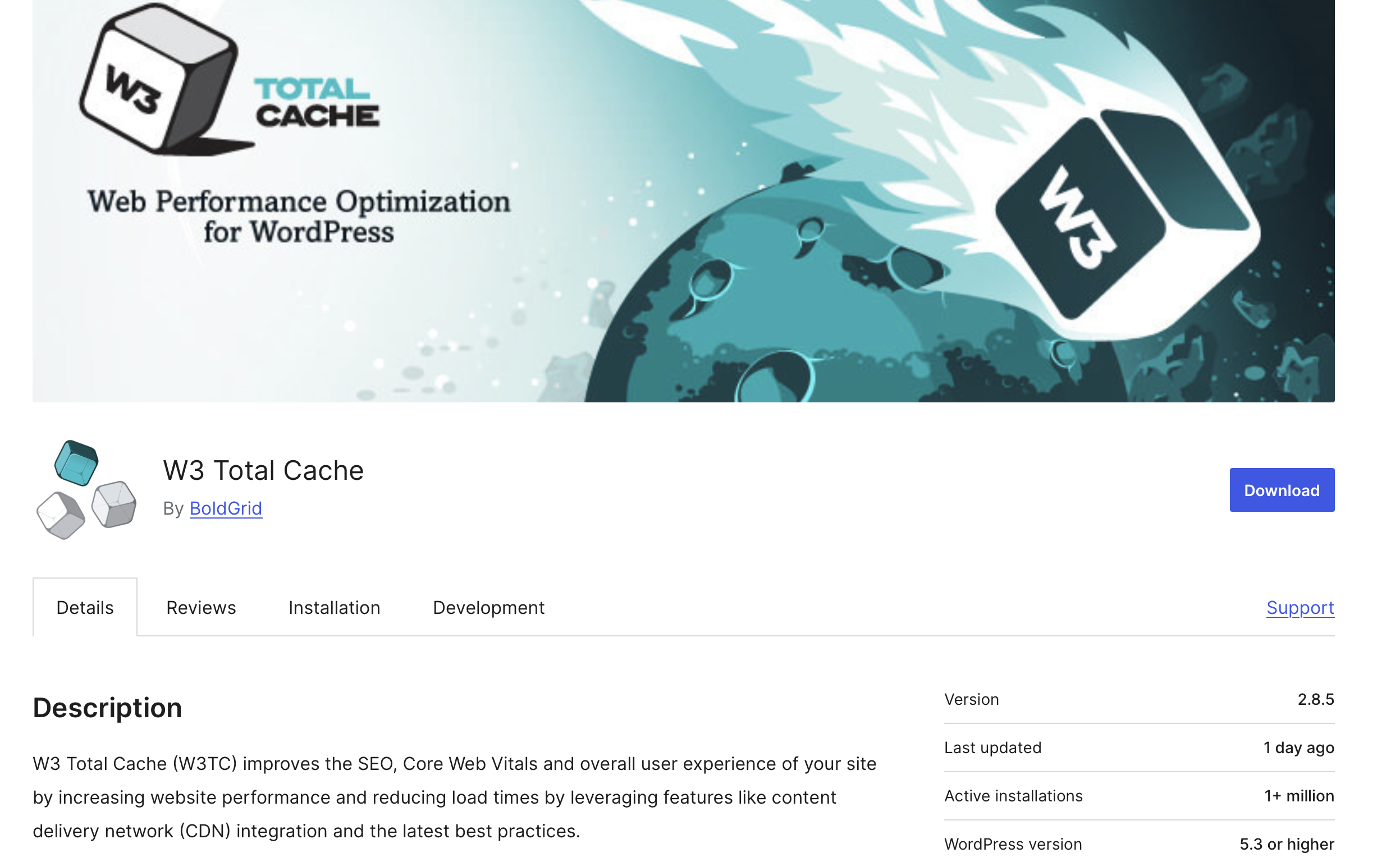
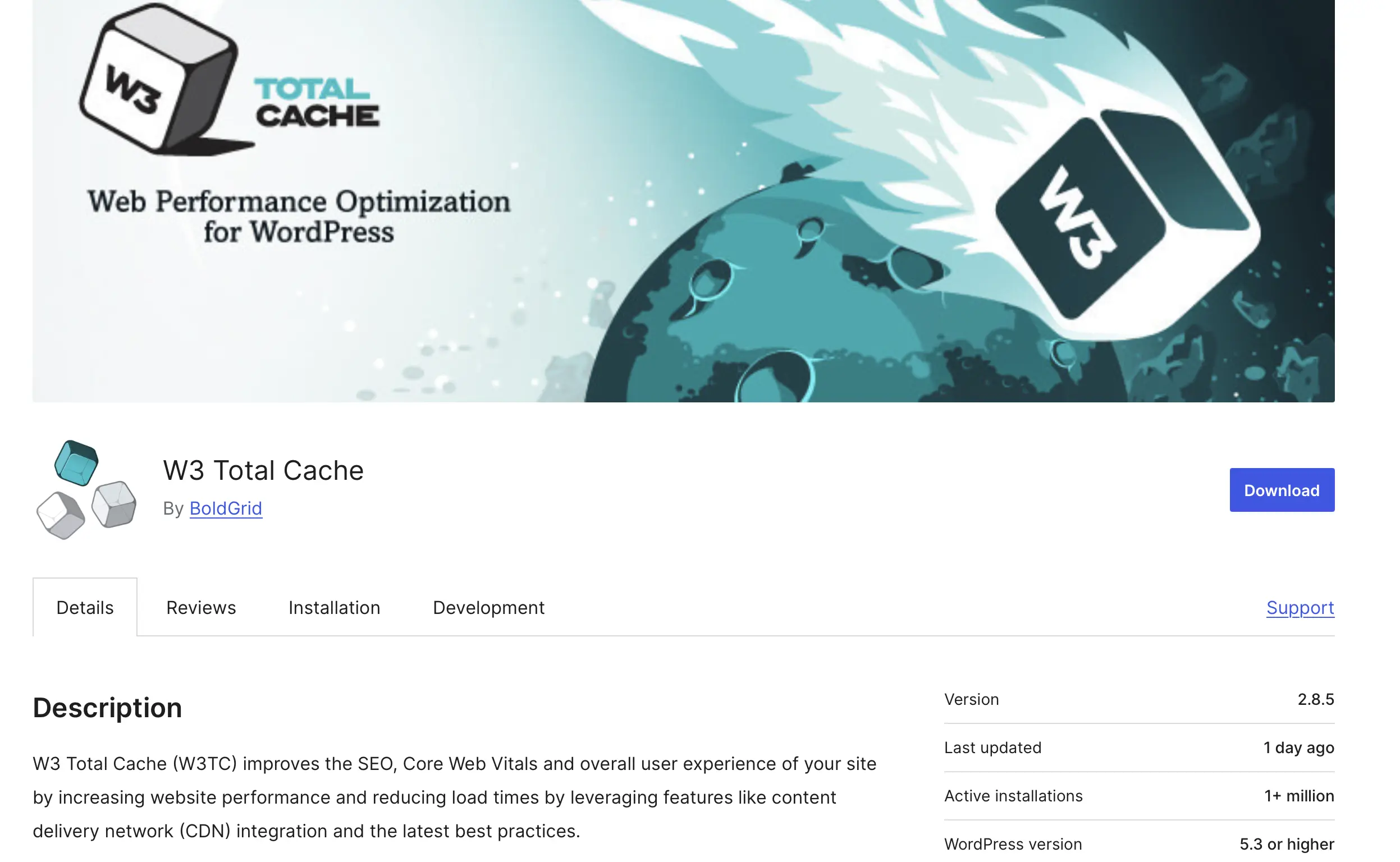
W3 Total Cache is completely free. There is no premium or paid version that unlocks specific features. All essential features are already included in the base version. Due to its extensive range of functions, this WordPress caching plugin can be a bit complicated for beginners. However, if you’re already familiar with it, it’s a great choice to gain free access to a wide range of fine-tuning options.
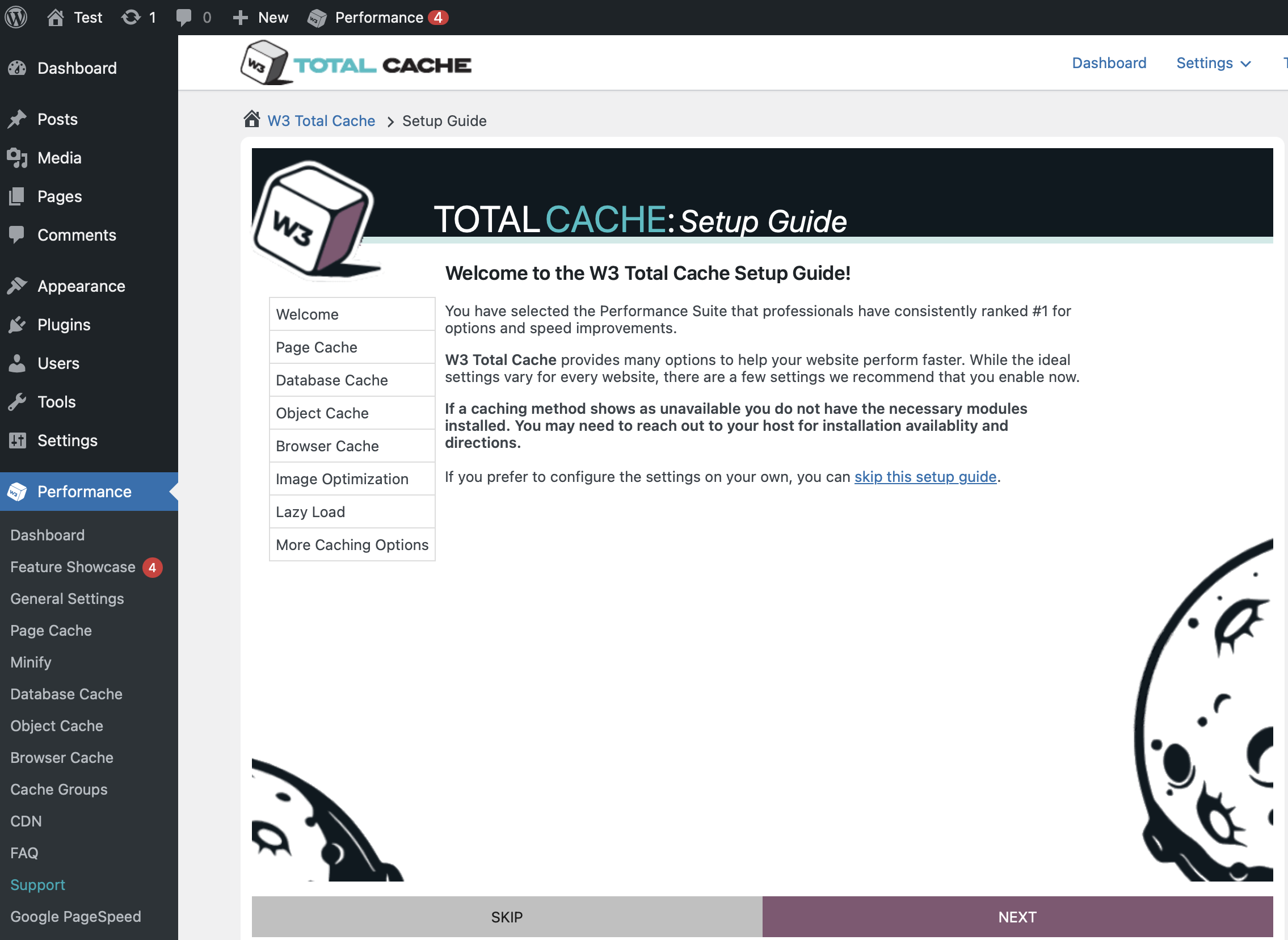
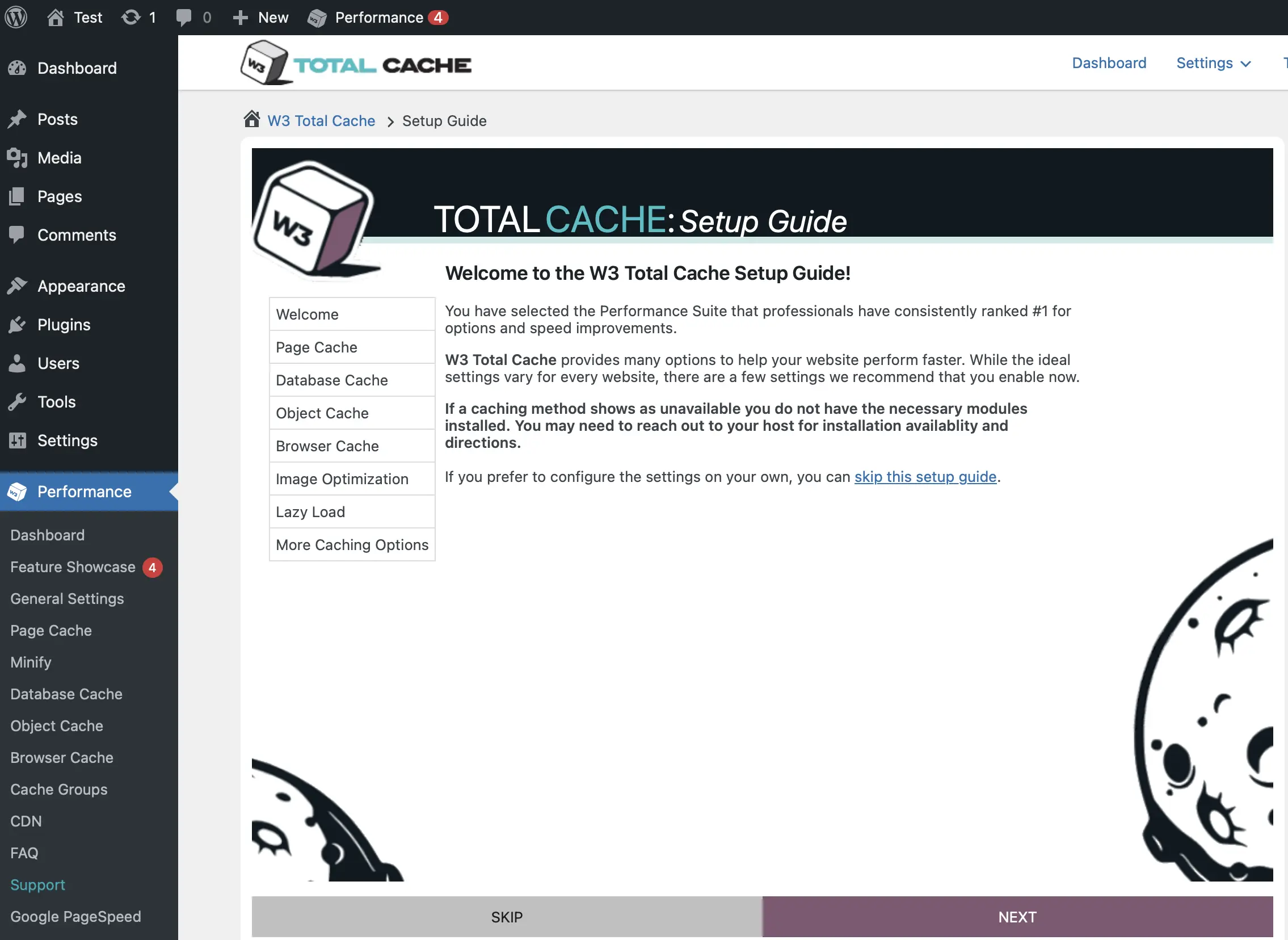
Pros and cons of W3 Total Cache
| Pros | Cons |
|---|---|
| ✓ Minifies CSS & HTML | ✗ No automatic DB cleanup |
| ✓ Combines JS & CSS | ✗ Requires advanced knowledge |
| ✓ Lazy load for JS files | |
| ✓ GZip compression | |
| ✓ CDN support | |
| ✓ Desktop caching | |
| ✓ Browser caching | |
| ✓ Multisite support | |
| ✓ Mobile support |
WP Super Cache
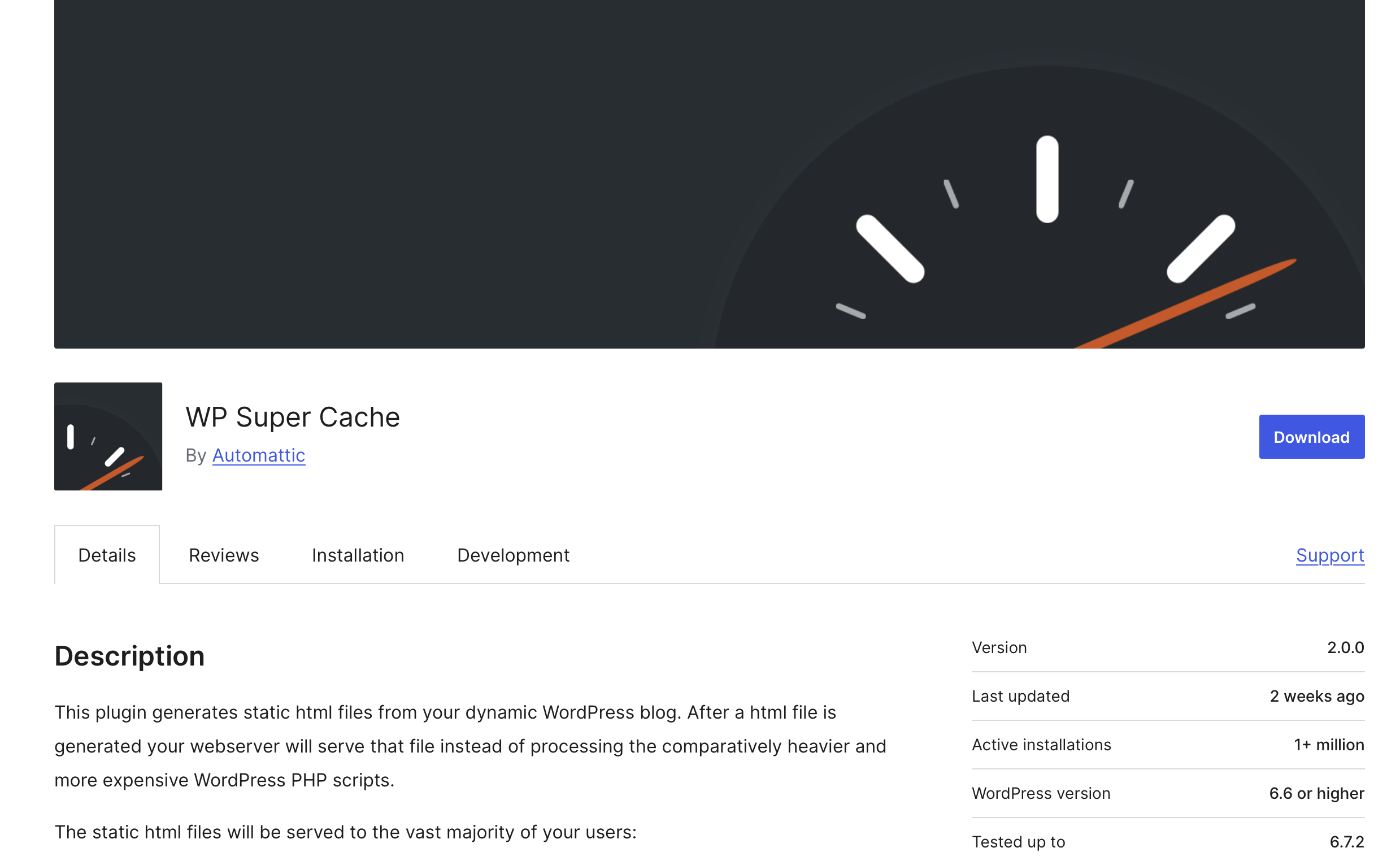
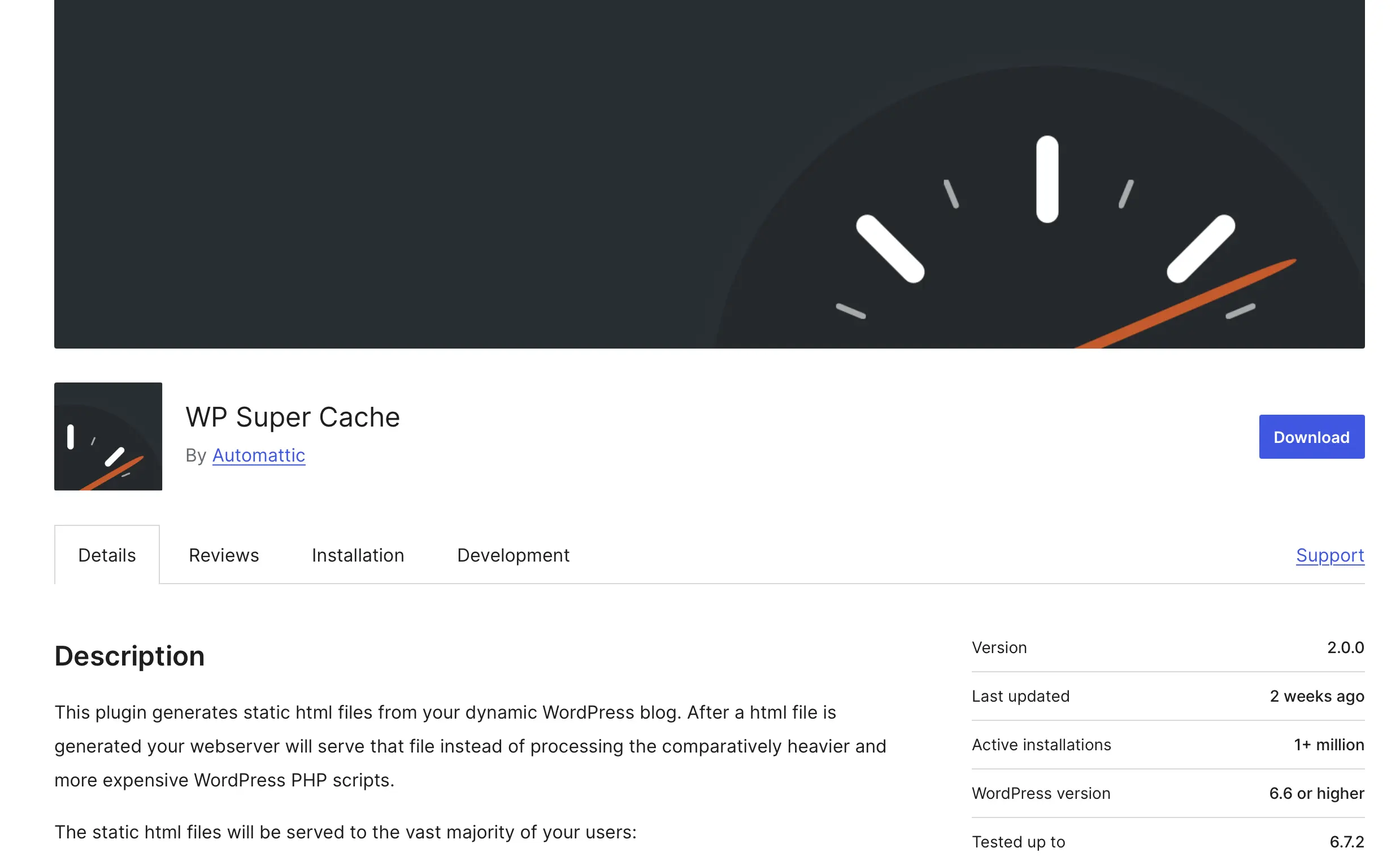
WP Super Cache is slightly easier to use than W3 Total Cache. The caching modes are particularly helpful. With the Simple mode, even beginners can activate effective caching without taking major risks. If you want to use more advanced options, there is the Expert mode, which allows you to make more detailed configurations. However, you should have sufficient technical knowledge, as this mode requires modifications to important server files.
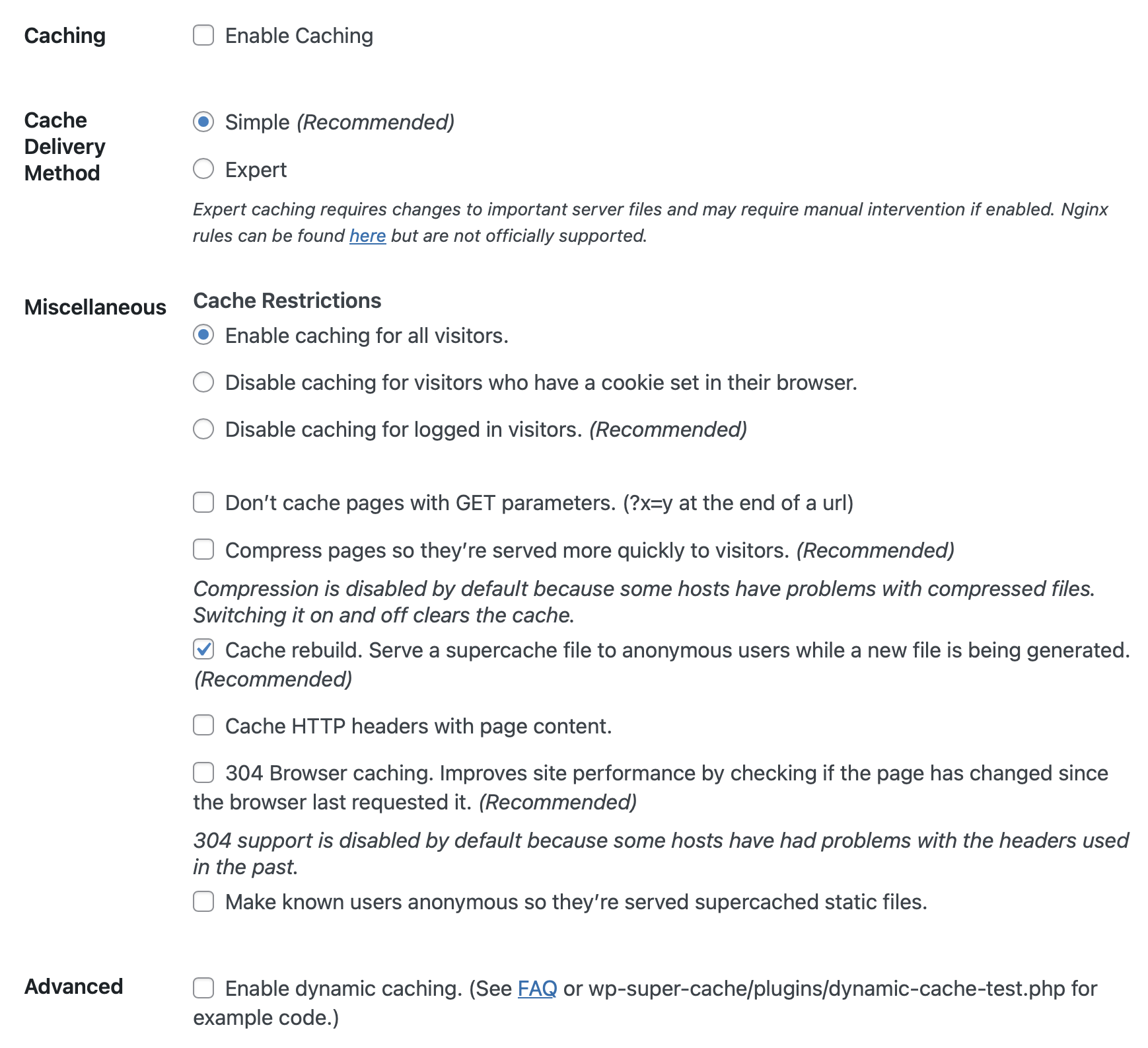
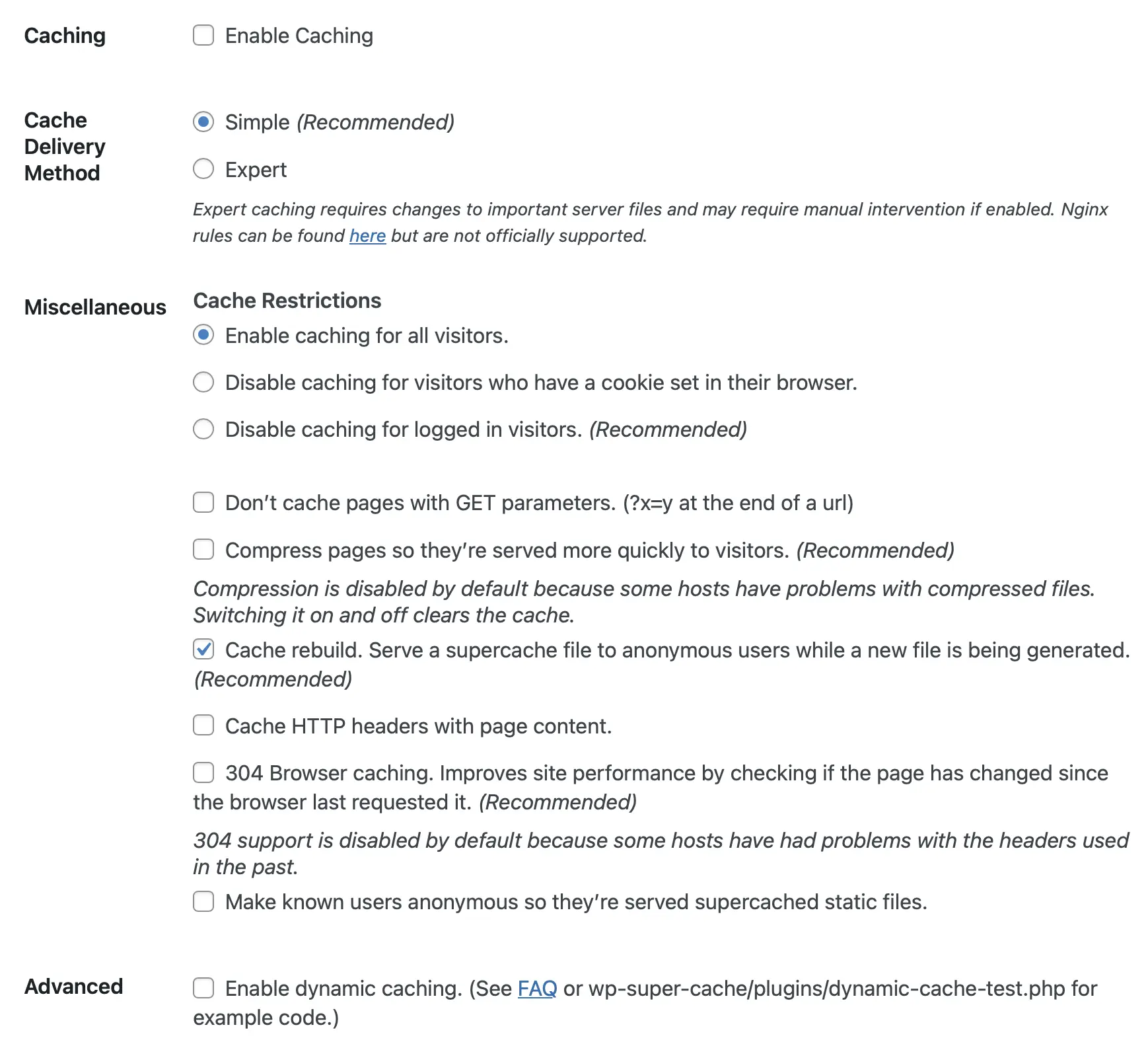
The development of the WP Super Cache plugin comes from the same company that runs WordPress. This is why it is considered the official WordPress caching plugin among WordPress users. Its biggest advantage is that it generates static HTML pages. Unlike retrieving data from the database, this allows the browser to display the page significantly faster.
Pros and cons of WP Super Cache
| Pros | Cons |
|---|---|
| ✓ Three modes for easy setup | ✗ No Google Fonts optimization |
| ✓ Generates static HTML | ✗ No lazy load option |
| ✓ GZip compression | ✗ Can’t combine/minify JS or CSS |
| ✓ Desktop caching | |
| ✓ CDN support | |
| ✓ Multisite support | |
| ✓ Mobile support |
Caching plugins are just one category of available WordPress plugins. From the start, WordPress has been known for its extensive customizability. Check out our other plugin guides:
Features of the WordPress caching plugins compared
After presenting four of the most well-known WordPress caching plugins, the following table provides a helpful overview of all key features.
| Feature | WP Fastest Cache | WP Rocket | W3 Total Cache | WP Super Cache |
|---|---|---|---|---|
| Browser caching | ✓ | ✓ | ✓ | ✗ |
| Desktop caching | ✓ | ✓ | ✓ | ✓ |
| Minify CSS & HTML | ✓ | ✓ | ✓ | ✗ |
| JS minification | ✓ (Premium) | ✓ | ✓ | ✗ |
| Combine JS & CSS | ✓ | ✓ | ✓ | ✗ |
| Footer JS loading | ✓ (Premium) | ✓ | ✗ | ✗ |
| CDN support | ✓ | ✓ | ✓ | ✓ |
| GZip compression | ✓ | ✓ | ✓ | ✓ |
| DB optimization | ✓ (Premium) | ✓ | ✗ | ✗ |
| Google Fonts optimization | ✓ (Premium) | ✓ | ✗ | ✗ |
| Mobile support | ✓ (Premium) | ✓ | ✓ | ✓ |
| Multisite support | ✗ | ✓ | ✓ | ✓ |
| Lazy load | ✓ (Premium) | ✓ | ✓ | ✗ |
| Image optimization | ✓ (Premium) | ✓ (via Imagify) | ✗ | ✗ |
| Free version | ✓ | ✗ | ✓ | ✓ |
| Premium price (Feb 2025) | From $49 lifetime | From $59/year | Free | Free |
