

How to program your own WordPress plugin

The popular content management system WordPress is known for its customizability. Various plugins can be installed to extend the CMS’s functionality. For even better customization to your own needs, you can also develop WordPress plugins yourself.
- Stress-free, no matter your skill level with easy AI tools
- Fully customizable with themes and plugins
- Hassle-free updating and less admin
Advantages of your own WordPress plugin
Given the numerous extensions that, like WordPress itself, are mostly free and available for download in the official plugin directory, it may not seem necessary to create WordPress plugins yourself. However, when searching for the right extensions for your web project, you’ll quickly realize that many plugins (we’ve highlighted the best WordPress plugins for you) may meet your search criteria, but either …
- are no longer being developed,
- no longer or don’t function as expected,
- or lack the required feature set.
Therefore, learning about WordPress development and creating your own plugin or adapting an existing one for your needs can make a lot of sense. Developing your own extension is also an excellent alternative to the common functionality extension of the WordPress installation through modifications in the individual functions.php file of the theme used.
Prerequisites for WordPress plugin development
Before you start developing WordPress plugins, you should ensure you have the right tools and the necessary foundation. You will need a local development environment with a WordPress installation. A simple way to do this is by using the free tool Local WP, which allows you to install and test WordPress on your computer. Alternatively, you can use XAMPP or MAMP to set up a local WordPress environment.
In addition to a working WordPress installation, a PHP editor or PHP IDE like Visual Studio Code or PhpStorm is helpful when programming WordPress plugins. A basic understanding of PHP, HTML, CSS, and JavaScript is also useful to better understand how WordPress plugins work.
How to create a WordPress plugin step by step
Step 1: Create the plugin directory and main file
Every WordPress plugin is stored in its own directory in the wp-content/plugins/ folder of the WordPress installation. To create your own plugin, open this folder in your file explorer and create a new folder. Give it a meaningful name, for example my-own-plugin.
Within this directory, create a new file named my-own-plugin.php. This file is the main file of the plugin and must contain a special header so that WordPress can recognize the plugin. Open the file in your code editor and add the following code:
<?php
/*
Plugin Name: My own plugin
Plugin URI: https://localhost/
Description: Demo plugin.
Version: 1.0
Author: IONOS
License: GPL2
*/These comment lines contain important meta-information about the plugin. The name of the plugin will be displayed in the WordPress admin area, and the description helps to understand the feature set or scope of the plugin. Since WordPress itself is licensed under the GNU General Public License (GPL), you should choose a license that is compatible with this.
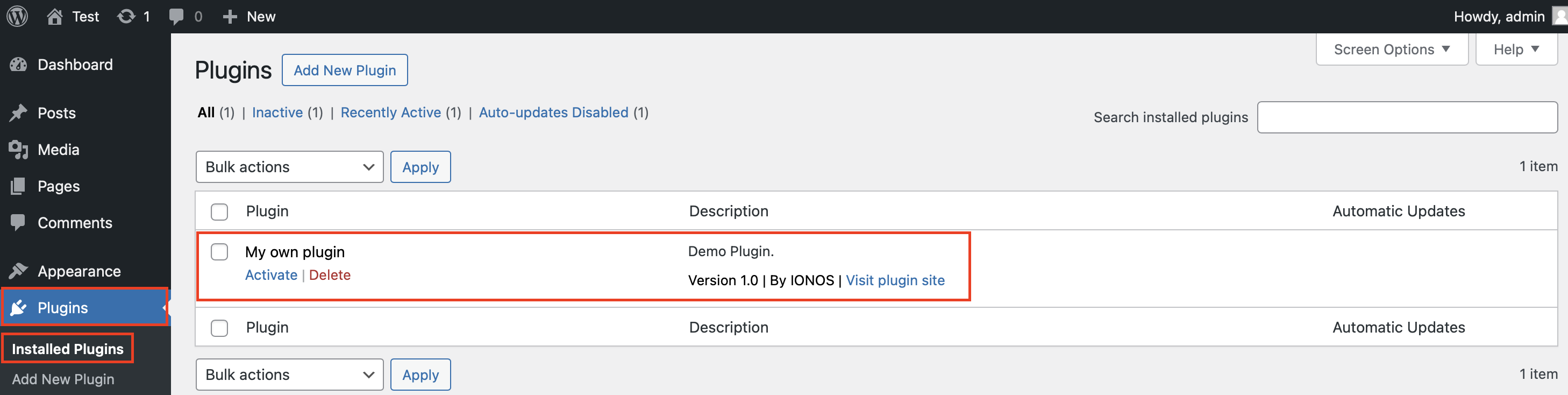
After saving this file, go to the WordPress backend and navigate to the “Plugins” menu. Your plugin should now appear in the list. To activate it, simply click “Activate”. Since the plugin does not yet have any functionality, this activation won’t have any visible effect, but you’ve already laid the foundation for your own plugin.
Step 2: Add the first functionality
To demonstrate the functionality of the plugin we just created, we’ll first add a simple function that outputs a specific text via a WordPress shortcode. A shortcode is a short string of characters that can be inserted into WordPress posts or pages to dynamically output content.
Add the following code to your main file:
function my_plugin_shortcode() {
return "<h2>Hello World!</h2>";
}
add_shortcode('my_shortcode', 'my_plugin_shortcode');This function creates a new shortcode named [my_shortcode]. When this shortcode is inserted into a post or page, WordPress will automatically output the defined HTML code, thus displaying “Hello World!”
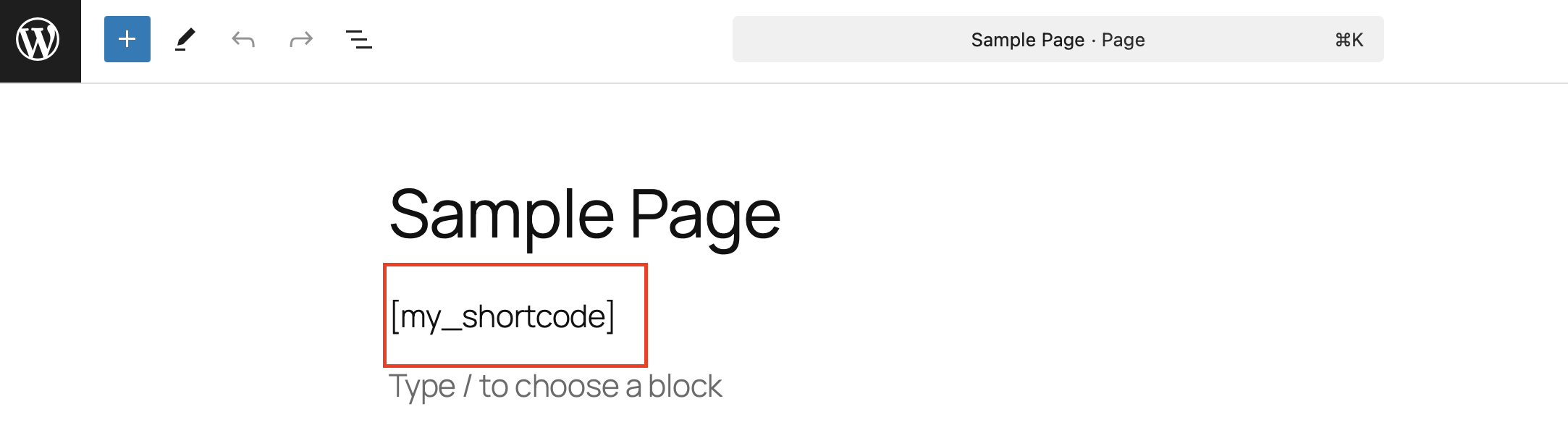
Save the file, go to the WordPress editor, and insert the shortcode [my_shortcode] into a new page.
After saving and viewing the page, the defined HTML text should be visible on your website:
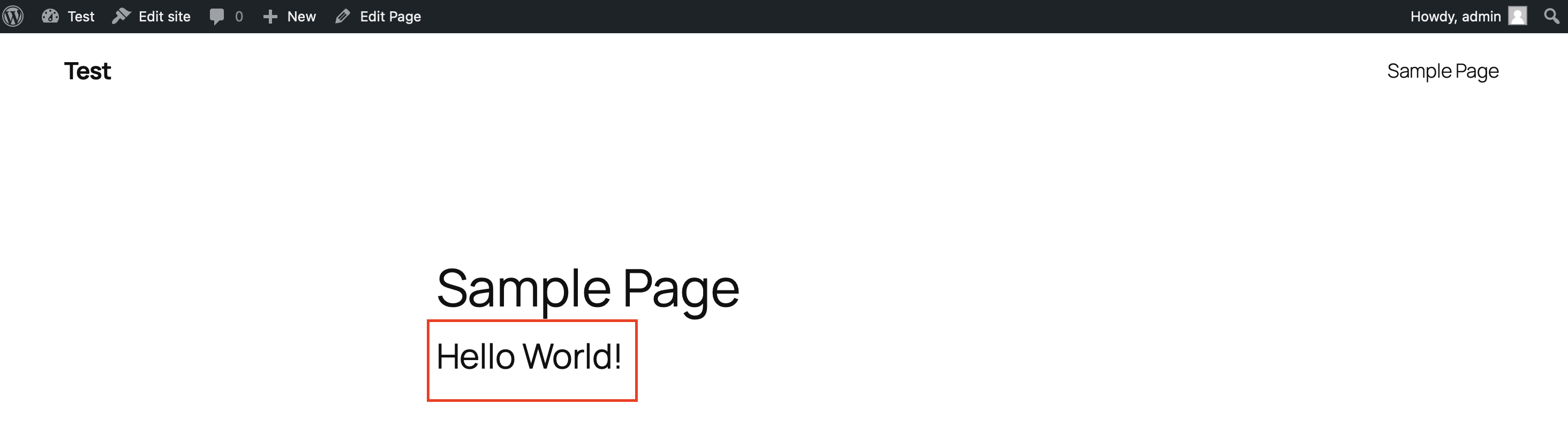
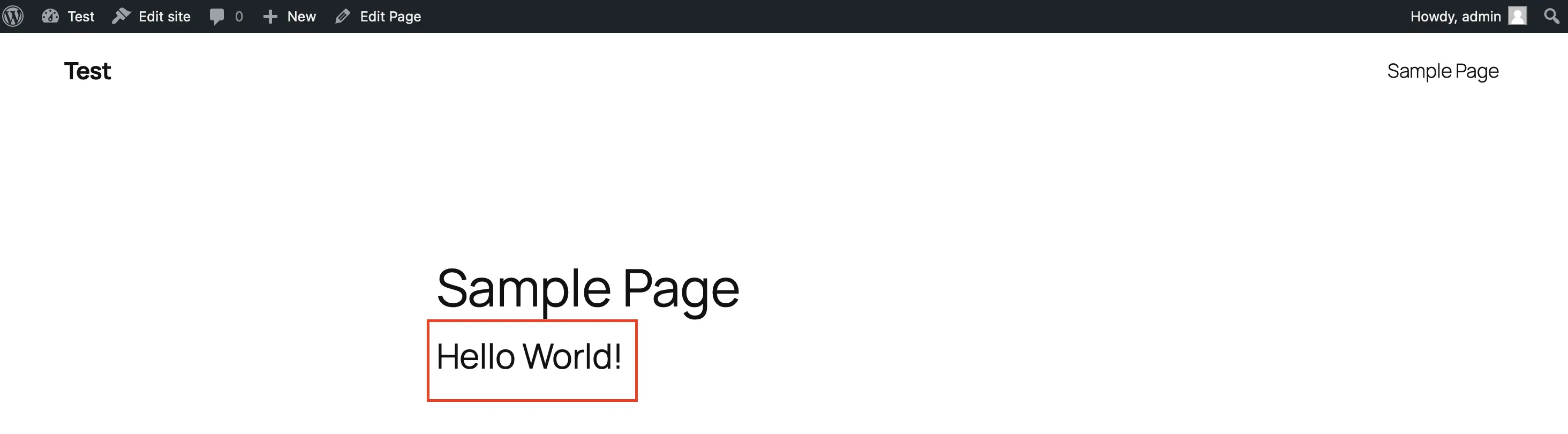
Note that the created shortcode in the main file is just an example to show how to create a WordPress plugin.
Step 3: Add a menu to the WordPress admin area
A custom plugin can also have its own menu in the WordPress admin area. This is especially useful if your plugin requires its own user interface, such as for settings or statistics.
To create a menu for the plugin, add the following code to your main file:
function my_plugin_menu() {
add_menu_page(
'My plugin',	// Page title
'My plugin', 	// Menu name
'manage_options',	// User rights
'my-plugin',	// Page slug
'my_plugin_site',	// Function that renders the page
'dashicons-admin-generic',	// Icon
20	// Position in the menu
);
}
add_action('admin_menu', 'my_plugin_menu');
function my_plugin_site() {
echo "<h1>Welcome to my plugin</h1>";
echo "<p>Here you can add your own settings.</p>";
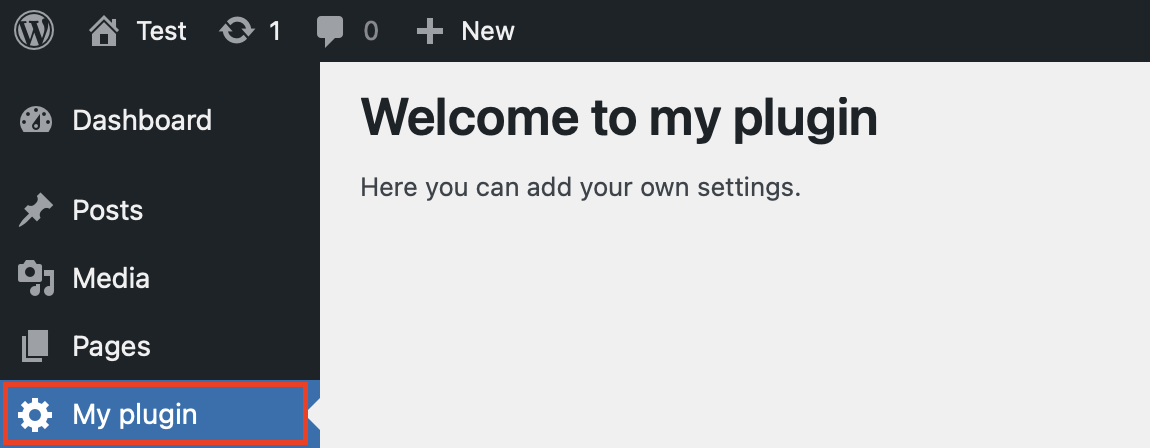
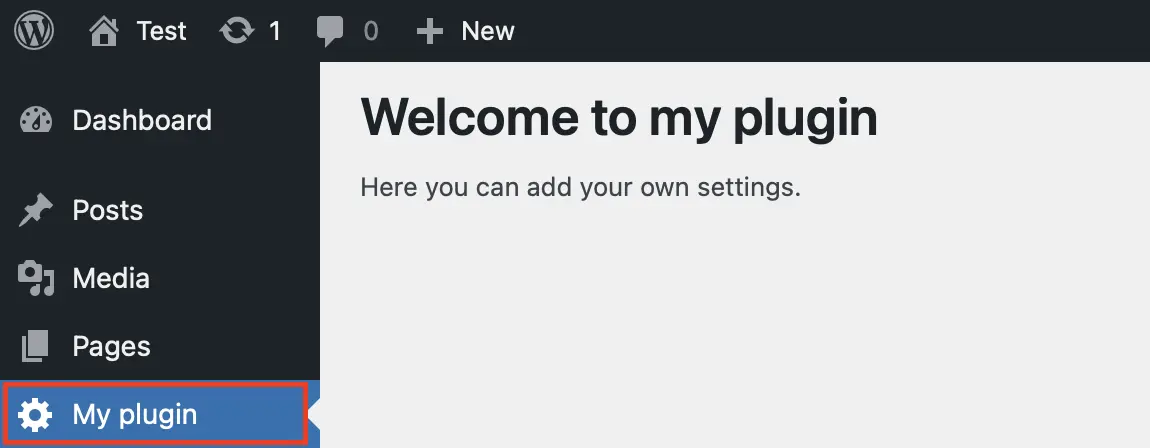
}After saving and reloading your WordPress backend, the new menu item “My plugin” should appear in the left sidebar. When you click on it, a simple page with a heading and placeholder text will open.
Step 4: Add styles and scripts
It’s rare for a WordPress plugin to function without additional scripts. Especially larger plugins often require extended functionalities, which are added using JavaScript or a dedicated CSS stylesheet.
You can include custom CSS or JavaScript files using the wp_enqueue_scripts function. Create a folder named assets in your plugin directory, and inside it, create another folder called css. In this folder, create a file named style.css and add the following CSS rule as an example, which turns the background of your WordPress page light blue:
body {
background-color: #87b9ff;
}
With this code, you have created your own, albeit very basic, stylesheet. Now you need to include it in your plugin. To do this, add the following code to your `my-own-plugin.php` file:
```php
function my_plugin_scripts() {
wp_enqueue_style('my-plugin-css', plugin_dir_url(__FILE__) . 'assets/css/style.css');
}
add_action('wp_enqueue_scripts', 'my_plugin_scripts');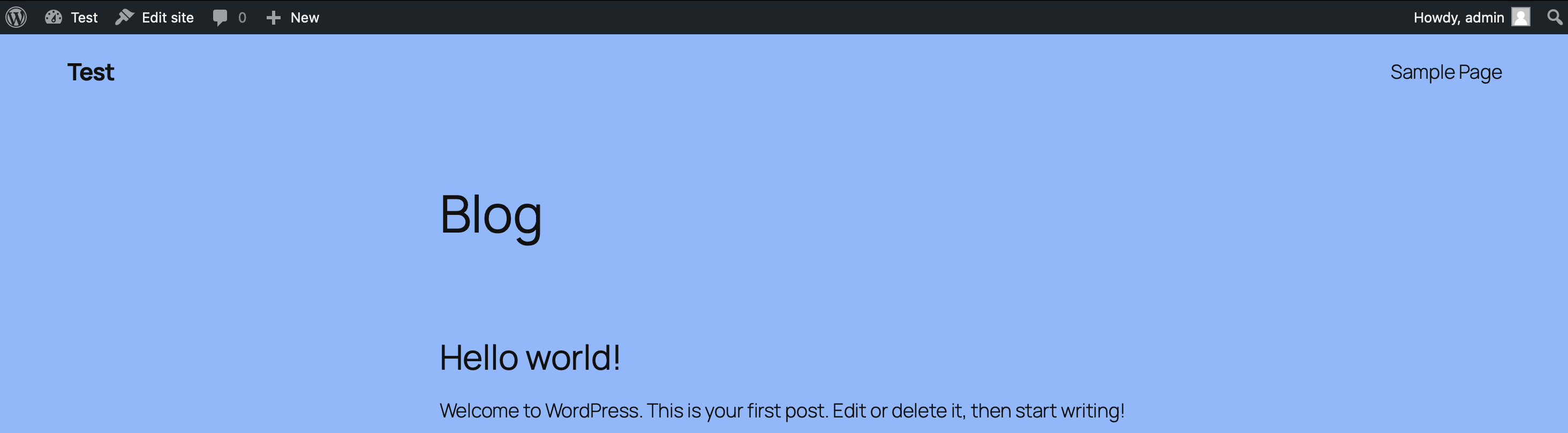
Step 5: Save plugin settings in the database
In many cases, especially with more complex plugins, it’s necessary to save custom settings. WordPress provides the register_setting function for this. With the following code, you can program a simple settings page for your WordPress plugin:
function my_plugin_settings() {
add_options_page(
'My plugin settings',  // Title of the page
'My plugin',          // Name in the menu
'manage_options',     // User rights
'my-plugin-settings', // Slug of the page
'my_plugin_settings_site' // Function that renders the page
);
}
add_action('admin_menu', 'my_plugin_settings');
function my_plugin_settings_site() {
?>
<div class="wrap">
<h1>My plugin settings</h1>
<form method="post" action="options.php">
<?php
settings_fields(my_plugin_options);
do_settings_sections(my-plugin-settings);
submit_button();
?>
</form>
</div>
<?php
}After saving, a new entry for your plugin will appear under Settings in the admin area.
Conclusion
This guide has shown the essential steps for developing your own WordPress plugin. With these fundamentals, you can now integrate more complex features into your plugin, such as API calls that communicate with external services or the creation of custom post types to manage content more specifically and flexibly.
Prefer to use pre-made plugins? No problem. Check out our guide articles for insights into the best plugins across various categories:
