

WooCommerce with shortcodes: Easy integration into WordPress

Anyone who wants to sell products online needs a shop, either as a separate solution or docked to an existing website. The eCommerce tool WooCommerce is one of the most popular shop solutions. It has been programmed as a plugin for online shops in the CMS WordPress, and the basic version is free of charge. With these so-called shortcodes, components of WooCommerce can easily be integrated into other elements of a website. We’ll show you some important shortcodes, with tips on how to use them for your online business.
- Simple registration
- Premium TLDs at great prices
- 24/7 personal consultant included
- Free privacy protection for eligible domains
Important WooCommerce shortcodes at a glance
| Shortcode | Argument | Explanation, function |
| [woocommerce_cart] | – | Displays the shopping cart |
| [woocommerce_checkout] | – | Displays the checkout page |
| [woocommerce_my_account] | – | Shows the account of the logged-in user |
| [products] | Various arguments, can also be combined with one another | Displays products that can be filtered according to criteria |
| [product_category] | ID, category name | Displays products in the selected category |
| [product_categories] | – | Lists all categories of a shop |
| [product_page] | ID | Displays a single product page based on the product ID |
| [add_to_cart] | ID | Displays the “Add to cart” prompt using a product’s ID |
| [woocommerce_order_tracking] | – | Track orders |
| [woocommerce_my_account] | including “limit” | List of orders |
What is a shortcode?
Basically, a shortcode is large sections of code in shorter form. Shortcodes are programmed as functions and are given a unique name. With these “shortcodes”, defined components or processes can be integrated into elements of a website without much programming knowledge. The structure of shortcodes in WordPress is anchored in the CMS. They are written in square brackets. For example, to use the WordPress plugin “Responsive Lightbox & Gallery” to insert a gallery anywhere into an existing page or post:
[rl_gallery id="9876"]The string “rl_gallery” is the actual shortcode, namely the placeholder for the instruction “put a gallery at this position on the page or in the post.” The “ID” defines which gallery is inserted from the existing ones. The form [shortcode attribute="123" argument="abc" … ] is used for all shortcodes.
Another form of shortcode consists of the string
[shortcode]…[/shortcode]Such short forms are used to create multi-column layouts, tabs, or buttons, among other things.
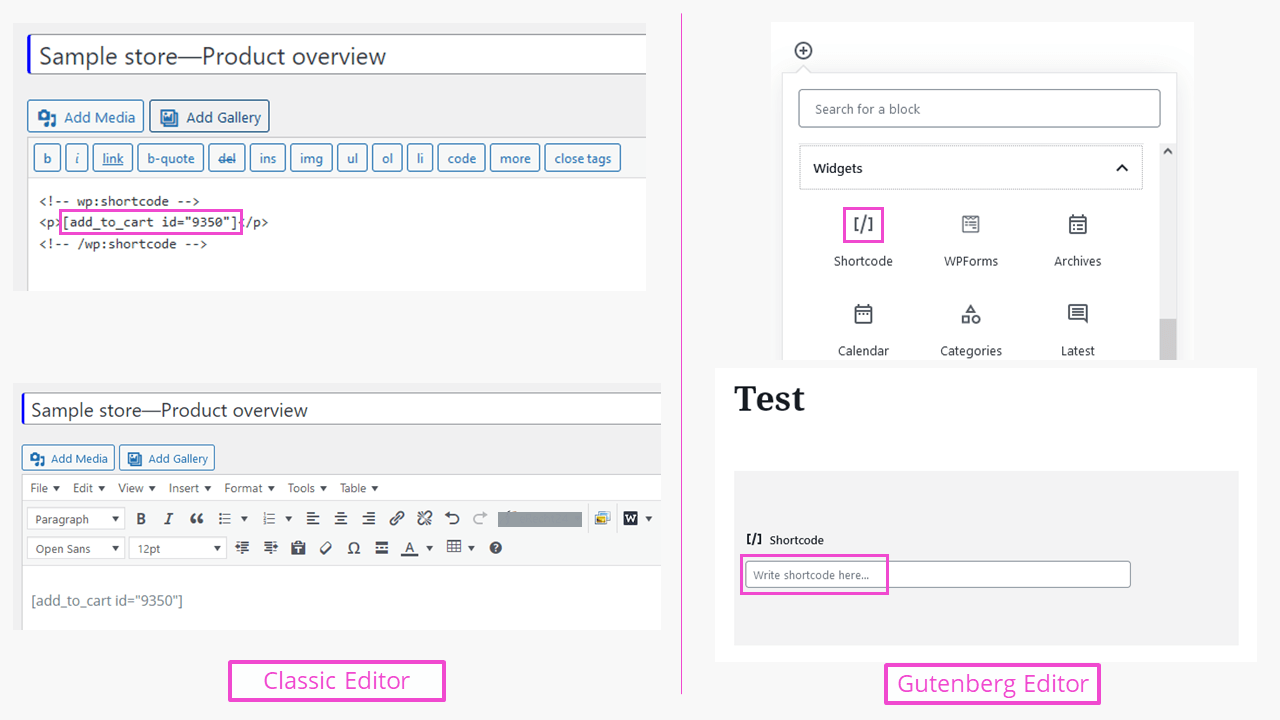
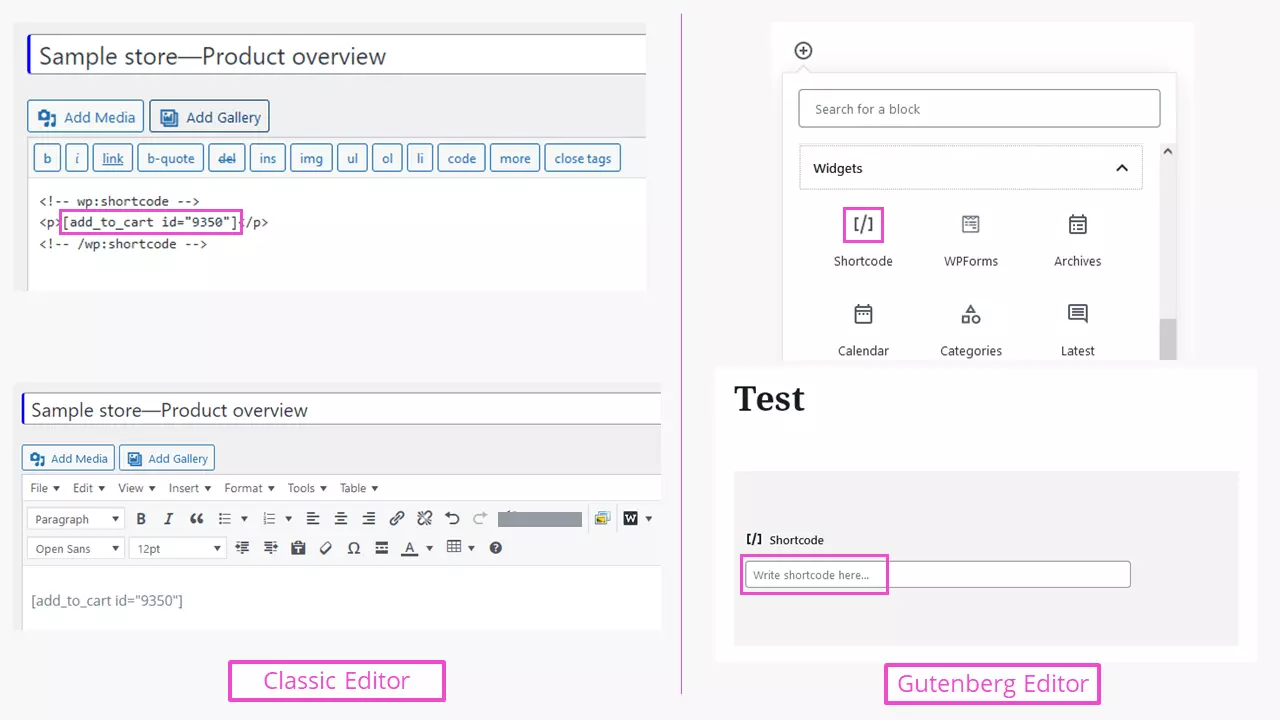
In the WooCommerce shop system, shortcodes are used to selectively display shop content. Through the variety of additional information in the individual shortcodes, many special images can be created to promote the sale of products from a shop. For example, these include components on website pages with content such as “Customers who bought X also bought Y and Z,” “The best-selling device in this category,” or “Only 3 days left on this sale - get it quickly.” How this is implemented in detail will be shown below using a small WooCommerce sample shop.
WordPress packages with the flexible e-commerce plugin WooCommerce offer you the advantages of the popular CMS and a shop from one single source.
Handy shortcodes for WooCommerce
For a practical use of WooCommerce, pages with shortcodes such as “My Account,” “Shopping Cart,” or “Checkout” are already created after installing the plugin. If you open the “Shopping Cart” page in the dashboard, the visual editor shows the shortcode directly. A look in the text editor shows that this code is enclosed in hidden HTML code, which indicates that a shortcode is embedded. As such, the shortcode is also visible in the visual editor:
<!-- wp:shortcode -->[woocommerce_cart]<!-- /wp:shortcode -->Show defined products
The foundation of every online shop is the products. This is also the case with WooCommerce, accessible via the WordPress dashboard.
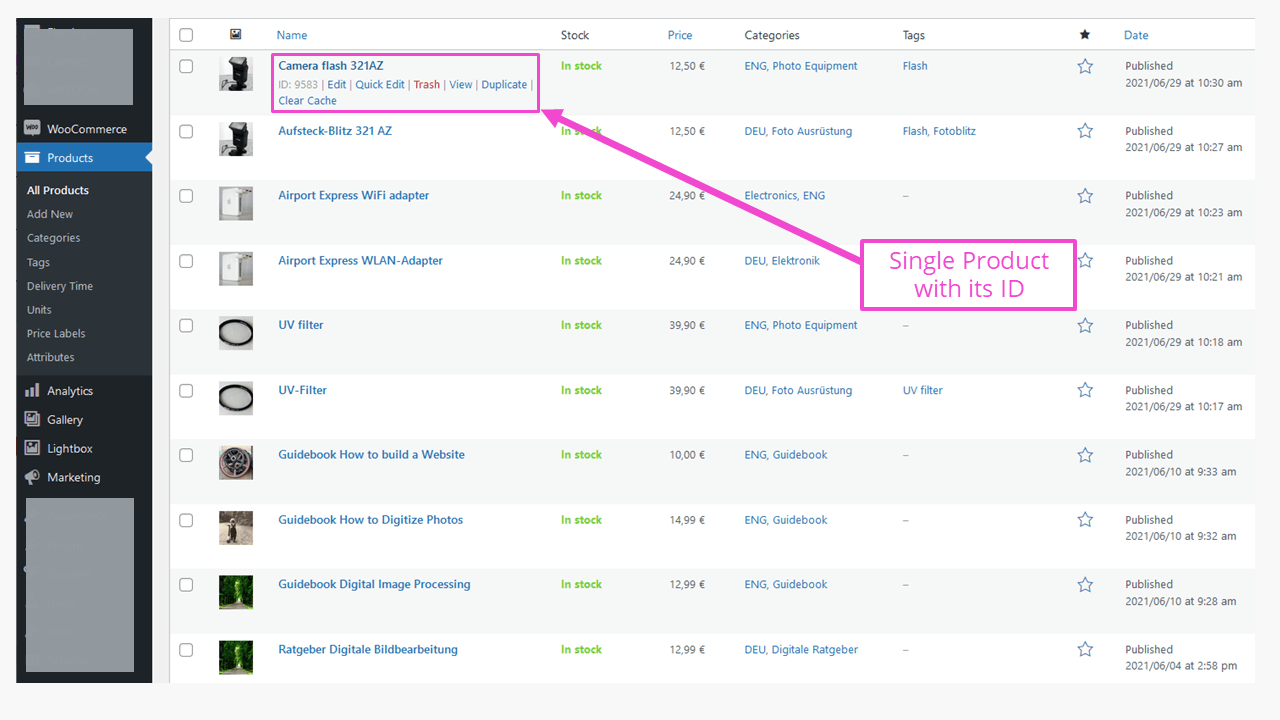
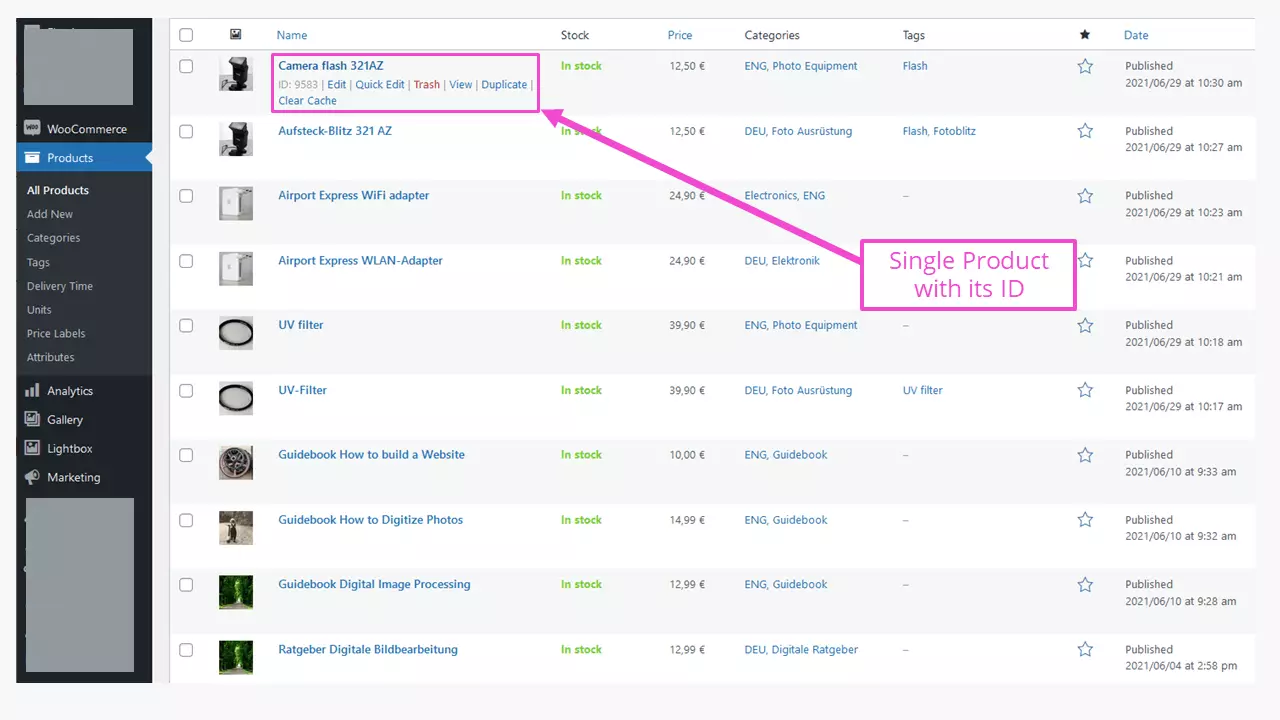
A first shortcode with arguments can already be used with this product ID. In order to add a product to a page or post using its individual ID, you will use:
[products ids="9581"]Pay special attention to the spelling between the quotation marks in the arguments. The key combination ALT+0034 helps on Windows, or Shift+2 on macOS. All other opening and closing quotation marks will not be recognized in shortcodes.
If several products are to be displayed, the IDs must be strung together, separated by commas:
[products ids="9581, 9577, 9352"]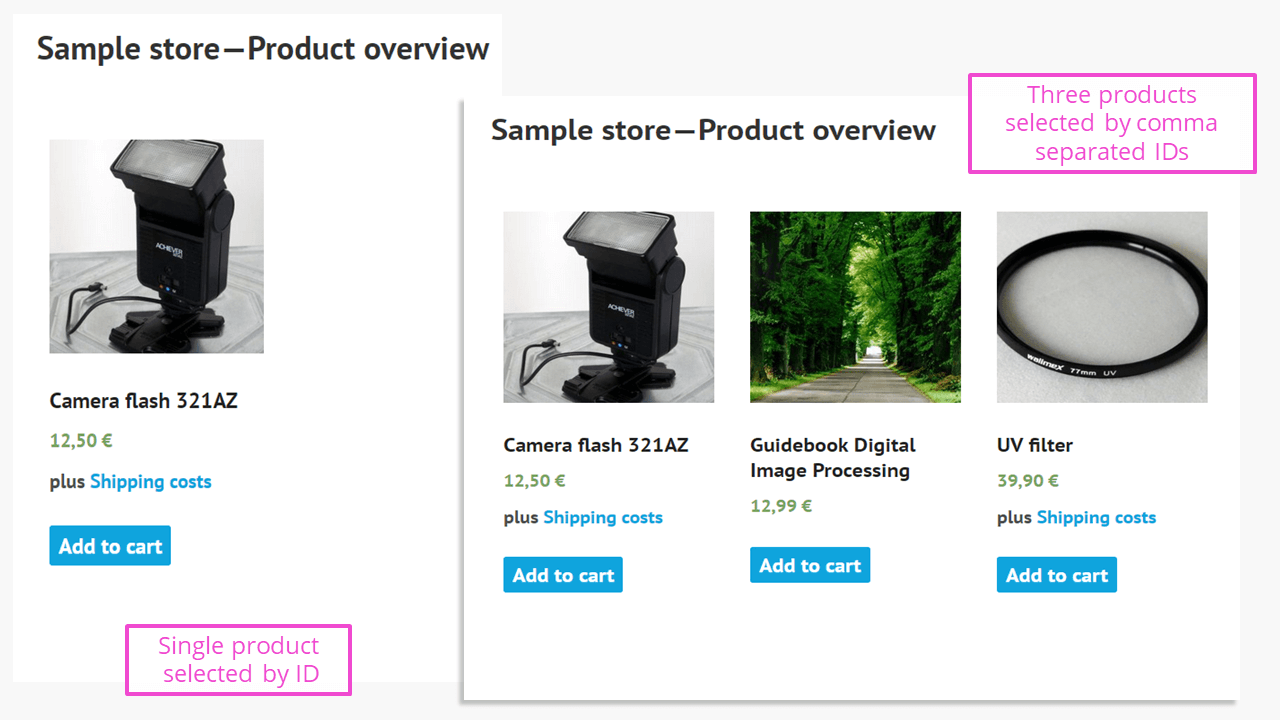
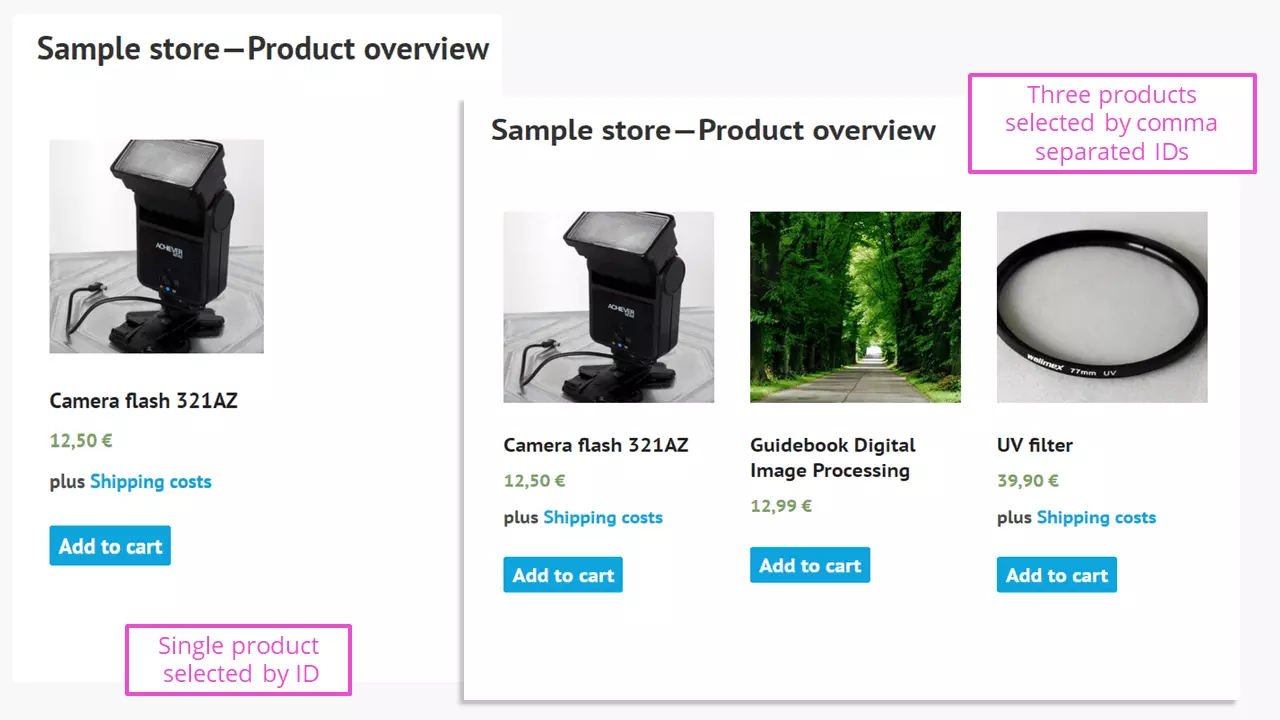
The argument “ids” is always written in the plural, regardless of whether one or more IDs are used. The placement of individual products still tends to be an exception since several products together usually make more sense.
Other arguments can be used with the products shortcode:
[products limit="5" columns="2" orderby="date" order="ASC" visibility="visible"]The individual arguments cause:
- limit: limitation of the number of products shown
- orderby: different ways to sort the output, e.g., by ID, date, popularity (if used in the shop), occurrence in posts, or randomly
- order: ascending or descending sorting (ASC/DESC) of the selected orderby argument
- visibility: specifies whether the products can be seen in the shop and in search results
- paginate: enables pagination for extensive product offerings. The activation attribute is “true.” The value “false” is preset.
- columns: the number of columns on the shop’s product page. An important attribute to keep pages clearly organized.
Further arguments such as “attribute,” “terms,” “category,” or “tag” help to select the product display with special criteria according to content. An important argument is the so-called SKU (Stock Keeping Unit), a term used in retail. This is a unique code that is assigned to a single product. The argument “sku” is also applicable to WooCommerce product shortcodes. At the same time, the SKU is a tried and tested means of systematically managing all products.
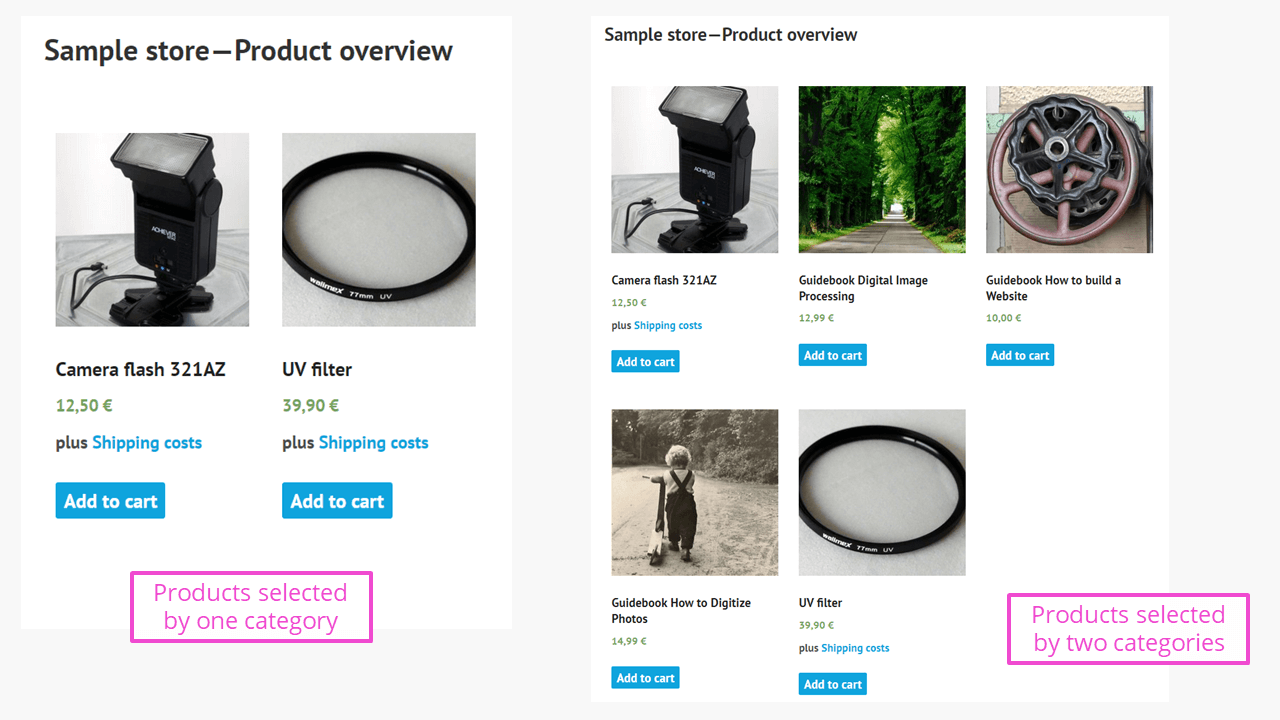
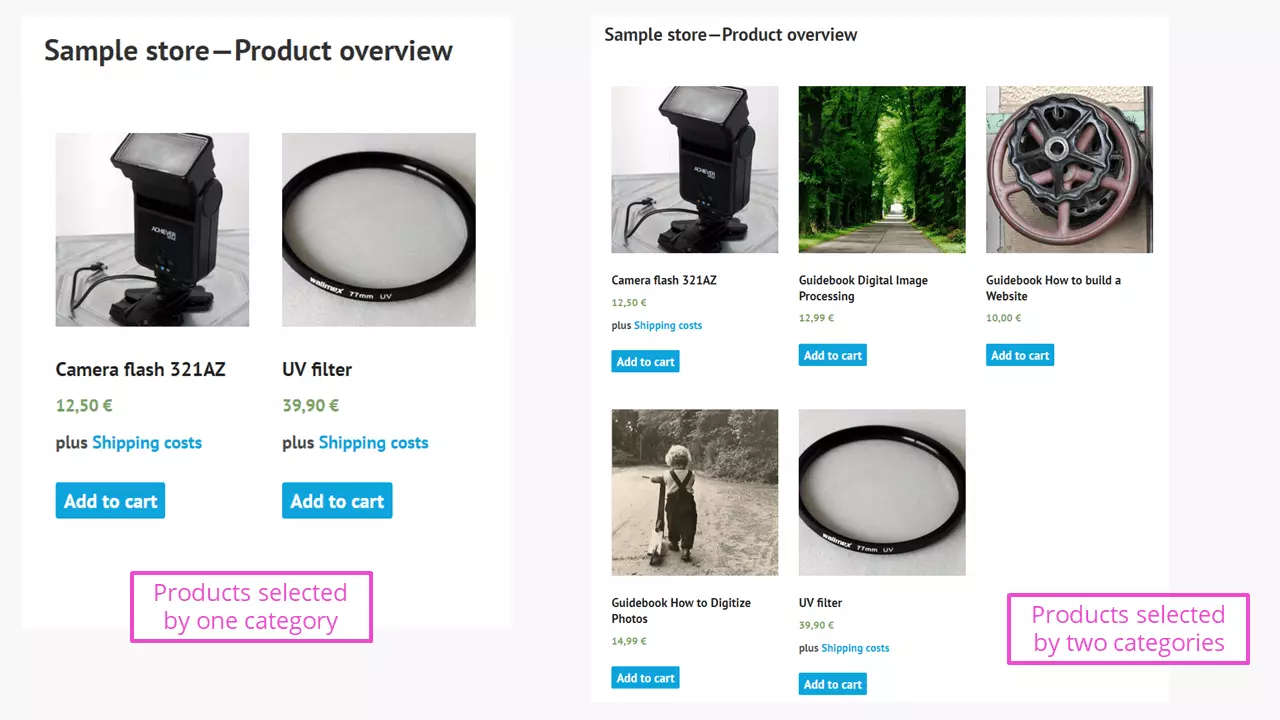
Shortcode in a sample shop:
[products category="photo-equipment"]This will only display two products, precisely those with the category name “Photo Equipment.” The argument works correctly with the category designation “photo equipment,” as well as with the slug “photo equipment.” If you then enter “digital advice” separated by commas, the shop site will list all applicable products. This an example of a smooth transition for shortcoding categories.
Filtering products by categories
Use [product_category] for this task. A category is thus displayed collectively, which has to be provided with comma-separated attributes, such as “ids” or “category.”
The shortcode [product_categories], in the plural form, lists all available categories in the shop. This can be useful, for example, as an overview under a single product, in order to create further buying incentives.
Individual WooCommerce pages via shortcode
What works with products can just as easily be implemented with additional content in the WooCommerce universe. With this shortcode, you can integrate a single product as a page:
[product_page id="9350"]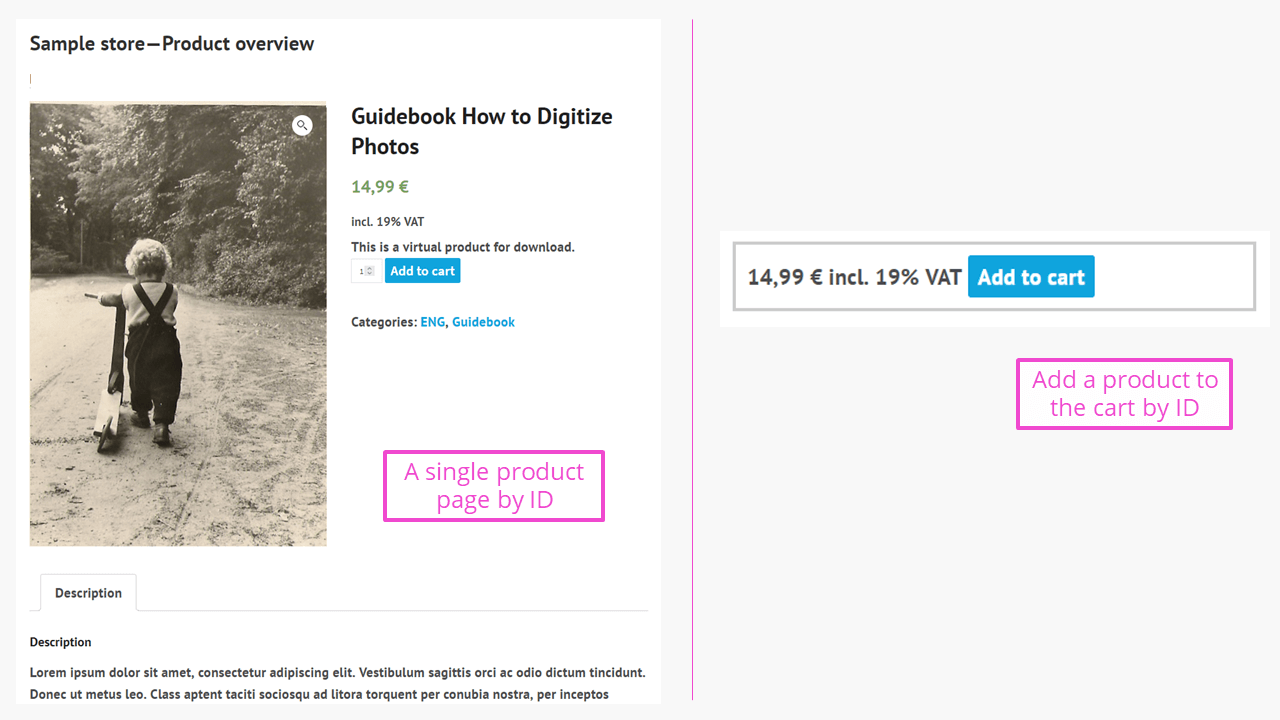
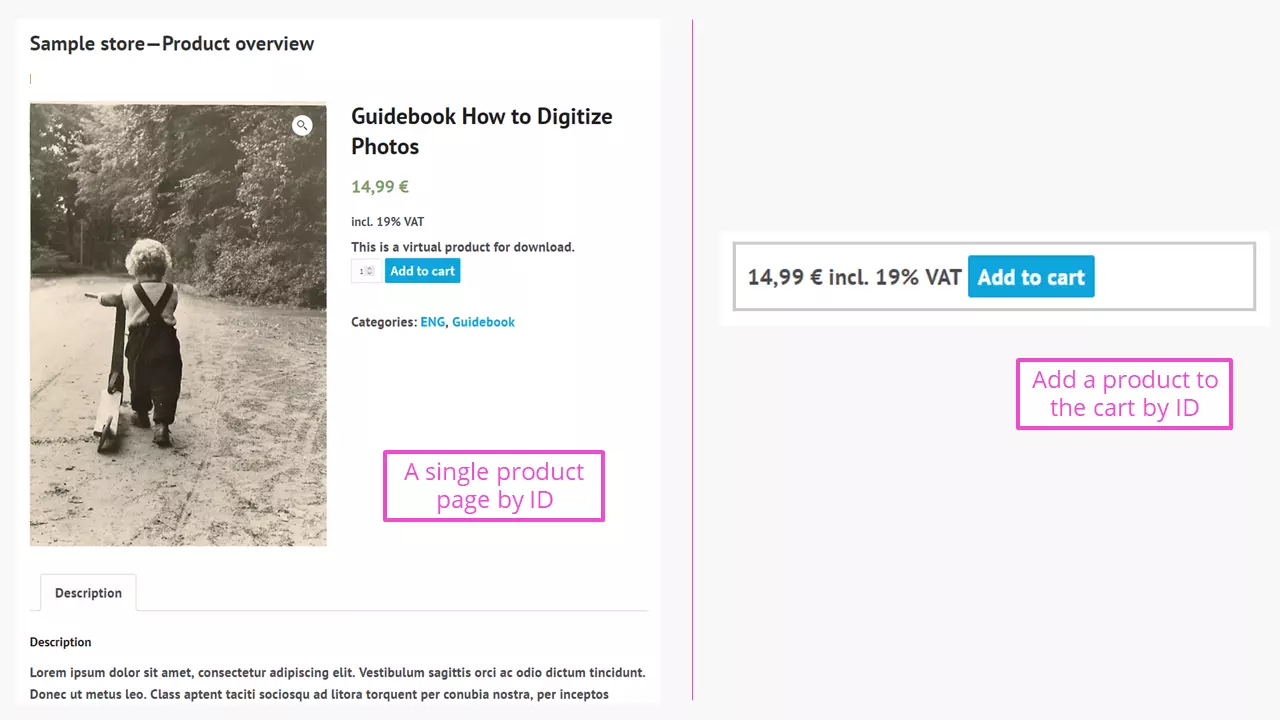
This can be advantageous, for example, if a related product is reviewed in a post, and you would like to offer a suitable product for sale without many detours.
If the product is described in a different way, the “Add to cart” function (in the illustration to the right) can also be integrated into the desired WordPress page or post with this shortcode:
[add_to_cart id="1234"]The (nicely-filled) shopping cart is accessed by the shortcode [woocommerce_cart]:
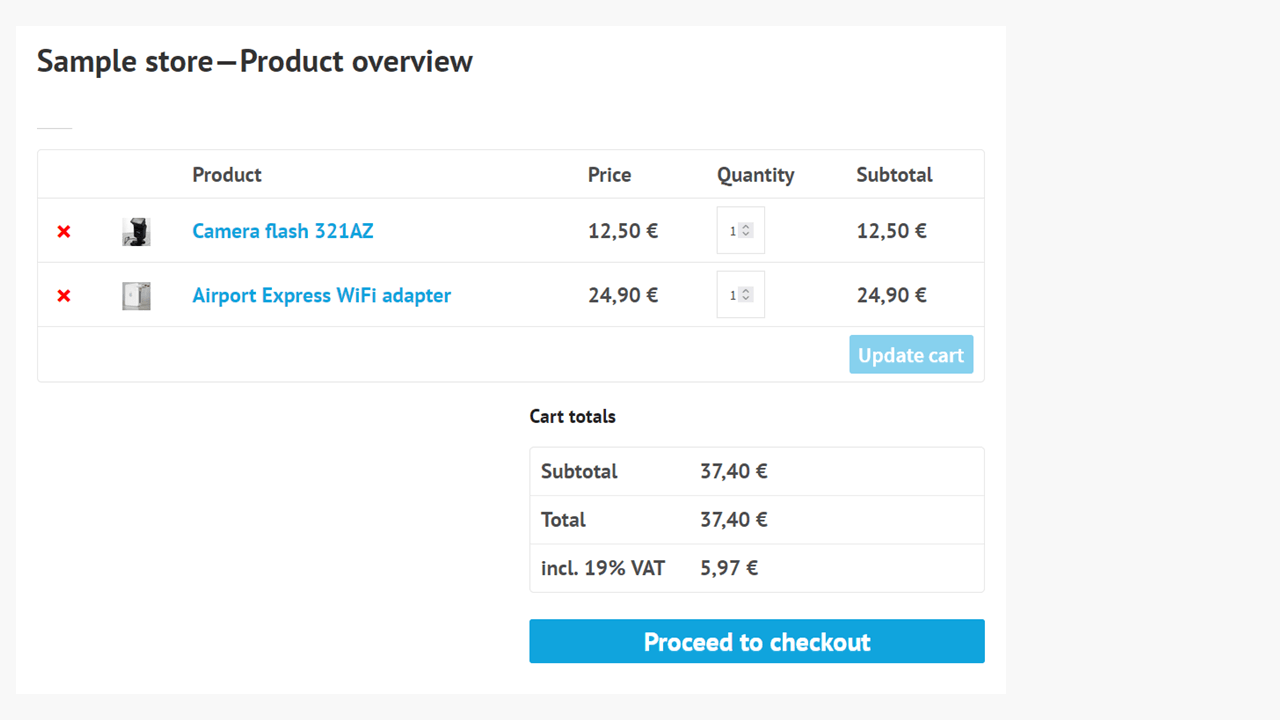
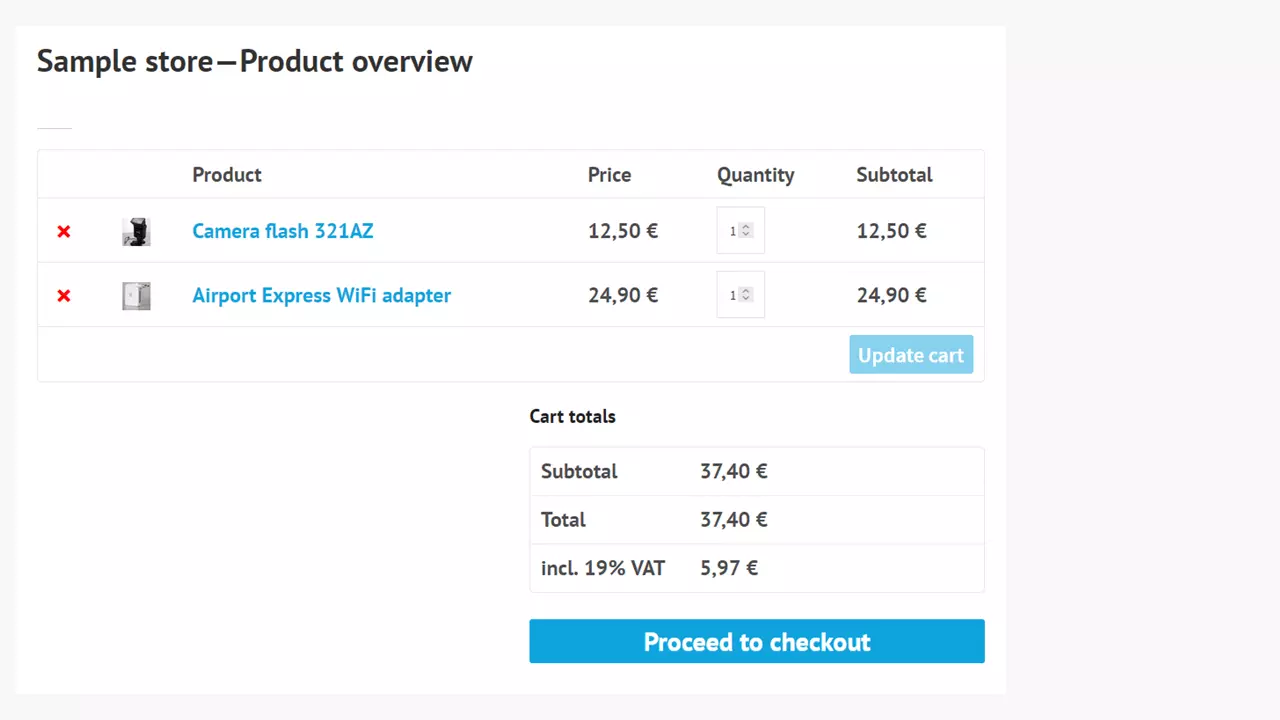
This section of the purchase process can therefore also be used anywhere on a website. The same applies to checkout, which is integrated using the shortcode [woocommerce_checkout].
By using [woocommerce_order_tracking], a customer can see the status of their order after logging in to the shop. To do so, they must enter their order details. This shortcode has no arguments.
All orders are listed on the “my account” page with the shortcode [woocommerce_my_account]. The number of orders to be displayed can be limited. The value “-1” shows all orders.
All the shortcodes seem to be inserted correctly, and the output still isn’t working? A common mistake is having shortcodes enclosed with the tags <pre>[shortcode]</pre>. These must be removed using the text/code editor. Then everything should work.
How can you create your own shortcodes?
To use your own shortcodes in WordPress, you need to change the functions.php file. This is where you can define the desired shortcodes with your own functions that you have programmed yourself.
In the functions.php file, you will often immediately be presented with a message: “Only edit this file if you know exactly what you are doing.”
One possibility could look like this. This was tested on an existing WordPress website without an error message:
<?php
function myshortcode_function(){
return "<h1>Hello, the owner is programming themselves</h1>";
}
add_shortcode('myshortcode', 'myshortcode_function');
>
In every page and every post where the defined shortcode [myshortcode] is used, the output “Hello, the owner is programming themselves” appears as a headline.
- Stay online with 99.99% uptime and robust security
- Add performance with a click as traffic grows
- Includes free domain, SSL, email, and 24/7 support
Useful shortcode plugins - not just for WooCommerce
You can avoid writing errors in the code of a WordPress website quite elegantly with plugins that produce shortcodes. These generate completely safe shortcodes that are tested by the WordPress community, which can fulfill individual tasks and can also be named in accordance with your own requirements. We will briefly introduce three of them to you here.
Woo Shortcodes Kit
This plugin helps you customize a WooCommerce shop with more than 60 functions and shortcodes. Beautiful shop and thank you pages can be set up in addition to the standard pages using these. Other options include restricting content, adapting to the General Data Protection Regulation, or security features. It is also possible to send messages after a defined number of orders. This plugin doesn’t work alone. It is tied to a WooCommerce installation.
Shortcodes Ultimate
The WooCommerce shortcode plugin Shortcode Ultimate enables more than 50 shortcodes, including a live preview. The plugin works with Gutenberg and is also quite responsive. The developer promises that it will work with any theme. There is also a paid, premium version (no subscription).
Shortcoder
This plugin allows for the design of processes that are saved in a clear list, similar to the posts or pages in WordPress. The shortcode is given a name (similar to the heading in a post) and is then available in the list of shortcodes that can be inserted. Shortcodes themselves always start as follows:
[sc name="abcde123…"]Content can be HTML, JavaScript, or CSS. Additional parameters expand the possibilities of this WooCommerce shortcode plugin. Editing can be done as code, as text, or in visual mode, making it a plugin with many possibilities.
Take a look at other shop solutions for your online shop. You will find everything you need to start selling online. When choosing an online shop solution, you will also find advice in our shop systems comparison.