

Satisfactory Dedicated Server: Hosting and Setup

If you want to enjoy maximum freedom and make your game world available to the public, a Satisfactory dedicated server is the best solution. It is best to create a Satisfactory server on externally rented hardware. Installation and setup are mostly done via the Steam or Epic Games client.
The open-world construction game Satisfactory has been available as an early access game since March 19, 2019. You have to explore distant planets, mine resources, and build the most efficient factory possible. In cooperative game play, you can experience this adventure with others. Hosting and setting up your own Satisfactory server with a provider is not that complicated. We have summarized the most important steps.
Satisfactory server hosting or private online game?
If you want to play Satisfactory online with friends and acquaintances, you basically have two options: You can either create a private session that runs on your own PC or host a game session on a dedicated server.
The advantage of Satisfactory server hosting on your own device is that you don’t need any additional hardware. However, you will have to provide additional resources for the private game as soon as more players join - so your PC will be challenged significantly more than in single player mode. The same applies to your Internet access. Probably the biggest disadvantage of a privately hosted game is the fact that it is only available to all users when you are online and have started the game world.
The more players you want to grant access to and enable them to enter the Satisfactory game world at any time, the more relevant an externally hosted Satisfactory server becomes. In this case, you not only have powerful server and broadband resources, but also the option of making the Satisfactory server publicly accessible (via IP address).
Renting external server resources is not only advantageous due to flexibility and performance, but the hardware also allows you, for example, to create your own TeamSpeak server or your own Mumble server so you don’t have to depend on in-game voice chats and can take team communication to the next level.
Make a Satisfactory dedicated server: what are the requirements?
The requirements that a Satisfactory server places on the underlying hardware basically depend on the number of players that connect to the server at the same time. However, it should be mentioned at this point that Satisfactory - at least in its current state - is designed for a maximum of four people in multiplayer mode. Game worlds for more than four players can be created via configuration, but the Swedish developer team Coffee Stain Studios is not responsible for the resulting performance.
Based on the information in the official Satisfactory Wiki as well as the requirements for the official dedicated server tool in the Epic Games Store, the following basic system requirements are needed:
- CPU (processor): AMD or Intel (4 Core) from 3.4 GHz onwards; powerful single-core performance preferred
- RAM (memory): 6 gigabyte RAM for 1–4 players, 8 gigabyte or more for larger storage files or more than 4 players
- Hard disk space: 10-15 gigabytes for the Satisfactory server software; additional space for saved game(s) or optional mods
In addition to the computing power for the Satisfactory server, you must also include the computing load of the operating system in your planning. In principle, you can choose between common Unix/Linux distributions such as Ubuntu, however, developers recommend a Windows server operating system. For Windows Server 2019, the following additional requirements would therefore be needed, for example:
- 1.4 GHz processor (64-bit)
- 512 MB or 2 GB memory (without or with graphical user interface)
- 32 or 36 GB hard disk space (without or with graphical user interface)
You want a server that is accessible via an individual domain? At IONOS, you can register your desired domain and also get a TLS/SSL certificate and your own inbox with two gigabytes of email storage!
What options does IONOS have for a private Satisfactory server?
You can rent hardware for your own gaming server from various providers. However, the wide selection of plans and prices can be overwhelming. You don’t want to book too little or too much performance and obviously want to avoid unnecessary costs.
With IONOS you can choose between the following three server types, which also have different plans:
- vServer: With a vServer (also known as Virtual Private Server or VPS), you get access to virtualized resources that you share with other customers, but there’s no need to worry about performance being affected. You are billed monthly at a fixed price.
- Cloud server: The cloud server packages from IONOS also work with virtualized resources. However, since this model is billed by the minute, you only pay for the service you actually need.
- Dedicated server: With a dedicated server from IONOS you get hardware that is entirely reserved for you. This type of server is also characterized by high single-core power, but this is also reflected in the price.
Lay the foundations for your own powerful and secure server environment today by renting a dedicated server from IONOS to create and host your individual Satisfactory dedicated server.
Different Satisfactory server scenarios and suitable IONOS plans
In the following table we have compiled some possible scenarios for your Satisfactory server and assigned the matching server models and IONOS plans.
| Satisfactory server scenario | Recommended IONOS server |
| 2 players, permanently online | VPS XL |
| 3–8 players, permanently online | VPS XXL |
| > 8 players, permanently online | Dedicated Server AR6-32 SSD |
- KVM based dev servers for developers
- Scalable to enterprise cloud level
- Pay-as-you-go, per-minute billing
Rent your cloud server from IONOS today to try out Satisfactory with your friends and acquaintances at your leisure, without being tied to fixed monthly costs!
Make a Satisfactory dedicated server: Step-by-step tutorial
Once you have decided on a hosting environment and have the access data ready, you can start setting up your Satisfactory server. In the following tutorial, we have summarized the most important steps - exemplary for IONOS customers (vServer, cloud server, dedicated server). The installation of the server software is done via Steam.
Step 1: Establish remote connection to the server
Access to your rented server hardware works remotely. The first step is therefore to set up and establish a corresponding remote connection. IONOS customers can configure this connection in the browser-based customer center (Cloud Panel). Login is possible via the following login page. Have your individual customer data ready.
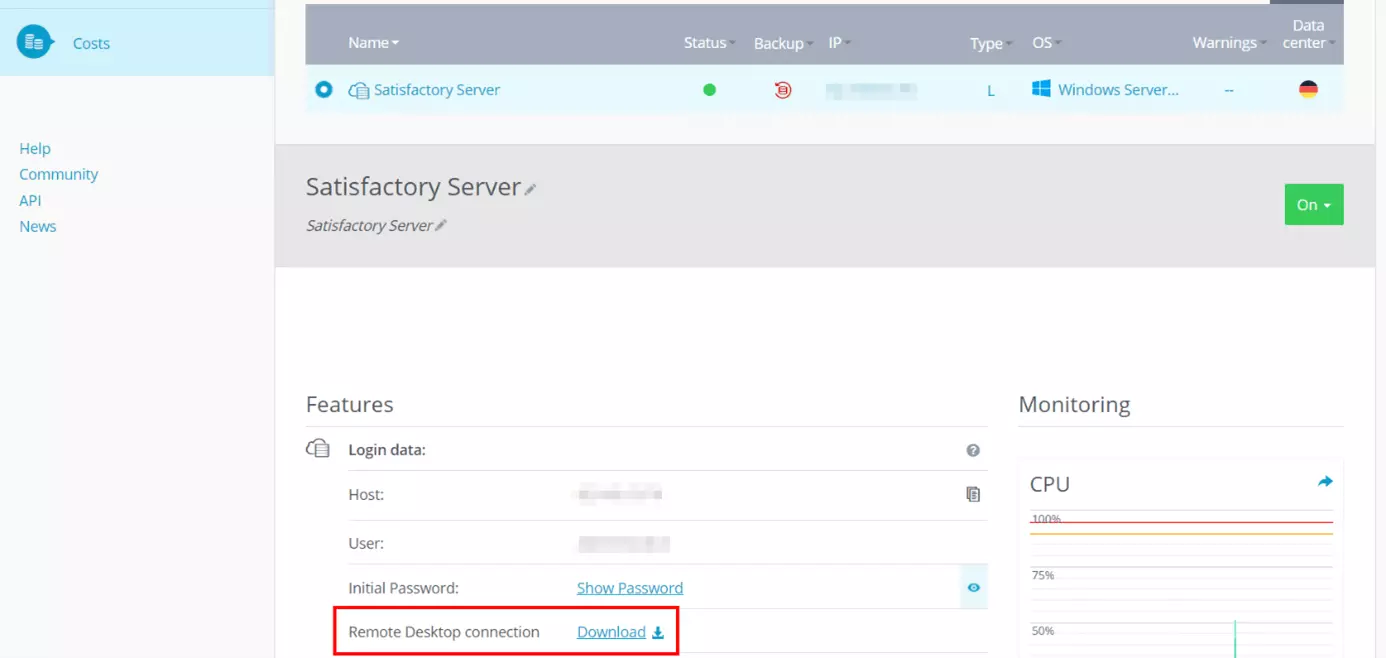
In the Cloud Panel, first click on “Server & Cloud”. Then select the server environment that you have rented to host your Satisfactory server. In the “Access data” section, you will now find, among other things, a download link for setting up the remote desktop connection.
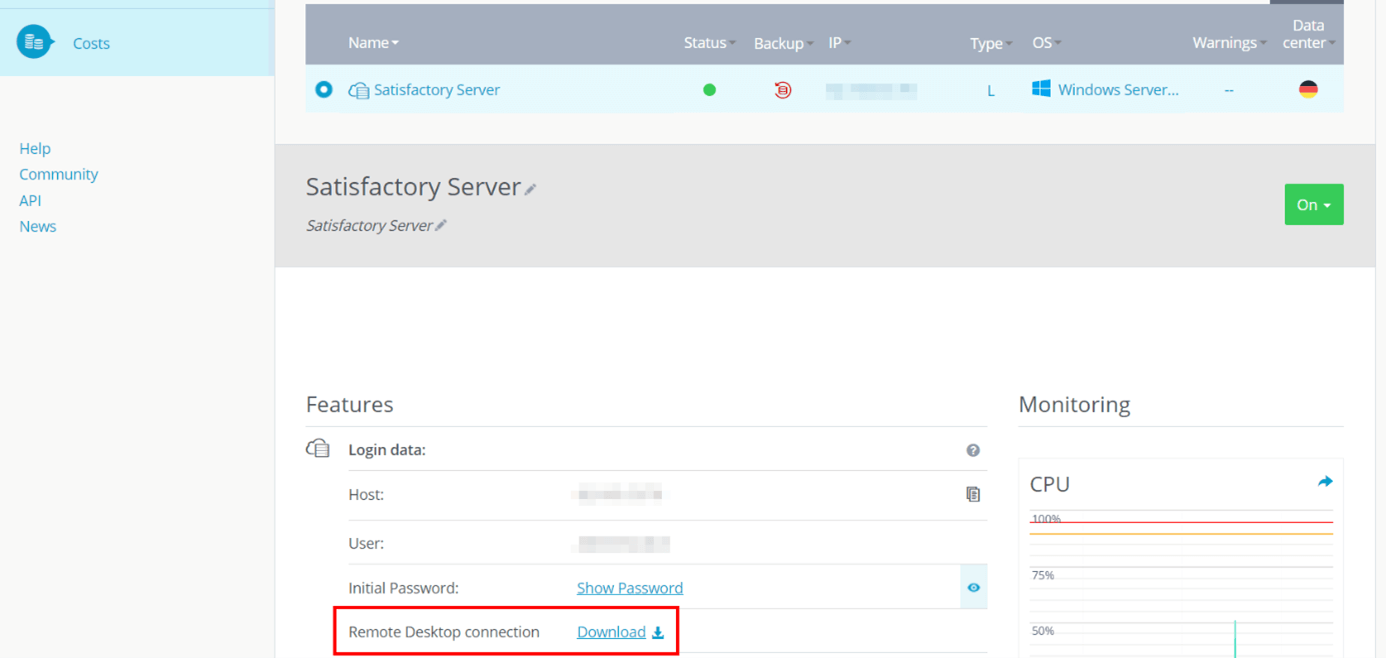
Click on the link and keep the suggested option “Open with Remote Desktop Connection”. The first time you connect, you will receive a security warning. Continue with the setup process by clicking on “Connect”.
Finally, type in the login data for your Satisfactory server. To do this, click on “More options” and “Use another account” in the dialog. The first time you connect, you must then classify the server’s certificate as trustworthy.
You can find the automatically generated start data for accessing your server on the overview page of the server data in the Cloud Panel - under “Users” and “Initial password”. However, change the password in any case for later logins!
Step 2: Install Satisfactory server application via Steam client
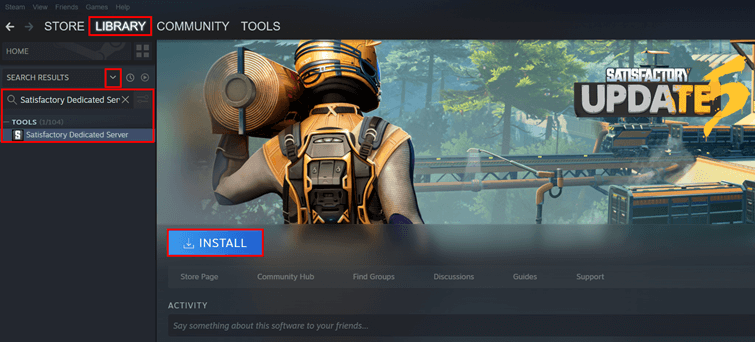
After the connection has been successfully established, you can directly install Satisfactory’s dedicated server software. If you purchased the game via Steam, you can get the application directly from the gaming platform. Install the Steam client on the server and then proceed as follows:
- Log in with the Steam account that you used to purchase Satisfactory.
- Access the “Library”.
- Use the drop-down function (down arrow) in the left side menu.
- Place a check mark next to “Tools”.
- Write “Satisfactory Dedicated Server” in the search results.
- Select the appropriate search result.
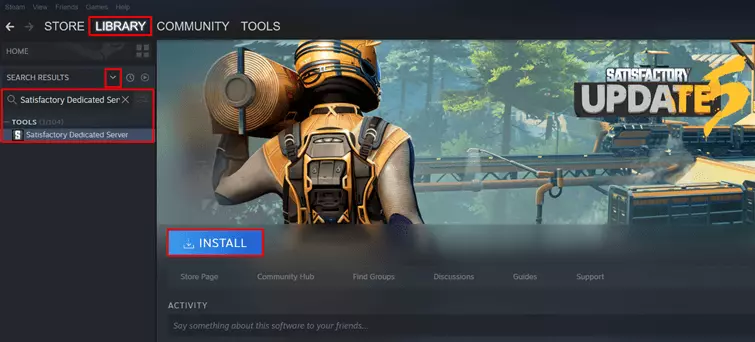
- Click on “Install” to create the Satisfactory dedicated server.
Step 3: Start the Satisfactory server
After the installation is complete, you can start the Satisfactory server at the same place in the Steam client. To do this, simply press the “Start” button that is now displayed. Steam will then automatically check whether there are updates for the server software and whether all required tools and runtimes are installed on your system. If an application such as the Microsoft Visual C++ runtime is missing, the client automatically offers the option to install the missing components.
Step 4: Update server to experimental version
In order for users to be able to use the Satisfactory Server Manager to connect to a dedicated server, they currently have to use the experimental version of the game. For this reason, you must also switch your Satisfactory server to the experimental version. So exit the server you just started and then proceed as follows:
- Right-click on the “Satisfactory Dedicated Server” entry in the library.
- Click on “Properties”.
- Switch to the “Betas” section.
- Select the “experimental – experimental” option in the first line.
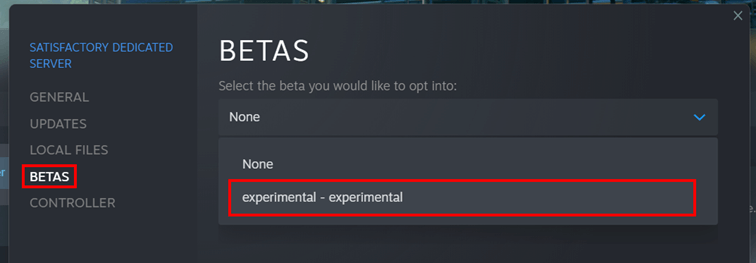
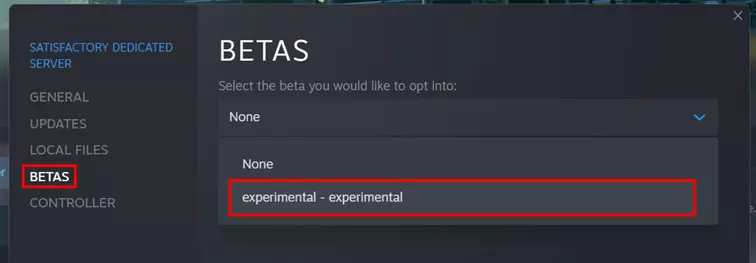
The dedicated server software will then have to be updated, after which you can restart the server.
We have worked with update 5 in this guide. It is possible that this step will not be required in future versions of Satisfactory.
Step 5: Allow server ports
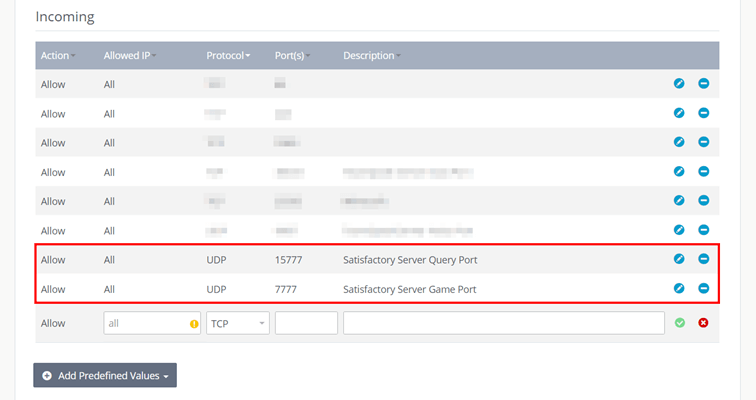
In the next step, you must ensure that the ports relevant to Satisfactory are enabled on your server. Specifically, this involves the following three ports:
- UDP port 15777: This “Query Port” is used to make queries to the Satisfactory server (number of players, server name, etc.). This is the default port number, which can be exchanged if necessary.
- UDP port 15000: The “Beacon Port” 15000 is required if you want to run multiple server instances simultaneously.
- UDP port 7777: Players connect to their Satisfactory server’s game world via the “Game Port”. This is also the default port number, which can be exchanged if necessary.
To allow a port, you must define a suitable rule for the server firewall. With IONOS servers, you can perform this step conveniently in the Cloud Panel:
- Log in to the Cloud Panel.
- Go to the “Server & Cloud” section and then to your rented server hardware.
- Click on “Network” in the left side menu.
- Select the “Firewall Policies” menu item.
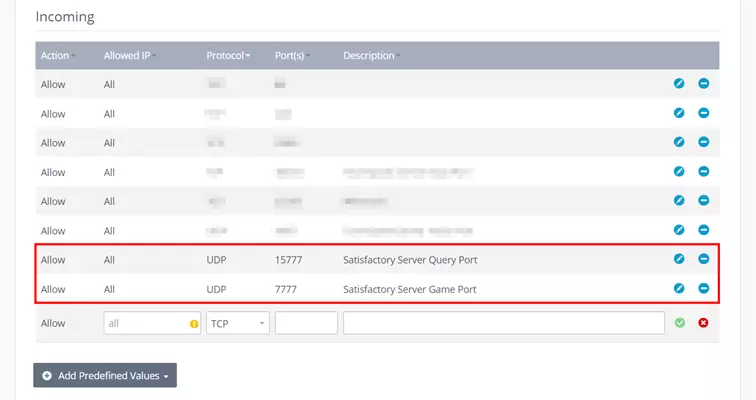
- Under “Incoming” you now create the rules for Query and Game Port (optionally also for Beacon Port).
Step 6: Activate the server
The next step is to activate the newly created Satisfactory server via the Server Manager in the game client. As mentioned, you need to use the experimental version of the game for this (right-click on the game in the Steam client then > “Properties” > “Betas” > “experimental – experimental”).
If you use the same account to log in to the Satisfactory server that the server software is run on, you will receive a notification. However, if you click on start, only the Steam session on the server will be terminated while the Satisfactory server will continue to run.
Start Satisfactory and select the “Server Manager” entry in the menu. Then click on “Add Server” and type in the IP address of your server. Enter the query port “15777” as the port. Show the information is correct by clicking on “Confirm”.
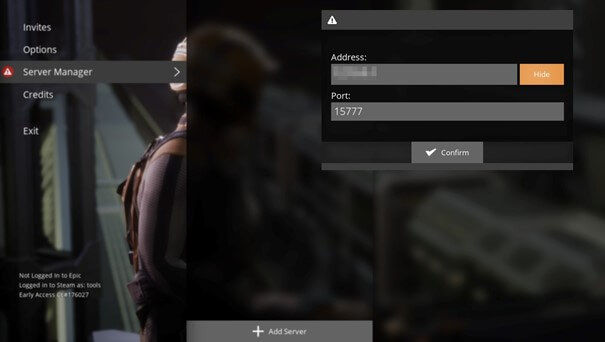
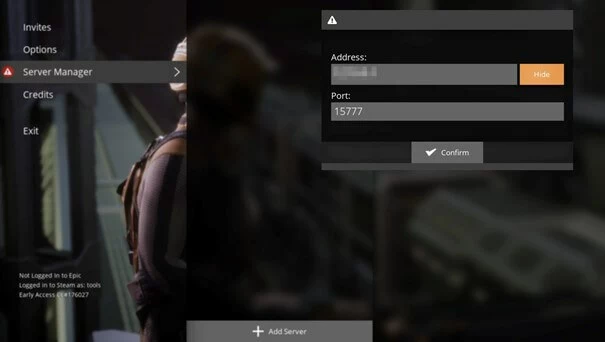
You will receive a message that the server is unused and needs to be configured. First, assign a name in the space provided for this purpose and click “Confirm”.
In the second step, set a server password, which you then have to repeat to ensure it is correct. Accept the password by clicking “Confirm”.
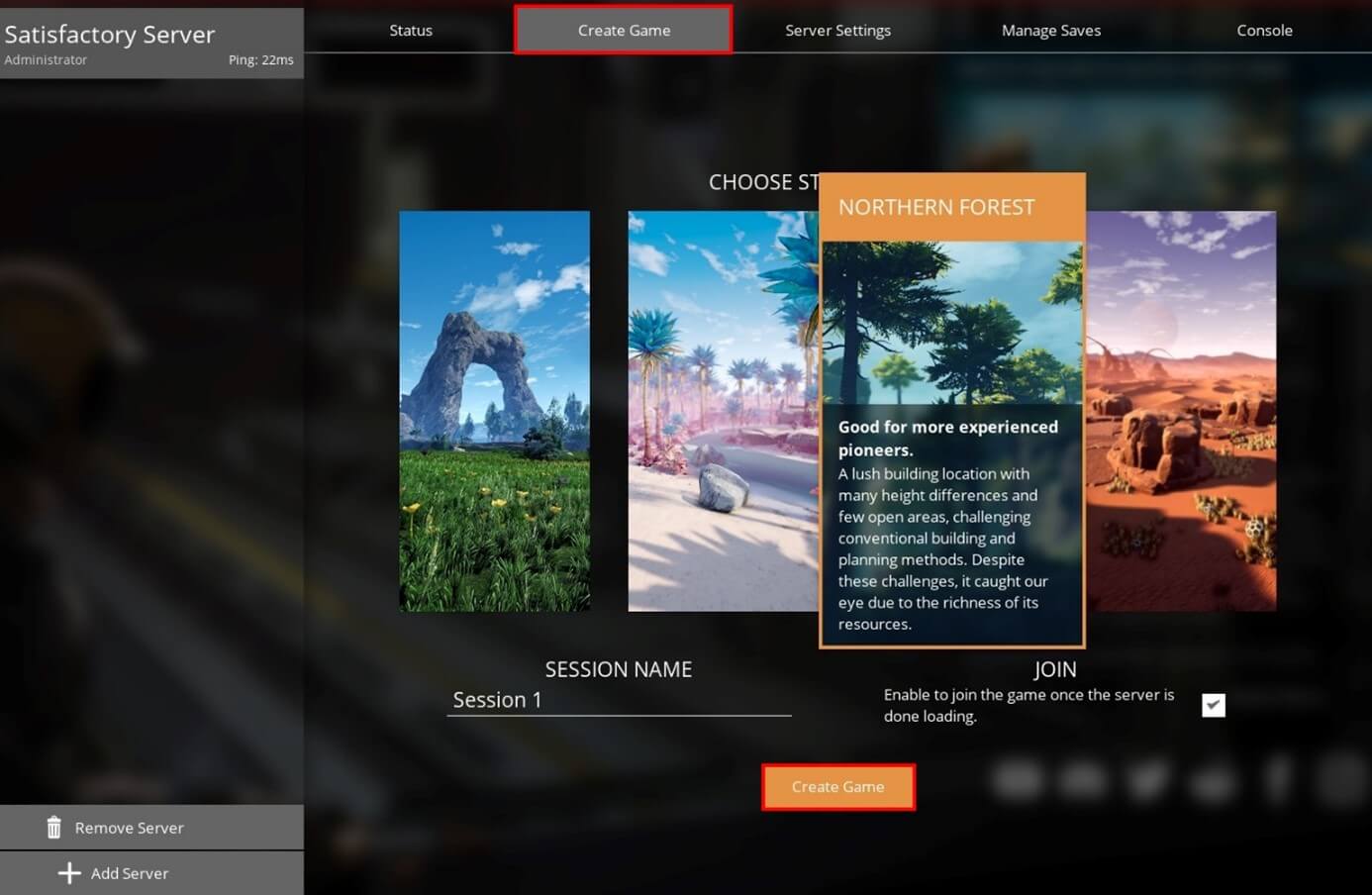
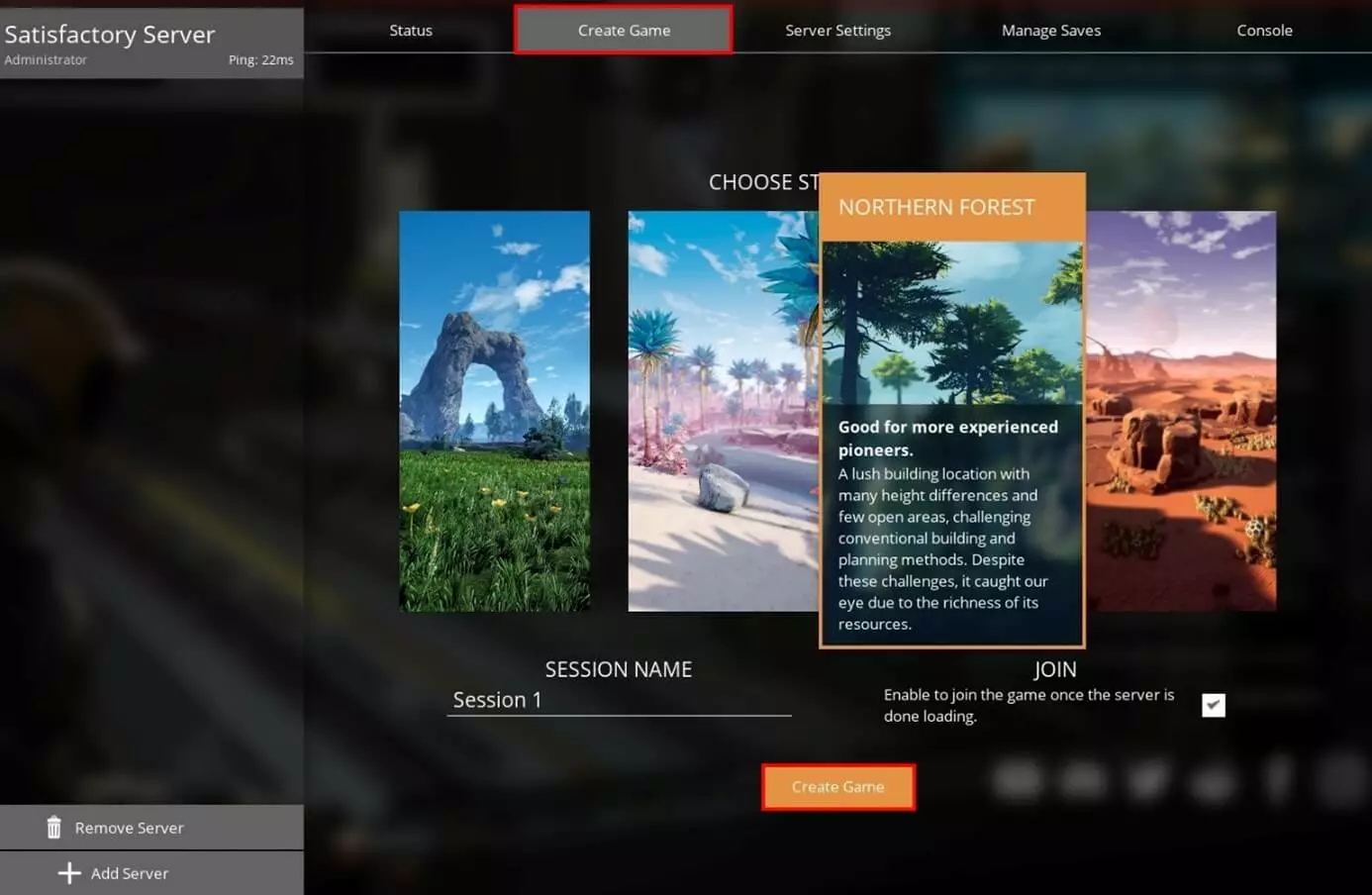
Finally, select a game world for your Satisfactory server. Switch to the “Create Game” tab and click on the desired starting area. Assign a custom session name and check the “Join” box if you want the server to automatically join once the world is loaded. Finally, click “Create Game” to generate the world.
Step 7: Join the server
If you have selected the auto join option, your game will automatically connect to the server following the setup process. For all other players, they must follow these instructions to join the server:
- Start game in experimental mode
- Open “Server Manager”
- Click on “Add Server”
- Specify IP address and port and press “Confirm”
- Enter the server passwort
- “Join Game”
After a short loading process, you will find yourself in the previously selected game world and can start with your self-hosted Satisfactory adventure!
Are you looking for a communication platform for your Satisfactory server? Our article explains how to create a discord server and use it as a central platform for voice and text chats.
Step 8: Configure Satisfactory server
Of course, you can also configure your Satisfactory dedicated server individually after creating it. For example, it is possible to exceed the fixed limit of four players. To do this, you need to adjust the configuration file Game.ini. By default, you will find this file in the following directory (for “Username”, add the corresponding username):
C:/Users/Username/AppData/Local/FactoryGame/Saved/Config/WindowsNoEditorOpen the file and add the following script at the end, inserting the desired number of players instead of “X” (value of up to 127 possible):
[/Script/Engine.GameSession]
MaxPlayers=X
Save the file and restart your Satisfactory server to apply the change.
Other useful server configurations, such as changing the memory interval or the timeout limit, are described in the Configuration article in the official Satisfactory Wiki.
Make a statement with your own .gg domain and let the games begin. Register your own .gg domain now with IONOS.