

What is a Backup?

You have probably asked yourself the following questions more than once: What does the term “backup” actually mean? What is a data backup? How can it be managed at a professional level? And why are regular backups so important?
Backup: a definition
A backup is a simple process which can be defined as follows: You use a backup to save data on a suitable storage medium (e.g. an external hard drive). Once you have performed a backup, a backup copy will be available which contains important data in redundant forms (i.e. as a duplicate). If you need to access old data or if you experienced a sudden loss of data, the backup can be used to restore all or part of the data. This can be done manually (e.g. copying back individual files) or using a special backup software with restore functions.
Backup: When you save data on a suitable storage medium (e.g. an external hard drive), this is called a backup. After a successful backup has been performed, a backup copy will be available to restore lost data.
Backups are vital for self-employed people and companies. It is important to be able to quickly restore business and customer data and the EDP infrastructure if your system crashes or is infected with a virus; otherwise, there is a risk of incurring heavy financial losses. Furthermore, it could even ruin a good reputation built up over time if frustrated customers are suddenly required to wait longer for their business transactions to go through, deadlines aren’t met or agreed upon services can no longer be provided on time.
Considering the significant amount of damage which could result from potential data loss, there should always be a backup strategy in place as a “life insurance policy”. Moreover, having a sensible backup solution will help to easily speed up the full data transfer process if there is a reorganization in IT or if new hardware is being used.
The first step: what needs to be saved?
The first step in a backup strategy is to determine whether you want to back up entire hard drives or just individual folders and files (e.g. email archives, databases, working folders). You can also focus on specific file types or directories when backing up data. Selective backups save storage space and network bandwidth. However, you need to always monitor possible developments and adapt your backup strategy; otherwise, you may find that not all of your important data has been saved. Those wishing to go the selective storage route need to know precisely where the key storage locations are. For example, you need to know where emails are archived and where the browser stores its bookmarks, and encrypted login details for the password manager.
All types of backups require you to determine how often backups should be made. In addition, all devices need to be taken into account: local computers, laptops, mobile devices, and servers. You also need to ensure redundancy of important data stored in a cloud. Anyone frequently generating large work files over a long period of time should also have intermediate backups ready for serious situations or when reconstruction is necessary. A customized backup strategy will ideally take into account all relevant exceptional scenarios.
- Store, share, and edit data easily
- Backed up and highly secure
- Sync with all devices
A comparison of the most important types of backups
Anyone with a sensible backup strategy should know the difference between full, incremental, and differential backups. Here is a table overview illustrating the differences between special features of these methods:
| Full | Differential | Incremental | |
| Daily backup schedule | Mon: Full backup Tue: Full backup Wed: Full backup Thurs: and so on | Mon: Full backup Tue: Backup changes since Mon Wed: Backup changes since Mon Thurs: and so on | Mon: Full backup Tue: Backup changes since Mon Wed: Backup changes since Tue Thurs: and so on |
| Methods | Backup always contains all data. Even unchanged files are always duplicated | All changes since the Monday backup are stored every day | After Monday (the full backup), the partial backups contain any changes since the last daily backup |
| Advantages | - Simplest form of recovery since each backup is standalone - Least likely to result in errors since all the data is duplicated (sometimes multiple times) | - Requires less storage than a full backup - Relatively easy recovery | - Requires the least amount of storage space - Fastest method - Uses the lowest amount of network bandwidth |
| Disadvantages | - Requires the most storage space - Uses the highest amount of network bandwidth - Slowest method | - Requires more storage space than an incremental backup - Uses more network bandwidth than the incremental method - If the very first backup is damaged, there will be issues | - Archive is “fragmented” and more difficult to read - More likely to encounter problems - Recovery is more complicated (first performs full backup, then only incremental backups afterward) - If the very first full backup is damaged, there will be issues |
| Ideal application | - Sufficient storage space, time, and bandwidth available - All data needs to be saved | - Time, bandwidth, and storage space is a bit limited - Relatively few changes per backup | - Time, bandwidth, and storage space is limited - Large amounts of data are frequently generated and need to be backed up frequently |
The method or combination of methods is chosen based on the individual situation. As a rule of thumb, experts recommend performing a full backup at longer intervals (weekly or monthly) and performing incremental and differential backups between the full backups.
The 3-2-1 backup rule and implementing it with suitable storage media
If you are not dealing with large amounts of data or sensitive data, there are some inexpensive and pragmatic solutions for protecting yourself against data loss. For example, you can already significantly minimize your risks by performing regular data backups to a memory stick. However, if we are talking about a more complex IT infrastructure in a medium-sized company, they should opt for larger, more comprehensive solutions. This is the only way to limit the loss of data in an emergency situation.
Technically, a backup can be stored on the hard drive of a laptop, for example. However, this means risking the loss of the original data and backups if the hard drive fails. Reliable data backups always require an external medium. The risk of different media failing at the same time is lower. Ultimately, the more copies made, the better. The 3-2-1 backup rule has proven to be a reliable strategy in practice. This involves making three copies of the data including the original on two different storage media with one copy located off site (e.g. in a cloud).
Nowadays, there are a variety of storage solutions available for implementing the 3-2-1 rule.
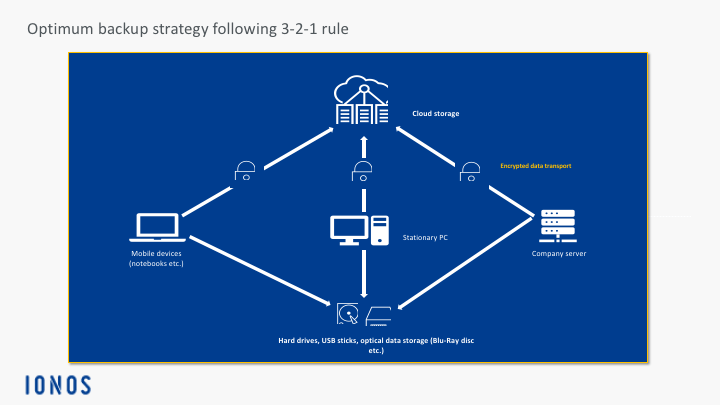
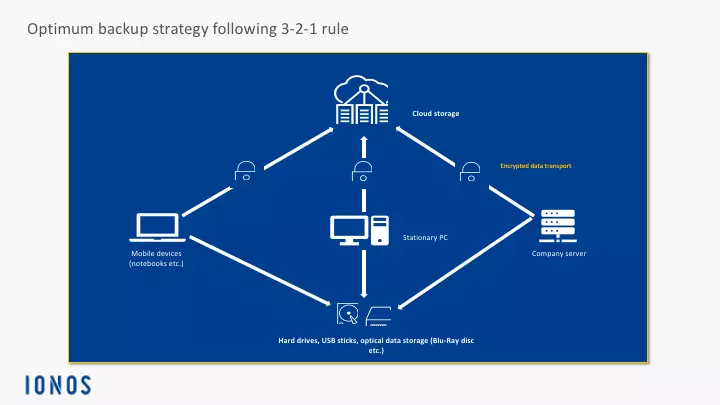
Cloud solutions and physical fixed storage – how are they best used?
Optical data storage
Optical data storage media such as CDs, DVDs and Blu-rays are relatively inexpensive and contain manageable amounts of data. These storage media are mobile and can be easily distributed to multiple locations. However, you will need a compatible burner. These days, such media are not all that common anymore. A major advantage of optical data storage media is that it is ideal for “cold backups” since it does not have an active connection to a real-time data processing system and stores data offline. Its data structure is fixed which reduces the number of risks, especially ransomware. Therefore, encryption trojans cannot tamper with any of its data. It also eliminates the risk of getting blackmailed by hackers who demand large sums of money to decrypt stolen archives.
However, using these data storage media for particularly comprehensive full backups will consume a lot of resources in the long run which significantly affects the environmental impact of this method. Countless DVDs, CDs, and Blu-rays can pile up and need to be managed as a lot of data quickly becomes obsolete and is no longer needed. Additional disadvantages include the fact that optical data storage media can only hold relatively small amounts of data and its failure rate increases after ten years - sometimes less. The media can suddenly become unreadable. When it comes to private households, freelancers, and sole proprietorships who may handle fewer sensitive data, this physical fixed type of storage media can be a good option. It is also recommended for when you need to store data for shorter periods.
USB sticks and memory cards
Optical data storage media are increasingly being replaced by USB sticks and memory cards. These are mobile, relatively robust, inexpensive, and can be easily used for backups. Old data can be overwritten without a problem. However, this rewritable type of storage media is vulnerable to malware and will thus quickly become a threat within a company network because it can infect other devices. They are also often misplaced or lost in transit due to their small size. USB sticks and memory cards are a good option if you are dealing with less sensitive data.
This type of storage media is particularly well suited to creating quick and temporary, redundant backups of manageable amounts of data that are generated daily. If sensitive data ends up on this type of mobile storage media, you should use effective encryption methods and require secure passwords to be entered when opening a backup.
External hard drives
External hard drives are inexpensive, mobile, and have a relatively high storage capacity when compared with USB sticks and DVDs. When it comes to private households, sole proprietorships, and small businesses, mobile hard drives are a good option. Due to their higher storage capacity, they can also be used in more demanding backup strategies as defined by the 3-2-1 rule. In the case of RAID 1 systems, a powerful mirroring function is used in which two hard drives enclosed in a single case store duplicate copies of the data.
However, external hard drives are also at risk of malware. Their failure rate increases as they age. They can also be dropped and have a limited life span, which can now be monitored quite well using the appropriate analysis tools (SMART technology). There have been frequent reports from customers online of hard drive failures due to them being defective. You should check external hard drives using analysis tools and test them on your own, especially in the beginning.
Magnetic tape
Magnetic tape is a very old storage medium from the early days of PC technology. While it is now generally more of a niche market, specific companies and businesses still use this technology for data backups. The tape can be stored easily and more importantly inexpensively. It has a significant storage capacity. The new LTO 8 standard doubles the storage capacity for each cassette to 12.8 terabytes. This means that it offers a significantly higher storage capacity than optical data storage media and commercially available hard drives and can be rewritten multiple times.
However, you have to buy a specific tape for this. When it comes to recovering and reading specific data, tape requires a lot of time and is much slower than hard drives, for example. Hard drives provide you with random access to all their data fairly quickly. In contrast, tapes have to be inserted into a tape machine to read their data and then rewound to their starting position which is time consuming. You also need to keep in mind that tape machines may encounter mechanical issues and cassettes can be defective.
Magnetic tape is quite well-suited to creating professional backups of secondary redundant copies when it comes to highly sensitive data. However, due to their limited availability, you should not need to rely on making backups frequently. One of its disadvantages can also be seen as an advantage. When dealing with hackers and their viruses, “cold” and tape-based linear backups on magnetic tape guarantee the highest level of security since it is more difficult to access the data.
Cloud storage
In recent years, network-based cloud solutions have become increasingly popular. Online storage is easy to use and provides a professional infrastructure with almost unlimited storage capacity. Using cloud storage, it is possible to backup any digital device from anywhere in the world at any time. Via a synchronization function, any modified data in a selected folder is automatically and regularly uploaded to the remote redundant data storage device. In addition, it allows you to easily backup an entire infrastructure containing desktop computers, mobile devices, virtual machines and company-owned servers.
IONOS also offers a variety of cloud storage solutions for your backup needs. HiDrive focuses primarily on creating backups of specific files and directories. In contrast, Cloud Backup provides you with backups of your entire system.
Cloud solutions are perfect for professional backup strategies which require that large amounts of data and sensitive business and customer data be saved. They are flexible, can be scaled as needed and are accessible from any location. Furthermore, well-implemented cloud solutions reduce the amount of work required for complex backup strategies. For example, they reduce the workload for companies without their own IT department by autonomously managing and overseeing storage space. Customers no longer need to create multiple redundant backups themselves. Reputable providers offer effective protection against unauthorized access by using encryption technologies for network-based data transfer.
The costs incurred with cloud solutions are worth it, especially in cases when a high-level of data protection is required and reliable in-house solutions are too complex and expensive. In addition, a professional provider’s backup cloud solution can compensate for a lack of in-house know-how at a relatively low cost. Due to their scaled pricing, cloud solutions are also useful for smaller companies and self-employed people who view data protection as particularly important.
Extra attention should be paid to the following when dealing with highly sensitive data: For cloud backups, you should choose a certified provider which provides transparent and detailed information about its privacy policy. If personal data is regularly being processed, it is recommended to use a provider that strictly complies with the provisions set forth in the General Data Protection Regulation (GDPR). In addition, the technical basis for online solutions should be available. It is also advantageous to have a fast network connection with sufficient bandwidth. This enables particularly comprehensive backup routines to be carried out smoothly.
- Automatic backup & easy recovery
- Intuitive scheduling and management
- AI-based threat protection
Windows, Mac and Linux: built-in tools for saving your data
There are many programs available online for implementing backup strategies and many of them are also available free of charge. Freeware solutions tend to have slightly less functionality and are a bit more difficult to use. In many cases, you can set up backups using the built-in tools in your operating system free of charge. You can find instructions for common operating systems here:
Data backups on Windows 10 (Create a system image = backup of the hard drive on which the operating system is located which includes important settings and user data):
Would you like to create a Mac-Backup? Find out how with our steb-by-step tutorial!
 To display this video, third-party cookies are required. You can access and change your cookie settings here.
 Backup solution for Mac computers (Time Machine):
 To display this video, third-party cookies are required. You can access and change your cookie settings here.
 Backup solution for Linux systems (Back In Time):
 To display this video, third-party cookies are required. You can access and change your cookie settings here.