

What is Netcat?

Netcat is a command line tool responsible for reading and writing data in the network. To exchange data, Netcat uses the network protocols TCP/IP and UDP. The tool originally comes from the world of Unix but is now available for all platforms.
Due to its universal usability, Netcat is often called the “Swiss army knife for TCP/IP”. For instance, it allows you to diagnose faults and problems that jeopardize the functionality and security of a network. Port scans, data streaming or simple data transfers can also be performed by Netcat. What’s more, chat, and web servers can be set up and mail requests started. The streamlined software – already developed in the mid-1990s – can operate in server and client mode.
- Simple registration
- Premium TLDs at great prices
- 24/7 personal consultant included
- Free privacy protection for eligible domains
How do I use Netcat?
Netcat can be used on all platforms via the command line. The command line tool is usually pre-installed on Linux and macOS. Windows users need to download the program from the internet. Special installation steps are not necessary; downloading the program file (nc.exe) is enough for use on Windows. You can then use Netcat with command prompt (cmd.exe) to carry out various network tasks. Start the command prompt as follows:
- Press the key combination [Windows] + [R]
- Enter “cmd” into the entry field (1)
- Press the “OK” button (2)
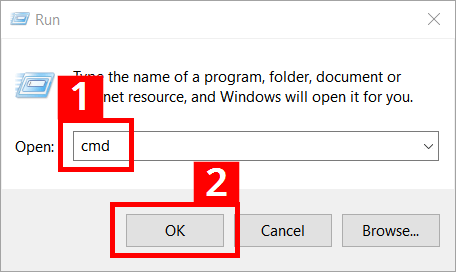
After doing so, the cmd.exe will open with the following screen:
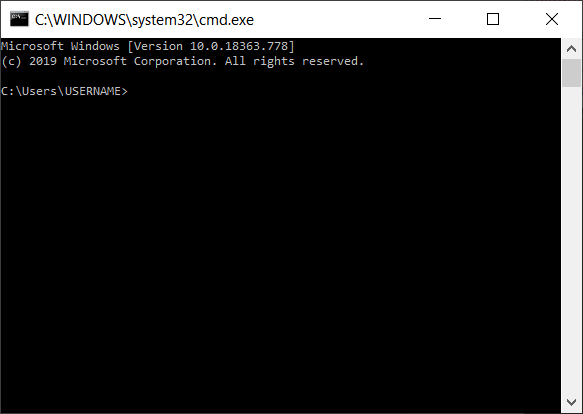
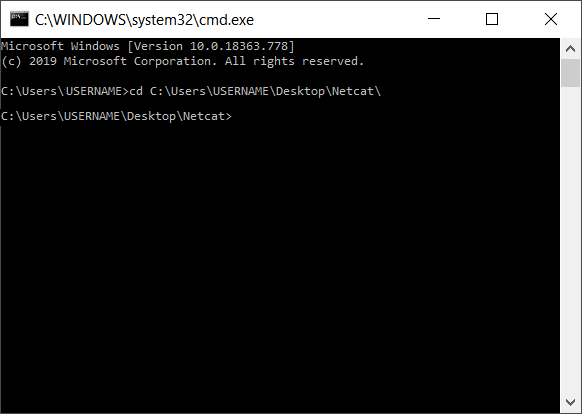
To start the program file (nc.exe), you also need to switch to the storage location. If the nc.exe is saved in the “netcat” folder on the Windows desktop, the syntax will look like this:
cd C:\Users\USERNAME\Desktop\netcat\The command “cd” (change directory) activates the switchover; the underlying program path addresses the storage folder of the nc.exe file. The switchover looks like this in the command line:
Netcat requires advanced access rights for a number of operations. In Windows 10, the command prompt can be launched in just a few steps with administrator rights:
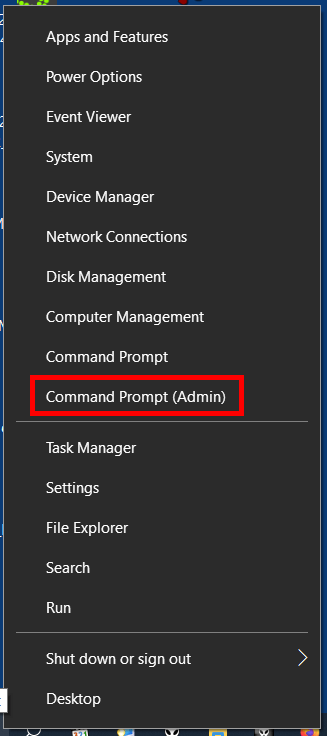
- Right-click on the Windows symbol in the left of the task bar or press the key combination [Windows] + [X]
- Select “Command Prompt (Admin)” in the context menu that appears:
Using Netcat involves certain security risks. For this reason, the tool should only be used by experienced users and system administrators – especially in the mode with advanced access rights.
Netcat syntax: what commands and options exist?
Netcat syntax is made up of two basic components: the constant base command “nc”, followed by various “options”. The base command addresses the program file nc.exe., while the options determine the specific functional scope of a Netcat version. Depending on the operating system and Netcat version used, the possibilities vary.
The following table only covers the main options available in most versions for Linux, macOS, and Windows. Moreover, additional useful options are listed – in particular extensions based on the widespread GNU Netcat version for Linux, Unix, and macOS:
| Options | Description |
| -4 | Forces the use of IPv4 (GNU Netcat) |
| -6 | Forces the use of IPv6 (GNU Netcat) |
| -d | Releases Netcat from the console (running in the background; available in Windows and current GNU Netcat versions) |
| -D | Activates the option for debugging sockets (GNU Netcat) |
| -h (display help) | Displays help (commands/options with a short description) |
| -i (secs) | Delays in seconds for sent lines or scanned ports |
| -k | At the end of a connection, Netcat waits for a new connection (only possible with GNU Netcat and only in combination with “-l”) |
| -l (listen mode) | Listen and server mode for incoming connection requests (via port indicated) |
| -L Listen harder | Netcat also continues to operate in listen mode after client-side connection terminations (consistently with the same parameters; only supported by the Windows version) |
| -n (numeric only) | Only IP numbers, no DNS names |
| -o (file) | A hex dump is carried out for the data traffic (content of files represented in a hexadecimal view); used for fault finding (debugging network applications); recording/sniffing communication is possible (for outgoing and incoming packages) |
| -p (port) | Enters the local source port that Netcat should use for outgoing connections |
| -r | Use of random port values when scanning (for local and remote ports) |
| -s (address) | Defines the local source address (IP address or name) |
| -t | Telnet mode (enables server contact via Telnet); requires a special compilation of Netcat, otherwise the option is not available. |
| -u | Use of UDP mode (instead of TCP) |
| -U (gateway) | Netcat uses Unix domain sockets (GNU Netcat) |
| -v | Extensive output (e.g. responsible for the display and scope of displayed fault messages) |
| -w (secs) | Defines timeouts; for establishing and terminating connections (unit: seconds) |
| -z | Port scanner mode (zero I/O mode); only listening services are scanned (no data is sent) |
A simple example for the use of the Netcat syntax is for accessing help with the parameter “-h”:
C:\Users\USERNAME\Desktop\netcat>nc -h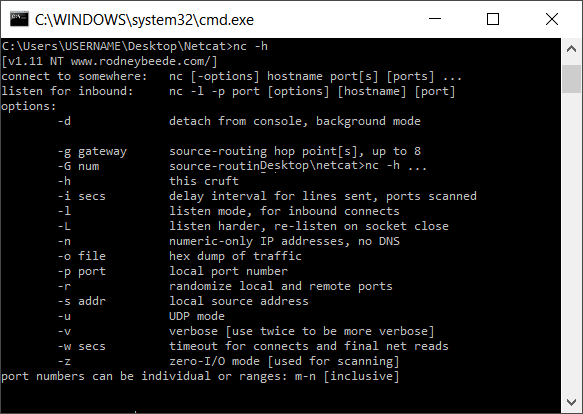
For instance, if you want to define a server or a client in the network for data transmission, the following syntax applies:
Client mode (connect to somewhere):
nc [options] [IP address/host name] [port]Server mode (listen for inbound):
nc -l -p port [options] [host name] [port]The fundamental structure for running a port scan is as follows:
nc [options] [host] [port]Copying files with Netcat
A frequently used feature of Netcat is copying files. Even large quantities of data can be sent and individual partitions or entire hard drives cloned. In our example, the testfile.txt file is copied from computer A (client) to computer B (server) via port 6790: These steps are required:
- Determine the IP address of computer B (destination PC)
- Create the test file testfile.txt in the Netcat folder of computer A; in this example, the fest file is located in the client’s Netcat folder. The copied file then ends up in the Netcat folder on computer B (other file paths need to be adjusted accordingly).
- Enter the Netcat syntax in the command line
Computer B (acts as the receiving server):
nc -l -p 6790 > testfile.txt
ENTER
Computer A (acts as the sending client):
nc [IP address of computer B] 6790 < testfile.txt
ENTER
The success of the transfer is not confirmed in the command prompt. You can see whether the transfer worked by checking in the destination folder.
Running port scans
In order to detect any errors and security issues, you can run a scan and identify open ports. In the following example, the computer has the IP address 192.168.11.1. After the IP address, individual ports (e.g. 1), multiple ports (1, 2, 3 etc.) or a whole range (1-1024) can be entered for the scan:
nc -w 2 -z 192.168.10.1 1-1024The option “-w” sets the timeout (here: “try to establish a connection with the ports for two seconds”). The option “-z” instructs Netcat to only search for listening services and not to send any data.
If the option “-v” is added, you will obtain detailed information about the scan:
nc -v -w 2 -z 192.168.11.1 1-1024Netcat confirms the detection of an open port with the message “succeeded!”:
Connection to 192.168.11.1 25 port [tcp/smtp] succeeded!Most familiar services such as email, FTP or SSH run on the scanned ports 1–1024. In this example, Netcat has found the open SMTP port of an email client.
Netcat as a simple chat program
Netcat can also set up a simple TCP or UDP connection between two computers and open up a communication channel. In the example below, the recipient is first installed on the remote system and set to listening mode. The recipient then acts as “listener” and uses the port 1605 to receive messages. They can be reached at the IP address 192.168.11.1.
nc -l -p 1605
ENTER
A connection is then established by the local computer (sending PC) with the message recipient using the following command:
nc 192.168.11.1 1605
ENTER
If the connection is successfully established, messages can be sent in both directions.
Setting up a simple web server
Netcat can also be used to set up a simple web server. If the established server can’t be reached due to technical problems, for example, you can at least respond to requests with a prepared failure message (in the form of a html file):
nc -l -v -p 85 -w10 -L < failuremessage.htmlNetcat waits for requests sent to port 85 and responds with the file failuremessage.html. The option “-L” allows you to maintain the Netcat process beyond a single request. The parameter “-w” terminates the connection after 10 seconds (timeout). The “-v” parameter gives the server operator information about the requests and documents the operating system and browser type of the requesting client computer, for example, by means of status messages.
Is Netcat a security risk?
Undoubtedly, Netcat can be used universally in networks and performs many helpful tasks here. So, it’s no wonder that it is extremely popular among system and network administrators – particularly since creating Netcat code becomes relatively easy after a certain amount of time.
But there is also a downside: Netcat is a hacking tool used for spying on networks, seeking out vulnerabilities, circumventing fire walls, and exploiting backdoors for taking over computers. Anti-virus programs sound the alarm, for example, when a Netcat version is found on the computer which enables execution of the option “-e” due to a special compilation.
Using this “-e” in the code, an interactive interface (backdoor shell) can be started on a remote computer. Anyone who gains unrestricted access to the cmd.exe on Windows can inflict a significant amount of damage. Additional malware can also be loaded via a backdoor shell. Hackers often use the Netcat parameter “-d” in the code, which allows the command prompt tool to cause trouble on Windows computers – while running invisibly in the background.
To avoid hacked versions, Netcat should only be downloaded from safe sources on the internet. Security experts also advise careful consideration on whether a tool like Netcat is even needed in the installation scope of systems (particularly frontend systems).
Another security risk: Netcat generally transmits data in clear text without encryption. For this reason, the tool should only be used in networks that are very well protected or – even better – cut off from the internet. For data transfers on the internet, the Netcat successor Cryptcat is better suited since it encrypts the data. Moreover, connections can be tunneled via SSH when transmitting security-relevant data.
The advantages and potential risks clearly show that Netcat is a tool which well-versed users, system administrators, and IT managers should carefully consider. Those who understand the advantages can benefit from the versatility and efficiency of the remote administration tool. And those who can suitably assess the dangers for the security of their own network, can take preventive measures to stop hacking attacks – or at least contain the damage.
However, the tool is now rather outdated – having emerged in hacking circles over 20 years ago. Better tools exist for a range of network activities. Besides Cryptcat, Socat is worth mentioning. It can use the network protocol SCTP in addition to TCP and UDP, works via proxy servers, and supports encryption. It also runs on all common platforms like Netcat.
But Netcat continues to enjoy special status as a streamlined and rapidly deployable all-rounder with simple command syntax. In combination with the administration tool Netsh, for example, many more options can be used for efficient network diagnostics and management.