

What is iCloud?
iCloud is pre-installed on Apple devices and comes with 5 GB of free storage. You can use it to automatically back up your data and sync across devices.
What is iCloud used for?
If you have a Mac, iPhone or other Apple device, you automatically use iCloud. iCloud is a cloud storage service that was launched in 2011 by Apple. You can store various kinds of data in it, sync across Apple devices using iCloud Drive or even create a Mac backup.
iCloud accesses various Apple services in order to automatically save and sync their data. Those services include:
- Photos and videos
- Passwords and login info
- Contacts
- Calendar entries
- Notes
- Reminders
- Text messages
- Bookmarks in Safari
- Files
- Music, videos and e-books from iTunes and Apple Books
- App purchases from the app store
Once syncing is finished, you can access your data on all your Apple devices and share it with others. You can also collaborate on documents in Pages, Numbers and Keynote using iCloud.
- Store, share, and edit data easily
- Backed up and highly secure
- Sync with all devices
What are the requirements for iCloud?
If you are an Apple user, there is only one requirement for using iCloud: an Apple Account (previously called Apple ID). Users usually create an account the first time they set up an Apple device. The account can then be used on all other Apple devices. If you haven’t created an account, you can quickly set one up on the iCloud website.
To do that, open the official Apple Account page and click on “Create Your Apple Account”. On the page that opens, enter your information and email address, choose a password and set a security question. Then you can log into your new Apple Account on iCloud and choose which apps to connect with iCloud in the settings.
With the app “iCloud for Windows”, you can use Apple’s cloud service on a Windows PC. That requires you to have already set up iCloud on an Apple device. To learn more, read our article on how to set up iCloud for Windows 10.
How do you set up iCloud?
You can decide which data are uploaded and synced with the cloud in the settings. If you have a Mac, take the following steps:
- Open System Settings in the Apple menu
- In the window that opens, click on “Apple Account” and, if necessary, log in
- Click on “iCloud” to adjust your settings
You’ll now see a menu called “Saved to iCloud”. Click on “See All” to view a list of all the available iCloud services. You can activate or deactivate each service individually by clicking the toggle. The changes will then be saved to all the Apple devices you are logged into with your Apple Account.
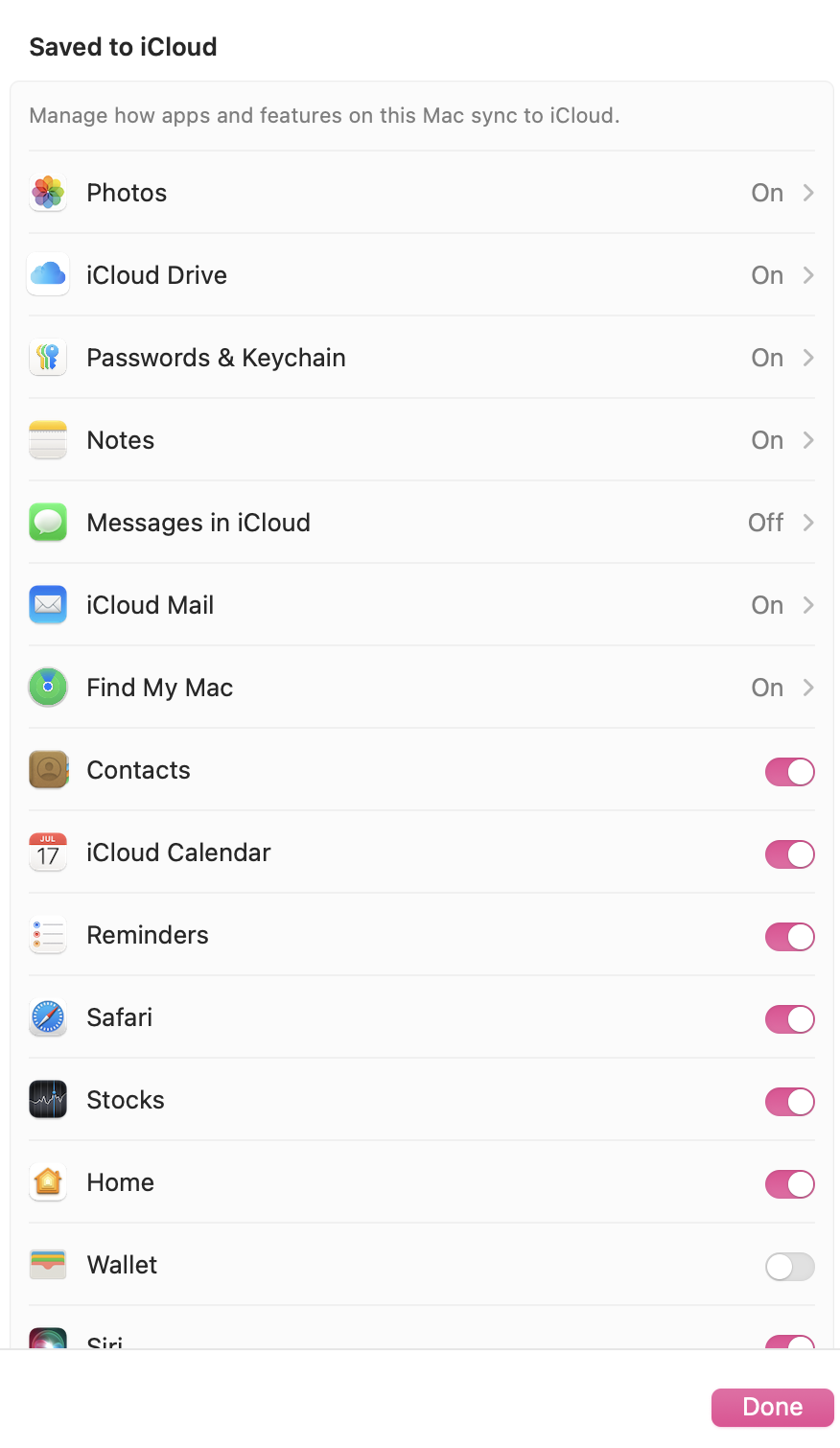
On an iPhone or iPad, you can find iCloud settings in Settings under “iCloud”. You can specify there which services are connected to the cloud.
How secure is iCloud?
Apple saves your data in secure data centers and encrypts it in transit with at least 128-bit-AES encryption. Additionally, new Apple Accounts require two-factor authentication (2FA), which protects against unauthorized access and ensures end-to-end encryption.
According to Apple, no data from security features like facial recognition or object recognition is stored in iCloud. That kind of sensitive information is only stored locally on your Apple device.
iCloud has two security concepts for protecting your data:
- Standard data protection: This is the default option. Your data is encrypted, and the keys are stored in Apple data centers. So it doesn’t provide end-to-end encryption, but Apple can help with recovery.
- Advanced Data Protection: You also have the option to turn on Advanced Data Protection. You then have sole control over the encryption keys for most iCloud data, including iCloud backups, photos and notes.
On the official Apple website, you can look at the full iCloud data security overview to get a better sense of how secure iCloud is.
If you want more security than the cloud can offer, take a look at MyDefender from IONOS.
How much storage does iCloud offer?
When you sign up to iCloud, you automatically get 5 GB of free storage. Once your iCloud storage is full, your data will stop saving to the cloud. One way to solve this problem is to free up storage space and, for example, delete photos in iCloud.
If you want to increase your storage space, you can pay to subscribe to iCloud+. There are various plans for iCloud+:
- 50 GB storage for $0.99/month
- 200 GB storage for $2.99/month
- 2 TB storage for $9.99/month
- 6 TB storage for $29.99/month
- 12 TB storage for $59.99/month
All Plus subscriptions can be shared with up to five other people.
What are the advantages and disadvantages of iCloud?
With iCloud, Apple users can sync and back up their data automatically. That allows them to access their data from different Apple devices and easily share it with others. Data is always up to date because manual syncing isn’t necessary. In addition, using Apple’s proprietary cloud saves you the effort of installing additional software for backing up your data.
However, one of the disadvantages of iCloud is that its services use a lot of storage space. Photos and videos in particular will quickly fill up the free 5GB of storage. A monthly fee is then charged for additional space. Additionally, you always need to be connected to the internet to access iCloud.
Do you have to use iCloud?
Apple users are not required to use iCloud and can back up their data using another cloud service. You can log out of iCloud at any time. If you do, all the data you saved to iCloud will be removed from your device and only be available in the cloud. That means you can still access your data using the web app or another device where you are still logged in.
If you have decided against iCloud altogether, you can deactivate it. To do so, log into your Apple Account and deactivate features individually. If you simply sign out of your account to deactivate it, it will reactivate the next time you sign in.
If you changed your Apple ID or switched to an iCloud alternative, you should delete your iCloud account.
What are some iCloud alternatives for Apple users?
Some of the most popular iCloud alternatives include:
- Microsoft OneDrive
- HiDrive Cloud Storage
- Google Drive
- pCloud
One big difference between these alternatives is how much storage you can get for free. Google Drive offers a full 15 GB, which you can also expand with a subscription. To learn more about which alternative is right for you, read our comparison of cloud services.
If you want to play it safe with your data and ensure it’s not accessed by others, IONOS’s HiDrive Cloud Storage is a particularly secure alternative.
Prices in this article were last updated in April 2025.