

How do you fix DNS_PROBE_FINISHED_NXDOMAIN?
If a requested website is unavailable or unreachable, the browser often displays the additional message DNS_PROBE_FINISHED_NXDOMAIN. What this error means and how you can fix it are explained in the following article.
What is behind the DNS_PROBE_FINISHED_NXDOMAIN message?
When Google Chrome unsuccessfully tries to access a website and subsequently displays the error message DNS_PROBE_FINISHED_NXDOMAIN, it indicates a problem with the name resolution by the registered DNS server. Specifically, the message means that the “DNS probe finished” with no suitable IP address found for the domain to be resolved. As a result, Chrome or the nameserver classifies it as a “non-existent (nx) domain.”
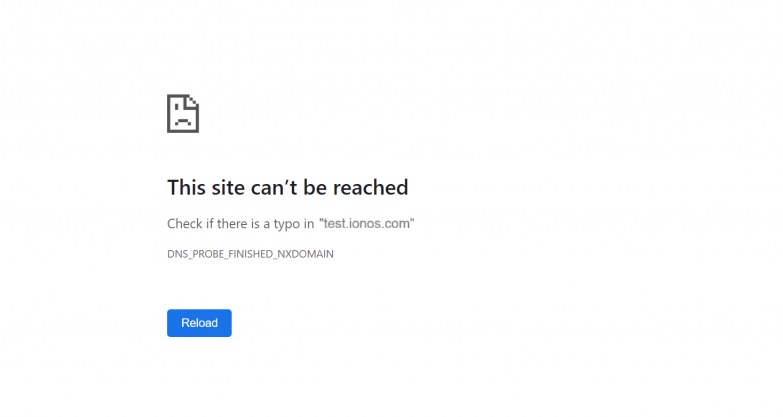
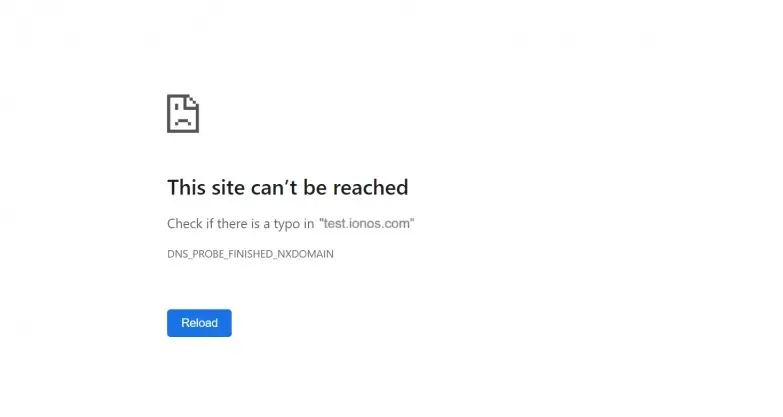
The connection problem is by no means an issue exclusive to Google’s browser. However, the additional note DNS_PROBE_FINISHED_NXDOMAIN appears only in Chrome, while Firefox and others simply display a message stating that the page or server could not be found. Mobile browsers also often show only a general connection message that is less technical. The differences mainly arise from how each browser manages DNS caches and how they store requests temporarily.
Possible causes of DNS_PROBE_FINISHED_NXDOMAIN
The error DNS_PROBE_FINISHED_NXDOMAIN occurs when the browser cannot resolve the IP address of a domain. This usually means there is an issue with the DNS settings or the connection on either the website owner’s or the user’s side.
From the perspective of website owners, the following causes can lead to the error:
- Incorrect DNS settings, causing the domain to not correctly point to the server IP.
- Expired or improperly registered domain, preventing the DNS name servers from providing a valid response.
- Incorrect name server configuration or insufficient propagation after changes, making new DNS records not yet globally available.
Also, from the perspective of users, issues can arise that prevent DNS resolution. These differ from the problems on the website owner’s side:
- DNS server is not functioning properly or does not respond to requests.
- DNS client on the device is malfunctioning or disabled.
- Incorrect DNS settings in the operating system, browser, or router, such as manually entered servers that are not reachable.
- Incorrect Chrome settings, particularly experimental features that can affect or block DNS resolution.
- Outdated entries in the DNS cache of the operating system or browser, providing old IP addresses and causing conflicts.
- VPN or antivirus software or firewall block DNS requests or prevent connection establishment.
- Typographical errors in the URL or accidentally incorrect domain names that the DNS server does not recognize.
- Free Wildcard SSL for safer data transfers
- Free private registration for more privacy
- Free Domain Connect for easy DNS setup
How to diagnose the DNS_PROBE_FINISHED_NXDOMAIN error with tools and online checks
If you want to analyze the DNS_PROBE_FINISHED_NXDOMAIN error, various tools and online check services can be very helpful. They allow you to quickly narrow down DNS issues without having to extensively check settings on your own device. Services like IntoDNS, MXToolbox, or DNSChecker check, for example, if the DNS entries of a domain are correctly set, if nameservers respond, and if the propagation is working worldwide. Simple online ping or traceroute services can also show if the domain is generally reachable or if there are packet losses or routing issues.
For local checks, you can use tools like nslookup, dig, or the Windows command prompt with ping and tracert to directly test name resolution. Many browser extensions or desktop apps also offer real-time DNS checks and show which server is responding to the request.
For extended troubleshooting of DNS issues like DNS_PROBE_FINISHED_NXDOMAIN, command-line tools such as dig and nslookup provide valuable insights. They allow you to specifically check if a DNS server returns the correct IP address of a domain, thus helping to narrow down the source of the error.
- Open the command prompt.
- Enter a command to test DNS resolution:
nslookup example.comshows the domain’s IP address via the default DNS server, anddig example.comprovides detailed information about the domain, including the responding nameservers and TTL values. - Optionally, you can query a specific DNS server. Use
nslookup example.com 8.8.8.8ordig @8.8.8.8 example.comfor this.
How to fix the DNS_PROBE_FINISHED_NXDOMAIN error
To systematically narrow down and fix the cause of the error, it is advisable to go through the following steps in sequence. The table provides a concise overview:
| Step | Action | Objective/Explanation | |
|---|---|---|---|
| 1 | Check URL | Verify that the entered domain is spelled correctly (no typos, no spaces, correct top-level domain). | |
| 2 | Test other websites | Check whether only this domain is affected or all sites to distinguish between a device/network issue or a website problem. | |
| 3 | Clear browser and DNS cache | Clear your browser’s cache and the operating system’s DNS cache to remove outdated entries. | |
| 4 | Restart DNS client | Restart the DNS client service to repair name resolution. | |
| 5 | Check/Change DNS server | Verify your DNS settings and test public DNS servers like Google DNS (8.8.8.8 / 8.8.4.4) or Cloudflare (1.1.1.1). | |
| 6 | Check network settings | Ensure your device is properly connected. Check proxy settings and experimental browser features that could block DNS resolution. | |
| 7 | Check VPN, Firewall, and antivirus programs | Temporarily disable VPN, firewall, or antivirus programs to check if they are blocking or redirecting DNS requests. | |
| 8 | Check hosts file | Examine the hosts file on your system. Incorrect entries can block or redirect domains. | |
| 9 | Reset Chrome flags to default | Reset experimental features in the Chrome browser to their default settings to fix potential DNS issues caused by faulty browser flags. | |
| 10 | Contact website operator | If only one domain is affected, the problem likely lies with domain registration or nameservers. Website operators need to take action here |
Step 1: Check URL
Often, the error is simply caused by typos in the URL. Carefully check whether the address is entered correctly, it contains no spaces or special characters, and the correct top-level domain (.com, .net, etc.) is used. Even small typos can cause the DNS server to not find the domain.
Step 2: Test other websites
Open a few other websites to determine whether the problem affects only one domain or the internet connection in general. If all sites work, the error likely lies with the website operators. If multiple sites are affected, the cause is usually the local device or network.
Step 3: Empty DNS cache
The so-called DNS cache can also be responsible for the error. This cache, which other operating systems such as Linux or macOS also create automatically, contains entries for web addresses that have been successfully resolved over time. Browsers use this storage to deliver pages as quickly as possible, but this can lead to issues such as the DNS_PROBE_FINISHED_NXDOMAIN error when the retrieved entries are no longer up to date. In this case, the solution is to perform a DNS flush, which clears the cache.
On Windows, for example, this works as follows:
- Open the Command Prompt.
- Enter the command
ipconfig /flushdnsand confirm with the Enter key. - A message will inform you that the clearing process was successful.
Step 4: Restart DNS client
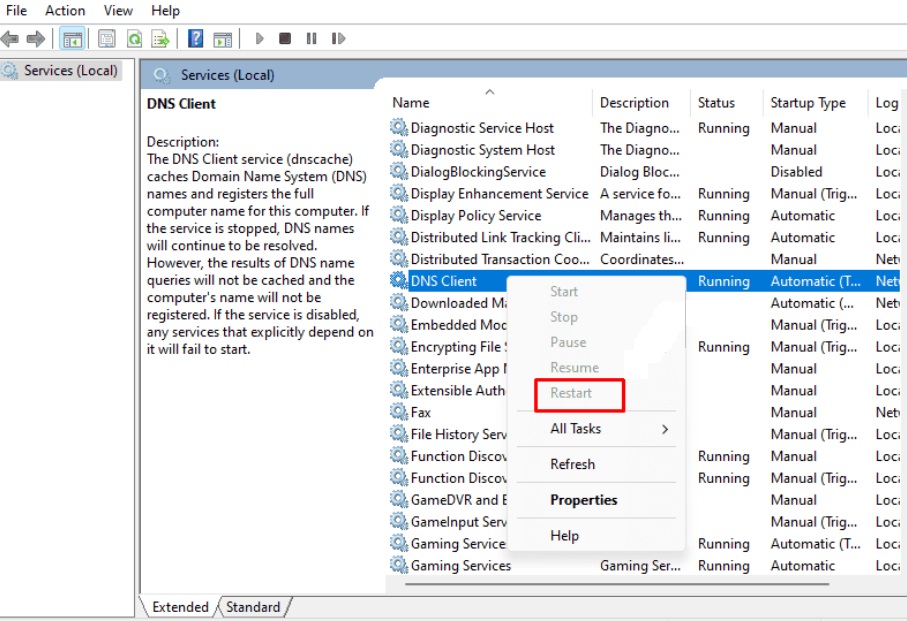
For Windows users dealing with the DNS_PROBE_FINISHED_NXDOMAIN error, solving the connection issue may involve restarting the system’s DNS client. Acting as a link between the browser and the DNS server, this service plays a critical role in name resolution—even though, theoretically, it should work even if the DNS client crashes or is turned off. However, there’s always the chance that a client issue could negatively impact the functionality of browsers like Chrome. To check the status of the DNS service and restart it if needed, follow these steps:
- Open the Start menu and access the “Run” dialog from there.
- Type
services.mscand confirm the entry by clicking “OK”. - Look for the entry “DNS Client” and check the line labeled “Status”.
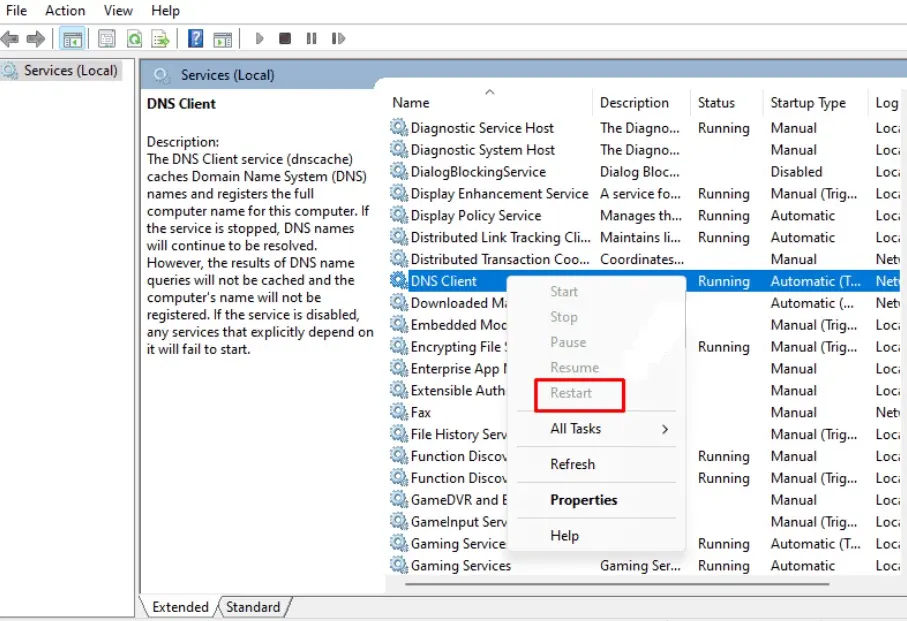
- If the service is not running, right-click the DNS Client entry and select “Restart”.
A self-initiated restart of the Windows DNS Client only works if the service startup type is set to “Manual.” If this is not the case, you must reboot the operating system to restart the client.
Step 5: Check/Change DNS server
If the exchange between your device and the chosen or provider-assigned DNS server is not working, there may be two reasons: First, the entered IP addresses may be incorrect or no longer valid. Second, the server may be temporarily unreachable. In both cases, Chrome may display the error message DNS_PROBE_FINISHED_NXDOMAIN to inform you of the issue. Another solution option is to check the DNS settings or change the DNS server. As a Windows user, you can do this as follows:
- Right-click on the Windows logo and select “Network connections.”
- Click on “Change adapter options” and then right-click on the network connection for which you want to change the DNS server.
- Click on “Properties” and then on the entry “Internet Protocol Version 4 (TCP/IPv4)”.
- Check the entered addresses under “Preferred DNS server” and “Alternate DNS server”.
- Enter the correct IP addresses of the desired servers or the addresses of new servers like the Google DNS server (8.8.8.8 and 8.8.4.4).
If the option “Obtain DNS server address automatically” is enabled, your browser automatically uses the DNS servers provided by your provider for name resolution. In this case, you must first enable the option “Use the following DNS server addresses” to enter a custom server choice.
Step 6: Check network settings
Check if your device is properly connected to the internet and if there is a stable network connection. Ensure that no incorrect proxy settings or experimental browser features are active that could affect DNS resolution. Also, verify your network configuration, especially if the IP address and DNS server are set to obtain automatically. In many cases, restarting the router can help eliminate temporary network disruptions or cached errors.
- Free Wildcard SSL for safer data transfers
- Free private registration for more privacy
- Free Domain Connect for easy DNS setup
Step 7: Temporarily disable VPN tools and other security software
If you use VPN software to browse the internet anonymously and securely or to transfer data through virtual networks, it may well be responsible for the DNS_PROBE_FINISHED_NXDOMAIN error. This applies to both external tools and VPN extensions you have installed in Chrome. The same is true for any security software you use, such as antivirus programs or firewalls. These applications are essential for protecting your system, but they are also known to occasionally block connections without a valid reason.
If you encounter a name-resolution problem, try temporarily disabling the mentioned software first. If the target page loads correctly afterward, you have identified the cause of the error and can then look for a suitable solution to eliminate the blockage caused by the responsible tool. Alternatively, you may consider switching to different software.
Only access the website that triggers the DNS_PROBE_FINISHED_NXDOMAIN message after disabling your security software if you are certain that it is a trusted site. It is possible that your program has been blocking the website for good reason. If you are unsure, blacklist tools such as the blacklist check from mxtoolbox.com can help. There you can check whether—and why—a domain is listed in the blacklists of security tools.
Step 8: Check hosts file
In your system’s hosts file, you can manually assign IP addresses to specific domains. Incorrect or outdated entries can prevent a domain from being resolved correctly, even if it actually exists. Carefully check this file on your system. On Windows, you can usually find it under C:\Windows\System32\drivers\etc\hosts. Remove or correct any entries that block the desired domain or point it to the wrong IP address. Then save the file and restart your browser or DNS client to apply the changes.
Step 9: Reset Chrome flags to “Default”
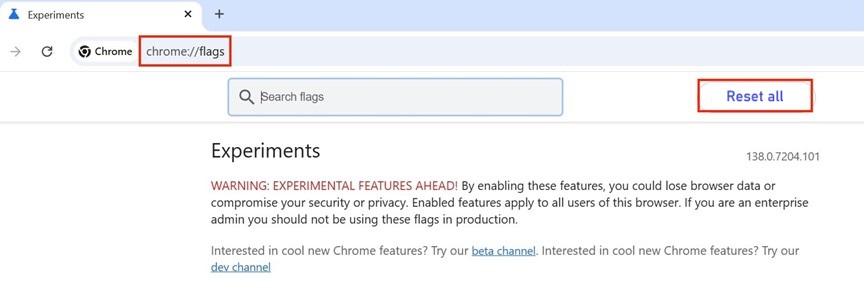
Chrome is especially popular because of its advanced features. To allow users to test these features before their official release, Google offers many potential new functions and settings as flags in an experimental state. Some are activated automatically when the browser updates, while others must be switched on or off manually. Since these features are still in the testing phase, they can occasionally cause connection problems such as the DNS_PROBE_FINISHED_NXDOMAIN error. If the previous troubleshooting steps have not been successful, you should try restoring all flags to their default state (enabled/disabled):
- Start Google Chrome.
- Type
chrome://flagsinto the address bar and press Enter. - Click the “Reset all” button.
- Then click the displayed “Relaunch” button to restart the browser and apply the changes.
- KVM based dev servers for developers
- Scalable to enterprise cloud level
- Pay-as-you-go, per-minute billing
Step 10: Contact website operators
If the error persists and only a specific domain is affected, the cause is very likely on the website operator’s side. This may be due to faulty name servers, incorrectly configured DNS records, or an expired domain.
In such cases, website operators should check whether the DNS configuration is correct and make the necessary adjustments to ensure that the domain becomes reachable again. In some situations, it may be necessary to contact the hosting provider or domain registrar.