

How to display calendar weeks in Outlook

Numbering calendar weeks according to a 52-week year is normal within business contexts. With Outlook, it’s possible to display calendar weeks, however, the corresponding feature is deactivated by default. We’ll show you how to display calendar weeks in Outlook so that you have a better overview of the calendar year.
Powerful Exchange email and the latest versions of your favorite Office apps on any device — get started with our free setup assistance.
How to display calendar weeks in Outlook quick guide
- Go to File > Options.
- Select the Calendar menu item in the right-hand sidebar.
- Scroll down to the Display options section and check the Show week numbers in the month view and in the Date Navigator box.
How to display calendar weeks in the Outlook desktop app
Follow these steps to display the calendar week in the Outlook desktop app:
Step 1: Open Outlook.
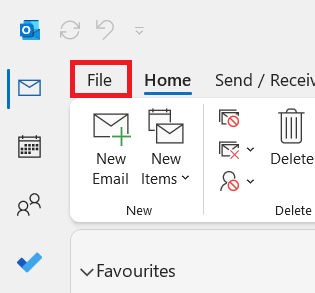
Step 2: Go to the File tab in the menu bar.
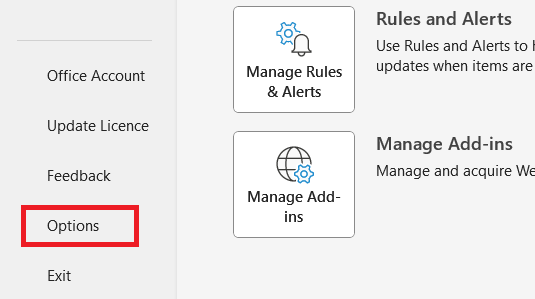
Step 3: Select Options in the left sidebar to open the Outlook options in a new window.
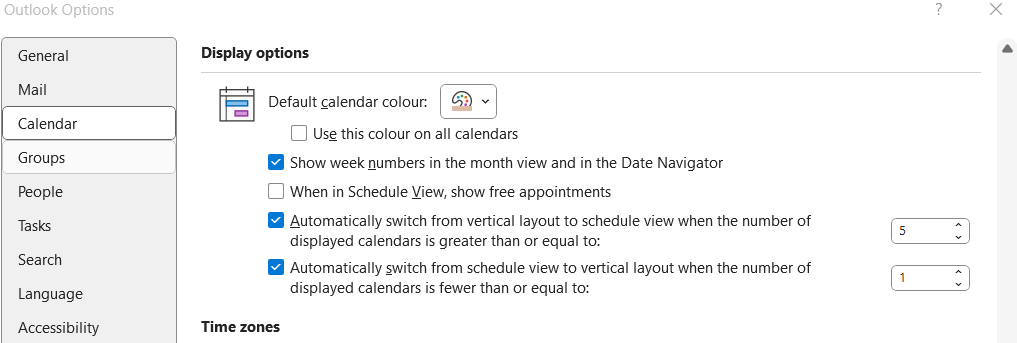
Step 4: Select the menu item Calendar in the left sidebar to access your email program’s calendar settings.
Step 5: Scroll down to the Display options section.
Step 6: Check Show week numbers in the month view and in the Date Navigator.
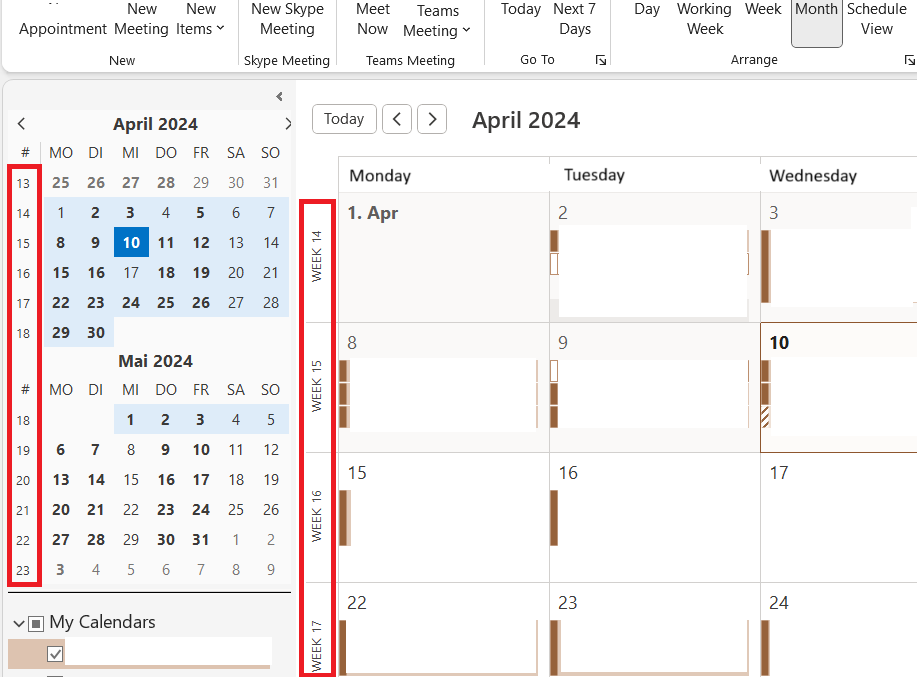
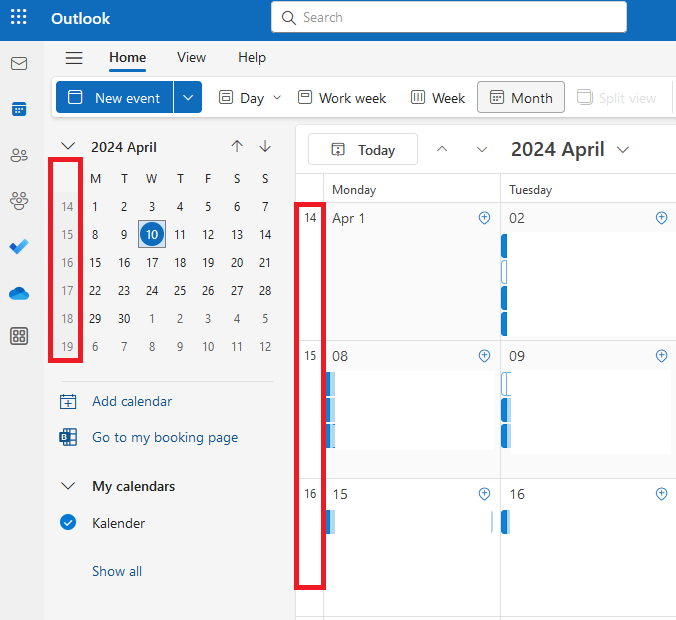
Step 7: Confirm the changes by clicking OK. Calendar weeks will now be displayed in the month view to the left of your Outlook calendar.
The instructions shown here are suitable for Microsoft 365 Outlook versions, Outlook 2021, 2019 and 2016. If you are using an older version of Outlook, you can access the calendar week feature by navigating to Calendar Options (Tools > Options > Settings > Calendar Options).
- Write perfect emails with optional AI features
- Add credibility to your brand
- Includes domain, spam filter and email forwarding
How to display calendar weeks in Outlook on the web
To display week numbers in the Outlook on the web calendar, follow these steps:
Step 1: Open Outlook on the web in your web browser and then open your calendar.
Step 2: Click the cog icon in the menu bar.
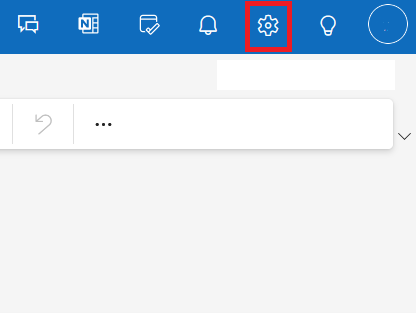
Step 3: Click on the menu item Calendar. Under Calendar appearance, check the Show week numbers box.
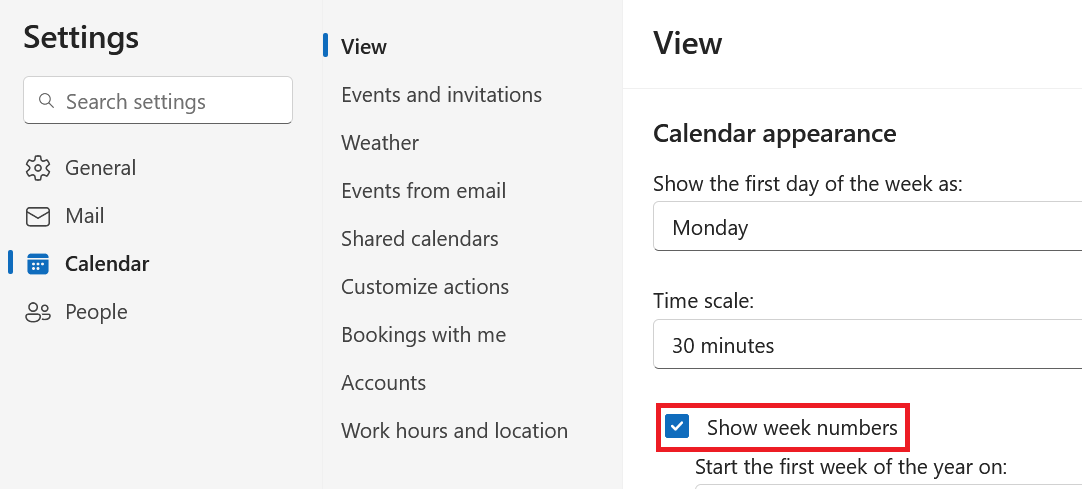
Step 4: Save your changes by clicking on OK. The monthly view of your calendar will now be displayed with numbered weeks.
Keep in mind that different numbering systems for calendar weeks are used internationally. Not every country designates the first week of the calendar year as the week in which January 1 falls, as is done in the U.S. In Outlook’s calendar settings, you can adjust the setting for the first week in the Work hours section.
- Intuitive drag and drop editing
- AI-powered text generation
- Multiple templates to choose from