

Gmail search operators: Which are the most important and how to use them

Keeping track of your daily flood of emails or finding a single email after a few days have passed can be challenging. Luckily, Gmail has come up with a smart solution: Gmail search operators. These are terms and symbols that – when combined correctly – filter emails in a meaningful way. Find out how Gmail search works and which operators are available.
- Simple registration
- Premium TLDs at great prices
- 24/7 personal consultant included
- Free privacy protection for eligible domains
Using Gmail search: a quick guide
- Open your inbox.
- Enter the search operator into the search bar at the top. See the list below for relevant Gmail search operators.
Available Gmail search operators
| Search operator | Function/Search for | Example |
| from: | Sender | from:service@paypal.com |
| to: | Recipient | to:info@gmail.com |
| cc:/bcc: | Recipients who have received a (blind) copy | cc:info@gmail.com / bcc:info@gmail.com |
| subject: | Words in a subject line | subject:service |
| label: | Messages with a specific label | label:inbox |
| ( ) | Summary of several search terms/words | subject:(service payment) |
| OR | Multiple search criteria: either or | from:service@paypal.com OR from:payment@customerservice.com |
| { } | Multiple search criteria: and | {from:service@paypal.com from:payment@customerservice.com } |
| " " | Exactly defined group of words or a specific word | "Service for your order xy" |
| + | Exact match with one word | +Service |
| - | Exclusion of a word | -Service |
| AROUND | Two words that are in close proximity to another; the maximum distance can be specified by a number. To ensure that the order of the words is taken into account, add quotation marks. | "Service AROUND 10 payment" |
| label:/category:/in: | Specific filing locations (label or inbox, outbox, trash,...) as well as categories. | label:work in:spam |
| is: | Determined state (important, read, unread, marked,...) | is: important Is: unread |
| has: | Attachments or special document types (files from Google Drive, YouTube link ...) | has:attachment has:youtube has:document |
| Filename: | Attachments with specific document name or type | filename:info.txt filename:pdf |
| after:/before: older:/newer: older_than:/newer_than: | Messages sent within a period of time or before/after a specific day; note that different date formatting is possible. | after:2002/05/01 newer:10/07/2003 newer_than:7d |
| size: lager:/smaller: | Messages of a specified size, smaller or larger than specified size (in bytes) | size:10000 smaller:25M |
Search operators are useful for a targeted search, but also for creating a Gmail rule. You can apply rules to filter emails and define what should happen to your selection afterwards.
Using Gmail search properly: what are search operators?
Gmail search operators, or search commands, are a combination of words and symbols – similar to the commands found in some programming languages – that you can use to specify results of the Gmail search function. Instead of simply typing in an arbitrary search term that may not produce a meaningful result, Gmail search operators narrow down the result.
Let’s use an example to illustrate this. Suppose you are looking for an online invoice from a particular sender. If you were to simply type “online invoice” into the Gmail search bar, all emails containing that term (in the subject or content) would be displayed. If you add one (or more) Gmail search operators, you can narrow down the results by sender, time of sending, and other criteria, for example. Even the targeted exclusion of certain terms or senders is possible.
Don’t have a Gmail account just yet? Get started with Google Workspace. In addition to Gmail, you’ll get access to all other Google Apps from a single dashboard. Prefer to set up a personalized email address with your desired domain?. It’s as easy as 1-2-3 with IONOS.
Why are Gmail search operators useful?
On the one hand, the targeted use of the search operators saves you time and delivers unambiguous results. If you’re dealing with a high volume of emails this is a blessing. On the other hand, you only need to know a few individual criteria to successfully search emails. For example, if you only know the time period and sender, but not the subject, you can still search the Gmail inbox.
To make the Gmail search with operators run smoothly, it’s best to use them directly in the browser-based inbox. If you use another email program that collects your Gmail via IMAP, the search results may not be displayed correctly.
Statistics show just how popular Gmail has become as an email program. In August last year, the email marketing tool provider Litmus evaluated some 870 million email openings worldwide and found that Gmail came second (after Apple’s iPhone) for opening emails.
 You will find more infographics at Statista
- Write perfect emails with optional AI features
- Add credibility to your brand
- Includes domain, spam filter and email forwarding
Tutorial: Search Gmail inbox using search operators
Step 1: Launch the Gmail inbox and click on the search field above the list of emails.


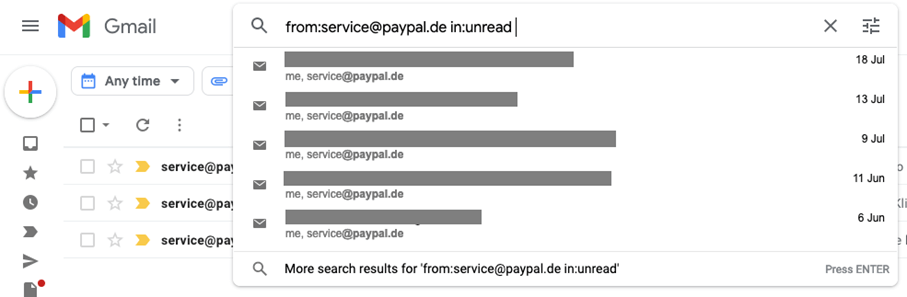
Step 2: Enter the search command and the value to search for. In our example, the search operator is “from”, i.e. the sender. As you’re typing the search value (e.g. an email address), Google will auto-suggest relevant matches.
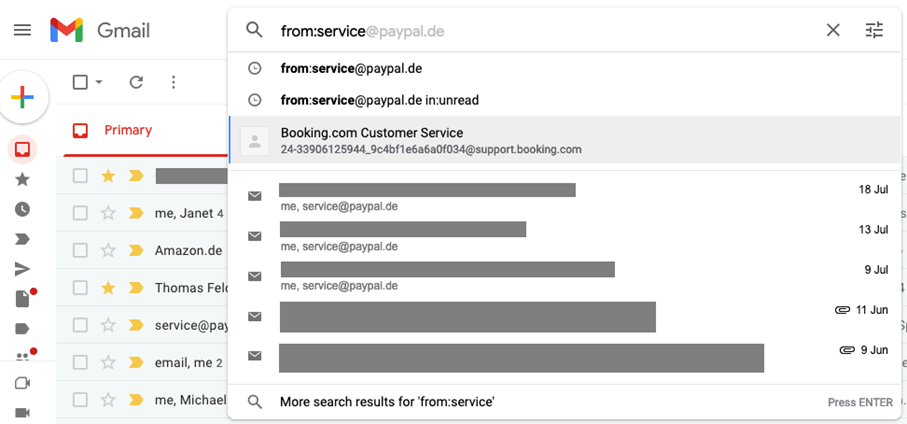
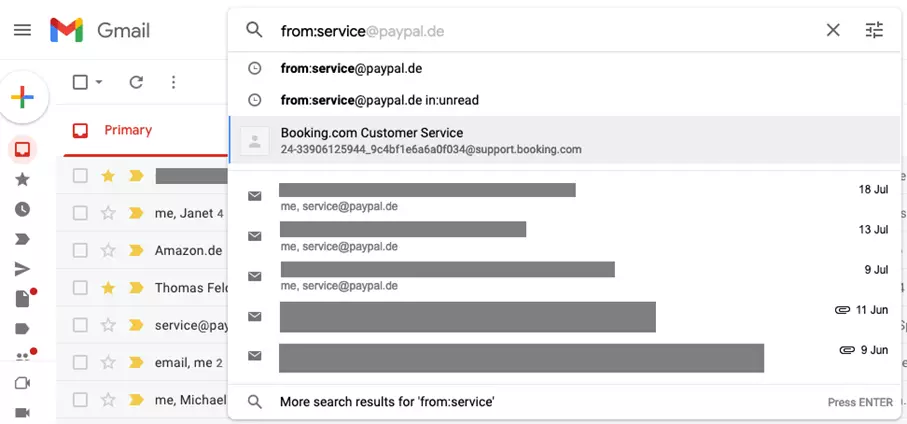
Step 3: Complete the search value either by clicking on a suggested sender or by entering the email address manually.
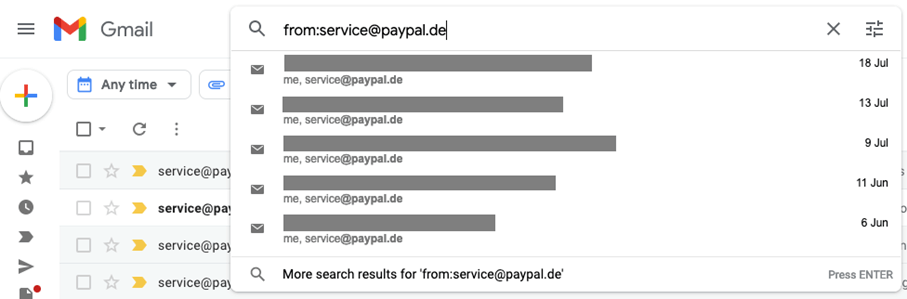
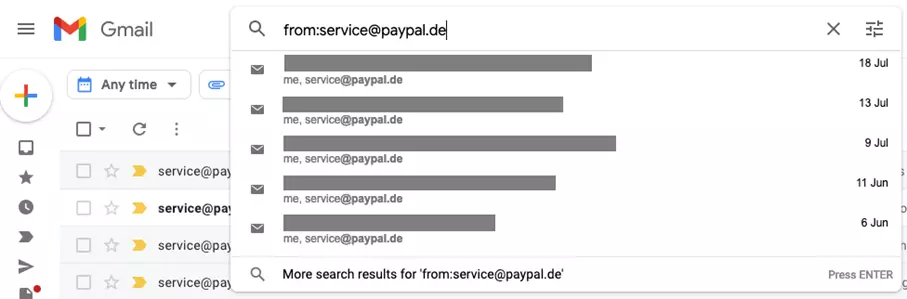
Step 4: Confirm your search by pressing “Enter”.
Step 5: Gmail now displays all emails that match your search criteria.
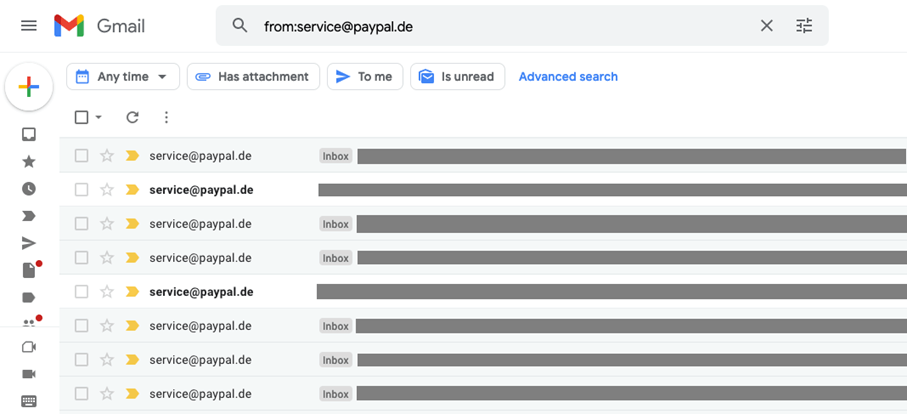
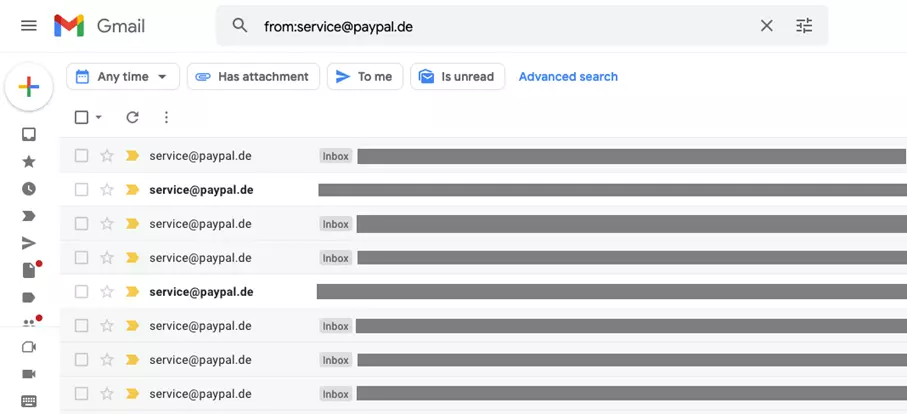
Step 6: You can further restrict the list of results, for example, by selecting a time frame.
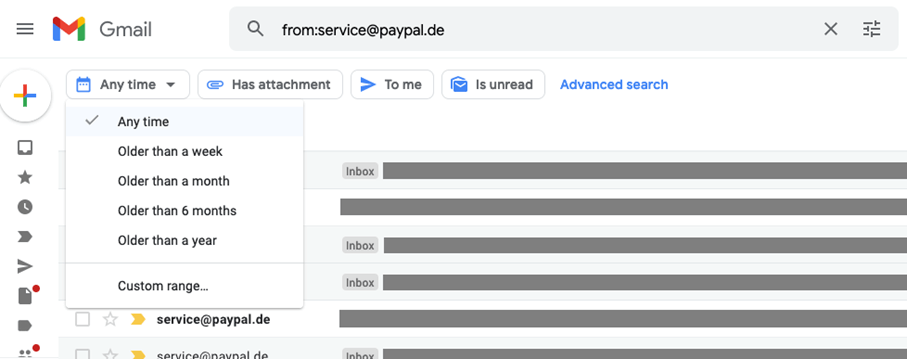
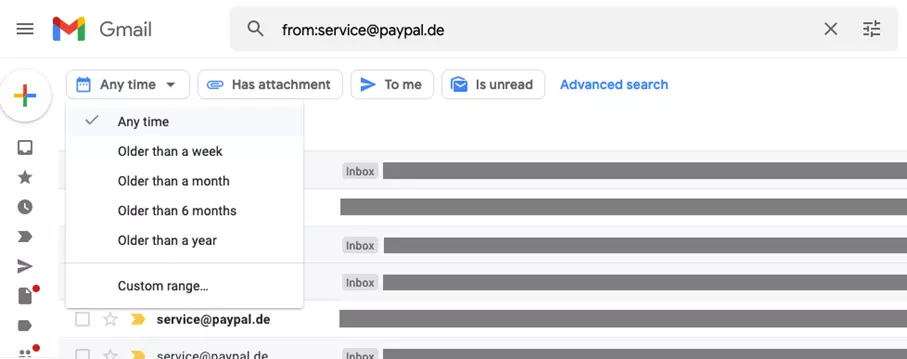
Step 7: The results can be narrowed down further using the advanced search. We explain how this works below.
Combine multiple Gmail search operators
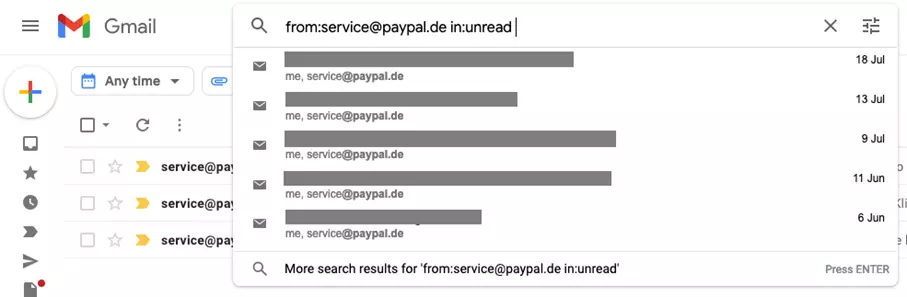
Sometimes the selection of a single search command does not lead to a meaningful result. You can combine several Gmail search operators. To do this, enter the individual commands one after the other, leaving only one space between each value. The example shows the combination of sender (from:) and storage location (in:). It is also possible to specify multiple values for an operator. Check out the table of Gmail search operators to find out what this looks like.
Extended Gmail search
Instead of Gmail search operators or to refine the results of your search, Gmail also provides an advanced search.
Step 1: Click on the icon next to the search box above the list of emails.


Step 2: The advanced search menu opens where you can enter various search criteria.
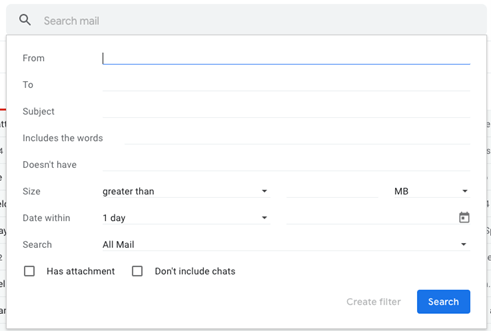
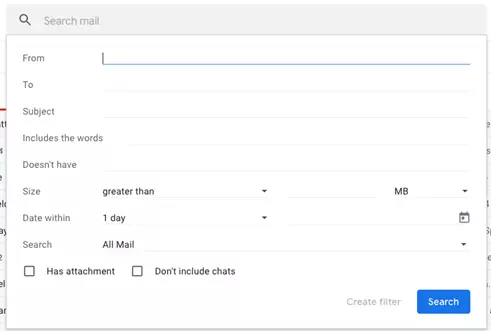
Step 3: You don’t need to know the exact Gmail search operators to use advanced search. Search your Gmail inbox by sender, recipient, subject, etc.
Want to learn more about Gmail features? Read on to find out how the Gmail archive works, how to set up a Gmail out-of-office notice, or a Gmail read receipt.