

How to share Google Calendar: sharing appointments and tasks in a Gmail calendar

Google Calendar is a free-to-use Google account feature. Anyone who has signed up for a Google account can use this calendar tool. Since all account data is saved online, you can access your Google Calendar from anywhere. This gives you full control over your appointments regardless of which device you are using, or your location.
In addition to having the classic calendar functions, Google Calendar can be shared with others. This makes it possible, for instance, to have a family or employee calendar which all members can view. In addition, you can also assign individual access permissions. Depending on what permissions are granted, members can either only view the calendar or they can edit it. If they have been granted the right to edit the calendar, members can also add their own appointments or modify existing events.
- All your favorite Google tools, in one place
- Business Gmail with your own domain
- Gemini AI to help you work smarter
How to share a Google Calendar
Step 1: Open Google Calendar.
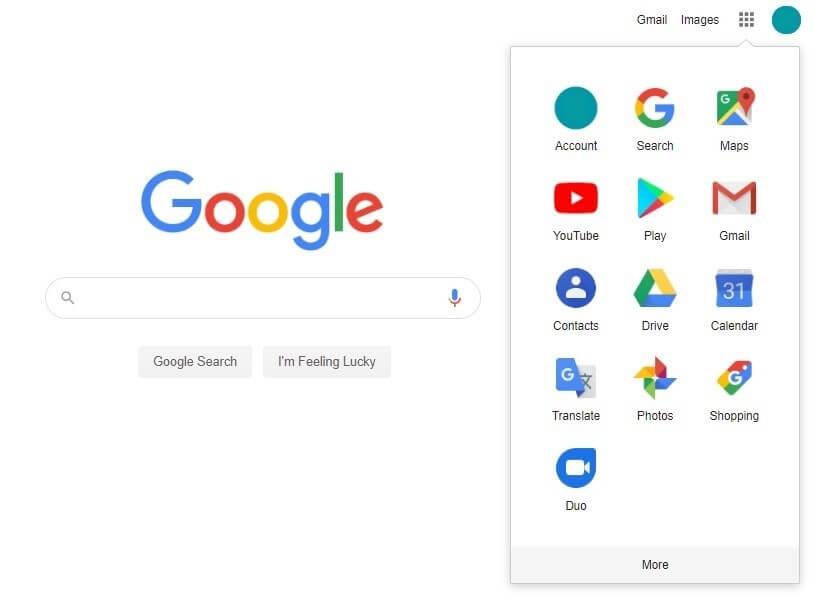
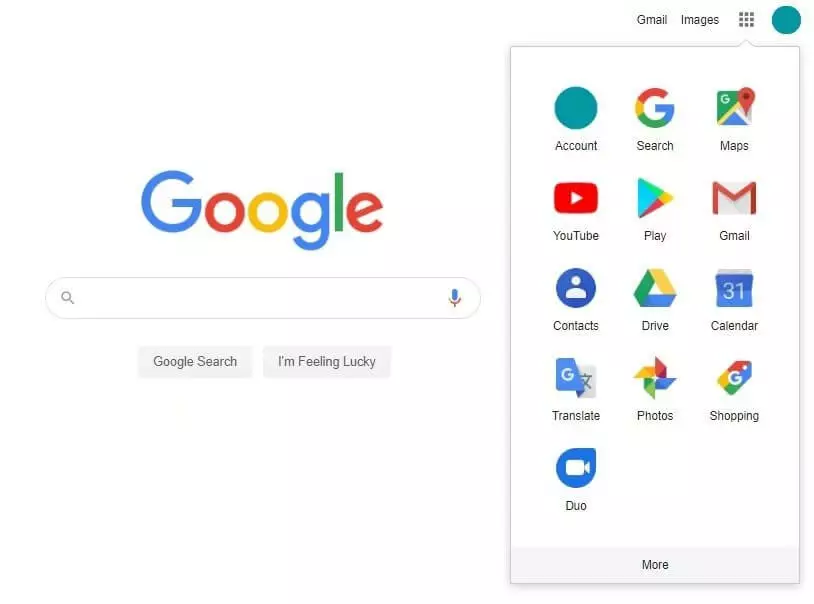
Step 2: Select the calendar you want to share.
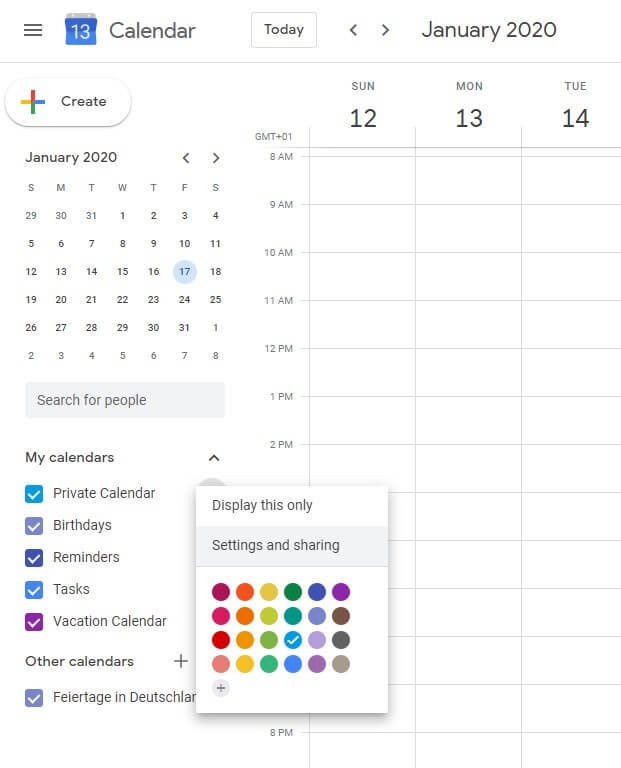
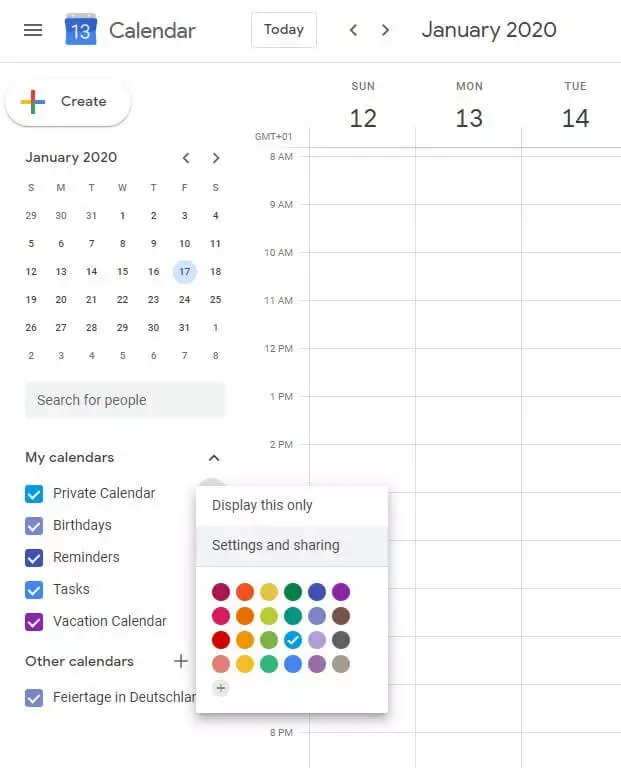
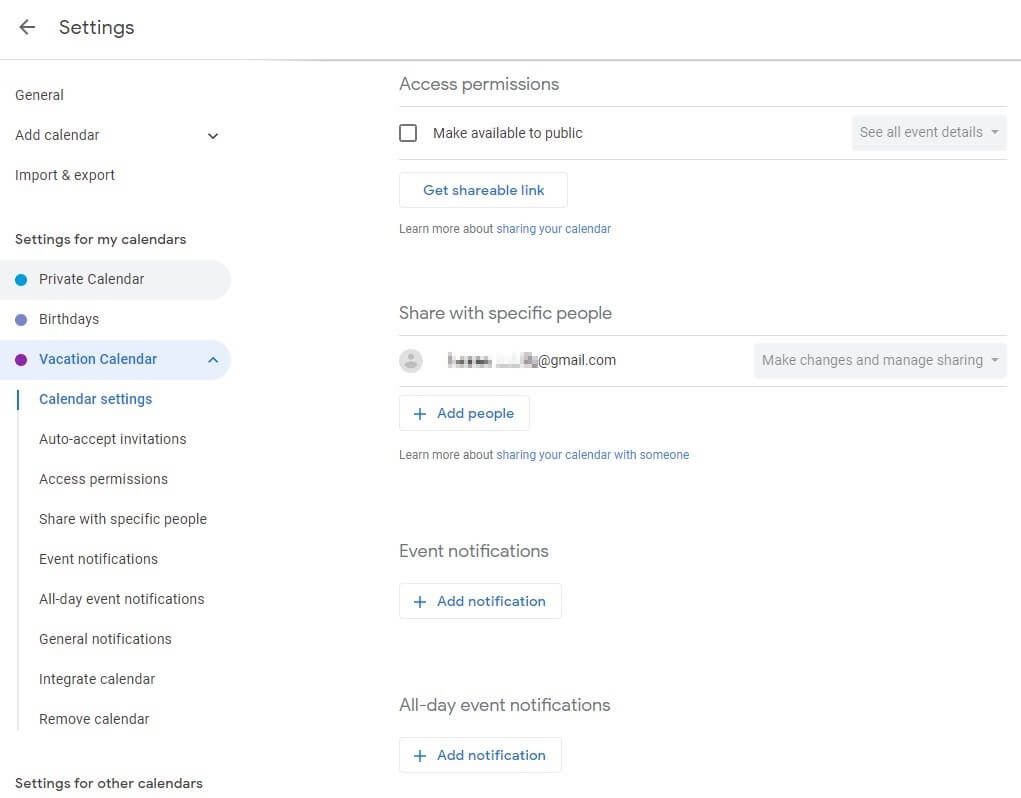
Step 3: Go to “Calendar settings”.
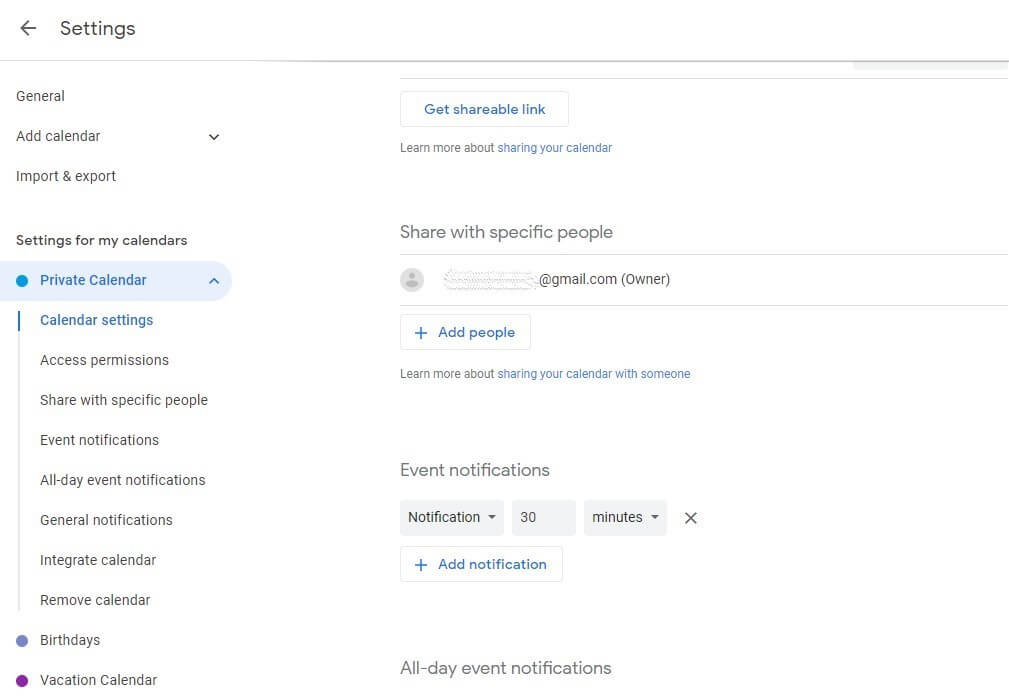
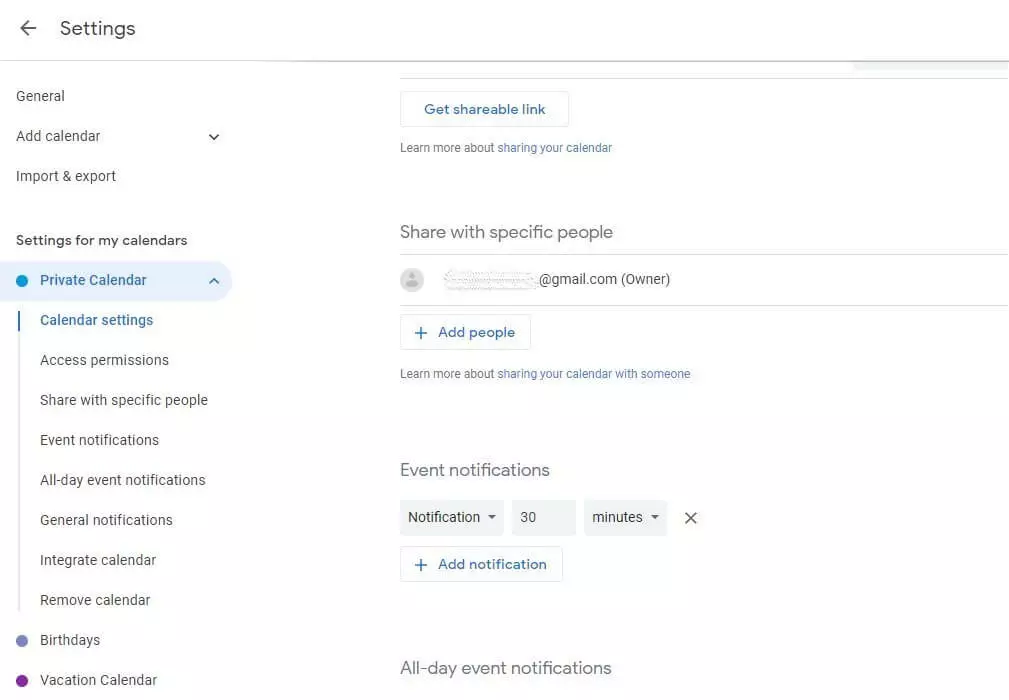
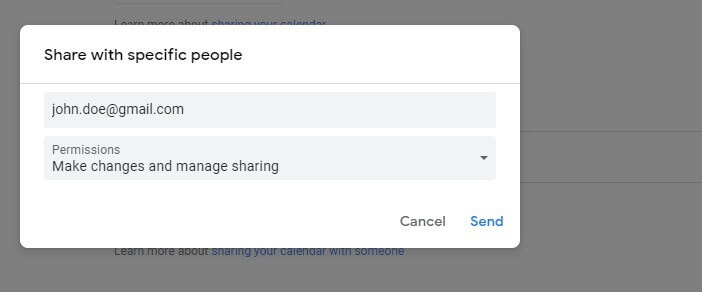
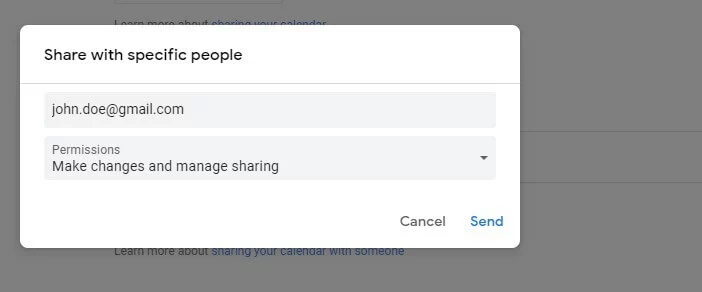
Step 4: Share the Gmail calendar using an email address.
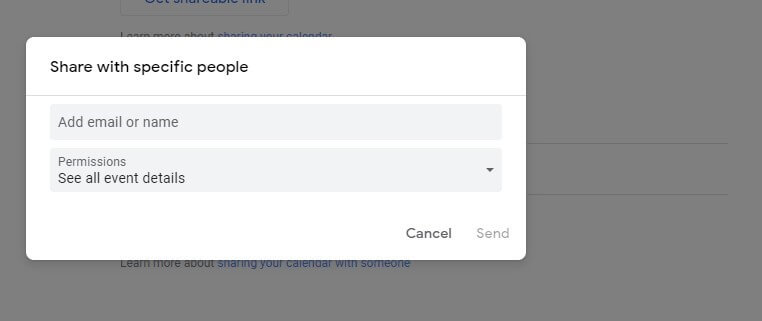
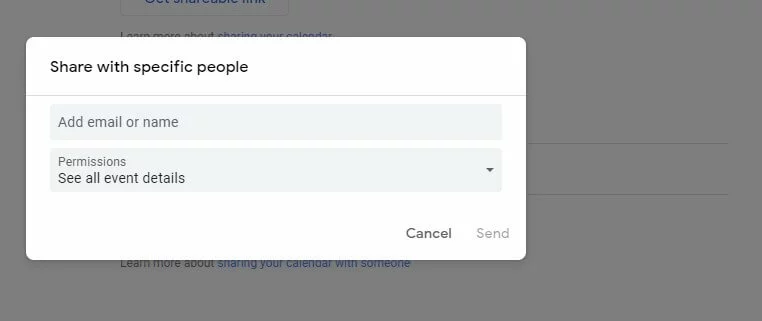
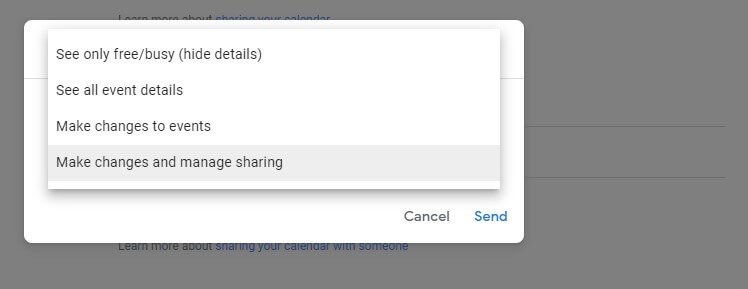
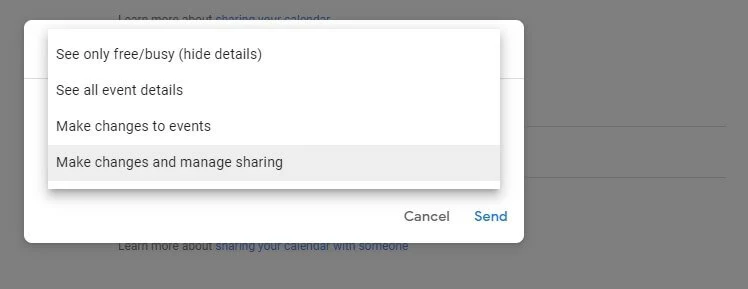
Step 5: Assign access permissions.
Using the drop-down menu labelled “Permissions”, you can also assign individual permissions to each person. By doing so, you can, for instance, specifically define who can only view the shared Gmail calendar and who can add or remove appointments themselves.
Step 6: Finish the sharing process
Once you have entered the email(s) of the person(s) and assigned the access permissions, finish sharing the calendar by clicking “Send”. You can specify multiple people in order to share the Google Calendar with many people at the same time. After clicking send, each person entered will receive a notification email.
How do I share my Google Calendar publicly?
When working in an office, it can sometimes be useful to publicly share a calendar. If you and your colleagues want to manage a vacation time calendar, it is much easier to create a new calendar and make it public than to invite individual members personally and grant each of them individual permissions.
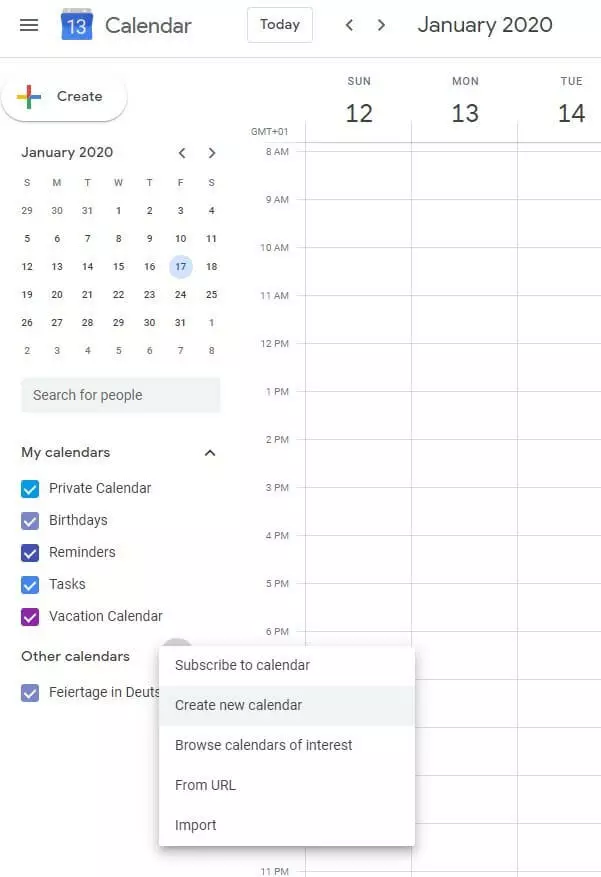
Step 1: Create a new calendar.
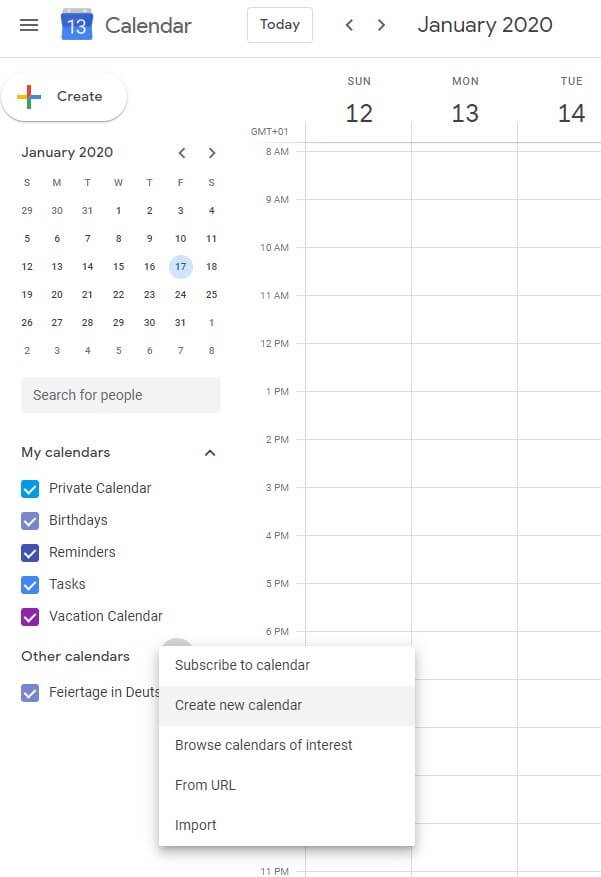
Step 2: Set up the calendar.
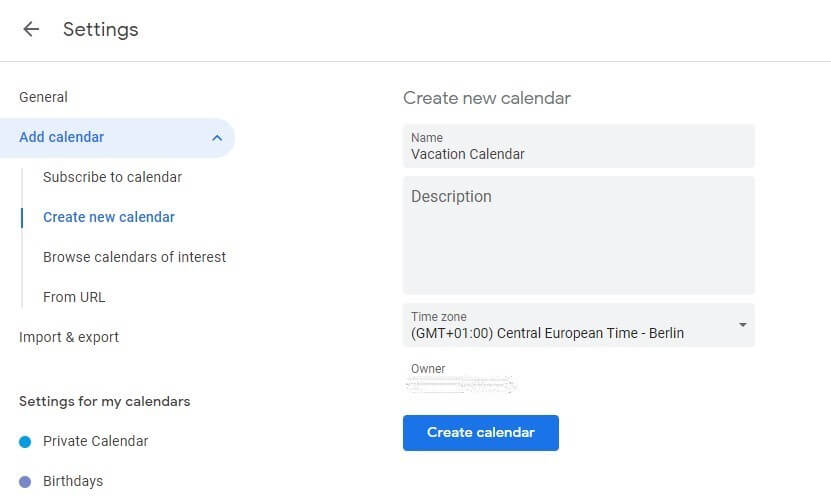
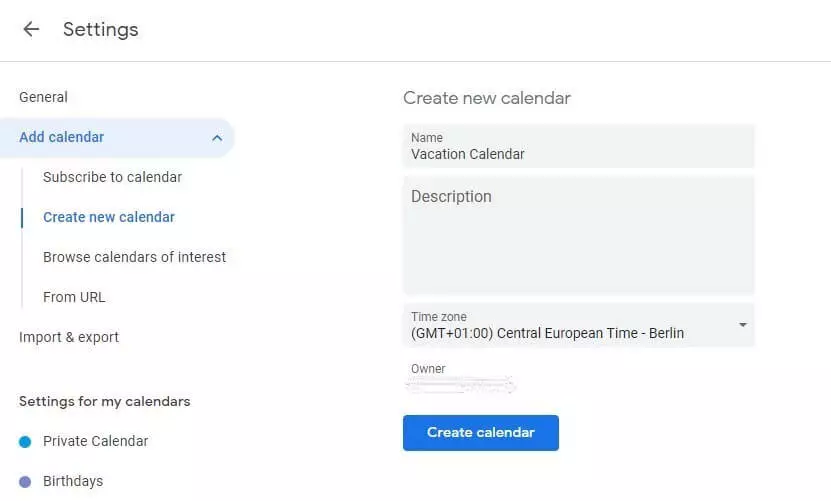
Step 3: Get the shareable link.
Are you missing certain features on Google services? Other collaboration tool providers may have more suitable options for you in their portfolio.
- All your favorite Google tools, in one place
- Business Gmail with your own domain
- Gemini AI to help you work smarter
Reviewer

Jeanna Raffa
With over 18 years of experience in online marketing, Jeanna Raffa possesses extensive expertise in digital marketing. Since 2020, her focus has been on providing practical information regarding email, office, and cloud storage solutions.