What is SMTP authentication? SMTP Auth explained

With SMTP authentication, you can increase the security of your SMTP server significantly. Once you have it set up, only trustworthy users (SMTP clients) will be able to send messages.
What is SMTP authentication?
SMTP authentication, also known as SMTP AUTH or ASMTP, is an extension of the extended SMTP (ESMTP), which, in turn, is an extension of the SMTP network protocol. It allows an SMTP client to log on to an SMTP server using an authentication mechanism. This ensures that only trustworthy users can send and forward emails through the server. In addition, log data can be used to determine who has used the server for SMTP relays.
What is SMTP AUTH used for?
SMTP AUTH prevents an SMTP server from being misused as an open mail relay, through which spam can be spread throughout a network. Although the situation is no longer as critical as it was in the past, it’s still common to find open relay servers that don’t have SMTP authentication set up. Sometimes, this is due to the fact that administrators who lack experience want to test their server and underestimate the risks associated with temporarily opening it. Often though, the problem results from poorly configured firewalls and external security applications.
Open mail relays can usually be identified in a few hours or days, and servers that are identified as such are placed onblocklists. Once placed on a blocklist, even legitimate emails can end up in spam folders. This is why it’s important to take SMTP authentication seriously.
For operators of mail servers, having a server that is being used as an open mail relay has multiple consequences. First, it results in higher traffic due to the opportunities it provides for spammers. It can also negatively impact an operator’s reputation and consume a lot of their time, which, in turn, drives up costs. This is why nearly all mail servers now use ESMTP together with ASMTP (extended SMTP with SMTP authentication).
How does ASMTP work?
An essential feature of ASMTP is that emails are accepted via TCP port 587 (the SMTP AUTH port) and not over the traditional port 25/TCP. This is a mandatory feature of ESMTP. The protocol contains a selection of authentication mechanisms with different levels of security, which, depending on its configuration, an SMTP server can use in order to check the trustworthiness of an SMTP client.
These authentication mechanisms include:
PLAIN: An authentication via the username and password of the client. Both are transmitted unencrypted and then encoded in the Base64 character set.LOGIN: This works similarly toPLAIN, but the Base64 character set for the username and password are transferred in two steps rather than just one.CRAM-MD5: An alternative toPLAINandLOGINwith a higher level of security that follows the challenge-response principle. Via this mechanism, the password is not transferred in code or plain text. Instead, the server provides the client with a randomly generated computational task that can only be solved with the help of the password.- Other mechanisms include: GSSAPI, DIGEST-MD5, MD5, OAUTH10A, OAUTHEBEARER, SCRAM-SHA-1, and NTLM.
An example of an SMTP authentication via LOGIN:
| Party | ESMTP commands and status codes | Explanation |
|---|---|---|
| Server: | 220 smtp.server.com ESMTP Postfix | After the connection has been established, the SMTP server answers. |
| Client: | EHLO relay.client.com | The SMTP client logs on with its computer name and queries the ESMTP support via the EHLO command. |
| Server: | 250-smtp.server.com Hello 250 AUTH CRAM-MD5 LOGIN PLAIN |
The server confirms the login, checks if it supports ESMTP (if it does not, it will continue with HELO thanks to the SMTP backward capability), and then offers the client a selection of authentication mechanisms. |
| Client: | AUTH LOGIN | The client selects the authentication mechanism LOGIN. |
| Server: | 334 VXNlcm5hbWU6 | The server uses the Base64 code for “Username:” to ask for the sender’s username. |
| Client | TWF4IE11c3Rlcm1hbm4= | The client answers in Base64 code with “John Doe”. |
| Server: | 334 UGFzc3dvcmQ6 | The server asks for the password of the sender in Base64 code. |
| Client: | SWNoYmlua2VpblNwYW1tZXI= | The client answers with the password in the Base64 code (in this example, it is “Iamnotaspammer”). |
| Server: | 235 OK | The server confirms the authentication, and the transmission of the email begins in accordance with SMTP. |
How to configure SMTP authentication
In most mail programs, SMTP authentication is configured automatically when a new account is created. If, for some reason, it isn’t working, you may have to do it manually. Below, you’ll find instructions on how to set up SMTP authentication for Gmail, Outlook and IONOS Mail.
- Write perfect emails with optional AI features
- Add credibility to your brand
- Includes domain, spam filter and email forwarding
How to enable SMTP AUTH in Outlook
- In the File menu, click on Account Settings and then select the option that is also named Account Settings.
- Choose your account and click on Change.
- Select More Settings.
- In the newly opened window, go to Outgoing Server and activate the option My outgoing server (SMTP) requires authentication.
- Check the box titled Use same settings as my incoming mail server.
- Confirm it with OK. Now, the window should close.
- Click on Next for Outlook to check the new account settings and click Close when the test is complete.
- Now, click on Finish and then Close.
Microsoft 365 users can also activate SMTP authentication in the 365 admin center or using Windows PowerShell.
 To display this video, third-party cookies are required. You can access and change your cookie settings here.
 How to enable SMTP AUTH in Gmail
When you connect your Gmail address to a desktop client, you can also activate SMTP authentication:
- Log in to your Gmail account.
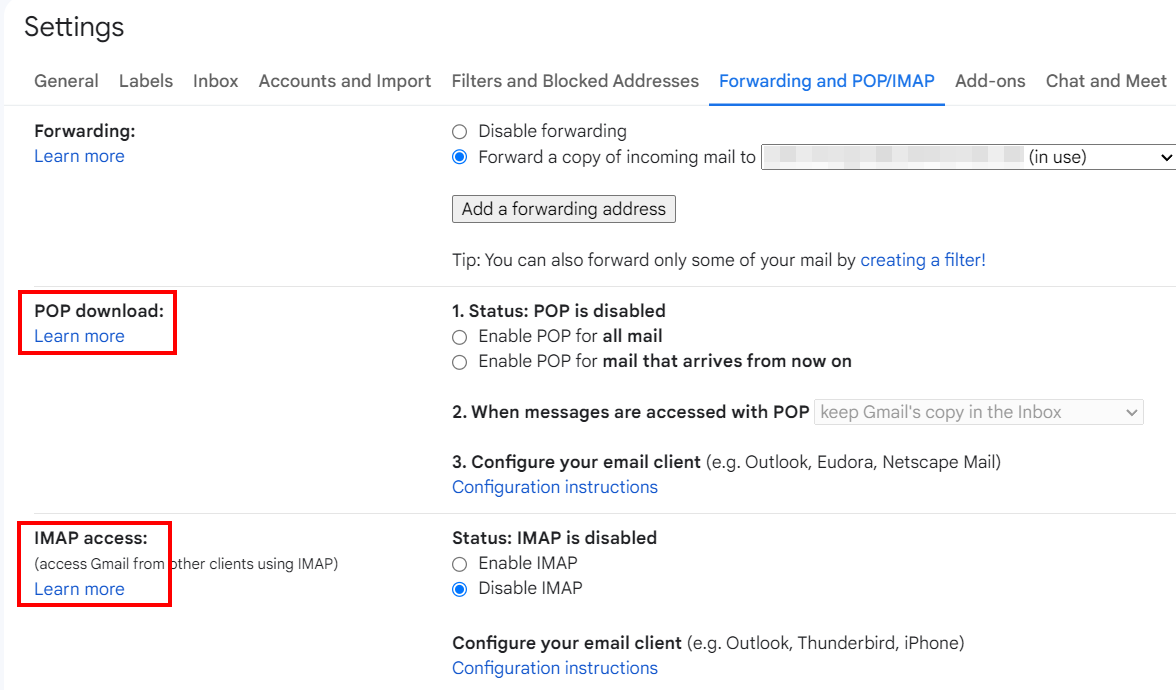
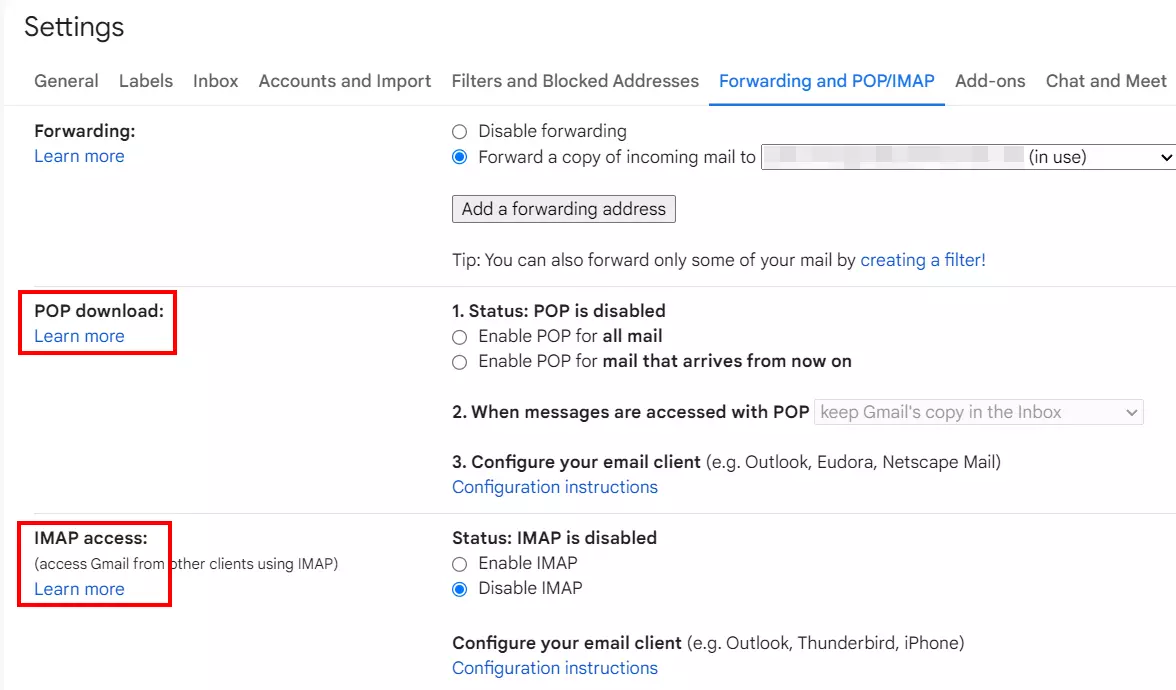
- Click on Settings und select See all settings.
- Switch to the Forwarding and POP/IMAP tab.
- Here you can click on the Learn more link under either POP download or IMAP access.
- In both instances, you’ll be directed to setup instructions, where you can also find relevant information about the outgoing mail server (SMTP), including SMTP authentication.
How to enable SMTP AUTH in IONOS Mail
IONOS email plans that use IONOS Webmail come with SMTP AUTH already activated. If you want to set up IONOS Mail in a different desktop client, you can easily configure SMTP authentication manually as well. You can access the relevant settings, including the SMTP AUTH port, in the Control Panel:
- Log in to your IONOS customer account via the login page.
- In the product overview, select Email.
- Next, click on the IONOS mail plan that you want to configure and choose the email address that you want to set up SMTP authentication for.
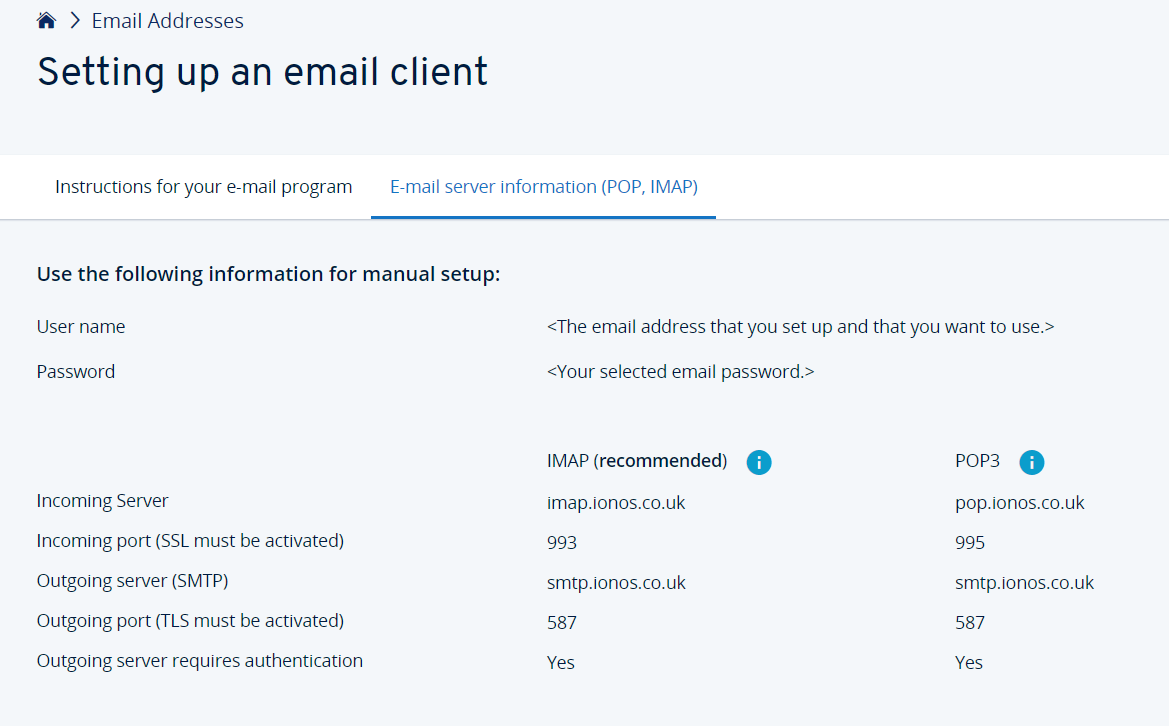
- Click on the menu item E-mail server information (POP, IMAP).
- You will now find all the information you need to set up the email address, including SMTP authentication.
When you set up your own email server with IONOS, you receive a professional domain and also have full control over your email traffic, which is securely encrypted at all times.
How do I test SMTP AUTH?
You can use the Telnet client to check whether a mail server is operating as an open relay or to see if SMTP AUTH is functioning correctly (for example, if you have set up your own mail server). Lots of spammers also use the Telnet client in order to identify open mail relays. SMTP and ESMTP are purely text-based protocols, which is why you can also start and execute a client-server session manually.
The Telnet client is available on all common operating systems and can be accessed using “telnet”. On Windows versions from Vista onwards, the client must first be installed or activated in the control panel. You’ll also need your username and password for Base64 code, which you can get on websites like base64encode.net
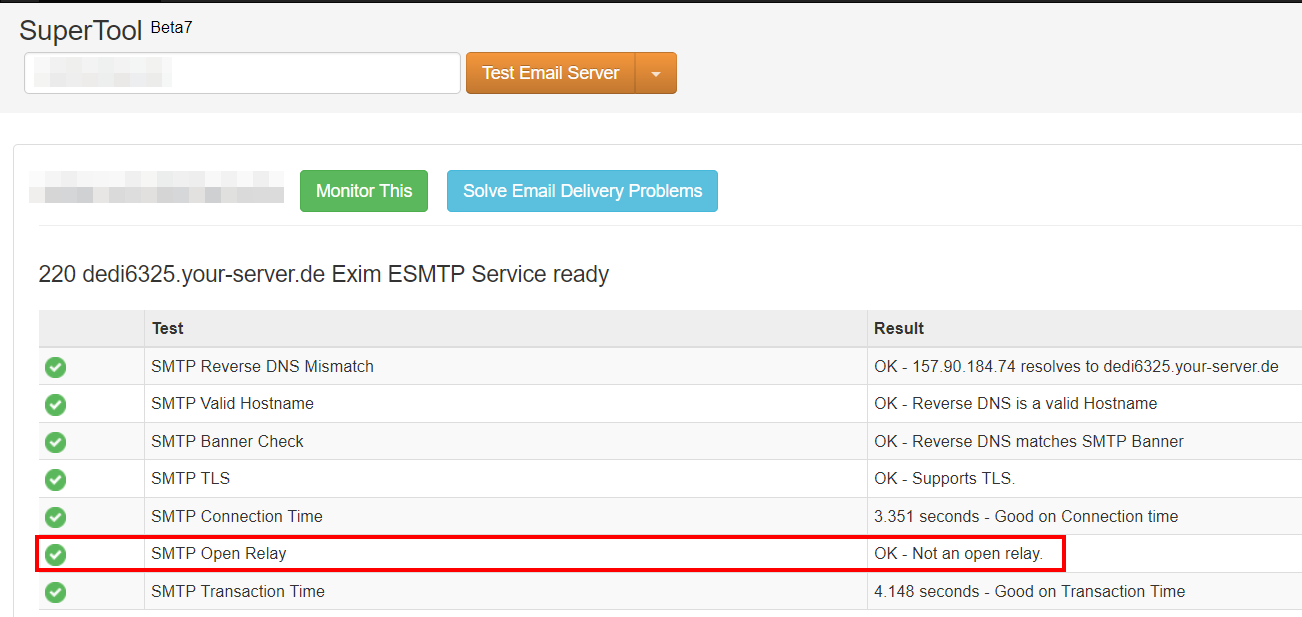
You can easily check if your email server has SMTP authentication enabled by using web tools like SMTP Diagnostics from MxToolbox:
- Go to SMTP Diagnostic.
- In the input field, enter the address of the SMTP server or an email address that uses the SMTP server.
- Click Test Email Server.
- After a short amount of time, you’ll receive a list of key information, including details about SMTP authentication. In the row, where it says SMTP Open Relay, you can see whether authentication is enabled.