

How to easily add WordPress icon fonts in your theme

There are several ways to liven up a text in WordPress with icon fonts. You can use a WordPress plugin for icon fonts, which is available from Font Awesome, for example. The plugin also allows you to use shortcodes to insert the icons. Alternatively, you can embed the icon fonts manually via embed code - single fonts or whole sets (also from Font Awesome). If you need only a few standard icons, you can also use the ones from Page Builders or Dashicons.
- Simple registration
- Premium TLDs at great prices
- 24/7 personal consultant included
- Free privacy protection for eligible domains
What are Icon Fonts?
Icon Fonts are individual pictograms and symbols that you can insert on your website for navigational purposes or to break up the text. The big difference from other icons on WordPress is that Icon Fonts are laid out like an ordinary font. Instead of letters, numbers, or special characters, they simply contain small symbols.
The advantages of this method are great. On the one hand, it facilitates use if the pictograms are deposited as a font. On the other hand, these WordPress icons are freely scalable, just like a conventional font, and can be colored as desired. In addition, icon fonts load faster than individual graphics.
Your own domain in a few steps with IONOS. Register your dream domain easily and make use of the numerous advantages. These include an expandable 2 GB mailbox, up to 10,000 subdomains, and a domain lock.
Where can I find icon fonts for WordPress?


There are numerous providers that provide icons for WordPress. Many of them are free. Probably the world’s most popular site for free icon fonts is Font Awesome. Well over 7,500 icons can be found there. The palette ranges from arrows or common icons like the shopping cart and magnifying glass to specific, niche icons.
Add icons to WordPress using a plugin


Once you have found the right icons for your WordPress site, there are several ways to insert them. One simple method is to integrate them via a plugin. For Font Awesome, for example, there is a custom integration plugin called Better Font Awesome. With this, you can add icons to WordPress via the use of a shortcode. The plugin always provides the latest icon sets for this purpose and thus does not require manual updates. The usage is simple: once installed, the plugin allows you to select and include any icons via the shortcode icon name="example". However, the different pictograms are also available for selection in the text editor.
Hosting for WordPress made easy. With IONOS, simply choose the plan that fits your needs and get the perfect support for one or more WordPress sites.
Add icons to WordPress manually
You can also add icons to WordPress manually. Font Awesome provides you with the corresponding font as embed code for this purpose. This works as follows:
- Enter your email address at Font Awesome. The embed code will be sent to this email address.
- Then create a backup of your website. Since you are interfering with the code, it is important that you have a backup.
- Now add the code to the header of your theme. This works either through the header.php file or even directly in the backend for some themes. The embed code is inserted right before .
- Now you can select those icons for WordPress that you need for your site.
Alternatively, download the desired icon collection directly from Font Awesome:
- In the first step, unzip the included ZIP file. In it you will also find a file called all.css.
- Use FTP to connect to the server of your site. There you will find a folder called “fonts”.
- In this folder create a subfolder called “Font Awesome” and inside it create another subfolder called “css”. There you add the file all.css.
- Open the header.php file of your theme and add the following code before :
<link href="https://www.beispielseite.de/themes/beispieltheme/fonts/fontawesome/css/all.css" rel="stylesheet">WordPress icons with page builder and dashicons: fewer choices, ease of use.
The third option you can use to add icons for WordPress is the simplest. Some popular and widely used page builders for WordPress have their own icon collections. These include Beaver Builder or Elementor Pro, for example. Here, the icons are simply stored as font, and can be selected and then inserted by drag-and-drop.
The disadvantage: The offer is very limited compared to the comprehensive collections at Font Awesome and other font and icon sites and leaves little room for your own style. However, if you only need a few icons, this method will suffice.
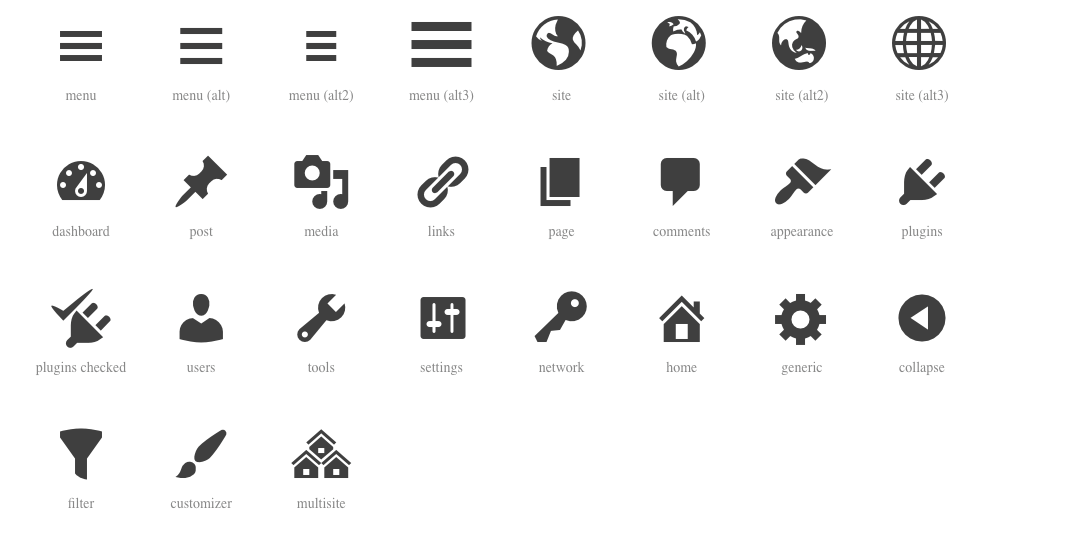
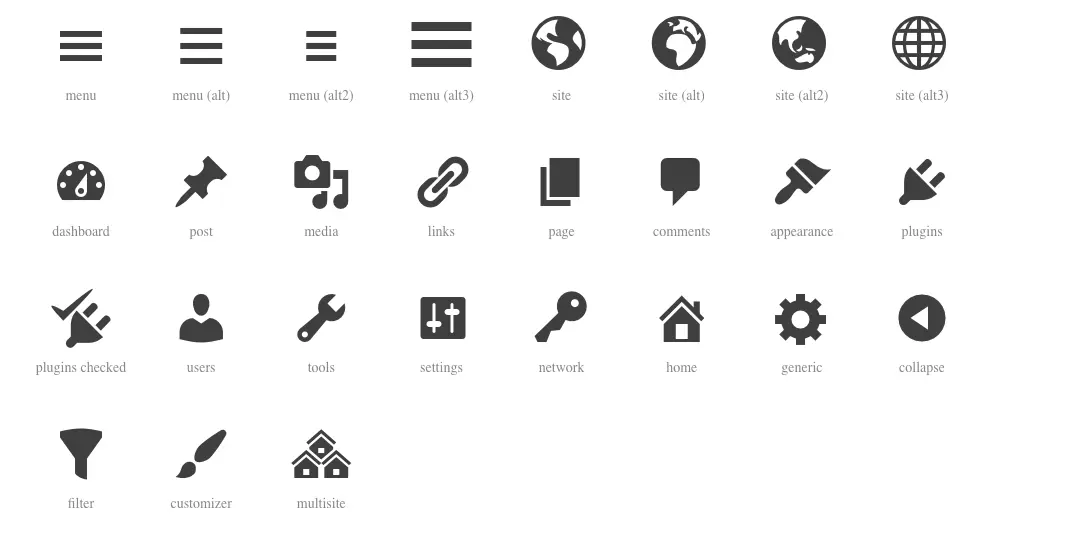
The range of dashicons is also set out clearly. These are standard icons with WordPress and can be inserted with a plugin. For this, you simply copy the code of an icon on the website and paste it in the backend. Comparatively fewer icons are available for your WordPress site, but classics such as email icons, the logos of the various social media platforms and the shopping cart can be found here.
- Stress-free, no matter your skill level with easy AI tools
- Fully customizable with themes and plugins
- Hassle-free updating and less admin
Conclusion: Icons for WordPress are useful and easy to integrate
So, if you want to add icons to WordPress, you have several options, all of which work comparatively easily. Icon fonts offer numerous advantages over graphics, which is why they can be a worthwhile option. The important thing is that you always use icons sparingly. Otherwise, your site will quickly become cluttered. One WordPress favicon and a few icons on individual pages is more than enough.
In IONOS’ Digital Guide, you will find everything you need to know about WordPress. From the first steps to creating your own WordPress blog to best WordPress review plugins to creating a WordPress backup, you will learn how to use WordPress in a way that is the most effective for you.