

Google Shopping feed: How to set up a successful Google product feed?

If you sell products online, a Google Shopping feed is pretty much essential for your success. The focus here is on optimally prepared product data — from appealing product photos to filterable aspects of your product. To set up Google Shopping successfully, you need a Google Ads and Google Merchant account.
- Simple registration
- Premium TLDs at great prices
- 24/7 personal consultant included
- Free privacy protection for eligible domains
What is Google Shopping?
The Shopping Feed is part of Google Ads and is based on comparably prepared product data that online store operators provide to Google. Unlike Google Ads, where you can set individual advertising text but no photos, the Google Shopping Feed lives from product photos and standardized product data. The product features such as price, title, color, size, etc. allow users to compare and specifically filter products within Google Shopping — basically like a sophisticated online store, except that the feed is a solution provided centrally by Google. This makes Google Shopping an excellent product and price comparison service and one of the largest online sales platforms.
In Google search, the Shopping results are displayed above, and in some cases next to, the organic search results. Which offer is displayed how prominently depends on the one hand on the price that you as a store operator offer either through cost per click (CPC) or cost per engagement (CPE); on the other hand, however, above all on the relevance of the product. With an optimized Google Shopping Product Feed, you’ll stand a chance against the competition out there.
Google Shopping, Ads, Frequently Asked Questions and Organic Search Results: Today’s Google results page provides users with far more than just exact answers to their query. It wasn’t always this way, though! Read up what the Google search results across history looked like for a dose of trivia.
One important difference from Ads that you should know: Shopping Ads do not allow you to specify keywords where you want your products to be displayed. Google decides which keywords are relevant based on your data. For you, this means that any keywords should appear in your product data (title, product description, category, etc.).
Make more of your advertising: leave Google Ads campaign management to our experts at Google Ads Management Service!
Who would benefit from a Google Shopping Feed?
In essence, Google Shopping should be part of the marketing mix for anyone who wants to sell products online. Because product presentation is less about branding and brand image and more about hard product features, suppliers without a distinctive brand will definitely have good sales opportunities here. Overall, the leads via the shopping feed are usually the much more qualified ones (compared to ads), since the search intention or purchase intention of users is usually very clear.
Once you prepare your product data as Google Product Feed, you will not only benefit from high-quality shopping ads, but your store will usually also be indexed better by Google. Last but not least, your customers will find it easier to navigate the standardized data and filter options.
Website requirements
To participate in Google Shopping, you or your website must meet some requirements:
- Security: The website must be encrypted with a valid SSL certificate.
- Contact: You must offer sufficient and, most importantly, correct contact options.
- Purchase process: The purchase process must be easily and completely concludable by customers.
- Billing and return: The terms and conditions of both topics must be clearly and unambiguously formulated and placed in a way that is easy to find.
Google Shopping: Here’s how to set it up
If you don’t have a Google Ads account yet, set one up first. The registration is self-explanatory and only requires some information about yourself and your company. We have summarized more about the basic functions of Google Ads for you elsewhere.
Set up Conversion Tracking
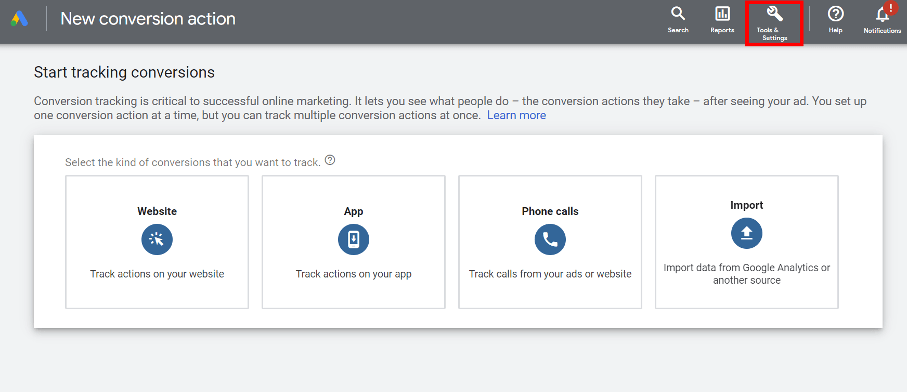
To be able to evaluate a campaign later and optimize your Google Product Feed if necessary, you should set up conversion tracking in your Google Ads account right from the off. Here’s how.
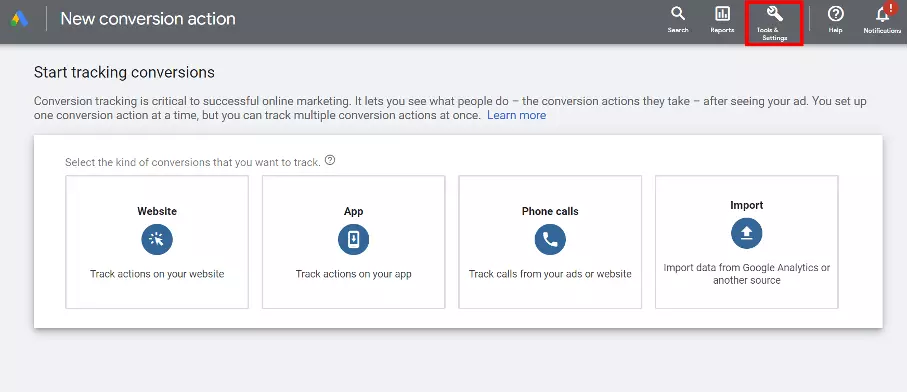
- In the top line of your account, click on “Tools & Settings” and under “Measurement” on “Conversions”.
- In the next step, create a new conversion using the blue button with the plus symbol.
- Set the type of conversion, a category, and a name.
- Specify “different values for each conversion” in the “Value” option and set the default value
- Set the tracking to apply to all conversions.
The remaining settings can be applied as you need. Based on your information, Google will create an HTML tag that you need to insert on the page that the user will be redirected to after the conversion is completed.
In our guides, we show you how to optimize your campaigns with targeted Google Ads optimization optimize your campaigns and which are the best Google Adwords alternatives.
Google Merchant Center setup
In the Google Merchant Center you deposit your Google Product Feed for transmission to the search engine. If you want to set up the Google Merchant Center, follow these steps:
- Sign in to the Merchant Center with the Google Account you used to open the Ads account.
- Provide company information and accept Google’s terms of service.
- Select “Google Shopping” and create your new account.
- In the “Settings” section, you then need to complete some company details, including branding information and your shipping terms.
- Finally, you need to confirm that you are indeed the owner of the specified website. This can be done either through your Google Analytics account, Tag Manager, accessing your server or uploading an HTML file to your server. The easiest one is the first one via Google Analytics.
Create a Google Shopping Product Feed
There are various ways to create the data feed for Google and then upload it. Automatic solutions, which are often already integrated in larger store solutions, are ideal. Not only that you can save yourself the tedious clicking together and the manual upload: The automation also ensures that your data feed is up to date — otherwise, you will have to trigger a new upload every 30 days.
You have the following options for deployment in the Google Merchant Center:
- Google Tables
- Manual upload of a data feed as .txt, .xml, .gz, or .zip
- Automatic deployment of an XML file from the store
- Upload via a content API
- Creation of a shopping feed by a Google crawler
Set up your Feed in the Merchant Center
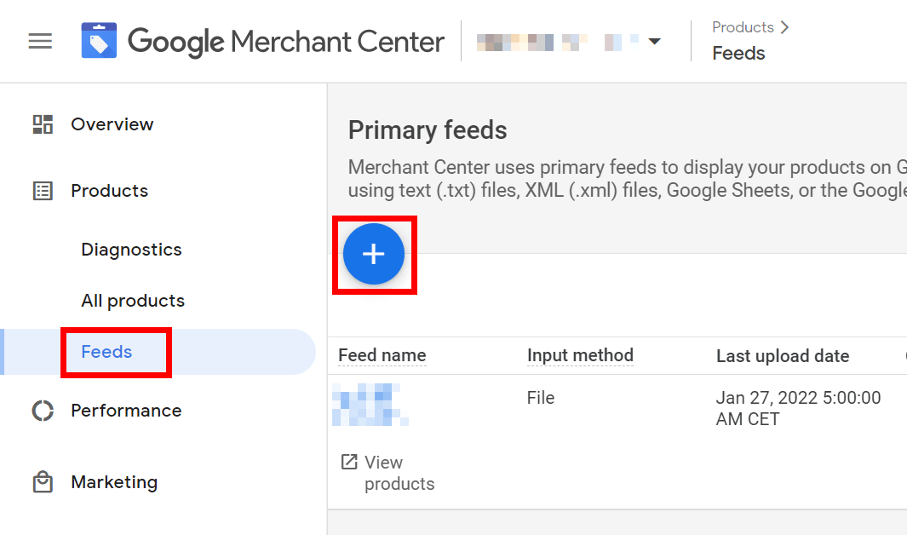
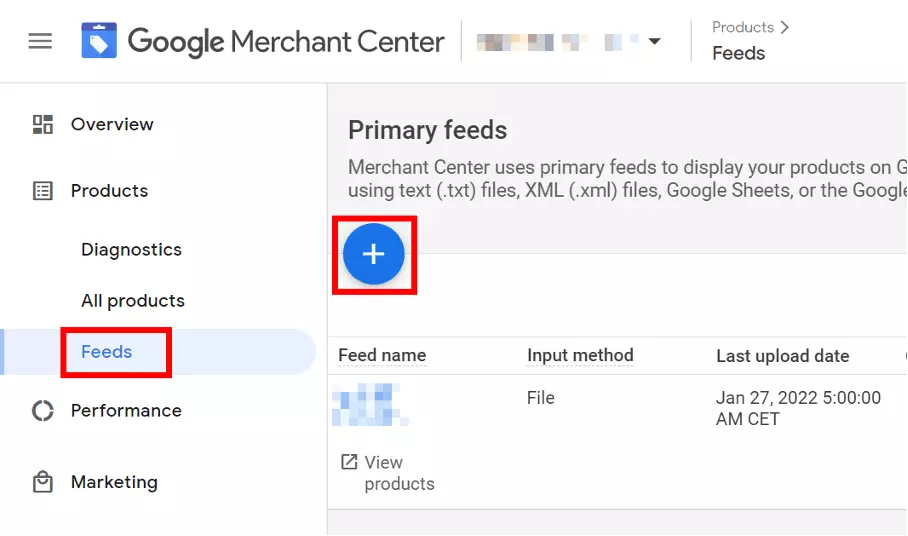
No matter which way you choose: The actual provision or setup of the data is done via the Google Merchant Center. To do this, go to “Feeds” in the “Products” area and click on the big plus button. Then choose a language and one of the provisioning options listed above. Follow the instructions to complete the upload.
As part of the data provisioning process in the Merchant Center, Google will verify that your data is complete and accurate. To see which features and attributes you can use at all, see the table below.
Link Google Ads and Merchant Center
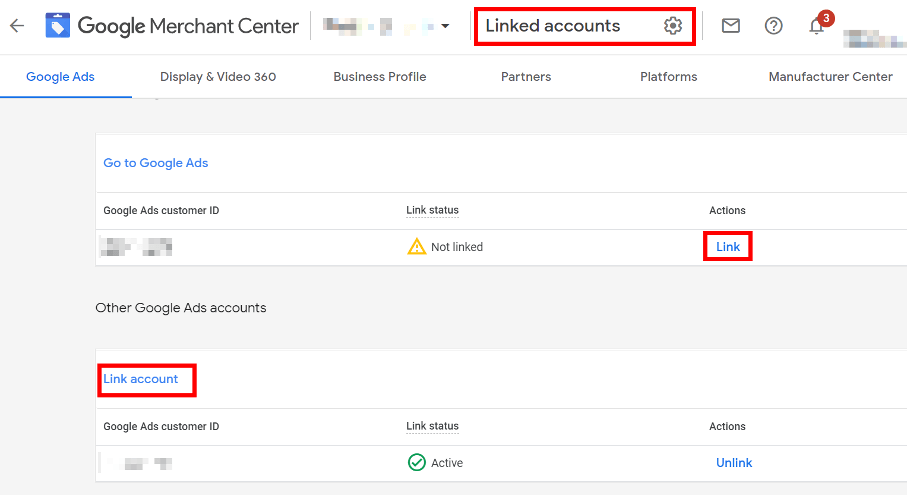
One last step is to link the two accounts at Google Ads and Merchant Center:
- In the Merchant Center, click the tool icon in the upper-right corner.
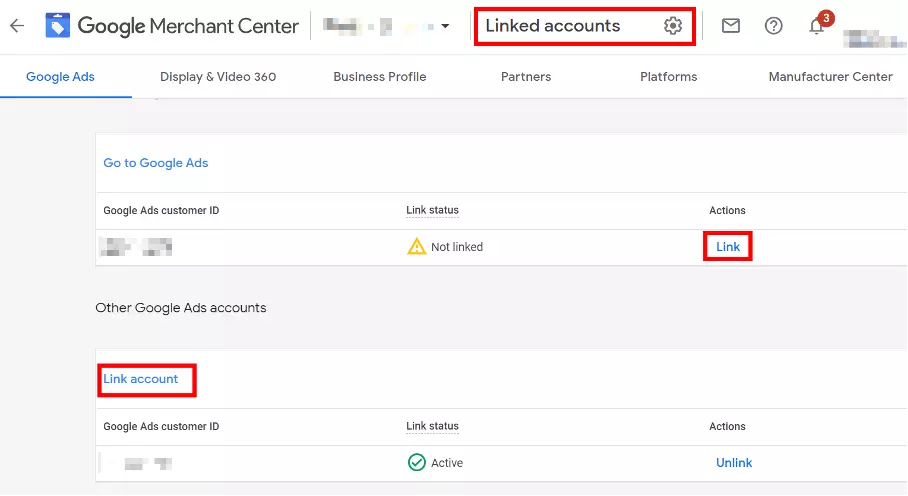
- In the Settings section, click Linked Accounts.
- In the list, select the Ads account and click Link.
- Switch to your Google Ads account and click the bell icon in the top row — the link request from Merchant Center will appear there.
- Click on “Details” and confirm the request.
Create a Google shopping feed
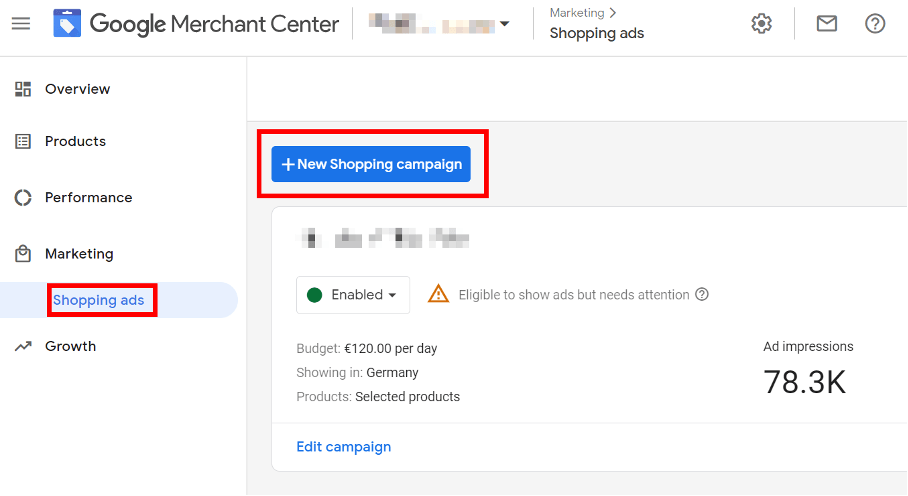
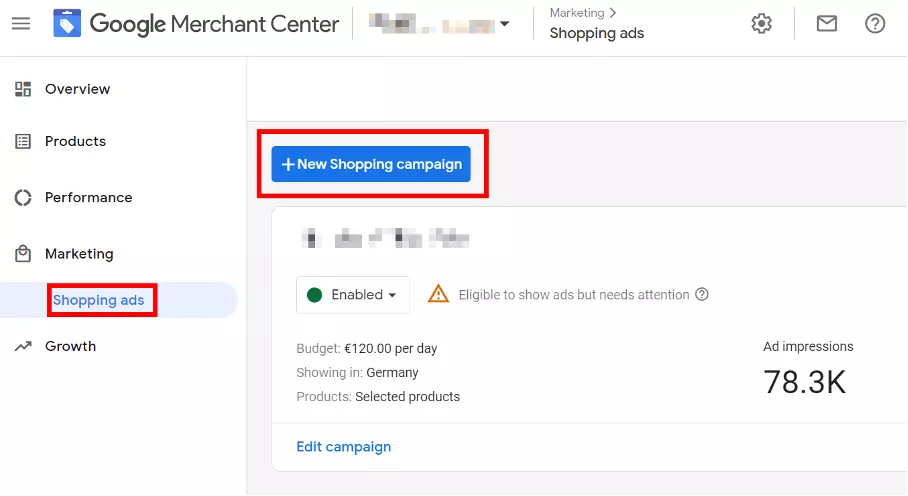
After the accounts are linked, you create a Google Shopping campaign by specifying, among other things, the goal (sales, leads, etc.), the type of campaign, the budget and other parameters. Additionally, you have the option to distinguish between a single product shopping ad and a showcase shopping ad. The former promotes a product and is billed on a CPC basis, the latter promotes a product selection and is billed by CPE. Finally, designate the product groups for your ads and you're ready to go with your first Google Shopping campaign.
Increase your visibility, regionally and nationally: use our rankingCoach to optimize your website step by step!
Google Product Feed: The most important features
| Feature | Description |
|---|---|
| id | Unique article number, maximum 50 characters, mandatory information |
| title | Unique article name, ideally with keyword usage and identical to the title on the target page, maximum 150 characters, mandatory information |
| description | Neutral article description if possible, matching the one on the target page, HTML formatting is allowed, links are not, maximum 5,000 characters, mandatory information |
| link | Link to the product on the confirmed website, mandatory information |
| image_link | URL to the main image of the article, crawlable for Google, mandatory information |
| additional_image_link | Maximum 10 additional URLs to further photos, illustrations, graphics, optional |
| mobile_link | Link to mobile product page, optional |
| availabilty | Availability, must be identical to the information on the product page (in_stock, out_of_stock, preorder), mandatory information |
| availabilty_date | Date, from when a product is available, mandatory for attribute preorder |
| cost_of_goods_sold | Cost price, optional |
| expiration_date | Expiration date, optional |
| price | item price, identical to the information on the product page, mandatory information |
| sale_price | Special offer price, identical to the information on the product page, optional |
| sale_price_effective_date | Period of the special offer, optional |
| unit_pricing_base_measure | Quantity for basic price, indicated as number plus unit, different units possible (ml, kg, lbs, etc.), optional |
| brand | Brand name or name of manufacturer/supplier, mandatory information |
| gtin | Unique Global Trade Item Number, mandatory, if available |
| MPN | Alternative to GTIN, part number of a manufacturer, mandatory if no GTIN available |
| identifier_exists | Indication if GTIN or MPN available — if not, use “no”, optional |
| condition | Condition: new, used, refurbished, mandatory information |
| adult | Yes/No for products with adult content, mandatory information |
| age_group | Age group for clothing, from newborn (up to 3 months) to adult, mandatory information |
| color | For clothing that comes in different colors, maximum 100 characters, no mixed colors (e.g. pink), mandatory information |
| gender | Gender, mandatory |
| size | Size, maximum 100 characters, mandatory |
| shipping | Shipping costs, must be identical with information on website, mandatory information |
Optimize your Google Shopping Feed
As described above, the quality of your data feed plays an important role in whether, where and how often Google considers your products in the Google Shopping Feed. Therefore, there are some important points that you should bear in mind so that your Google Shopping Feed is successful:
- Make sure that all attributes are correct and complete and identical to your website.
- Use the optional attributes wherever possible.
- Optimize the product title. In addition to using a keyword, the most important thing is to have a very clear structure that helps users make a buying decision at first glance. Only in the second step, you should also take care of an optimized description.
Since a shopping feed is always accompanied by a Google Ads campaign, you can also optimize this campaign. A requirement for this is that you have set up conversion tracking (see above), because this is the only way to measure your success. The following potential options exist beyond that:
- Prioritize individual shopping campaigns according to sales/success and push bestsellers in particular with individual campaigns.
- Build a more refined campaign structure divided by brands, categories, etc.
- Exclude certain keywords (negative keywords) to ensure your product ads don’t end up on searches you don’t want your products to appear.