

Register your business on Google: step-by-step tutorial

Registering with Google My Business is one of the first steps for local businesses to jump onto the online marketing ladder. It forms an important part of local search engine optimization because a business profile on Google increases the online visibility of your company so that you can reach a greater number of potential customers. But what is Google My Business anyway and how do you get a Google business listing? We explain how to register your business with Google My Business and dive into the advantages of the search engine’s business tools.
- Simple registration
- Premium TLDs at great prices
- 24/7 personal consultant included
- Free privacy protection for eligible domains
Quick guide: Google My Business registration
- Create a Google account or log into an existing account.
- Sign into Google My Business.
- Find, confirm, and manage any existing company profile > continue with step 5
- Register your company with Google My Business.
- Add company location.
- Determine catchment area (e.g. delivery area etc.)
- Add contact details (how can customers reach you?)
- Select confirmation method (e.g. verification by postcard).
Once confirmed, you can edit and adapt your Google My Business profile and add information such as photos, menus, booking options and so on.
What is Google My Business?
Google My Business is a tool aimed at businesses. The platform is an interface between Google and businesses and acts as a digital business directory. A Google company entry contains the most important information about your business, such as contact details, location, and range of services. By setting up a Google company profile, you can control your business presence on Google Search and Google Maps and address new customers. In return, Google users can rate your business and leave reviews.
The advantages of a Google business registration include:
- Free marketing tool, that lets you influence your company presence on Google.
- Simplified appointment setting and integration of photos, service offerings and other attributes integrated as part of your Google company listing.
- Improved online visibility through better ranking in local search results and integration in Google Maps.
- Trustworthy company appearance through a well-maintained Google business listing and Google verification.
- Improved customer care through direct exchange with customers and easy management of ratings.
- Information management via user-friendly Google My Business dashboard
- Valuable insights for search engine optimization with access to data on the search behavior of potential customers.
Register Google My Business: step-by-step guide
A Google business registration is free and takes just a few minutes to complete while offering plenty of benefits (especially for small local businesses). If you would like to register your business with Google My Business, follow the steps below.
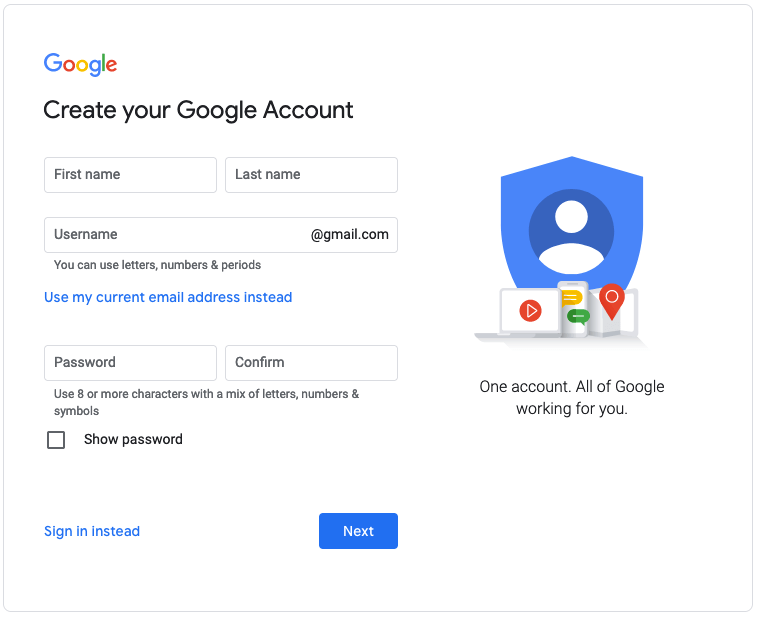
Step 1: Create Google account
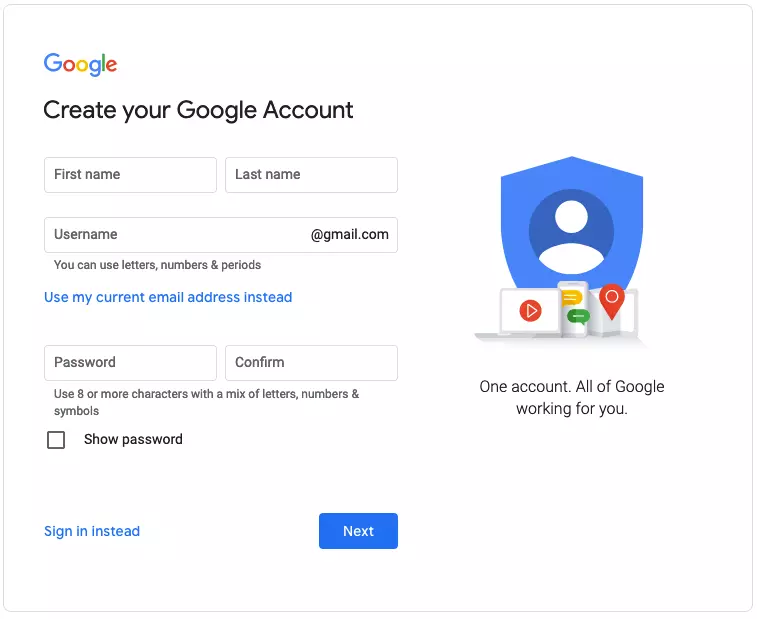
If you don’t already have one, set up a Google account and create a Google email address. Registration is simple and just requires your full name and birth date.
Step 2: Register with Google My Business
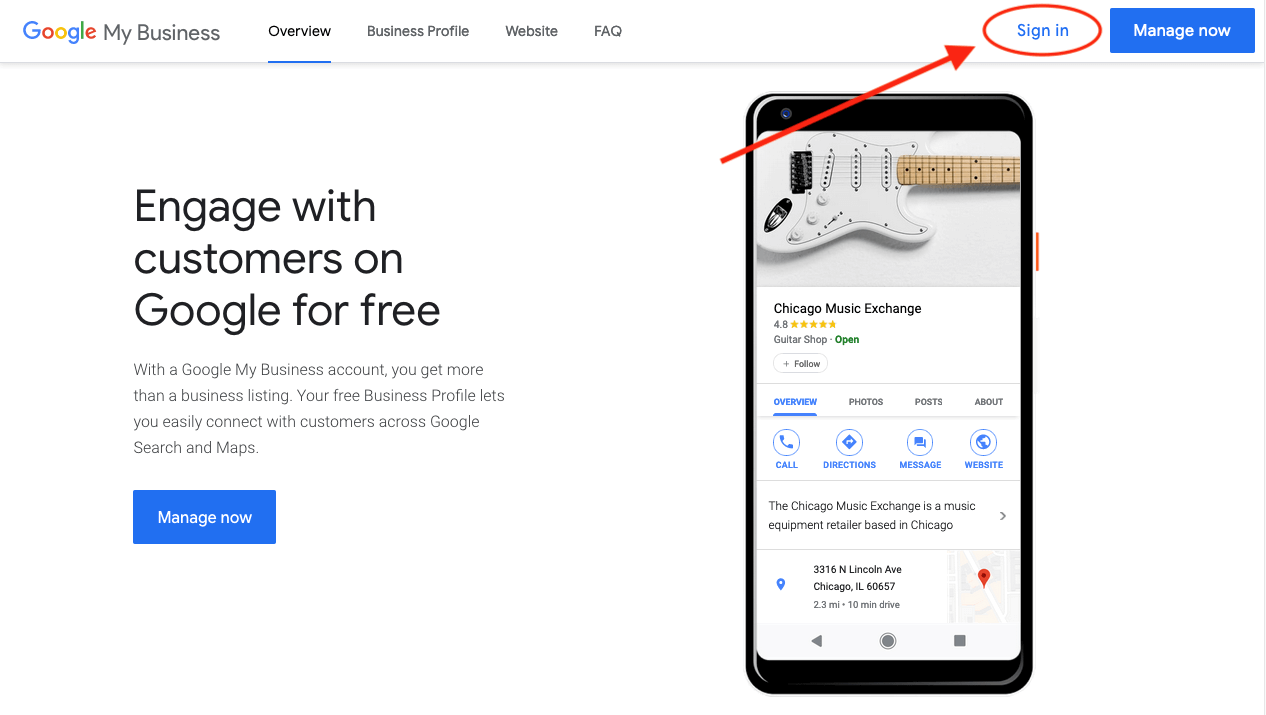
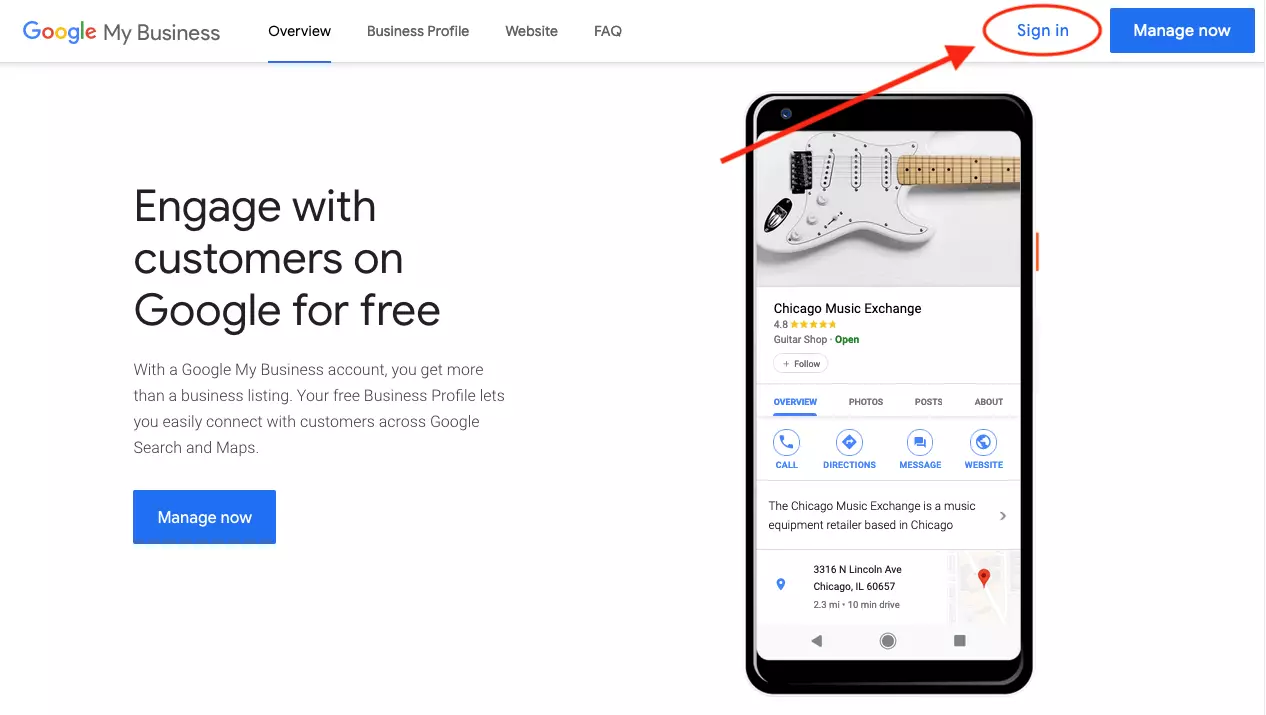
Now, visit Google My Business. Here, click the “Sign in” button in the top right corner to sign in with your Google credentials.
Step 3: Find, confirm, and manage your company
For many companies, an unmanaged entry already exists on the Google database. If this is the case, click on the respective company name.
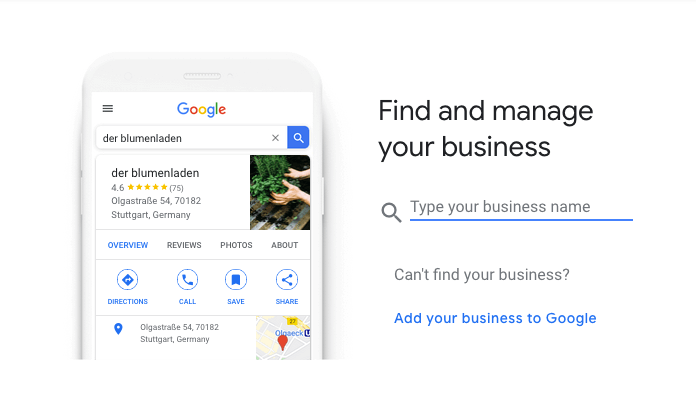
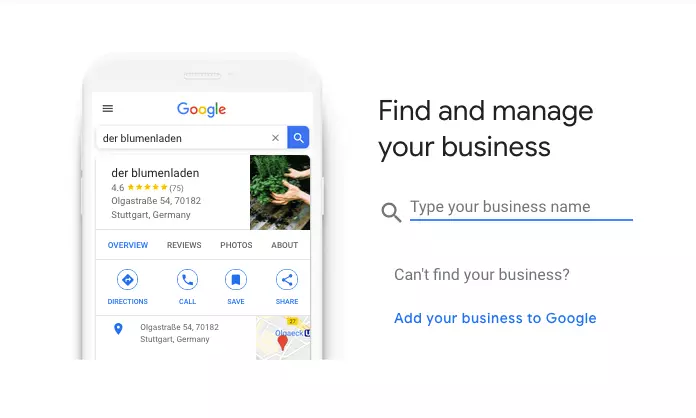
If your company already exists in the database, you’ll be asked to confirm your identity in the next step. This is a required step to gain permission to manage the select profile. Verification is a phone call; you’ll receive a confirmation code.
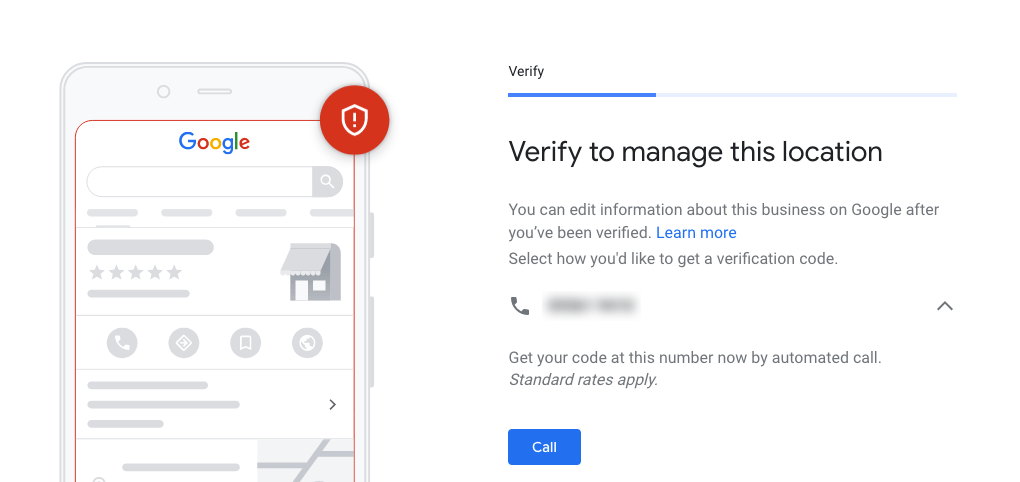
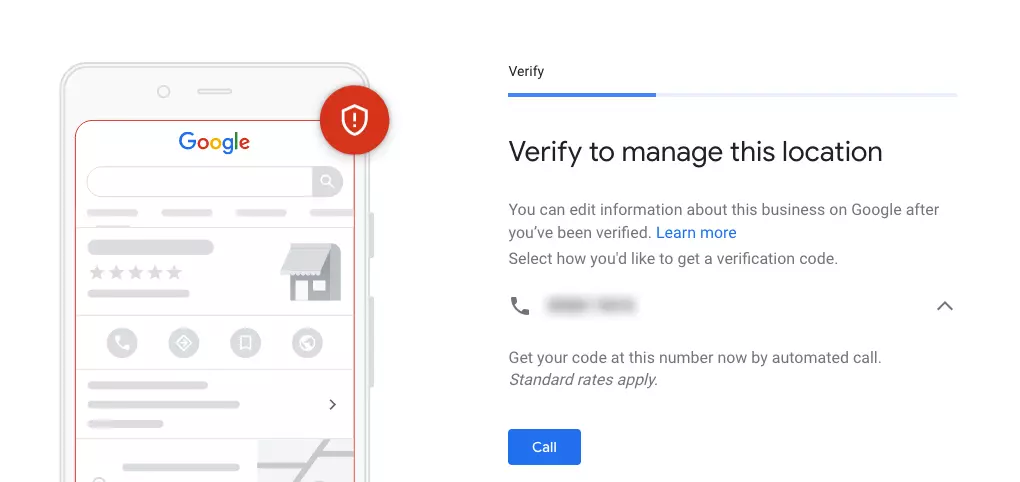
Once your company profile is successfully confirmed, you can proceed to step 5.
Step 4: Create profile
If there is no entry for your company yet, click on “Create profile” and enter your business name. Select a category that best matches your business. This step is particularly important to be found by relevant customers on Google.
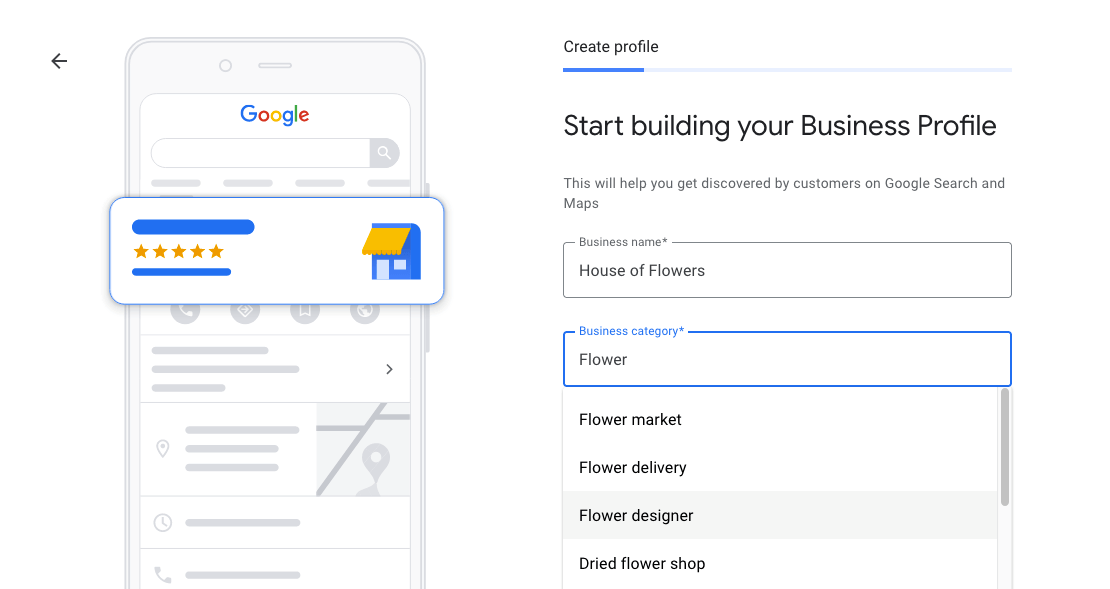
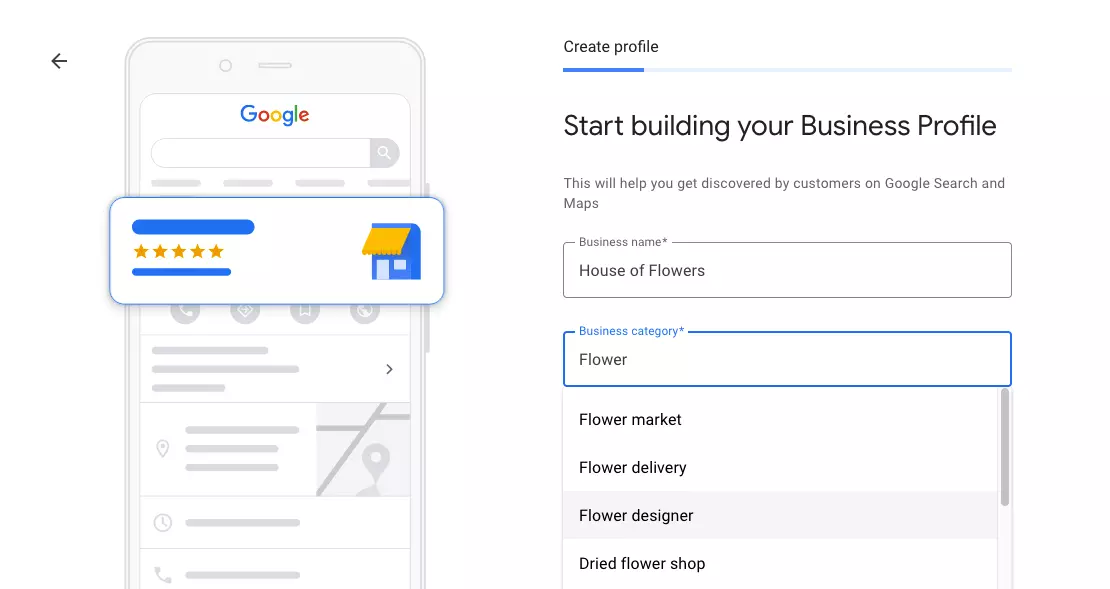
Step 5: Add location
Now, add your business location. If Google is not sure where your company is located, a map is displayed. You can move the red pin to position it correctly and customize your entry on Google Maps.
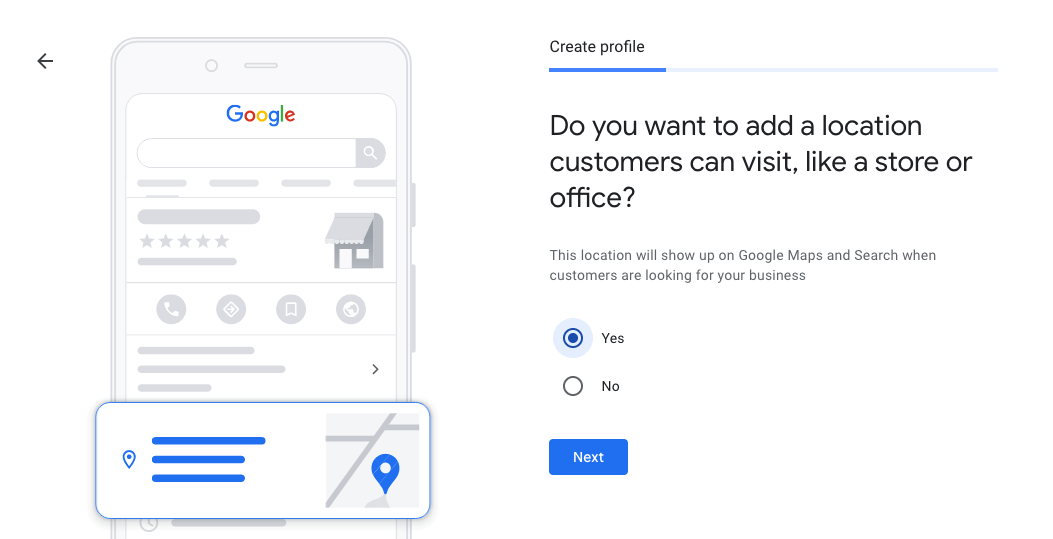
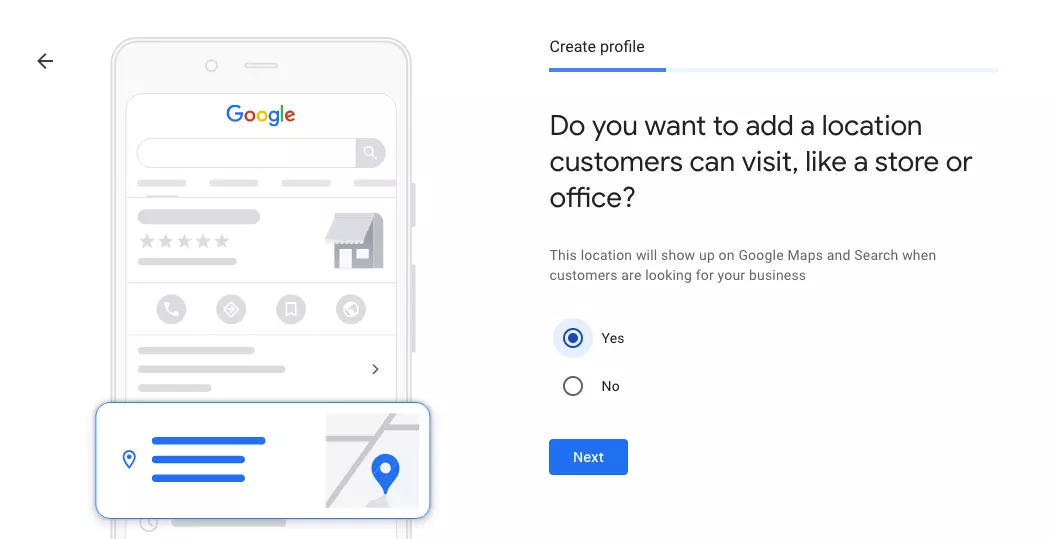
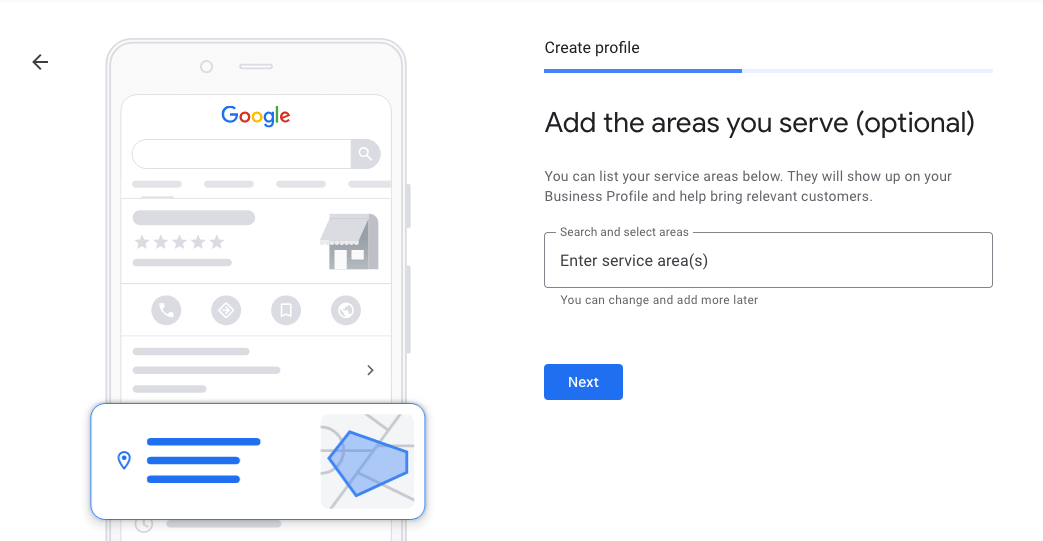
Step 6: Determine areas you serve
This step is optional and only applies if you also offer products or services beyond your primary business location.
Step 7: Add contact details
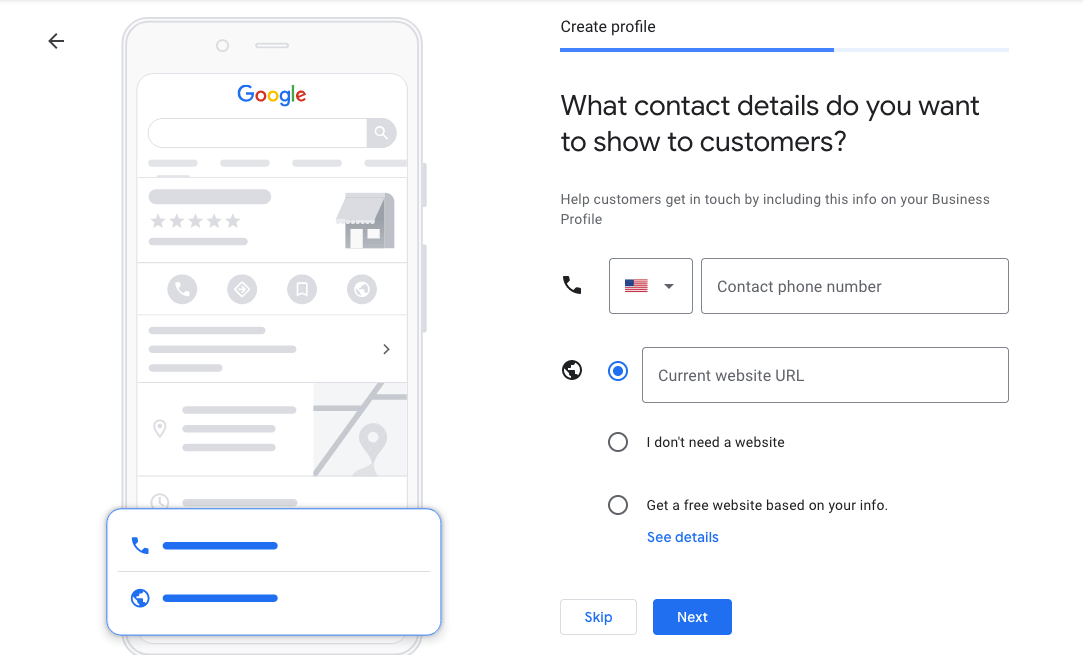
Specify your contact information that customers will see when they search for your business online; add your website URL, if available. You can create a free website with Google if you don’t already have one.
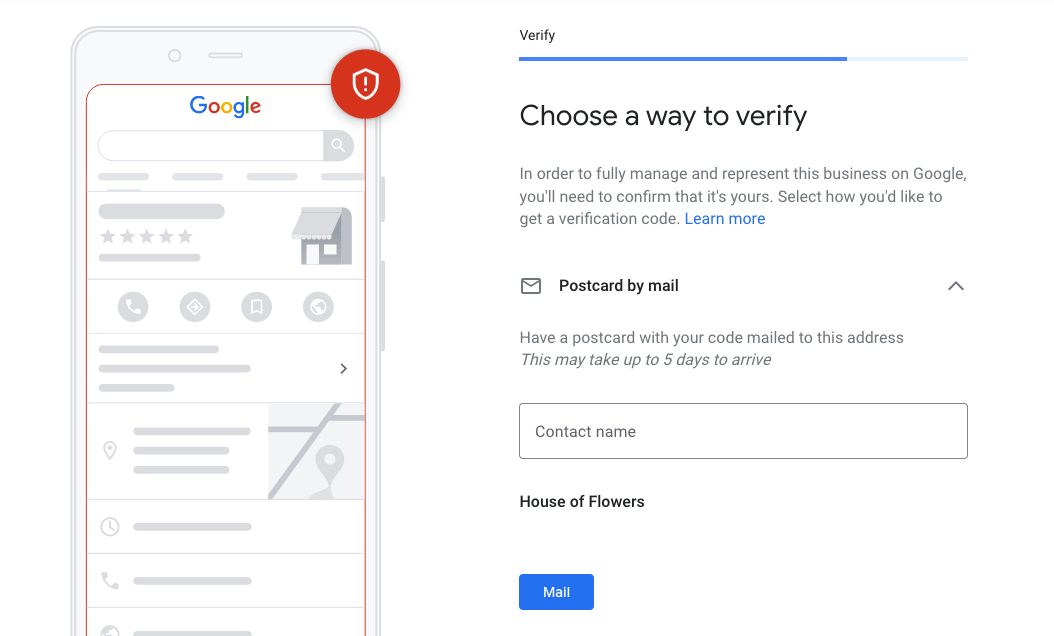
Step 8: Select confirmation method
Before you begin to add photos and other information to your Google business listing, you need to confirm your identity with a code. In most cases, you will receive the code via postcard within five days.
Keep in mind that your business must be in direct consumer contact to be listed on Google. If you run an online-only business, it should not be submitted to Google My Business. Instead, you can register your website with Google and use other effective Google SEO tools to improve your ranking.
How to optimize my Google business listing
A Google Business registration alone is not enough to take full advantage of the marketing tool. A well-maintained business profile gains attention and ends up in the Local Pack in Google searches. This is a block of information that highlights the top 3 companies in the region that match a user’s search query. To ensure that your business ranks as high as possible and leaves a good impression on Google Maps, follow these tips:
- Complete profile: Ensure that your Google company registration is complete so that potential customers have all the important information on hand. Besides contact details, opening hours, and range of services, you can add attributes such as online appointment scheduling.
- Professional images: Post high-quality photos that appeal to potential customers. It’s worth hiring a photographer to showcase your salesrooms or products perfectly and add a competitive edge.
- Unique Selling Points: The Google business listing is a unique opportunity to showcase your business online. Communicate specific offers or special promotions in the description to set yourself apart from other sellers.
- Consistency: Google compares your details with other online business sites and ranks your company as more trustworthy if all information matches. It’s a good idea to keep company information and spelling of products or services consistent online.
- Customer care: Use the messaging function in the Google My Business management tool to communicate directly with (potential) customers and respond to customer reviews. Active profiles are better placed in the ranking.
- Website optimization: Local SEO on your website also improves the visibility of your Google business registration. Check all titles, headings, and content for relevant keywords and local focus. You can also take advantage of linking opportunities to other business directories.
Professional search engine optimization doesn’t have to be expensive. With our rankingCoach, you receive detailed assistance to optimize your website in a cost-effective way.