

Solr - The Apache search platform

Solr (pronounced: solar) is an open source sub-project based on the free software Lucene from Apache. Solr is based on Lucene Core and is written in Java. As a search platform, Apache Solr is one of the most popular tools for integrating vertical search engines. Among Solr’s advantages are also its wide range of functions (which also includes faceting search results, for example) and accelerated indexing. It also runs on server containers like Apache Tomcat. Firstly, we reveal how Apache Solr works and then explain in a Solr tutorial what to consider when using the software for the first time.
The origins of Apache Solr
The search platform Solr was built based on Lucene. Apache Lucene Core was developed by software designer Doug Cutting in 1997. At first, he offered it via the file hosting service SourceForge. In 1999, the Apache Software Foundation launched the Jakarta project to support and drive the development of free Java software. In 2001, Lucene also became part of this project – it was also written in Java. Since 2005, it has been one of Apache’s main projects and runs under a free Apache license. Lucene gave rise to several sub-projects such as Lucy (Lucene, written in C) and Lucene.NET (Lucene in C#). The popular search platform, Elasticsearch, is also based on Lucene, just like Solr.
Solr was also created in 2004 and is based on Lucene: at that time, however, the servlet was still called Solar and was distributed by CNET Networks. “Solar” stood for “Search on Lucene and Resin.”
In 2006, CNET handed the project over to the Apache Foundation where it initially went through another development period. When Solr was released to the public as a separate project in 2007, it quickly attracted community attention. In 2010, the Apache community integrated the servlet into the Lucene project. This joint development guarantees good compatibility. The package is completed by SolrCloud and the Solr parser, Tika.
Apache Solr is a platform-independent search platform for Java-based projects. The open source project is based on the Java library, Lucene. It automatically integrates documents in real-time and forms dynamic clusters. Solr is compatible with PHP, Python, XML, and JSON. The servlet has a web user interface and commands are exchanged in HTTP. Solr provides users with a differentiated full text search for rich text documents. It is particularly suitable for vertical search engines on static websites. The extension via SolrCloud allows additional cores and an extended fragment classification.
Introduction to Solr: explanation of the basic terms
Apache Solr is integrated as a servlet in Lucene. Since it complements the Lucene software library, we will briefly explain how it works. In addition, many websites use Solr as the basis for their vertical search engine (Netflix and eBay are well-known examples). We will explain what this is in the following section.
What is Apache Lucene?
The free software Lucene is an open source Java library that you can use on any platform. Lucene is known as a scalable and powerful NoSQL library. The archive software is particularly suitable for internet search engines – both for searches on the entire internet and for domain-wide searches and local queries.
Lucene Core is a software library for the programming language, Java. Libraries only serve as an ordered collection of sub programs. Developers use these collections to link programs to help modules via an interface. While a program is running, it can access the required component in the library.
Since the library divides documents into text fields and classifies them logically, Lucene’s full text search works very precisely. Lucene will also find relevant hits for similar texts/documents. This means that the library is also suitable for rating websites such as Yelp. As long as it recognizes text, it doesn’t matter which format (plain text, PDF, HTML or others) is used. Instead of indexing files, Lucene works with text and metadata. Nevertheless, files must be read from the library.
This is why the Lucene team developed the now independent Apache project, Tika. Apache Tika is a practical tool for text analysis, translation, and indexing. The tool reads text and metadata from over a thousand file types. It then extracts the text and makes it available for further processing. Tika consists of a parser and a detector. The parser analyzes texts and structures the content in an ordered hierarchy. The detector typifies content. For example, it recognizes the file types as well as the type of content from the metadata.
Lucene’s most important functions and features:
- Fast indexing, both stepby-step and in batches (up to 150 GB per hour according to their specifications)
- Economical RAM use
- Written in Java throughout, therefore crossplatform (variants in alternative programming languages are Apache Lucy and Lucene.NET)
- Interface for plugins
- Search for text fields (categories such as content, title, author, keyword) – even able to search for several at the same time
- Sorting by text fields
- Listing search results by similarity/relevance
Lucene divides documents into text fields such as title, author, and text body. The software uses the query parser to search within these fields. This is considered a particularly efficient tool for search queries with manual text entry. The simple syntax consists of a search term and a modifier. Search terms can be individual words or groups of words. You adjust these with a modifier or you link several terms with Boolean variables to a complex query. See the Apache query parser syntax for the exact commands.
Lucene also supports unclear searches based on the Levenshtein distance. The latter records the number of character changes (i.e. replace, insert, or delete) to move from one meaningful character string to another. Here’s an example: "beer" (replace e with a) to "bear" has a distance of 1, because only one step was needed.
You can define a value that determines how large the deviations from the original search term may be so that the relevant term will still be included in the search hits. This value is between 0 and 1 – the closer it is to 1, the more similar the search hit must be to the output word. If you do not enter a value, the value is automatically 0.5 and the corresponding command looks like this.
beer~If you want to set a specific value (0.9 in the example), enter the following command:
beer~0.9The approximate search is similarly built and you can search for words and also determine how far away search terms may be from each other in the text but still remain relevant. For example, if you search for the phrase "Alice in Wonderland" you can specify that the words "Alice" and "Wonderland" must lie within a 3-word radius:
"alice wonderland"~3What is a vertical search engine?
Lucene enables you to search the internet as well as within domains. Search engines that cover a wide range of pages are called horizontal search engines. These include the well-known providers Google, Bing, Yahoo, DuckDuckGo, and Startpage. A vertical search engine, on the other hand, is limited to a domain, a specific topic, or a target group. A domain-specific search engine helps visitors accessing your website to find specific texts or offers. Examples of thematically oriented search engines are recommendation portals such as TripAdvisor or Yelp, but also job search engines. Target group-specific search engines, for example, are aimed at children and young people, or scientists who are looking for sources.
Focused crawlers (instead of web crawlers) provide more accurate results for vertical search engines. A library like Lucene, which divides its index into classes using taxonomy principles and connects them logically using ontology, is the only way to make this exact full-text search possible. Vertical search engines also use thematically matching filters that limit the number of results.
Ontology and taxonomy are two principles within computer science that are important for proper archiving. Taxonomy deals with dividing terms into classes. These are arranged into a hierarchy, similar to a tree diagram. Ontology goes one step further and places terms in logical relation to each other. Groups of phrases gather in clusters that signal a close relationship. Furthermore, related groups of terms are connected with each other, creating a network of relationships.
Lucene's index is a practical, scalable archive for quick searches. However, there are some essential steps that you must repeat frequently since they do not take place automatically. Finally, you need a widely branched index for the vertical search. That's where Apache Solr comes in. The search platform expands the library functions and Solr can be set up quickly and easily with the right commands – even by Java beginners. The servlet offers you many practical tools with which you can set up a vertical search engine for your internet presence and adapt it to the needs of your visitors in a short time.
What is Solr? How the search platform works
Since you now have basic information about the Lucene foundation and how Solr can be used, we explain below how the search platform works, how it extends Lucene’s functions, and how you work with it.
Solr: the basic elements
Solr is written in Java, meaning you can use the servlet platform independently. Commands are usually written in HTTP (Hypertext Transfer Protocol) and for files that need to be saved you use XML (Extensible Markup Language). Apache Solr also offers Python and Ruby developers their familiar programming language via an API (Application Programming Interface). Those who normally work with the JavaScript Object Notation (short: JSON), will find that ElasticSearch offers the optimal environment. Solr can also work with this format via an API.
Although the search platform is based on Lucene and fits seamlessly into its architecture, Solr can also work on its own. It is compatible with server containers like Apache Tomcat.
Indexing for accurate search results – in fractions of a second
Structurally, the servlet is based on an inverted index. Solr uses Lucene's library for this. Inverted files are a subtype of the database index and are designed to speed up the retrieval of information. The index saves content within the library. These can be words or numbers. If a user searches for specific content on a website, the person usually enters one or two topic-relevant search terms. Instead of crawling the entire site for these words, Solr uses the library.
This indexes all important keywords almost in real time and connects them to documents on the website where the words you are looking for appear. The search simply runs through the index to find a term. The results list displays all documents that contain this word at least once according to the index. This type of search is equivalent to the analogous search within a textbook: If you search for a keyword in the index at the end of the book, you will find the information on which pages the term can be found within the entire text. There you simply scroll down. The vertical web search shows a list of results with links to the respective documents.
For this process to work smoothly, it is theoretically necessary to enter all keywords and metadata (for example, author or year of publication) in the library every time a new document is added to the website’s portfolio. That's why working in the backend with Lucene can be a bit tedious. But Solr can automate these steps.
Relevance and filter
Apache Solr uses Lucene's ontology and taxonomy to output highly accurate search results. The Boolean variables and truncation also help here. Solr adds a higher-level cache to Lucene's cache, which means that the servlet remembers frequently asked search queries, even if they consist of complex variables. This optimizes the search speed.
If you want to keep users on your website, you should offer them a good user experience. In particular, this includes making the right offers. For example, if your visitors are looking for information about raising chickens, texts about their breeding and feeding habits should appear as the first search results at the top of the list. Recipes including chicken or even films about chickens should not be included in the search results or at least appear a lot further down the page.
Regardless of whether users are searching for a certain term or whether they should be shown interesting topic suggestions with internal links at the end of an exciting article: in both cases, the relevance of the results is essential. Solr uses the tf-idf measure to ensure that only search results relevant to the searcher are actually displayed.
The term “term frequency inverse document frequency” or “tf-idf” stands for numerical statistics. The search word density in a document (i.e. the number of times a single term occurs in the text) is compared with the number of documents in the entire search pool that contain the term. So, you can see if a search term really occurs more often in the context of a document than in the entirety of the texts.
Solr: the most important functions
Apache Solr collects and indexes data in near real time, supported by Lucene Core. Data stands for documents. Both in the search and in the index, the document is the decisive unit of measurement. The index consists of several documents, which in turn consist of several text fields. The database contains a document in a table row. A field is in the table column.
Coupled via an API with Apache Zookeeper, Solr has a single point of contact that provides synchronization, name registers, and configuration distribution. This includes, for example, a ring algorithm that assigns a coordinator (also: leader) to processes within a distributed system. The tried and tested trouble-shooter Zookeeper also triggers processes again when tokens are lost and finds nodes (computers in the system) using node discovery. All these functions ensure that your project always remains freely scalable.
This also means that the search engine works even under the toughest of conditions. As already mentioned, traffic intensive websites that store and manage huge amounts of data on a daily basis also use Apache Solr. If a single Solr server is not enough, simply connect multiple servers via the Solr cloud. Then you can fragment your data sets horizontally – also called sharding. To do this, you divide your library into logically linked fragments. This allows you to expand your library beyond the storage space otherwise available. Apache also recommends that you upload multiple copies of your library to different servers. This increases your replication factor. If many requests come in at the same time, they are distributed to the different servers.
Solr is expanding the full-text search already offered by Lucene with additional functions. These search features include, but are not limited to:
- Adapting terms also for groups of words: The system detects spelling errors in the search input and provides results for a corrected alternative.
- Joins: A mixture of the Cartesian product (several terms are considered in any order during the search) and selection (only terms that fulfil a certain prerequisite are displayed), makes a complex Boolean variable syntax.
- Grouping of thematically related terms.
- Facet classification: The system classifies each information item according to several dimensions. For example, it links a text to keywords such as author name, language, and text length. In addition, there are topics that the text deals with, as well as a chronological classification. The facet search allows the user to use several filters to obtain an individual list of results.
- Wild card search: A character represents an undefined element or several similar elements in a character string? Then use"?" for one character and "*" for several. For example, you can enter a word fragment plus the placeholder (for example: teach*). The list of results then includes all terms with this root word (for example: teacher, teach, teaching). This way, users receive hits on this subject area. The necessary relevance results from the topic restriction of your library or further search restrictions. For example, if users search for "b?nd" they receive results such as band, bond, bind. Words such as "binding" or "bonding" are not included in the search, as the"?" replaces only one letter.
- Recognizes text in many formats, from Microsoft Word to text editors, to PDF and indexed rich content.
- Recognizes different languages.
In addition, the servlet can integrate several cores which consist of Lucene indices. The core collects all information in a library and you can also find configuration files and schemas there. This sets the behavior of Apache Solr. If you want to use extensions, simply integrate your own scripts or plugins from community posts into the configuration file.
| Advantages | Disadvantages |
| Adds practical features to Lucene | Less suitable for dynamic data and objects |
| Automatic real-time indexing | Adding cores and splitting fragments can only be done manually |
| Full-text search | Global cache can cost time and storage space compared to segmented cache |
| Faceting and grouping of keywords | |
| Full control over fragments | |
| Facilitates horizontal scaling of search servers | |
| Easy to integrate into your own website |
Tutorial: downloading and setting up Apache Solr
The system requirements for Solr are not particularly high: all you need is a Java SE Runtime Environment from version 1.8.0 onwards. The developers tested the servlet on Linux/Unix, macOS, and Windows in different versions. Simply download the appropriate installation package and extract the.zip file (Windows package) or the.tgz file (Unix, Linux, and OSX package) to a directory of your choice.
Solr tutorial: step 1 – download and start
- Visit the Solr project page of the Apache Lucene main project. The menu bar appears at the top of the window. Under "Features" Apache informs you briefly about the Solr functions. Under "Resources" you will find tutorials and documentation. Under "Community” Solr fans will help you with any questions you may have. In this area you can also add your own builds.
- Click on the download button for the installation. This will take you to the download page with a list of mirror downloads. The current Solr version (7.3, as of May 2018) from a certified provider should be at the top. Alternatively, choose from HTTP links and a FTP download. Click on a link to go to the mirror site of the respective provider.
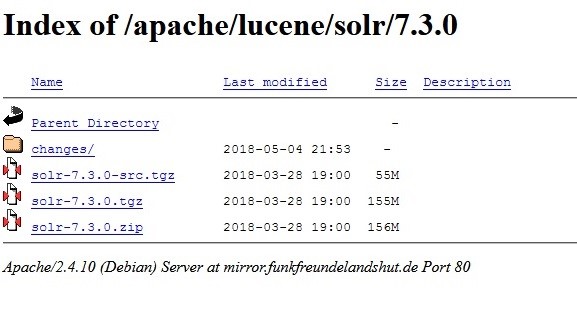
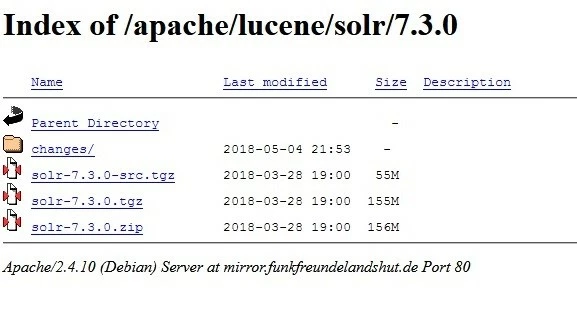
- The image above shows the various download packages available – in this case for Solr version 7.3.
- solr-7.3.0-src.tgz is the package for developers. It contains the source code so you can work on it outside the GitHub community.
- solr-7.3.0.tgz is the version for Mac and Linux and Unix users.
- solr-7.3.0.zip contains the Windows-compatible Solr package.
- in the changes/ folder, you will find the documentation for the corresponding version.
After you have selected the optimal version for your requirements by clicking on it, a download window will appear. Save the file then once the download is complete, click on the download button in your browser or open your download folder.
- Unpack the zip file or the.tgz file. If you want to familiarize yourself with Solr first, select any directory. There you save the unzipped files. If you already know how you want to use Solr, select the correct server for this purpose. Or build a clustered Solr cloud environment if you want to scale up (more about the cloud in the next chapter).
Theoretically, a single Lucene library can index approximately 2.14 billion documents. In practice, however, this number isn’t usually reached before the number of documents affects performance. With a correspondingly high number of documents it is therefore advisable to plan with a Solr cloud from the beginning.
- In our Linux example, we are working with Solr 7.3.0. The code in this tutorial was tested in Ubuntu. You can also use the examples for macOS. In principle, the commands also work on Windows, but with backslashes instead of normal slashes.
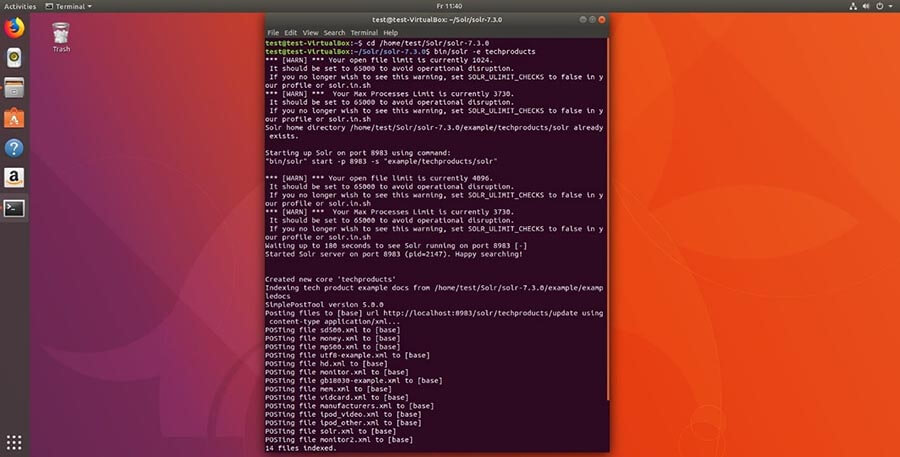
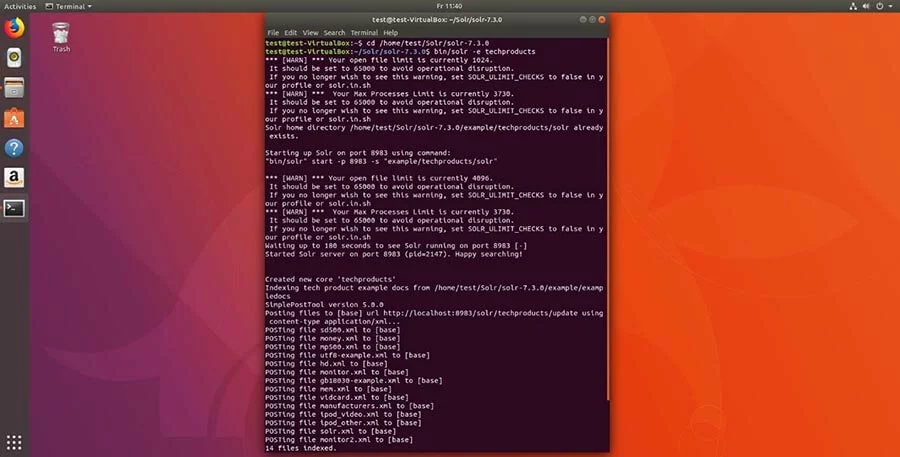
Enter "cd /[source path]" in the command line to open the Solr directory and start the program. In our example it looks like this:
cd /home/test/Solr/solr-7.3.0
bin/solr start
The Solr server is now running on port 8983 and your firewall may ask you to allow this. Confirm it.
If you want to stop Solr, enter the following command:
bin/solr stop -allIf Solr works, familiarize yourself with the software. With the Solr demo you can alternatively start the program in one of four modes:
- Solr cloud (command: cloud)
- Data import handler (command: dih)
- Without schema (command: schemaless)
- Detailed example with KitchenSink (command: techproducts)
The examples have a schema adapted to each case. You edit this using the schema interface. To do this, enter this command (the placeholder[example] stands for one of the above mentioned keywords):
bin/solr -e [example]- So that Solr runs in the corresponding mode. If you want to be sure, check the status report:
bin/solr status
Found 1 Solr nodes:
Solr process xxxxx running on port 8983- The examples contain preconfigured basic settings. If you start without an example, you must define the schema and core yourself. The core stores your data. Without it, you cannot index or search files. To create a core, enter the following command:
bin/solr create –c <name_of_core>- Apache Solr has a web-based user interface. If you have started the program successfully, you can find the Solr admin web app in your browser under the address "http://localhost:8983/solr/".
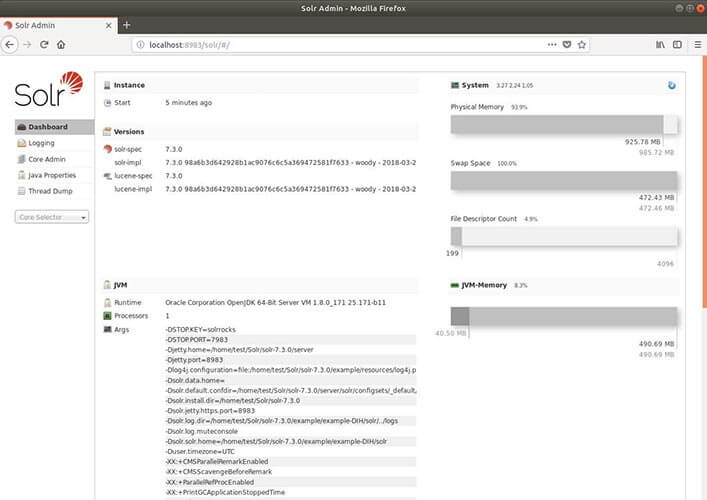
- Lastly, stop Solr with this command:
bin/solr stop -allSolr tutorial: part 2, first steps
Solr provides you with a simple command tool. With the so-called post tool you can upload content to your server. These can be documents for the index as well as schema configurations. The tool accesses your collection to do this. Therefore, you must always specify the core or collection before you start to work with it.
In the following code example, we first specify the general form. <collection> with the name of your core/collection. "-c" is the command "create." You use it to create a core or collection. Behind this, you define additional options or execute commands. For example, select a port with "-p" and with "*.xml" or "*.csv" you upload all files with the respective format to your collection (lines two and three). The command "-d" deletes documents in your collection (line four).
bin/post –c <collection> [options] <Files|collections|URLs>
bin/post –c <collection> -p 8983 *.xml
bin/post –c <collection> *.csv
bin/post –c <collection> -d '<delete><id>42</id><delete>'
Now you know some of the basic commands for Solr. The “KitchenSink” demo version shows you exactly how to set up Apache Solr.
- Start Solr with the demo version. For the KitchenSink demo use the command techproducts. You enter the following in the terminal:
bin/solr –e techproductsSolr starts on port 8983 by default. The terminal reveals that it is creating a new core for your collection and indexes some sample files for your catalog. In the KitchenSink demo you should see the following information:
Creating Solr home directory /tmp/solrt/solr-7.3.1/example/techproducts/solr
Starting up Solr on port 8983 using command:
bin/solr start -p 8983 -s "example/techproducts/solr"
Waiting up to 30 seconds to see Solr running on port 8983 [/]
Started Solr server on port 8983 (pid=12281). Happy searching!
Setup new core instance directory:
/tmp/solrt/solr-7.3.1/example/techproducts/solr/techproducts
Creating new core 'techproducts' using command:
http://localhost:8983/solr/admin/cores?action=CREATE&name=techproducts&instanceDir=techproducts
{"responseHeader":
{"status":0,
"QTime":2060},
"core":"techproducts"}
Indexing tech product example docs from /tmp/solrt/solr-7.4.0/example/exampledocs
SimplePostTool version 5.0.0
Posting files to [base] url http://localhost:8983/solr/techproducts/update…
using content-type application/xml...
POSTing file money.xml to [base]
POSTing file manufacturers.xml to [base]
POSTing file hd.xml to [base]
POSTing file sd500.xml to [base]
POSTing file solr.xml to [base]
POSTing file utf8-example.xml to [base]
POSTing file mp500.xml to [base]
POSTing file monitor2.xml to [base]
POSTing file vidcard.xml to [base]
POSTing file ipod_video.xml to [base]
POSTing file monitor.xml to [base]
POSTing file mem.xml to [base]
POSTing file ipod_other.xml to [base]
POSTing file gb18030-example.xml to [base]
14 files indexed.
COMMITting Solr index changes to http://localhost:8983/solr/techproducts/update...
Time spent: 0:00:00.486
Solr techproducts example launched successfully. Direct your Web browser to
http://localhost:8983/solr to visit the Solr Admin UI- Solr is now running and has already loaded some XML files into the index. You can work with these later on. In the next steps you should try to feed some files into the index yourself. This is quite easy to do using the Solr admin user interface. Access the Solr server in your browser. In our Techproducts demo, Solr already specifies the server and the port. Enter the following address in your browser: "http:://localhost:8983/solr/".
If you have already defined a server name and a port yourself, use the following form and enter the server name and the port number in the appropriate place: "http://[server name]:[port number]/solr/".
Here is where you control the folder example/exampledocs. It contains sample files and the post.jar file. Select a file you want to add to the catalog and use post.jar to add it. For our example we use more_books.jsonl.
To do this, enter the following in the terminal:
cd example/exampledocs
Java -Dc=techproducts –jar post.jar more_books.jsonl
If Solr has successfully loaded your file into the index, you will receive this message:
SimplePostTool version 5.0.0
Posting files to [base] url http://localhost:8983/solr/techproducts/update
POSTing file more_books.jsonl to [base]
1 files indexed.
COMMITting Solr index changes to http://localhost:8983/solr/techproducts/update...
Time spent: 0:00:00.162- When setting up the Apache Solr search platform, you should include the configuration files and the schema directly. These are given in the demo examples. If you are working on a new server, you must determine the config set and the schema yourself.
The schema (schema.xml) defines the number, type, and structure of the fields. As already mentioned, a document in Lucene consists of fields. This subdivision facilitates the targeted full text search. Solr works with these fields. A particular field type only accepts certain content (for example <date> only recognizes dates in the year-month-day-time form). You use the schema to determine which field types the index recognizes later and how it assigns them. If you do not do this, the documents fed in will specify the field types. This is practical in the test phase, as you simply start to fill the catalog. However, an approach like this can lead to problems later on.
These are some basic Solr field types:
- DateRangeField (indexes times and points in time up to milliseconds)
- ExternalFileField (pulls values from an external folder)
- TextField (general field for text input)
- BinaryField (for binary data)
- CurrencyField indexes two values separately, but displays them to the end user as one value CurrencyField stores a numerical value (for example 4.50) and a currency (for example $) in a field (the end user sees both values together ($4.50))
- StrField (UTF-8 and Unicode string in a small field which are not analyzed or replaced by a token)
A detailed list of Solr field types and other commands for schema settings can be found in Solr-Wiki.
To specify field types, call up schema.xml at "http://localhost:8983/solr/techproducts/schema". Techproducts has already defined field types. A command line in the XML file describes the properties of a field in more detail using attributes. According to the documentation, Apache Solr allows the following attributes for a field:
- field name (Must not be empty. Contains the name of the field.)
- type (Enter a valid field type here. Must not be empty.)
- indexed (stands for "entered in the index". If the value is true, you can search for the field or sort it.)
- stored (Describes whether a field is stored, if the value is "true" the field can be accessed.)
- multiValued (If a field contains several values for a document, enter the value "true" here.)
- default (Enter a default value that appears if no value is specified for a new document.)
- compressed (Rarely, since only applicable to gzip-compressible fields, set to "false" by default. Must be set to “true” to compress.)
- omitNorms (set to “true” by default. Saves standards for a field and thus also saves memory.)
- termOffsets (Requires more memory. Stores vectors together with offset information (i.e. memory address additions.)
- termPositions (Requires more memory because it stores the position of terms together with the vector.)
- termVectors (Set to "false" by default, saves vector terms if "true.")
You either enter field properties directly in the schema xml file, or you use a command in the terminal. This is a simple field type in the schema xml file:
<fields>
<field name="name" type="text_general" indexed="true" multivalued=”false” stored="true" />
</fields>Alternatively, you can use the input terminal again. There you simply enter a curl command, set the field properties and send it via the schema interface by specifying the file address:
curl -X POST -H 'Content-type:application/json' --data-binary '{"add-field": {"name":"name", "type":"text_general", "multiValued":false, "stored":true}}' http://localhost:8983/solr/techproducts/schema- After you have adapted the scheme, it is the Solr configuration's turn. This is used to define the search settings. These are important components:
- Query cache parameters
- Request handlers
- Location of the data directory
- Search components
The request cache parameters enable three types of caching: LRUCache, LFUCache, and FastLRUCache. LRUCache uses a linked hash map and FastLRUCache collects data via a concurrent hash map. This hash map processes requests simultaneously. This way, the search server produces answers faster if many search queries arrive in parallel. The FastLRUCache reads data faster than the LRUCache and inserts at a slower pace.
A hash map assigns values to a key. The key is unique – there is only one value for each key. Keys like these can be any object. This is used to calculate the hash value, which is practically the "address" i.e. the exact position in the index. Using it, you can find the key values within a table.
The request handler processes requests. It reads the HTTP protocol, searches the index, and outputs the answers. The “techproducts” example configuration includes the standard handler for Solr. The search components are listed in the query handler. These elements perform the search. The handler contains the following search components by default:
- query (request)
- facet (faceting)
- mlt (More Like This)
- highlight (best)
- stats (statistics)
- debug
- expand (expand search)
For the search component More Like This (mlt), for example, enter this command:
<searchComponent name="mlt" class="org.apache.solr.handler.component.MoreLikeThisComponent" />More Like This finds documents that are similar in content and structure. It is a class within Lucene. The query finds content for your website visitors by comparing the string and the indexed fields.
To configure the list, first open the request handler:
<requestHandler name="standard" class="solr.SearchHandler" default="true">
<lst name="defaults">
<str name="echoParams">explicit</str>
<!--
<int name="rows">10</int>
<str name="fl">*</str>
<str name="version">2.1</str>
-->
</lst>
</requestHandler>
Add your own components to the list in the request handler or change existing search components. These components perform the search when a website visitor enters a search query on your domain. The following command inserts a self-made component before the standard components:
<arr name="first-components">
<str>NameOfTheOwnComponent</str>
</arr>
To insert the component after the standard components:
<arr name="last-components">
<str>NameOfTheOwnComponent</str>
</arr>
This is how to rename existing components:
<arr name="components">
<str>facet</str>
<str>NameOfTheOwnComponent</str>
</arr>
The default data directory can be found in the core instance directory "instanceDir" under the name "/data." If you want to use another directory, change the location via solrconfig.xml. To do this, specify a fixed path or bind the directory name to the core (SolrCore) or instanceDir. To bind to the core, write:
<dataDir>/solr/data/$(solr.core.name)</dataDir>Solr tutorial part 3: build a Solr cloud cluster
Apache Solr provides a cloud demo to explain how to set up a cloud cluster. Of course, you can also go through the example yourself.
- First start the command line interface. To start Solr in cloud mode, enter the following in the tool:
bin/solr -e cloudThe demo will start.
- Specify how many servers (here: nodes) should be connected via the cloud. The number can be between[1] and [4] (in the example it is[2]). The demo works on one machine, but uses a different port for each server, which you specify in the next step. (The demo shows the port numbers)
Welcome to the SolrCloud example!
This interactive session will help you launch a SolrCloud cluster on your local workstation.
To begin, how many Solr nodes would you like to run in your local cluster? (specify 1-4 nodes) [2]
Please enter the port for node1 [8983]
Please enter the port for node2 [7574]
solr start –cloud -s example/cloud/node1/solr -p 8983
solr start –cloud -s example/cloud/node2/solr -p 7574
Once you have assigned all ports, the script will start up and shows you (as shown above) the commands for starting the server.
- If all servers are running, choose a name for your data collection (square brackets indicate placeholders and do not appear in the code).
Please provide a name for your new collection: [insert_name_here]- Use SPLITSHARD to create a fragment from this collection. You can later split this into partitions again. This will speed up the search if several queries are received at the same time.
http://localhost:8983/solr/admin/collections?action=CREATESHARD&shard=[NewFragment]&collection[NameOfCollection]After you have created fragments with SPLITSHARD, you can distribute your data using a router. Solr integrates the compositeID router (router.key=compositeId) by default.
A router determines how data is distributed to the fragments and how many bits the router key uses. For example, if 2 bits are used, the router indexes data to a quarter of each fragment. This prevents large records on a single fragment from occupying the entire memory. Because that would slow down the search. To use the router, enter a router value (for example a user name such as JohnDoe1), the bit number and the document identification in this form: [Username] /[Bit Number]! [Document identification] (for example: JohnDoe1/2!1234)
Use the interface to divide the fragment into two parts. Both partitions contain the same copy of the original data. The index divides them along the newly created sub-areas.
/admin/collections?action=SPLITSHARD&collection=[NameOfCollection]&shard=[FragmentNumber]- For the last step you need to define the name of your configuration directory. The templates sample-techproducts-configs and _default are available. The latter does not specify a schema, so you can still customize your own schema. With the following command you can switch off the schemaless function of _default for the Solr Cloud interface:
curl http://localhost:8983/api/collections/[_name_of_collection]/config -d '{"set-user-property": {"update.autoCreateFields":"false"}}'This prevents the fields from creating their own schemas that are incompatible with the rest of the files. Since you need the HTTP method POST for this setting, you cannot simply use the browser address bar. localhost:8983 stands for the first server. If you have selected a different port number, you must insert it there. Replace[_name_of_collection] with the name you selected.
You have now set up the Solr cloud. To see if your new collection is displayed correctly, check the status again:
bin/solr statusFor a more detailed overview of the distribution of your fragments, see the admin interface. The address consists of your server name with port number and the connection to the Solr cloud in this form: "http://servername:portnummer/solr/#/~cloud"
Expanding Apache Solr with plugins
Apache Solr already has some extensions. These are the so-called handlers. We have already introduced the request handler. Lucene (and thus Solr) also supports some practical native scripts like the Solr Analyzer class and the Similarity class. You integrate plug-ins into Solr via a JAR file. If you build your own plugins and interact with Lucene interfaces, you should add the lucene-*.jars from your library (solr/lib/) to the class path you use to compile your plugin source code.
This method works if you only use one core. Use the Solr cloud to create a shared library for the JAR files. You should create a directory with the attribute "sharedLib" in the solr.xml file on your servlet. This is an easy way to load plug-ins onto individual cores:
If you have built your own core, create a directory for the library with the command "mkdir" (under Windows: "md") in this form:
mkdir solr/[example]/solr/CollectionA/libGet acquainted with Solr and try one of the included demos, go to "example/solr/lib". In both cases, you are now in the library directory of your instance directory. This is where you save your plugin JAR files.
Alternatively, use the old method from earlier Solr versions if, for example, you are not successful with the first variant on your servlet container.
- To do this, unpack the solr.war file.
- Then add the JAR file with your selfbuilt classes to the WEBINF/lib directory. You can find the directory via the web app on this path: server/solrwebapp/webapp/WEB-INF/lib.
- Compress the modified WAR file again.
- Use your tailormade solr.war.
If you add a "dir" option to the library, it adds all files within the directory to the classpath. Use "regex=" to exclude files that do not meet the "regex" requirements.
<lib dir="${solr.install.dir:../../../}/contrib/../lib" regex=".*\.jar" />
<lib dir="${solr.install.dir:../../..}/dist/" regexe="plugin_name-\d.*\.jar" />
If you build your own plugin script, we recommend the Lisp dialect Clojure for Java Runtime. This programming language supports interactive program development. Other languages integrate their native properties. Clojure makes them available through the library. This is a good way to use the Solr servlet.
The programming and scripting language Groovy supports dynamic and static typing on the Java virtual machine. The language is based on Ruby and Python and is compiled in Java byte code. They can be run in a script. Groovy has some features that extend the capabilities of Java. For example, Groovy integrates a simple template that you can use to create code in SQL or HTML. Groovy Syntax out of the box also provides some common expressions or data fields for lists. If you process JSON or XML for your Solr search platform, Groovy can help to keep the syntax clean and understandable.
Solr vs. Elasticsearch
When it comes to open source search engines, Solr and Elasticsearch are always at the forefront of tests and surveys. And both search platforms are based on the Apache Java library Lucene. Lucene is obviously a stable foundation. The library indexes information flexibly and provides fast answers to complex search queries. On this basis, both search engines perform relatively well. Each of the projects is also supported by an active community.
Elasticsearch's development team works with GitHub, while Solr is based at the Apache Foundation. In comparison, the Apache project has a longer history. And the lively community has been documenting all changes, features, and bugs since 2007. Elasticsearch’s documentation is not as comprehensive, which is one criticism. However, Elasticsearch is not necessarily behind Apache Solr in terms of usability.
Elasticsearch enables you to build your library in a few steps. For additional features, you need premium plugins. This allows you to manage security settings, monitor the search platform, or analyze metrics. The search platform comes with a well-matched product family. Under the label Elastic-Stack and X-Pack, you get some basic functions for free. However, the premium packages are only available with a monthly subscription – with one license per node. Solr, on the other hand, is always free – including extensions like Tika and Zookeeper.
The two search engines differ most in their focus. Both Solr and Elasticsearch can be used for small data sets as well as for big data spread across multiple environments. But Solr focuses on text search. The concept of Elasticsearch combines the search with the analysis. The servlet processes metrics and logs right from the start. Elasticsearch can easily handle the corresponding amounts of data. The server dynamically integrates cores and fragments and has done so since the first version.
Elasticsearch was once ahead of its competitor, Solr, but for some years now the Solr cloud has also made faceted classification possible. However, Elasticsearch is still slightly ahead when it comes to dynamic data. In return, the competitor scores points with static data. It outputs targeted results for the full-text search and calculates data precisely.
The different basic concepts are also reflected in the caching. Both providers basically allow request caching. If a query uses complex Boolean variables, both store the called-up index elements in segments. These can merge into larger segments. However, if only one segment changes, Apache Solr must invalidate and reload the entire global cache. Elasticsearch limits this process to the affected sub-segment. This saves storage space and time.
If you work regularly with XML, HTTP, and Ruby, you will also get used to Solr without any problems. JSON, on the other hand, was added later via an interface. Therefore, the language and the servlet do not yet fit together perfectly. Elasticsearch, on the other hand, communicates natively via JSON. Other languages such as Python, Java, .NET, Ruby, and PHP bind the search platform with a REST-like interface.
Apache’s Solr and Elastic’s Elasticsearch are two powerful search platforms that we can fully recommend. Those who place more emphasis on data analysis and operate a dynamic website will get on well with Elasticsearch. You benefit more from Solr if you need a precise full text search for your domain. With complex variables and customizable filters you can tailor your vertical search engine exactly to your needs.
| Solr | Elasticsearch | |
| Type | Free open source search platform | Free open source search platform with proprietary versions (free and subscription) |
| Supported languages | Native: Java, XML, HTTP API: JSON, PHP, Ruby, Groovy, Clojure | Native: JSON API: Java, .NET, Python, Ruby, PHP |
| Database | Java libraries, NoSQL, with ontology and taxonomy, especially Lucene | Java libraries, NoSQL, especially Lucene as well as Hadoop |
| Nodes & fragment classification |
|
|
| Cache | Global cache (applies to all sub segments in a segment) | Segmented cache |
| Full-text search |
|
|