

How to add a Facebook like and share button

The Facebook like button, usually just referred to as the like button, has long-since broken out of the confines of its native social network. This famous “thumbs up” icon can be found on a diverse range of websites, blogs, and web apps, giving visitors the opportunity to show their appreciation for a company, celebrity, or particular content. Meanwhile, with the help of an integrated Facebook share button, users can show content that they find interesting or entertaining with their circle of friends – allowing brands, messages, or posts to spread around the world quicker than ever before. So why exactly is this social media plugin fast becoming a rite of passage for website operators? We’ll take you through the basic information and benefits behind the use of social media widgets as well as show you how to add your own Facebook like button.
What are the Facebook social plugins?
The like and share buttons are two of the core components that make Facebook what it is. These two clickable features, both of which have undergone numerous optical adjustments over the years, are the driving force behind user networking and content circulation on the social network market leader. Almost all other social networks have since copied the concept and implemented similar buttons or widgets of their own. Since 2010, it’s been possible to embed these icons into other web projects outside of Facebook as well. To help with this, the internet giant has provided its own social plugins that can be implemented pretty easily: Thanks to the in-house configurator, they’re easy to fit in with your web project and available as iFrame or JavaScript applications. For many content management systems – like WordPress for example – there are additional extensions that can help you with the embedding of Facebook buttons as well.
Social signals: the benefits of embedding Facebook buttons
Social networks provide the perfect channels to share content and form a direct line of contact to customers, readers, and fans. With its aforementioned like and share functions as well as the option for leaving comments, Facebook does this perfectly. Feedback from users that is given along such lines, also referred to as social signals, plays a decisive role in determining online success for a number of reasons:
- The more reactions your posts receive, the greater the chance of other authors, bloggers, or private users seeing your content and linking to it. This results in valuable, topic-relevant backlinks – which in turn has a very positive effect on your search engine ranking.
- Backlinks, mentions, and likes increase your reach and authority concerning relevant keywords. This can be of benefit in generating new customers, readers, or fans. It’s also likely to add an additional positive effect on your web presence.
- Positive social signals are reflected in traffic growth in the long term too – another plus point that helps you to achieve a better ranking in Google’s SERPs.
The above points prove that even if user signals on social media don’t count directly towards your ranking on Google and Co., they still have a huge positive influence on your search engine positioning. The basic requirement for this is to provide high-quality, informative content that leads to likes, shares, and comments – and built-in Facebook like and share buttons on external sites can help you to expand the reach of this content significantly.
How to add a Facebook like button to your website
In order to generate an official Facebook like button or share button, you’ll need the corresponding code configurator, which can be found in the Facebook development area ‘Facebook for Developers’. In the next section, we’ll explain how you can create a like button using this tool. But first, it’s necessary to access the Facebook overview page for developers in order to see the full list of social plugins available. Once you’re on this page, select the ‘like’ button.
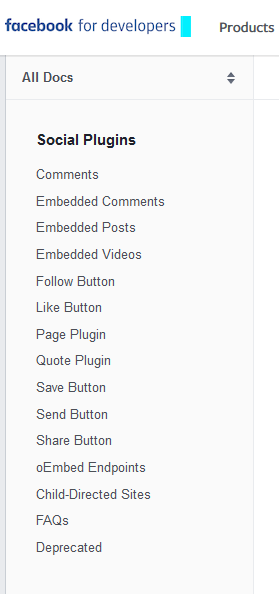
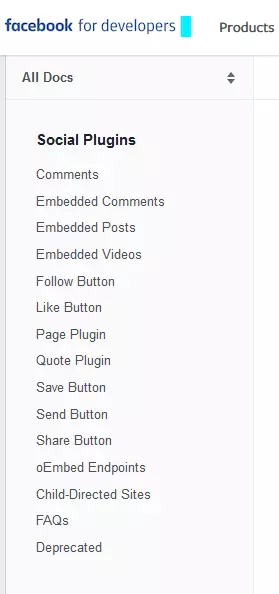
On the following page, you’ll find a little introduction as well as a step-by-step guide to integrating your own Facebook like button. The third section contains the configurator you’ll need, although it can also be located in the menu listed above. You’ll need to fill out the following options fields for the web tool in order to generate a code:
- URL to Like: the social plugin requires the internet address for your Facebook page so that the button can be linked to it later. Enter the full URL of your company Facebook page in this field.
- Width: the ‘width’ option allows you to define the width of your like plugin in pixels. The standard width for the like button plugin is 450 pixels, with the minimum width set at 225 and the maximum 625.
- Layout: the layout field allows you change the appearance format for the Facebook button. This mostly affects the positioning of the number of people who have already interacted with your Facebook page via this social plugin. It’s a common misconception that this figure only shows the number of likes that a page has received. In fact, it combined the number of likes, shares, and comments into one figure.
- Action Type: the action type has no direct effect on the functionality of the button. Instead, it just affects the wording. If you choose to keep the standard setting of the ‘like’, then you’ll take advantage of the classic variant and users who click on the button will inform their Facebook news feed automatically that they like your page. The alternative option, ‘recommend’ allows your user to recommend your content, company, or blog to their friends. The variation is designed predominantly with editorial posts in mind, where the positive statement made by the ‘like’ button may be inappropriate – in the case of a natural disaster or similarly negative events, for example.
- Button Size: you also have the option to change the size of your button. For smaller button displays, you should stick to the default size ‘small’. But if you want a bigger like button to help it stand out more on your page, then you can do so by changing the size to ‘large’.
- Show Friends’ Faces: if site visitors are logged into Facebook while viewing your web project, then the social plugin can display additional profile pictures of their friends who have already liked your Facebook page. To implement this feature, all you need to do is check the tick box in the options field.
- Include Share Button: you don’t have to implement a Facebook share button separately. If you’ve checked this box, then a share option will be automatically integrated alongside the like button plugin.
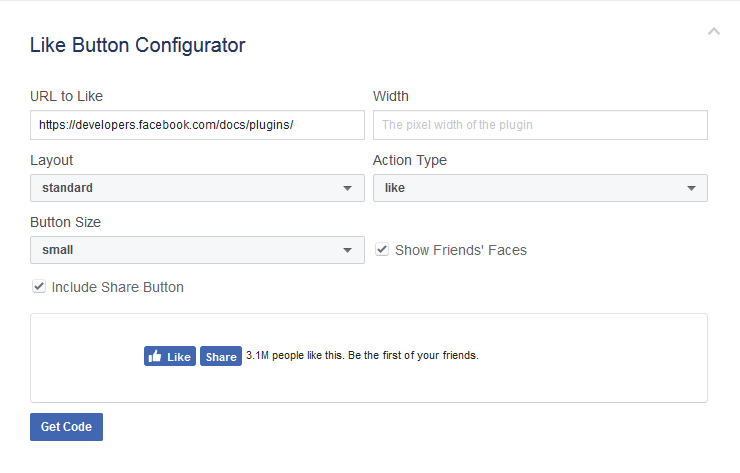
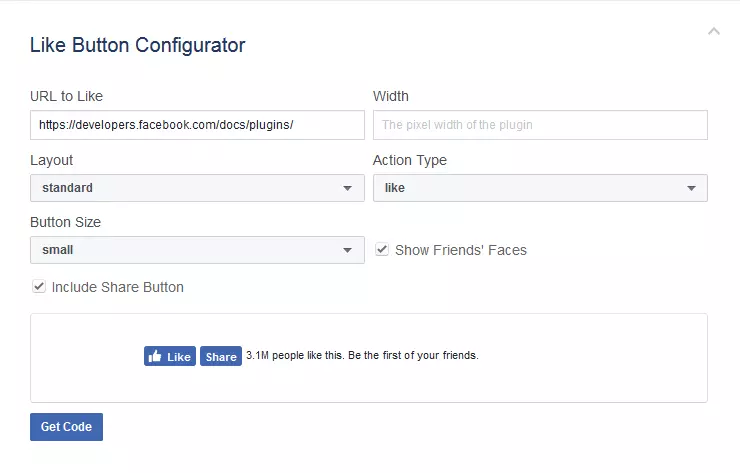
After completing all the options fields, you can now create the code for your Facebook like button by clicking on the ‘Get Code’ button. Select your Facebook app ID and you’ll now receive the embedding code for the Facebook JavaScript SDK (Software Development Kit), that you must first integrate into your website as its own plugin code (ideally after the open <body> tag). Now you can add this plugin code into your HTML document in the place where you want the button to appear.
If you don’t own a Facebook app ID, you can create one easily in the social plugins menu. Simply log in with your Facebook account and choose ‘Add New App‘, which can be found underneath ‘My Apps’ in the top menu listed above. Here, you can enter the display name for your ID as well as your contact e-mail address and chosen category.
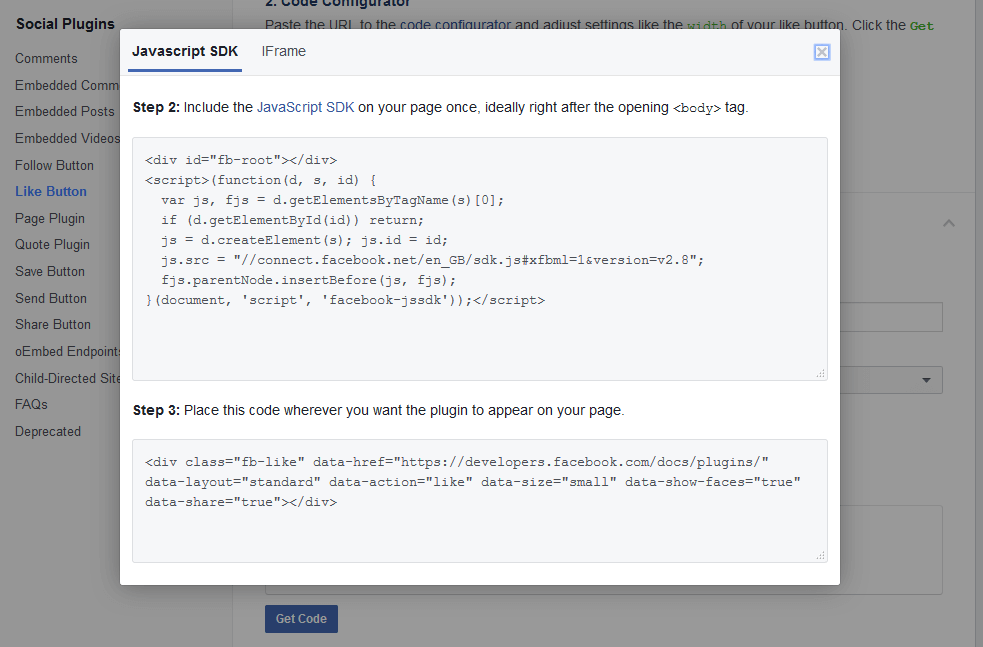
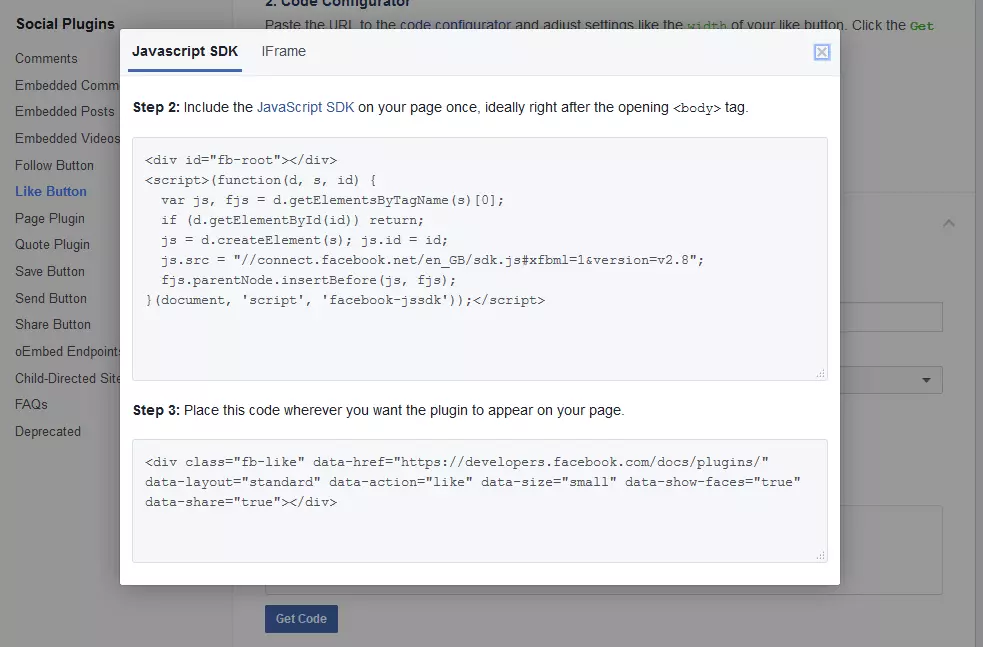
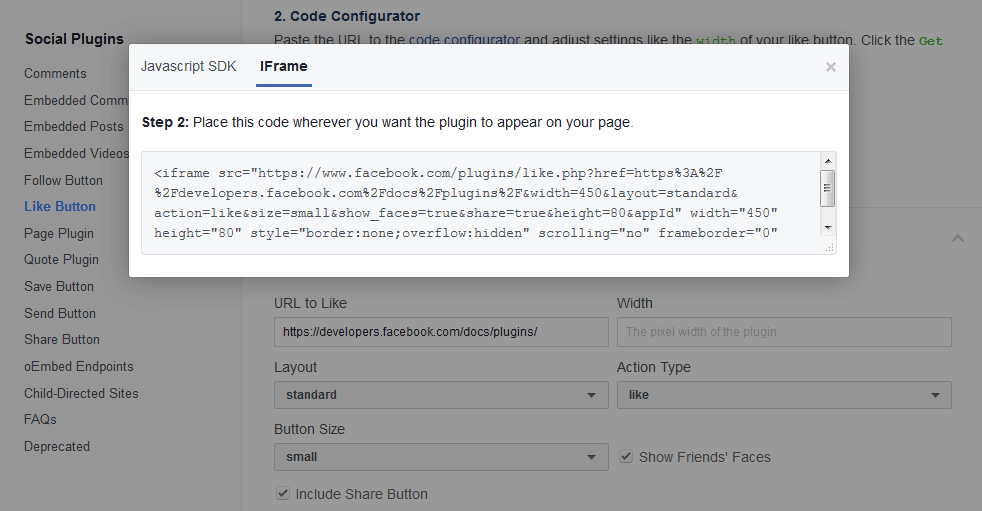
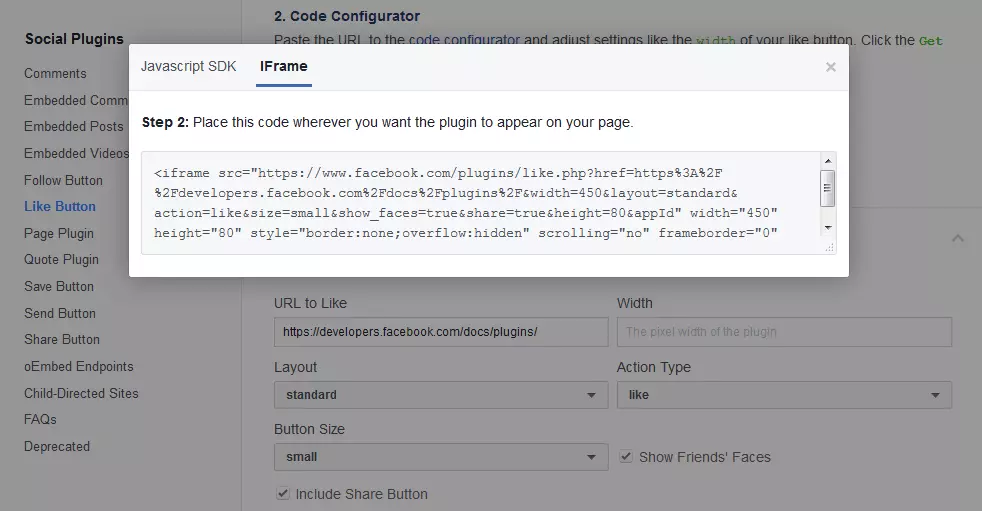
If you want to work with an iFrame instead of the JavaScript code, then simply select the corresponding tab in the pop-up window and copy the iFrame code into your web project. In this case, you won’t need the JavaScript SDK anymore.
The Facebook share button doesn’t have to be created in the same package as the like button: simply select the ‘Share’ button from the menu and generate a second social button in exactly the same way as you did for the like button with the help of the configurator.
What are these two code varieties and what are their differences?
Although the two versions are very similar to one another in their basic function, it does make a difference whether you opt for a Facebook button in the form of an iFrame or a JavaScript application in your web project. Since both social plugins are hosted by Facebook, the social network automatically knows whether the user is logged in – and if they are, it will display a personalized form of the button. In the case of the iFrame, this personalization comes in the form of a list of all of the site visitor’s friends who have previously liked this website or post (including their profile pictures). If the site visitor isn’t logged in or even doesn’t operate a Facebook account, then an invitation or prompt to log in or register will automatically appear. The JavaScript plugin has an additional benefit – it allows users to add a comment when they click on the like button. Unlike the iFrame, which is a single HTML element, the JavaScript version also requires you to embed the Facebook SDK as well as the button code line. You can also use this powerful developer kit to integrate a login feature to the social network. In order for Facebook to display these personalized buttons, the user’s browser contacts the Facebook servers automatically. If the user is logged into the social network, or has been logged in previously, and calls up a page that has a social plugin, then the user can be identified precisely. But this does mean that in return, Facebook receives information such as the access time, user ID, or even information about the browser being used and the individual IP address. The social media giant has previously expressed that it reserves the right to store and use this collected data in order to improve its own products and services as well as to optimize targeted ad displays. This has led to some countries, including Germany, declaring this traditional approach to include the Facebook like button and other social plugins to be unlawful.
An alternative to embedding: simple, CSS-designed HTML links
Shariff is a modern solution to the problem of sharing social media content directly through other websites and platforms. This open source project has been published and developed by Heise through the open platform GitHub, where you can download the source code. A Shariff sharing button is basically nothing more than a simple static link that’s been individually designed to look like a typical share button from one of the popular social media platforms like Facebook, Google+, and Twitter, with the help of the stylesheet language CSS (sheriff.min.css files). This means that the development team at Heise didn’t have to rely on ordinary graphics, it instead opted for flexible vector icons that remain sharp in high-resolution displays and can be placed on either your own private server or via the content delivery network MaxCDN. To ensure you don’t have to enter the URL of the static link manually, Shariff automatically writes it into the source code via JavaScript (shariff.min.js files). You can then implement the button easily using a <div> container and the class sheriff, which can be easily positioned wherever you want the button to appear in the <body> section of your web project. In its simplest form, the source text of a page will look as follows:
<!DOCTYPE html>
<html>
<head>
    [...]
    <title>your website</title>
    <link href="shariff.min.css" rel="stylesheet">
</head>
<body>
    <h1>your article</h1>
    <p>[...]</p>
    <div class="shariff"></div>
    <script src="shariff.min.js"></script>
</body>
</html>
If you use an optional server component, it’s even possible to receive and display information about the number of site visitors that have used your integrated Facebook share button. For this purpose, Heise has developed three backends – a PHP, a Perl, and a Node.js version as well as outsourced modules for Facebook, Google+, and Twitter. The backend sends a request to the server of the network via the corresponding API, and in turn it receives a collection of Meta data as an answer, from which it can then extract the information regarding where the targeted URL has been shared.
Integrating social plugins into your own website – a summary
Linking your own website to your social network pages via buttons can make it much easier to distribute your content. This isn’t just true of Facebook – it applies to all other platforms that you’re active on. If you open up a dialog with your users and regularly publish high-quality content, then the chances are your website traffic will benefit from social signals in the long run. The social plugins that Facebook (and other social media channels like Google+ or Twitter) offers to help you embed your buttons are really helpful, fast, and uncomplicated, but there are also other ways to include social media buttons that don’t compromise data protection, like the Shariff tool from Heise for example.
Shariff doesn’t share data to the server with the social network in question until your site visitors have agreed to it, thanks to the power of static links. By using links like this with button optics, you can enjoy the benefits of linking from your website to your social media profiles without having to hand over your site visitors’ personal data to the social media giants automatically.