

Social plugins: expand your outreach on Facebook, Twitter, Pinterest, et al.

Social signals are everywhere online. Whatever website you’re on, chances are you’re not far away from a like, share, comment, tweet, retweet, pin or a +1 button. If you’re not sure what the significance of this is, chances are your follower base is still relatively low — but it doesn’t have to stay this way. In this article, we will explain how to embed social media plugins into your website in order to expand the outreach of your content on social networks.
- Professional templates
- Intuitive customizable design
- Free domain, SSL, and email address
What are social plugins?
Social plugins are optional software modules that can be used to connect your website with your social media platforms. All of the biggest social networking sites and apps, such as Twitter, Pinterest, Instagram, Google+, and Facebook provide special plugins in the form of code snippets that enable internet users to share and react to online content across different platforms. If you embed these plugins in your website’s source code, you’ll benefit from the immense outreach of these networks. Most social plugins contain widgets. These are graphic elements that are integrated into an area of your website in order to provide users access to certain functions. The best-known widget of this kind is Facebook’s ‘Like’ button. With this, your website visitors can share your content with their friends with a single click. This provides the basis of viral marketing. Facebook alone boasts over 1.8 billion active users every month. More than 85% of these users are outside of the United States and Canada. Against this backdrop, it’s hardly any surprise that social plugins have become far more visible on the World Wide Web in recent years. The use of social signals such as likes, shares, and comments act as a kind of word of mouth promotion. The goal of social media marketing is to direct this publicity as part of an ongoing marketing strategy. Social plugins help you create positive interactions and strengthen your online presence in Web 2.0. The available options vary according to the target platform.
The most popular social plugins at a glance
Social networks now offer an extensive portfolio of plugins that allow website owners to create content that is suitable for cross-platform publication. In order to reach out to a target group that is competent and active on social media, content must be easy to share, comment on or to subscribe to. In addition, many platforms offer the possibility to embed content from social networks into their own website. We have brought together the best solutions from the best-known providers: Facebook, Twitter, Google+, Pinterest and LinkedIn.
Facebook plugins
The international social networking platform, Facebook, is an institution in the world of social media. In the face of ever-growing competition, the website remains the undisputed favorite for the vast majority of social media users. With the following social plugins, you can also allow visitors to interact with content on your website through Facebook.
Like button
Whether it’s displayed as a ‘thumbs up’ icon or just a text field in Facebook’s signature blue, the ‘like’ button is the probably most recognized social plugin in the world. With this ubiquitous button, internet users can share entertaining or relevant web content and link it to their Facebook profile. By ‘liking’ content, users automatically share it to their Facebook timeline, or that of a friend, thus extending the outreach of the content to their online network. Therefore, the more likes an item receives, the more attention it receives online. It’s also possible to see how many Facebook users like your content via the optional counter displayed directly next to the button, as shown below.

Share button
The ‘Like’ function usually appears alongside the ‘Share’ button. This function also links the content to the user’s Facebook profile. It is also possible to share a link as a private message. In addition, it’s possible for users to define whether they want to share their Facebook post publicly on their timeline, or whether it’s only visible to specific friends or groups. It’s increasingly common for internet users to share content that interests them, and as a result, content creators now rely on social plugins like the ‘Share’ and ‘Like’ features to reduce the task of promoting their own content. With snappy and engaging content, these buttons can aid in making a post go viral. The quick and simple function makes it easy for users to spread content around social media within a very short time; this ensures a high level of attention with minimal financial expenditure.

Send button
Another variant of the ‘Share’ function is the ‘Send’ button. This specifically enables Facebook users to send content found on the net via a private message to a Facebook friend or group.


Save button
By using the Facebook ‘Save’ button on your website, visitors have the option to add your web content to a private list of items they like and want to view or comment on later. This list includes features to share content with friends or to receive notifications about the saved items. Users can save anything from interesting articles to videos, recipes to products that can be purchased in webstores. For you as a website owner, the ‘Save’ button creates a communication channel that keeps you up-to-date with articles and informed of current offers.


Share Quote plugin
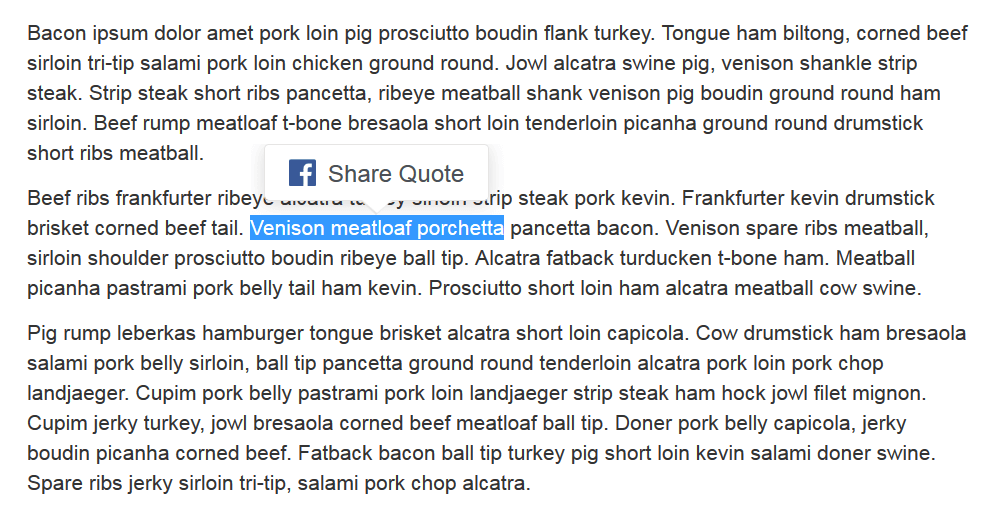
Since the F8 conference in April 2016, Facebook has made the ‘Share Quote’ plugin available to users. This allows your visitors to share any text section of a website as a quote on Facebook. Integrated into the source code of the website, the social plugin opens the ‘Share Quote’ option when a visitor highlights a section of text with the mouse. This function provided internet users with an easy way to interact with the content, embed it into their own posts, and discuss the content with friends.
Comment plugin
Strong content can encourage users to create a dialog and exchange views. Facebook’s ‘Comment’ plugin was created with this in mind. Website owners with this plugin code integrated into their website benefit from allowing visitors to comment on something directly via their Facebook account. In addition, the social plugin enables users to edit their own comments as well as the possibility to specify the number of comments and sort them according to individual preference (i.e., newest, oldest or most popular comments first).
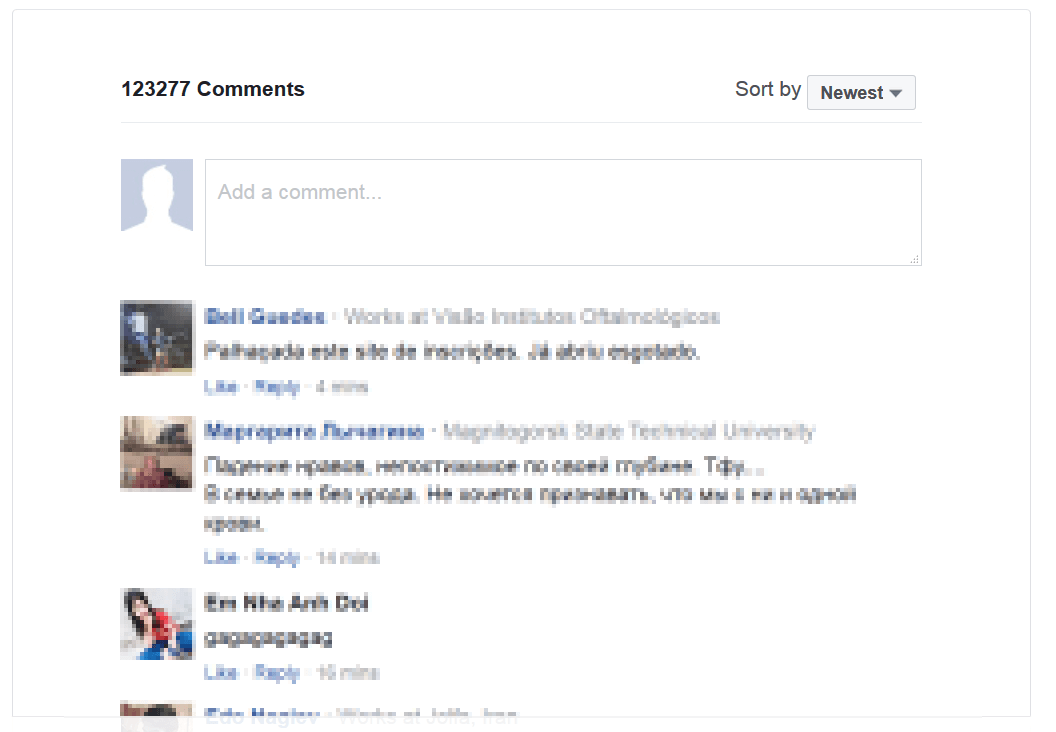
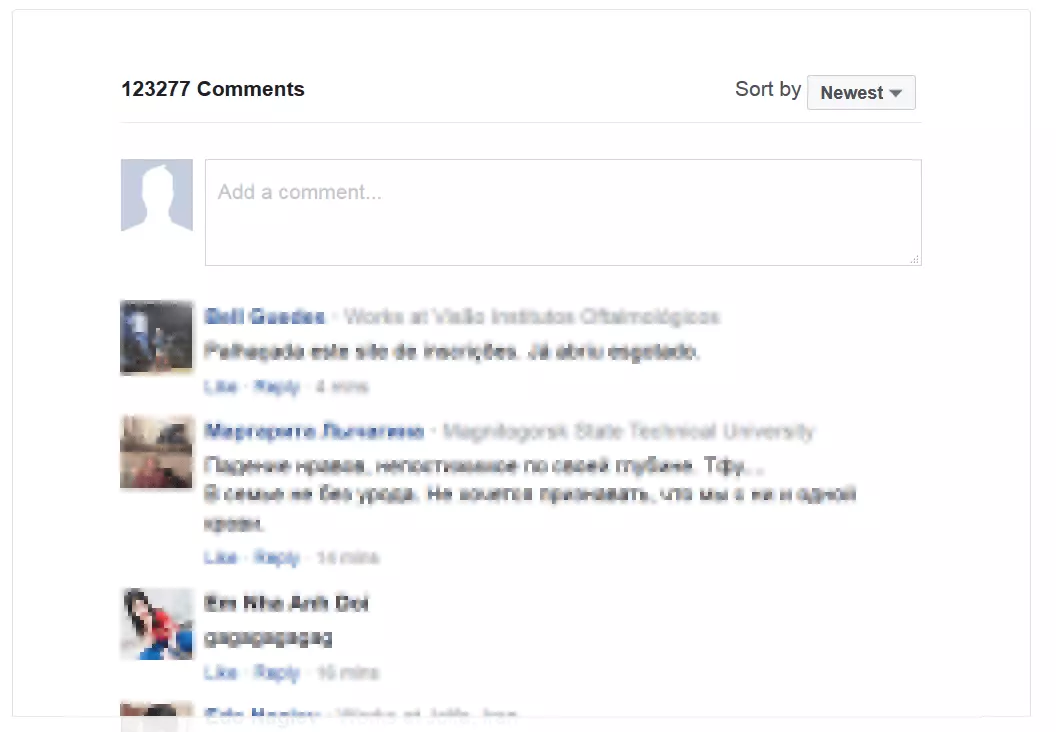
To link your website with Facebook using social plugins, it’s necessary to take the following three steps.
- Define the URL of the web page: first, choose the URL of the website that requires the plugin.
- Generate an embed code: enter the desired URL into the Facebook code configurator and adjust the widget settings to suit your aims.
- Copy plugin code into the source text: Facebook now offers two options for embedding elements into your website.
- JavaScript SDK: if you want to embed a social plugin using the JavaScript Software Development Kit (SDK) from Facebook, two pieces of code are required. The first downloads JavaScript SDK and is inserted into the body tag of the page that is to be linked with Facebook. The second implements the social plugin and is inserted wherever the widget should appear on the website.
- Iframe: you can alternatively embed the social plugins using Facebook’s iframes.
With the like, share, and comment buttons, social plugins can offer a range of diverse functions that help increase the outreach of web content over social media channels. In principle, however, it is also possible to reverse engagements between websites and social networks, with the market leader Facebook providing social media plugins that allow website operators to embed content taken from the social networking site into their own online project.
Embedded posts and comments
The social plugin Embedded Posts creates an interface between your website and Facebook, and enables website owners to embed Facebook posts within their website content. To clarify, you can use any public post here — they do not necessarily have to have been posted to your own Facebook page.
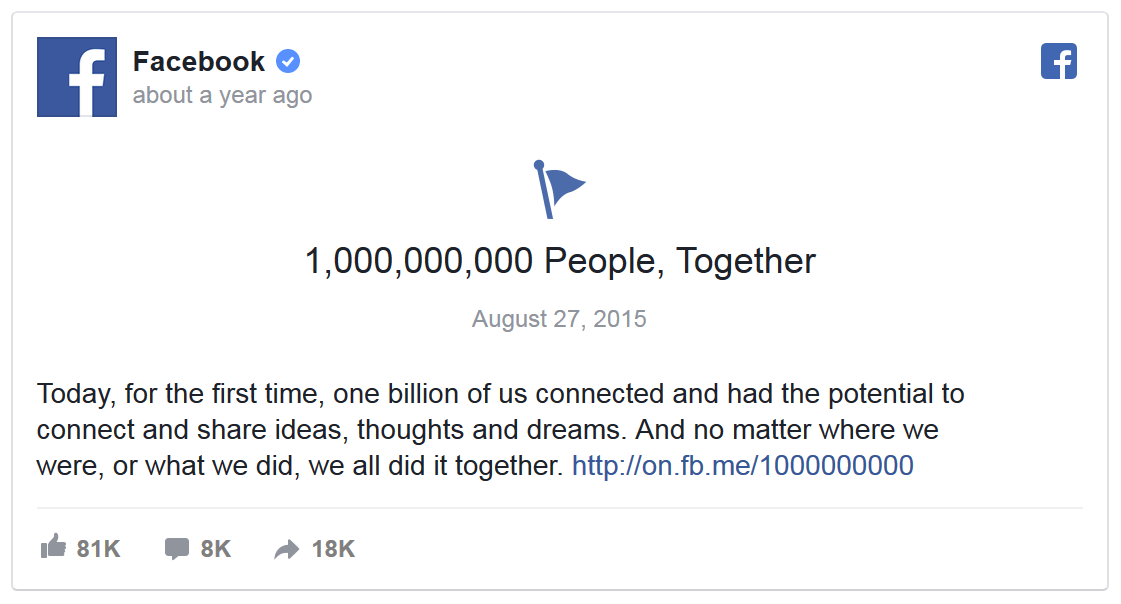
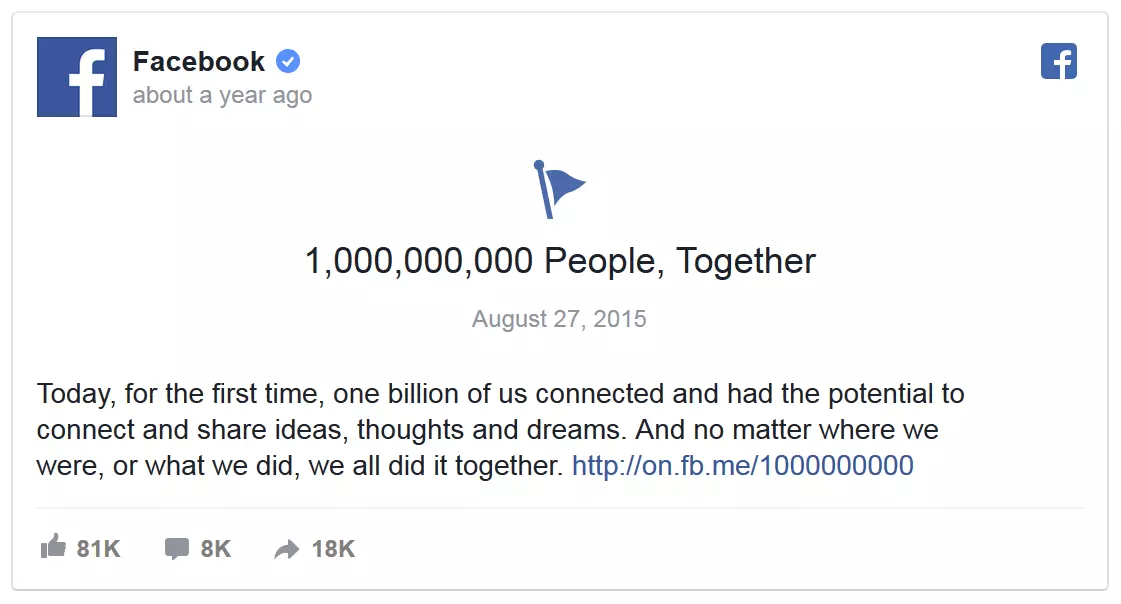
In principle, any public post on Facebook may be used. No matter whether the content consists of text, images, or videos. However, if the original author subsequently edits or deletes their post, it’s no longer available via the social media plugin and the following error message appears: ‘This Facebook post is no longer available’.
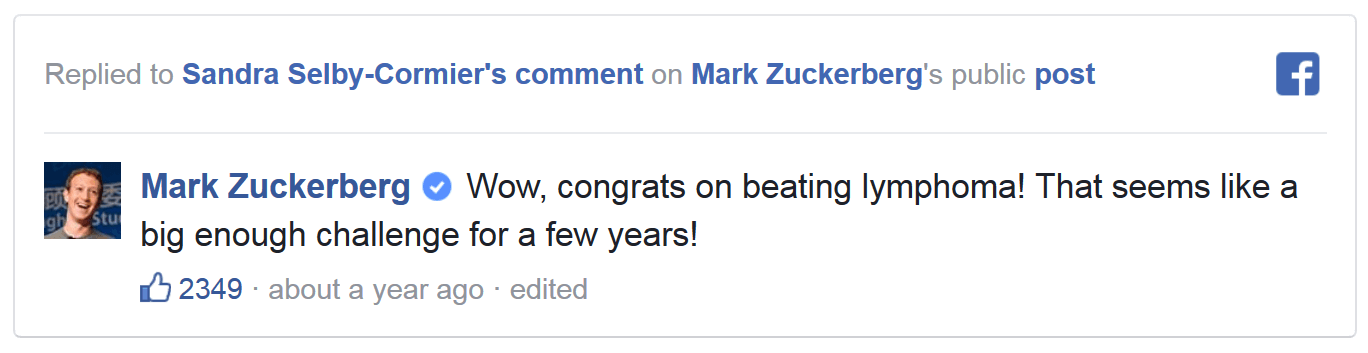
As well as integrating a public post into your website, you also have the possibility to embed relevant user comments into your website, as long as they are publicly available on Facebook.

Embedded videos
Facebook also provides a suitable social plugin for website operators to integrate relevant video content from a social networking site into their web project. Almost every publicly accessible Facebook video can be integrated into the website via this interface.


Like Page plugin
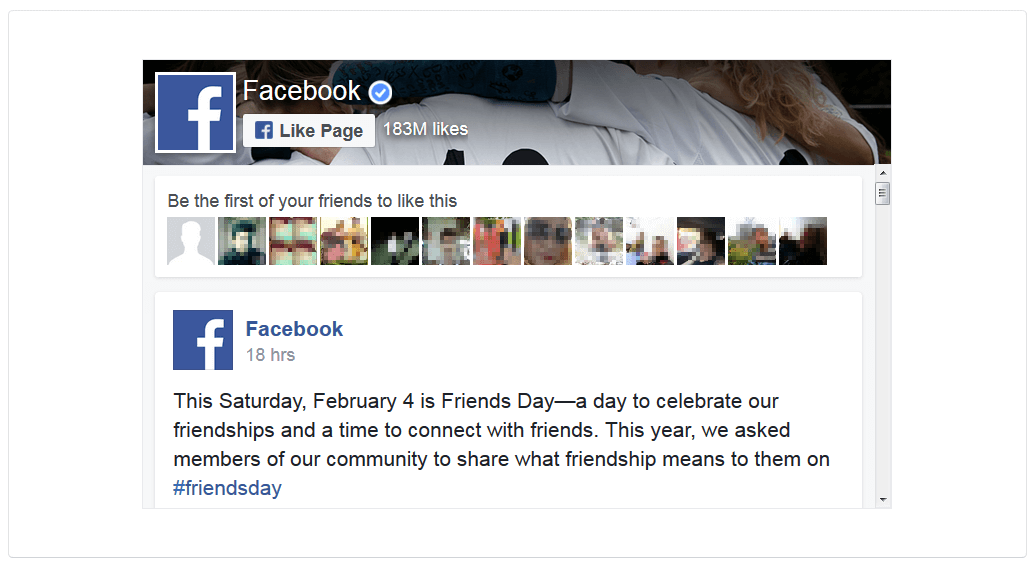
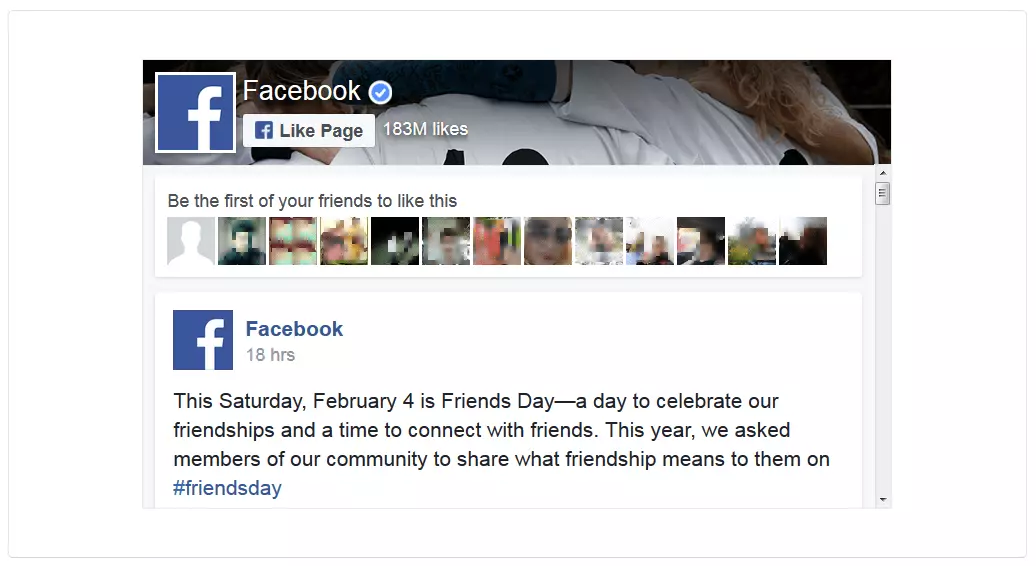
Entire Facebook pages can also be integrated into independent web projects via a social widget. With the Facebook ‘Like Page’ plugin, it’s quick and easy to link a website to a Facebook page.
Follow button
Of course, social networking is all about building hype and gaining followers. The more subscribers a page has, the greater the outreach of individual social media posts. With the Facebook ‘Follow’ plugin, you can also boost your outreach to include followers outside the Facebook community. You can also choose to add a counter, which displays the number of visits you’ve received or how many Facebook users currently follow your social media profile.
Facebook Login for apps
Facebook also provides a cross-platform login function for app developers. This enables users to sign into a previously existing Facebook Account via various webpages. A corresponding software development kit (SDK) can be used for this purpose and is available for iOS apps, Android apps, web apps and mobile web apps, Windows Phone, Desktop apps, and smart devices (including smart TVs and the Internet of Things). A manual check through Facebook is required for apps that use any data beyond the user’s profile, e-mail address, and friend list. Facebook also offers a login review, which ensures that the app meets the platform guidelines as part of a practice test.
As before, if you want to transfer Facebook content to your own website, the implementation involves only three simple steps:
1. Determine the URL of the Facebook content: select your chosen Facebook content. Whether it is a post or comment, a picture, a video, or an entire Facebook page, it should be publicly accessible.
2. Generate embed code: enter the URL for the chosen content into the code configurator available in the Facebook for Developers site. Click ‘Generate code’.
3. Enter plugin code into the source code: integrate the JavaScript SDK and the plugin code or iframe into the source code of the target web page. Here it’s important to note that the code for the JavaScript SDK is only implemented once for each web page, regardless of how many Facebook plugins you wish to embed.
It’s not always necessary to use the code configurator; an embed code is already included in the drop-down menu in the upper corner of much Facebook content. In this case, Facebook only displays an iframe. For further information on how to integrate Facebook buttons, check out this helpful guide.
Twitter plugins
The microblogging service, Twitter is a platform that enables people to share their opinions and experiences in short tweets. These short messages are similar to Facebook status updates, but they are limited to 140 characters. Twitter is a major player in the world of social media, with around 313 million active users per month writing or retweeting. With its enormous outreach, Twitter is the ideal platform for content writers to share their work beyond the boundaries of their own website. Like Facebook, the microblogging service also offers a variety of social media plugins that allow website visitors to tweet content.
Tweet button
The ‘Tweet’ button is Twitter’s answer to Facebook’s ‘Share’ function. With just one click, website visitors can access their own Twitter account and share interesting website content with friends, acquaintances, and followers.


Follow button
Tweets are usually only seen by a user’s own followers. Therefore, the more followers a Twitter user has, the greater their content outreach. Content writers can also benefit from increasing the size of their Twitter follower base when they promote their website via other social media channels. The microblogging service, therefore, offers a ‘Follow’ button, Twitter’s counterpart to Facebook's subscription function. This button aids Twitter users in growing their follower count across alternative platforms.


Hashtag button
The Hashtag button is a special kind of Tweet buttons, which allows website visitors to enter a Twitter conversation by composing a tweet with a specific hashtag — all without having to leave your page.


Mention button
Another variant of the Tweet button is the ‘Mention’ button. By adding this button to your website, you can encourage your visitors to share tweets that refer to a specific Twitter account. These begin with @username, which notifies the targeted account, but the tweet does not appear on their Twitter timeline.


Message button
The ‘Message’ button directs your website visitors to the microblogging platform’s private messaging service. It’s also possible to configure a specific user account when embedding this function.


The embed code for these interactive social media buttons is available from publish.twitter.com. The process of integrating this button is very similar to the Facebook function.
- Select your chosen Twitter button: select the desired button from the selection of Twitter plugins on offer.
- Configure button: configure the button as required via publish.twitter.com and generate the plugin code.
- Enter the embed code into the website source code: insert the code in the place where you want to have it appear on the website.
Twitter content can also be integrated into your website quickly and easily via the social plugin, either as individual tweets or in the form of a Twitter timeline.
Embedded tweet
Before the advent of blogging and microblogging platforms, people stayed up-to-date on current affairs via daily newspapers. But social media sites like Twitter have transformed the way news is reported and consumed. This multifaceted communication platform is a useful tool for anyone with an opinion to share, whether they be politicians, public authorities, celebrities, or private individuals. Nowadays, it’s not uncommon to find topical, intellectual, or particularly ridiculous tweets quoted as sources on online news portals. With the ‘Embedded Tweet’ plugin, you can also integrate relevant Twitter posts as individual tweets into your page content. Simply add the appropriate embed code into the source code for your website.


Embedded timelines
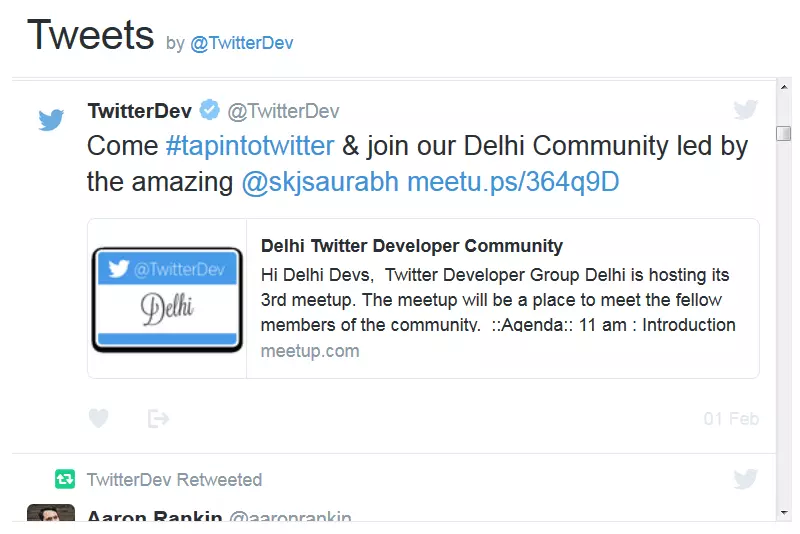
If you want to embed more than one tweet into your website, you can use Twitter’s ‘Embedded Timelines’ plugin. This allows you to display any number of Twitter posts in single column view with the scroll bar. This way, tweets of an individual Twitter account can be integrated into your website, or alternatively, you can embed various posts from different user accounts. It is also possible to provide visitors with topical tweets for specific keywords. On Twitter, as well as on the majority of social media platforms, keywords are marked with a hashtag (#), as we see in the following example.

Sign in with Twitter
The microblogging service also provides website owners and app developers with a cross-platform login feature. Using ‘Sign in with Twitter,' any website visitor can obtain a registered user account without the unnecessary hassle of registering separately with each app. All data required for the authentication of a new account (i.e., name, e-mail address, etc.) are managed centrally via the user’s Twitter account. ‘Sign in with Twitter’ can be used as a login alternative for websites and iOS apps as well as for mobile and desktop applications.
Embedded tweets and the Timeline widget can also be configured individually via publish.twitter.com:
- Define the URL of the Twitter content: first, enter the URL of the Twitter content you wish to embed into your website.
- Choose a social plugin: select the desired social plugin at publish.twitter.com, copy the URL into the input mask and click on Preview.
- Transfer embed code to the website: copy and paste the embed code generated by Twitter into the source code of your website.
Plug-ins for Google+
Google+ is a social media platform created by the search engine, Google. Unlike Facebook and Twitter, Google+ contacts are divided into so-called circles. When posting anything to the social network, users first select which circle they want to share their content with. It is also possible to add non-registered users to Google+ circles. In this case, Google+ sends an email notifying the user of the post.
Like other platforms, Google+ also offers a wide variety of plugins that allow website owners to share content on social media in a variety of ways. As with Twitter and Facebook, these interfaces also allow you to integrate text, images, and video content from Google+ into your own website.
Google+ offers the following social media plugins, among others:
+1 Button
The +1 button is Google’s answer to Facebook’s ‘Like’ function. By integrating this widget into their online presence, website owners can offer their visitors the option of recommending either selected content, the entire page or the website publicly on Google+. The widget can be embedded either as a button or as in the following example with a counter.


Share button
Like Facebook and Twitter, Google+ also offers a Share button. The share function on your website gives your visitors the option to share content on Google+ with a single click. The social plugin implements a button in a range of heights and widths. If desired, the widget can also display how often your content has been shared on Google+.


Follow button
Google+ also allows users to generate more subscribers with a ‘Follow’ button. With just one click of this button, website visitors can subscribe to your profile without having to leave the current webpage. Like the aforementioned functions, you can choose to implement this social plugin as a simple button or including a counter.


Badge
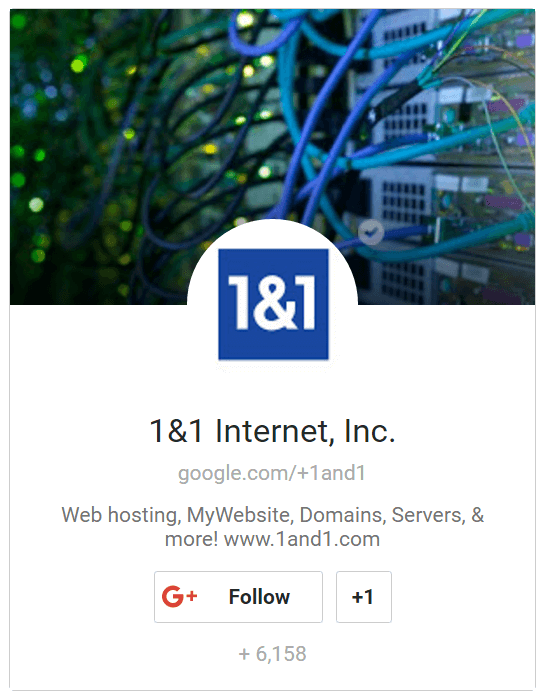
The badge plugin allows you to integrate your Google+ profile directly into your website. This way, you can indicate to your website visitors that you are also present on Google+. Similar to the Facebook page plugin, Google's badge plugin also includes a preview of your social media profile. It is comprised of a thumbnail, the + 1 button, and the follow function. In addition, the badge plugin helps to merge the ‘+1’ ratings of your site with those of your other social media profiles.

Embedded posts
Like Twitter, Google+ provides a social plugin that allows you to embed public social media posts into your website. The widget can be integrated into any website with just a few lines of code and comes in the form of a ‘+1’ button next to the text, audio, or video content, as well as the option to follow the author of the post.


Snippet
If an internet user shares a link to your website on social media, Google+ automatically adds a preview, known as a snippet. It comprises of a page title, a short description, and a thumbnail. This data is extracted from the page content of the shared URL. The following technologies can provide this information:
- Microdata markup through Schema.org
- Open Graph protocol
- Title and meta-description
Google uses these with descending priority. If the information cannot be read in the preferred format, Google attempts to generate the title, description, and thumbnail from the website content.
As with Facebook, Google+ requires a JavaScript SDK in order to integrate interactive social media plugins into a website. The embed code should be placed before the closing body tag of each webpage that is to be linked to Google+. You can then add as many plugins as you like on the respective pages. The required codes are available for configuring individually at developers.google.com/web.
Pinterest is a social network that enables users to collect images with captions and arrange them thematically into virtual pinboards. The popular image-sharing platform now offers five different social plugins that allow website owners to expand the potential outreach of their online content. Alternatively, content uploaded to Pinterest by other users can be integrated into your website as pins.
Save button
The ‘Save’ button is the easiest way to make web content available for interactions on Pinterest. This allows users to add content they like to their virtual Pinterest boards. Any image or video content can be published on the social network with a link to the source, which can be a great way to generate traffic to your site.


Follow button
If you already have your own Pinterest profile, you’ll know that with every new follower, the outreach of your posts increases. The ‘Follow’ button, therefore, helps you to attract new Pinterest followers via your site.


Pin widget
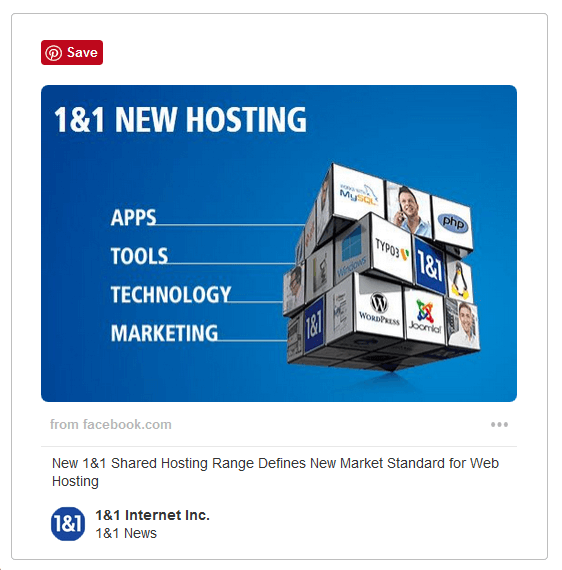
With the pin widget, you can integrate a Pinterest post into your website, whether it’s a pin of your own or interesting picture or video content from another Pinterest user. The following example shows a pin from the IONOS Pinterest profile:
Board widget
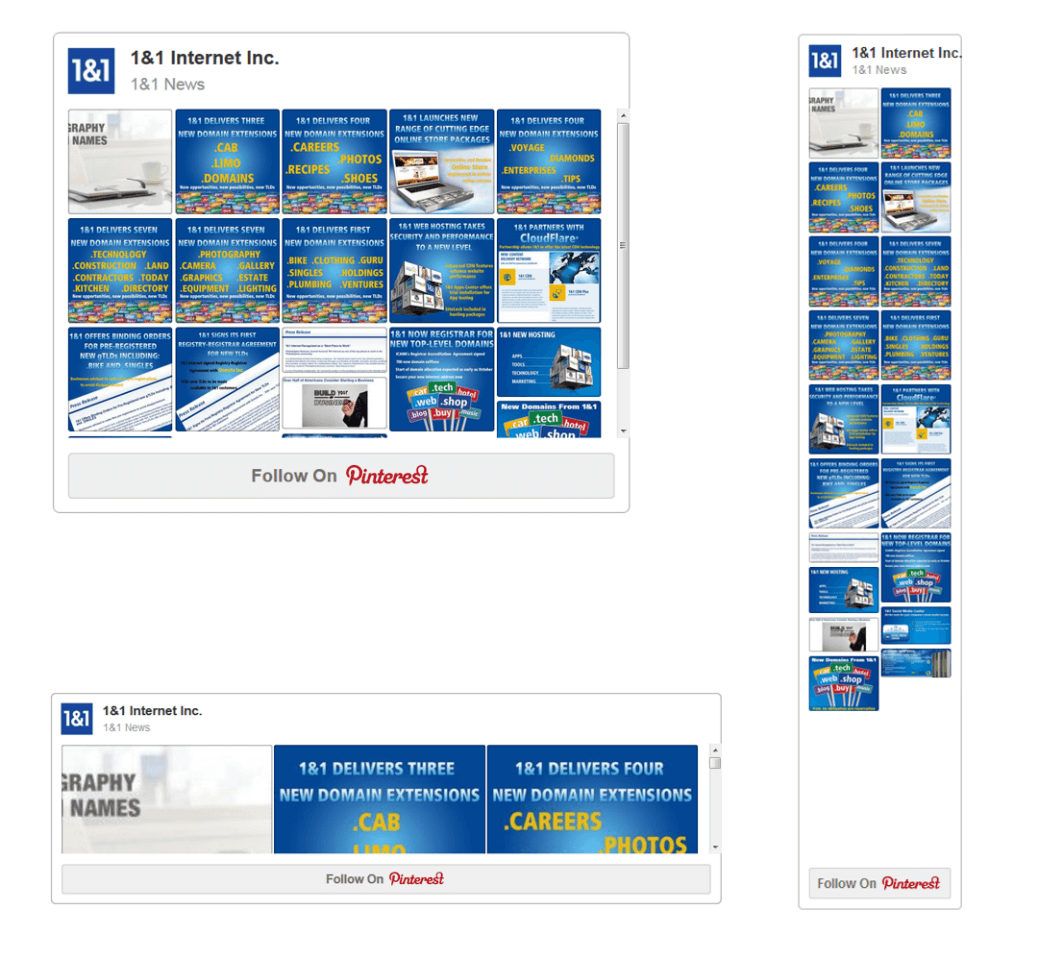
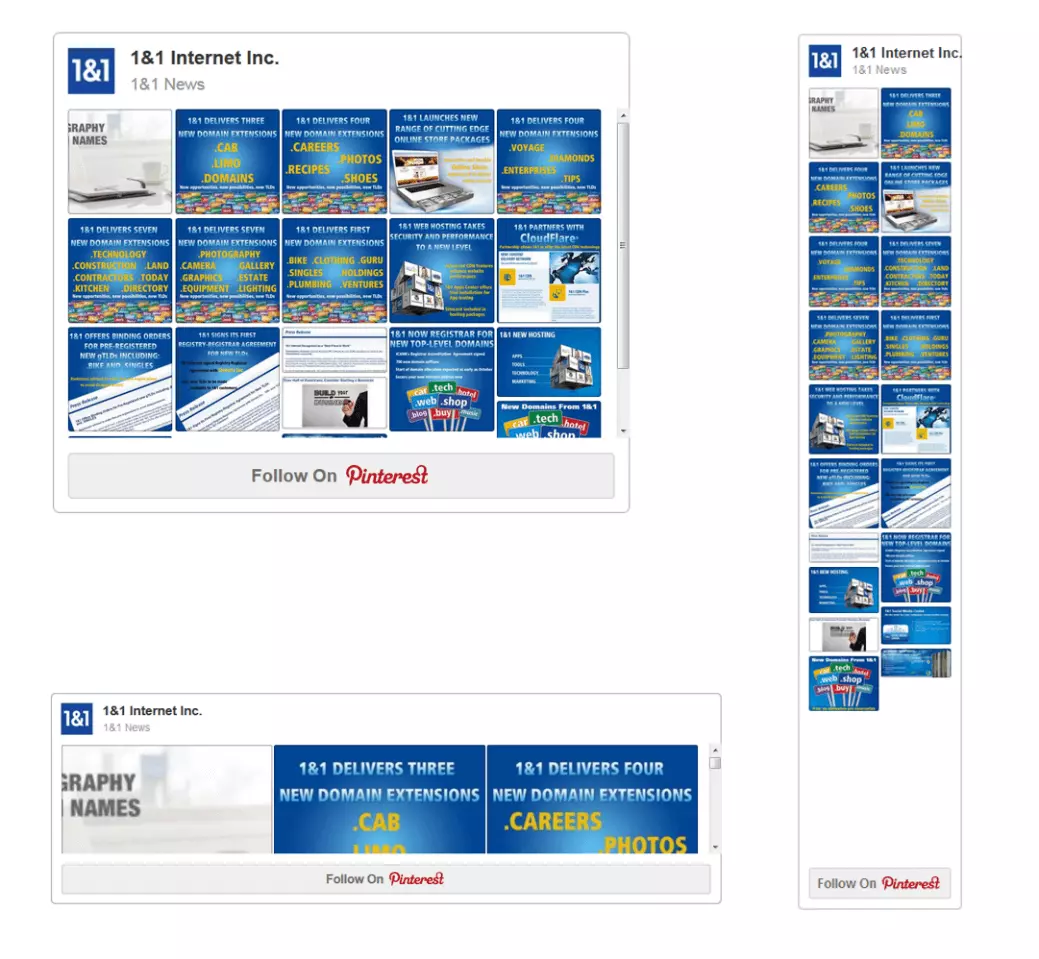
With the board widget, website owners can embed entire pinboards with up to 50 pins into your website. The social widget is available in the standard formats, square, header, and sidebar, and it’s also possible for users to define the display themselves.
Profile widget
Pinterest also gives website owners the option to embed all of their different social media profiles into one external website. This means that profile widget creates a bridge between your website and your presence on the image-sharing platform. Like the board widget, you can also customize this social plug-in to your website. Use the Profile widget in square, header, or sidebar, or select custom dimensions.
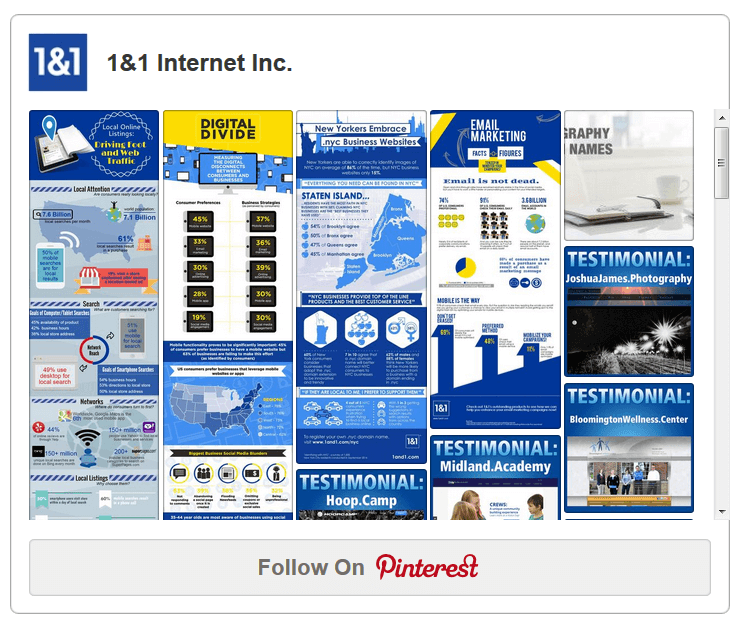
Before you integrate social plugins into your online projects, you need to implement a JavaScript library for Pinterest in each of the relevant webpages. A corresponding code snippet is then provided by the Pinterest widget builder. This is where you also create the embed codes for individually configured buttons and pins, as well as board and profile widgets.
With 467 million users worldwide, LinkedIn is the biggest social network that centers on building professional relationships. Rather than gaining friends, the purpose of the platform is to help users find contacts and connections in their area of work. Another aspect that makes LinkedIn unusual among social networking sites is the option to describe and present your own company. For entrepreneurs, the network opens up an important communication channel through which interested parties can be scouted by both potential collaborators and employers. They can also find relevant brands, products, services, and career opportunities. LinkedIn also provides the following range of sharing functions:
Share button
With LinkedIn plugins, website owners specifically target a specialist audience. Do you regularly publish articles on business-related topics? Then it makes sense to extend the outreach of this web content using the popular business platform. Like other social networks, LinkedIn also has a share button. This encourages your visitors to share interesting content on the network, which helps your posts to reach a larger audience. This gives you the opportunity to benefit from increased attention and thus generate new visitors for your website.


Company profile widget
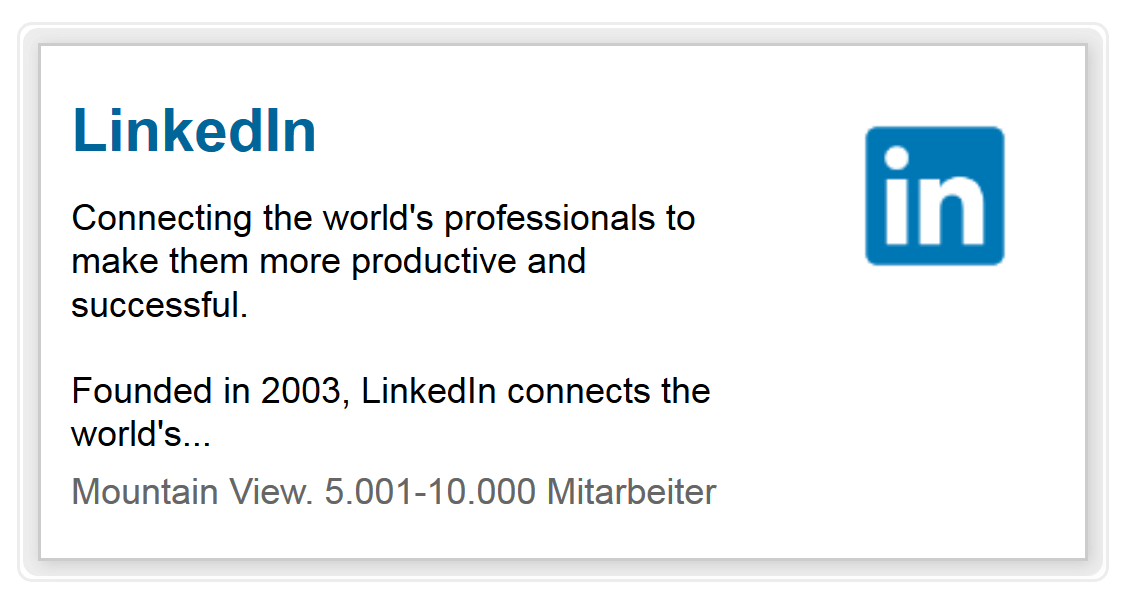
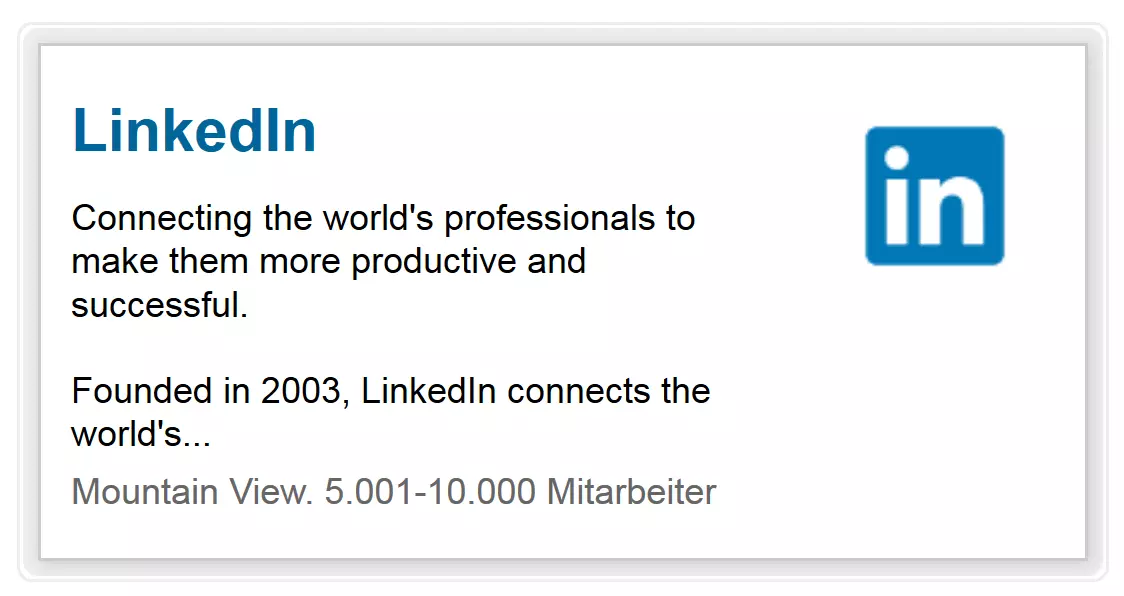
If you have a LinkedIn company profile, it’s important to make your website visitors aware that they can find out further information about your company here. To do this, you can embed the ‘Company Profile’ widget directly into your website. This social plugin displays the most important information about your company, as seen in the following example.
Follow Company button
Use the ‘Follow Company’ plugin to gain new subscribers to your LinkedIn company profile directly from your website. If a visitor clicks on the ‘Follow’ button, he or she will be able to remain up to date with all of the posts that are published on your company profile.


Member Profile widget
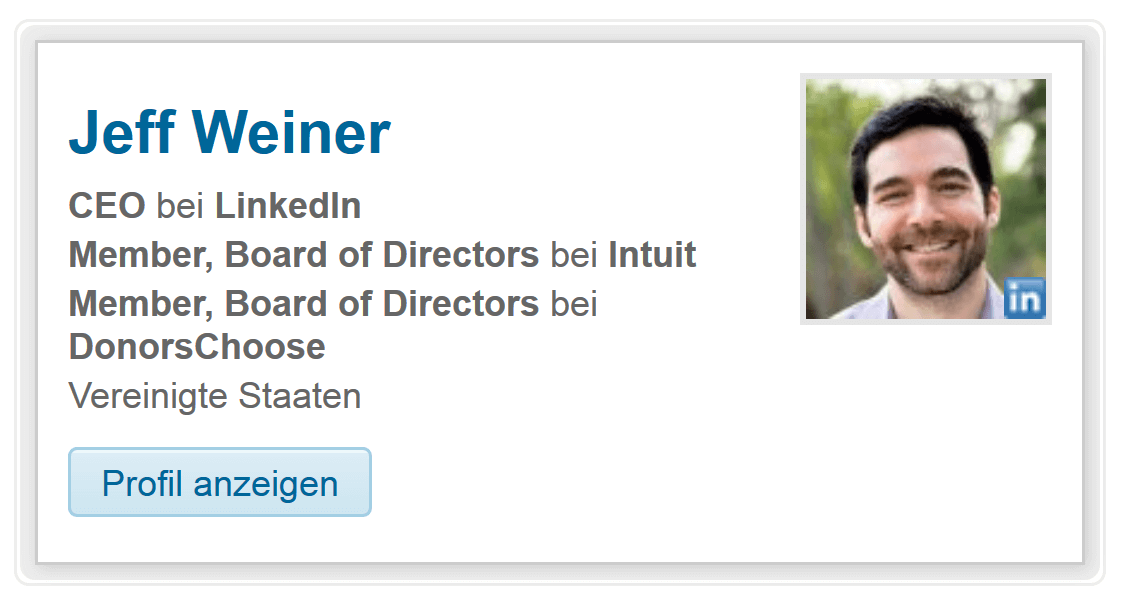
In addition to company profiles, it’s also possible to integrate standard LinkedIn user profiles into external websites via a social plugin. Using this, companies provide website visitors with an additional communication channel, besides traditional methods such as e-mail, address, and telephone number. The ‘Member Profile’ widget provides relevant information about a specific user and includes a button that allows website visitors to go directly to that user’s LinkedIn profile. From there, the user can go on to follow that specific member or his or her company on LinkedIn. You can also get in touch via the LinkedIn messaging service.
Company Insider widget
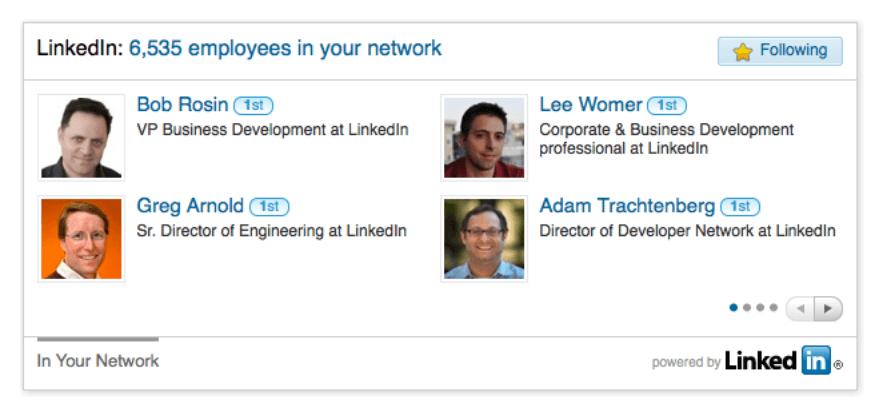
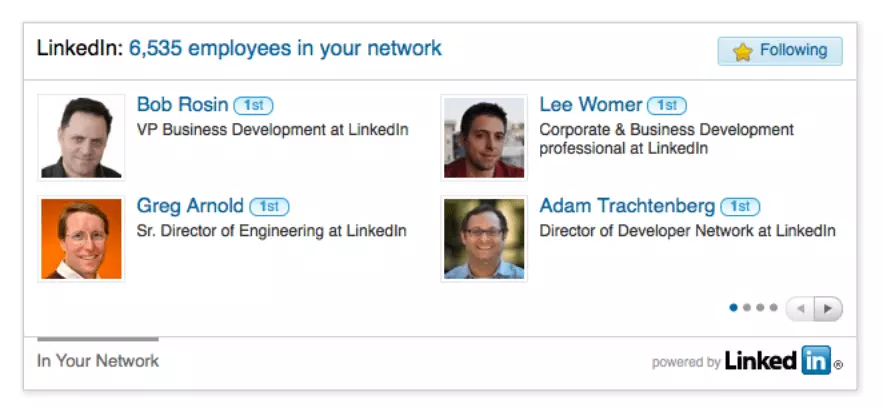
With ‘Company Insider,' LinkedIn offers its users a truly unique widget that can’t be found on any other social media platform. When embedded in a corporate website, the ‘Company Insider’ shows website visitors which employees of the respective company are connected to your social network.
‘Jobs You Might Be Interested In’
This social plugin allows website owners to draw attention to interesting vacancies published on LinkedIn. Companies usually include this widget in the career area of their site and limit the view to their own ads.


LinkedIn also offers a code configurator for each of its social media plugins. Unlike Facebook, Twitter, Google+, and Pinterest, however, unregistered users only have access to the embed code for the share button; all other social plugins require users to have a LinkedIn profile. The integration of this widget is analogous to the other platforms using a JavaScript SKD and an appropriate plugin code.
Xing is also a business network and a competitor of LinkedIn. Members of the online service use it for work-related exchanges in order to train themselves professionally or to open up new career opportunities. Unlike the internationally oriented LinkedIn, however, the platform is primarily geared towards German-speaking countries. Even if the multilingual user interface covers all relevant markets, over 90% of all Xing traffic comes from the D-A-CH region (Germany, Austria, and Switzerland). Nevertheless, Xing’s user base of approximately 15 million can prove quite useful for website operators. Particularly if these German-speaking countries are relevant to your target group, it can be worthwhile possible to link your Xing profile to your website.
Xing offers three social plugins that enable users to interact via the social network.
Share on XING
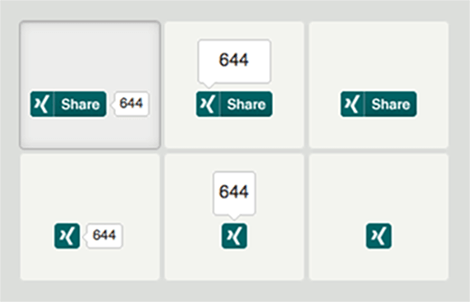
With Xing’s Share button, you can also benefit from viral effects and attract prospective visitors from the social network to your website. With just one click, your website content is available on Xing to a German-speaking and specialist, career-oriented audience.
Follow on XING
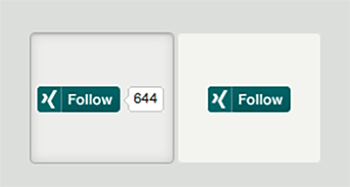
Generate new followers for your Xing profile via your company website with the ‘Follow on Xing’ social plugin. All of your social media posts will appear in your followers’ personal newsfeed. This way, your target group can always stay up-to-date with your company.
Login with Xing
Xing also has a social plugin that enables your website’s visitors to log into your website or app using their existing Xing profile. With this plugin, users avoid a long-winded registration process — often the biggest obstacle in the registration process. To integrate a social plugin from Xing, you simply need to generate the required JavaScript code using the code configurator at dev.xing.com/plugins/ and embed it into your online project. The code line should be pasted in the source text in the exact position that the button should appear on the webpage. In addition, Xing provides a social plugin for Microsoft Outlook 365 that allows users to import their current Xing contact data into the popular e-mail program automatically.
Is using social plugins worth it?
Now that you’re familiar with the most important social media plugins and the various possibilities for interaction these provide, all that remains is to ask yourself the following question: would these functions have a positive effect on the performance of my website?
One thing is for certain: the search engine market leader, Google, does not take social signals like likes, shares, tweets, or pins into account as part of the ranking algorithm. Matt Cutts, the former head of the Google Web Spam team, explains the reasons behind this decision in a 2014 YouTube video.
 To display this video, third-party cookies are required. You can access and change your cookie settings here.
 In the short video clip, Cutts explains that Google doesn’t consider the potential number of followers website owners have gained/could gain for their content as a relevant criterion for the Google rankings. Similarly, likes and shares are not taken into account for the positioning of search results.
The reason for this is simple: Google considers posts on Facebook, Twitter, etc., to be individual webpages, which, in principle, can be indexed. However, social networking sites generate much more new content every day than traditional websites, and not all of these webpages are relevant. Google ultimately works with limited resources, albeit at a tremendously high level. It can be assumed that the search engine market leader does not attempt to crawl and index social media.
The webmasters at Google have also considered the fact that social media content and connections are often volatile. Users are free to delete posts, change their relationship status, end friendships, unlike a page and unsubscribe from their contacts at any time. Each indexing would therefore only be representative of a moment, carrying little overall weight. Google also does not necessarily have access to all content on Facebook, Twitter, or other platforms.
But that’s not to say that social plugins do not have an effect on the success of your website. In fact, there is an extremely strong correlation between social signals and the Google ranking position of that website, according to a 2016 Searchmetrics study. This study proves the correlation is even higher than with any other factor that has an influence on the ranking. But correlation doesn’t automatically lead to a causal connection.
One explanation for the fact that high-ranking websites often also produce a lot of social signals is as follows: the highest positions in the search engine results pages (SERPs) are usually occupied by well-known brands. These brands tend to have their own social media department, whose primary aim is to maintain a dominant position in social media.
It would be a mistake to interpret a social plugin as a kind of SEO plugin. Instead of focusing on your ranking in the search engine, you should take into account the following effects that creating connections to social media can bring:
- Social plugins can expand the outreach of your content and help to generate a larger reader base.
- Generating new traffic through shares and likes on social media platforms directly increases traffic to your website at the same time.
- Having a strong presence in the most popular social networking sites increases awareness of your company, your brands, goods, and services.
- Every social media plugin acts as a point of contact with potential customers who are part of the touchpoint management and can be used to ensure a positive brand experience.
You should, therefore, perhaps consider social plugins not, in terms of search engine optimization but rather the potential effect on the brand name, reputation, customer service, customer relationships, and reliability.